Catalog
Once departments are set up, administrators can manage users in Sanplex.
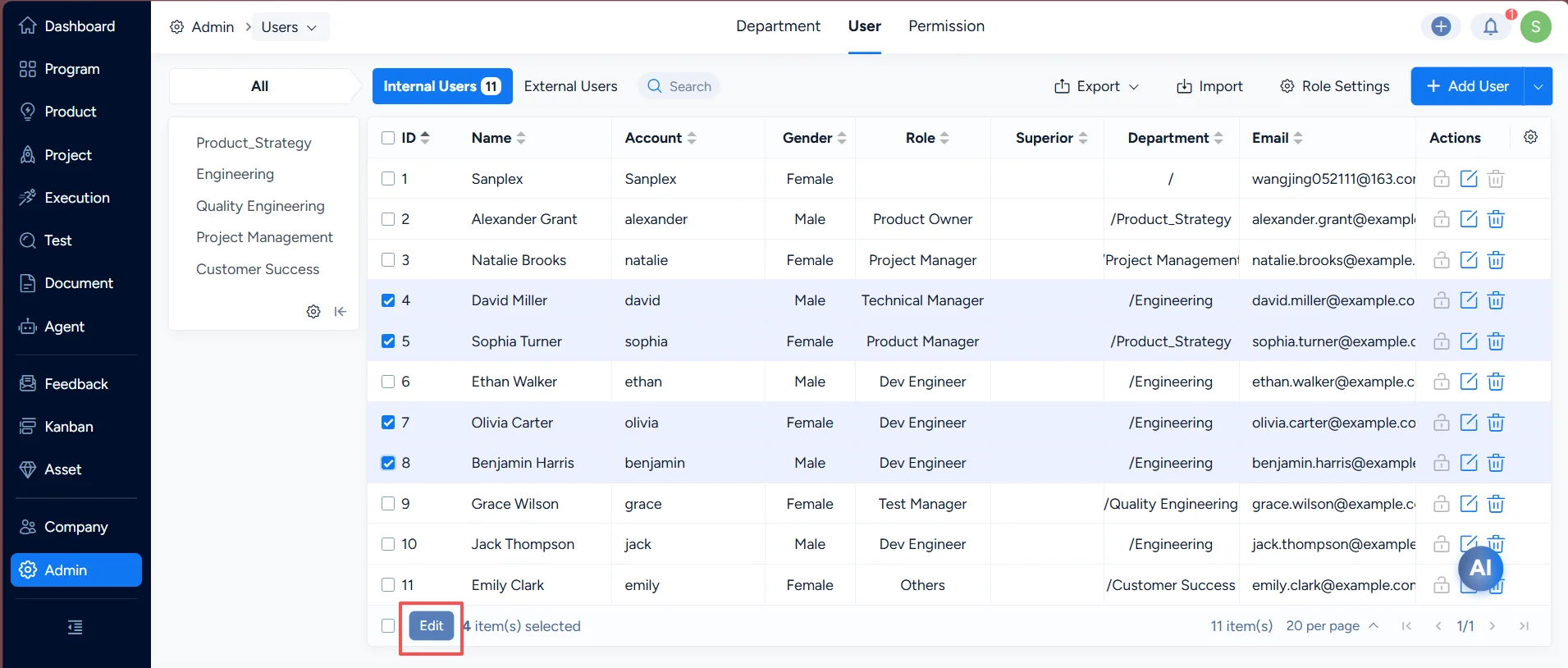
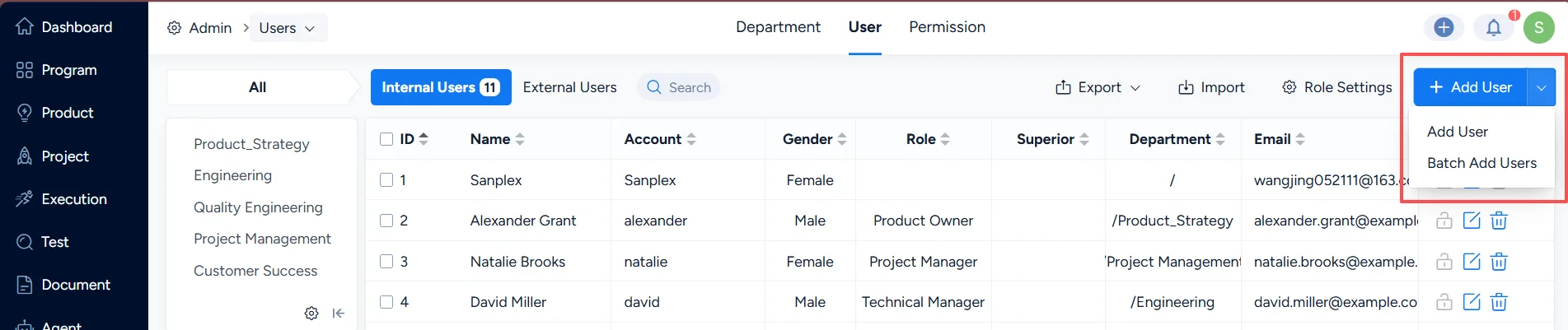
- Click Add User or Batch Add Users in the top-right of the user list to add new users.
- After a user is added, click the action buttons on the right side of the user list to edit or delete the user.
- If a user is locked, you can unlock the account.
- Click Edit at the bottom of the user list to perform bulk editing.
I. Enter User Management
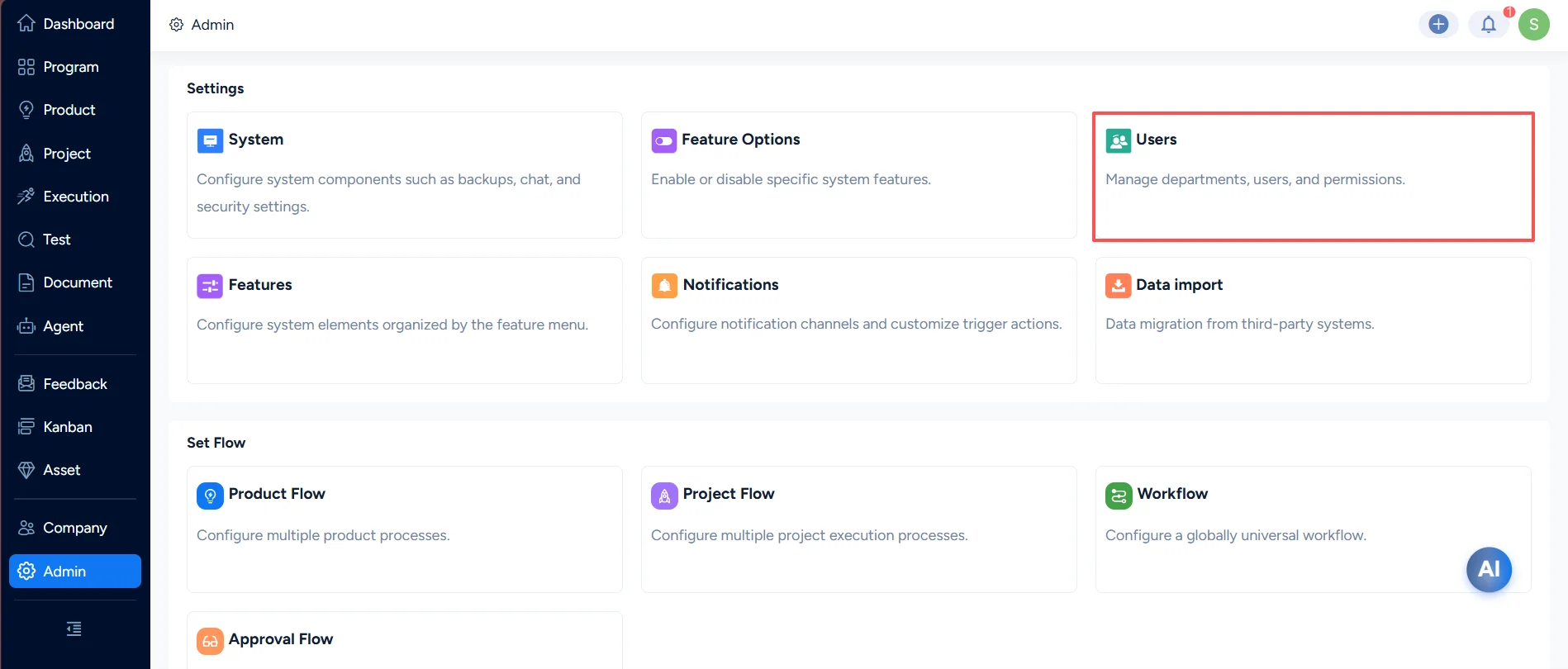
Go to Admin > Users to open the user management page.
II. Add Users
Log in as an administrator. In Admin > Users > User, you can add users, batch add users, and bulk edit users.
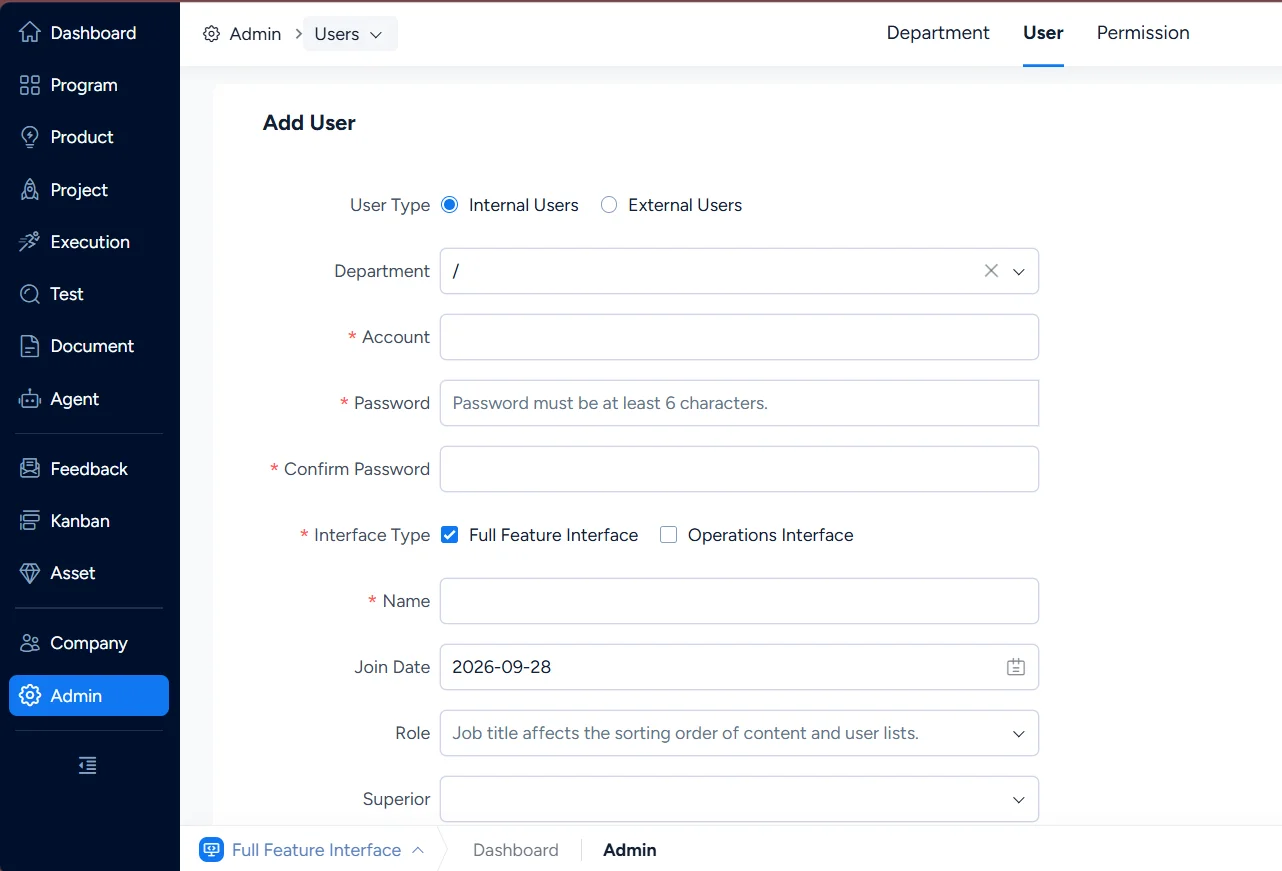
On the Add User page, you can set the basic information such as User Type, Department, Account, Password, Interface Type, Name, Role, and Permissions.
Interface Type: Sanplex provides different workspaces based on role scenarios, including Full Feature Interface and Operations Interface. You can assign an interface type based on each user’s role.
After selecting a role, the system assigns a default permission group for that position. If it does not fit, you can change it.
Note: Permission groups can be configured under User > Permission, down to individual operation-level permissions. Click here to check more about the permission settings.
At the bottom of the Add User page, enter the current operator’s password in Password, then click Save. The system returns to the user list, where you can see the newly added user.
III. Batch Add Users
Go to Admin > Users > User > Batch Add Users.
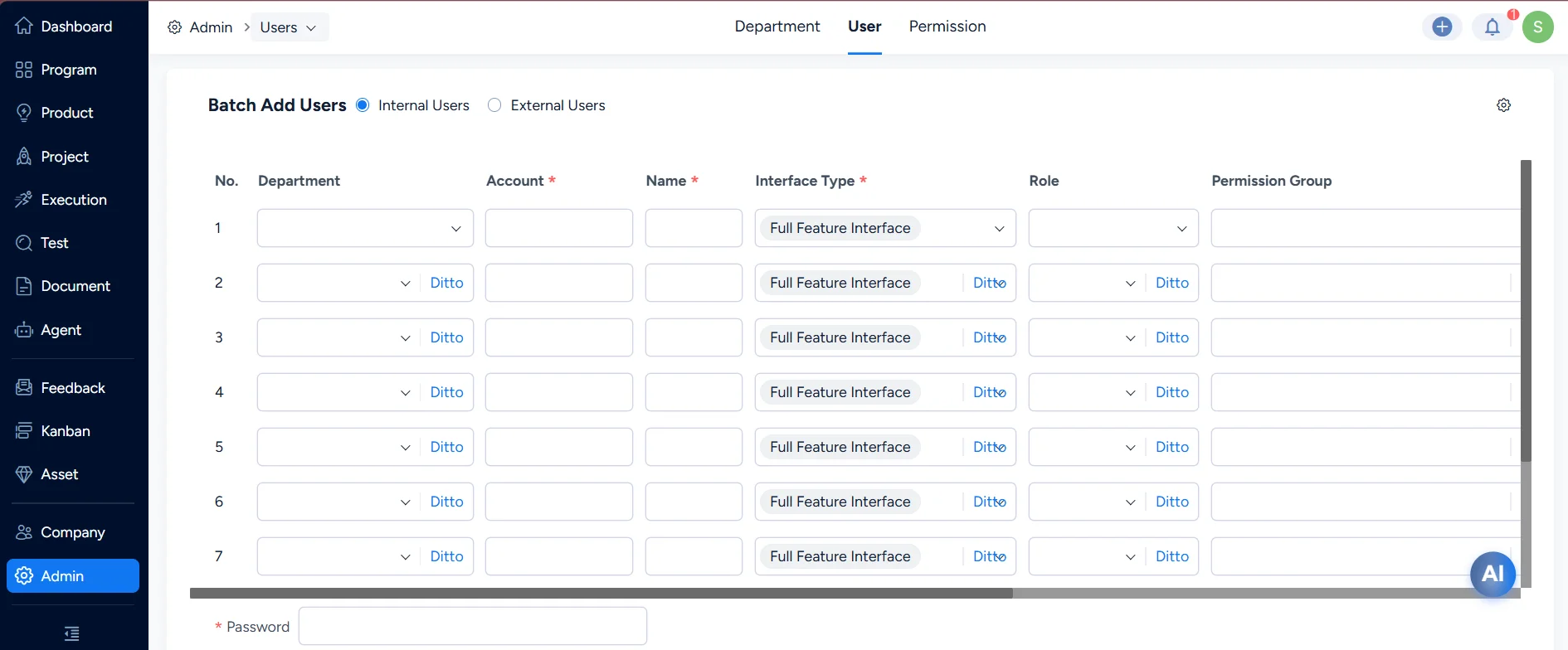
Enter Password at the bottom of the page, then click Save. After returning to the user list, you can see the users you added in batch.
IV. Bulk Edit Users
On the user list page, click Total or select multiple users, then click Edit to perform bulk editing.