
Catalog
Quick Start Guide
We are going to introduce the Quick Start Guide of Sanplex 15 series in this article.
- Managing users by Administrator
- Create a Program
- Create a Product and submit Story
- Create a Project and link to Products
- Create a Sprint/Iteration, link to Story, and split to Tasks
- Record Effort (man-hour) and resolve bugs
- Create Build and create Release
Managing users by Administrator
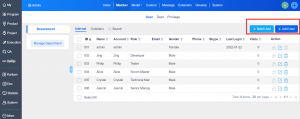
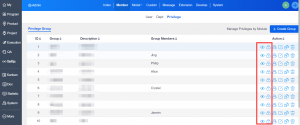
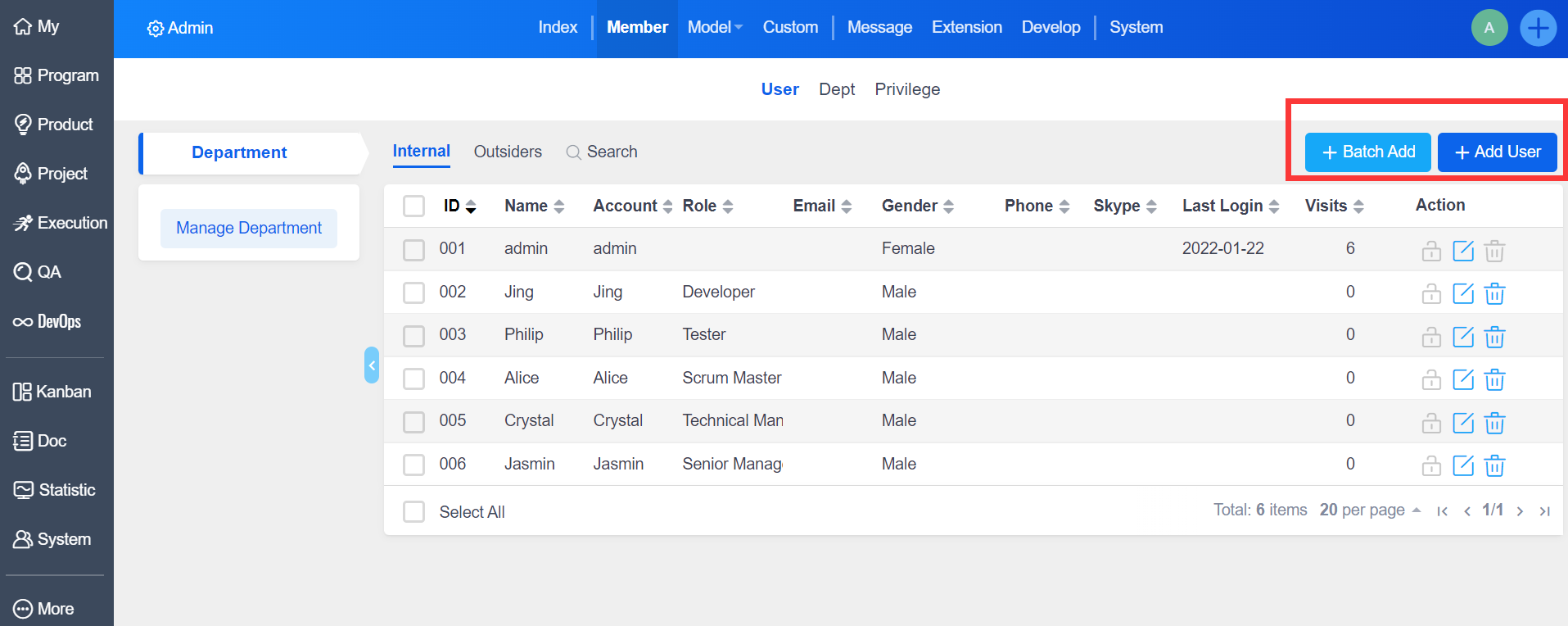
The Administrator can add users in the Admin--Member--User. Managing the user's department structure and assigning Privilege to them.
You can add internal users and external users in Sanplex 15 series, and the external users can be used for Stakeholder management.
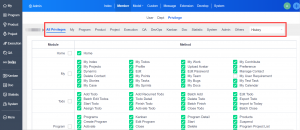
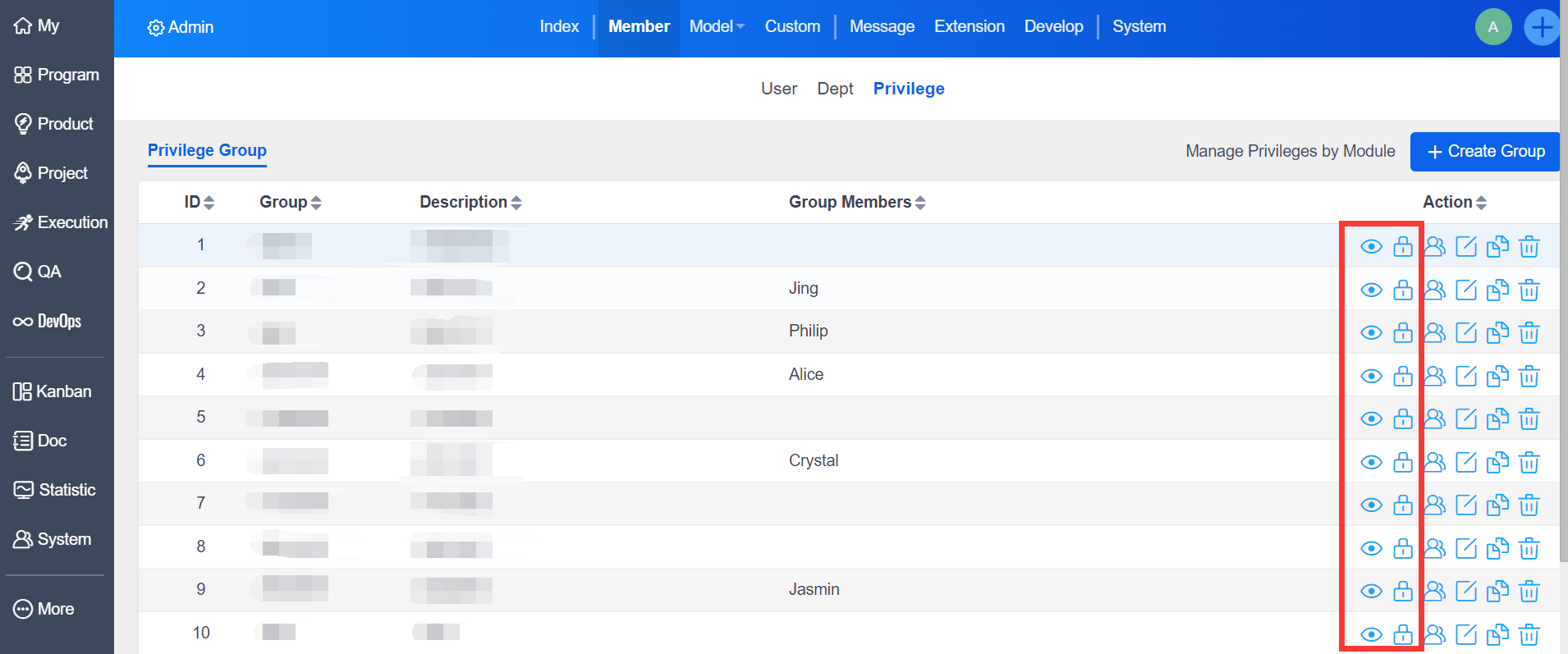
Assign Privilege to Users:
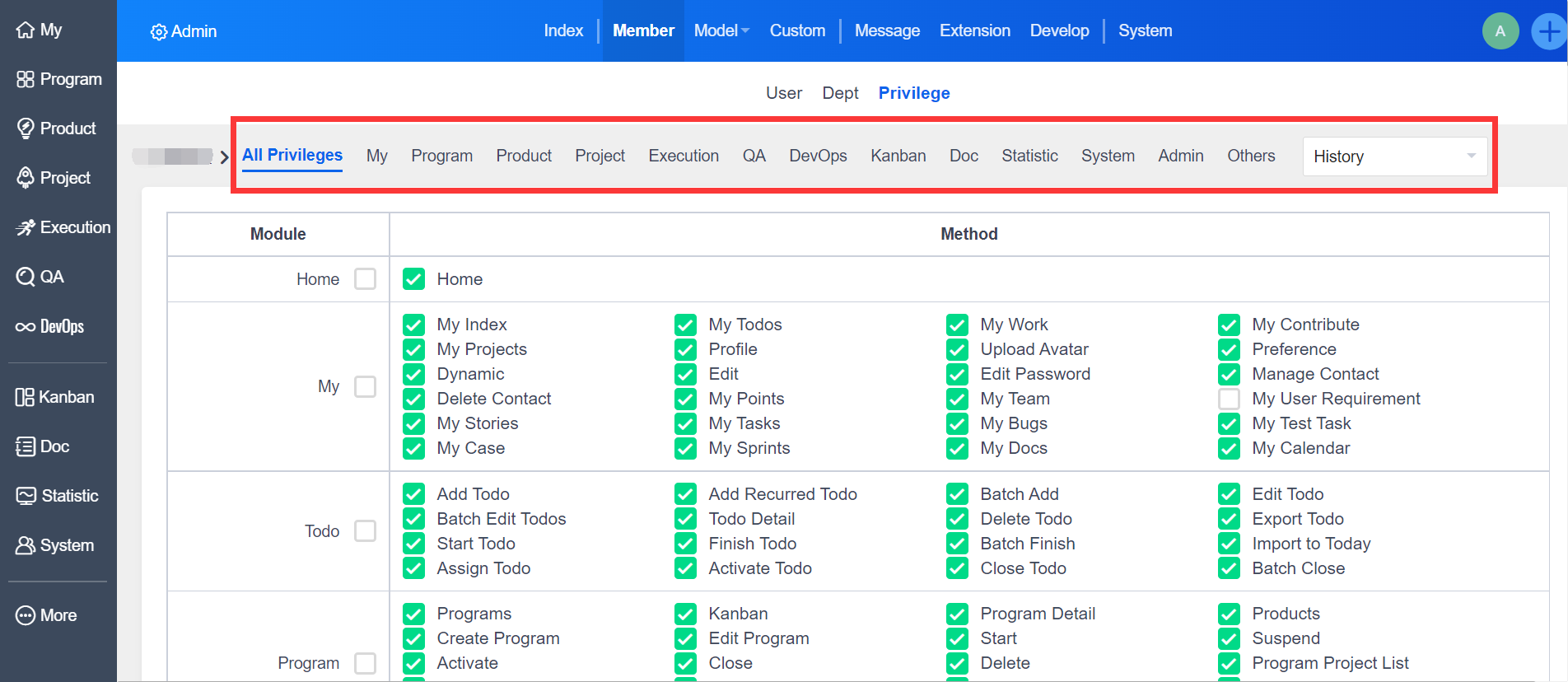
Check the Privilege you want to assign and click Save.
Create a Program
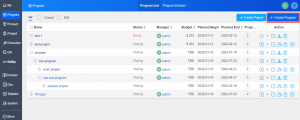
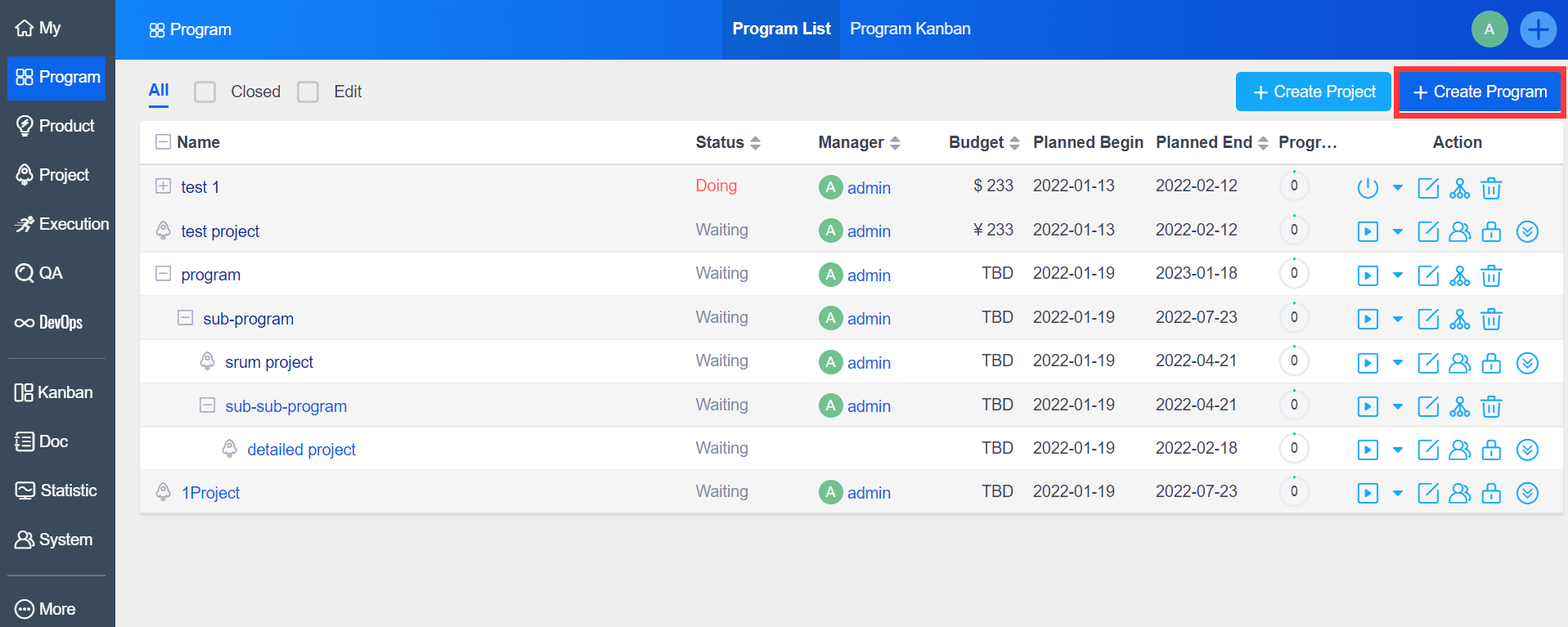
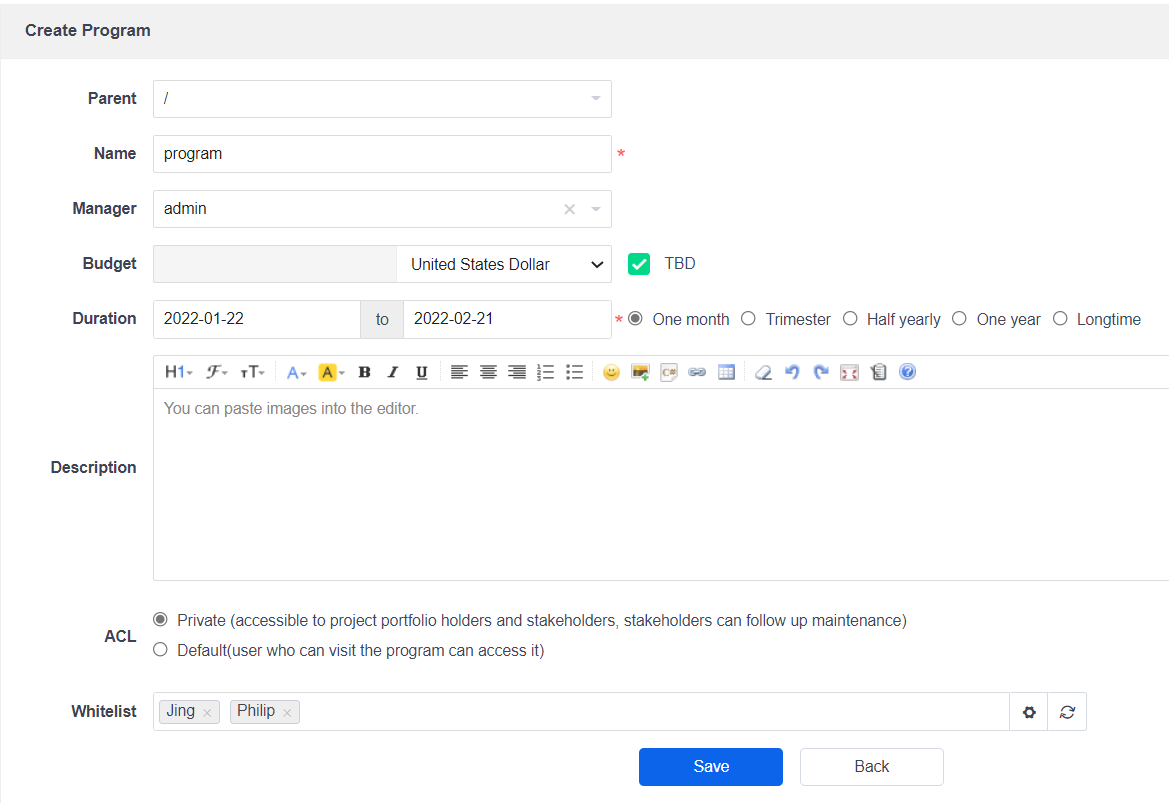
Click the Create Program button on the right top corner of the Program List:
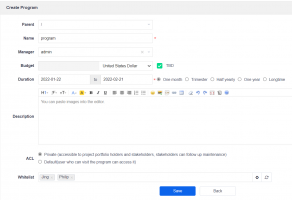
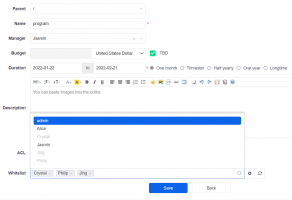
You will go to the Create Program Page:
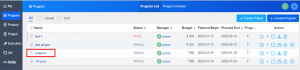
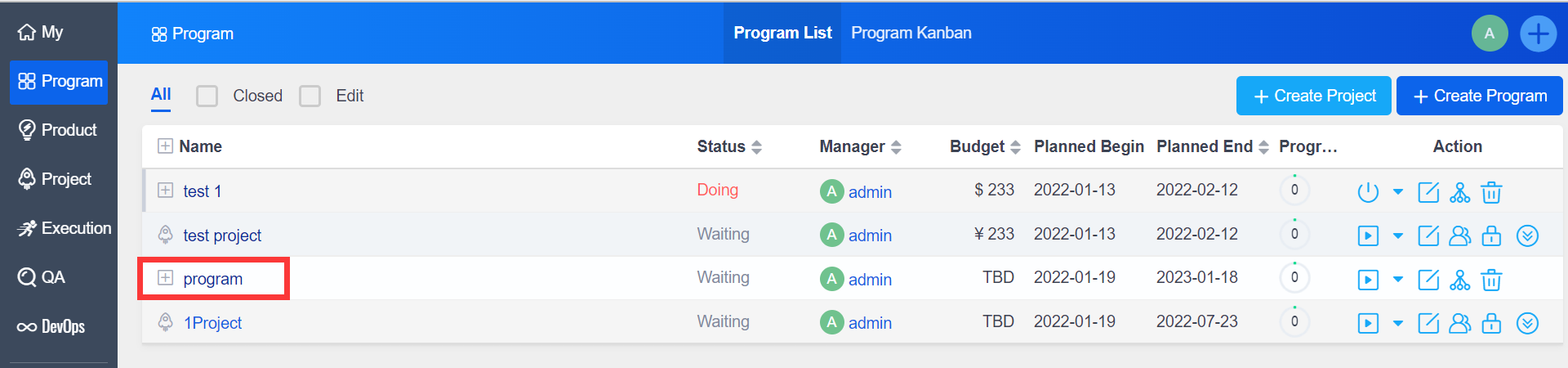
After you create a program successfully:
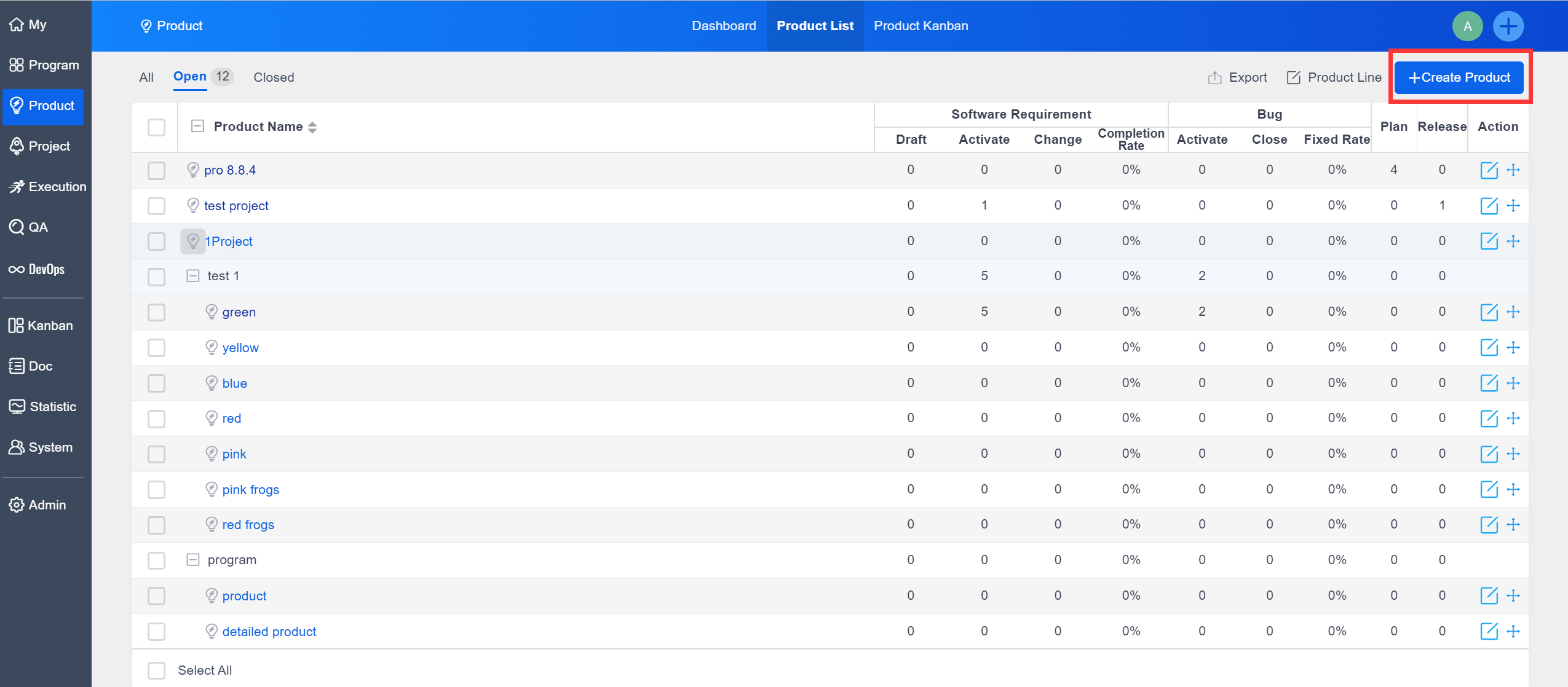
Create a Product and submit Story
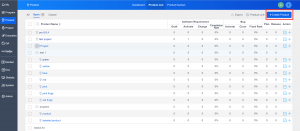
Click the Create Product button on the right top corner of the Product List:
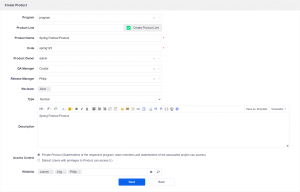
You will go to the Create Product Page:
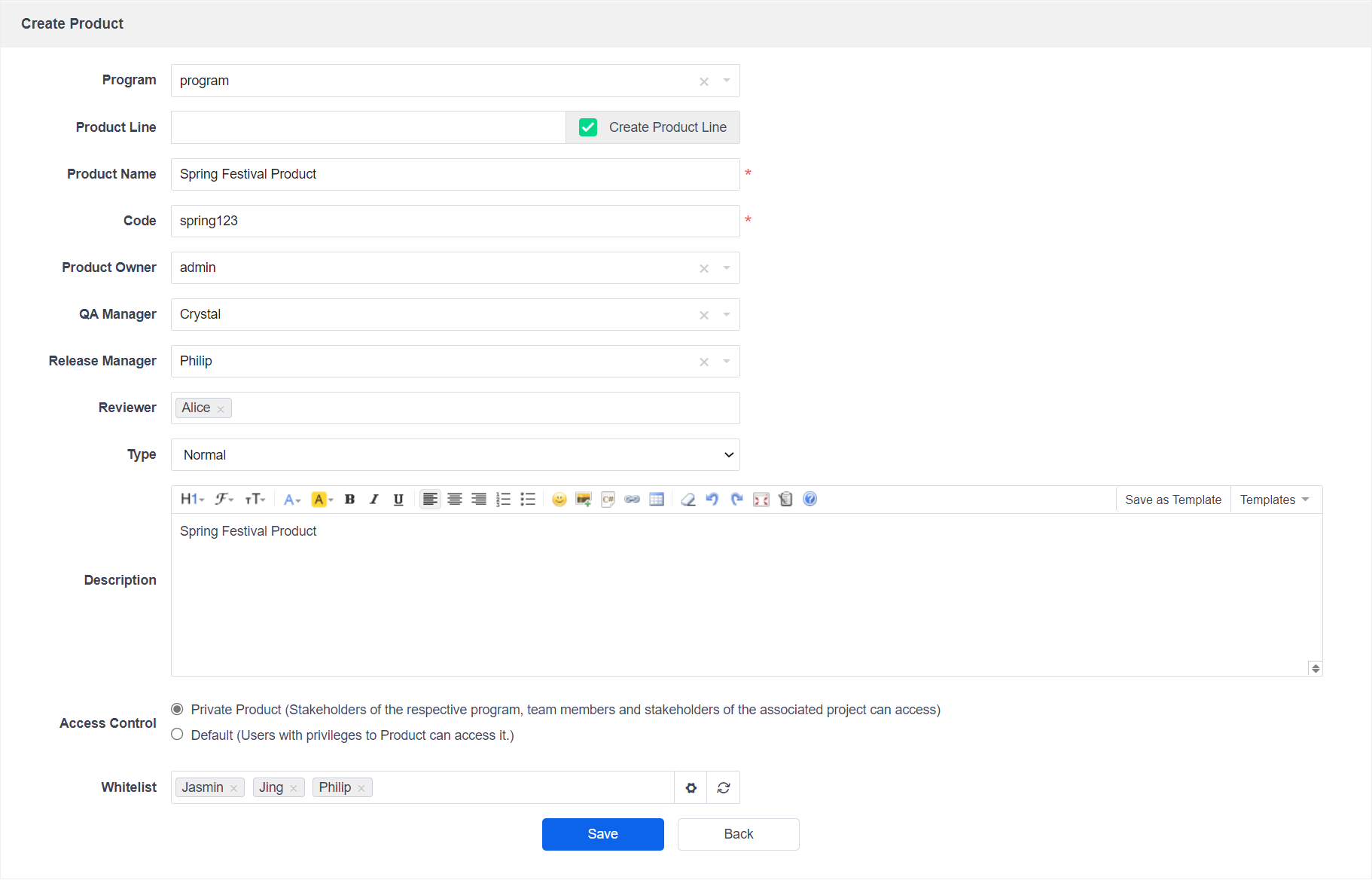
Now you can create stories/software storys after creating products successfully.

Click the button Create Story/Create Software Story to add storys.
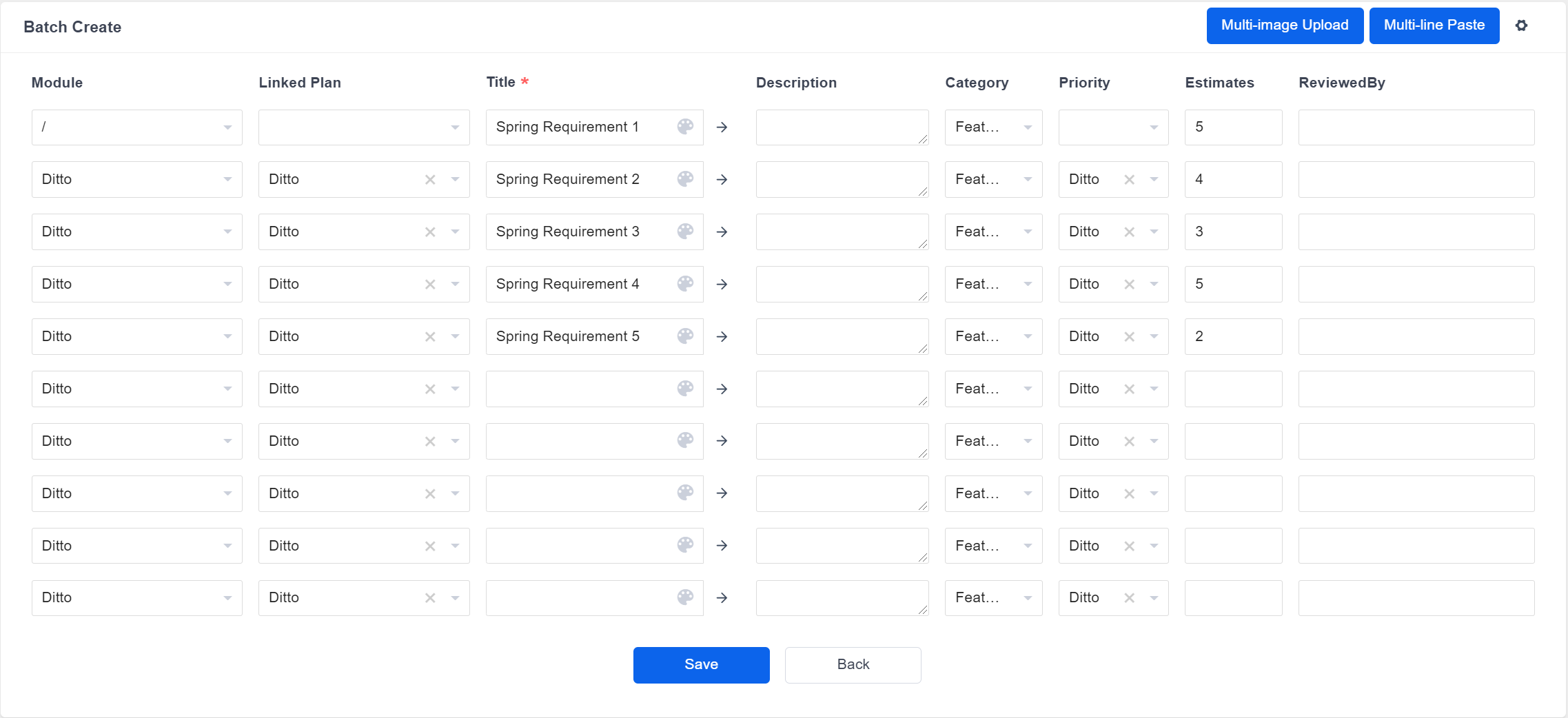
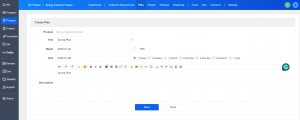
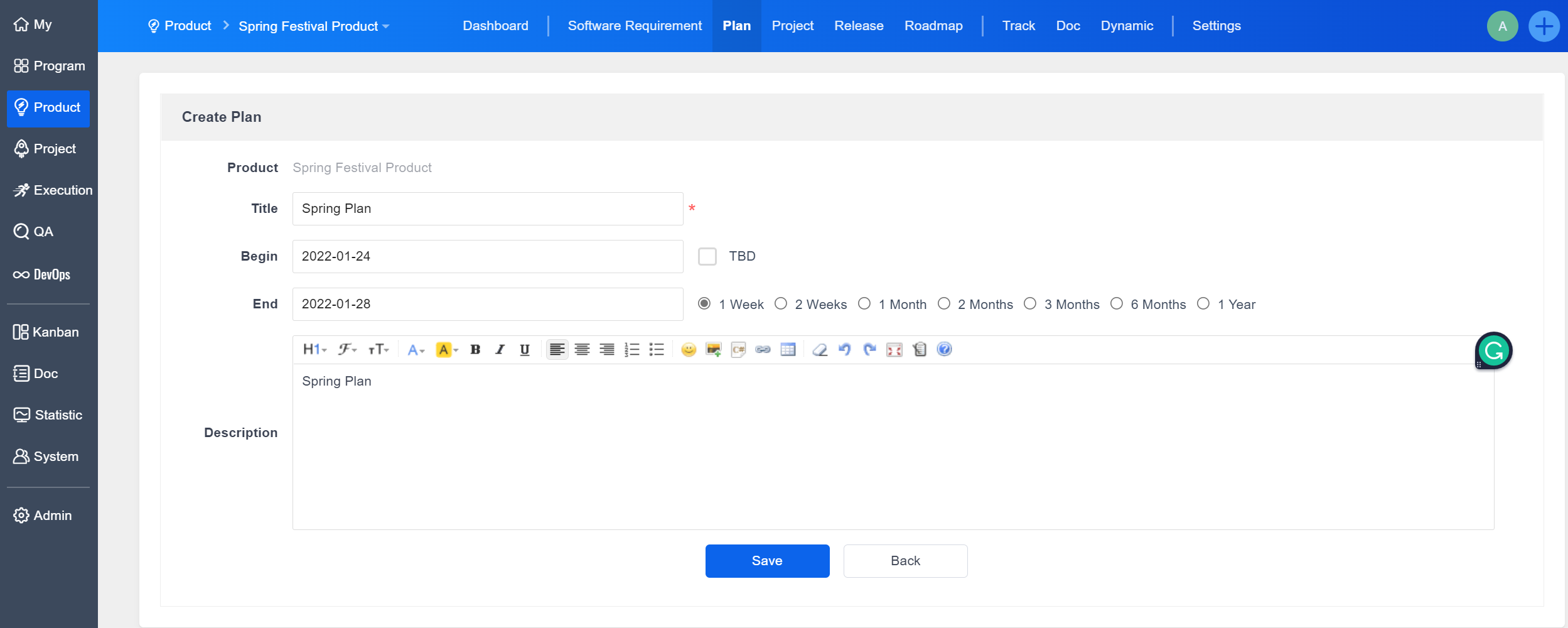
Next, create a development plan to link to the storys.
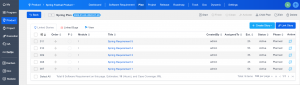
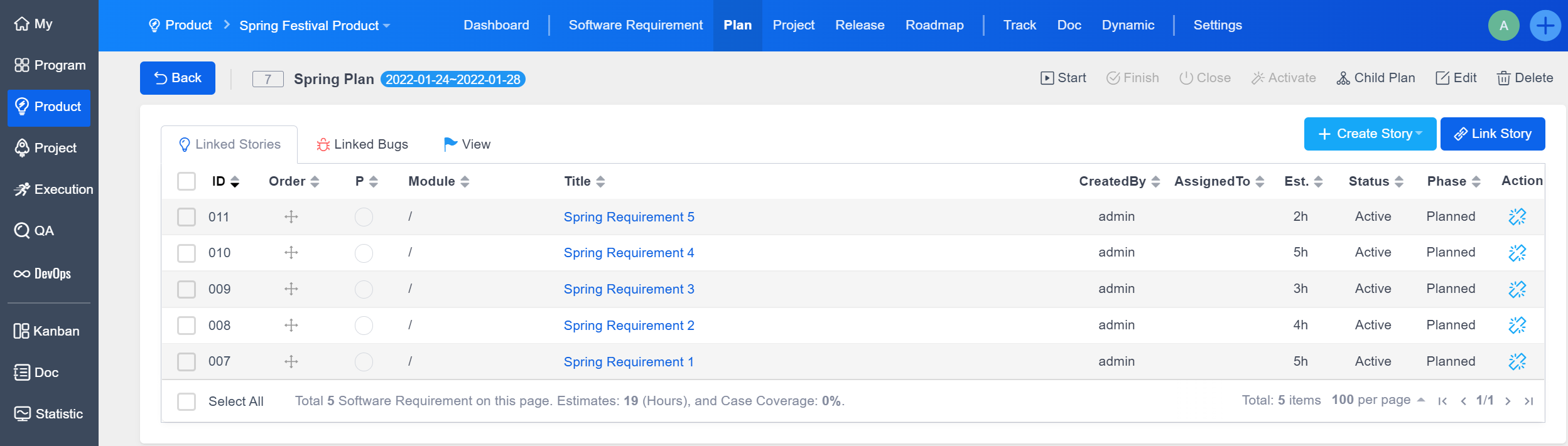
After the Plan is successfully linked to the Story:
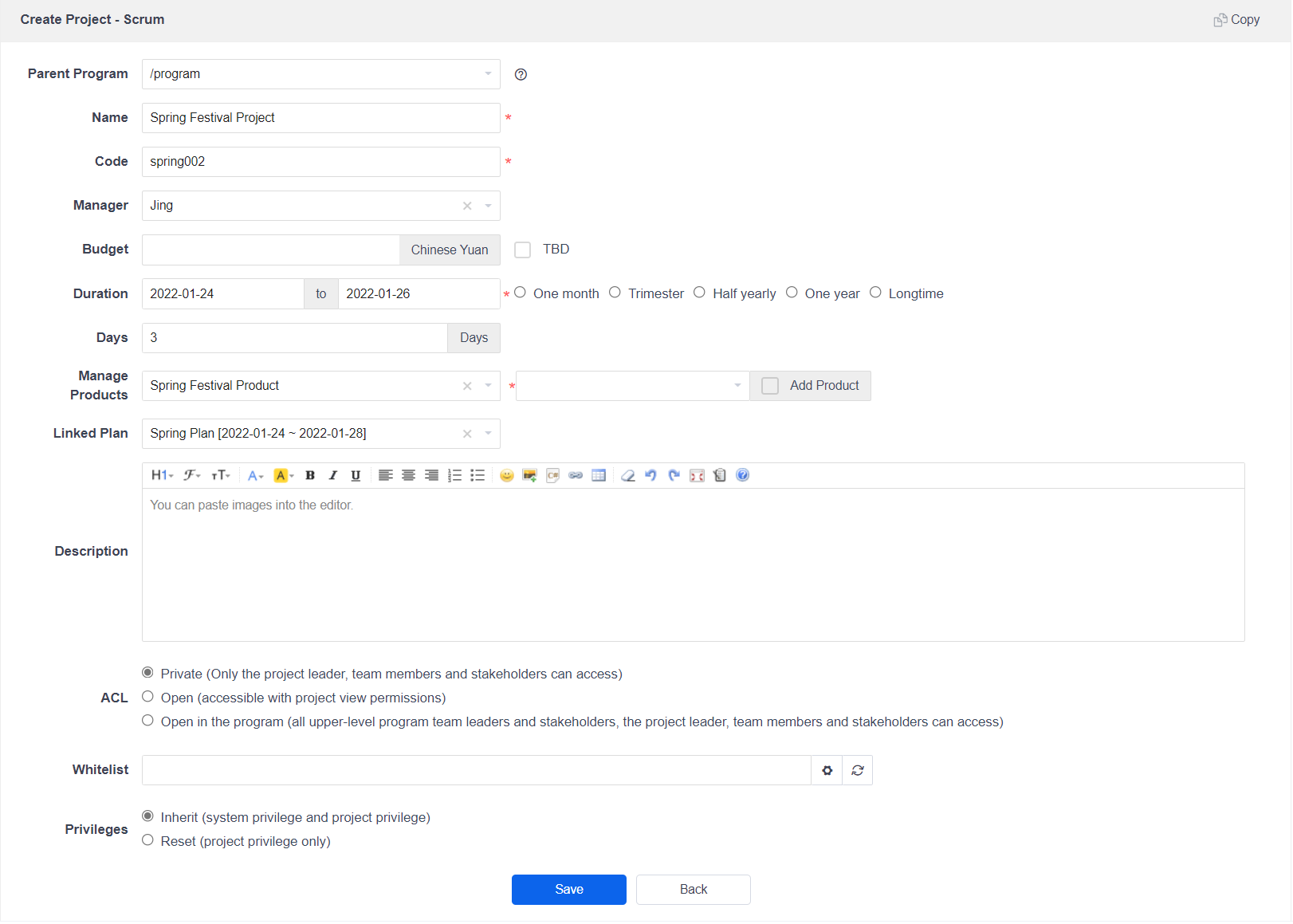
Create a Project and link to Products
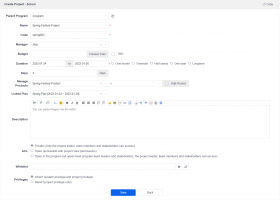
Click the button Create Project to add projects.

You can select the Parent Program that the project belongs to, and link the Products and Plans to the project.
If you didn't choose the Parent Program, the system will create a product with the same name as the project by default and link to the project.
After the project is created successfully, you can view the relationship between Project, Product, Program through the Program that the Project belongs to.

Create a Sprint/Iteration, link to Story, and split to Tasks
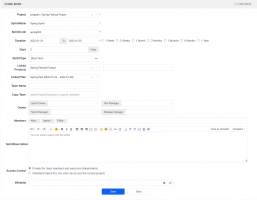
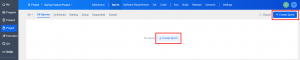
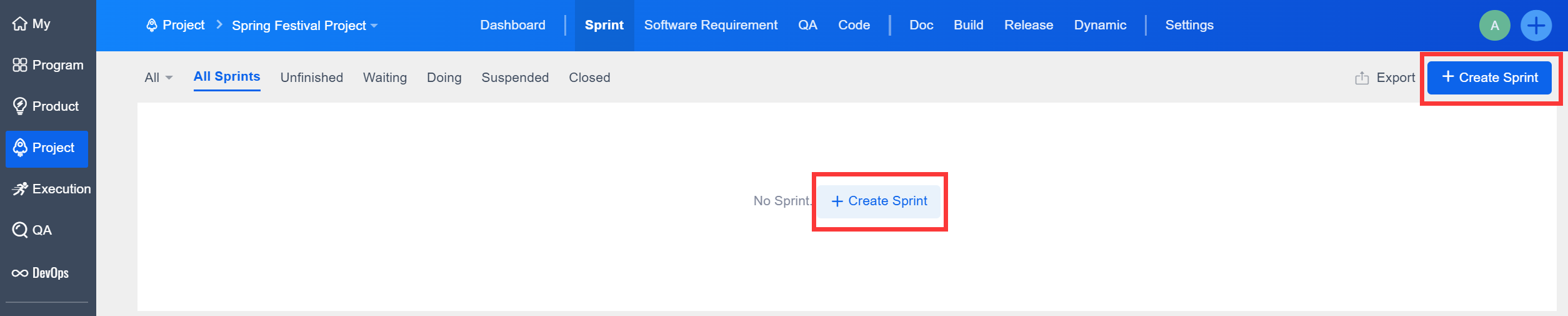
Click the Create Sprint/Iteration button on the right top corner of the Project--Sprint Page.
You will go to this page and you can link the product associated with the project.
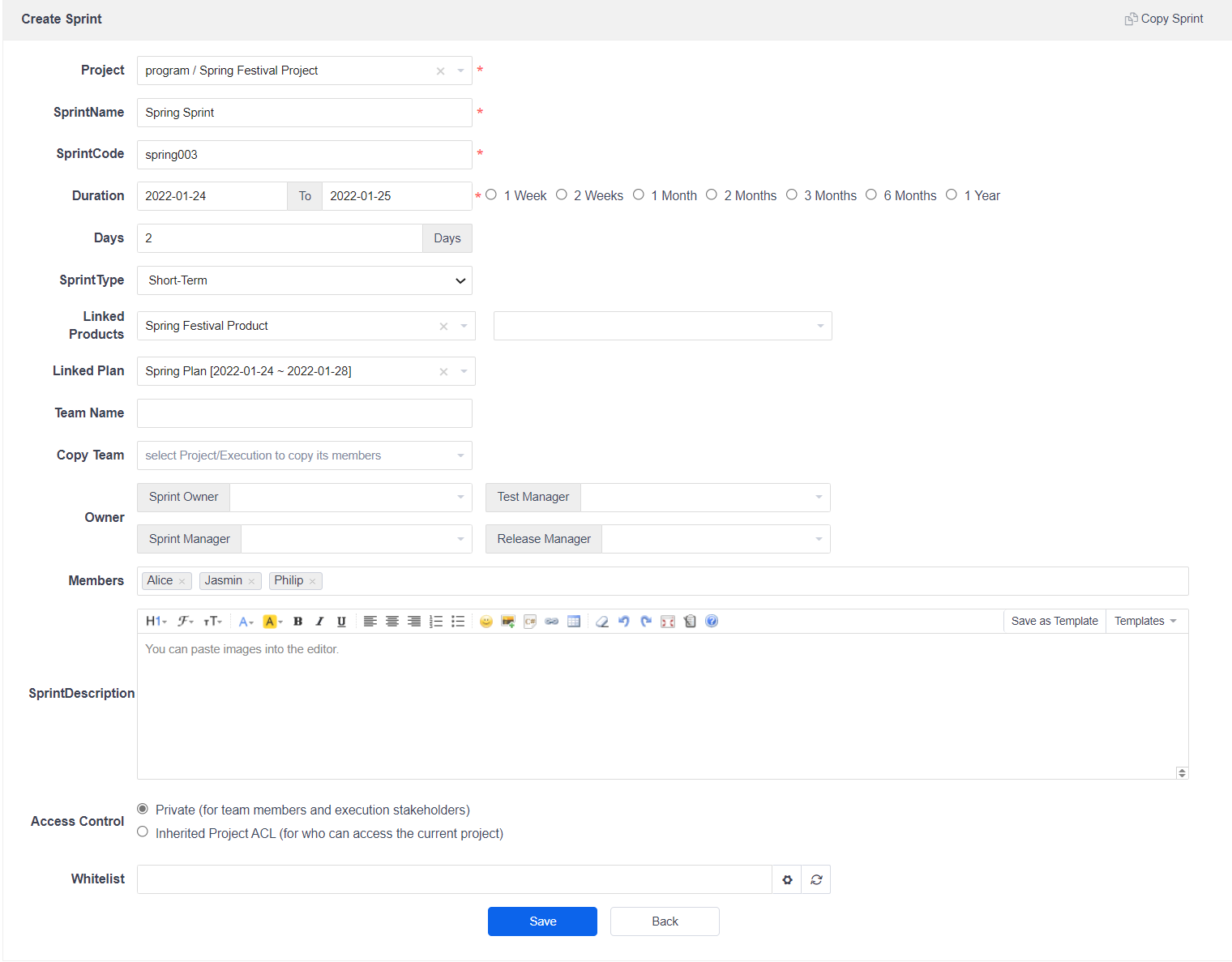
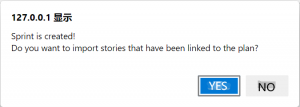
After you linked the Product Plan, the story in the Plan can be linked to the Sprint/Iteration.
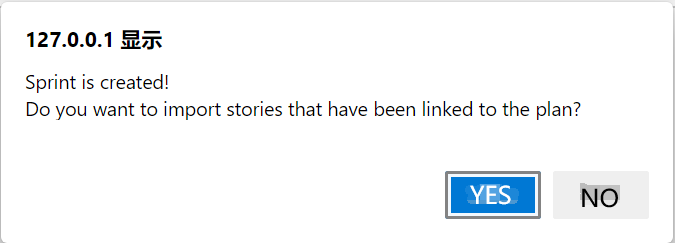
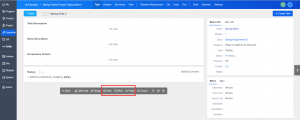
After the Sprint/Iteration is successfully created:

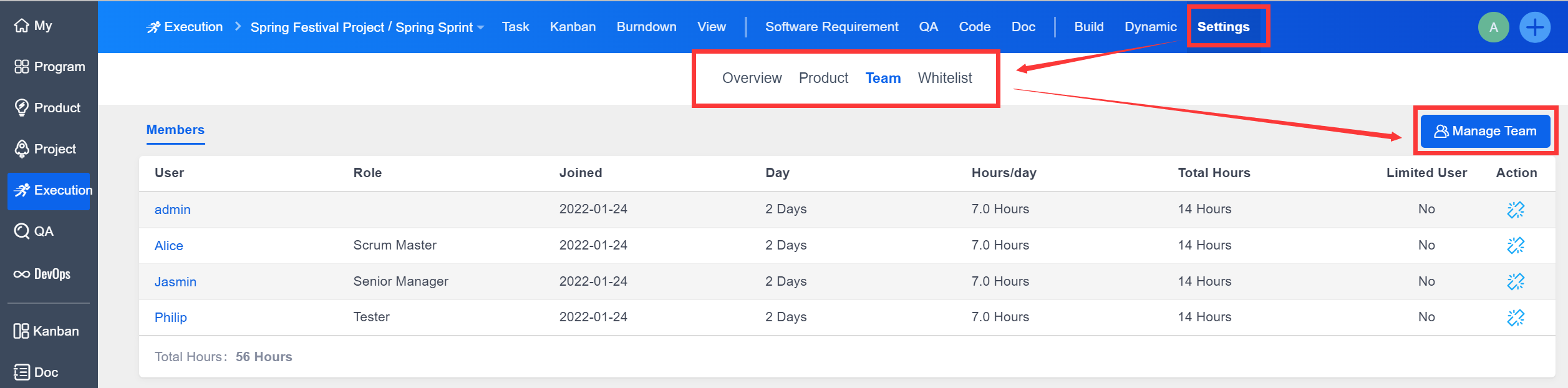
Click the Sprint Name to go to the Sprint/Iteration under the Execution view.
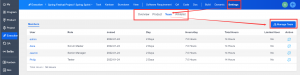
Set the team members first:
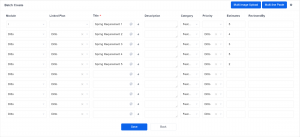
Next, Split the software story into tasks.
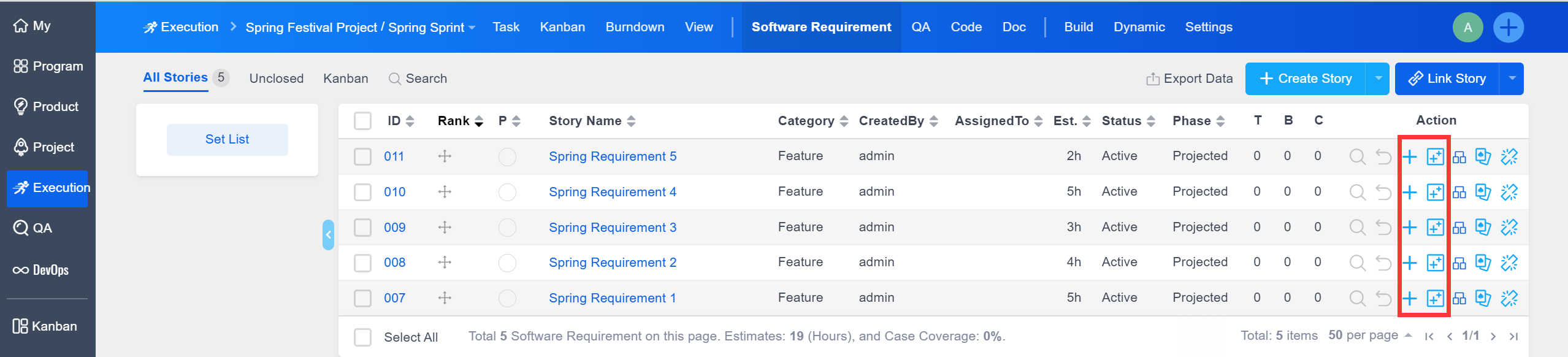
Tasks are assigned to developers:

Update the Effort (man-hour) record and resolve bugs
The development team will develop the tasks and update the record of the Start, Effort, Finish in Execution--Task.
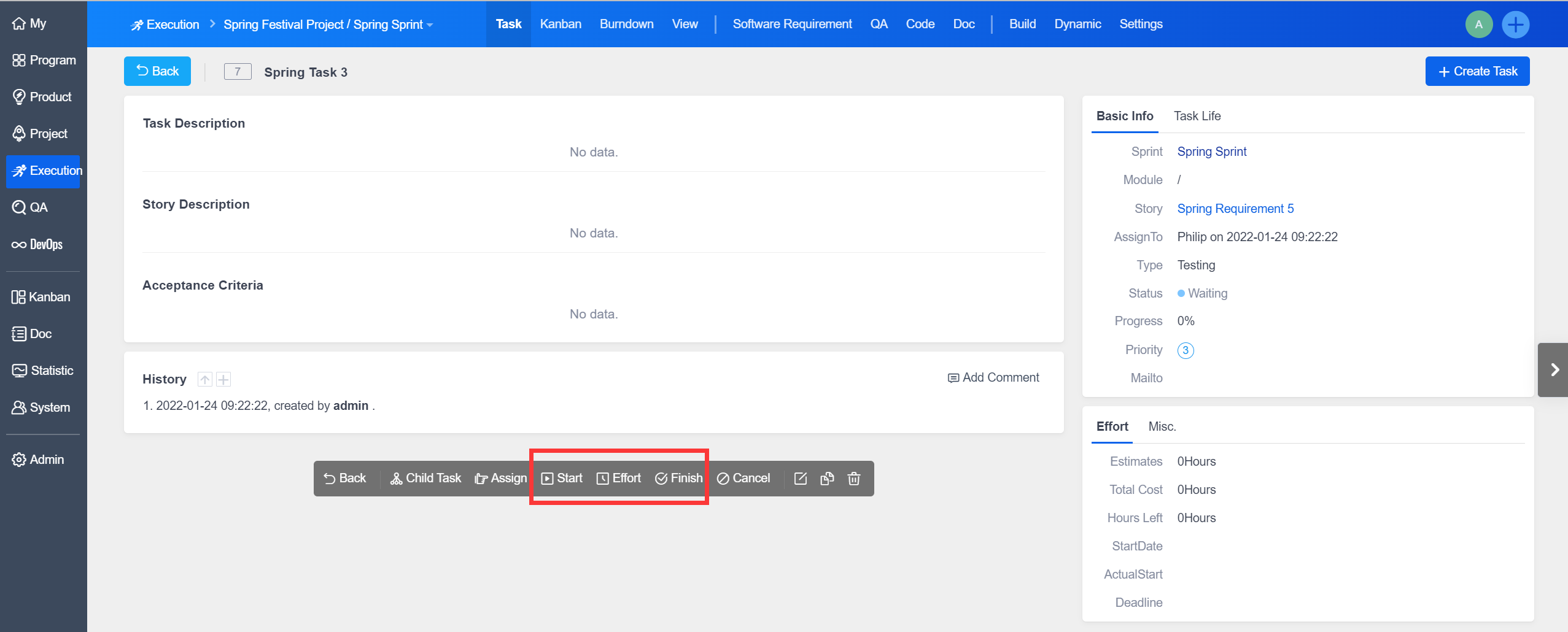
Check, Confirm, and Resolve bugs in Test--Bug.

Create Build and create Release
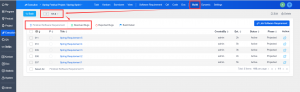
The task development is completed and the bugs are resolved. Now you can create a build in Execution--Build, link with the developed storys and the resolved bugs and then submit to test.
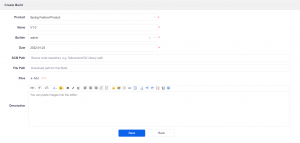
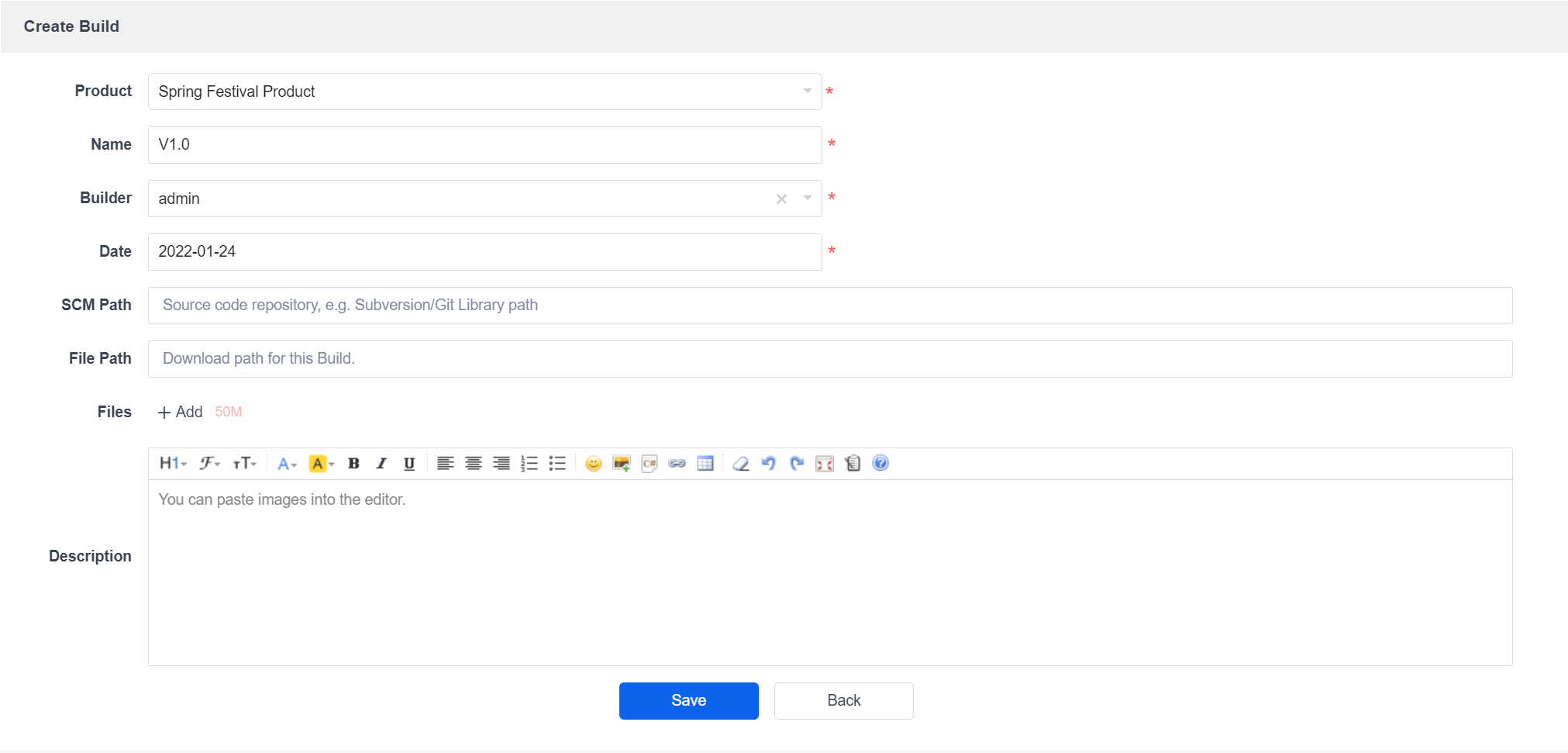
Click the Create Build button in Execute--Build.

The page of Create Build:
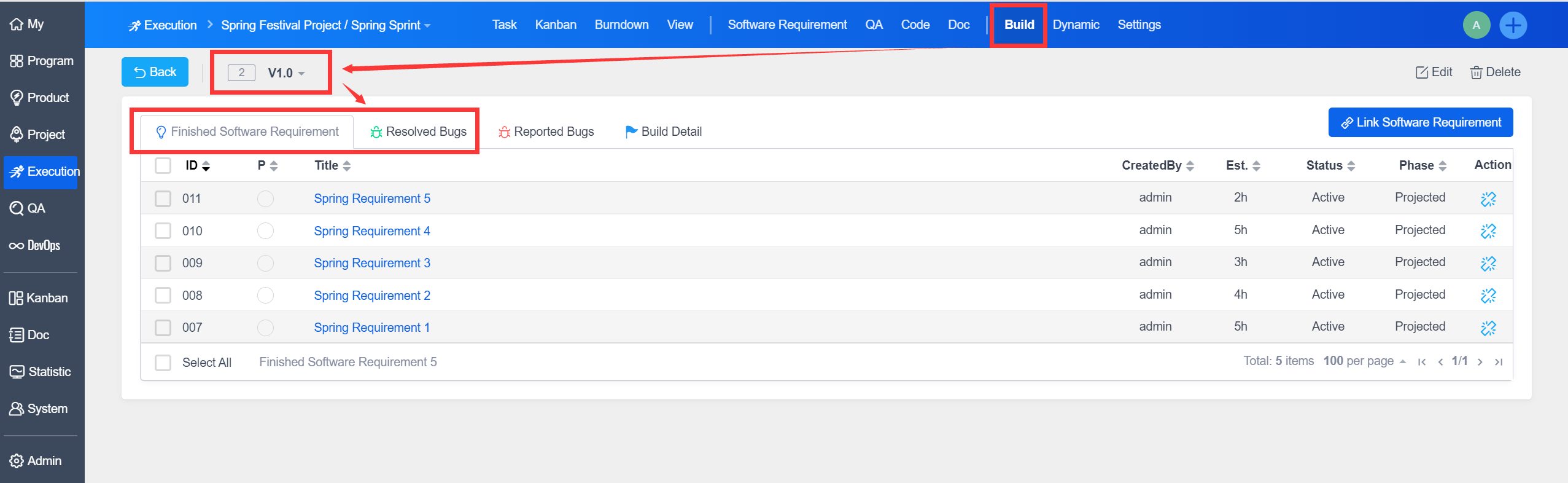
Now you can link the Finished Software Story and Resolved Bugs to the build.
You can release the build after it passed the test.
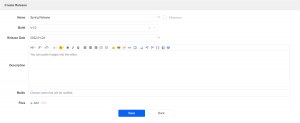
Click the button of Create Release on the page of Product--Release.

Select the build created before and click Save to release a build.
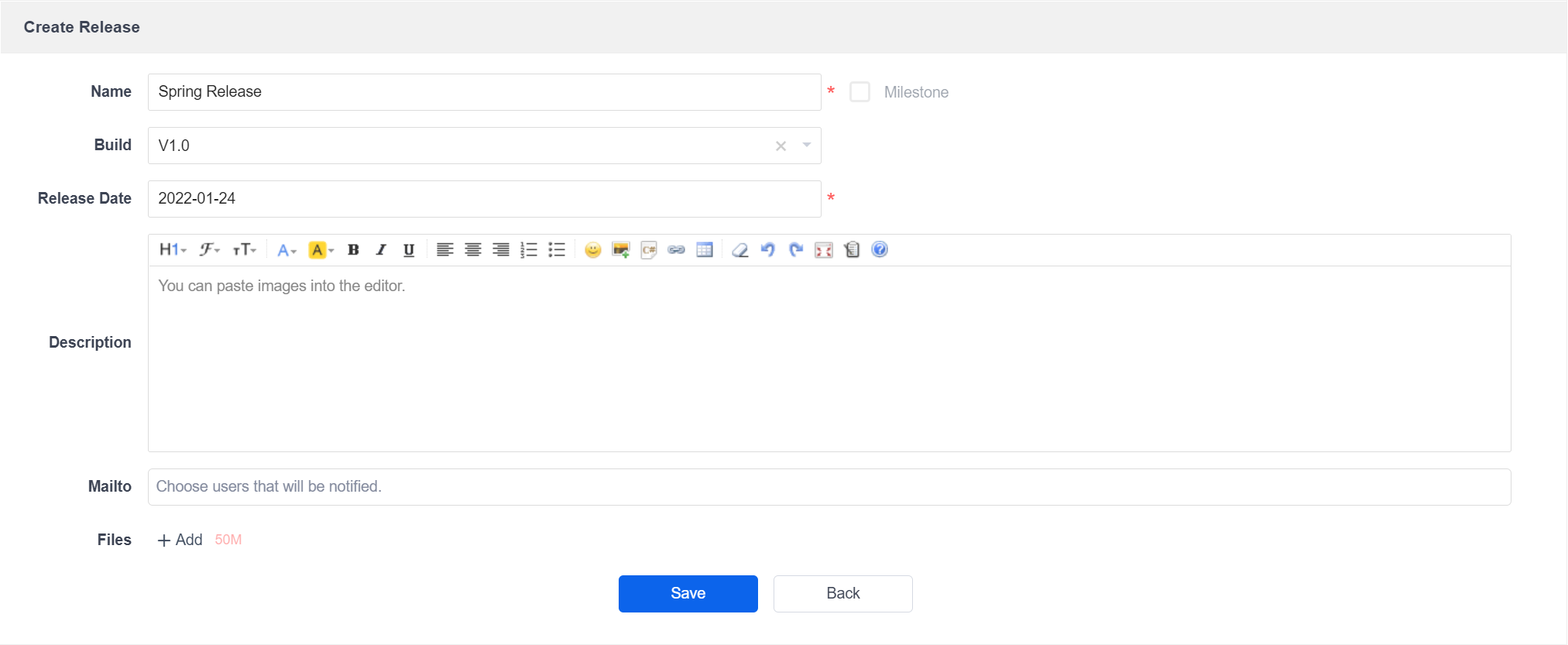

The process of releasing a build is kind of the Quick Start Guide of Sanplex 15 series.
Concerning more features of each module, you can still refer to the manual of Sanplex Open-Source 12 Series.
Sanplex Open-Source 12 Series Manual: https://www.sanplex.com/book/zentaomanual/free-open-source-project-management-software-zentao-8.html