
Catalog
But in most cases, the requirements still need to be reviewed.
Even if one person owns the product, it's okay to save some half-baked ideas as drafts and work on them later.
Development and testing In the actual development and testing work, some requirements that need to be optimized will be found according to the specific work, and the new requirements submitted must be reviewed.
When technical support connects users and customers, they will obtain new requirements from users and customers, and the unique requirements submitted by them also need to be reviewed.
Any modification to the requirement title, description, verification criteria and attachments should go through the change process. After the change, the status of the requirement is changed and needs to be reviewed.
This document will introduce the review process and method of requirements.
1. Rules, process and results of requirements review
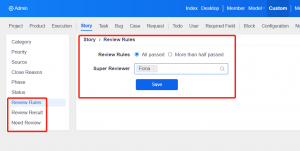
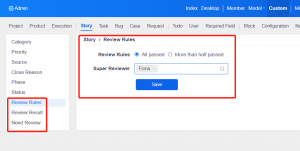
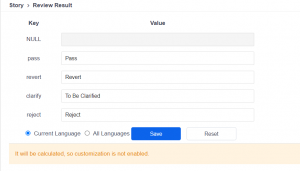
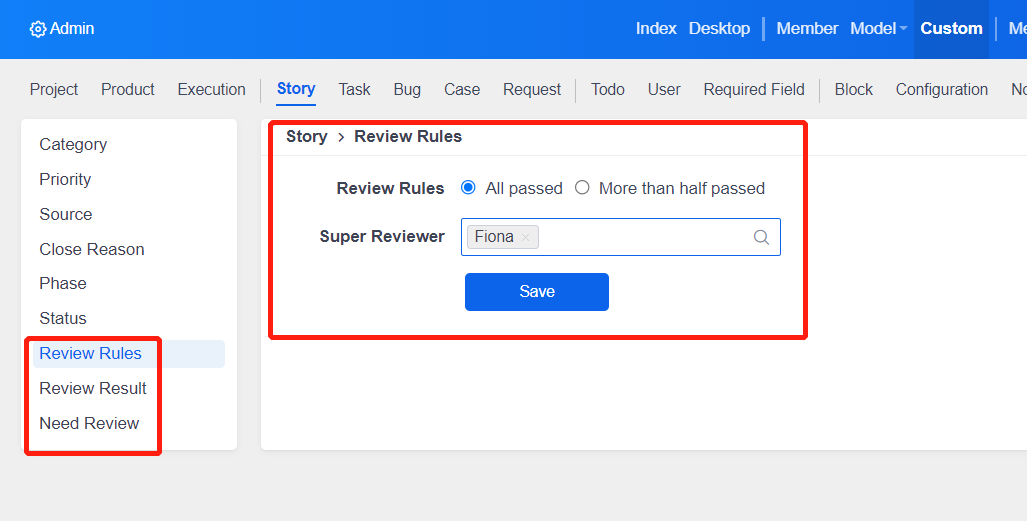
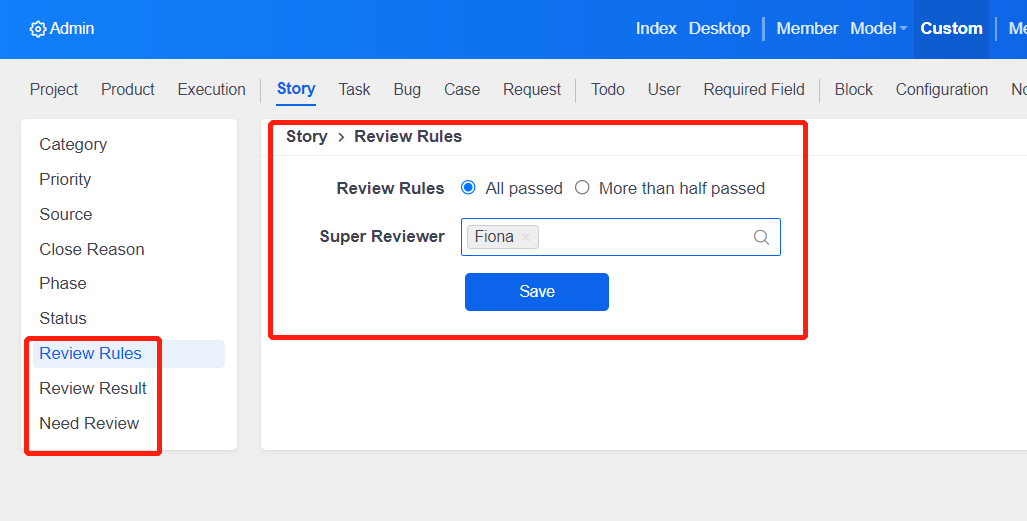
The review rules, processes, and results of requirements can be viewed and set in the background-customization-requirements.Review Rules:
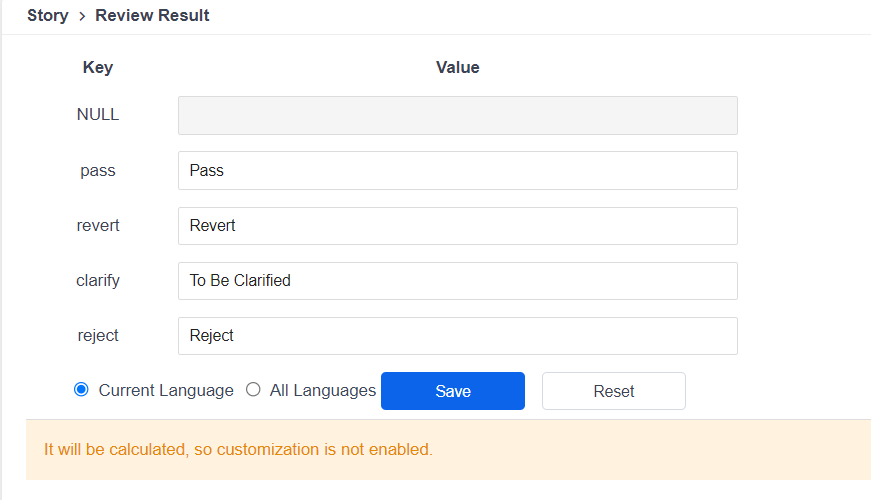
Result of review:
Review process:
The review process is enabled by default. Whether you open or close the review process, you can set a mandatory review.
The members in the mandatory review and the submitted requirements must go through the review process.
2.The reviewers
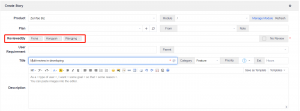
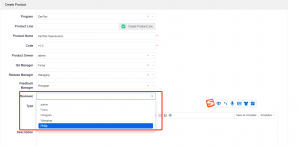
When creating and editing products, we have added a new field for product reviewers.If a product reviewer is set, when a requirement is created or changed under the product, and a review is required, the default reviewer is the appointed product reviewer.
The reviewer can set up one person or multiple people.
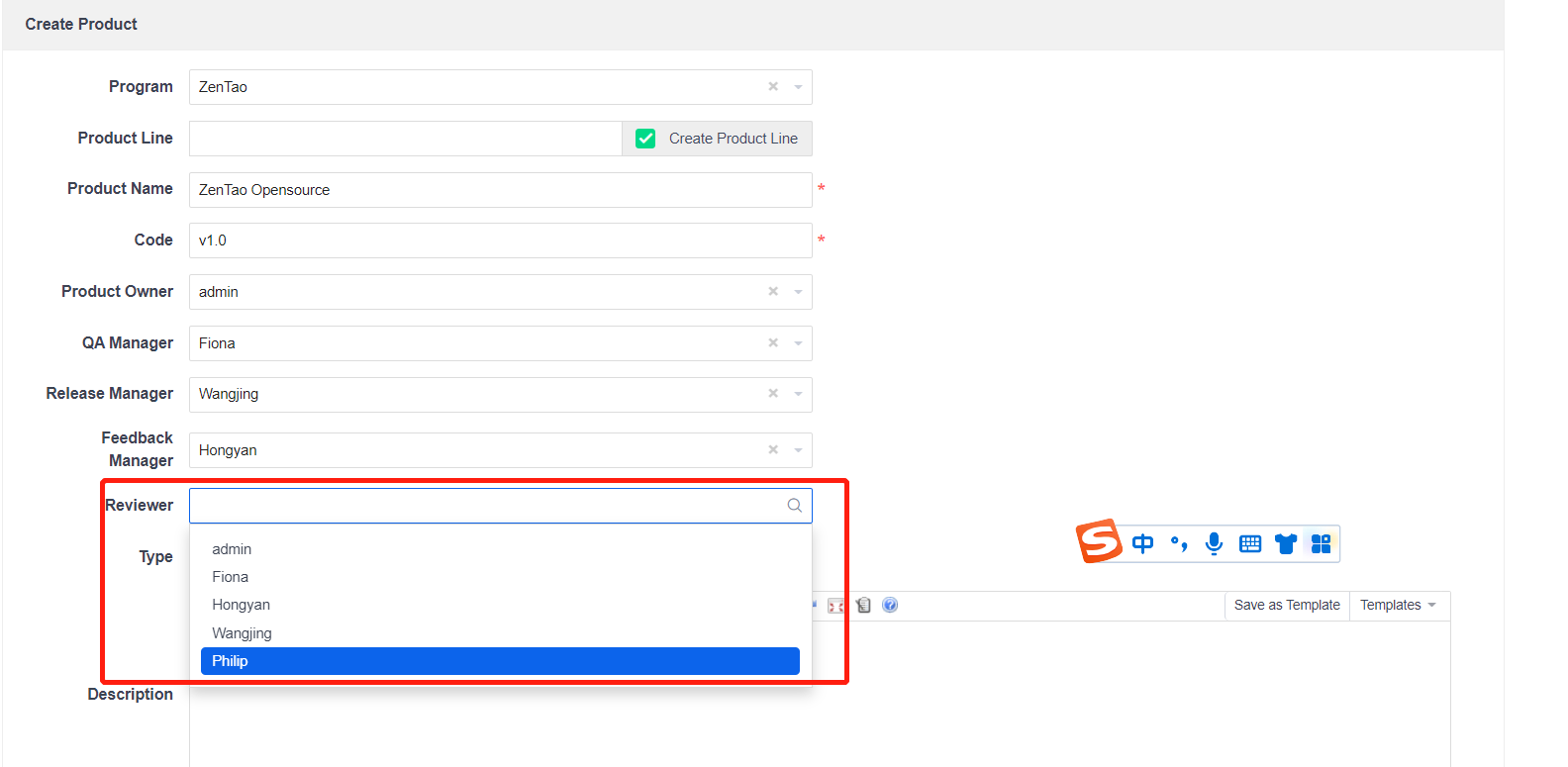
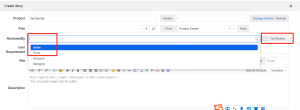
After the reviewers are set, when creating requirements and creating requirements in batches, only the set reviewers are displayed in the Who Reviewed drop-down list.
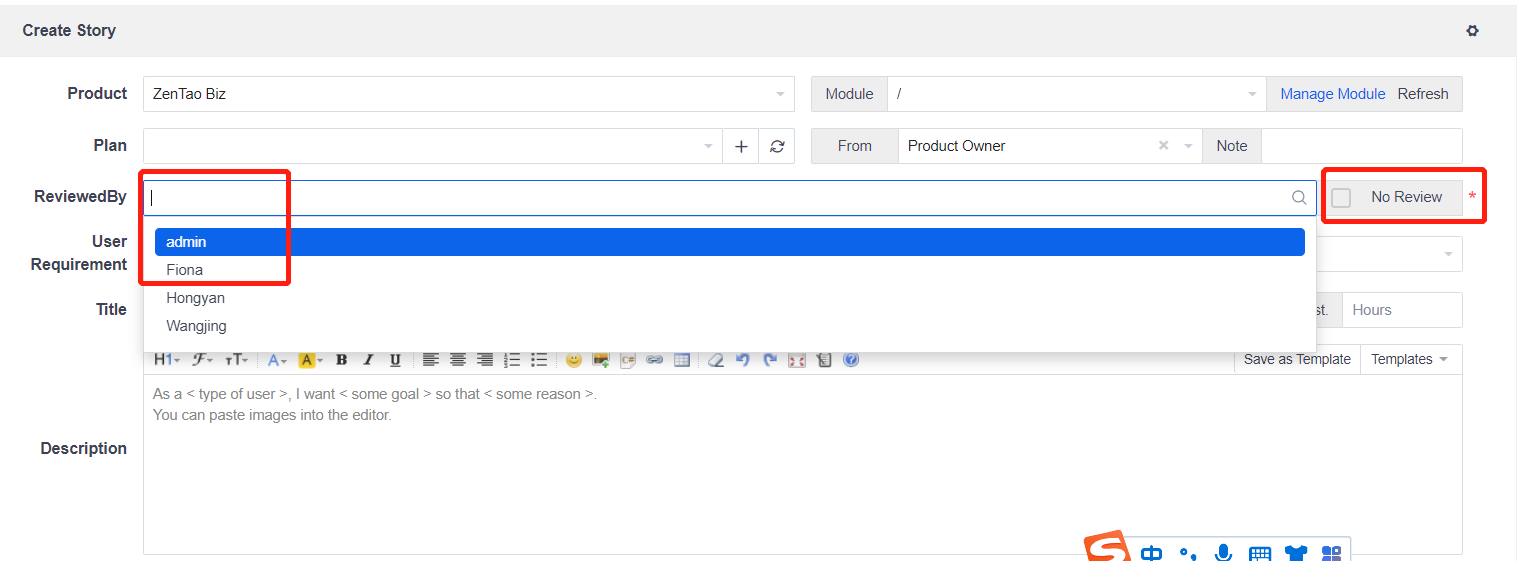
When changing requirements, who will review the settings also lists the reviewers by default.
3. Super requirements reviewers
ZenTao version 16.0 has added the super reviewer function.
Super reviewers are not subject to any review rules, and super reviewers have veto power.
Super reviewers can set up as many people as reviewers.
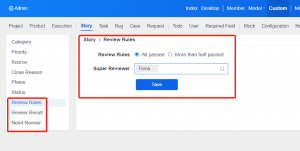
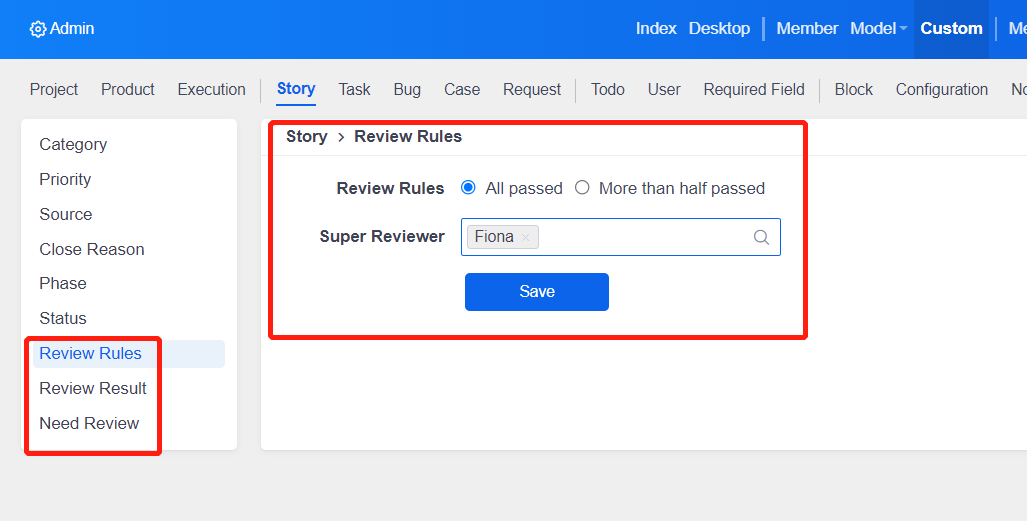
In the admin--custom--review rules--super reviewer, you can set our super reviewer.
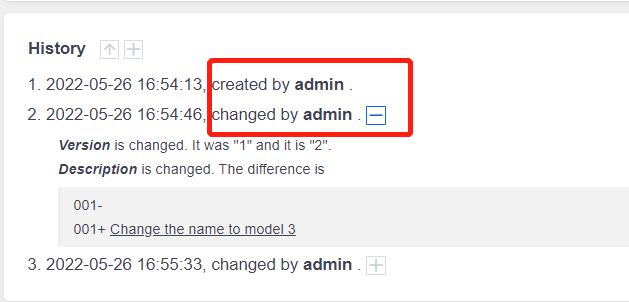
Even if the requirement has been reviewed by multiple people before, and one of the reviewers has reviewed and rejected it, when the super reviewer reviews the requirement, Not limited by the previous review rules, the final result of the super reviewer's review is the final result of this round of requirements review.
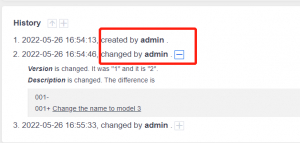
The requirement history also records the time, review comments, and results of the Super Reviewer review.
4. the requirement for multi-person review
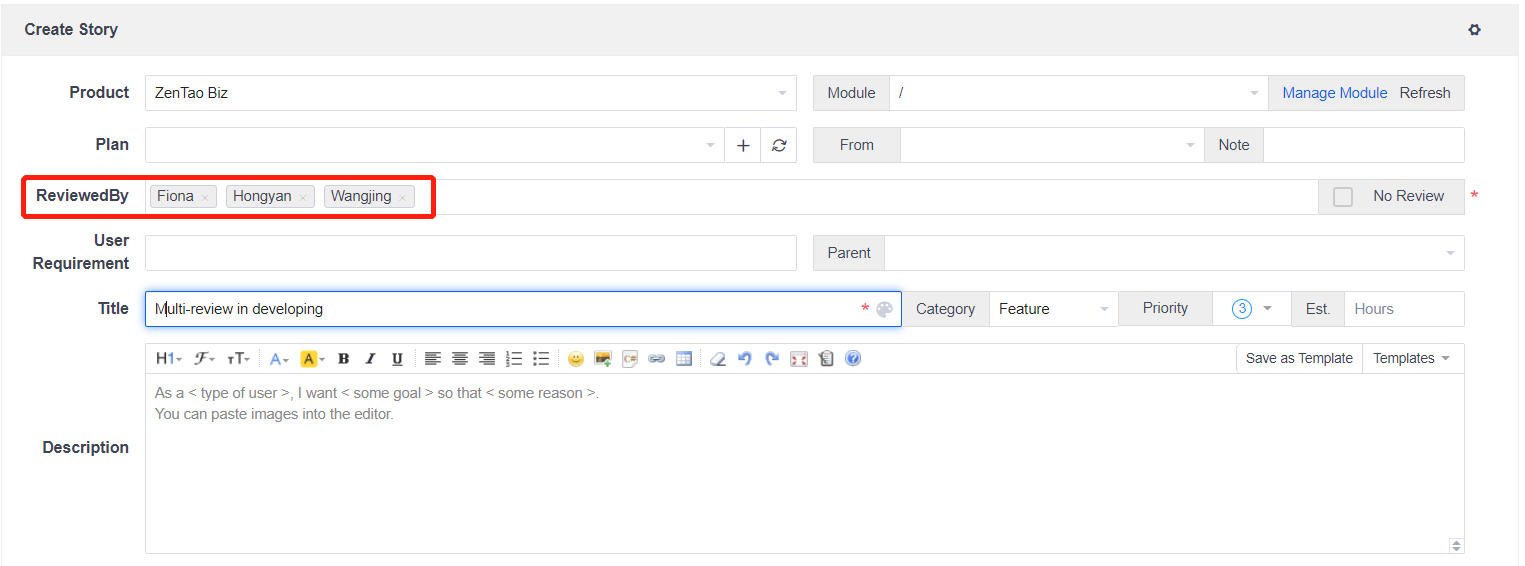
When requirements are created and changed, who will review them can choose multiple people. Previously, only one person could review, but now multiple people can review a requirement.When multiple people review requirements, review rules are set. Whether the requirement is reviewed or not is calculated according to the review rules and the review results of the actual reviewers. Finally, the review results of the requirements are obtained.
4.1 Setting Review Rules
Review rules can be selected in the admin--custom--requirements--review rules.We provide two kinds of rules: when all the review results are passed, the requirement is passed by the review (all passed); when more than half of the review results are passed, the requirement is passed by the review (more than half passed).
4.2 Multi-person review when creating requirements
When creating requirements individually and in batches, who should review them can choose multiple reviewers.When creating a requirement individually:
When creating requirements in batches:

After successfully creating a requirement for multi-person review, the status of the requirement is draft.
When all reviewers have completed the review, after calculating the result according to the review rules, it is judged whether the status of the requirement needs to be changed according to the result.
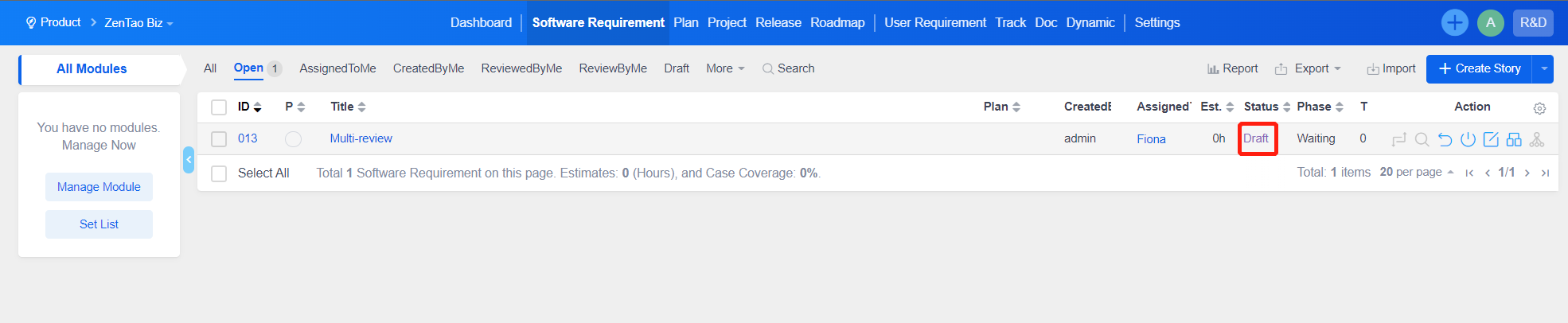
4.3 Multi-person review when changing requirements
When changing requirements, multiple people can also be selected for review.
The changed requirement status becomes changed,
When all reviewers have completed the review, after calculating the result according to the review rules, it is judged whether the status of the requirement needs to be changed according to the result.
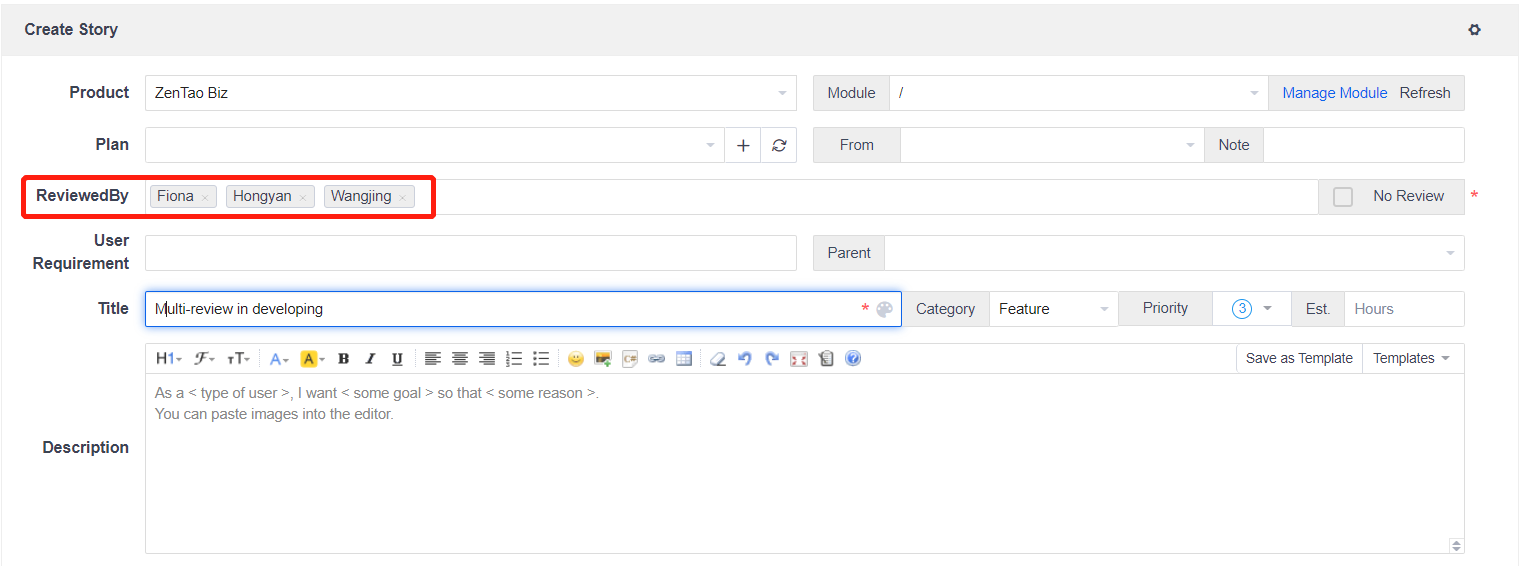

4.4 Reviewers review requirements and calculate review results according to review rules
The requirements for multi-person review, who reviewed the requirements can be viewed in the life of the requirements on the requirements details page.Those who have been reviewed are grayed out, and when the mouse is hovered, they are prompted to be reviewed, and those who have not been reviewed are prompted to be reviewed when hovering the mouse.
Next, let's take 3 people reviewing a requirement as an example, and look at the multi-person review of the requirement according to different review rules.
4.4.1 When the review rule is: "All passed" passed
When the review results of the three people are all confirmed and passed, according to the calculation of the review rules, the review result of the requirement is confirmed to pass, and the status is changed to active.
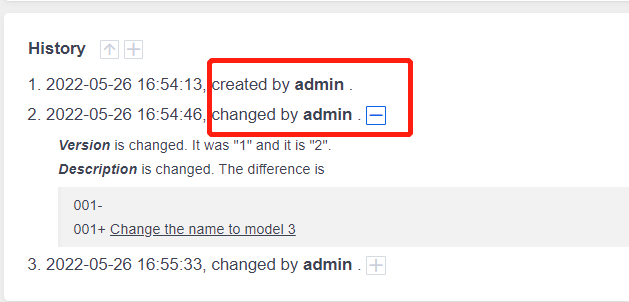
When the review result of 2 people is confirmed to pass, and the review result of 1 person is to be clarified, the calculation result of the requirement review according to the review rules is that the review is not passed, and it remains as a draft.
4.4.2 When the review rule is: more than half pass
The following requirements are reviewed by 3 people, the result of the review by 2 people is confirmed, and the result of review by 1 person is rejected.
According to the rule calculation, the system determines that the review result of this requirement is confirmed, and the requirement status changes from draft to active.
When the review result of 2 people is not passed, and the review result of 1 person is passed, the system determines that the review result is not passed, and the status of the requirement remains as draft.
4.4.3 Other situations
If 1 reviewer has been reviewed by 3 reviewers, then edit the requirements and delete the remaining 2 reviewers.
Then the requirement will be the result of the final review of the requirement according to the review result of one person who has been reviewed.
5. Revocation Review of Requirements
After the requirement is reviewed, if it is found that the title, description, acceptance criteria and attachments of the requirement still need to be revised.
To avoid multiple rounds of review.
We provide the revocation review function. First, you need to go to the admin--member--privilege privilege group to assign the permission to revoke the review.
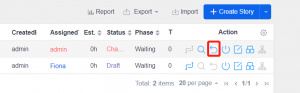
Display the Cancel button in the action bar of the requirement that initiated the review in the Product--Requirement list.

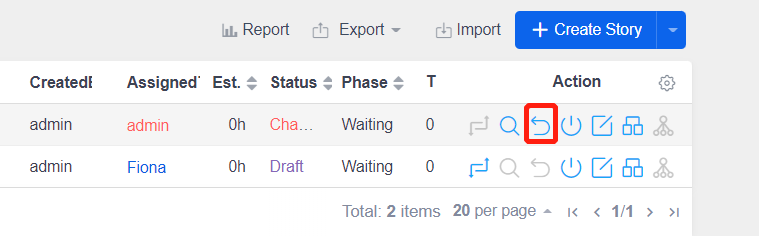
After clicking the Cancel Review button, the Review and Cancel Review buttons are grayed out.
It needs to be changed again, and the review process can be continued only after the review is initiated.
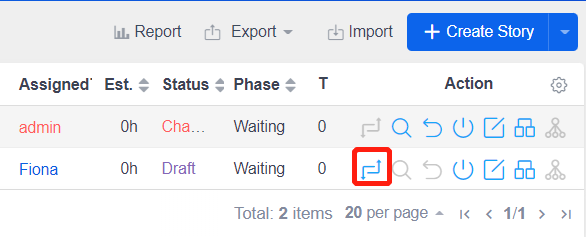
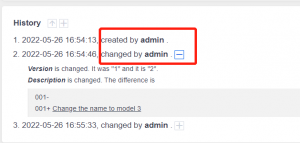
The historical information of revoked reviews and re-initiated reviews will be recorded in the requirement history.
Easy to trace and view operations.