Installation
1. Introduction
1.1 About Sanplex
1.2 Introduction PDF
1.3 Technical Support
1.4 Follow Us
2. Installation
2.1 Choose the Right Installation
2.2 Sanplex Cloud
2.3 One-click Installation for Windows
2.4 One-click Installation for Linux
2.5 Lampp Installation in Linux
2.6 Source Code Installation (for all systems)
2.7 Source Code Installation for macOS
2.8 XAMPP-VM Installation for macOS
2.9 XAMPP Installation for macOS
2.10 Install Sanplex in Docker
2.11 Install httpd, Mariadb, PHP 7.2 in Cent OS 8
2.12 Softaculous Service
2.13 Install Ioncube
3. Update
3.1 Update Sanplex
3.2 Update Via Source Code (For All Systems)
3.3 Update for One-Click Installation for Windows (xampp)
3.4 Update for One-Click Installation for Linux
4. Users and Groups
4.1 Company Structure
4.2 Add a User
4.3 Manage Users in batches
4.4 Groups and Privileges
5. Quick Start
5.1 Project and Task Management
5.2 Bug Tracking
5.3 Product Management
5.4 Todo Management
6. Basic Application
6.1 Basic Workflow
6.2 Agile and Scrum
6.3 Sanplex and Scrum
6.4 Sanplex Tutorial for Rookies
6.5 Create a Product
6.6 Create a Story
6.7 Create a Project
6.8 Confirm a Story
6.9 Decompose Stories into Tasks
6.10 Report a Bug
6.11 Manage Contacts
6.12 Customization
6.13 Import Excel, CSV Files
6.14 Document Management
6.15 Work Mode
6.16 Points
6.17 Required Field
6.18 Privileges
6.19 Annual Work Summary
7. Advanced Application
7.1. Workflow
7.1.1 Sanplex Workflow
7.2. Individual management
7.2.1 My Todo
7.2.2 My Task, Story and Bug
7.2.3 My Profile
7.3. Product Owner
7.3.1 Manage a Product
7.3.2 Manage a Product Line
7.3.3 Create and Review a Story
7.3.4 Change and Review a Story
7.3.5 Status and Phase
7.3.6 Story Writing
7.3.7 Product Module
7.3.8 Release Plan
7.3.9 Create a Release
7.3.10 Roadmap
7.3.11 Documents
7.3.12 Planning Meetings
7.3.13 Daily Scrum, Review and Retrospective Meetings
7.3.14 Story Reports
7.4. Scrum Master
7.4.1 Create a Sprint
7.4.2 Set a Team
7.4.3 Confirm a Story
7.4.4 Task Breakdown
7.4.5 Daily Standup Meetings
7.4.6 Check Project Progress via Burndown Chart
7.4.7 Check Project Progress via Lists
7.4.8 Review and Retrospective Meetings
7.4.9 Basic reports on tasks
7.5. Development Team
7.5.1 Project planning meeting and task breakdown
7.5.2 Claim tasks and update efforts
7.5.3 Kanban and Tree Diagram
7.5.4 Build
7.5.5 Test Request
7.5.6 Resolve a Bug
7.5.7 Documents
7.5.8 Confirm Bugs
7.6. Test Team
7.6.1 Bug Tracking
7.6.2 Report a Bug
7.6.3 Verify and Close a Bug
7.6.4 Activate a Bug
7.6.5 Find a Bug
7.6.6 Test Case
7.6.7 Create and Review Test Cases
7.6.8 Test Suites, Public Case Libs and Reports
7.6.9 Manage Test Requests
7.6.10 Run Cases and Report Bugs
7.6.11 Reports
8. Configuration
8.1. Maintain Sanplex
8.1.1 Initialize scripts
8.1.2 Data Backup
8.1.3 Recover the Deleted
8.1.4 Update Burndown Charts
8.1.5 Sanplex Remote Host
8.2. Deploy Sanplex
8.2.1 Guest Login
8.2.2 Email Notification
8.2.3 Set Super Admin
8.2.4 Static Access
8.2.5 Remove "zentao" from URL
8.2.6 Integrate SVN
8.2.7 Integrate Git
8.2.8 Integrate Webhook
8.2.9 Integrate Xuan.im
8.2.10 Integrate Zdoo
8.2.11 Integrate Third-Party Apps
8.2.12 Password-Free Login
8.2.13 Translation Add-on
8.2.14 Integrate Jenkins
8.2.15 Extension
8.2.16 Fix Weak Password
9. Customization
9.1 Introduction
9.2 Directory
9.3 Find Codes
9.4 Database Structure
9.5 Common Modules
9.6 Add Features to Menu
9.7 Set Privileges to Modules
9.8 Examples: modify language prompt
9.9 Examples: set priority when creating bugs
9.10 Extension Editor
9.11 Feature Limitation
9.12 Sanplex Packaging Standards 1.1
10. Misc
10.1 About Third-Party Code
10.2 Support Sanplex
10.3 Sanplex Service
10.4 Acknowledgement

XAMPP Installation for macOS

2019-04-17 14:06:05
Renee
9426
Last edited by on 2021-12-28 14:53:41
Share links
Summary : XAMPP is a free and open-source cross-platform web server solution stack package developed by Apache Friends, consisting mainly of the Apache HTTP Server, MariaDB, and interpreters for scripts written in the PHP and Perl programming languages
You can use source code package to install Sanplex in macOS, and configure the Apache+Mysql+PHP runtime environment for it.

1. Sanplex RTE 

  • Apache + PHP(7.0/7.1/7.2) + MySQL(5.5/5.6)/mariadb is recommended, Nginx is the second-best
  • The modules of pdo, pdo_mysql, json, filter, openssl, mbstring, zlib, curl, gd, iconv are needed for Sanplex running, please make sure they are uploaded in the PHP environment.

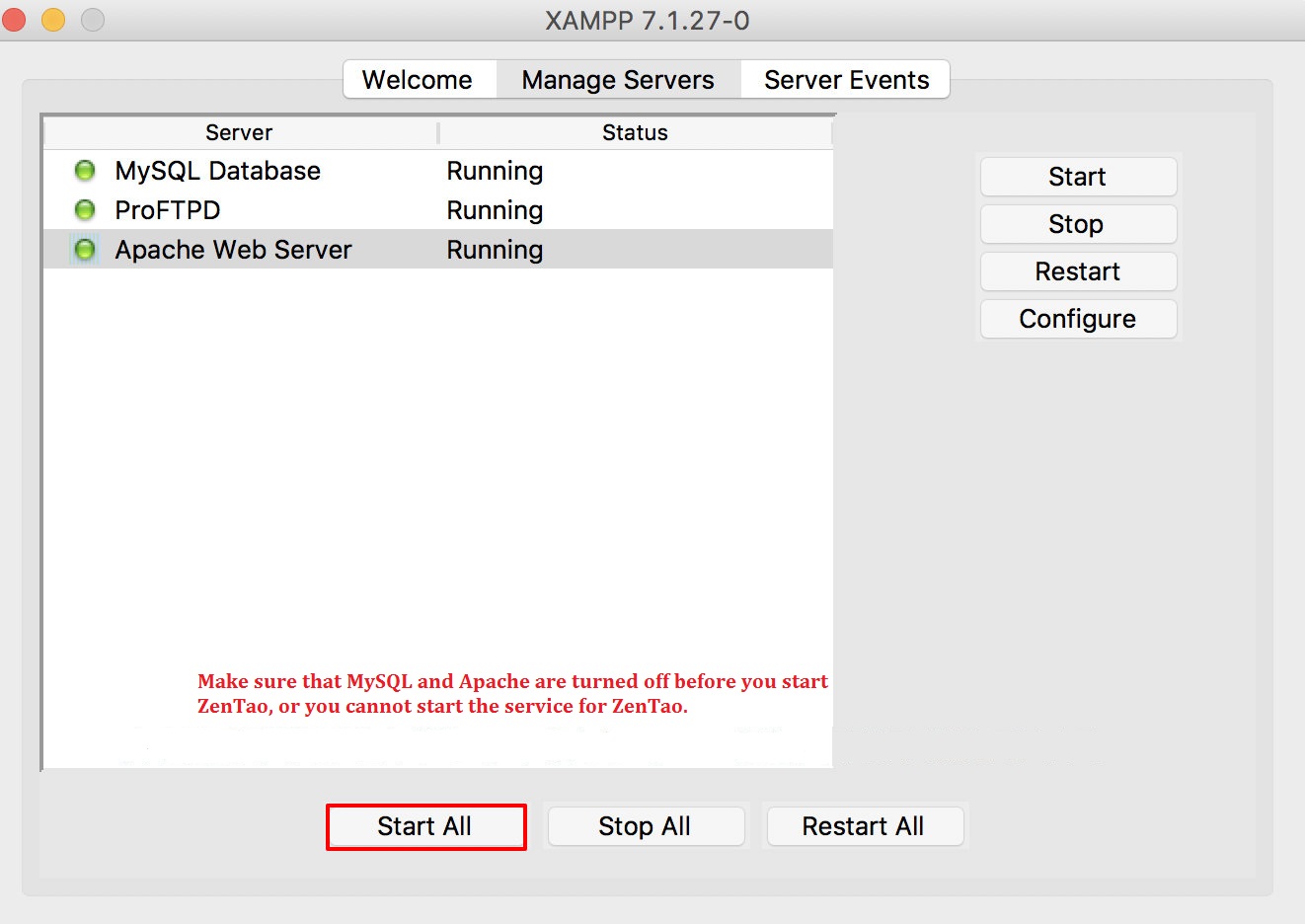
2. Configure RTE via XAMPP

XAMPP is an easy-to-install Apache distribution that includes MySQL, PHP, and Perl. It includes the installation environment required by Sanplex and is easy to deploy and use.

Note: If you could not start Apache, shut it down and restart it. Then visit your localhost.


3. Install Sanplex

3.1 Download the package from Sanplex official website HERE.

3.2 Unzip the package and get a folder “zentaopms”. Save it to Applications/XAMPP/xamppfiles/htdocs.

Restart Apache.

Visit localhost/zentaopms/www/install.php to install.


Run the command line below if any issues regarding file privileges.


sudo chmod -R 777 /Library/WebServer/Documents

4. Other optional configuration

Initialize the MySQL root account and open the terminal.


sudo /Applications/XAMPP/xamppfiles/xampp security
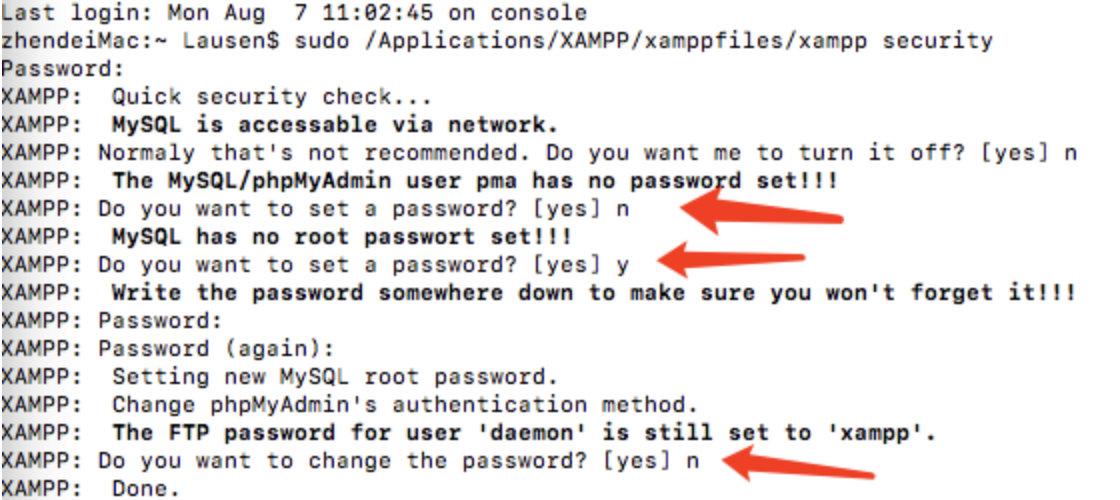

If you could not visit Sanplex after you change the password, you need to change the database configuration set earlier. Run as below:


sudo vim  /opt/lampp/htdocs/zentaopms/config/my.php 


Enter the root password you want for it and refresh your browser.

Write a Comment
Comment will be posted after it is reviewed.