Catalog
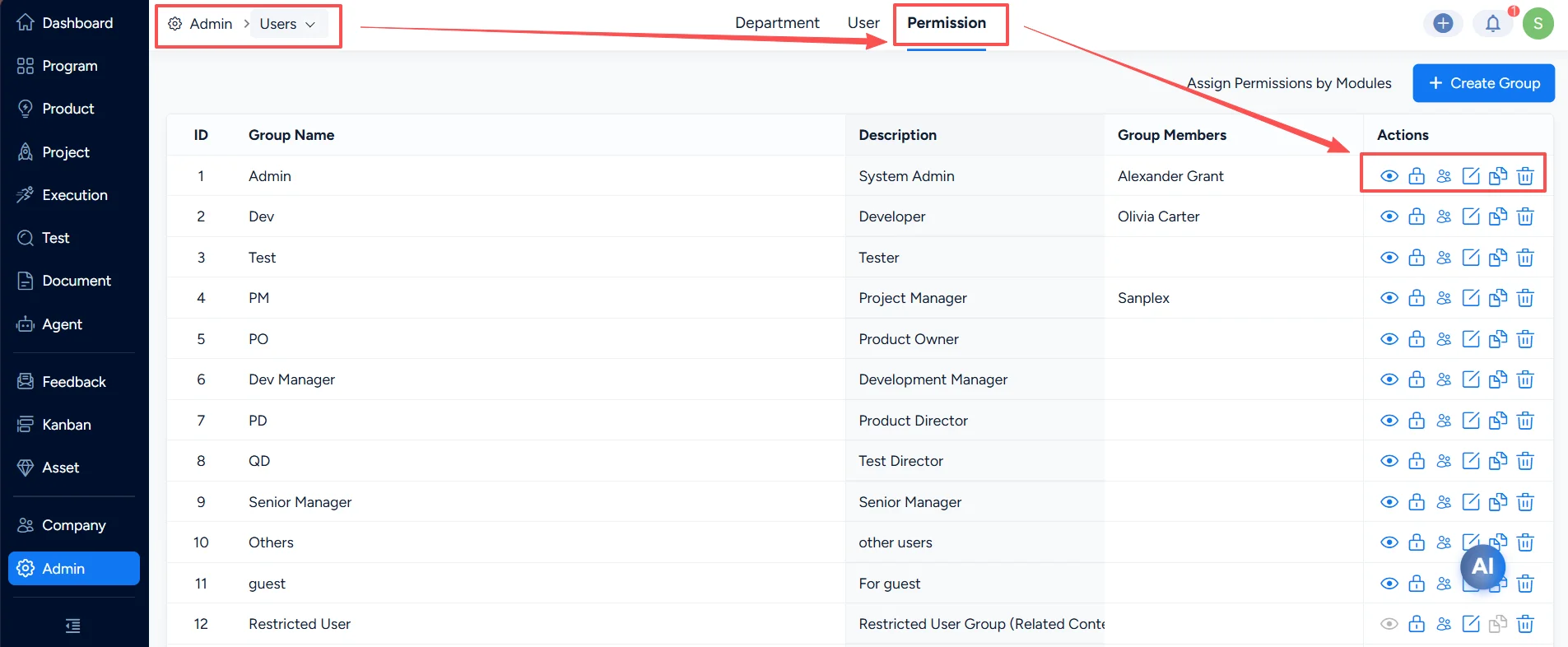
In Admin > User > Permission, you can configure permissions by Permission Groups. The available actions are:
- View Settings: Configure which views this group can access.
- Permission Settings: Configure action-level permissions for group members across Sanplex.
- Member Settings: Maintain group members.
- Edit Group: Edit the group name and description.
- Copy Group: Copy a group’s permissions and users to quickly create a similar group.
- Delete Group: Delete a group.
I. View Settings
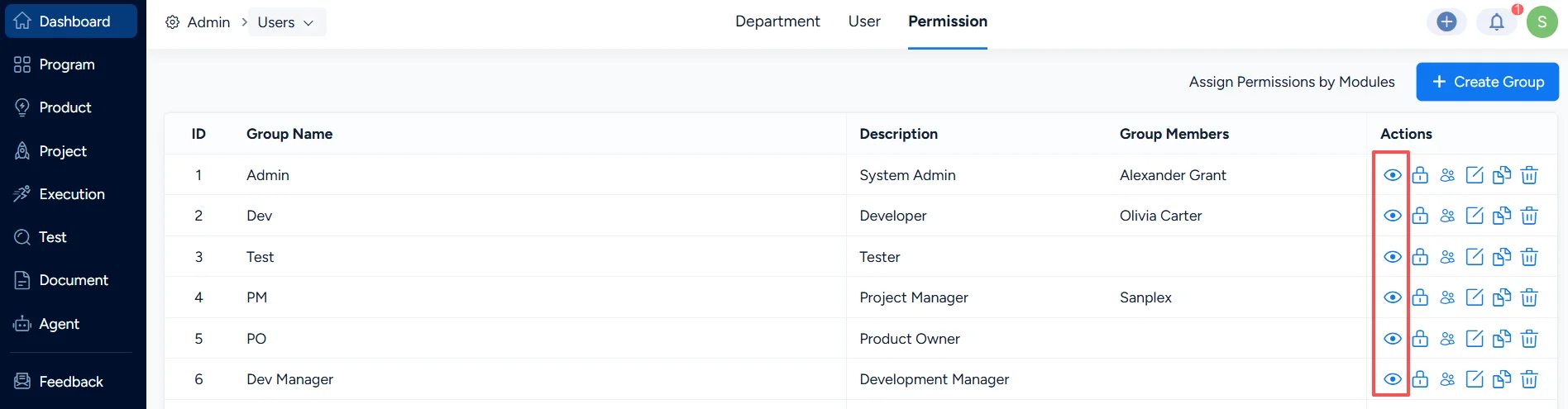
Click the View Permissions button for a group, for example the PO (Product Owner) group.
1. Accessible Views
“View” refers to the visible sections (modules/views) in Sanplex. By default, all views are accessible.
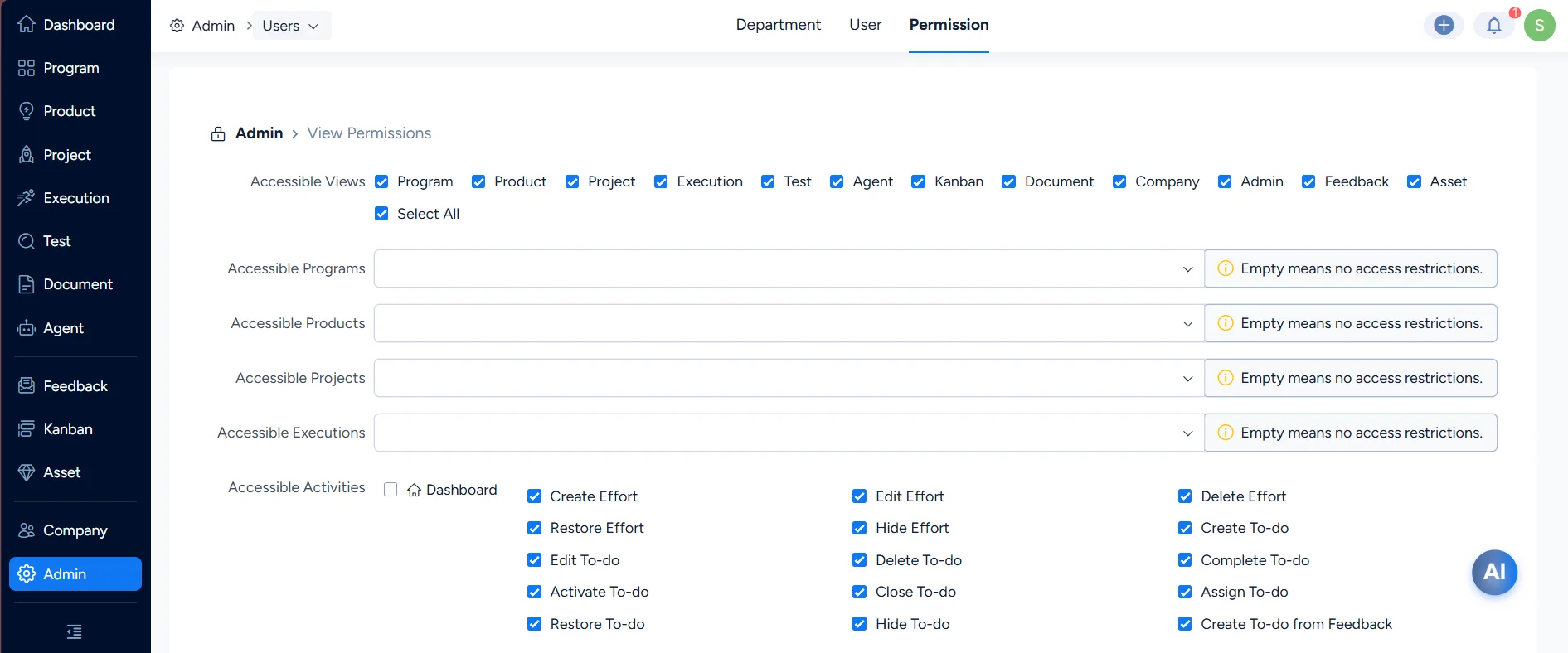
If you uncheck a view under Accessible Views, for example Test, members of the PO Group will not be able to access Test. After those users log in, the Test view will also disappear from the left navigation.
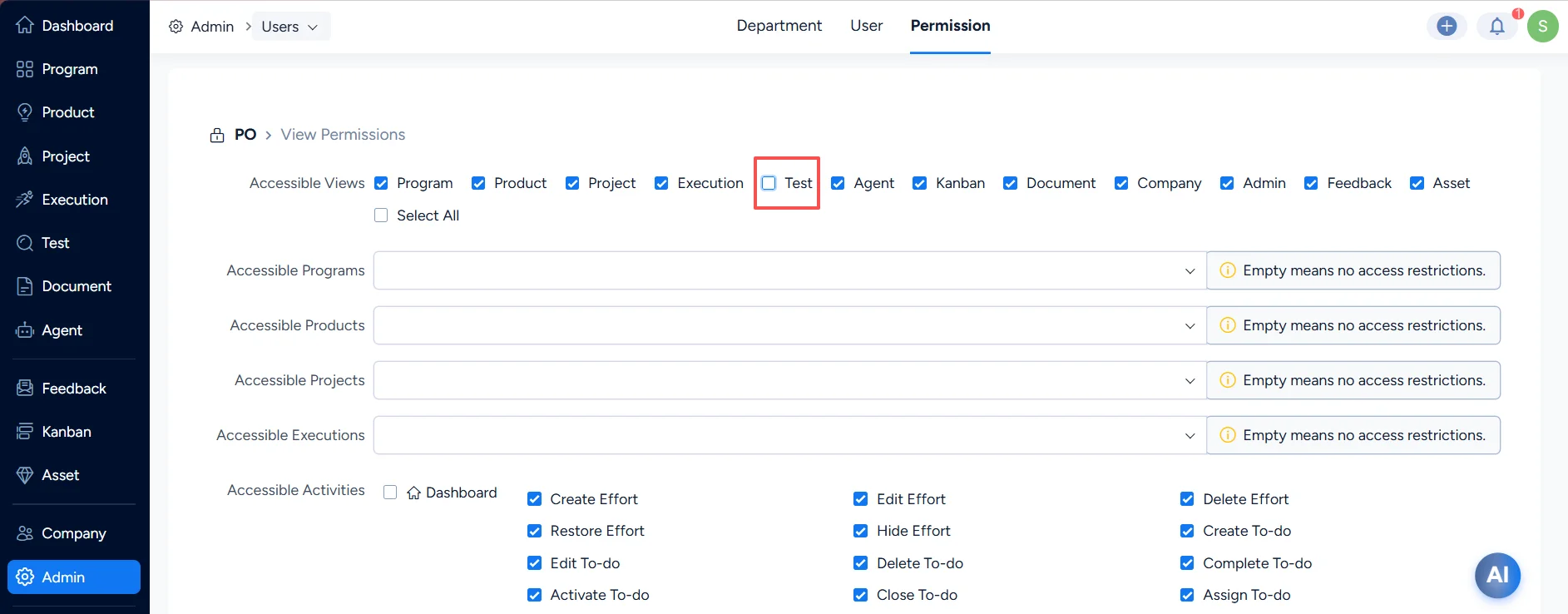
When configuring access permissions for a Program or Project, also confirm whether the user has the required access permissions.
2. Accessible Programs, Products, Projects, and Executions
Under Accessible Products, if you select KodeFlex as an example, group members can access only the product KodeFlex and cannot see other products. If you select no product, it means the group can access all products.
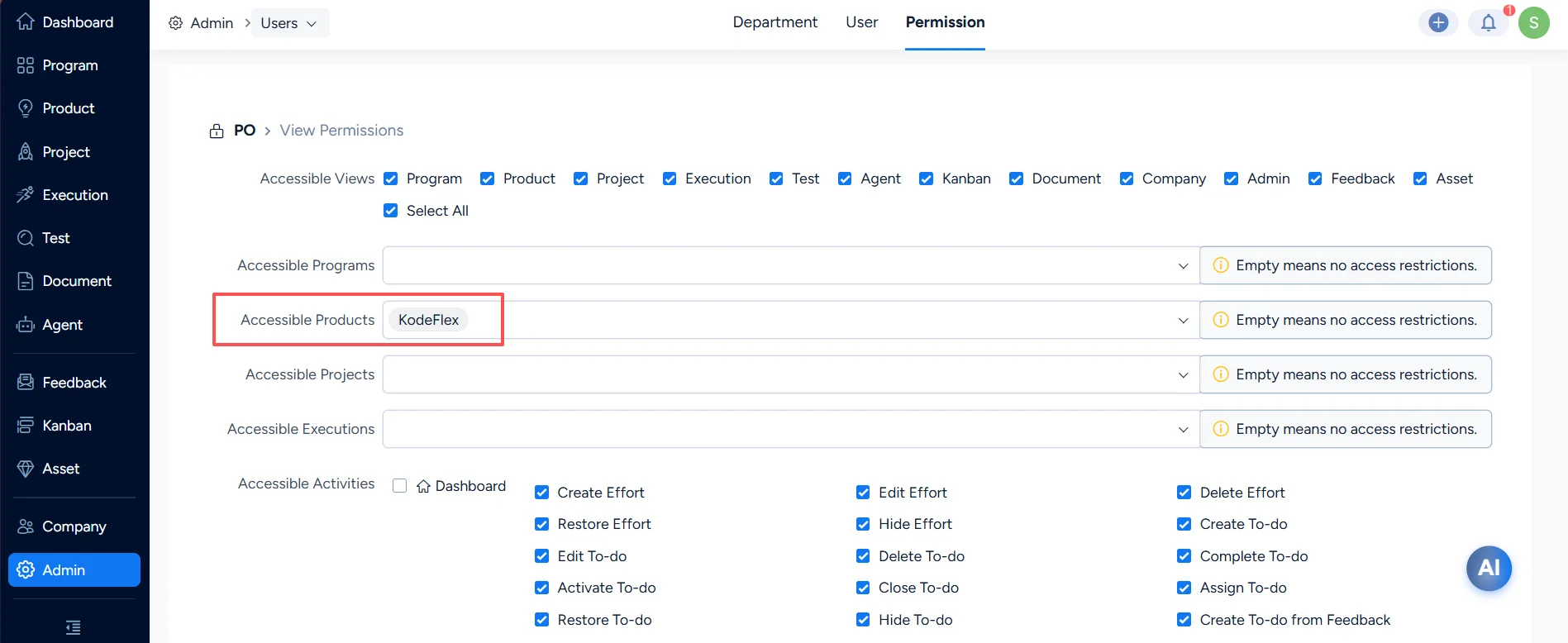
The same rules apply to Accessible Programs, Accessible Projects, and Accessible Executions.
Note: If “Empty means no access restrictions” is enabled, access control follows the permissions configured for products, programs, projects, and executions.
II. Action Permission Settings
In Admin > User > Permission, click Action Permissions.
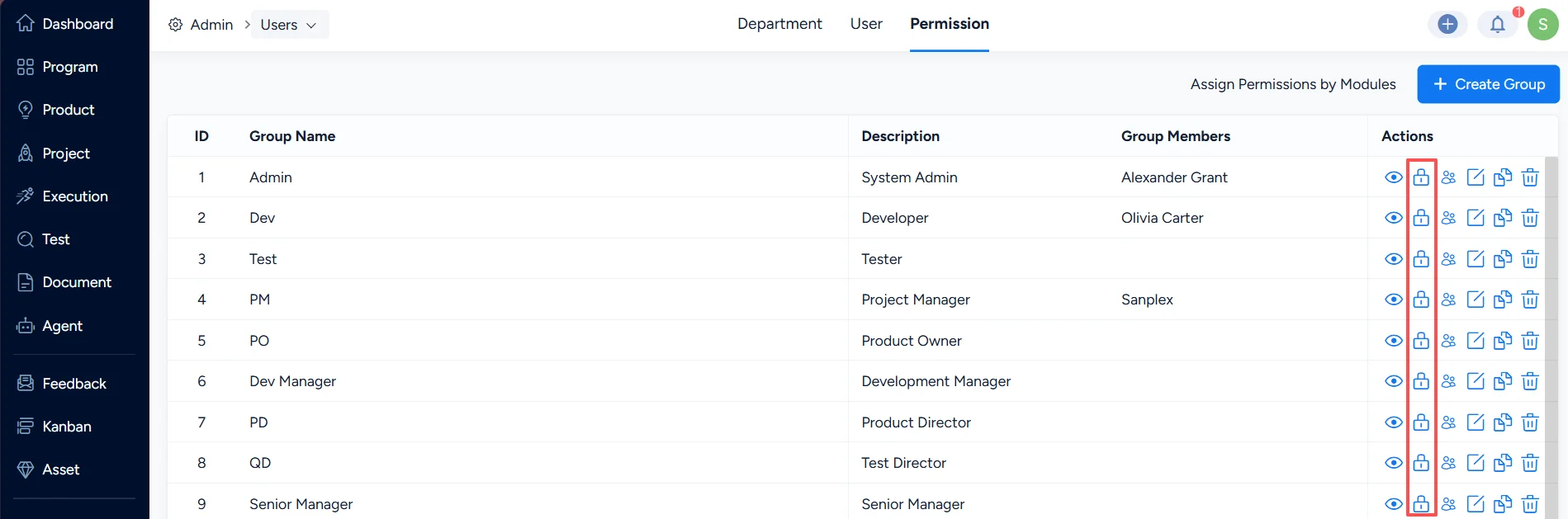
1. Assign Permissions
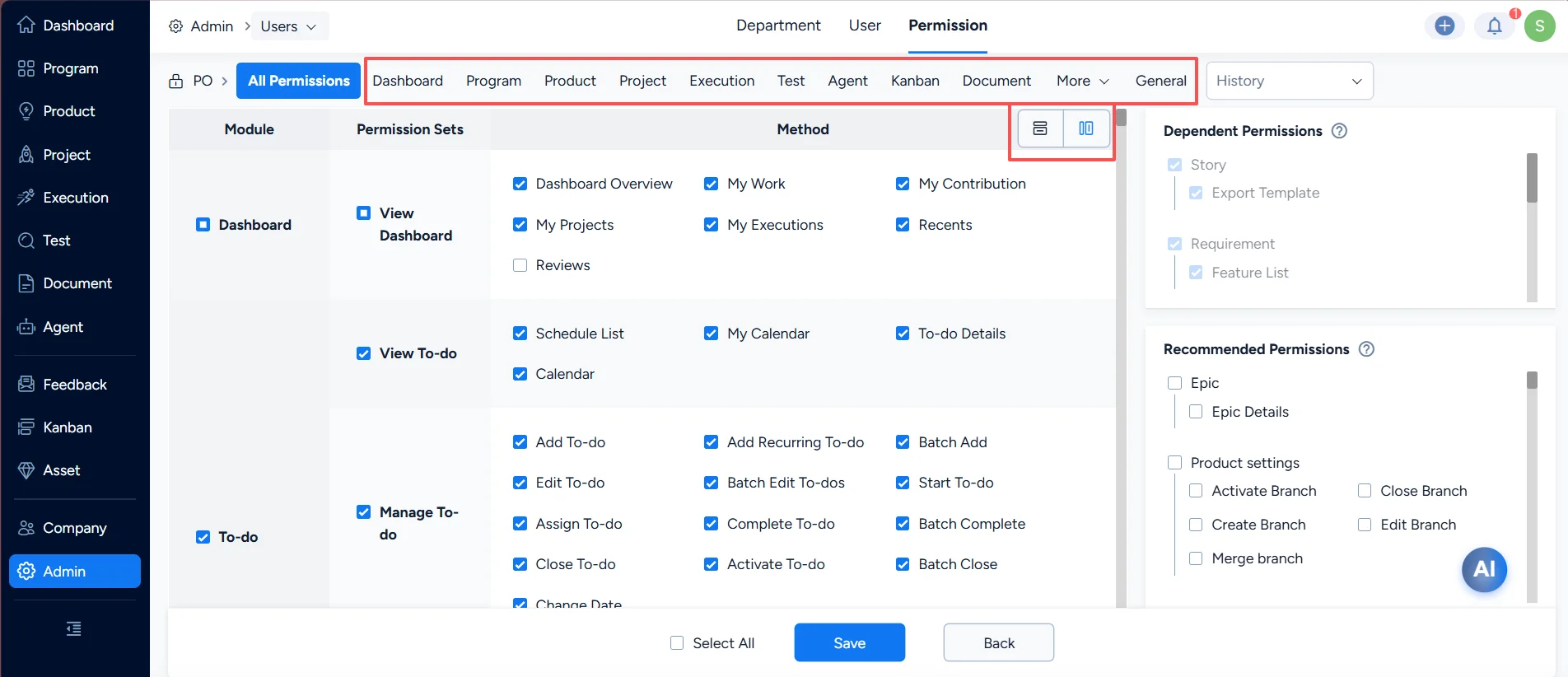
On the Action Permission Settings page, you can configure permissions for Sanplex modules and actions in detail. For example, if you uncheck Add To-do for a permission group, members of that group will not be able to add to-dos after logging in.
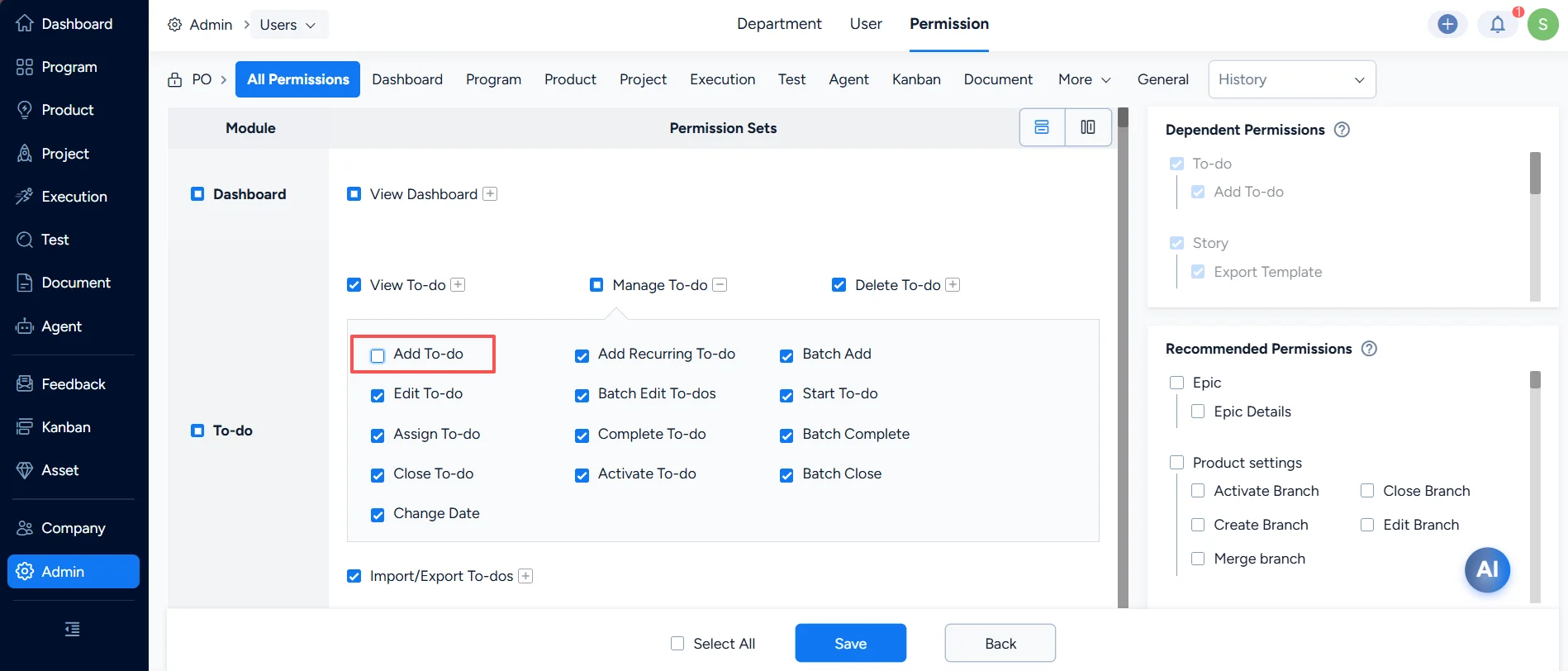
You can also use the tabs to locate modules and configure permissions within a module. In the top-right, you can switch to the permission package view and directly select permission packages.
2. Dependent Permissions
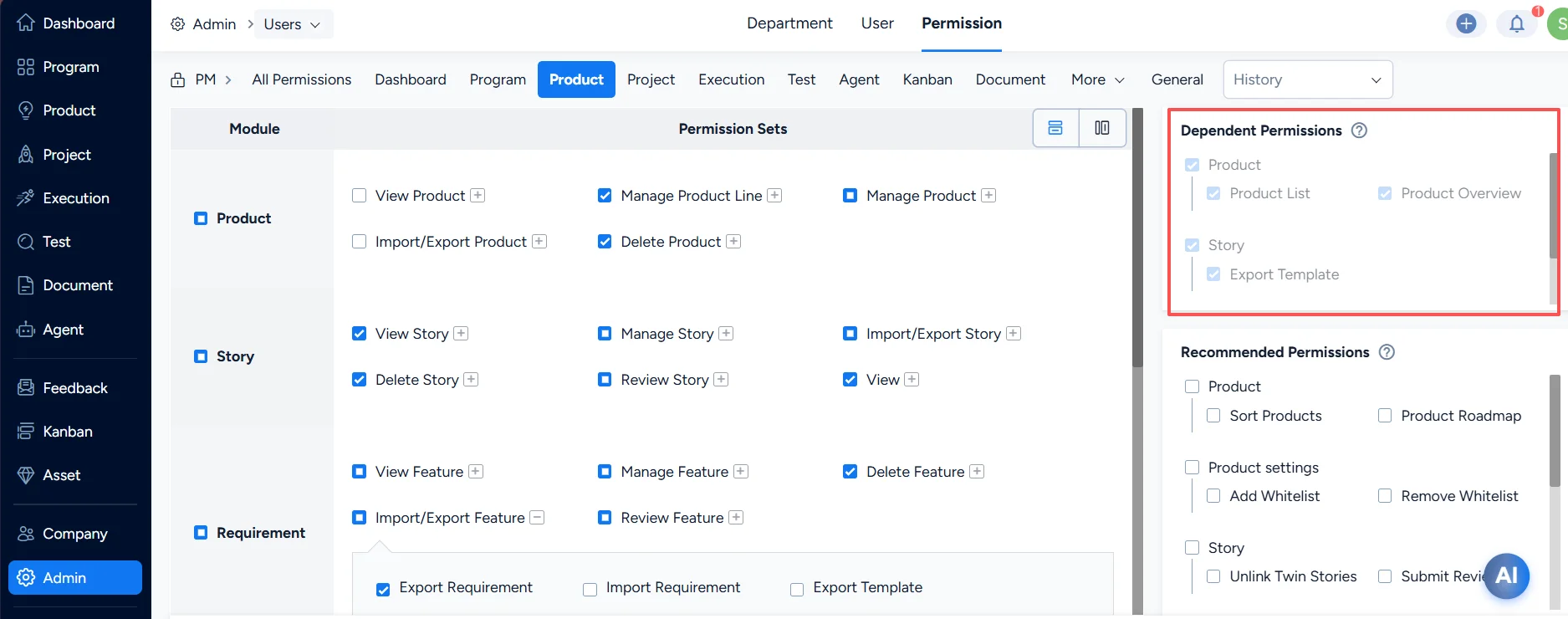
Dependent permissions mean that when you enable a permission, related prerequisite permissions must also be enabled for the feature to work properly; otherwise it will not function as expected.
Using product permissions as an example:
If you enable product-related permissions but do not select permissions such as Product List, Overview, Dashboard, Export Templates, or Epic List, the Dependent Permissions area will display prompts.
3. Recommended Permissions
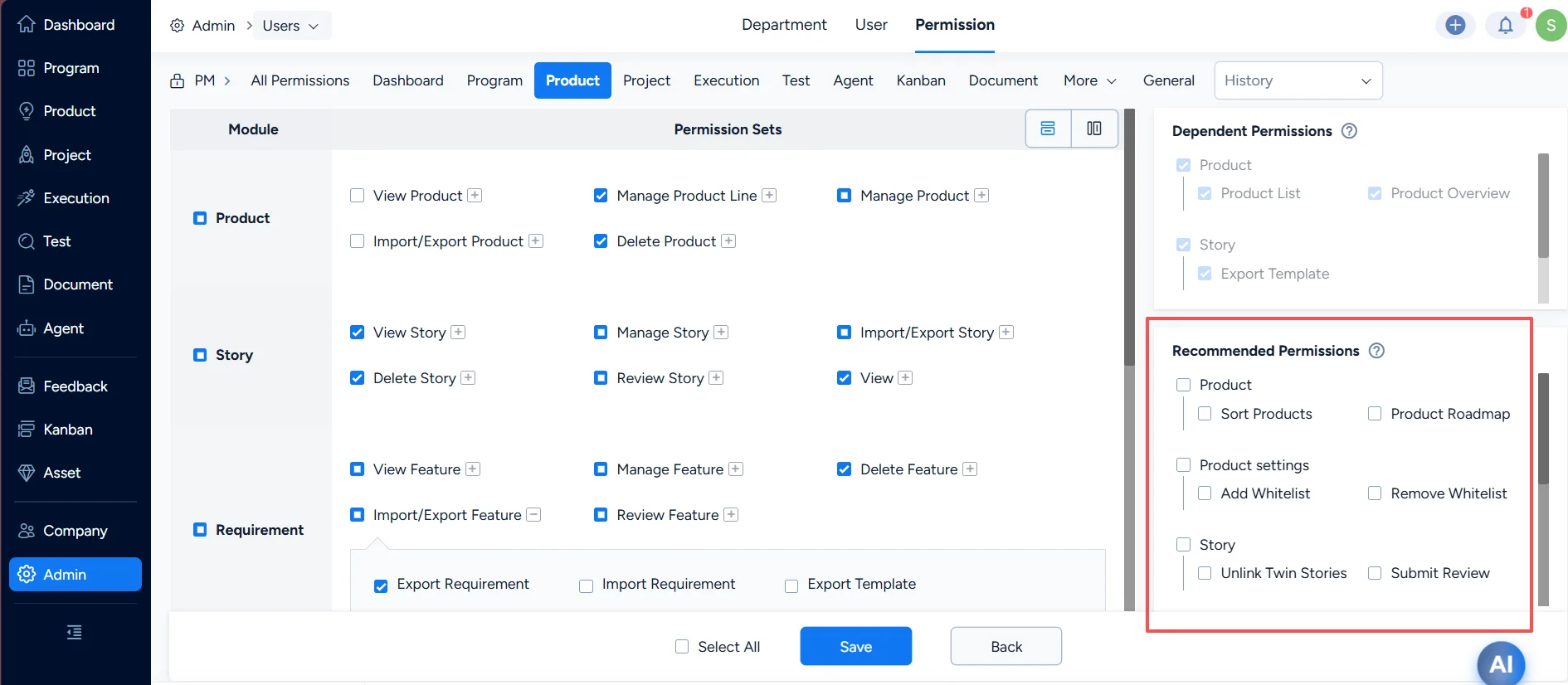
Recommended permissions are suggested by the system based on the permissions you have already assigned. Assigning recommended permissions helps make operations more complete and reduces omissions.
Using product permissions as an example:
If you select some product permissions, the Recommended Permissions area lists recommended related permissions corresponding to the selected items.
III. Permission Notes
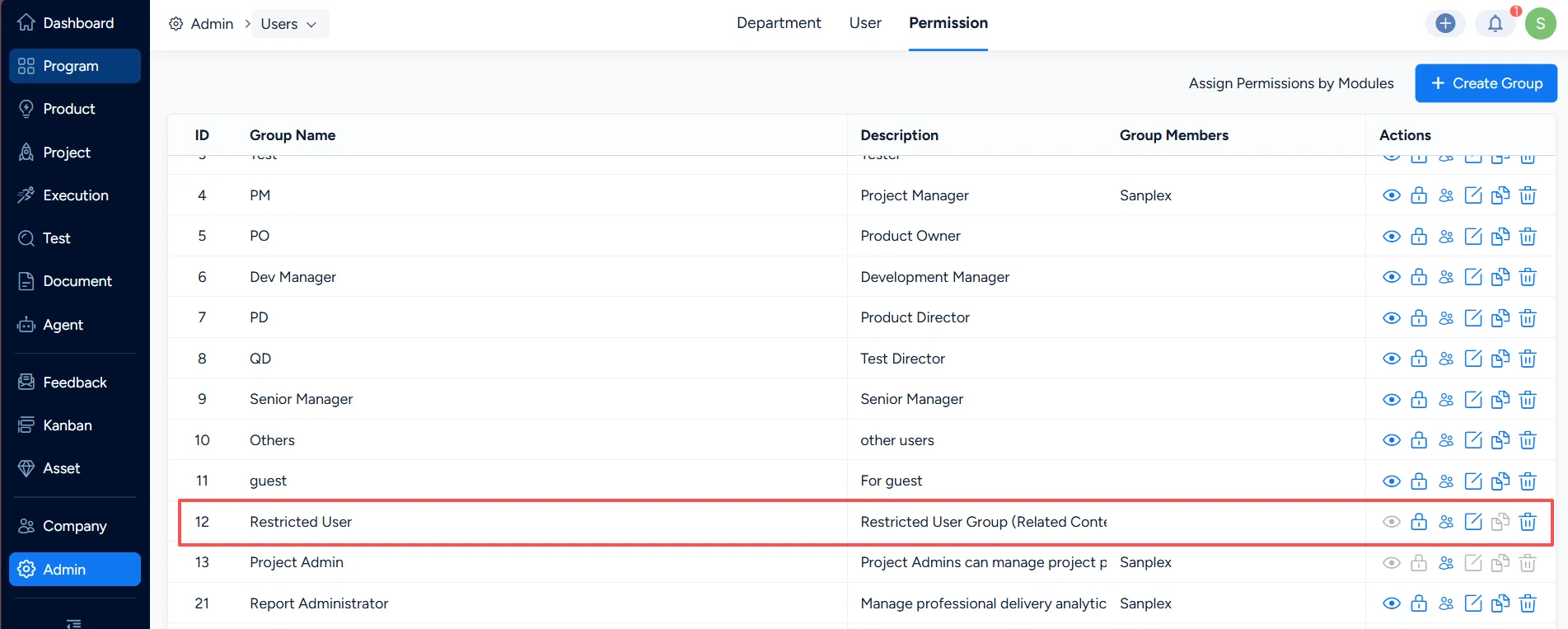
1. Restricted Users
There is a permission group named Restricted Users.
Notes:
- Users in this group can only edit items related to themselves (such as Stories, Tasks, Bugs, etc.) and cannot create new items such as Stories, Tasks, or Bugs.
- “Related to themselves” includes items Assigned to, Completed, Canceled, Closed, or Last edited by the user; it does not include items where the user is only CC’d.
- If a user was not previously a restricted user but is later added to Restricted Users, they still keep permissions for items they created earlier (such as Stories, Tasks, Bugs, etc.).
- The Restricted Users group is suitable for onboarding new employees to reduce the risk of misoperation while they are not yet familiar with business processes.
- Restrictions configured in Admin > User > Permission > Restricted Users apply system-wide in Sanplex.
- Restricted user settings in Project > Settings > Team > Manage Team apply only to that project; other projects are not affected.
- Restricted user settings in Project > Iteration/Stage > Settings > Team > Manage Team apply only to that iteration/stage; other iterations/stages are not affected.
2. Permissions for Products, Programs, Projects, and Executions
Product access control
- Public (anyone with Product view permission can access)
- Private (product owners, stakeholders of the program the product belongs to, and team members/stakeholders of associated projects can access)
- Access whitelist
Top-level Program access control
- Public (anyone with Program view permission can access)
- Private (program owner and stakeholders can access)
Sub-program access control
- All public (anyone with Program view permission can access)
- Public within program (all owners/stakeholders of higher-level programs, and the current program owner/stakeholders can access)
- Private (only the current program owner and stakeholders can access)
Standalone Project
-
Permission control:
- Inherit (union of project permissions and company-level permissions)
- Redefine (project permissions only)
-
Access control:
- Public (anyone with Project view permission can access)
- Private (project team members and stakeholders can access)
Project under a Program
-
Permission control:
- Inherit (union of project permissions and company-level permissions)
- Redefine (project permissions only)
-
Access control:
- All public (anyone with Project view permission can access)
- Public within program (owners/stakeholders of all higher-level programs, and the current project team members/stakeholders can access)
- Private (project team members and stakeholders can access)
Execution access control
- Inherit project access (anyone who can access the project can access)
- Private (team members, project owner, and stakeholders can access)
3. Guest Permission Group
Sanplex can be configured to allow guest access. This allows internal users or customers to access Sanplex without logging in, so they can track project progress in a timely manner.
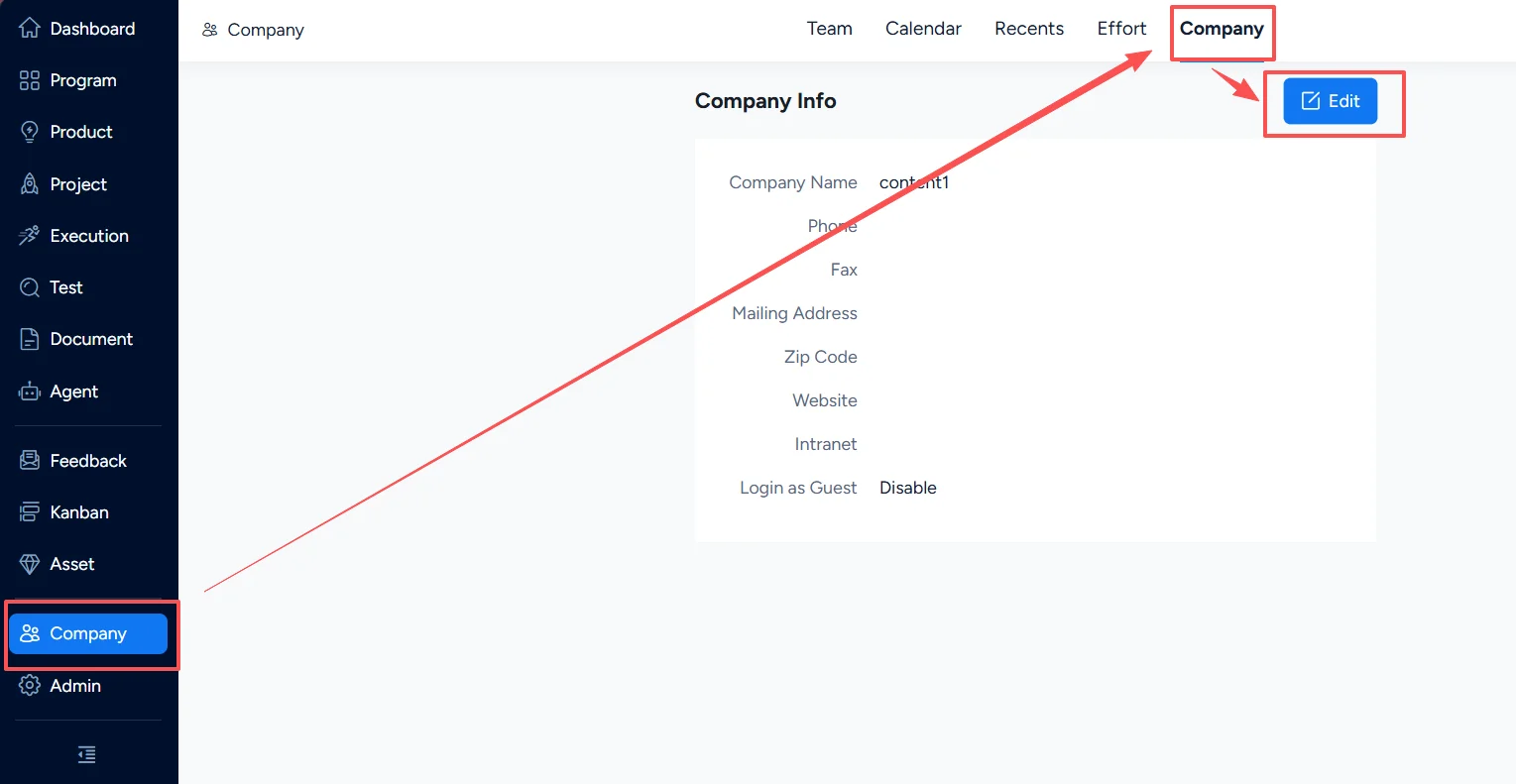
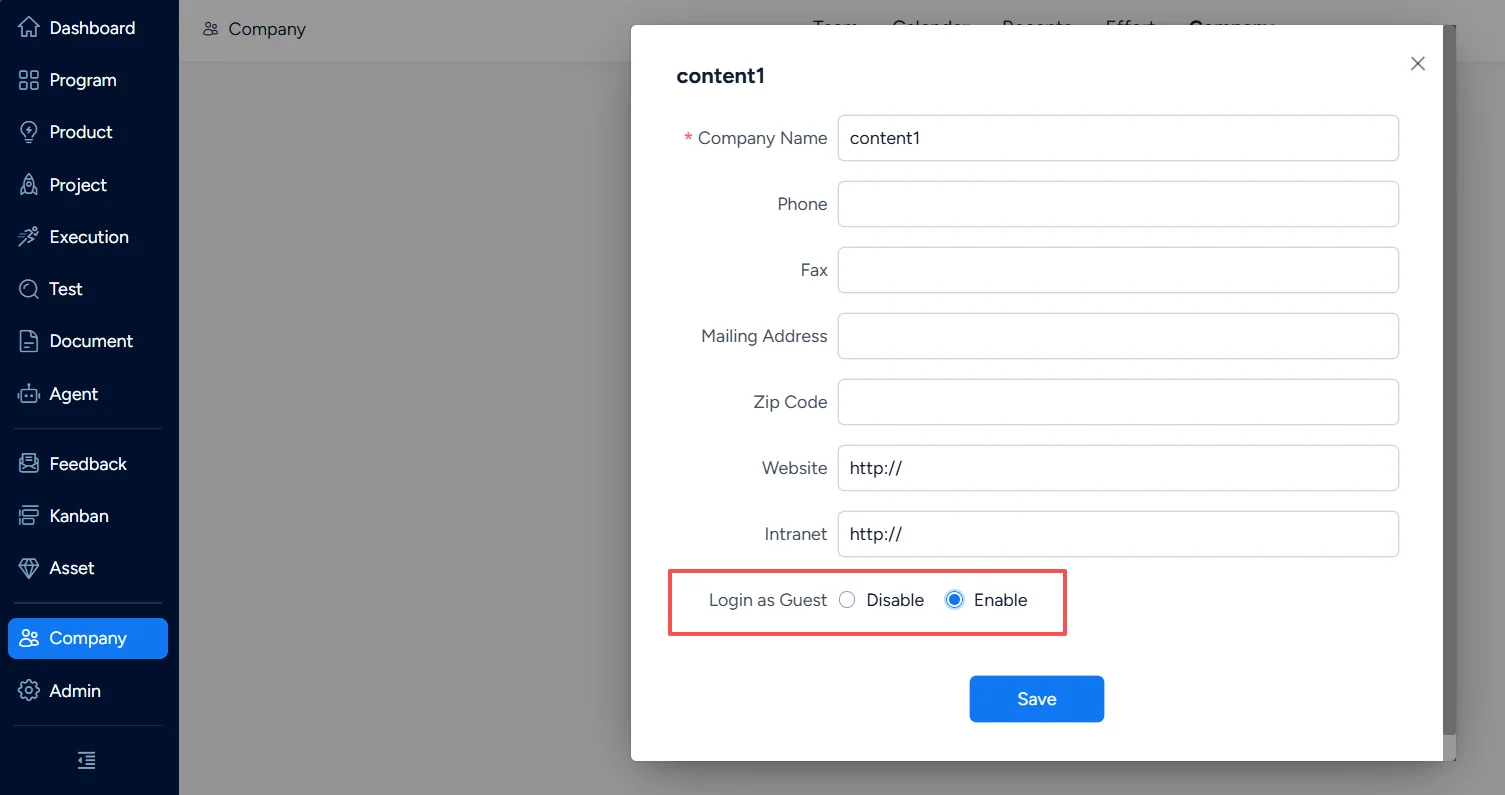
To apply guest access, first go to Company > Company > Edit and enable Login as Guest.
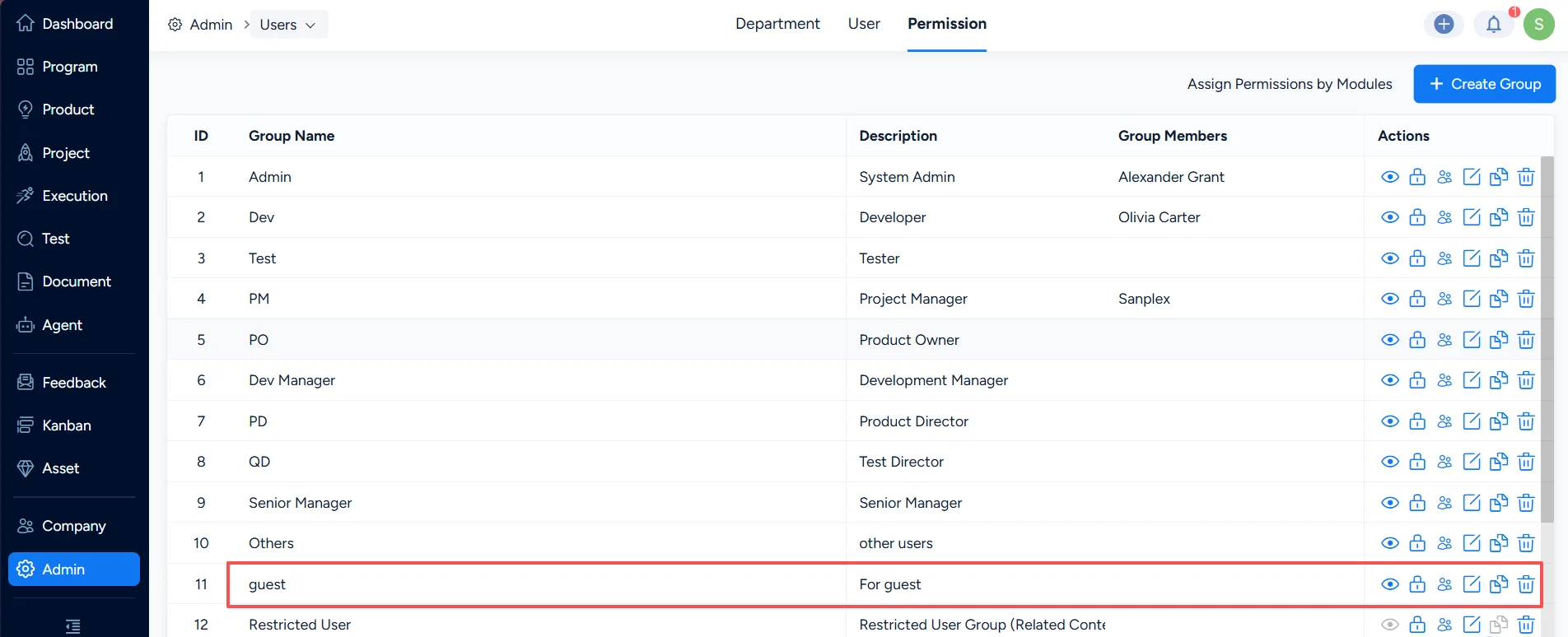
Then, in the permission group list, assign users who should be allowed guest access to the guest group.
4. Project Admin Permission Group
The Project Admin permission group is designed to efficiently grant management permissions in bulk to executives or special users, avoiding setting permissions object by object and improving efficiency.
After a user is set as a project admin, the user can not only access these objects but also has operation permissions for them.
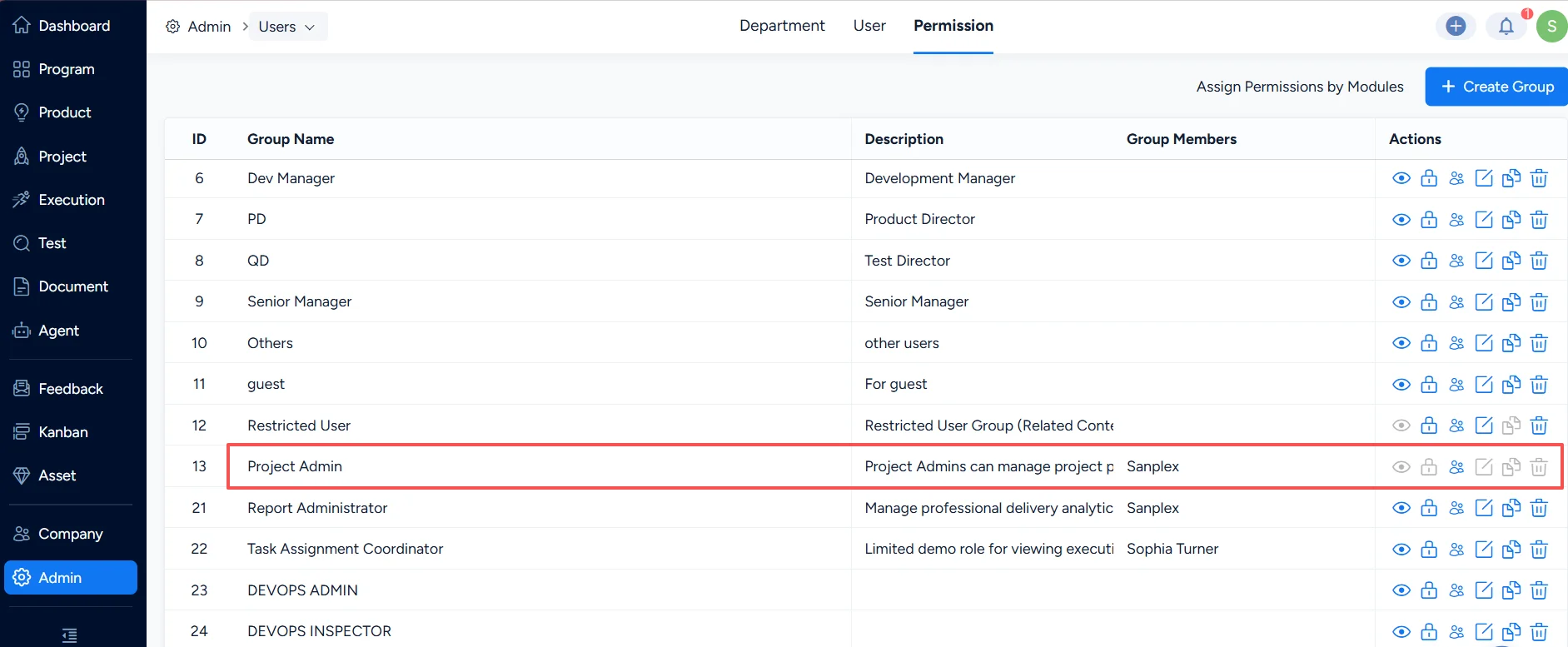
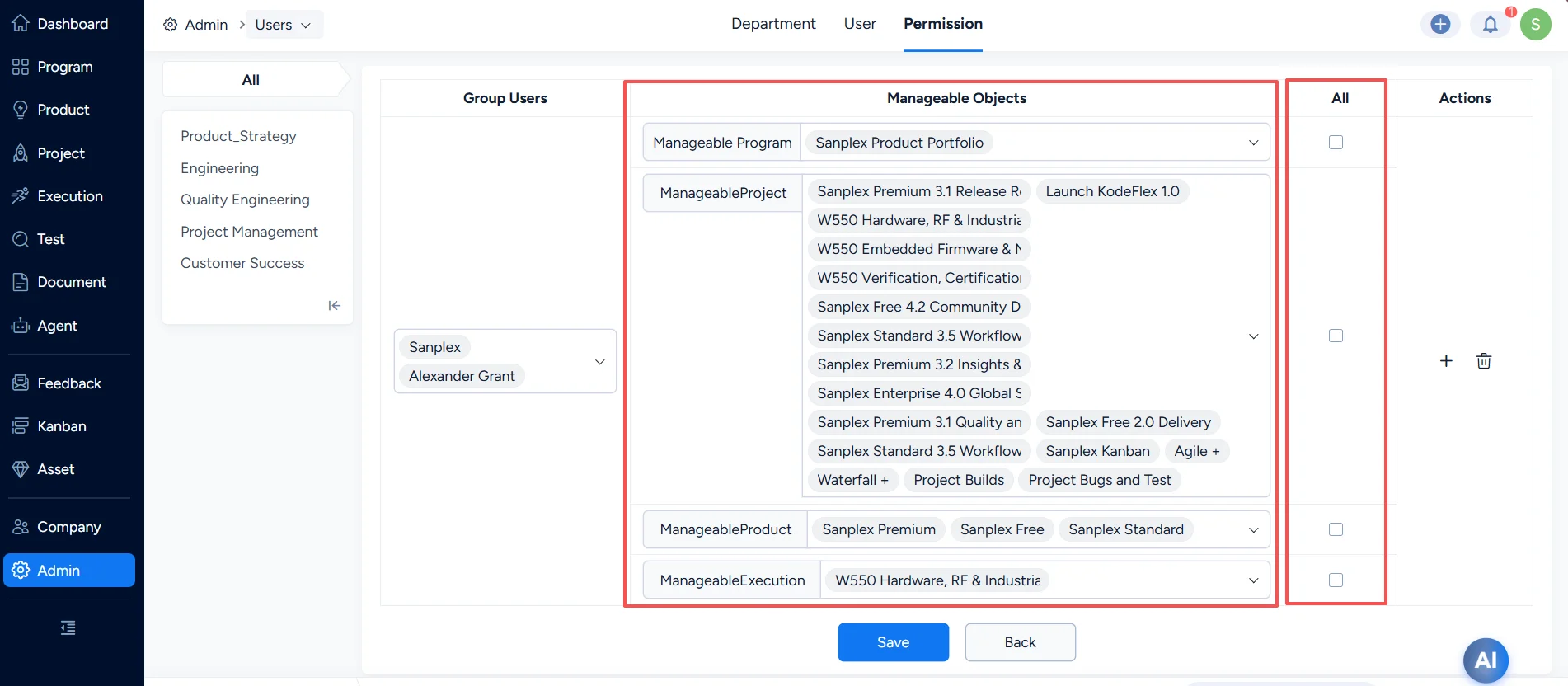
Manageable objects include Programs, Products, Projects, and Executions. You can select specific objects, or select All to grant management permissions for all objects in the system.