
Kanban Project
1. Introduction of Sanplex features
1.1. Core Management Framework
1.1.1 Program
1.1.2 Project
1.1.3 Product
1.1.4 Execution
1.1.5 Management Models
1.2. Dashboard
1.2.1 Getting Started with Tutorials
1.2.2 Quick Add
1.2.3 Notification Center
1.2.4 Effort Tracking
1.2.5 Dashboard - Project and Execution
1.2.6 Dashboard - My Work, Contribution, and Recents
1.2.7 Dashboard - Approval
1.2.8 Contacts
1.3. Program
1.3.1 Program List
1.3.2 Program Kanban
1.3.3 Create Program
1.3.4 Create Sub-Programs
1.3.5 Project Charter Management
1.4. Product
1.4.1 Create Product
1.4.2 Manage Modules
1.4.3 Multi-Branch and Multi-Platform Management
1.4.4 Manage Plans
1.4.5 Manage Requirements
1.4.6 Requirement Reviews
1.4.7 Requirement Status and Phase
1.4.8 Create Releases
1.4.9 Track Progress
1.4.10 Business Requirements and Multi-Level Requirements
1.5. Project
1.5.1 Scrum Project
1.5.2. Waterfall Project
1.5.2.1 Manage Project Phases
1.5.2.2 Project Design
1.5.2.3 Project Matrix
1.5.2.4 Project Reports and Earned Value Management
1.5.2.5 Project Baselines
1.5.2.6 Project Change
1.5.3. Kanban Project
1.5.3.1 Set Up Kanban Projects
1.5.3.2 Configure Kanban Boards
1.5.3.3 Use Kanban Boards
1.5.4 Hybrid Agile Project
1.5.5 Hybrid Waterfall Project
1.5.6. Project Settings
1.5.6.1 Project Setup
1.5.6.2 Project Executions
1.5.6.3 Project Requirements
1.5.6.4 Project Builds
1.5.6.5 Project Tests
1.6. Admin Settings
1.6.1 Confluence Data Import
1.7. Workflow

Set Up Kanban Projects

2026-08-24 18:43:14
Sanplex Content
15
Last edited by Jing WANG on 2026-08-24 20:08:47
Share links
Summary: Learn how to create a Kanban project, configure project settings, create a Kanban board, and maintain its basic information and status.

Sanplex provides a Kanban project management model for visualizing and managing project delivery through a dedicated Development Kanban Board.

This section explains how to create a Kanban project, configure its project settings, create a Kanban board, and maintain basic board information.

I. Create a Kanban Project

Go to Project > Create Project. On the Select management type page, select Kanban – Kanban Project Management.
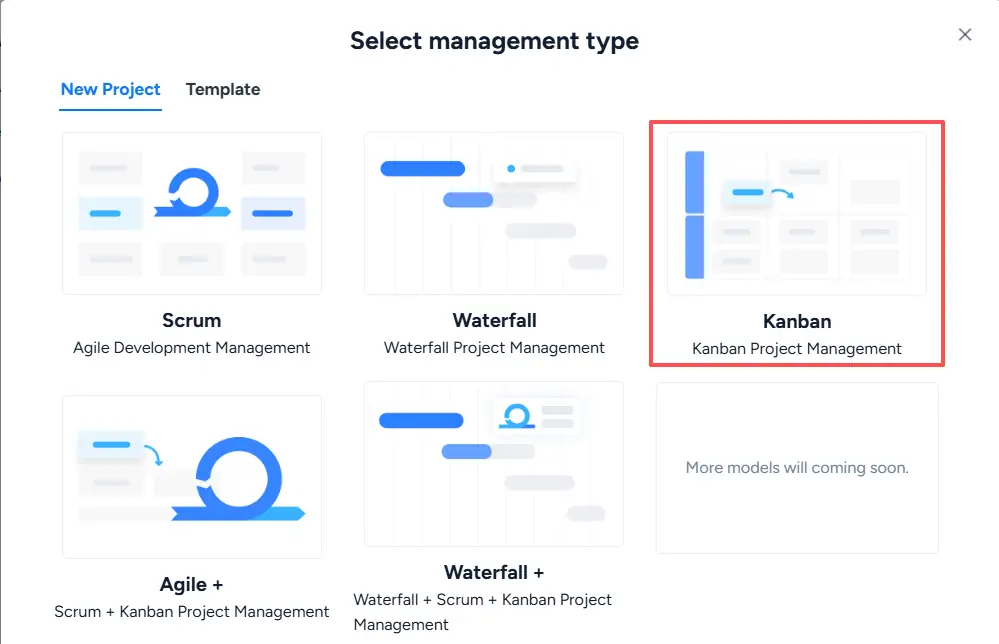
Select management type dialog highlighting Kanban and the Kanban Project Management option among the available project management models.

On the Create Project page, complete the project information as needed. For a Kanban project, the Project Workflow is set to Kanban product development.

The page also includes settings such as project name, planned duration, manager, linked products, linked plan, and description.
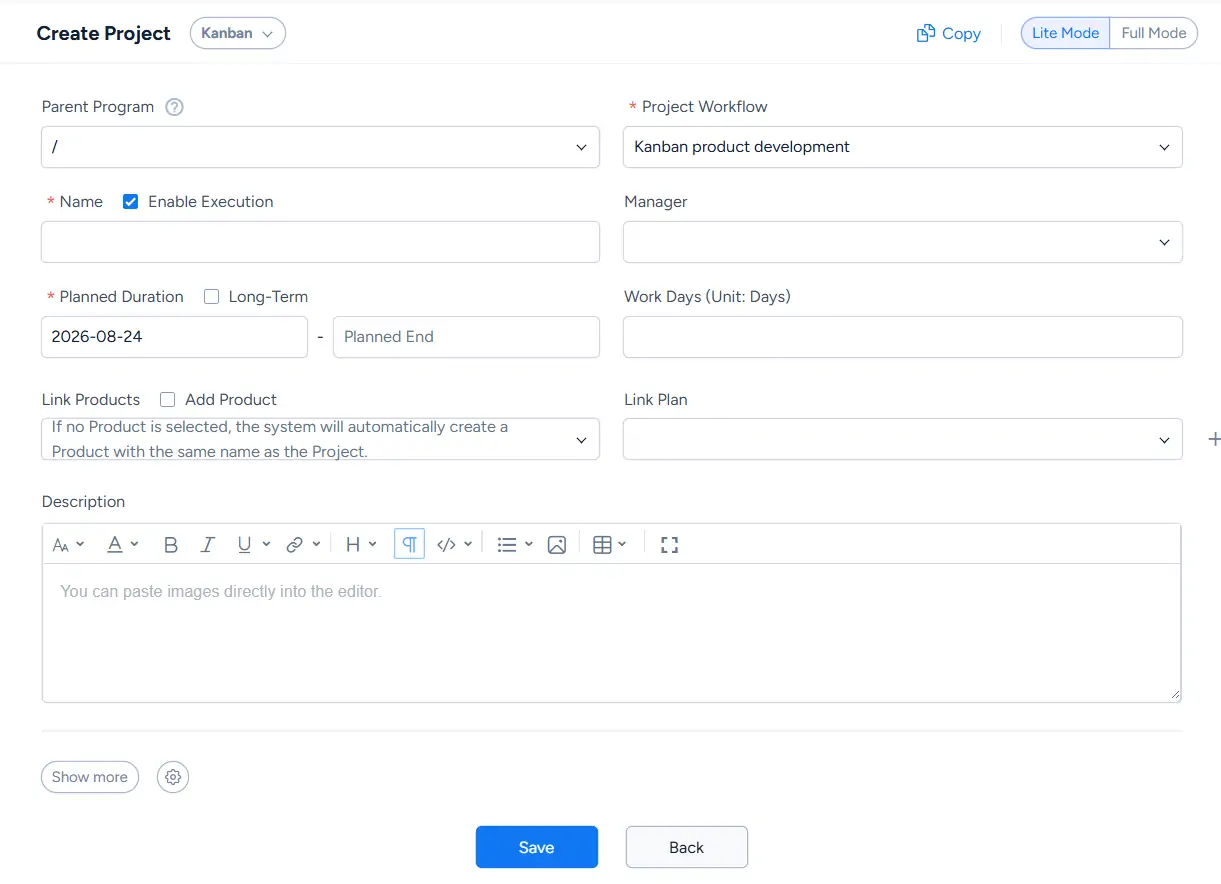
Create Project page in Kanban mode showing the project workflow, name, duration, manager, linked products, linked plan, and description fields.

Click Show more at the bottom of the page to display additional project settings.
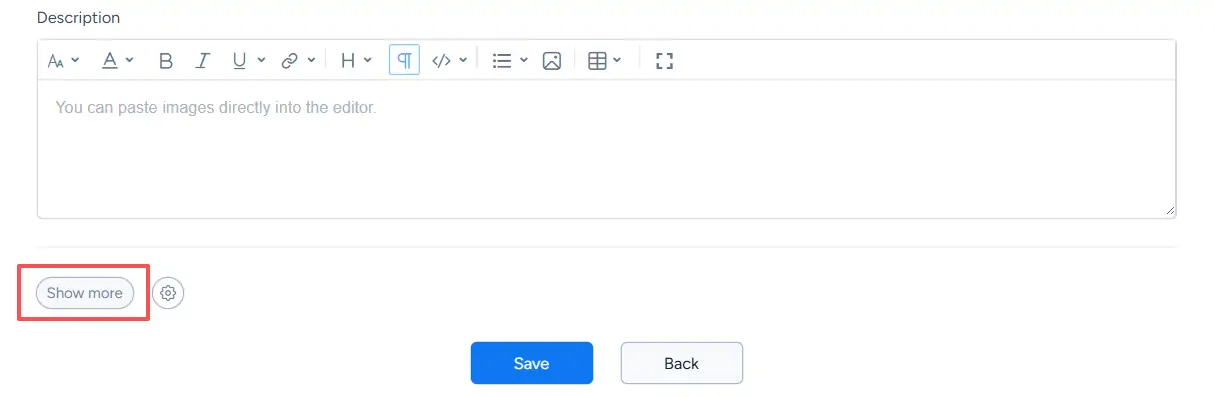
Lower section of the Create Project page highlighting Show more, which expands additional configuration options before the Kanban project is saved.

The expanded settings include:

  • Budget
  • Access Control: Public or Private
  • Permission: Inherit, which combines system and project permissions
  • Scheduling Constraints
  • Story Concept

Configure these options according to the project’s management requirements.
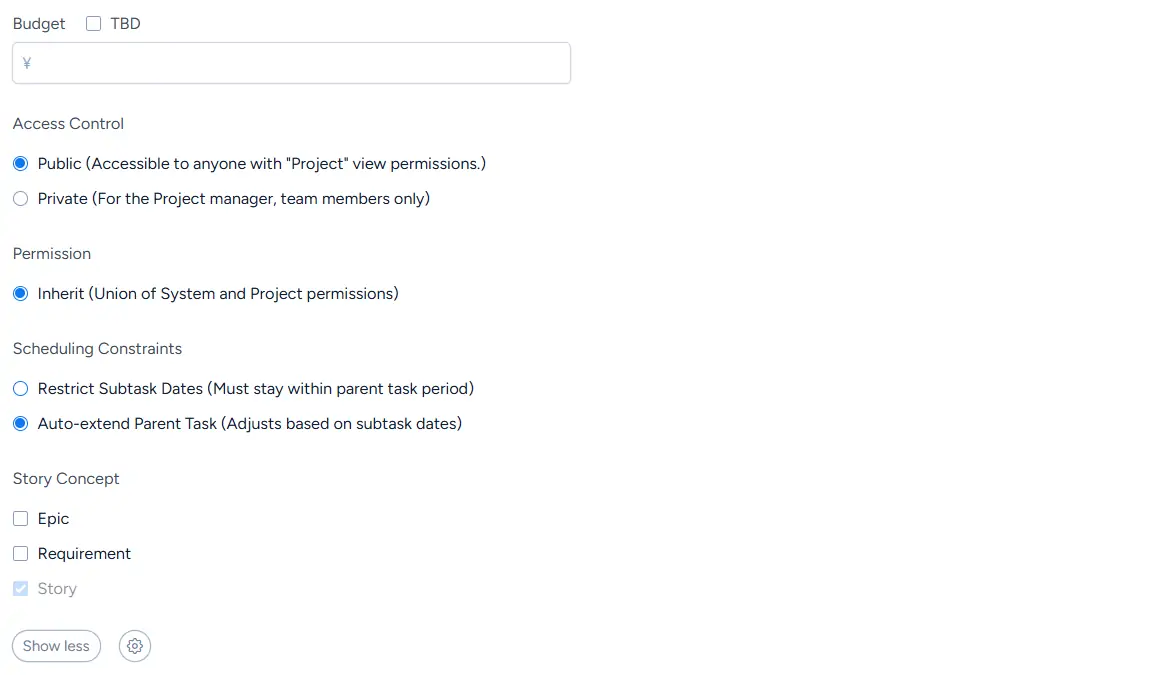
Expanded Kanban project settings showing Budget, Access Control, inherited Permission, Scheduling Constraints, and Story Concept options.

After completing the project information, click Save to create the Kanban project.

II. Create a Kanban Board

After the project is created, go to the Project List and locate the Kanban project.
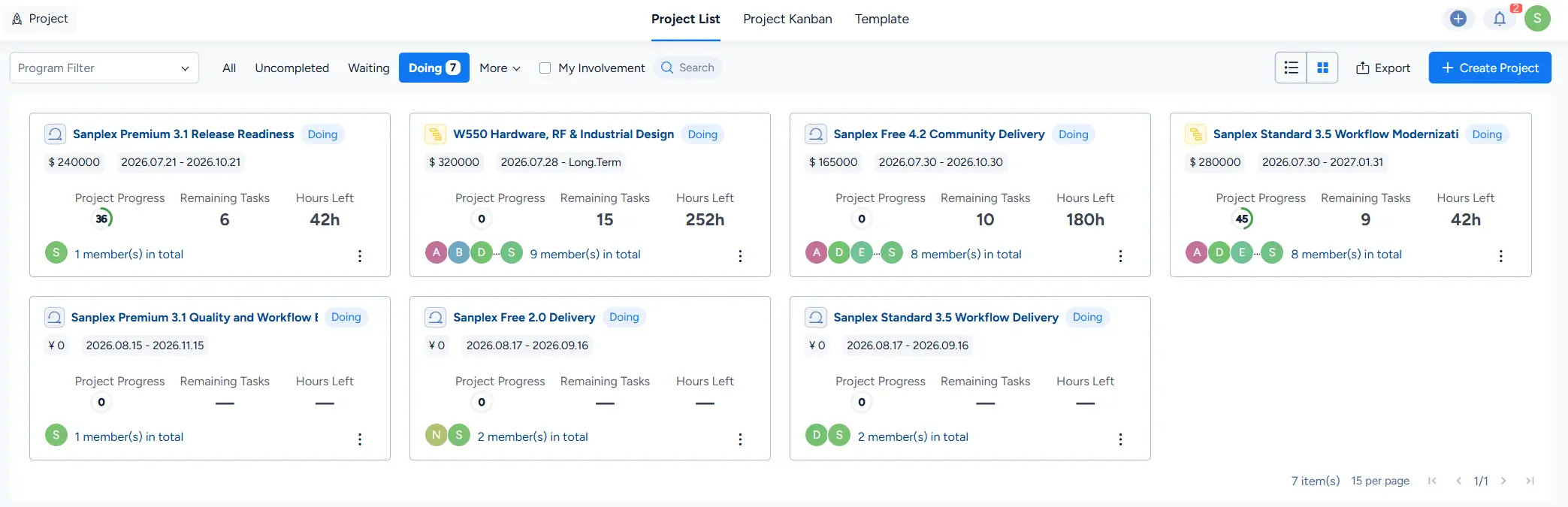
Project List displayed in card view, showing project names, statuses, budgets, durations, progress, remaining tasks, hours left, and team members.

You can use the project status filters to quickly locate projects. Available filters include All, Uncompleted, Waiting, Doing, and additional statuses under More.

Project List showing status filters, with the More menu expanded to display On Hold, Delayed, and Closed project statuses.

Click the Kanban project name to enter the project. The Kanban page displays the existing boards and provides filters such as All, Uncompleted, Waiting, Doing, On Hold, and Closed.

Click Create Kanban to create a new board.
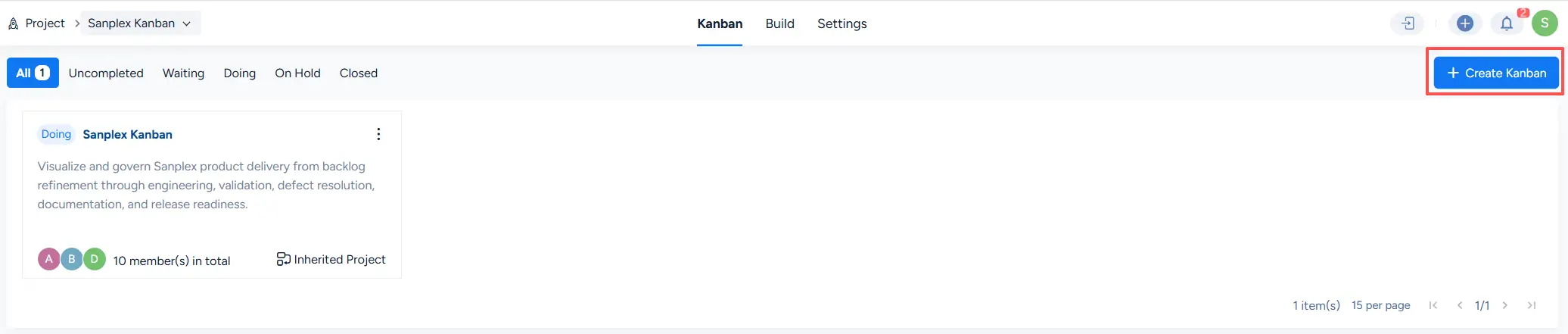
Kanban project page showing the board list, status filters, an existing Sanplex Kanban board card, and the Create Kanban button.

On the Create Kanban page, complete the board information, including:

  • Project
  • Kanban Name
  • Plan Duration
  • Linked Products
  • Linked Plan
  • Description

Additional settings can be configured as needed.
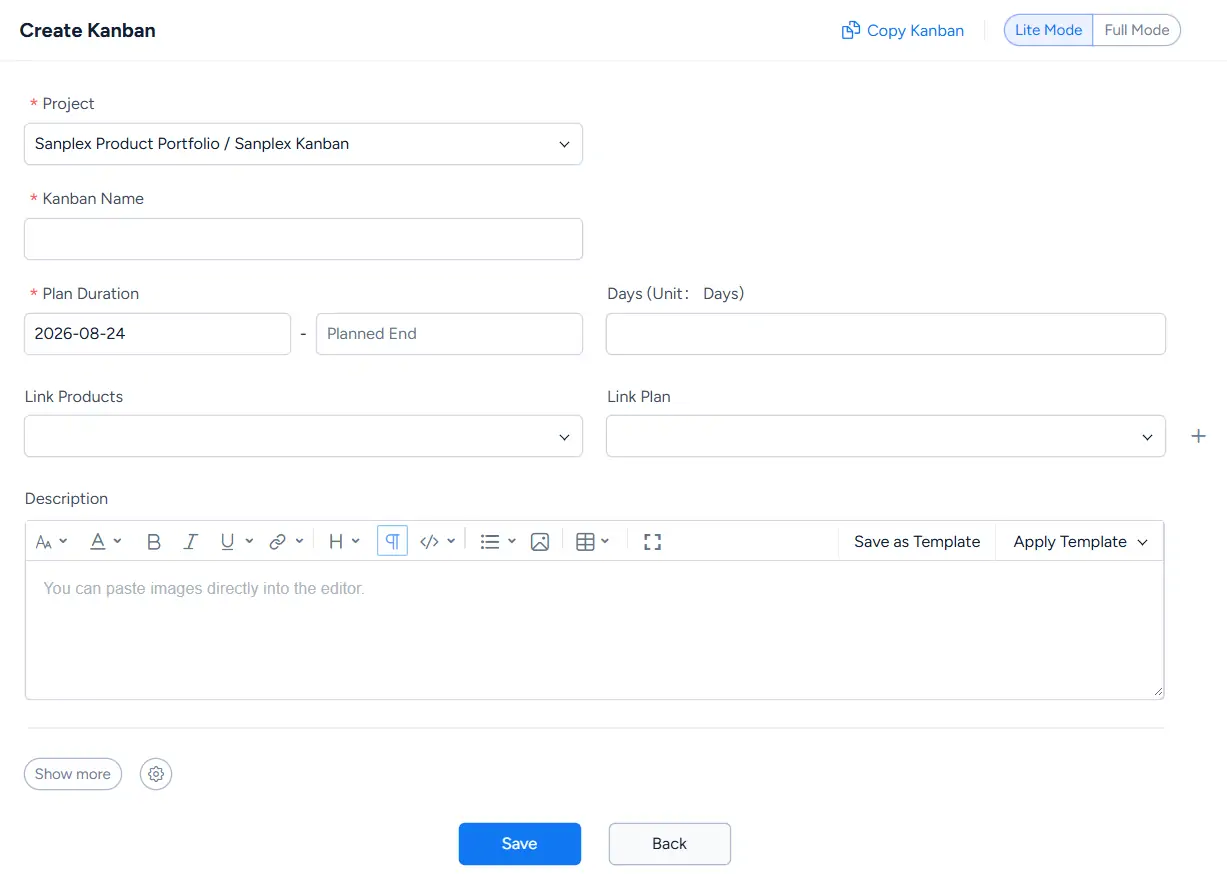
Create Kanban page showing the project, Kanban name, plan duration, linked products, linked plan, description, and additional configuration controls.

After the Kanban board is created, it appears as a card on the project’s Kanban page. The card shows information such as the board status, description, members, and project inheritance.

Open the More menu in the upper-right corner of the card to access actions such as Edit, Delay, Suspend, Close, and Delete.
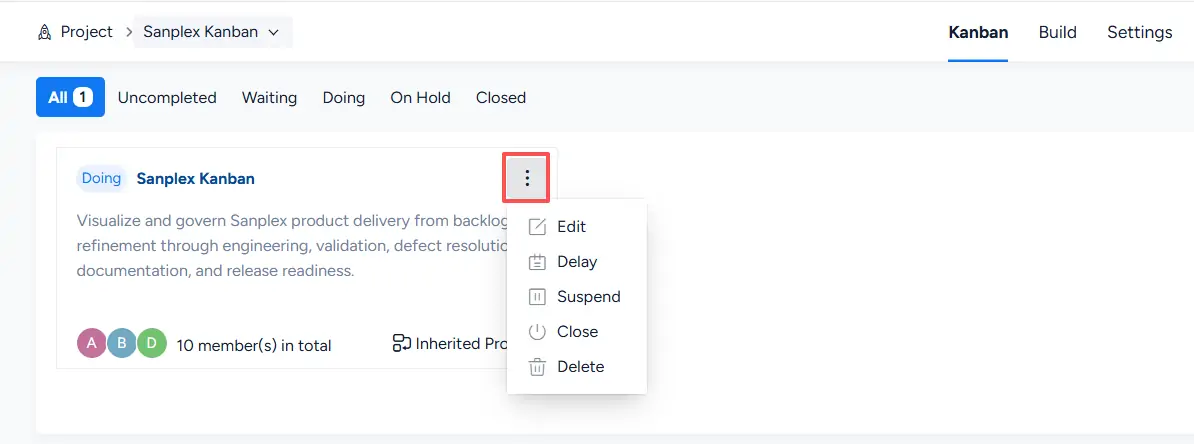
Sanplex Kanban board card with the More menu expanded, showing Edit, Delay, Suspend, Close, and Delete actions for the board.

Select Edit to update the board information. The Edit Kanban page includes settings such as board status, duration, linked products and plans, board roles, team name, members, and description.

After making changes, click Edit Kanban to save them.
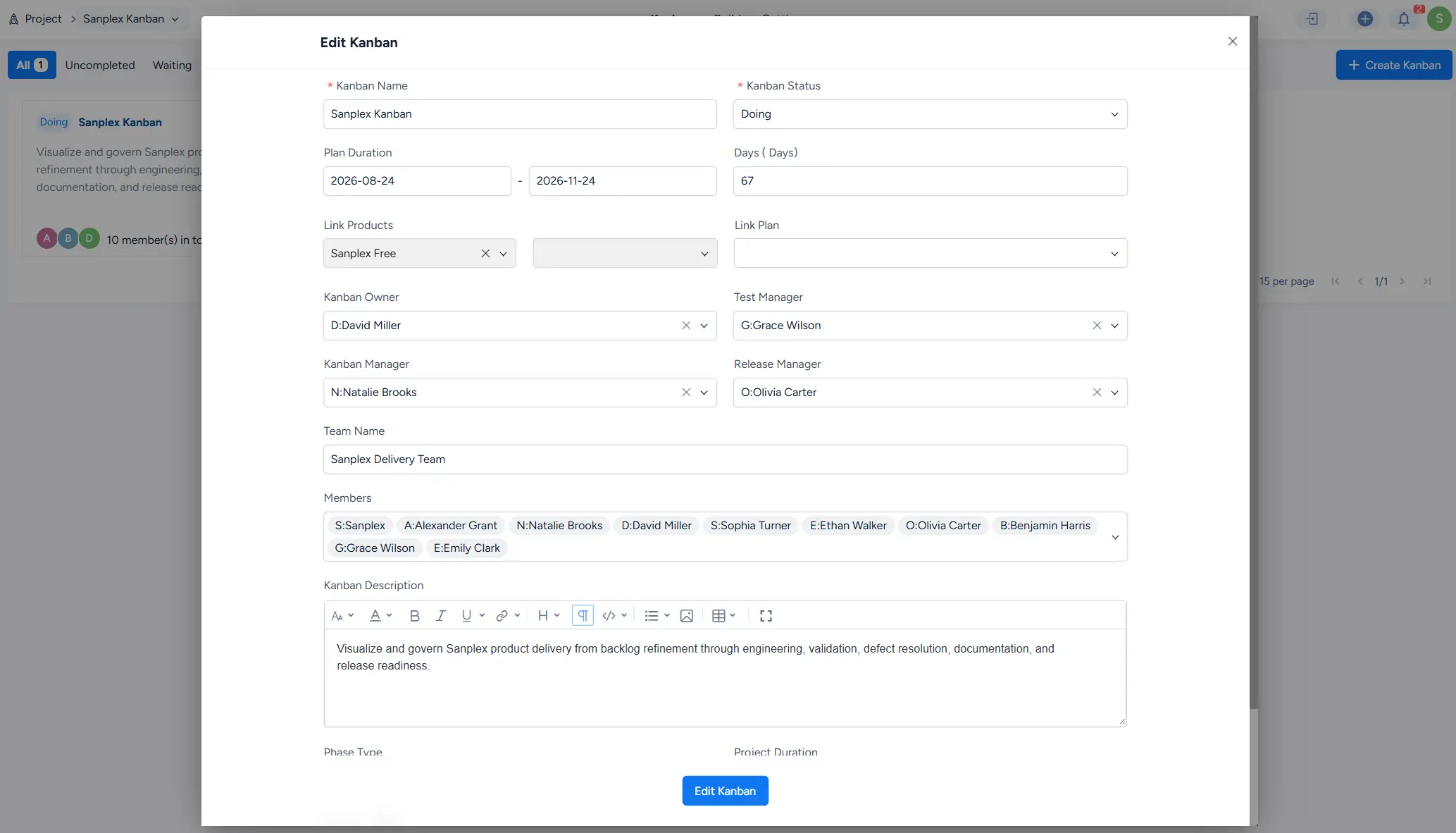
Edit Kanban page showing board status, duration, linked products and plans, board roles, team members, team name, and board description.

Write a Comment
Comment will be posted after it is reviewed.
