Catalog
Sanplex provides the Asset Library feature in the Premium edition.
What Is an Asset Library?
- An Asset Library is a set of unique process assets accumulated from project practices, including lessons learned and proven experience.
- It includes reusable and measurable assets created during delivery, such as stories, test cases, issues, risks, opportunities, document lists, as well as standards, workflows, tools and methods, templates, data, and more.
- It consolidates data scattered across different projects, providing data support and improvement inputs for future project management.
- The Asset Library is an important practice element in CMMI, providing organizational references, measurement baselines, and guidance.
Asset Library Management in Sanplex Premium
- The Asset Library includes: Story Lib, Case Lib (for test cases), Issue Lib, Risk Lib, Opportunity Lib, Practice Lib, and Component Lib.
- The Case Lib reuses the capabilities from Test > Case Library. Content in the Practice Lib and Component Lib is presented in document form.
- Compared with other libraries, documents in the Practice Lib and Component Lib can be imported from project documents, but cannot be re-imported back into project documents.
- Information in the Asset Library can be imported from projects and can also be imported into new projects for reuse, guidance, or measurement.
- Asset Library items are independent. Operations such as editing, approving, removing, or deleting items in the Asset Library will not affect the original source items from which they were imported.
How to Use the Asset Library
- The Story Lib, Issue Lib, Risk Lib, and Opportunity Lib provide nearly identical functionality. This section explains the Story Lib as an example.
- The Practice Lib and Component Lib are both document-based. This section explains the Practice Lib as an example.
- The Asset Library’s Case Lib reuses Test > Case Library. Under Asset Library > Case Lib, only the library names are listed. Clicking a library name takes you directly to Test > Case Library. This is described briefly.
I. Assign Asset Library Permissions
A Company Administrator can grant Asset Library permissions to users in Admin > Users > Permissions, based on need.

II. Maintain the Story Lib
The steps below use the Story Lib as an example. The Issue/Risk/Opportunity libraries work the same way and are not repeated.
1. Create a Story Lib
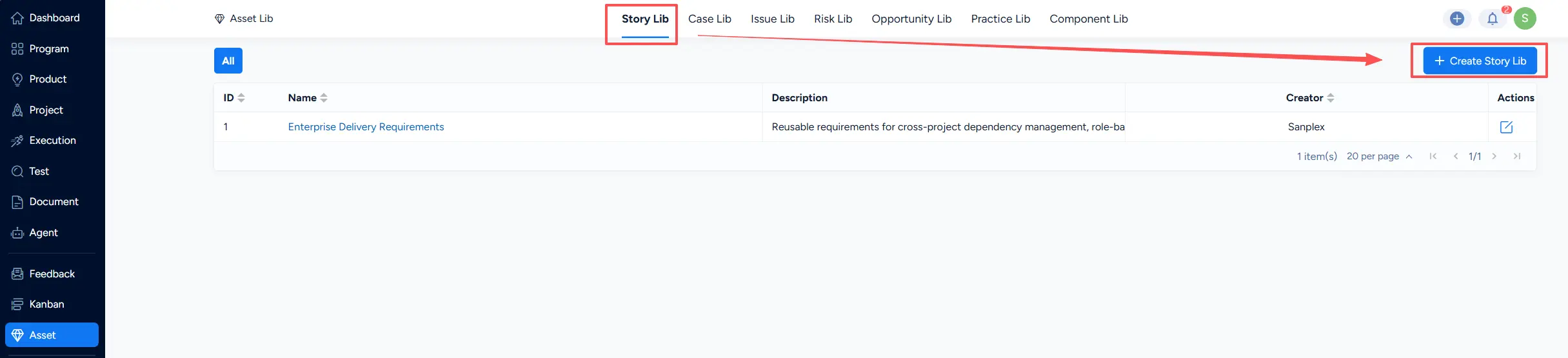
On the Story Lib page, click Create Story Lib to open the creation page.
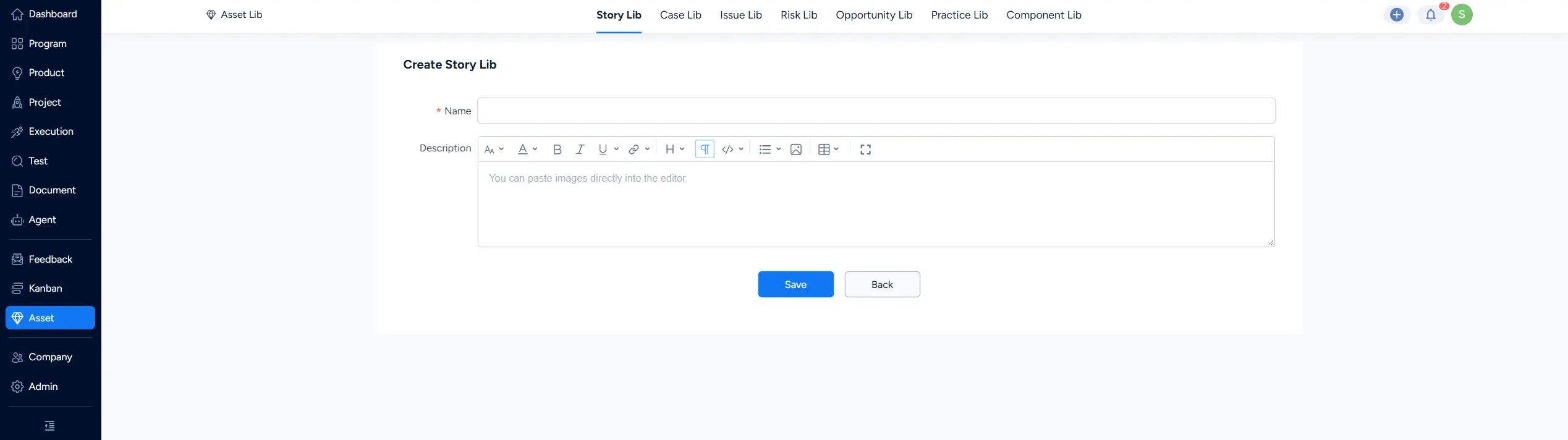
Enter the library Name and Description, then click Save to create it.
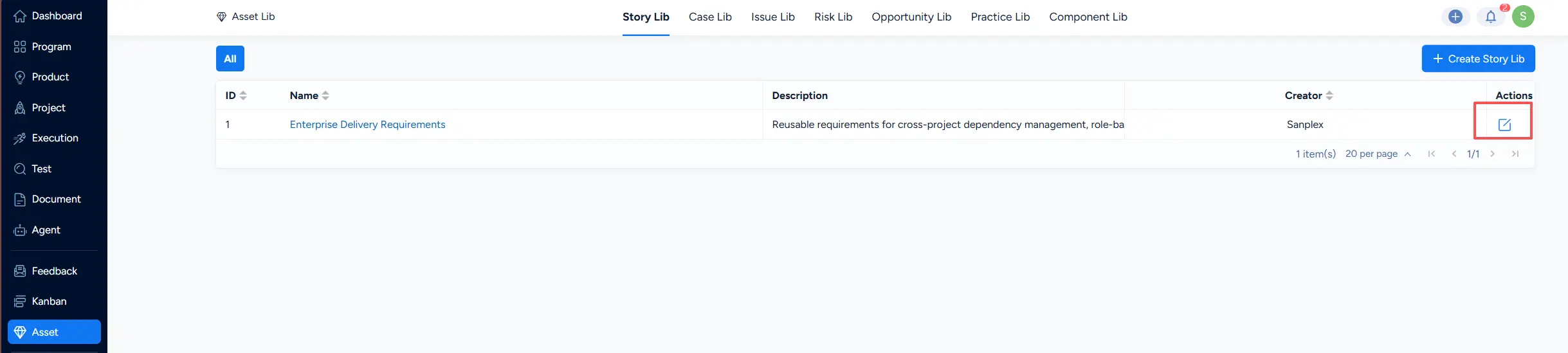
To edit a story library, click Edit in the actions column on the right.
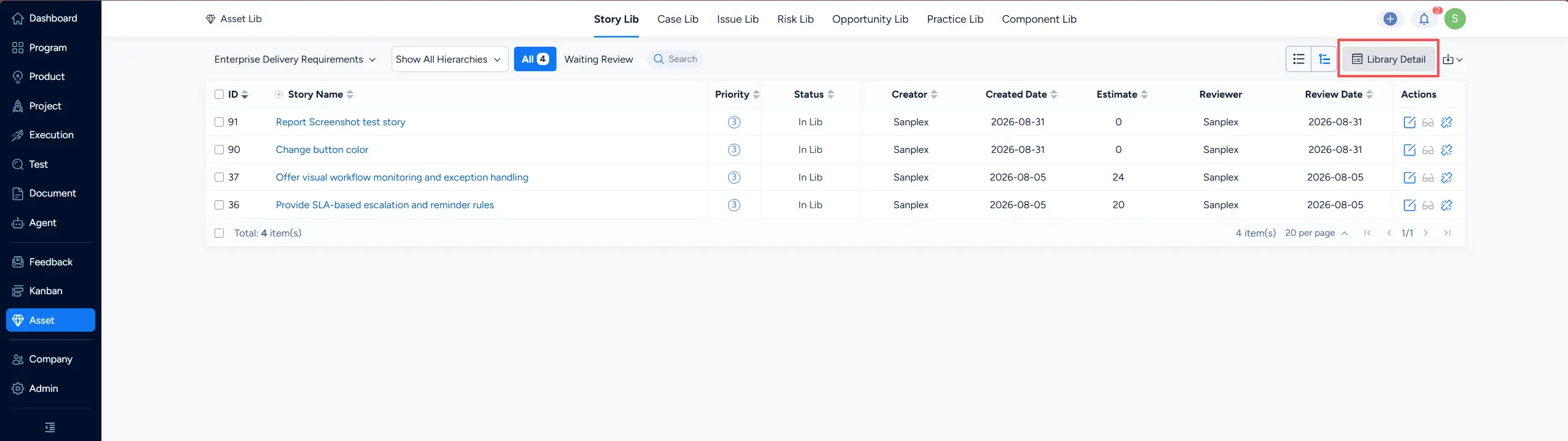
You can also view the library details via Library Detail, and from there you can edit or delete the library.
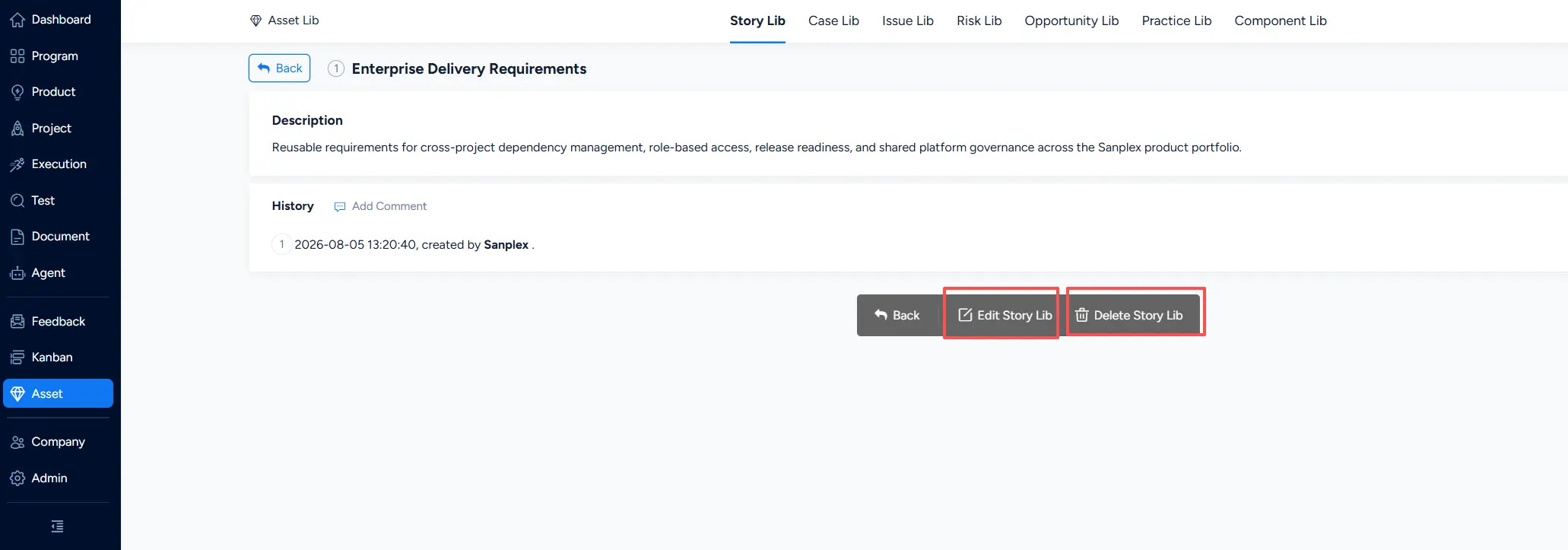
2. Import Stories into a Story Lib
Click a story library name to open its story list, then click Import Story.
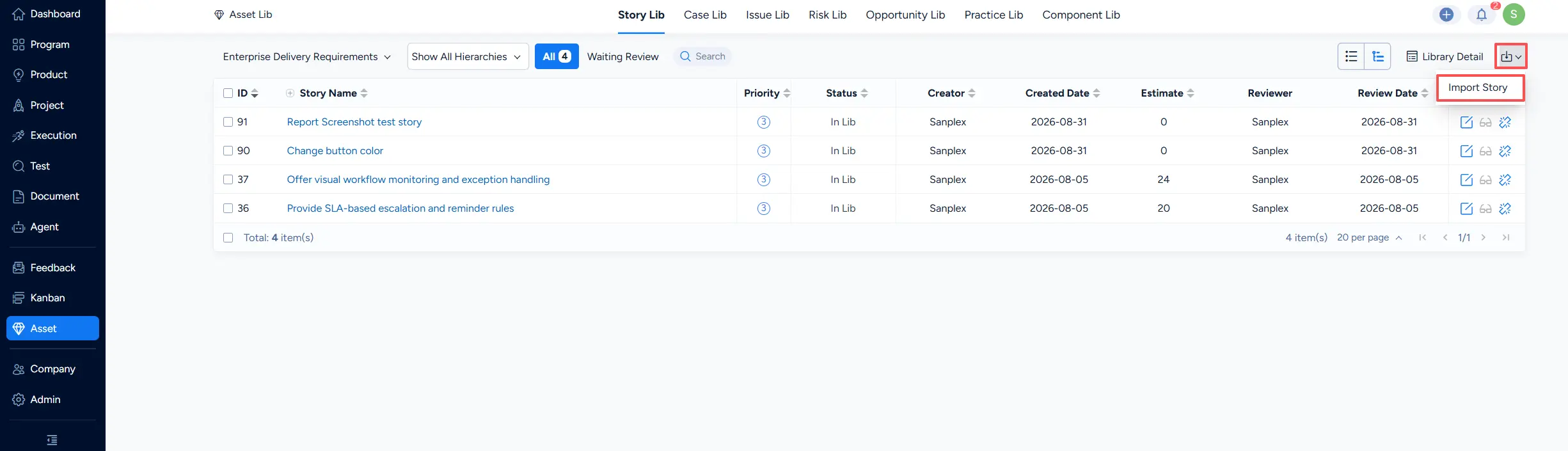
On the import page, you can filter stories by Project, or use Search to locate the stories you want.
Select the stories to import, then click Import at the bottom.
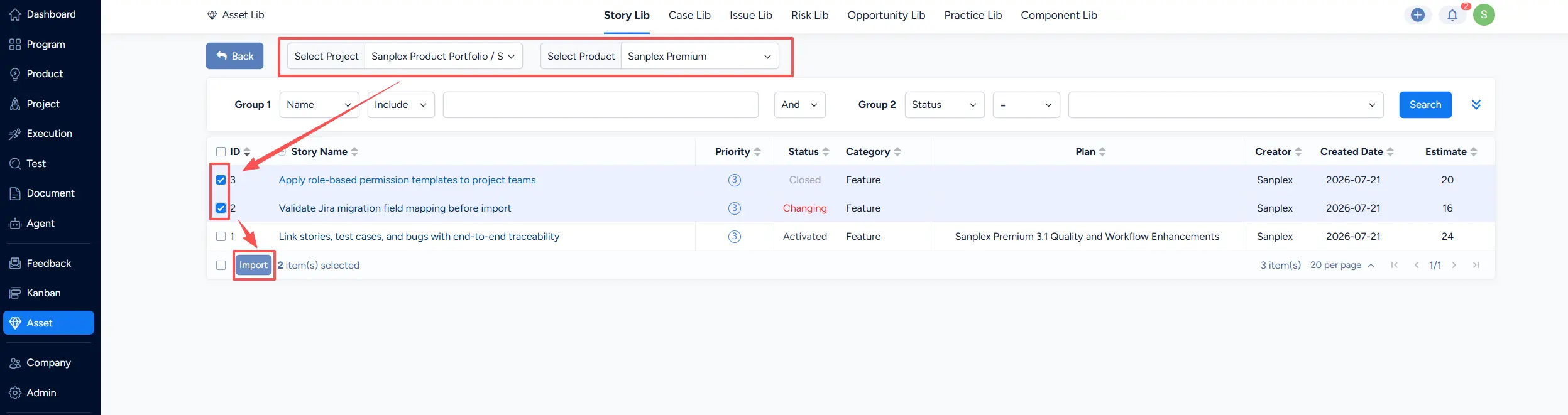
Stories imported into a story library are retained only after review. If the review is rejected, the story will not be kept in the library.
- If a user with review permission imports stories, the imported stories are stored immediately and become In Lib (no review required).
- If a user without review permission imports stories, the imported stories require approval and the status becomes Pending.
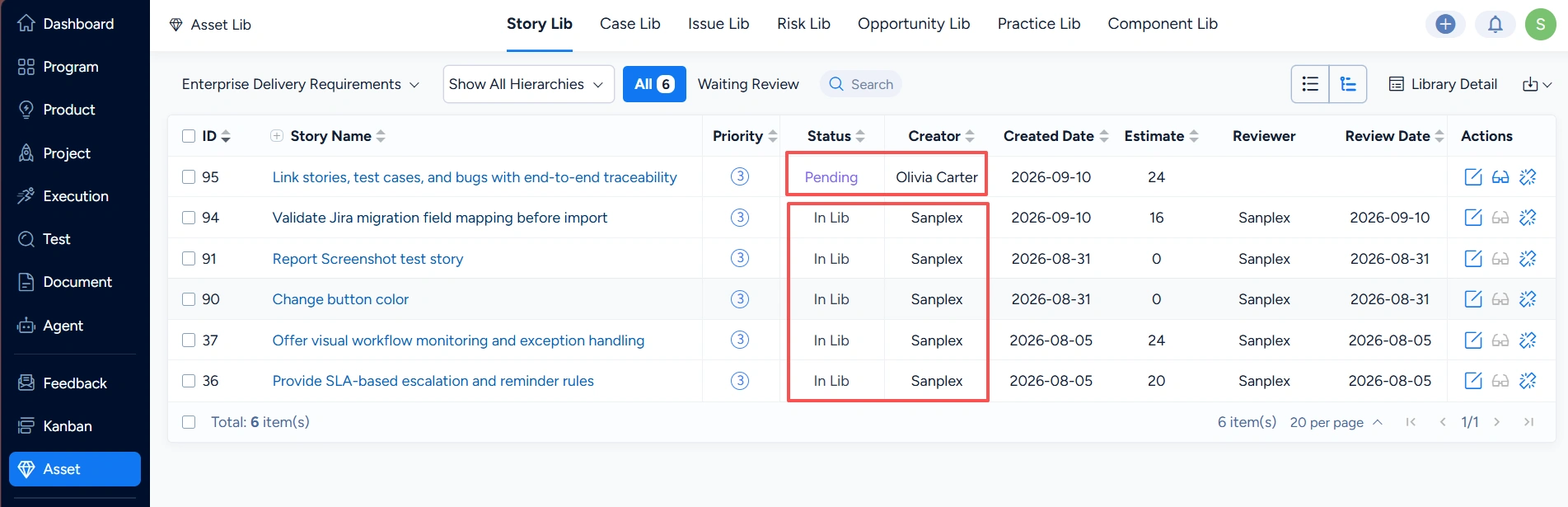
3. Approve Stories in the Story Lib
3.1 Assign Stories to Someone for Review
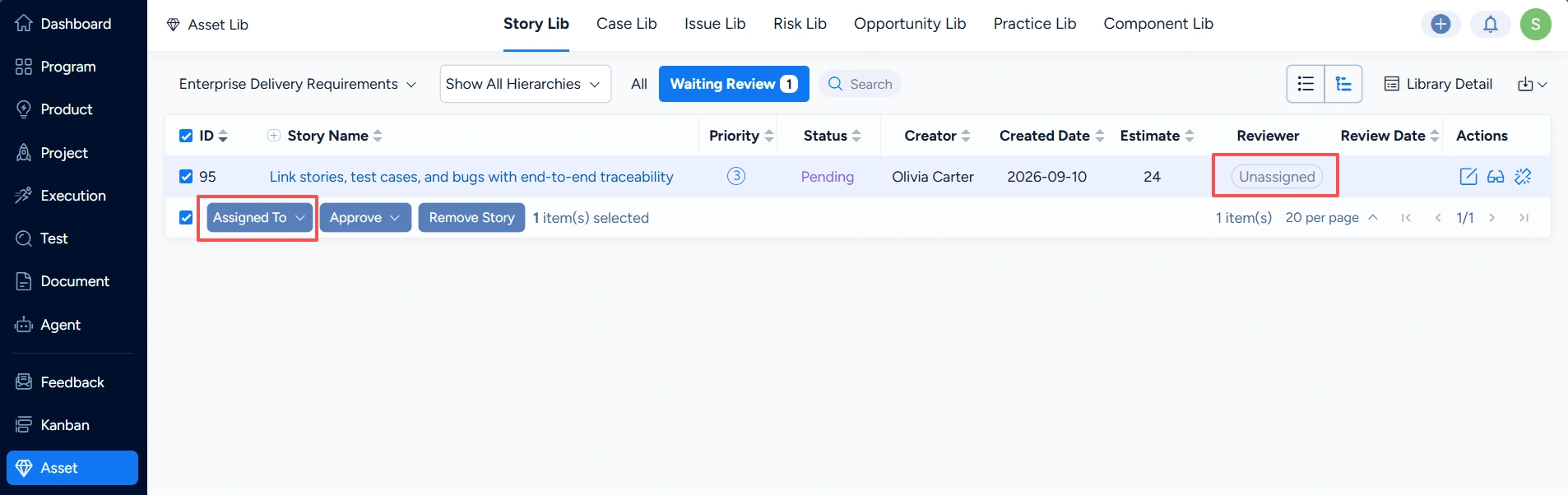
On the Waiting Review list, you can check all the stories in the Pending status. Click Assign To or Unassigned to assign them to a user with approval permission.
3.2 Approve Stories
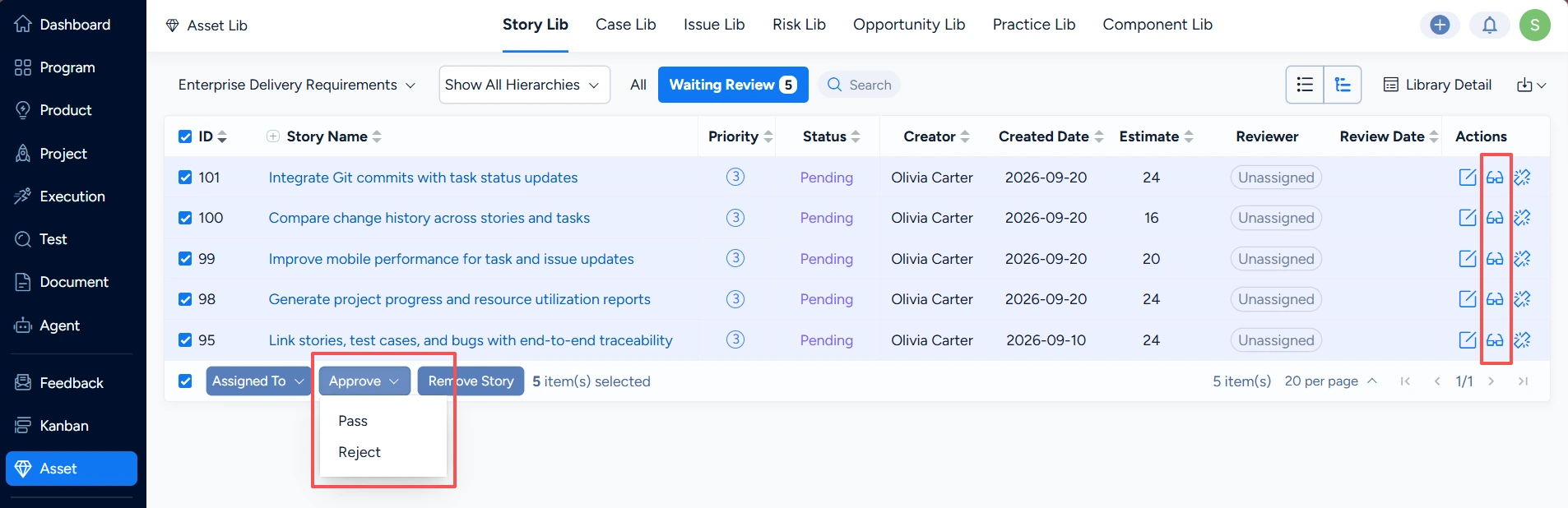
Users with permission can approve stories using Approve in the action column on the right of the list, or use Batch Approve at the bottom.
- If approved, the story remains in the library under the All tab.
- If rejected, the story will no longer be displayed in the library.
4. Edit and Remove Stories in the Story Lib
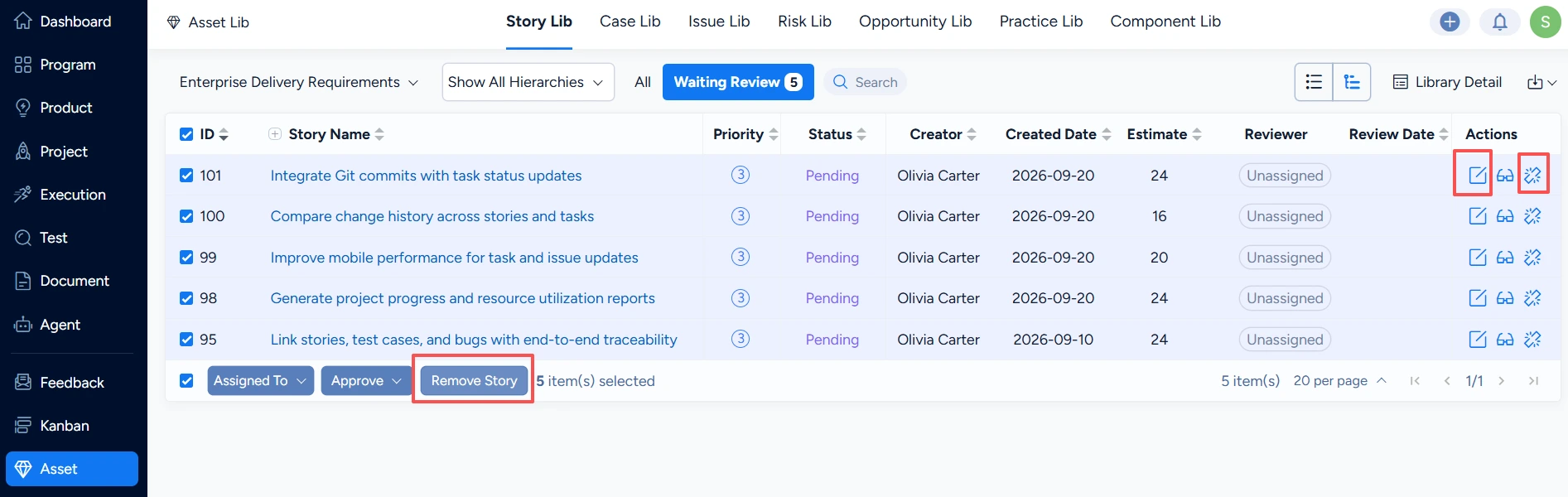
You can edit a library story via the Edit button in the list, or the Edit button on the story detail page.
You can remove a library story via Remove in the list, Batch Remove at the bottom, or Remove on the detail page.
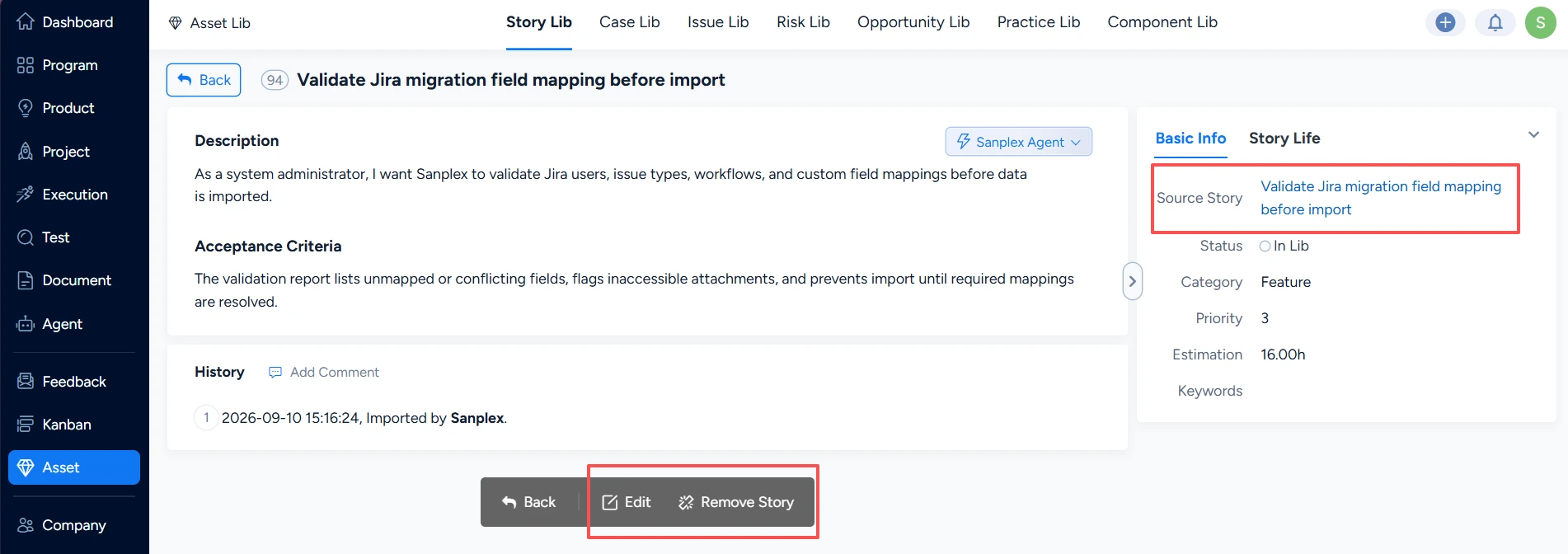
On the library story detail page, you can also view the Source Story information. Click the source story name to jump to its detail page.
5. Import Project Stories into the Story Lib
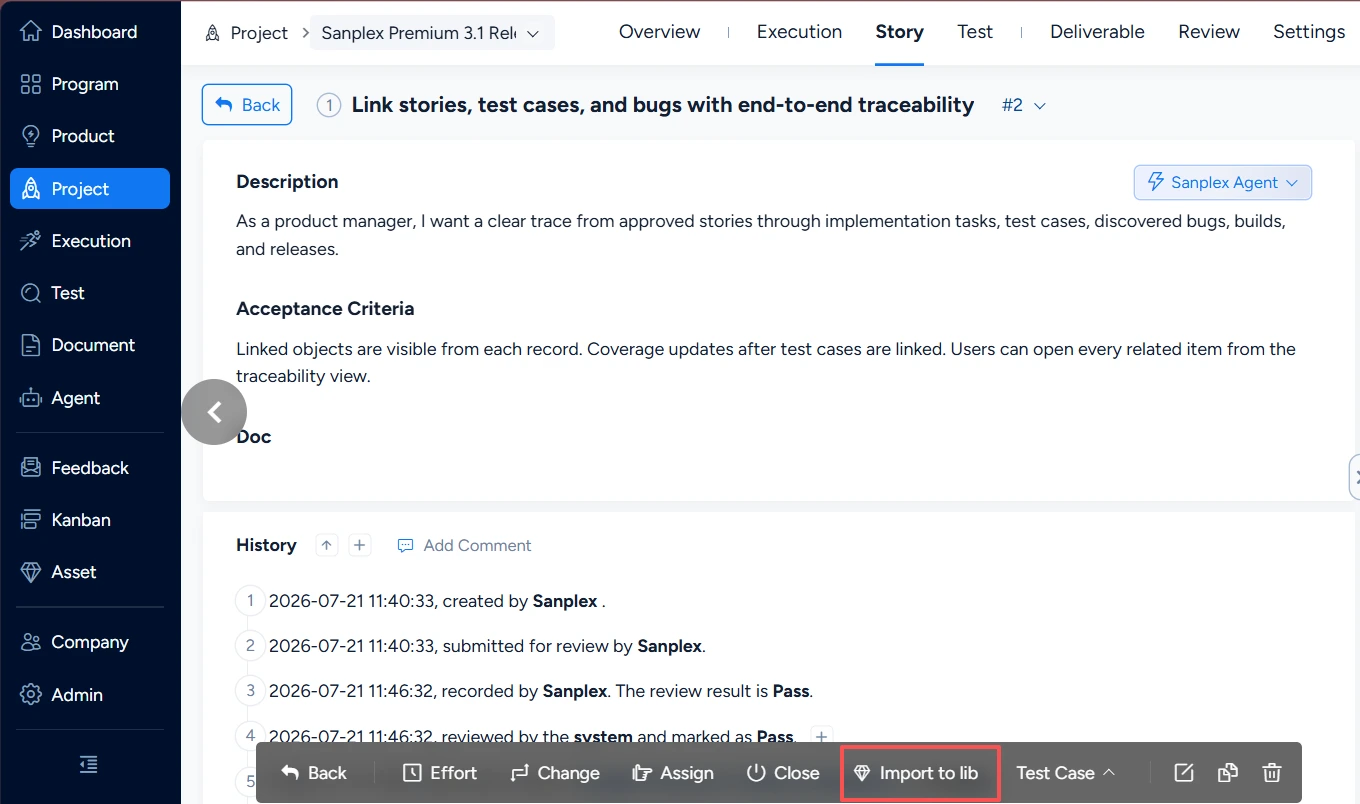
From a project story detail page, you can import the story into a Story Lib.
From the project story list page, you can batch import project stories into a Story Lib.
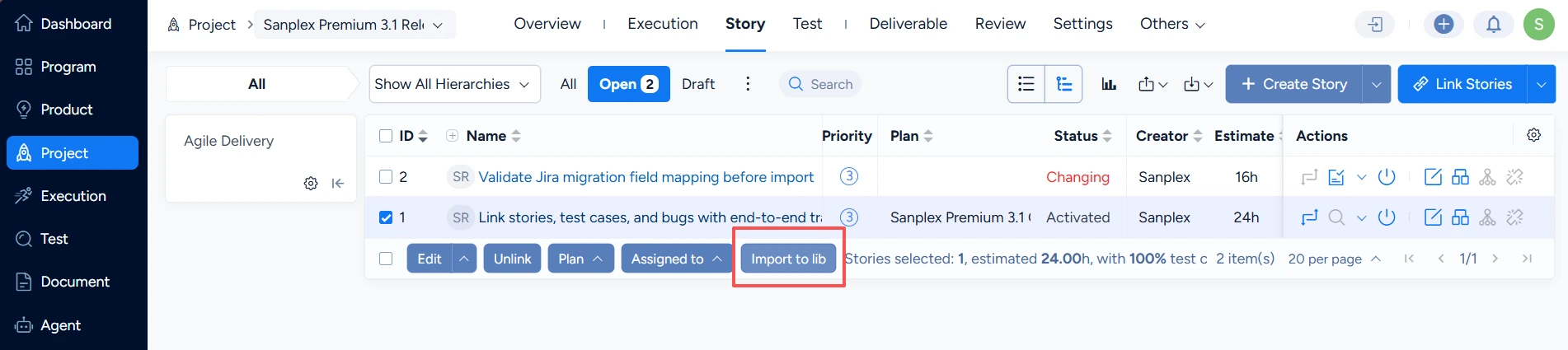
Select the stories to import, click Import to Lib, then choose the target story library in the dialog and click Import.
- The story library dropdown supports filtering.
- If the importing user does not have approval permission, they can select an Approver.
- The Approver list contains users who have story approval permission.
After import, you can view the stories in the story library list.
- If imported by a user with approval permission, the status becomes In Lib.
- If imported by a user without approval permission, the status becomes Pending.
Approvers can view items to be approved under Asset > Story > Waiting Review.
6. Import Stories from the Story Lib into a Project
Project stories can be imported from the story library. In the left-side dropdown of Linked Products, select a product, then click Import > Import from Story Library.
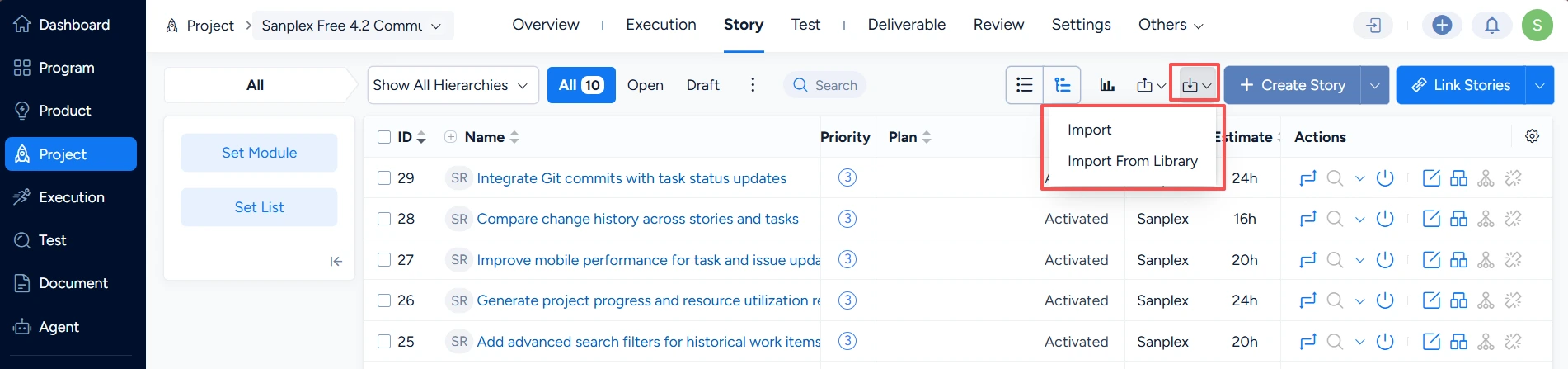
On the import page, you can select a story library. When you switch libraries, the list updates to show stories from that library.
You can also search/filter stories to import.
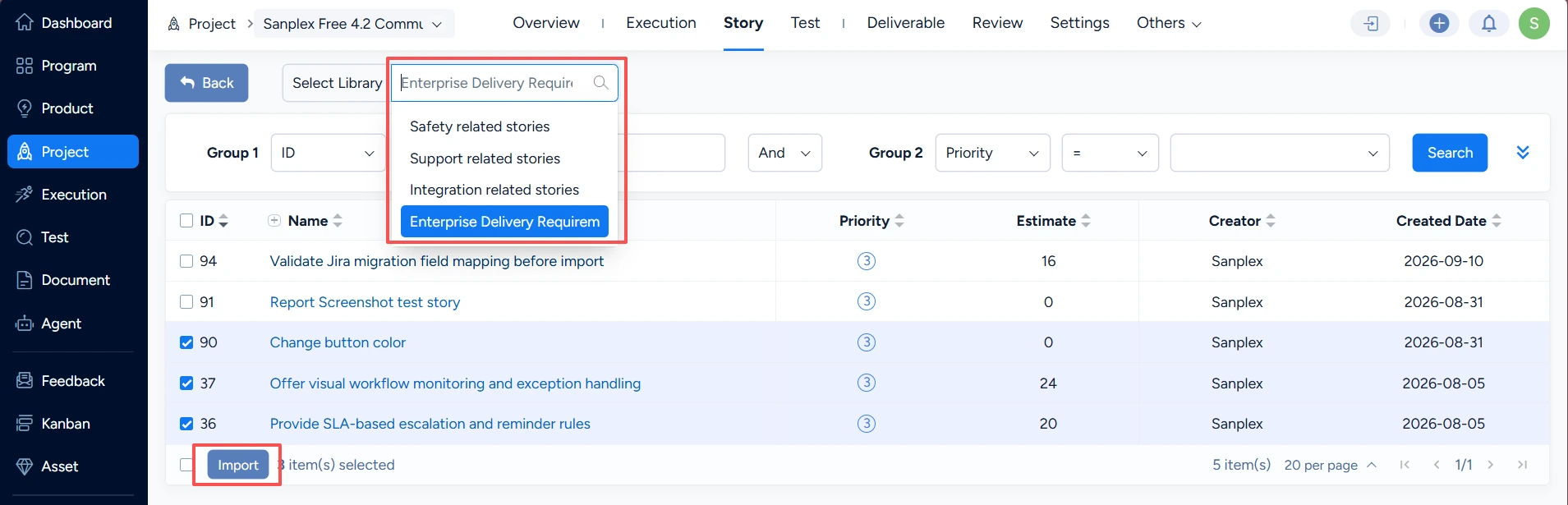
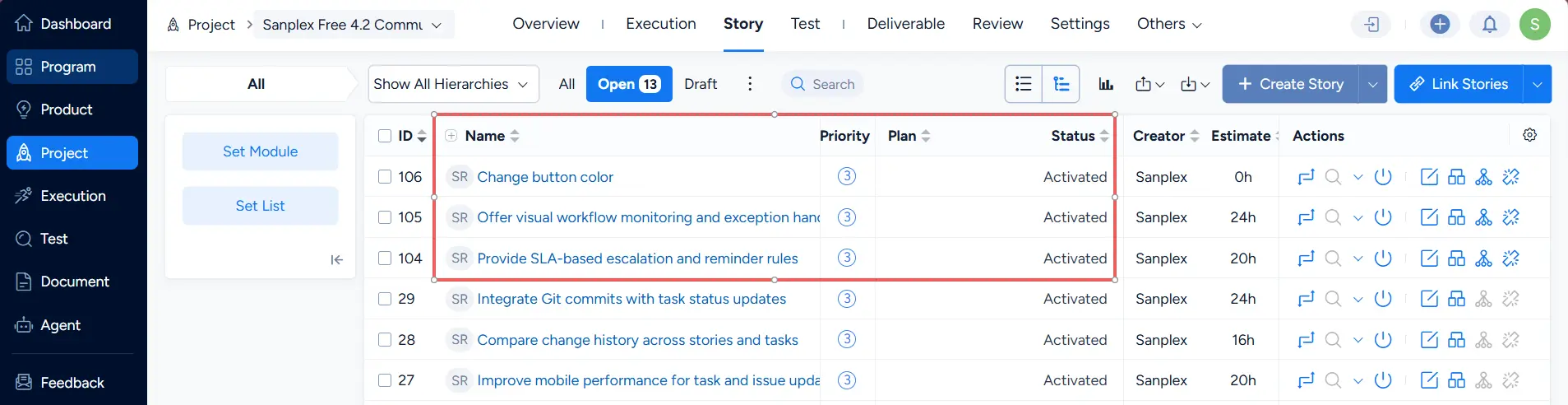
Select the stories to import into the project and click Import. The imported stories will be created in the project story list with status Activated.
III. Maintain the Practice Lib
The Practice Lib and Component Lib are both document-based. This section uses Practice Lib as the example.
Compared with other libraries, documents in the Practice Lib and Component Lib can be imported from project documents, but cannot be imported back into project documents.
1. Create a Practice Lib
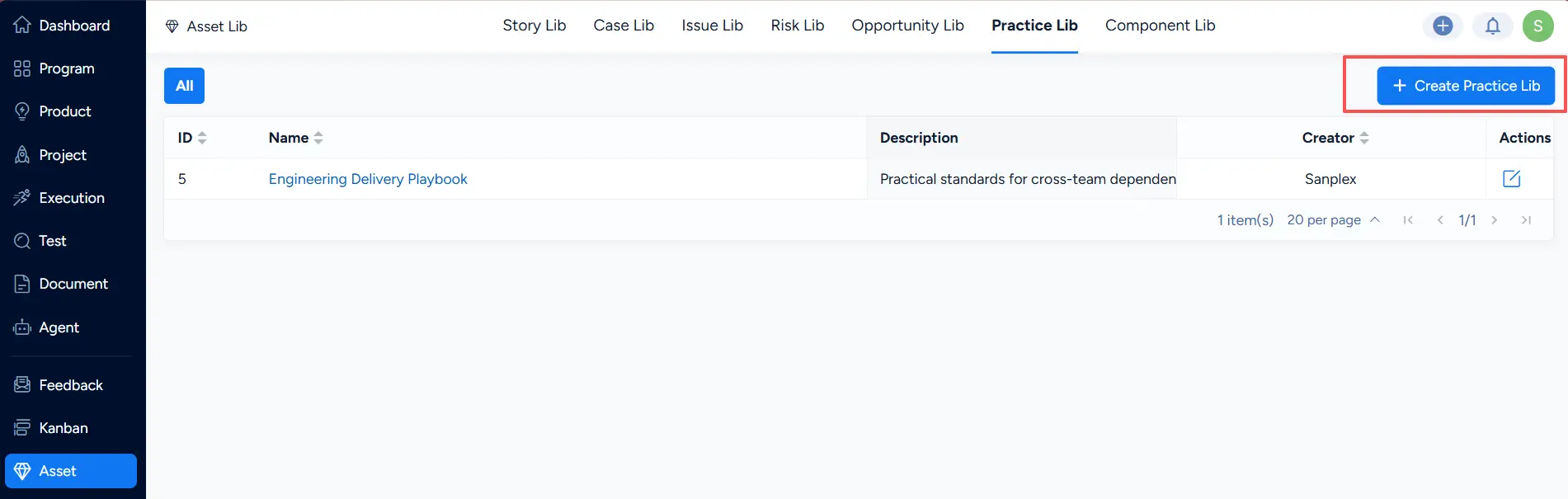
On the Practice Lib list page, click Create Practice Lib in the upper-right corner.
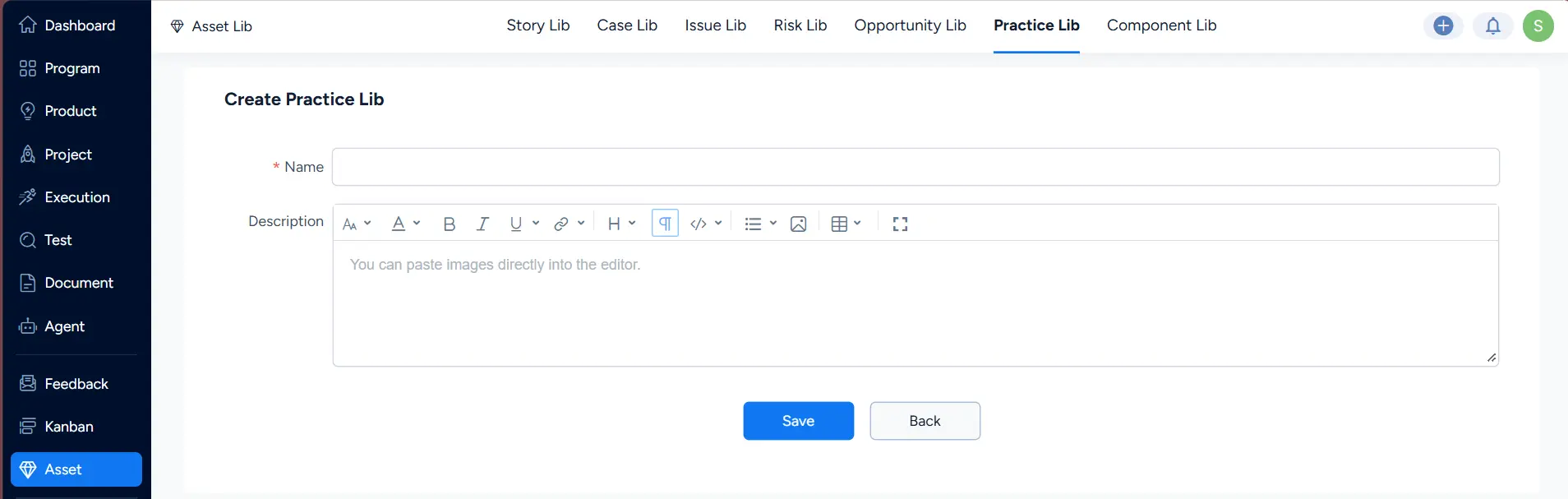
To edit a Practice Lib, click Edit in the action column on the right.

2. Import Documents into the Practice Lib
Click a Practice Lib name to open its document list, then click Import > Import Practice Doc.

On the import page, you can locate documents by Project and Project Doc Lib.
Select the documents to import, then click Import at the bottom.

Documents imported into the Practice Lib are retained only after approval. If approval is rejected, the document will not be kept in the library.
- If a user with approval permission imports documents, they are stored immediately and become In Lib.
- If a user without approval permission imports documents, they require approval and the status becomes Pending.

3. Approve Documents in the Practice Lib
3.1 Assign Documents to an Approver
On the Waiting Review tab, click Assign To or Unassigned to assign them to a user with approval permission.

3.2 Approve Documents
You can approve documents using Approve in the action column on the right, or use Batch Approve at the bottom.
- If approved, the document remains in the Practice Lib under All.
- If rejected, the document will no longer be displayed in the Practice Lib.
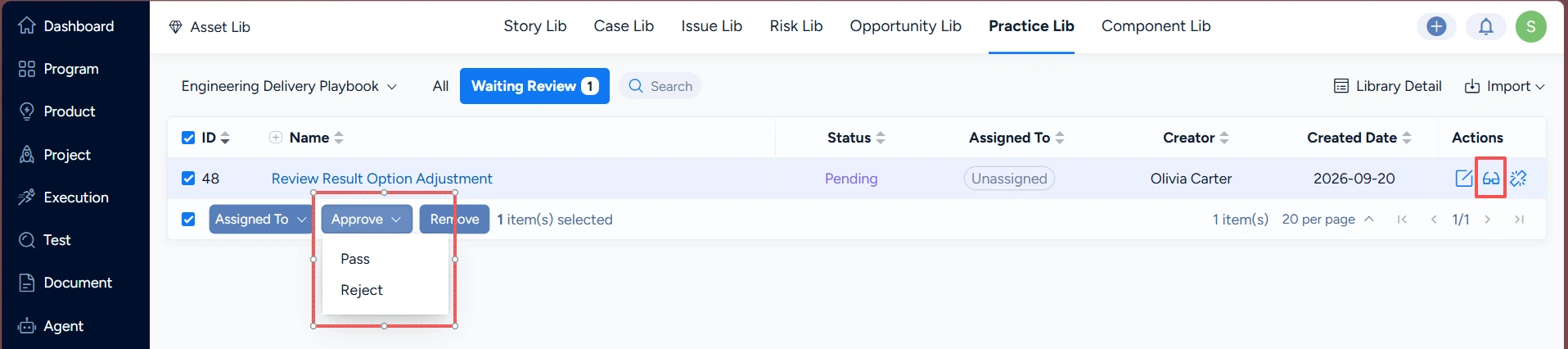
4. Edit and Remove Documents in the Practice Lib
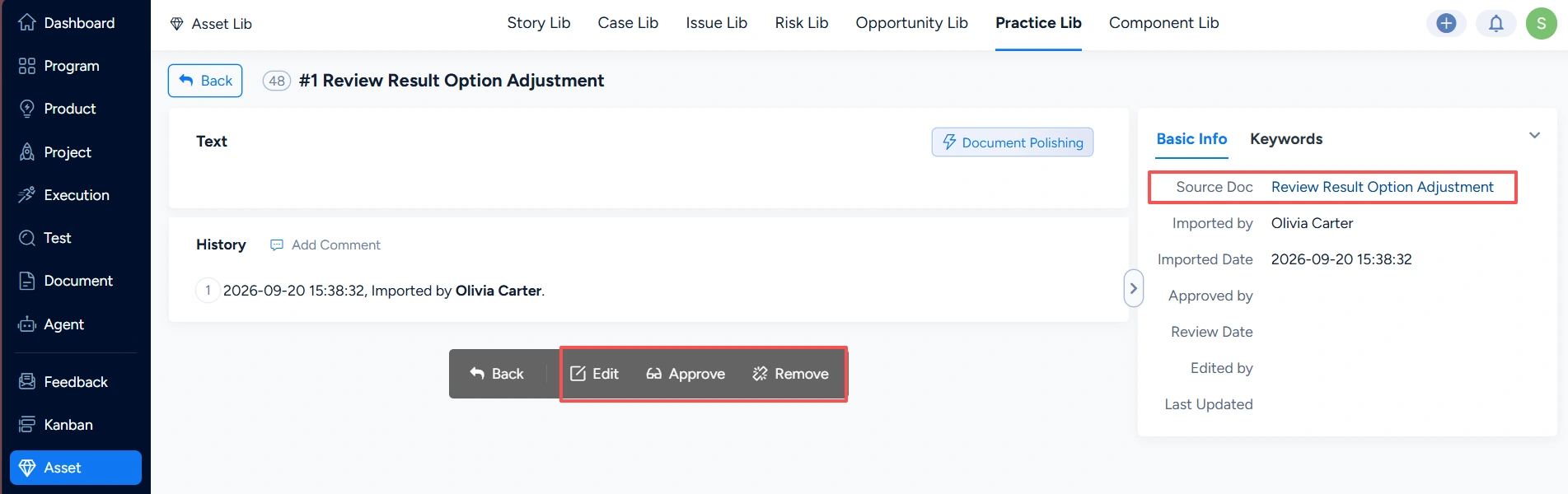
You can edit documents via the Edit button in the list or on the document detail page.
You can remove documents via Remove in the list, Batch Remove at the bottom, or Remove on the detail page.

On the document detail page, you can also view the source document. Click the Source Doc name to jump to its detail page.
IV. Maintain the Case Lib
The Case Lib list shows all test case library names under the Test section.

Test case libraries and test cases are maintained directly in Test > Case Library.