

Catalog
Sanplex provides a Hybrid Waterfall project management model that combines Waterfall-based phase management with sprint-based Executions and Kanban boards within the same project. In the current Sanplex interface, this management type is displayed as Waterfall +.
Teams can use phases to organize the overall project structure and use Executions or Kanban boards within individual phases according to their delivery needs.
I. Create a Hybrid Waterfall Project
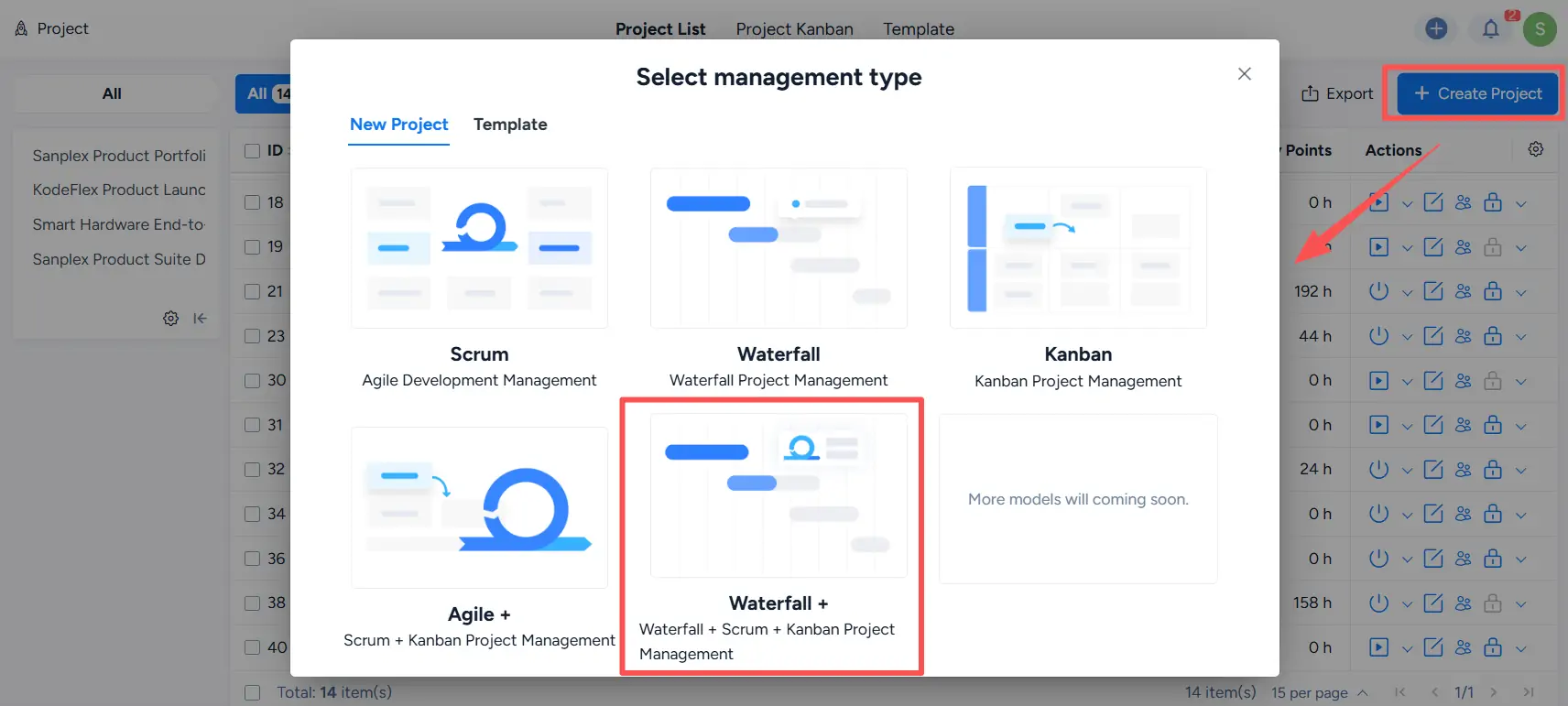
Go to Project > Create Project. On the Select management type page, select Waterfall +.
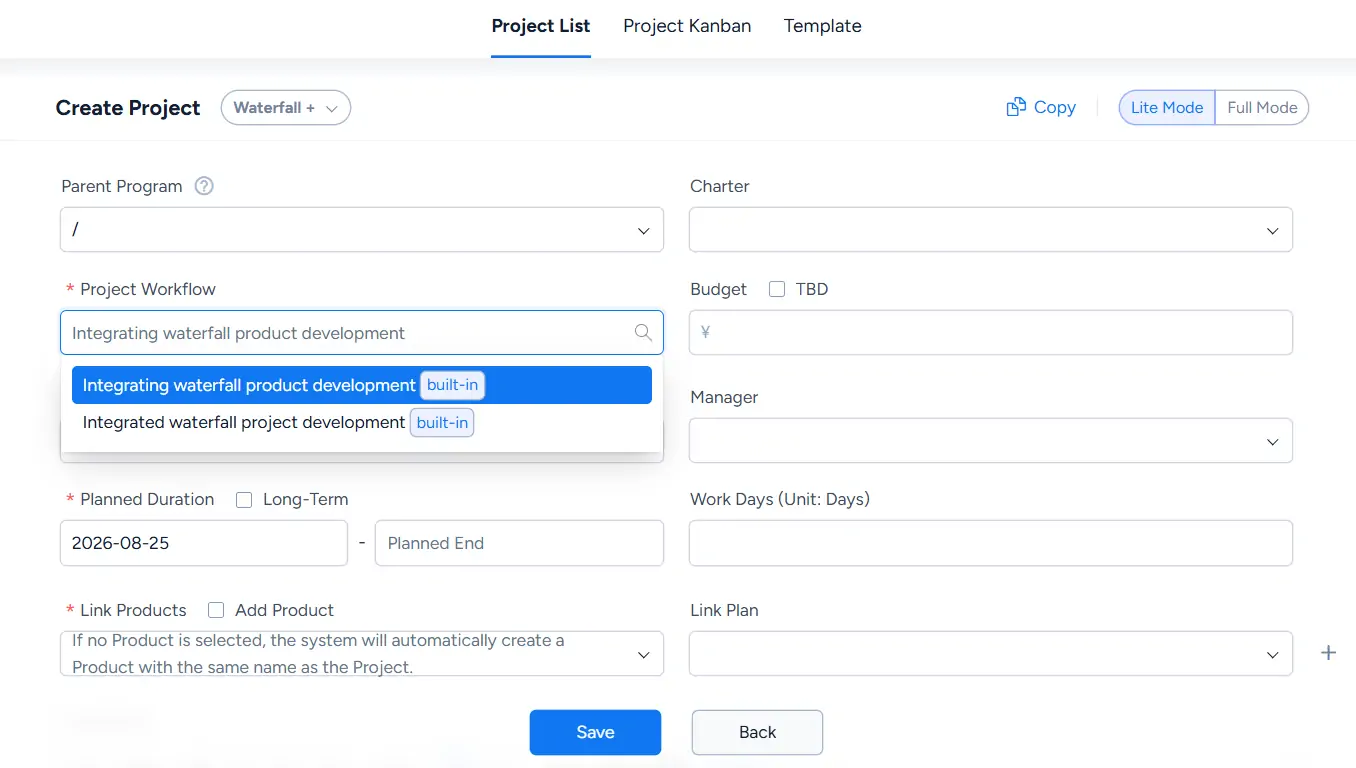
On the Create Project page, complete the required project information. The project type is shown as Waterfall +, and you can select the appropriate Project Workflow from the available workflows.
Click Save to create the project.
II. Manage Top-Level Phases
After the project is created, the system opens the Phase Setting page, where you can define the top-level project phases.
At the top level, the Method is Phase. Configure each phase by specifying information such as its Name, Manager, Type, planned dates, and milestone setting.
The phase types shown in the project can include Story, Design, Development, Test, Release, and Summary and Review.
Phases at the same level can be reordered, and additional phases can be added as needed.
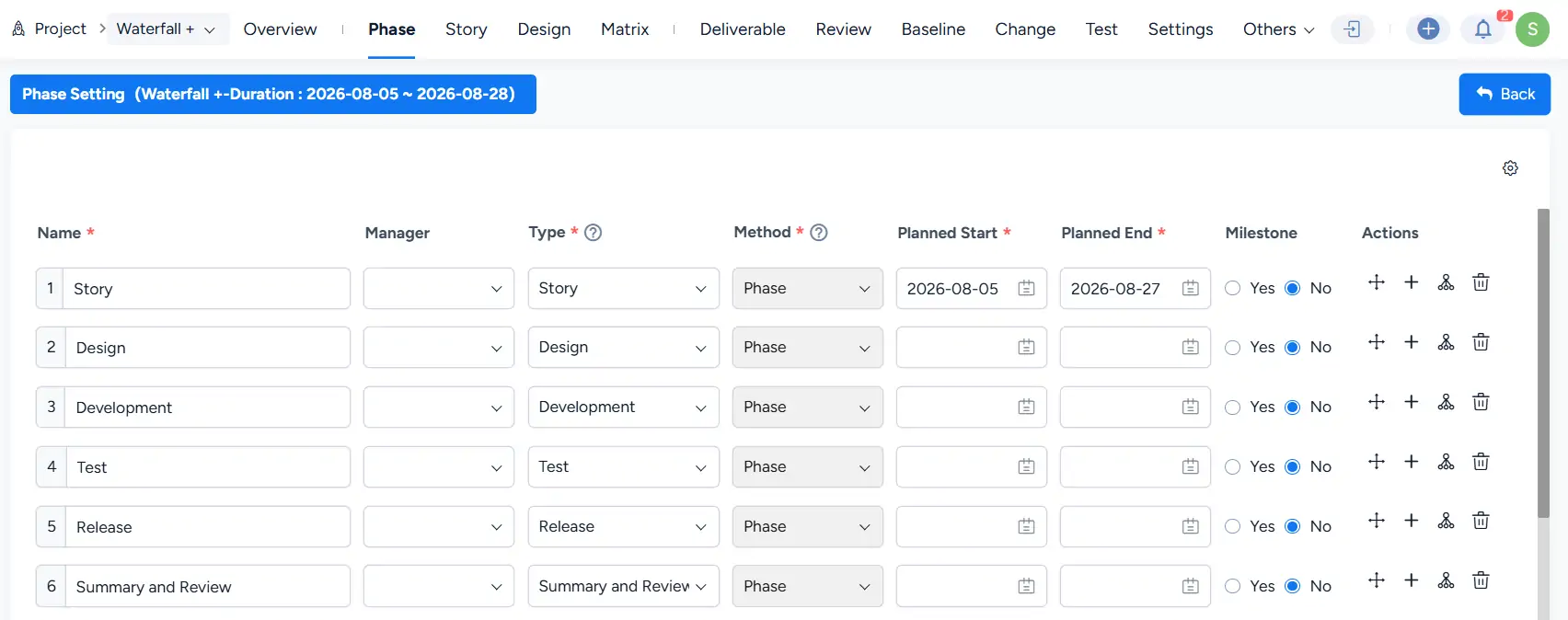
Top-level phase management follows the same general workflow used in a standard Waterfall project. For more information, see 7.5.2.1 Manage Project Phases.
III. Manage Subphases, Executions, and Kanban Boards
Within a top-level phase, you can create additional items to further organize and manage the work.
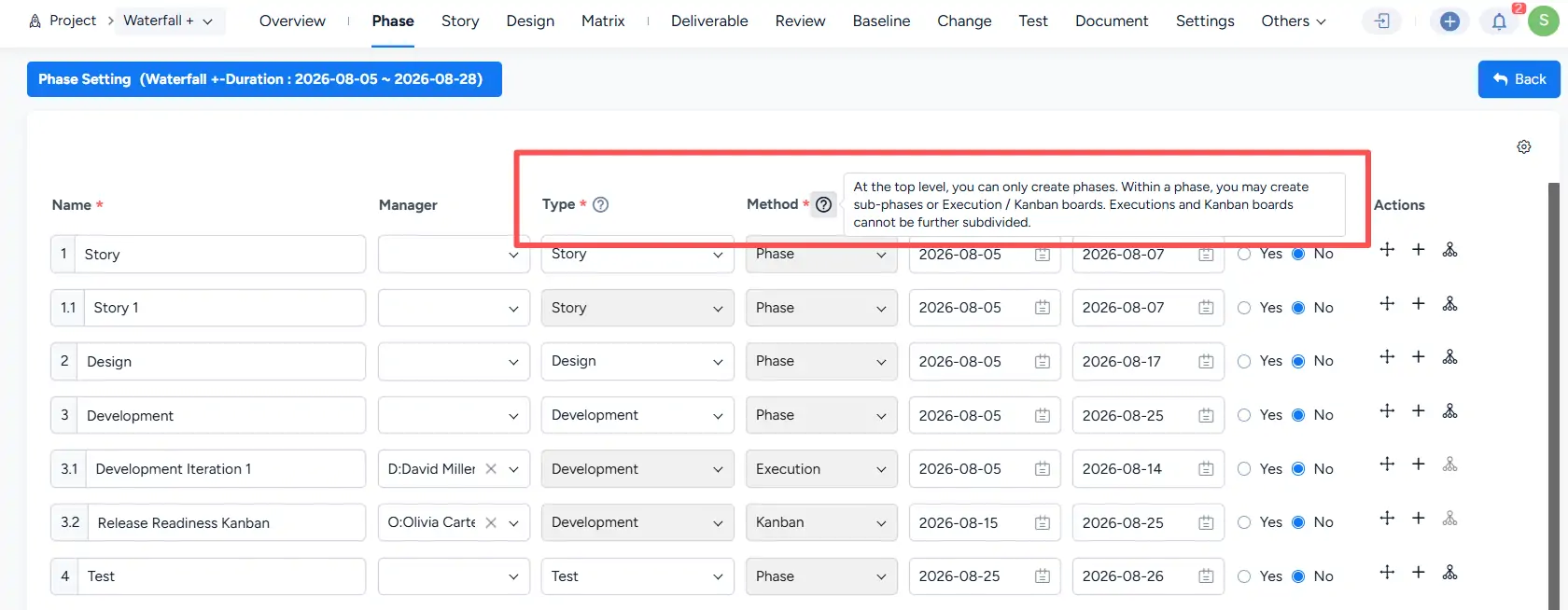
Use the actions for a phase to add a child item. The Method determines how that item is managed:
- Phase — creates another subphase.
- Execution — creates a sprint-based Execution within the phase.
- Kanban — creates a Kanban board within the phase.
For example, a Development phase can contain both an Execution for iterative development work and a Kanban board for continuous delivery activities.
At the top level, only phases can be created. Within a phase, you can create subphases, Executions, or Kanban boards. Executions and Kanban boards cannot be further subdivided.
IV. Use Executions and Kanban Boards
Executions in a Waterfall + project use the same sprint-based management workflow as Executions in a Scrum project.
For details about creating and managing sprint-based Executions, see:
Kanban boards in a Waterfall + project use the same Kanban management workflow described in the Kanban Project section.
For details, see:
- Set Up Kanban Projects - Sanplex Guides
- Configure Kanban Boards - Sanplex Guides
- Use Kanban Boards - Sanplex Guides
V. Key Differences
A Waterfall + project retains the phase structure of a Waterfall project while allowing different management methods to be used within individual phases.
The hierarchy follows these rules:
- Top-level items are created as Phases.
- A phase can contain another Phase, an Execution, or a Kanban board.
- Executions and Kanban boards cannot be further subdivided.
- The Type identifies the functional purpose of an item, while the Method determines whether it is managed as a Phase, Execution, or Kanban board.
- The functions available within the project vary according to the phase type and management method.
This structure allows teams to maintain an overall Waterfall project framework while applying iterative or flow-based management to specific parts of the project.
VI. Other Project Features
Other project management features in a Waterfall + project follow the same general workflows described for standard Waterfall projects.
For detailed instructions, see:


