Catalog
Feature Overview
The Project Risks feature helps teams identify, log, assess, and track risks early, define response strategies, and reduce the likelihood that risks will affect project goals, schedules, or budgets.
By managing risks proactively, teams can evaluate potential impact and probability, prioritize important risks, and track them throughout the project lifecycle.
Use Cases
- Early project planning: Identify and assess potential risks such as technical challenges or limited resources, assign priorities, and prepare response strategies early.
- External changes: Manage external risks such as market changes, supplier issues, or other external factors that may affect project delivery.
- Execution monitoring: Continuously track risks, update risk information, and adjust response strategies as project conditions change.
- Resource prioritization: Use the Risk Index and priority level to focus resources on the most important risks.
- Decision support: Use risk assessments to support project decisions and compare response options.
- Project review and improvement: Capture representative risks in the Risk Library for future reference and reuse.
A risk is an uncertainty that may negatively affect the achievement of project objectives. During project execution, teams can identify, assess, assign, track, and manage risks from the project-level Risk module.
1. Add a Risk
Go to Project > Select a Project > Risk, and click Create Risk.
The Create Risk menu also provides a Batch Create option.

On the Create Risk page, enter the risk information and select the appropriate values for fields such as Source, Execution, Strategy, Impact, Probability, Priority, and assignee.
Sanplex calculates the Risk Index from the risk assessment values.
The Source field currently provides the following options:
- Business
- Project Team
- Project Logistics
- Management
- Supplier-Procurement
- Supplier-Outsourcing
- Customer
- Other
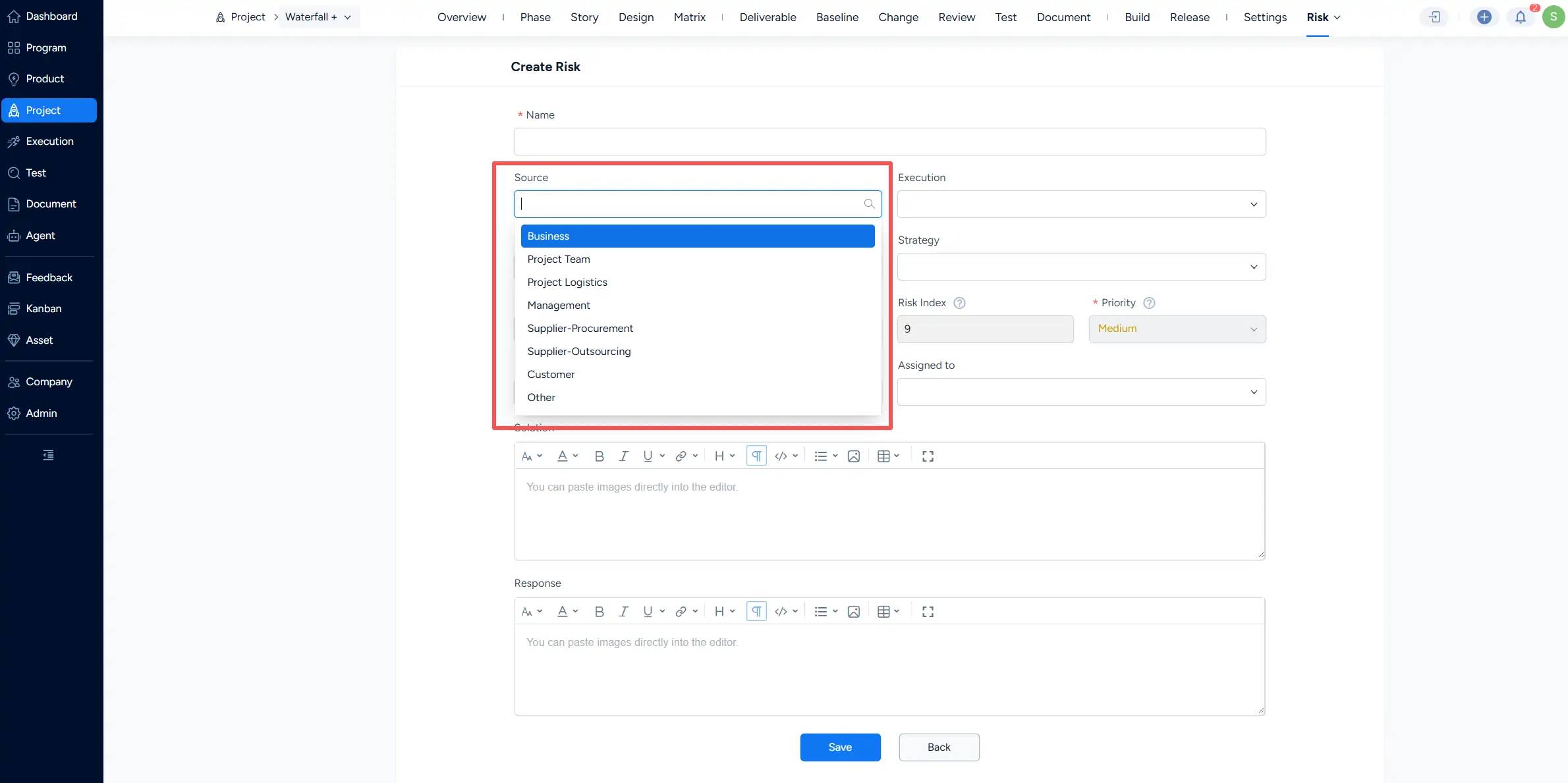
Complete the remaining risk information as needed, including the risk description, solution, and response, then click Save.
2. Risk Actions and Statuses
The risk list provides status filters including All, Active, Assigned to Me, Assigned by Me, Closed, Suspended, and Canceled.
The list also displays key information such as Priority, Risk Index, Status, Type, Assigned to, and Strategy.
You can select a risk and click Import To Lib to add it to the Risk Library for future reference and reuse.