
Project
1. Introduction of Sanplex features
1.1. Core Management Framework
1.1.1 Program
1.1.2 Project
1.1.3 Product
1.1.4 Execution
1.1.5 Management Models
1.2. Dashboard
1.2.1 Getting Started with Tutorials
1.2.2 Quick Add
1.2.3 Notification Center
1.2.4 Effort Tracking
1.2.5 Dashboard - Project and Execution
1.2.6 Dashboard - My Work, Contribution, and Recents
1.2.7 Dashboard - Approval
1.2.8 Contacts
1.3. Program
1.3.1 Program List
1.3.2 Program Kanban
1.3.3 Create Program
1.3.4 Create Sub-Programs
1.3.5 Project Charter Management
1.4. Product
1.4.1 Create Product
1.4.2 Manage Modules
1.4.3 Multi-Branch and Multi-Platform Management
1.4.4 Manage Plans
1.4.5 Manage Requirements
1.4.6 Requirement Reviews
1.4.7 Requirement Status and Phase
1.4.8 Create Releases
1.4.9 Track Progress
1.4.10 Business Requirements and Multi-Level Requirements
1.5. Project
1.5.1 Scrum Project
1.5.2. Waterfall Project
1.5.2.1 Manage Project Phases
1.5.2.2 Project Design
1.5.2.3 Project Matrix
1.5.2.4 Project Reports and Earned Value Management
1.5.2.5 Project Baselines
1.5.2.6 Project Change
1.5.3. Kanban Project
1.5.3.1 Set Up Kanban Projects
1.5.3.2 Configure Kanban Boards
1.5.3.3 Use Kanban Boards
1.5.4 Hybrid Agile Project
1.5.5 Hybrid Waterfall Project
1.5.6. Project Settings
1.5.6.1 Project Setup
1.5.6.2 Project Executions
1.5.6.3 Project Requirements
1.5.6.4 Project Builds
1.5.6.5 Project Tests
1.6. Admin Settings
1.6.1 Confluence Data Import
1.7. Workflow

Scrum Project

2026-08-18 10:57:27
Sanplex Content
456
Last edited by Jing WANG on 2026-08-24 18:42:46
Share links
Summary: Learn how to create a Scrum Project in Sanplex, configure its workflow and Execution settings, create an Execution, and manage Tasks.

Sanplex supports Scrum-based project management for planning and organizing iterative delivery work. Teams can create a Scrum Project, configure its workflow and basic project information, organize work through Executions, and manage Tasks within each Execution.

This section explains how to create a Scrum Project and begin project execution in Sanplex.

I. Create a Scrum Project

1. Go to the Project List and click Create Project

Open Project > Project List, and click Create Project in the upper-right corner.

Project List page with the Create Project button highlighted in the upper-right corner.

2. Select Scrum

In the Select management type window, select Scrum — Agile Development Management.

Sanplex also provides other project management modes, including Waterfall, Kanban, Agile +, and Waterfall +.
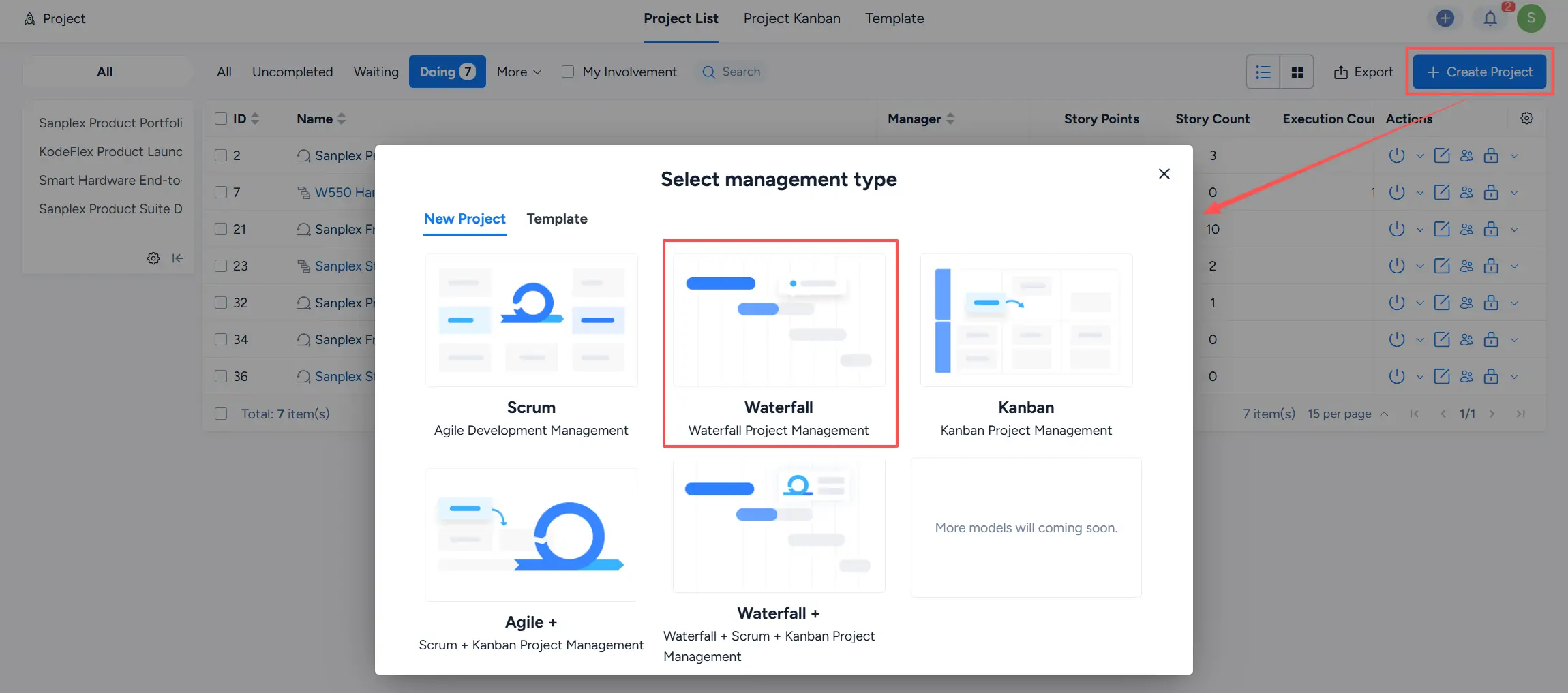
Select management type window showing Scrum, Waterfall, Kanban, Agile +, and Waterfall + options, with Waterfall highlighted as one of the available management types.

3. Fill in the Project Information

On the Create Project page, enter the required project information.

Important fields include:

3.1 Project Workflow

Select the workflow used for the Project. For a Scrum Project, the current interface provides an Agile product development workflow.

3.2 Name

Enter a name for the Project.

3.3 Enable Execution

Select Enable Execution when the Project will use Executions to organize its delivery work.

3.4 Planned Duration

Specify the planned start and end dates for the Project. You can also select Long-Term when applicable.

Other available settings include Parent Program, Charter, Budget, Manager, Work Days, Link Products, Link Plan, and Description. Complete these fields as needed.

Click Save to create the Project.
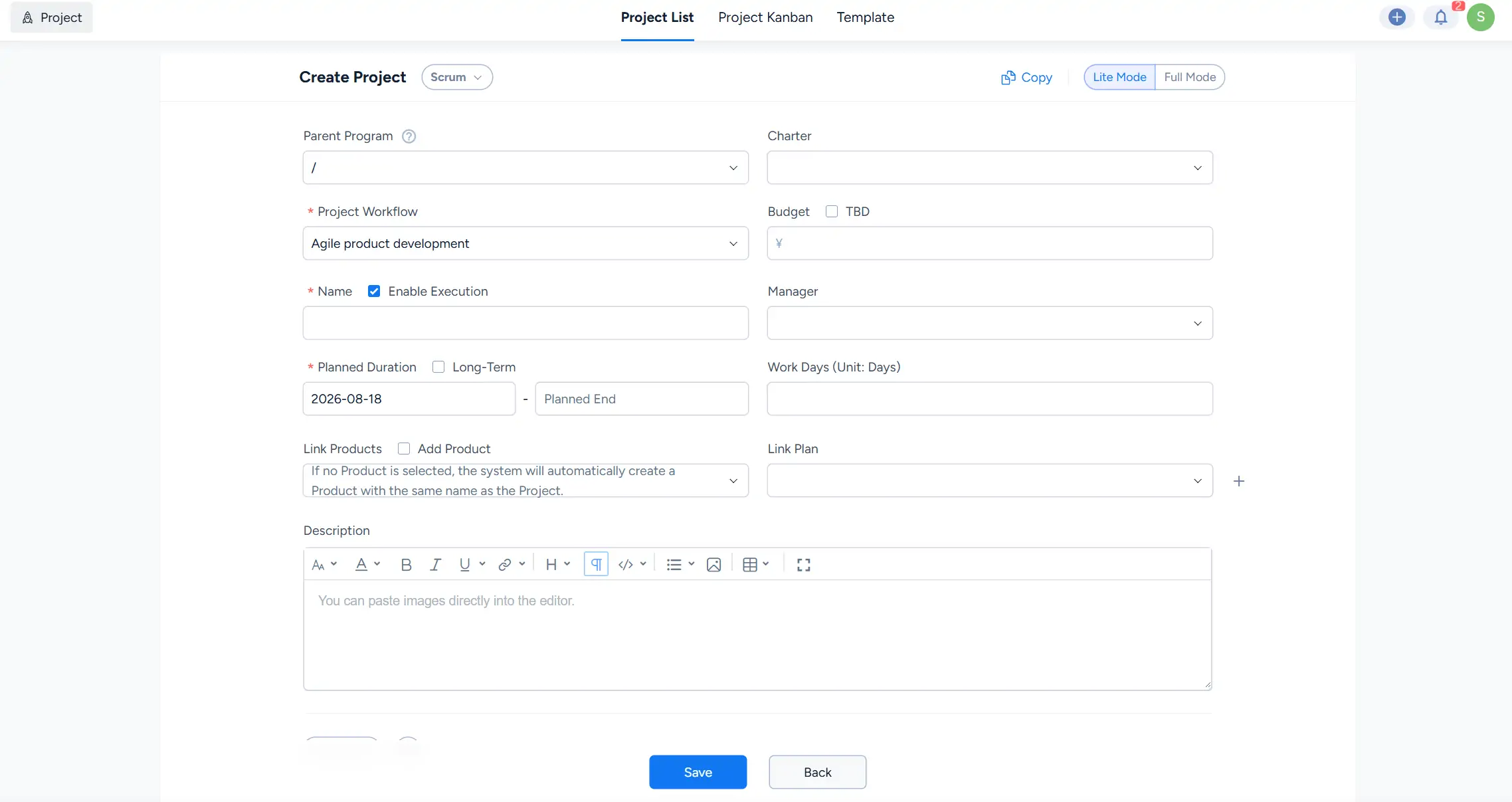
Create Project page for a Scrum Project showing fields including Parent Program, Project Workflow, Name, Enable Execution, Planned Duration, Manager, Link Products, Link Plan, and Description.

II. Start the Project

After the Scrum Project is created, open the Project and go to Execution.

Click Create Execution to create an Execution for the project work.

Project Execution page showing the Execution list and the Create Execution button highlighted in the upper-right corner. 

After an Execution is created, open it and go to Task to manage the work to be completed.

Click Create Task to add Tasks to the Execution. The Task list provides information such as Task name, priority, status, assignee, completion details, and available actions.
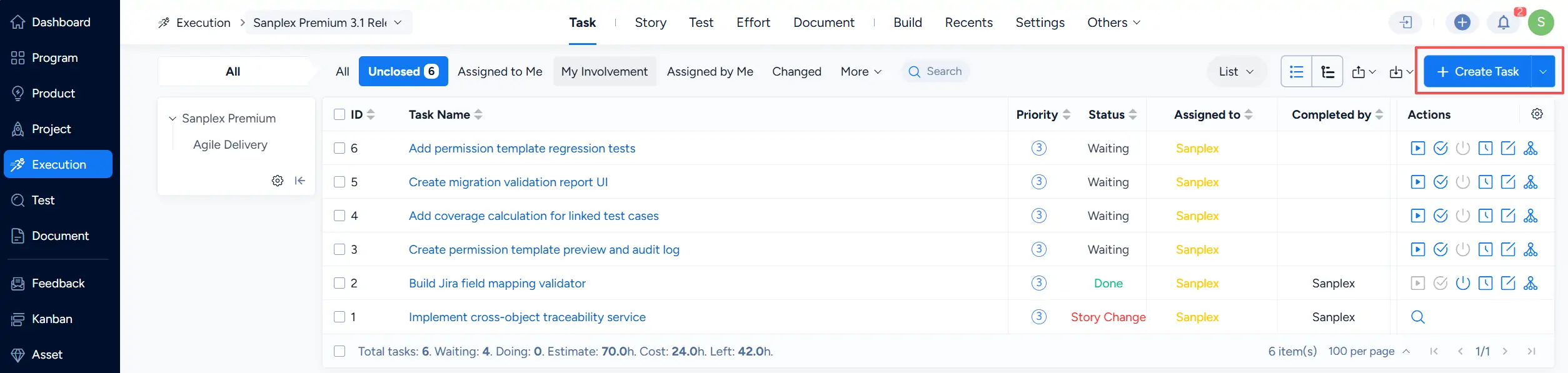
Execution Task page showing a list of Tasks with Priority, Status, Assigned to, Completed by, and Actions columns, with the Create Task button highlighted.

Write a Comment
Comment will be posted after it is reviewed.
