Catalog
After a project or execution is initiated, team members should participate in the Product Planning Meeting and subsequent task breakdown activities to align on the work to be delivered.
Note: “Team members” are not limited to developers. They may also include testers, DBAs, and other roles involved in the project or execution.
I. Product Planning Meeting
During the Product Planning Meeting, the Product Manager walks the team through the stories, including their scope and expected outcomes.
Team members should make sure they understand each story and share feedback so the team reaches a consistent understanding before task breakdown begins.
After the meeting, the Project or Execution Lead can maintain the relevant stories in Sanplex.
On the Story page, click Link Story and select either:
- Link Story
- Link Stories by Plan
You can also use Create Story to add a new story when needed.

II. Break Down Tasks
After the Product Planning Meeting, the team can break stories down into executable tasks and estimate the effort required for each task.
Sanplex provides two main ways to create tasks from stories:
- Batch Convert to Task for converting selected stories into tasks using common task settings.
- Task creation actions in the Actions column for creating one or multiple tasks for a specific story.
1. Batch Convert to Task
On the Story page, select the stories you want to convert.
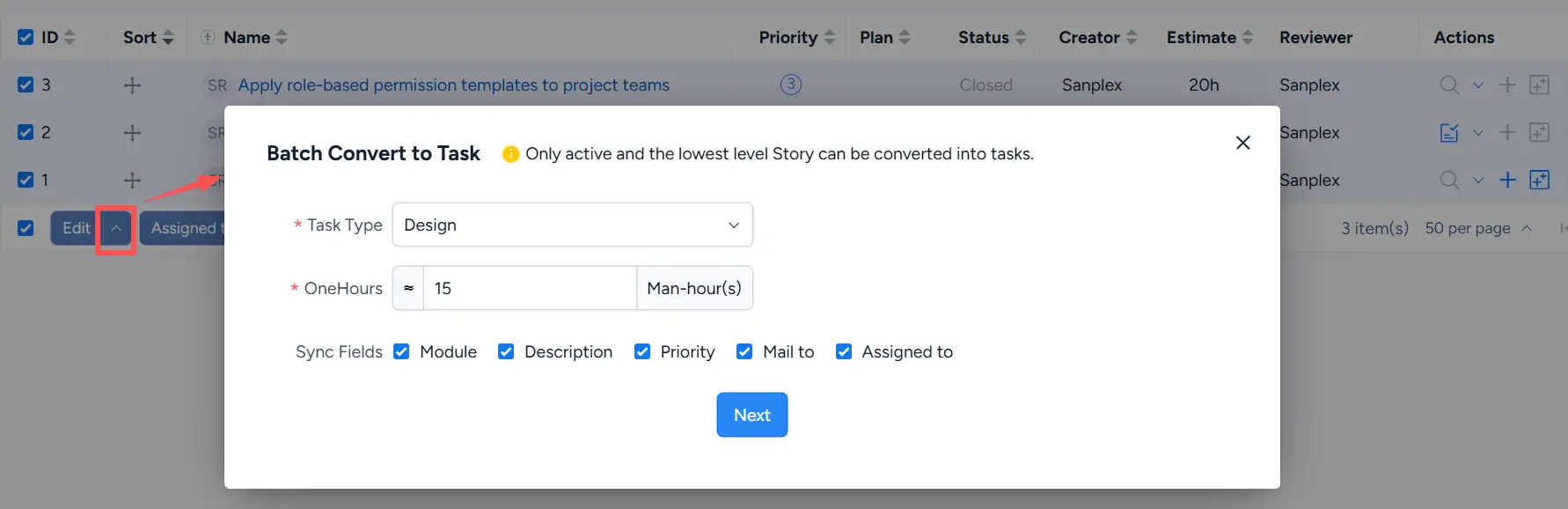
Open the Edit menu and click Batch Convert to Task.

In the Batch Convert to Task dialog, select the Task Type and enter the estimated effort in man-hours.
Under Sync Fields, select the story information to copy to the generated tasks. Available fields shown in the current UI include:
- Module
- Description
- Priority
- Mail to
- Assigned to
Only active stories at the lowest hierarchy level can be converted into tasks.
Click Next to continue.
On the next page, review the generated task information, including the related story, task name, task type, assignee, estimate, planned start date, due date, and priority.
Click Save to complete the conversion.

2. Create Tasks from a Story
In the Actions column of the Story list, use the task-related actions to create tasks for an individual story.
These actions allow a story to be broken down into one or multiple tasks instead of being converted directly into a single task.

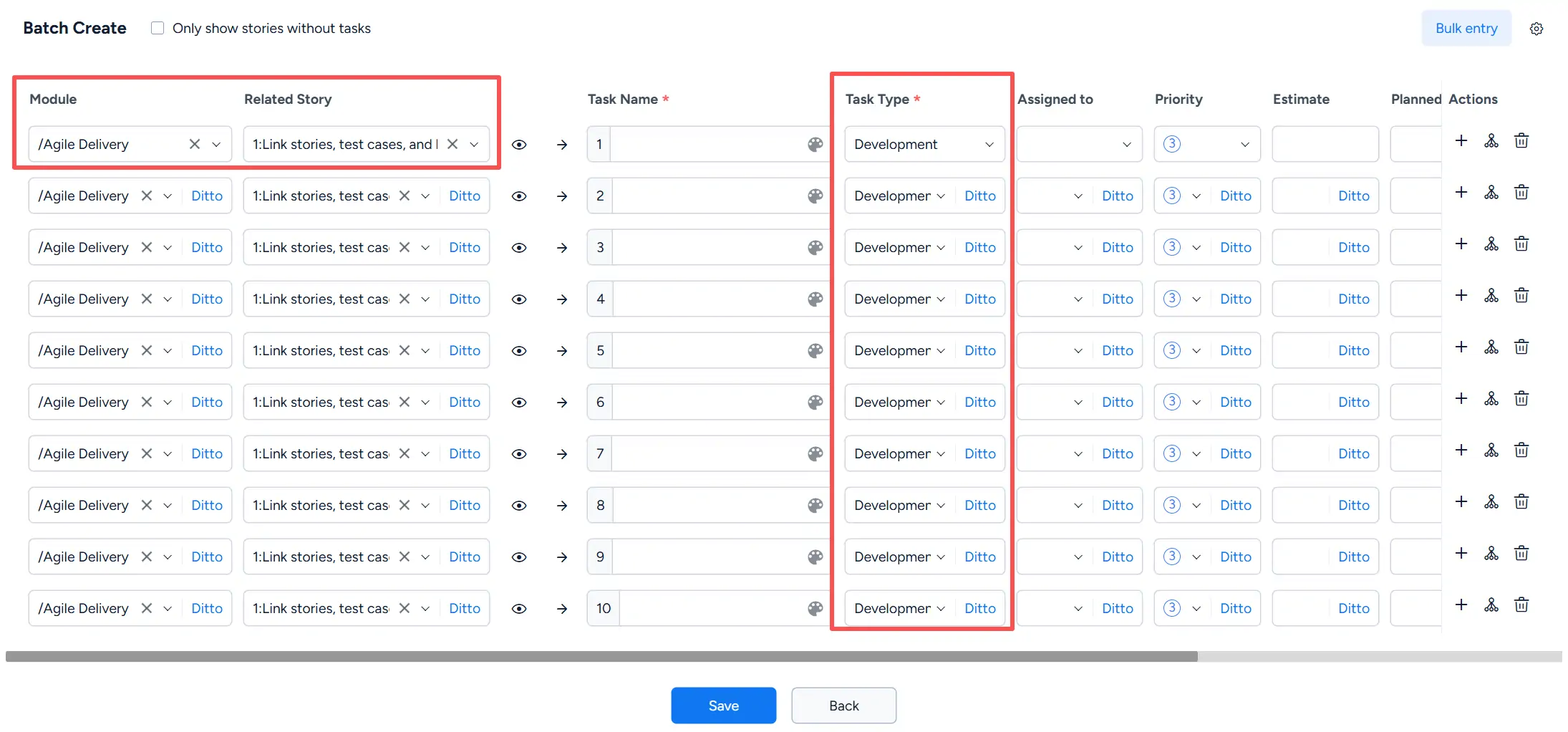
When creating multiple tasks, the Batch Create page displays the related story and module for each task row. You can then complete task information, including:
- Task Name
- Task Type
- Assigned to
- Priority
- Estimate
- Planned Start
- Due Date
- Description
For supported fields, click Ditto to copy the value from the preceding row, making it faster to enter repeated task information.
You can also use the actions on the right to add or remove task rows as needed.
Click Save after completing the task information.
Tasks created through either method can be managed from the Task page of the project or execution.