
Program
1. Introduction of Sanplex features
1.1. Core Management Framework
1.1.1 Program
1.1.2 Project
1.1.3 Product
1.1.4 Execution
1.1.5 Management Models
1.2. Dashboard
1.2.1 Getting Started with Tutorials
1.2.2 Quick Add
1.2.3 Notification Center
1.2.4 Effort Tracking
1.2.5 Dashboard - Project and Execution
1.2.6 Dashboard - My Work, Contribution, and Recents
1.2.7 Dashboard - Approval
1.2.8 Contacts
1.3. Program
1.3.1 Program List
1.3.2 Program Kanban
1.3.3 Create Program
1.3.4 Create Sub-Programs
1.3.5 Project Charter Management
1.4. Product
1.4.1 Create Product
1.4.2 Manage Modules
1.4.3 Multi-Branch and Multi-Platform Management
1.4.4 Manage Plans
1.4.5 Manage Requirements
1.4.6 Requirement Reviews
1.4.7 Requirement Status and Phase
1.4.8 Create Releases
1.4.9 Track Progress
1.4.10 Business Requirements and Multi-Level Requirements
1.5. Project
1.5.1 Scrum Project
1.5.2. Waterfall Project
1.5.2.1 Manage Project Phases
1.5.2.2 Project Design
1.5.2.3 Project Matrix
1.5.2.4 Project Reports and Earned Value Management
1.5.2.5 Project Baselines
1.5.2.6 Project Change
1.5.3. Kanban Project
1.5.3.1 Set Up Kanban Projects
1.5.3.2 Configure Kanban Boards
1.5.3.3 Use Kanban Boards
1.5.4 Hybrid Agile Project
1.5.5 Hybrid Waterfall Project
1.5.6. Project Settings
1.5.6.1 Project Setup
1.5.6.2 Project Executions
1.5.6.3 Project Requirements
1.5.6.4 Project Builds
1.5.6.5 Project Tests
1.6. Admin Settings
1.6.1 Confluence Data Import
1.7. Workflow

Create Program

2026-03-09 09:51:44
Sanplex Content
368
Last edited by Jing WANG on 2026-08-14 14:09:30
Share links
Summary: Learn how to create a Program in Sanplex and configure its hierarchy, manager, planned duration, budget, description, and access control.

Programs can be used to organize related work around strategic goals and provide a structured way to coordinate Projects and other work across different levels. The process begins by creating a Program.

1. Create a Program

Go to Program from the left navigation to open Project View, then click Create Program in the upper-right corner.
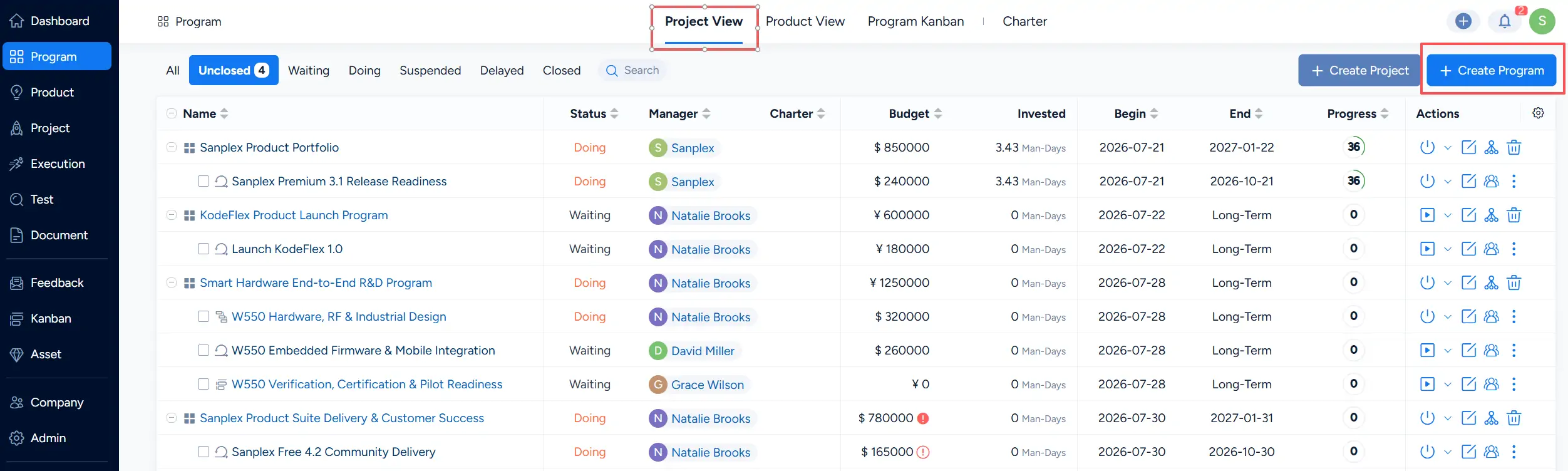
Program Project View showing the Create Program button in the upper-right corner.

2. Complete the Program Form

Complete the required information and configure the Program settings as needed.
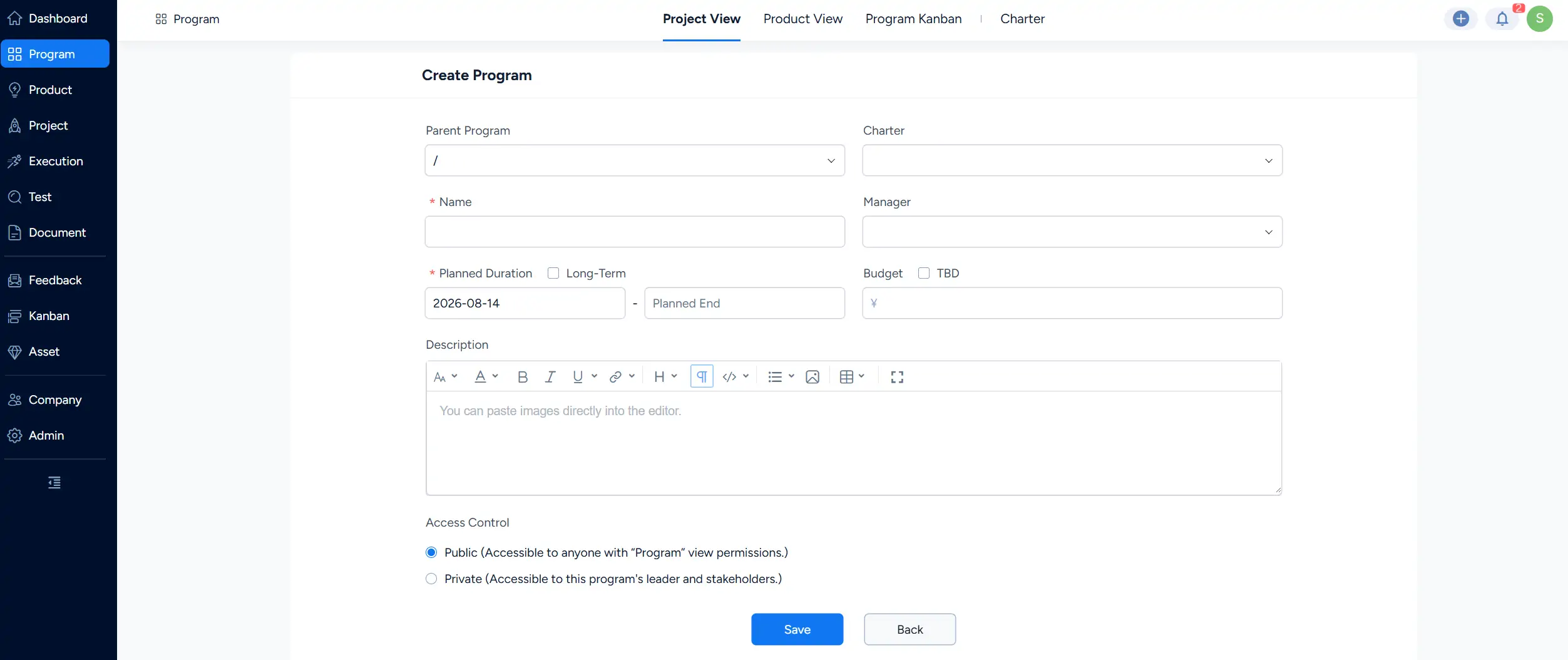
Create Program form showing settings for Program hierarchy, management, planning, budget, description, and access control.

  • Parent Program: Leave this field at the top level when creating a top-level Program. To create a sub-program, select the appropriate parent Program.
  • Charter: Select a Charter when one is available and applicable to the Program.
  • Name: Enter a name that clearly identifies the Program.
  • Manager: Select the person responsible for managing the Program.
  • Planned Duration: Set the planned start and end dates for the Program. Select Long-Term when a fixed end date is not required.
  • Budget: Enter the planned budget for the Program, or select TBD when the budget has not yet been determined.
  • Description: Add information that explains the purpose, scope, or objectives of the Program as needed.
  • Access Control: Define who can access the Program. Public makes the Program accessible to users with Program view permissions, while Private limits access according to the access rules shown in the form.

After completing the form, click Save to create the Program.

Write a Comment
Comment will be posted after it is reviewed.
