
Dashboard
1. Introduction of Sanplex features
1.1. Core Management Framework
1.1.1 Program
1.1.2 Project
1.1.3 Product
1.1.4 Execution
1.1.5 Management Models
1.2. Dashboard
1.2.1 Getting Started with Tutorials
1.2.2 Quick Add
1.2.3 Notification Center
1.2.4 Effort Tracking
1.2.5 Dashboard - Project and Execution
1.2.6 Dashboard - My Work, Contribution, and Recents
1.2.7 Dashboard - Approval
1.2.8 Contacts
1.3. Program
1.3.1 Program List
1.3.2 Program Kanban
1.3.3 Create Program
1.3.4 Create Sub-Programs
1.3.5 Project Charter Management
1.4. Product
1.4.1 Create Product
1.4.2 Manage Modules
1.4.3 Multi-Branch and Multi-Platform Management
1.4.4 Manage Plans
1.4.5 Manage Requirements
1.4.6 Requirement Reviews
1.4.7 Requirement Status and Phase
1.4.8 Create Releases
1.4.9 Track Progress
1.4.10 Business Requirements and Multi-Level Requirements
1.5. Project
1.5.1 Scrum Project
1.5.2. Waterfall Project
1.5.2.1 Manage Project Phases
1.5.2.2 Project Design
1.5.2.3 Project Matrix
1.5.2.4 Project Reports and Earned Value Management
1.5.2.5 Project Baselines
1.5.2.6 Project Change
1.5.3. Kanban Project
1.5.3.1 Set Up Kanban Projects
1.5.3.2 Configure Kanban Boards
1.5.3.3 Use Kanban Boards
1.5.4 Hybrid Agile Project
1.5.5 Hybrid Waterfall Project
1.5.6. Project Settings
1.5.6.1 Project Setup
1.5.6.2 Project Executions
1.5.6.3 Project Requirements
1.5.6.4 Project Builds
1.5.6.5 Project Tests
1.6. Admin Settings
1.6.1 Confluence Data Import
1.7. Workflow

Dashboard - Approval

2026-08-14 10:40:24
Sanplex Content
202
Last edited by Jing WANG on 2026-08-14 10:41:10
Share links
Summary: Learn how to use the Approval view on the Dashboard to find pending review items and complete approval actions in Sanplex.

The Approval view on the Dashboard brings together items that require the current user's review or approval. Depending on the enabled modules, configured workflows, and user permissions, different types of approval items may appear in this view.

The Approval list helps users quickly identify pending reviews and process them without unnecessarily delaying the related workflow.

The example below uses Stories to illustrate how the approval process works.

1. View Pending Approvals

Go to Dashboard → Approval to view items waiting for your review. You can use the available object-type tabs, such as Story, to switch between different approval lists.

The list provides key information about each pending item, including its title, type, related Product or Project, submission time, status, and available actions.

Dashboard Approval view showing pending review items with object-type filters, status information, and available actions.

2. Review a Pending Story

In the Actions column, click the available Review action for the Story you want to process.

Approval list showing the Review action available for a pending Story.

Complete the review form by entering the required review information, then submit the review. Once the review is completed, the item is updated according to the configured workflow and no longer remains in the current pending approval list when no further action is required from you.
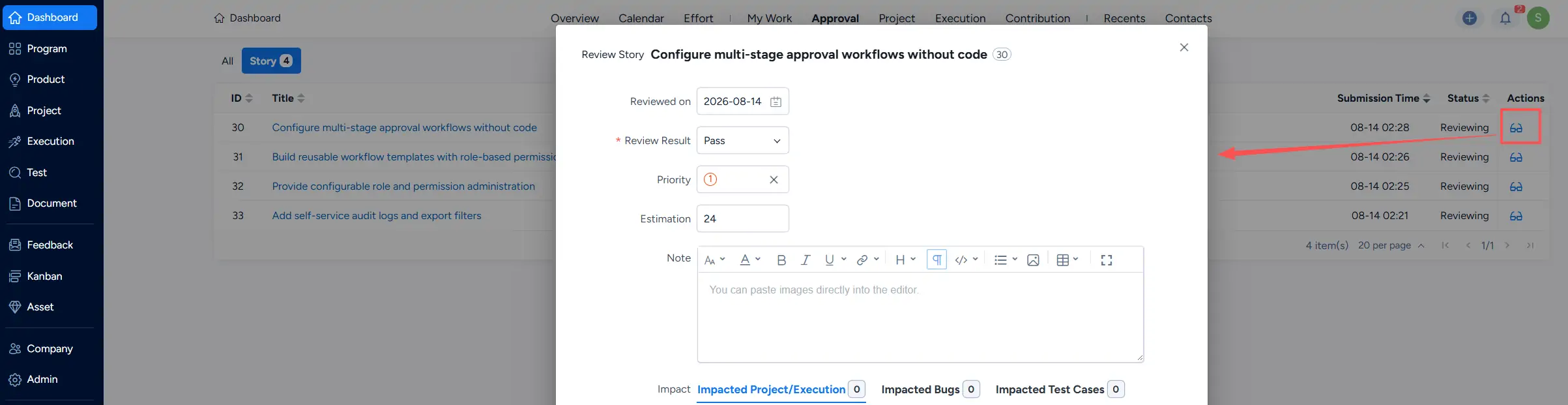
Review Story window showing review fields and related impact information for completing a Story review.

Write a Comment
Comment will be posted after it is reviewed.
