Catalog
Feature Overview
Project Opportunity Management helps teams identify, assess, assign, track, and manage uncertain events that may have a positive impact on project objectives.
Teams can evaluate opportunities based on factors such as Impact and Probability. Sanplex calculates the corresponding Opportunity Index and displays the opportunity Priority based on the assessment.
Project opportunities can also be imported from or added to the Opportunity Library, making useful opportunities easier to reference and reuse across projects.
Use Cases
- Opportunity identification: Project managers and team members can identify potential opportunities during project execution, including technical, management, and business-related opportunities.
- Opportunity assessment: Teams can evaluate opportunities by recording their source, type, strategy, impact, probability, priority, and other relevant information.
- Opportunity tracking: Teams can track active opportunities, record changes over time, and continue following them until they are closed, suspended, or canceled.
- Organizational knowledge capture: Valuable opportunities can be added to the Opportunity Library for future reference and reuse.
- Cross-project reuse: Existing opportunities in the Opportunity Library can be imported into other projects when relevant.
1. Add an Opportunity
Go to Project > Select a Project > Opportunity, and click Create Opportunity.
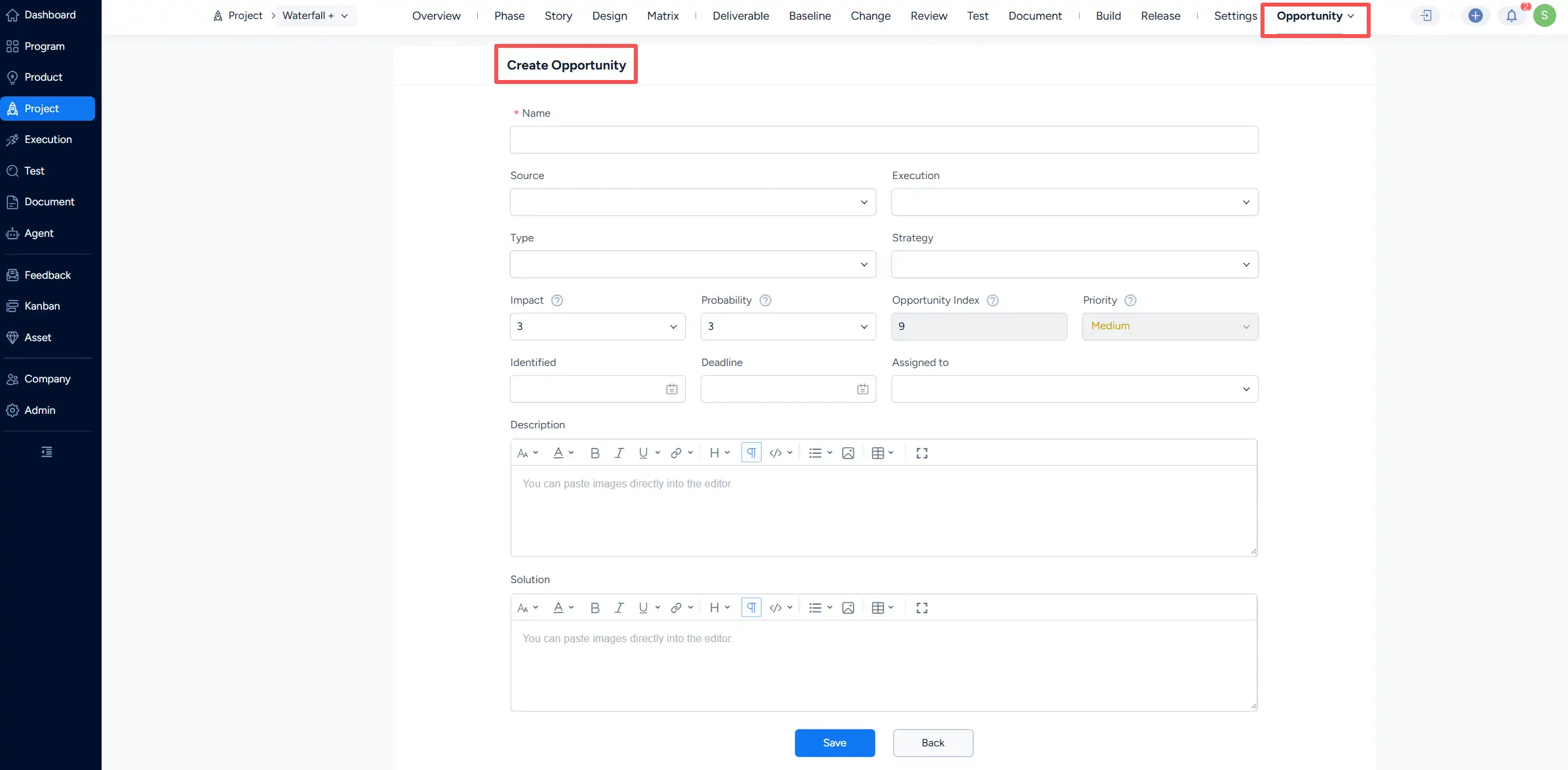
Complete the opportunity information as needed:
- Name: Enter the opportunity name.
- Source: Select the source of the opportunity.
- Execution: Associate the opportunity with an execution when applicable.
- Type: Select the opportunity type.
- Strategy: Select the strategy for handling the opportunity.
- Impact: Rate the potential impact from 1 to 5.
- Probability: Rate the probability from 1 to 5.
- Opportunity Index: Calculated from Impact × Probability.
- Priority: Displays the priority determined from the opportunity assessment.
- Identified: Enter the date when the opportunity was identified.
- Deadline: Set a target date when needed.
- Assigned to: Assign the opportunity to a project member.
- Description: Describe the opportunity.
- Solution: Record the planned approach for handling the opportunity.
Click Save to create the opportunity and return to the opportunity list.

The opportunity list provides status filters such as All, Active, Assigned to Me, Closed, Suspended, and Canceled.
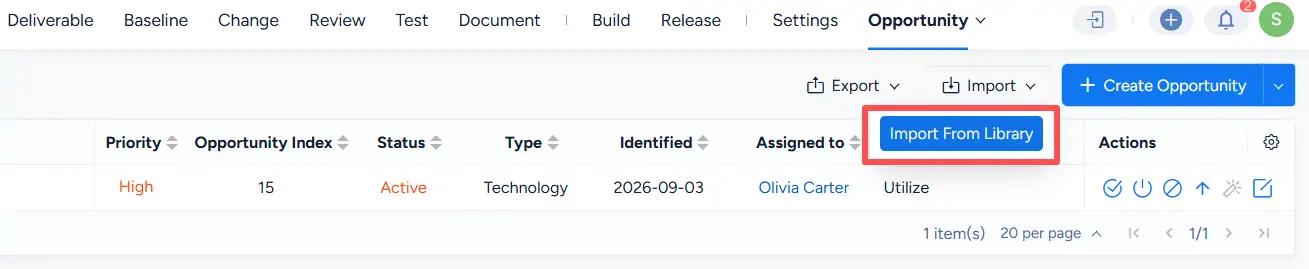
You can also import existing opportunities from the Opportunity Library. Click Import > Import From Library.
2. Opportunity Actions and Statuses
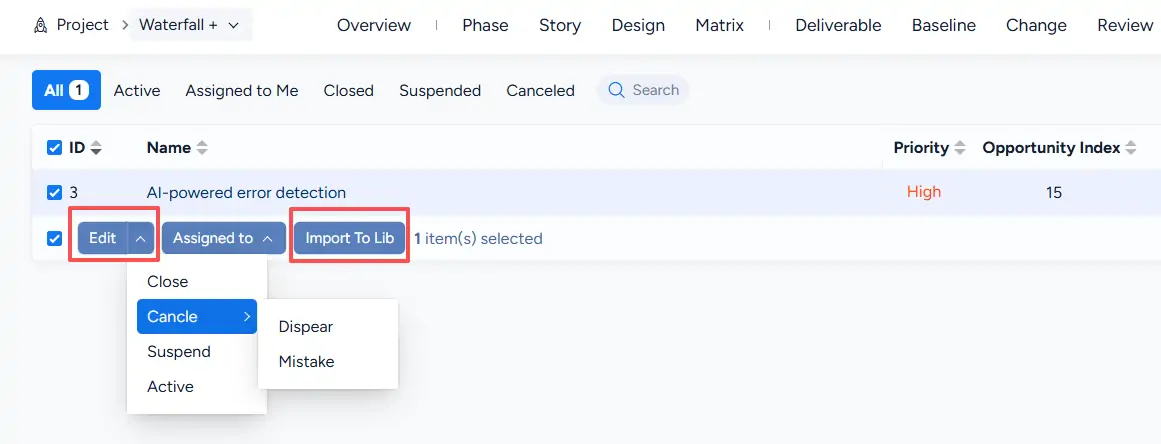
Select one or more opportunities to access batch actions.
Available actions include Edit, Assigned to, and Import To Lib. You can also update the selected opportunities to statuses such as Close, Cancel, Suspend, or Active.
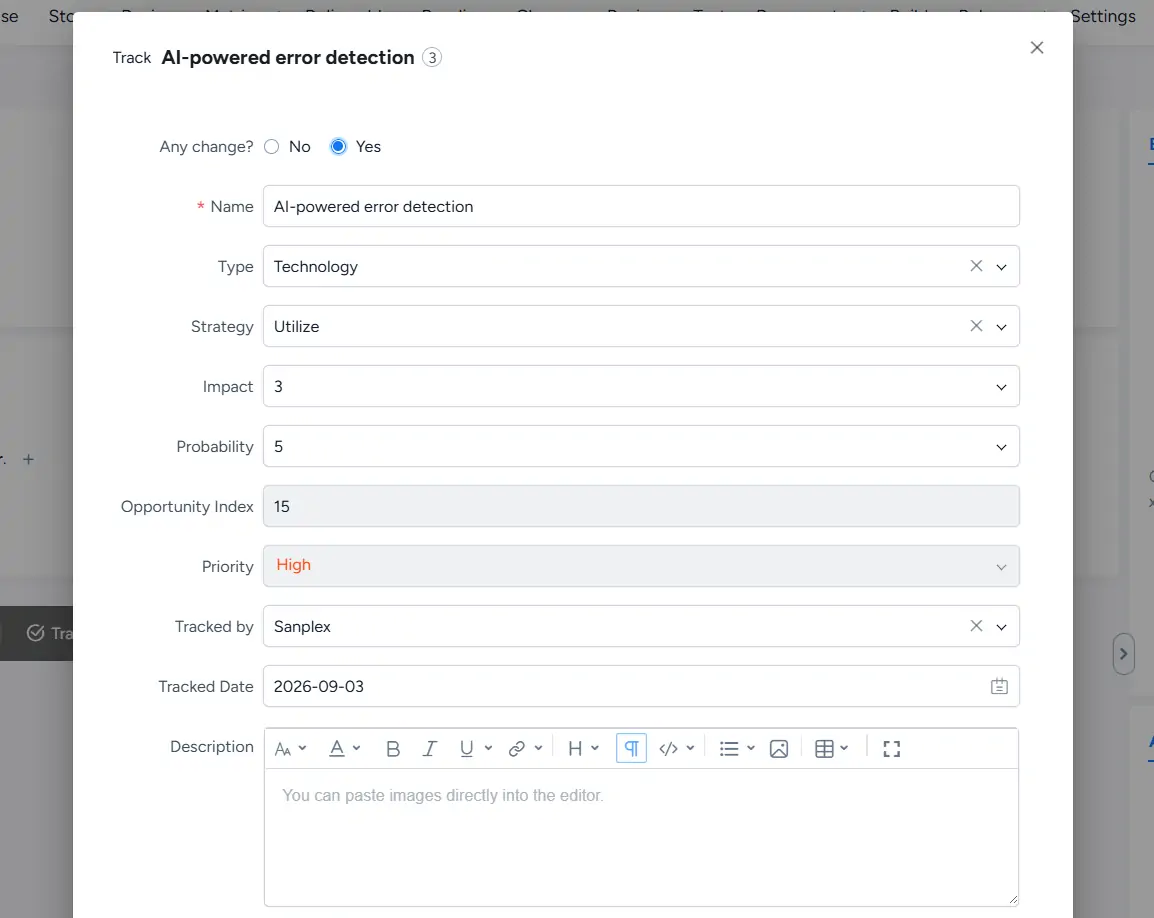
To track an individual opportunity, open its details page and click Track.
The details page also provides actions for assigning, canceling, closing, suspending, editing, deleting, and importing the opportunity to the library.
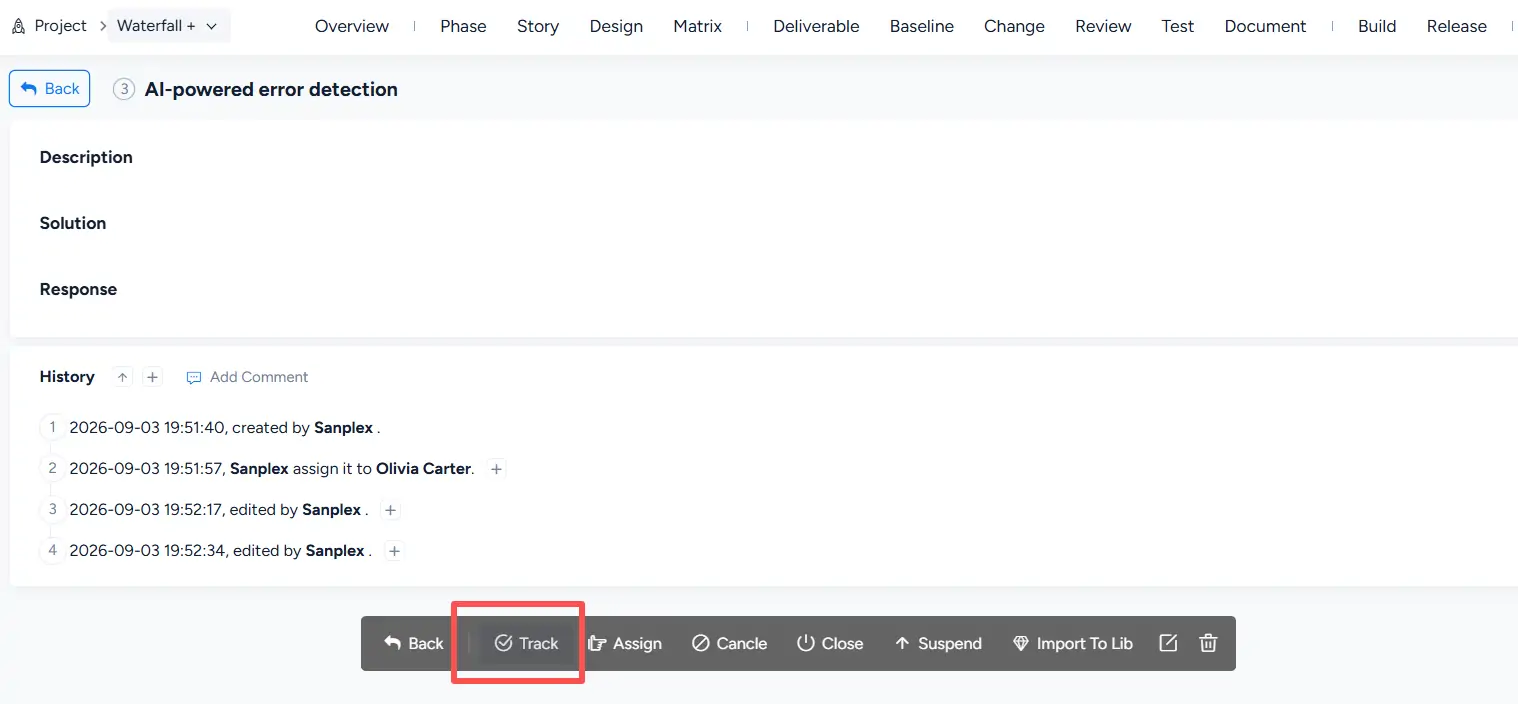
When you click Track, specify whether the opportunity has changed.
If Yes is selected, you can update the relevant opportunity information, including Type, Strategy, Impact, Probability, Opportunity Index, and Priority, and record the tracking details.