

Catalog
A project consists of one or more Executions.
An Execution can represent a sprint or iteration in an Agile project, or a phase in a Waterfall project.
After a project is created, you can add executions, set up the team, link requirements, break down tasks, and begin normal delivery work.
Phase setup has already been covered in the previous section. The following example uses an Agile project to show how to add an execution.
I. Add an Execution
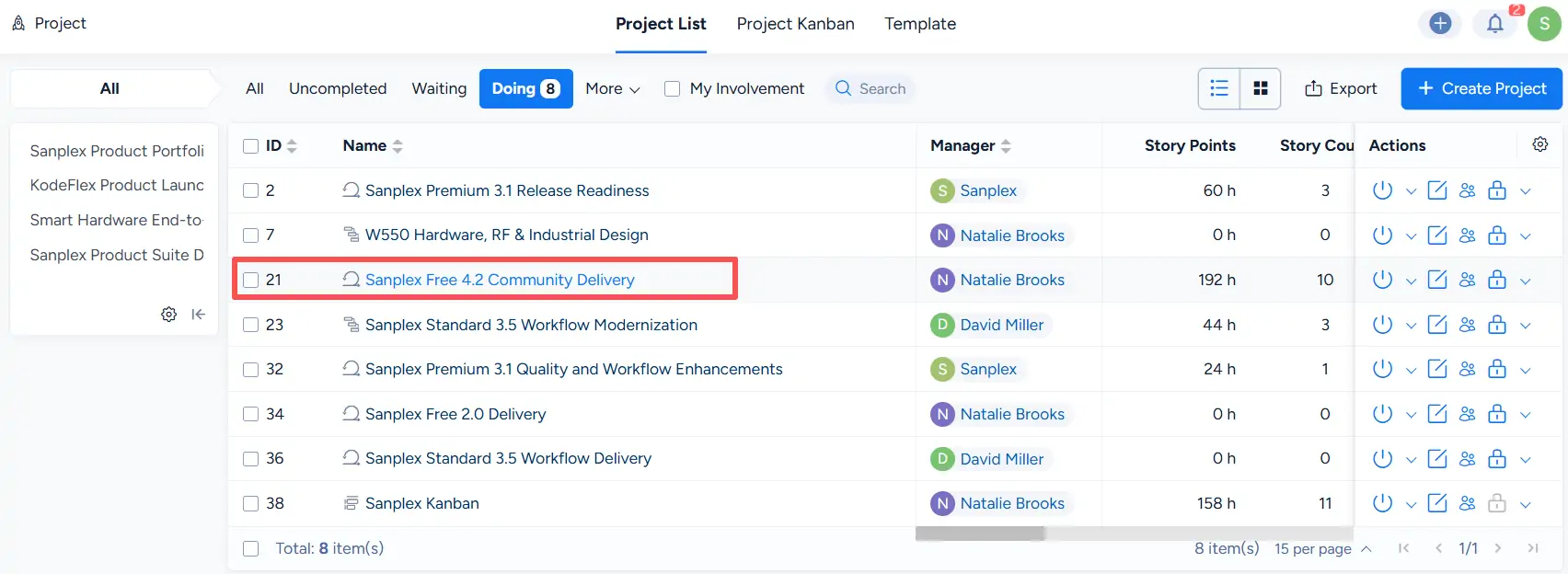
On the Project List page, click a specific project name, such as Sanplex Free 4.2 Community Delivery, to open the project.
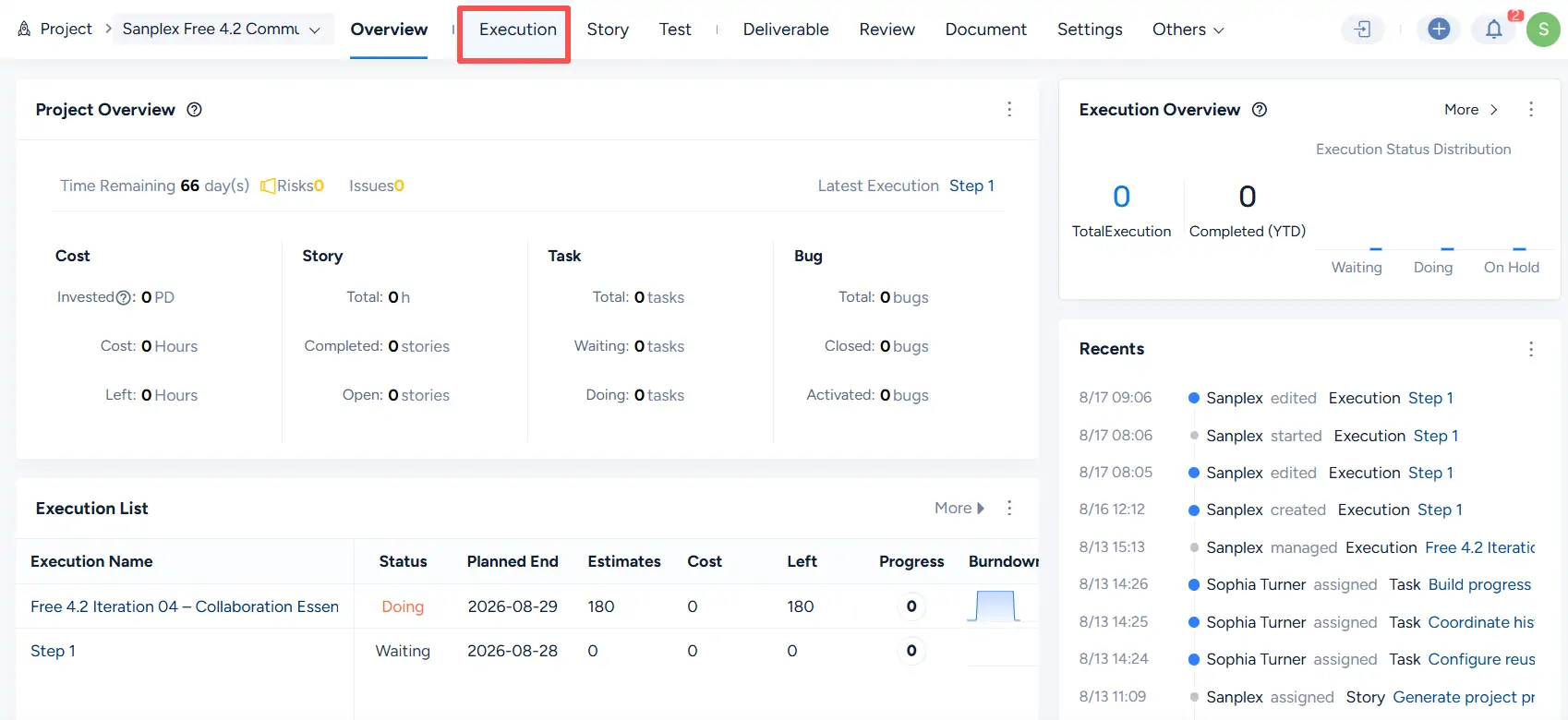
On the project page, click Execution in the top navigation bar to open the project's execution list.
Note:
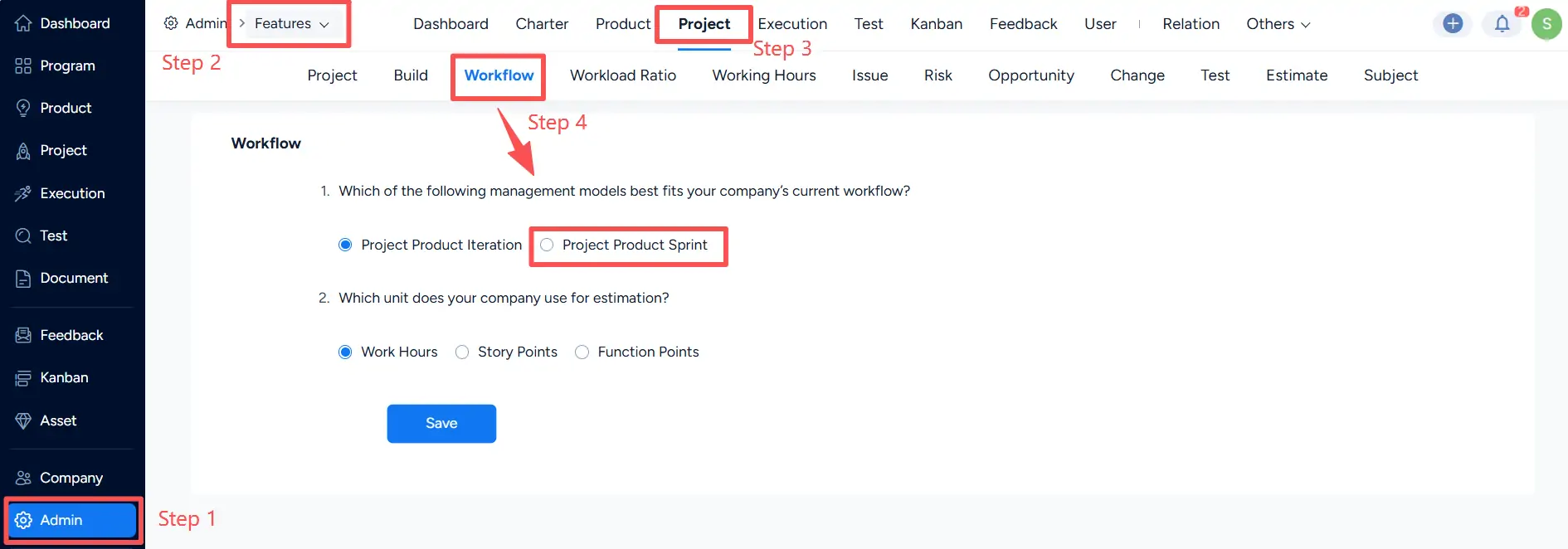
The terminology used for Agile delivery can be configured under Admin > Features > Project > Workflow.
Under the workflow settings, select either Project Product Iteration or Project Product Sprint according to the terminology used by your organization, and then click Save.
On the Project > Execution page, click Create Execution.

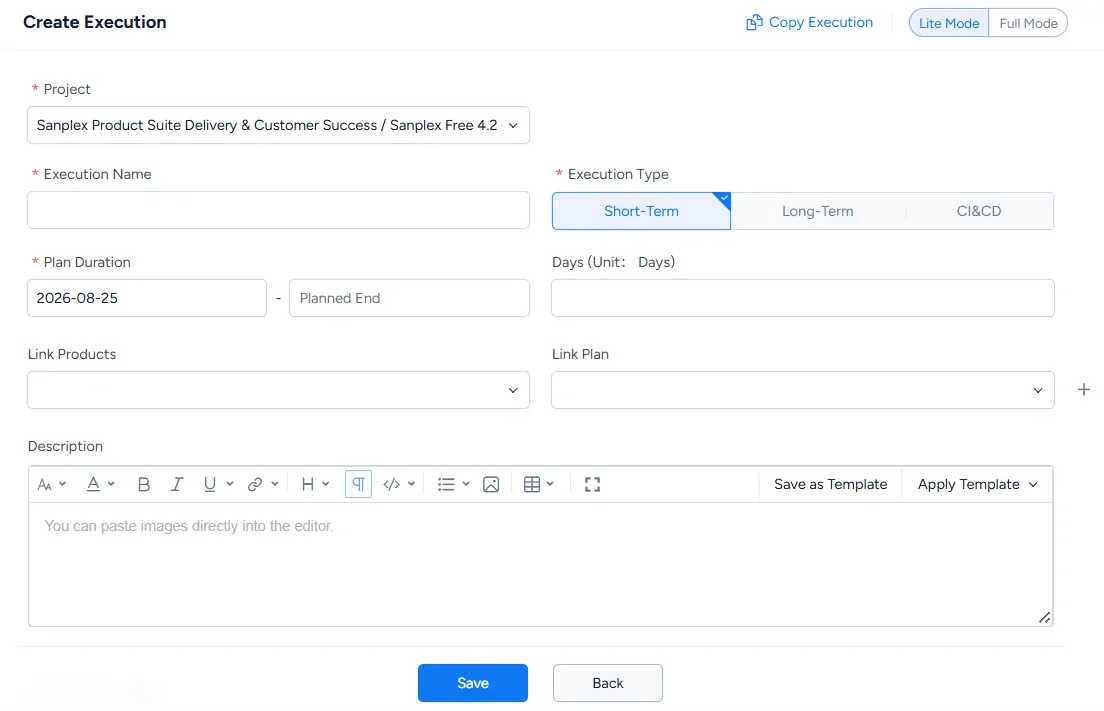
On the Create Execution page, enter the execution information. The page includes fields such as Project, Execution Name, Execution Type, Plan Duration, Link Products, Link Plan, and Description.
Click Save to create the execution.
The newly created execution is then available from the project’s Execution page and the main Execution module.
II. View Executions
Executions can be viewed in both Execution List and Execution Kanban views.
Click Execution in the main navigation to open the Execution module. You can then switch between Execution List and Execution Kanban at the top of the page.

1. View executions in Kanban view
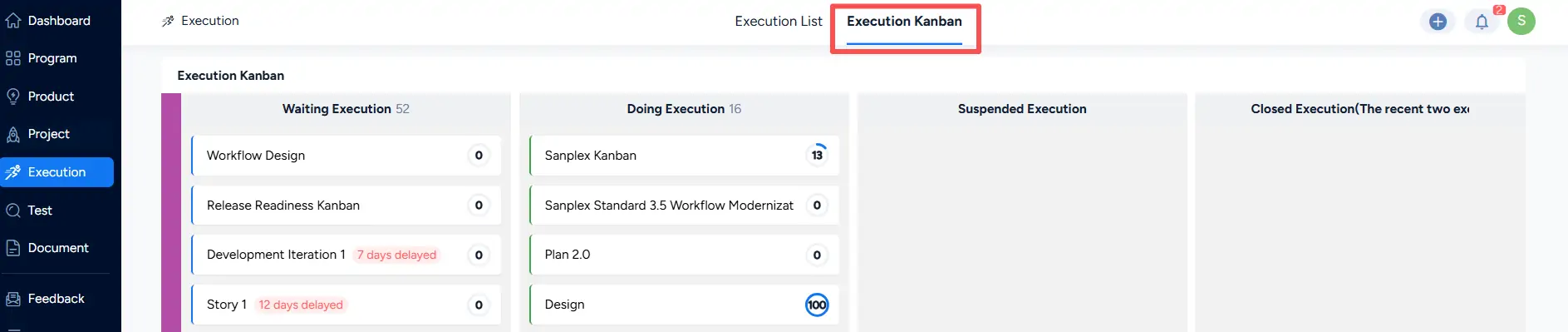
Click Execution Kanban to display executions by status.
The Execution Kanban groups execution cards into status columns such as Waiting Execution, Doing Execution, Suspended Execution, and Closed Execution. Each card displays the execution name and its current progress.
2. View executions in list view
Click Execution List to display executions in a table.
The Execution List displays information such as the Execution Name, Project, Status, Deliverable, Execution Manager, Planned Start, and Planned End.
You can use the status filters at the top of the page to view All Executions, Unfinished, Waiting, Doing, Suspended, Delayed, or Closed executions. You can also use Search to find a specific execution.



