Catalog
Feature Overview
Project Process helps teams tailor the standard project process to fit the needs of a specific project.
Within a project, processes, activities, and deliverables are displayed in a hierarchical structure. Project teams can review their tailoring criteria and set applicable items according to the project context. Items defined as Non-tailorable remain Applicable.
Process tailoring helps teams follow the configured project process while focusing on the activities and deliverables that apply to the current project.
Use Cases
- Adapt to projects of different sizes and complexity: Tailor project processes, activities, and deliverables according to project size and complexity so the project can follow an appropriate process structure.
- Support projects with limited resources or tight timelines: Focus project execution on the processes, activities, and deliverables that apply to the project.
- Meet project-specific requirements: Tailor the project process according to specific delivery requirements while retaining required process activities.
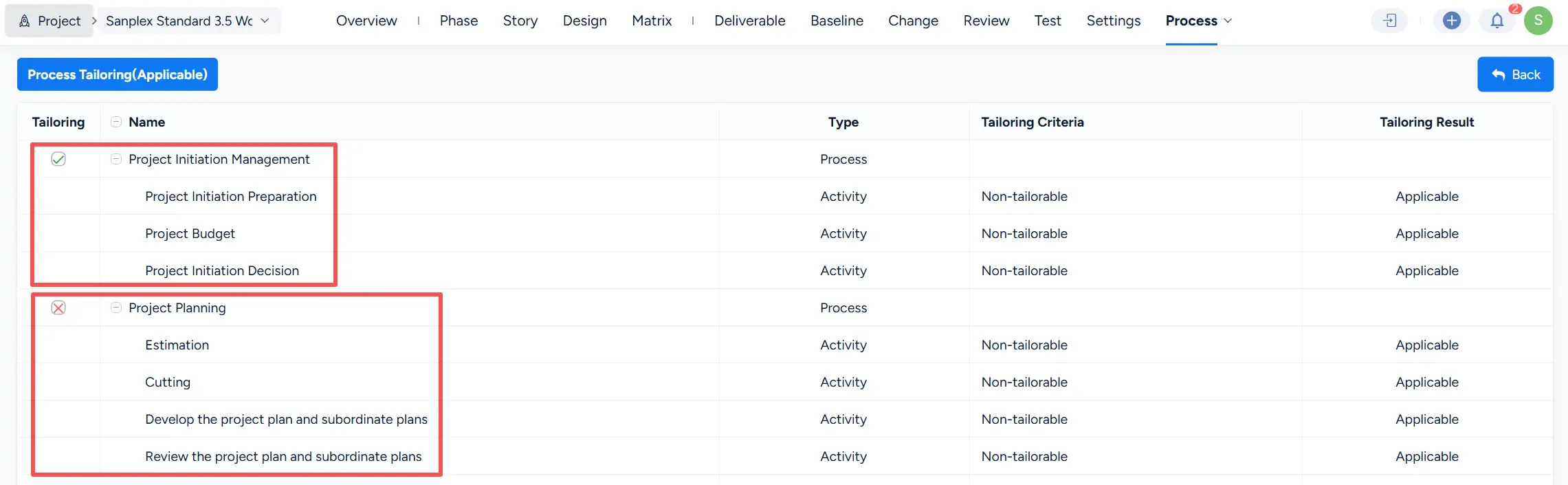
- Support process compliance: Use project process and tailoring information to provide visibility into how the configured process is applied within the project.
How It Works
1. View the Project Process
Open a project and click Process in the top navigation.
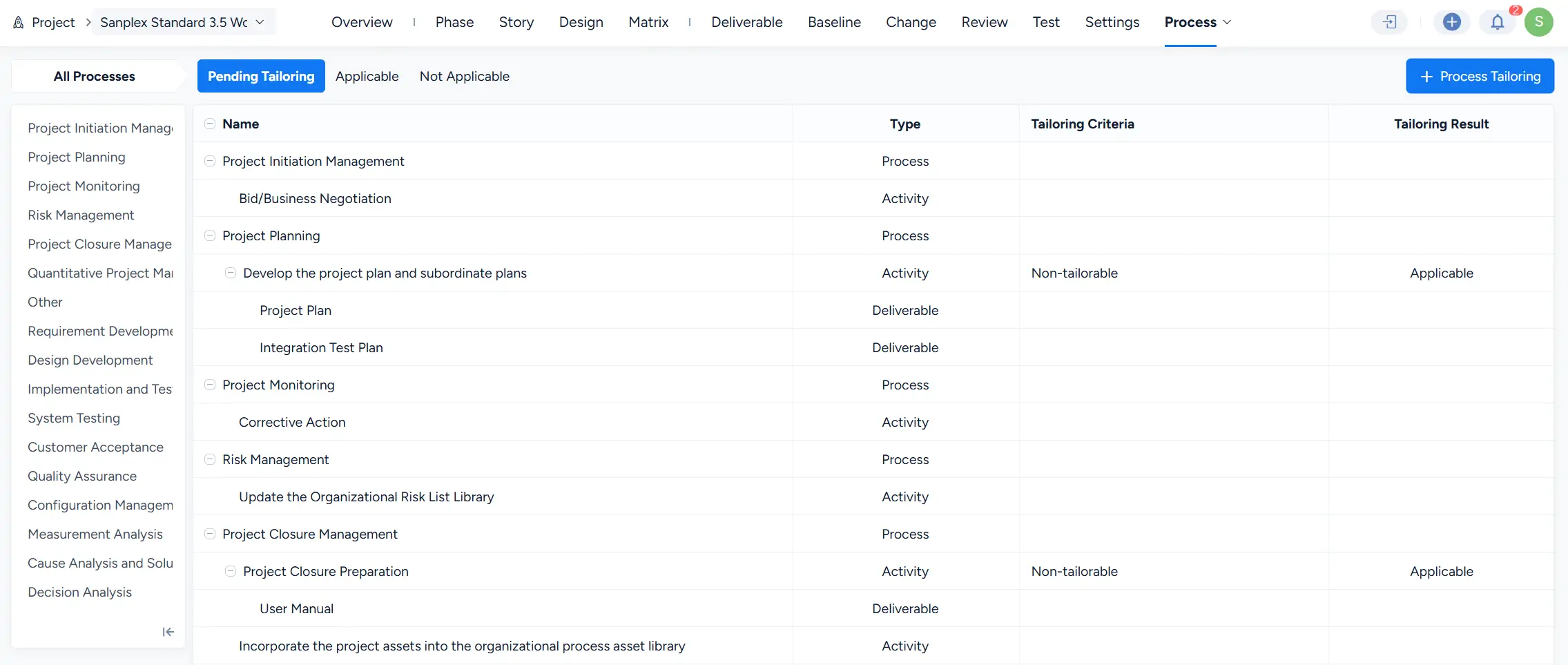
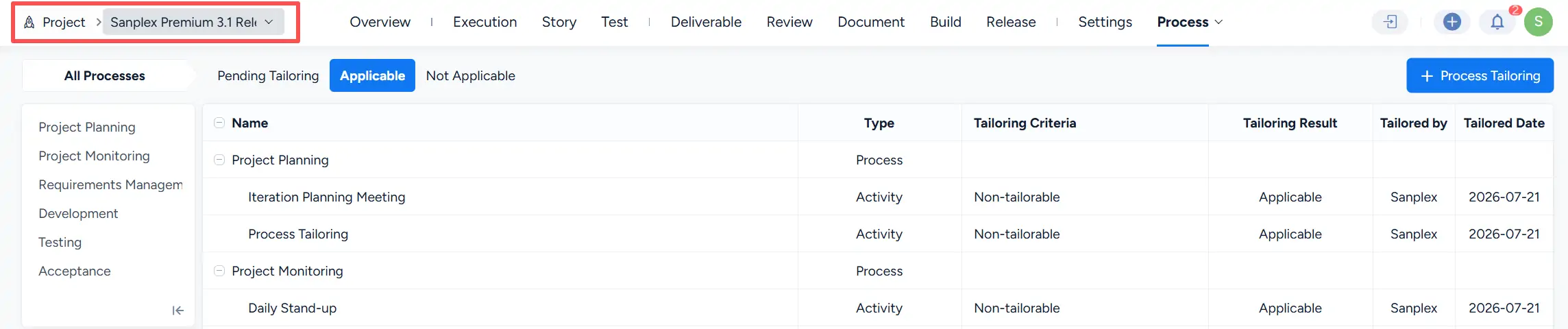
The Process page displays the project process in a hierarchical structure. Items can be identified by Type, including Process, Activity, and Deliverable.
The page provides the following views:
- All Processes
- Pending Tailoring
- Applicable
- Not Applicable
You can also select a process from the left panel to view its related activities and deliverables.
2. Start Process Tailoring
Click Process Tailoring in the upper-right corner of the Process page to open the tailoring page.

3. Tailor Processes, Activities, and Deliverables
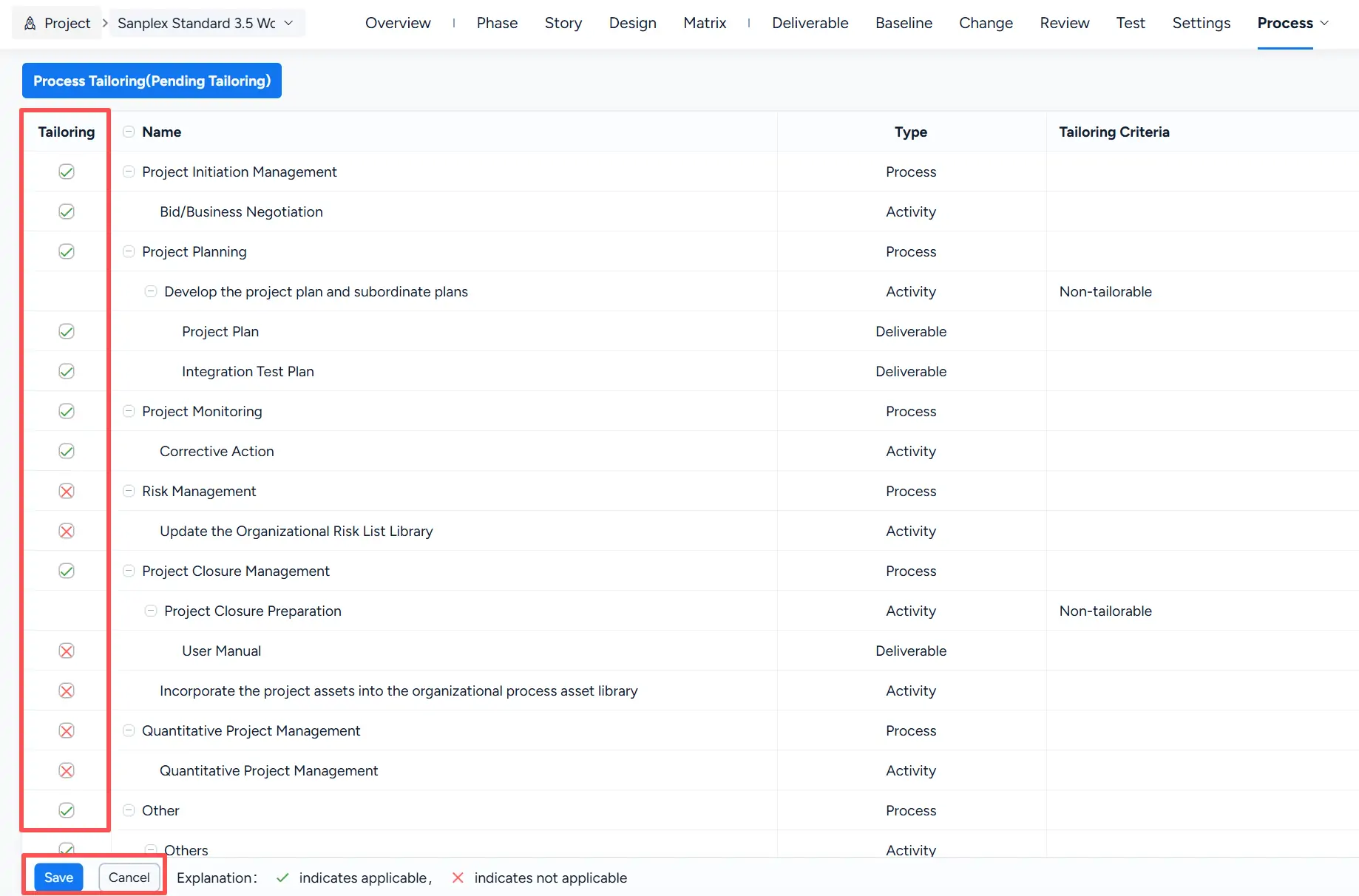
The Process Tailoring page displays processes, activities, and deliverables in a hierarchical structure.
Use the icons in the Tailoring column to set the tailoring result:
- ✓ indicates Applicable
- × indicates Not Applicable
After completing the tailoring selections, click Save.
4. Non-tailorable Items
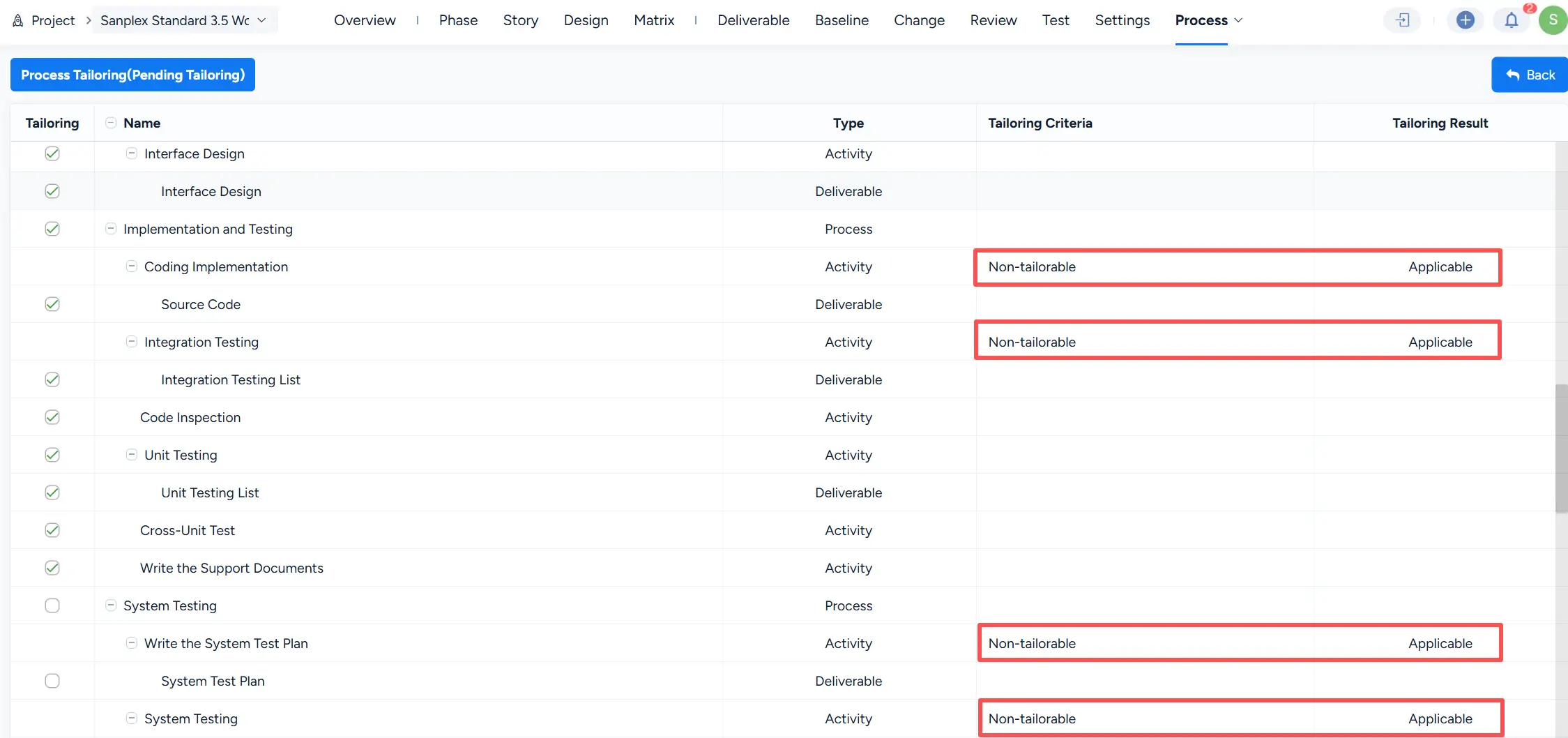
Some activities are defined as Non-tailorable in the project process configuration.
For these items, the Tailoring Criteria column displays Non-tailorable, and the Tailoring Result is Applicable.
5. View Tailoring Results
After tailoring, use the Applicable and Not Applicable tabs on the Process page to review the corresponding results.
The list displays the process hierarchy together with the tailoring criteria and result. Depending on the displayed project process information, the page can also show tailoring details such as Tailored by and Tailored Date.
6. Review the Process Hierarchy During Tailoring
The tailoring page preserves the hierarchical relationship between processes and their activities, making it easier to review related process items together when setting tailoring results.