Catalog
Overview
A Project Charter provides a structured way to define and govern a Project before and throughout its lifecycle. It helps teams establish key project information, complete the required approvals, and track important lifecycle actions such as activation, cancellation, and closure.
By using a Charter, organizations can standardize project initiation and approval processes while maintaining clear records of decisions, responsibilities, and project status.
Use Cases
- Complex Projects and large teams: For Projects involving multiple departments, teams, or stakeholders, a Charter provides a structured process for defining project information and completing the required reviews and approvals.
- Simple Projects and small teams: A standardized Charter process helps teams clarify project goals, responsibilities, and basic planning information before work begins.
- Mid- to long-term Projects: Charters help establish key project information, resources, and governance requirements so that execution can remain aligned with the original plan.
- Short-term Projects: A clear Charter and approval process can help teams start quickly while still maintaining the necessary project controls and decision records.
1. View the Charter List
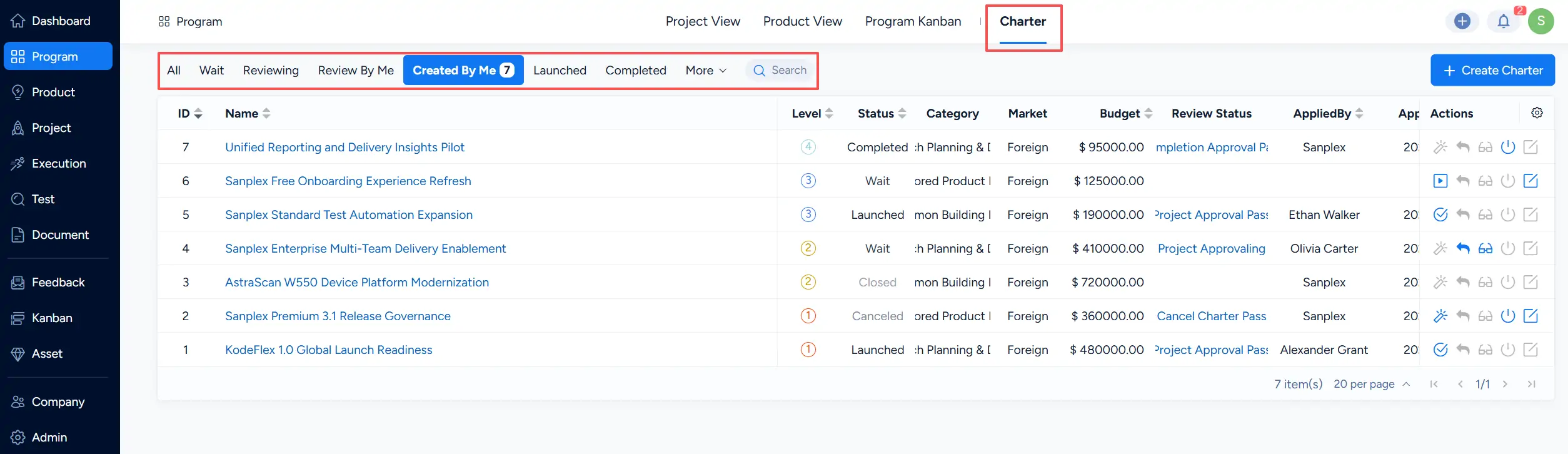
Go to Program → Charter to view Charters and their current status.
You can use filters such as All, Wait, Reviewing, Review By Me, Created By Me, Launched, and Completed, as well as additional options under More, to narrow the Charter list. You can also use Search to locate specific Charters.
2. Create a Charter
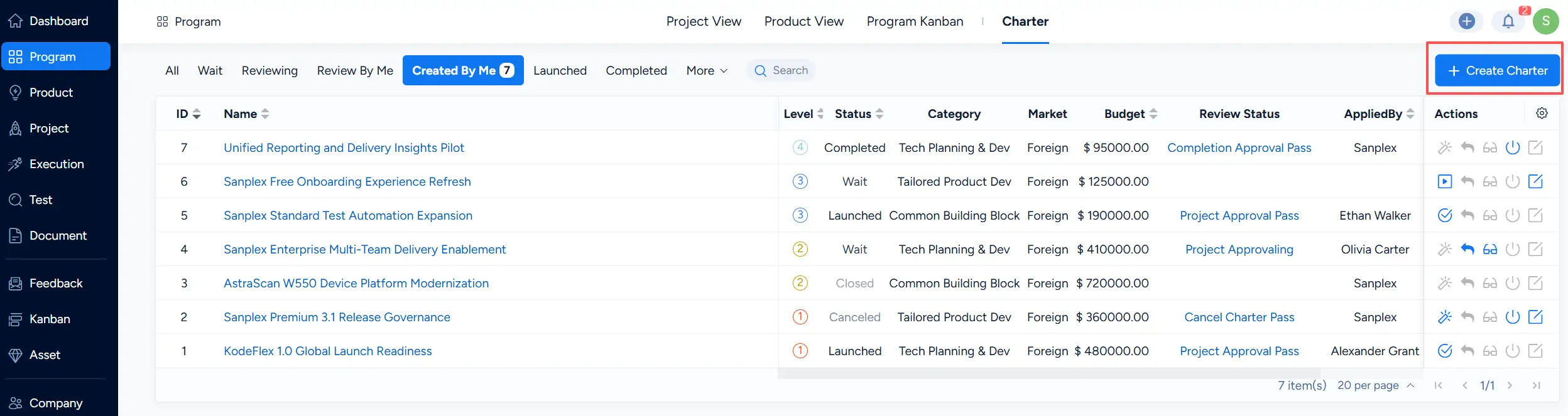
Click Create Charter in the upper-right corner of the Charter list.
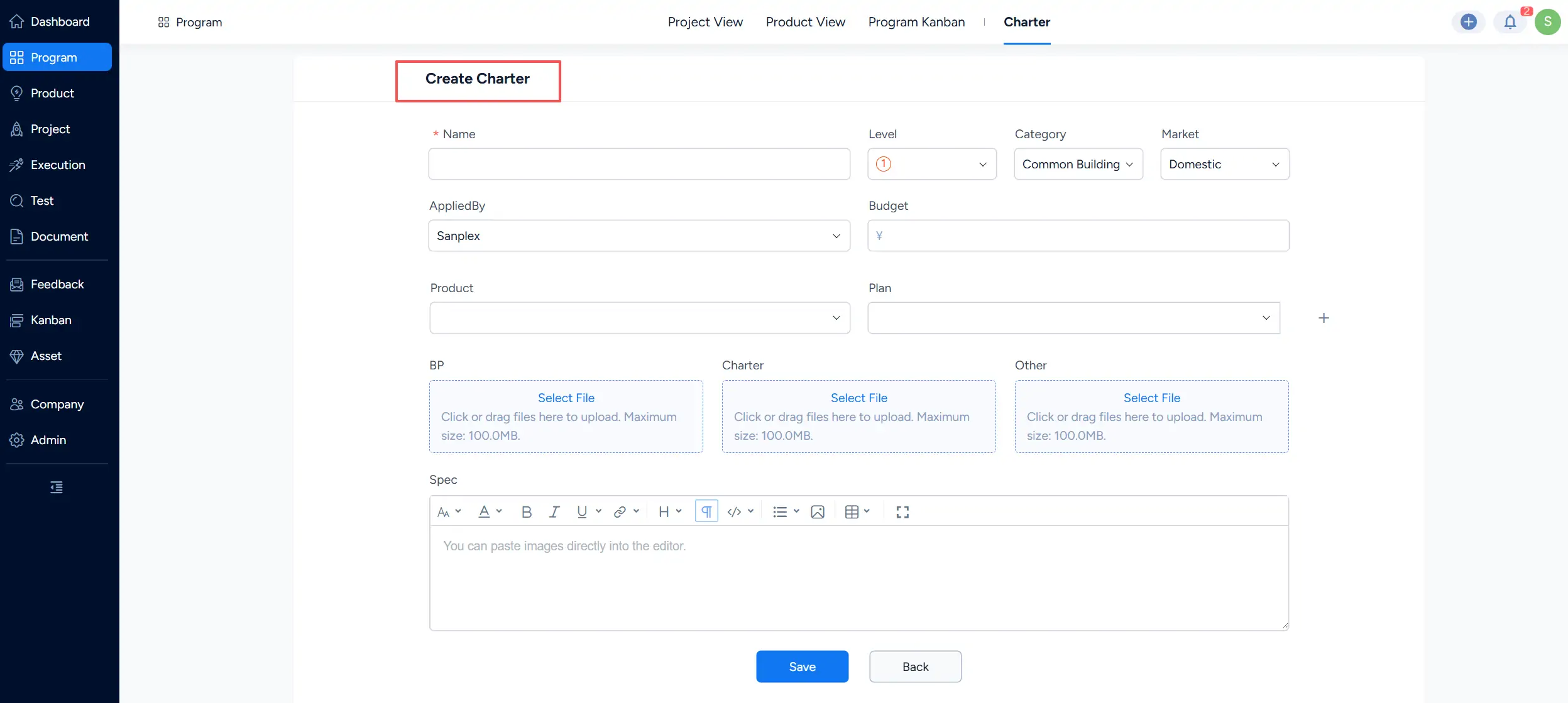
Complete the Charter form with the required information. Depending on the configuration, the form can include information such as the Charter name, level, category, market, applicant, budget, related Product and Plan, supporting files, and specification.
Click Save to create the Charter.
3. Manage Charter Approvals
The actions available for a Charter depend on its current status, approval progress, permissions, and configured workflow.
3.1 Initiate Project Approval
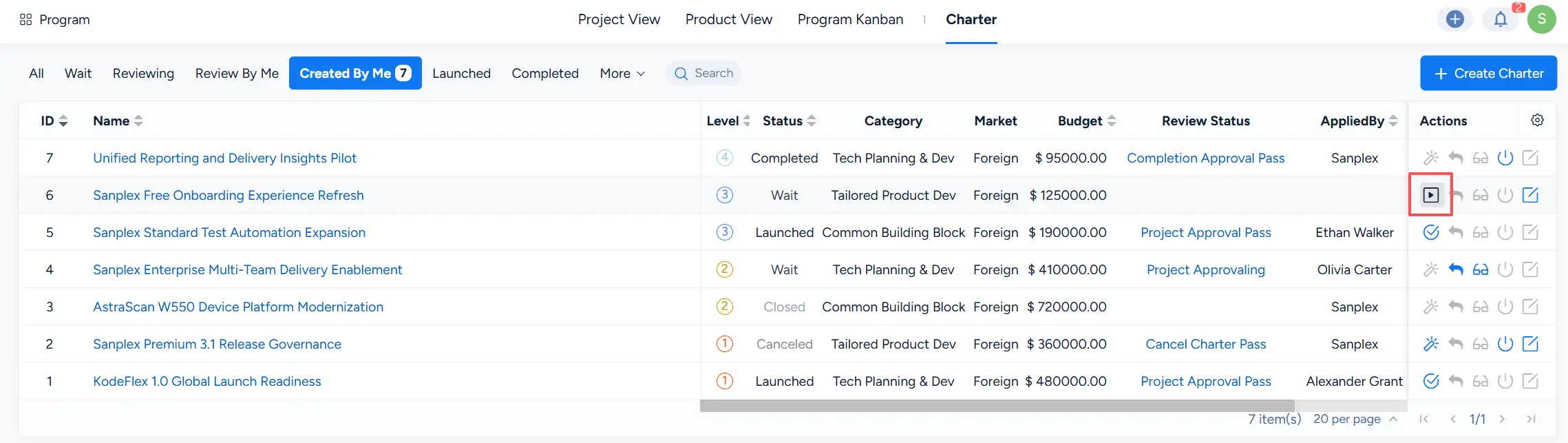
From the Actions area, use the available action to initiate Project approval.
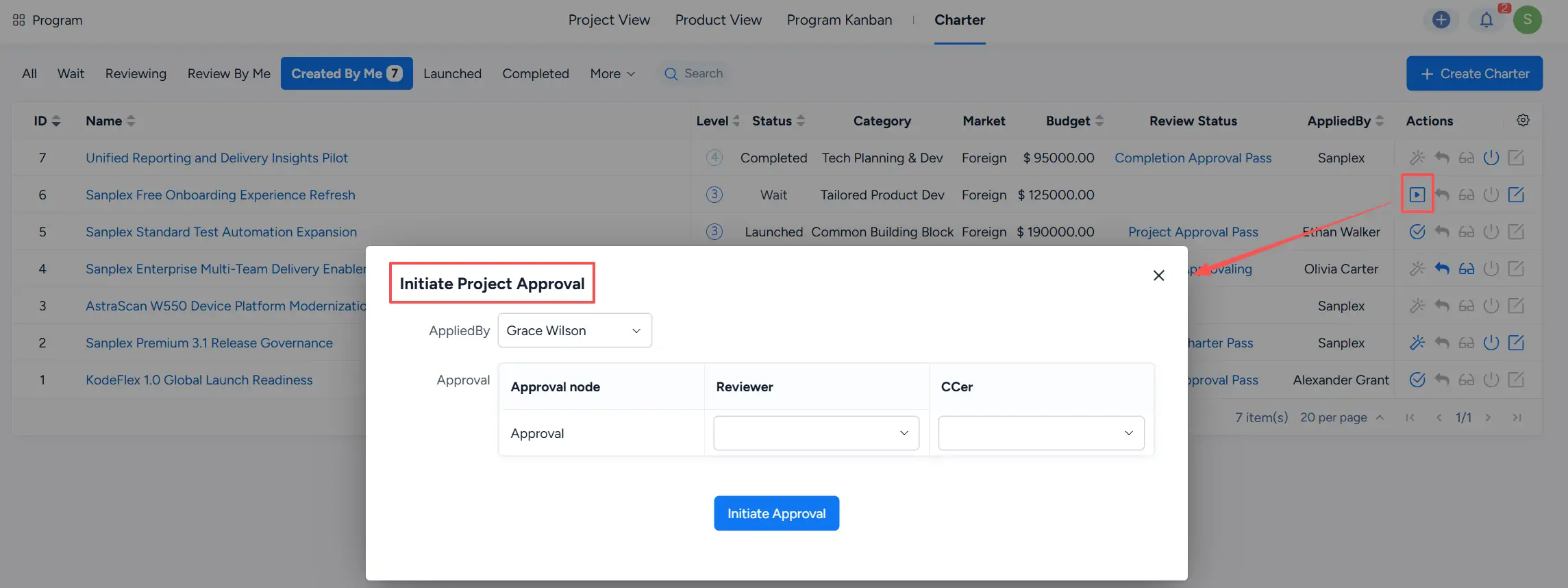
In the Initiate Project Approval window, select the required approval information, such as the applicant and reviewer, then click Initiate Approval.
3.2 Cancel Project Approval
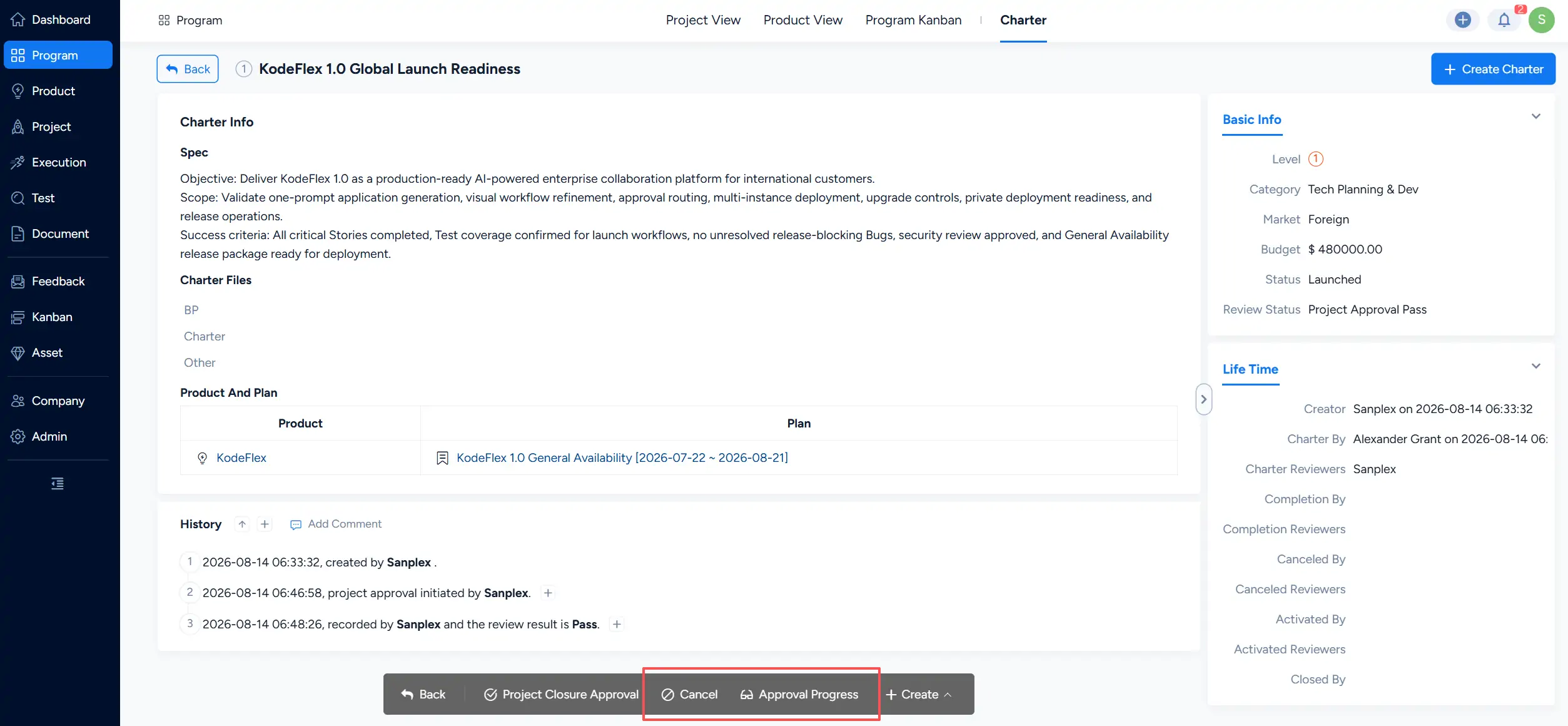
For a launched Charter, open the Charter details page and click Cancel when this action is available.
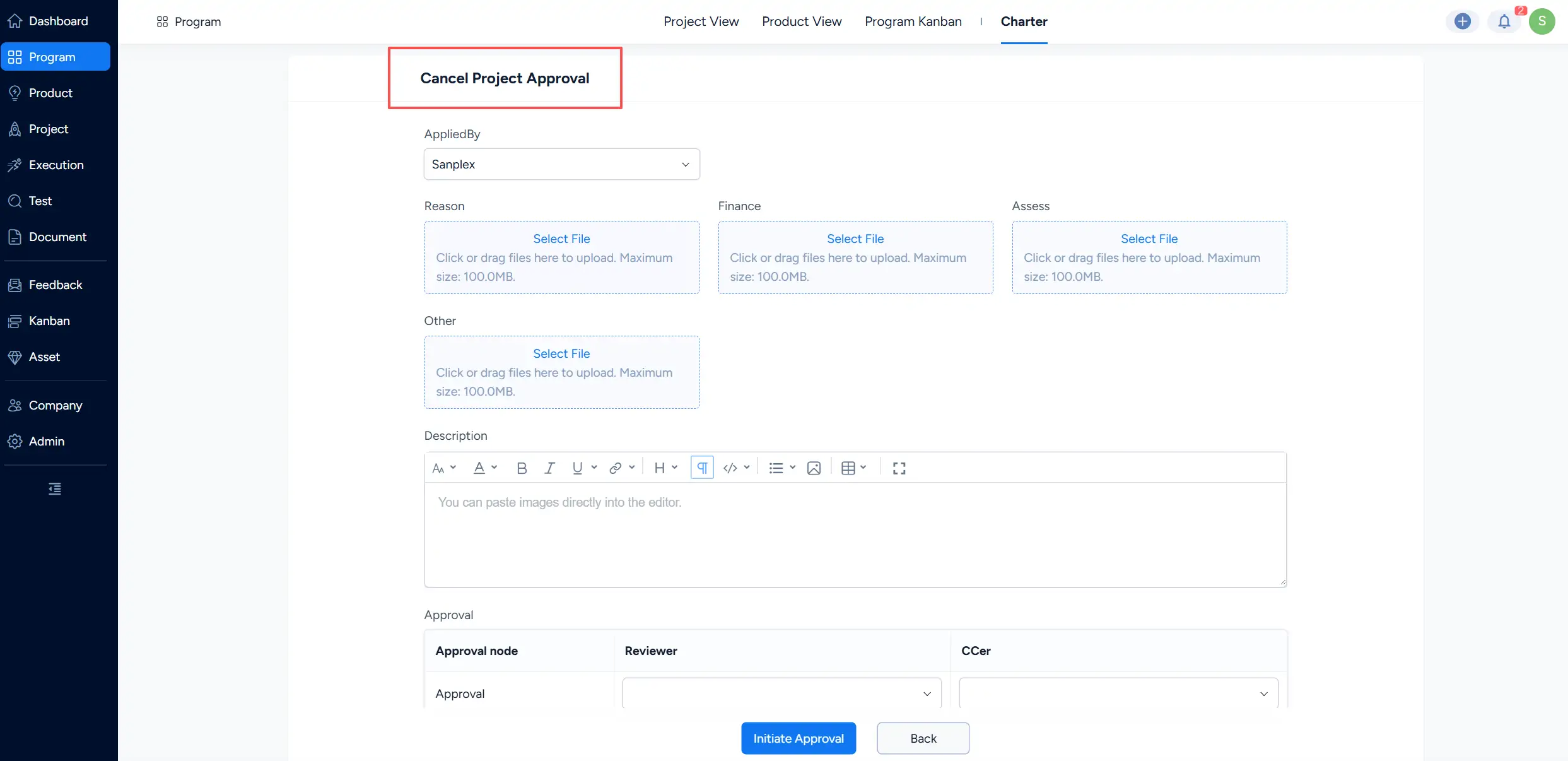
In the Cancel Project Approval form, provide the required information and supporting materials as needed, configure the approval reviewer, and click Initiate Approval.
3.3 Activate Project Approval
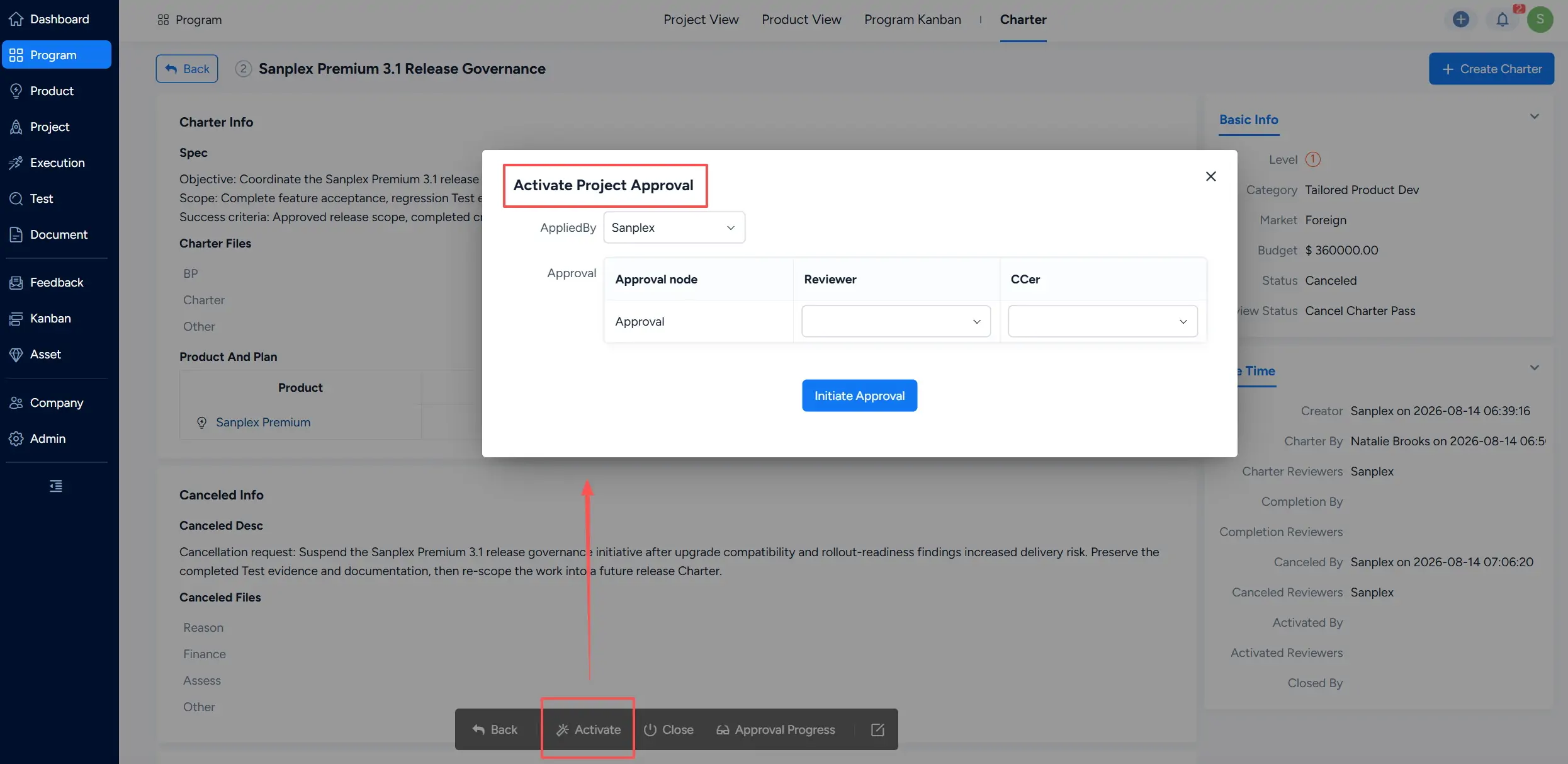
For a canceled Charter that can be reactivated, click Activate from the Charter details page.
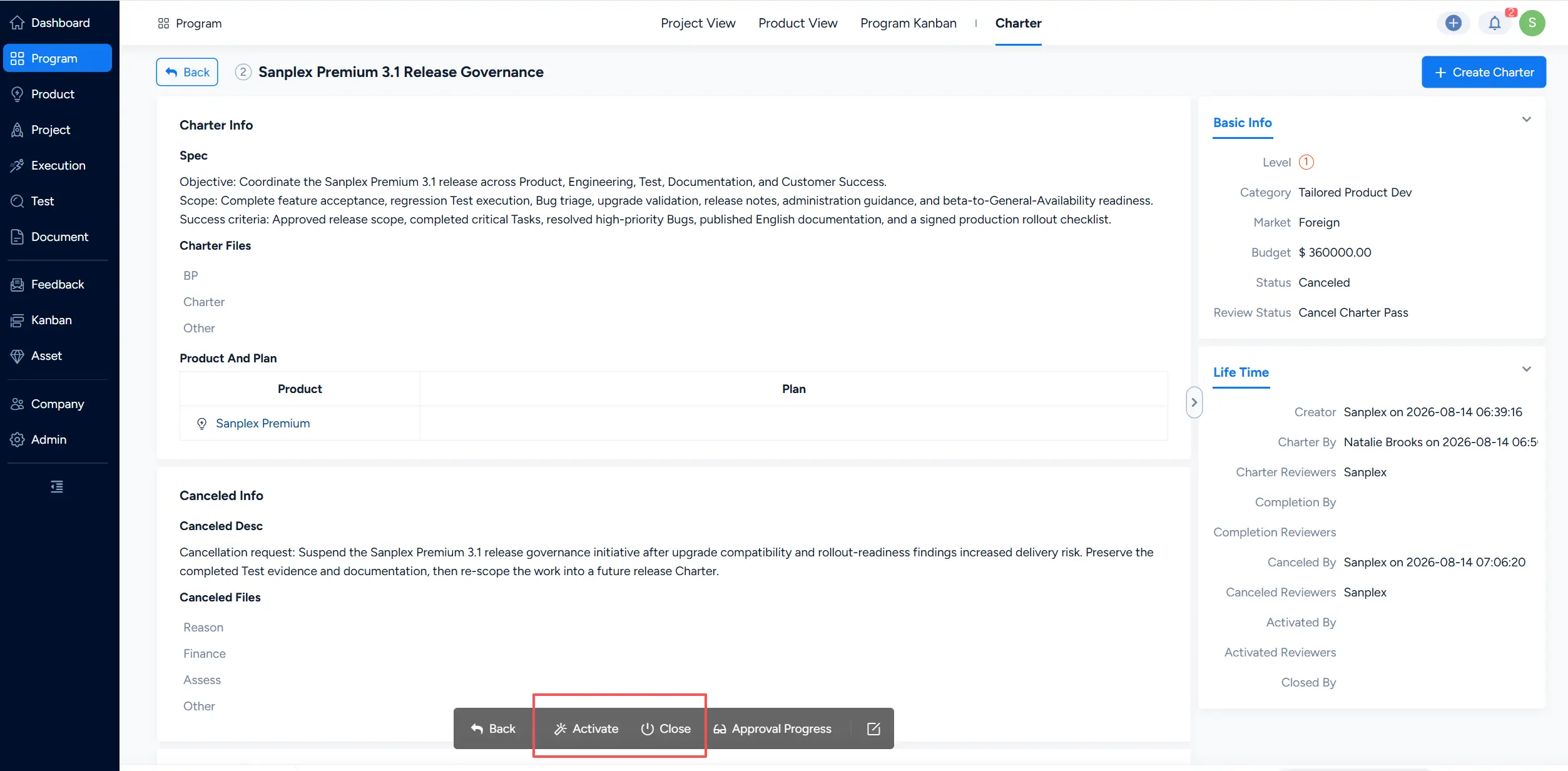
In the Activate Project Approval window, configure the approval information and click Initiate Approval.
3.4 Initiate Project Closure Approval
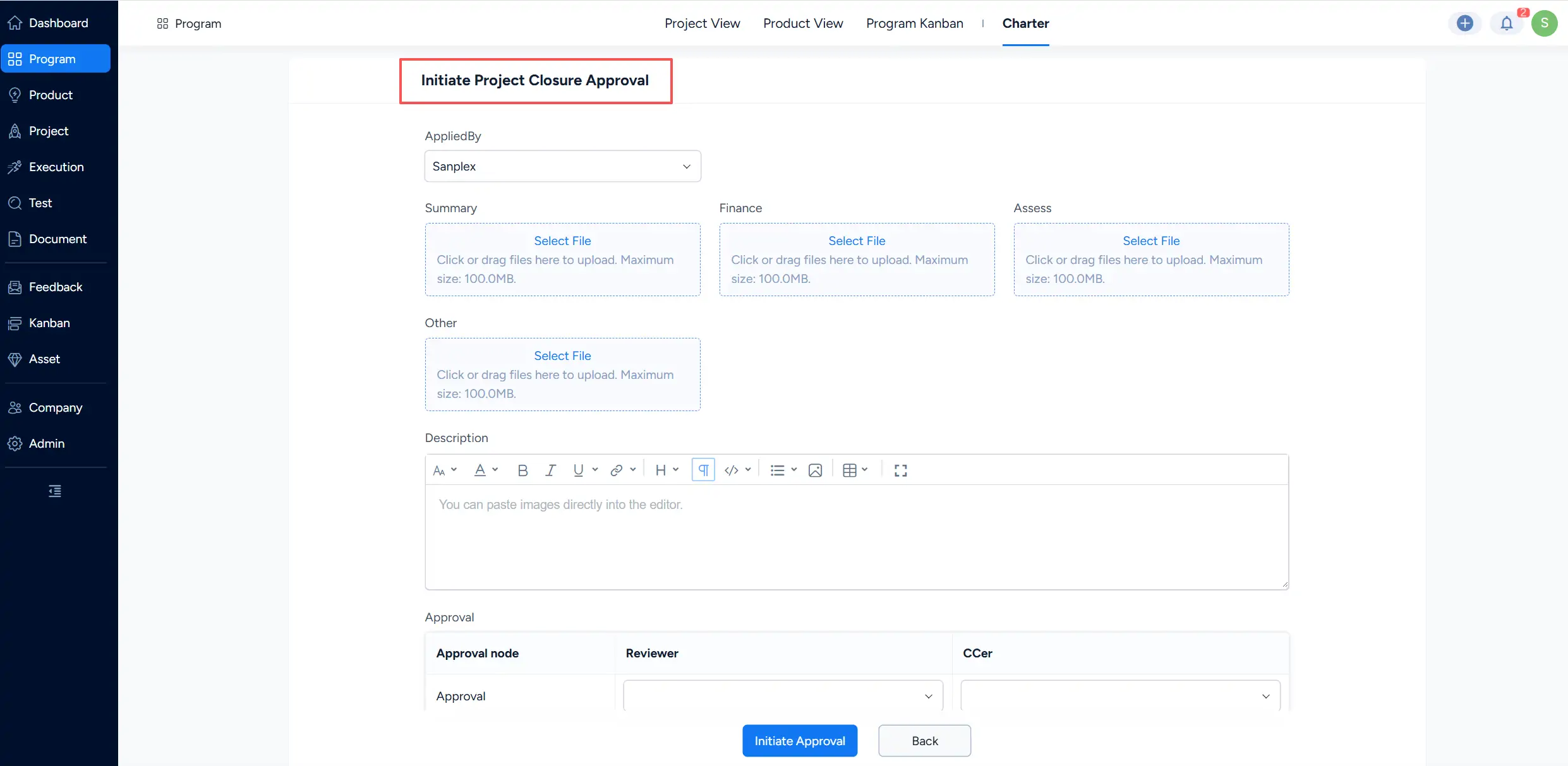
When a Charter is ready for closure, use the available closure approval action.
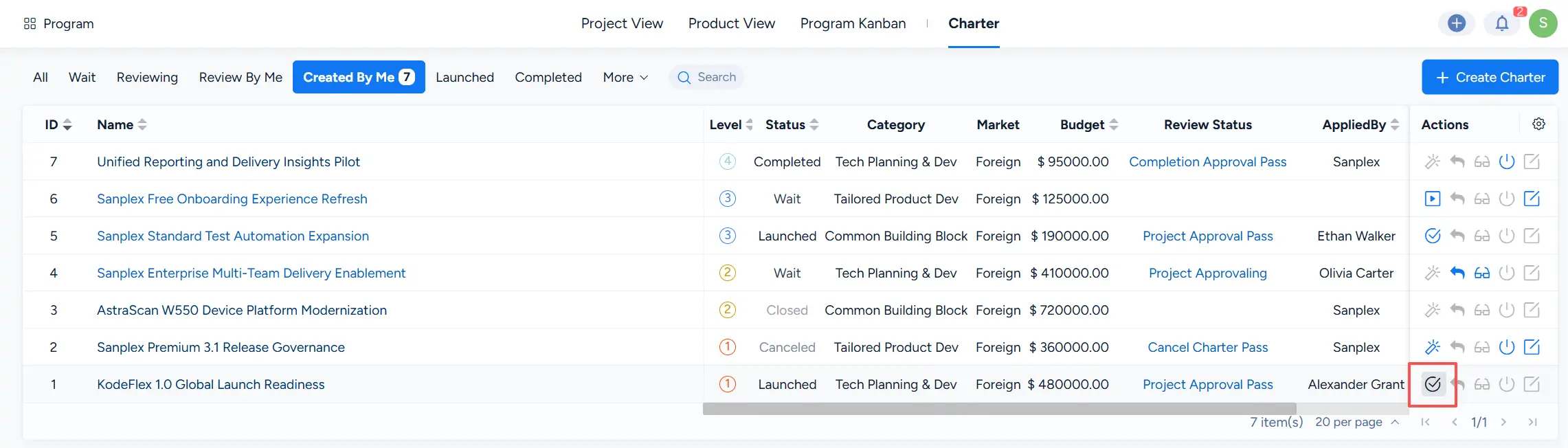
Complete the Initiate Project Closure Approval form, add supporting information or files as needed, configure the reviewer, and click Initiate Approval.
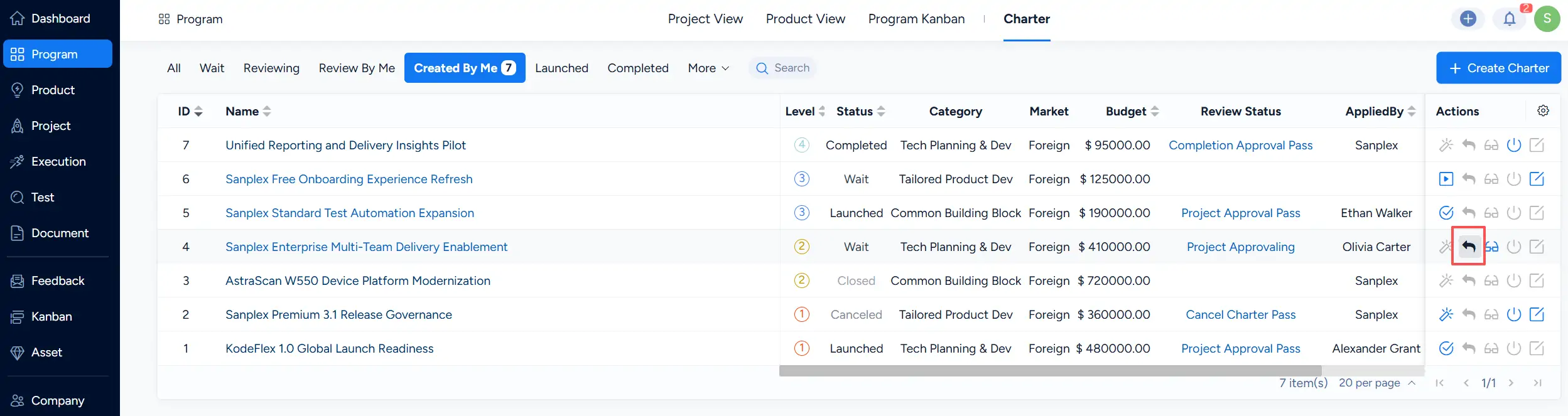
3.5 Withdraw an Approval Request
If an approval request is still in progress and withdrawal is available, use the withdraw action in the Charter list.
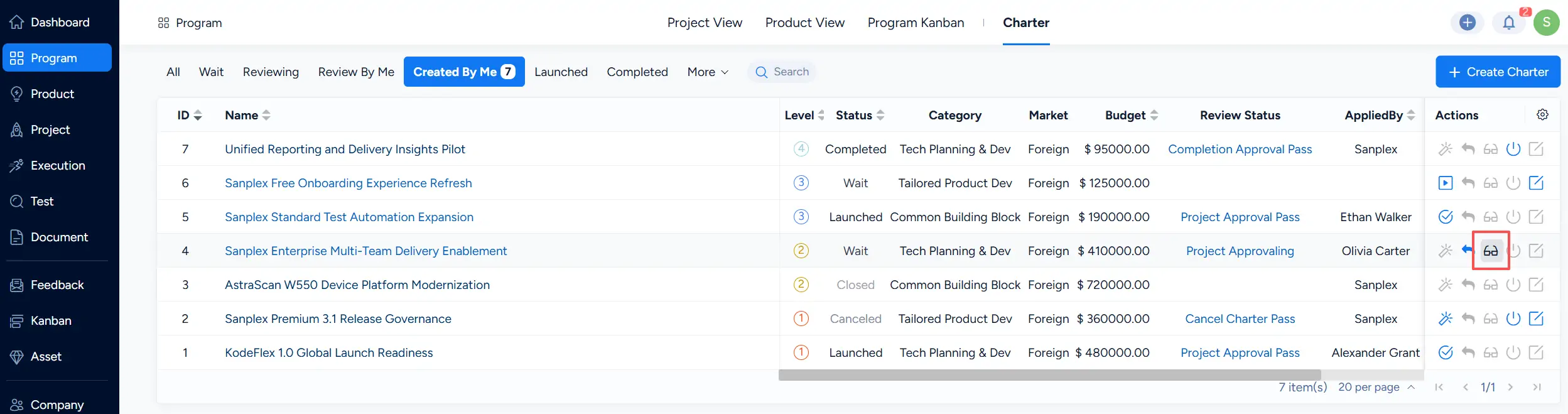
3.6 Review an Approval Request
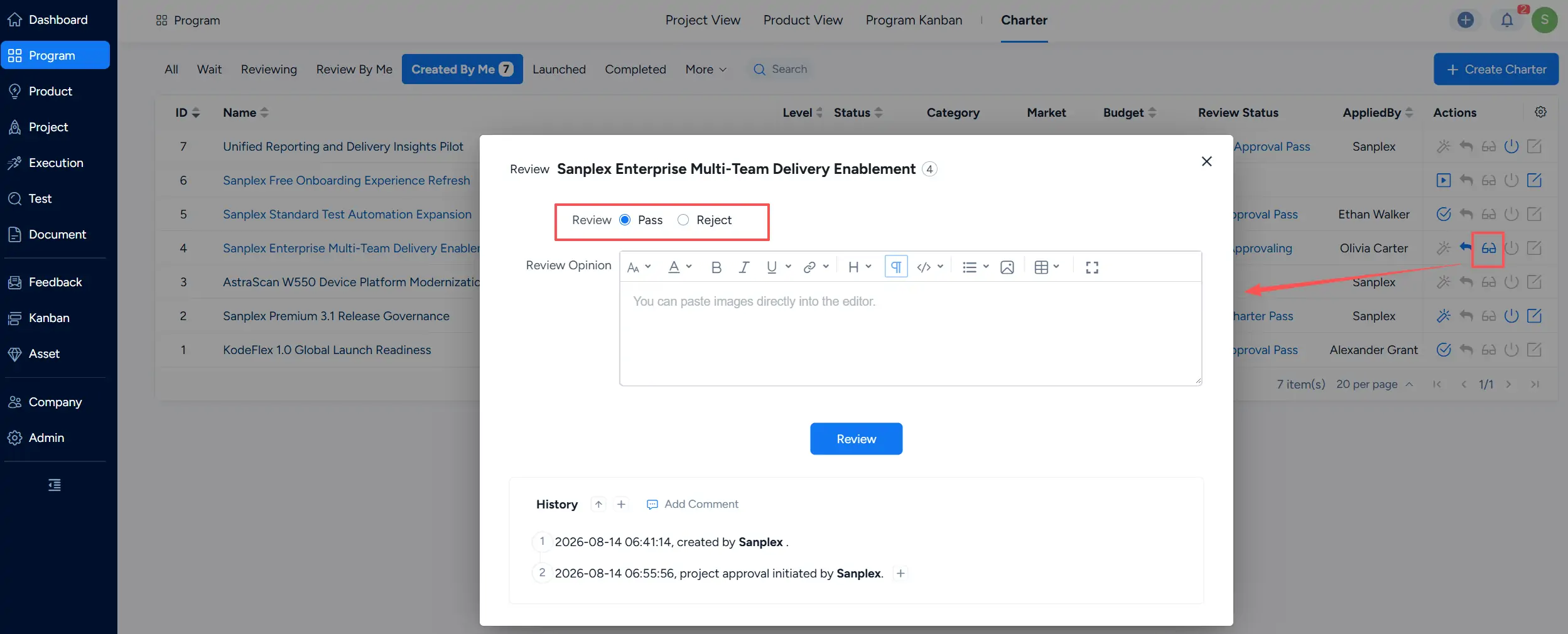
When a Charter requires your review, use the available Review action.
In the Review window, select Pass or Reject, enter a review opinion when needed, and click Review to submit the result.
3.7 View Approval Progress
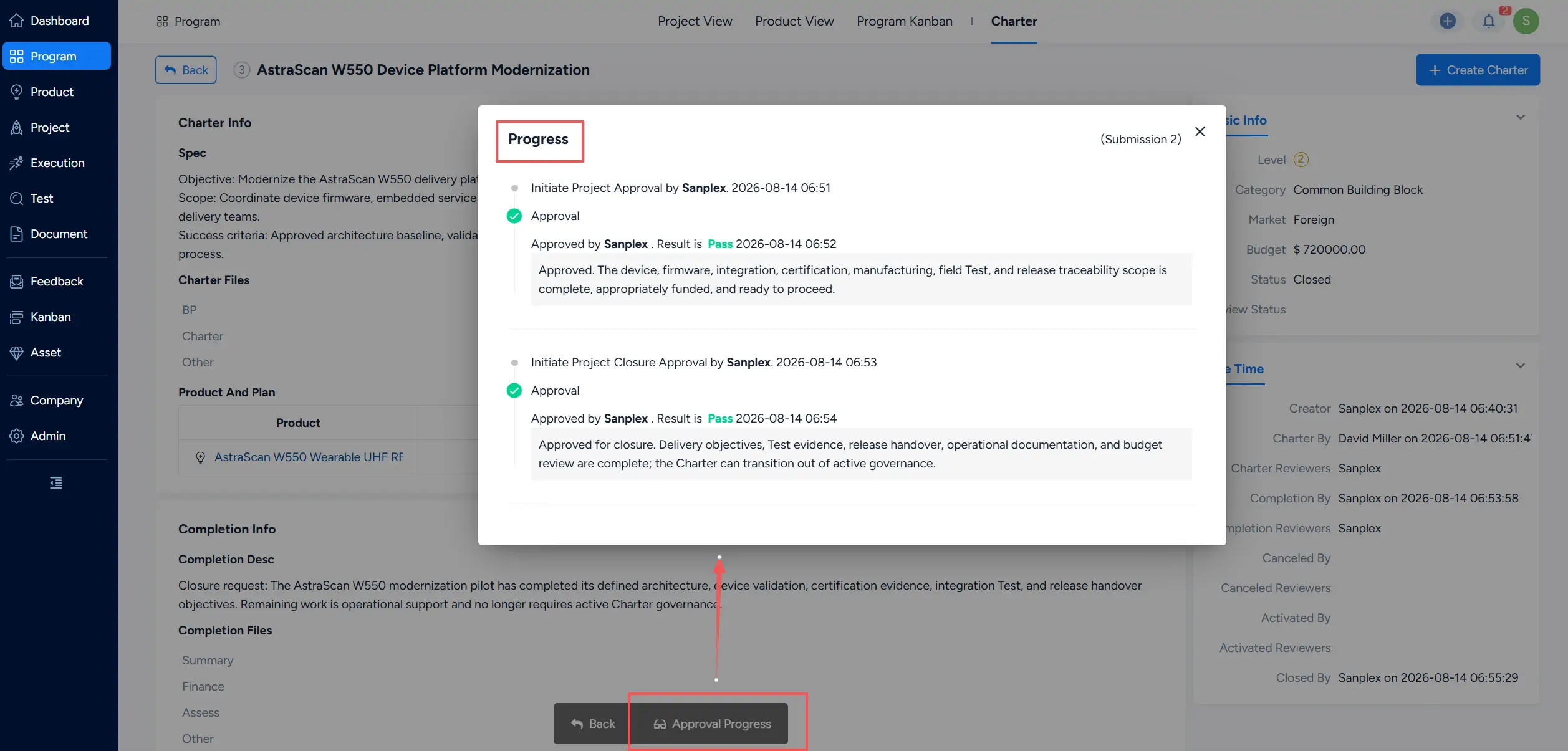
Click Approval Progress to review the approval history and results for lifecycle approval actions associated with the Charter.
Depending on the Charter lifecycle, the progress can include Project approval, cancellation, activation, or closure approval records.
3.8 Customize Approval Flows
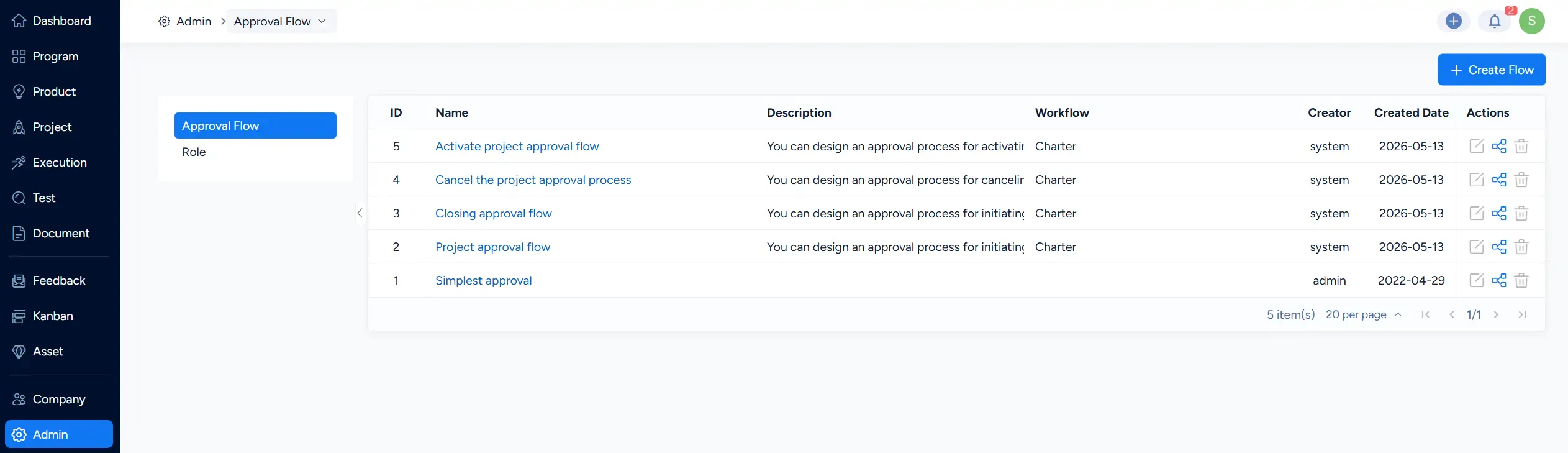
Administrators can configure Charter-related approval flows under Admin → Approval Flow.
Approval flows can be configured for different Charter lifecycle actions according to the organization's approval requirements.
4. Close a Charter
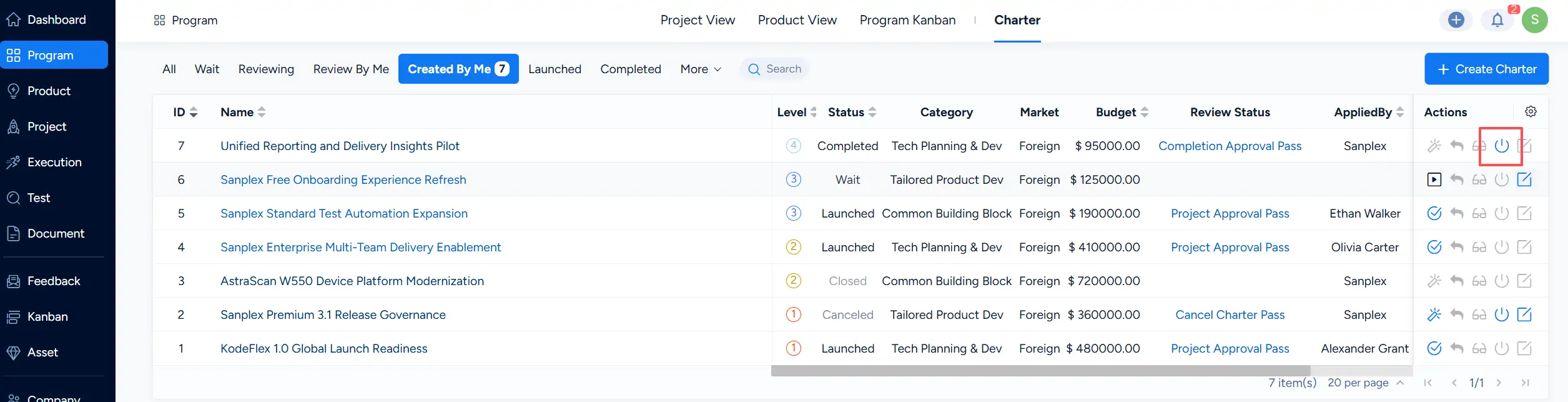
When the Close action is available, click it from the Charter list or Charter details page.
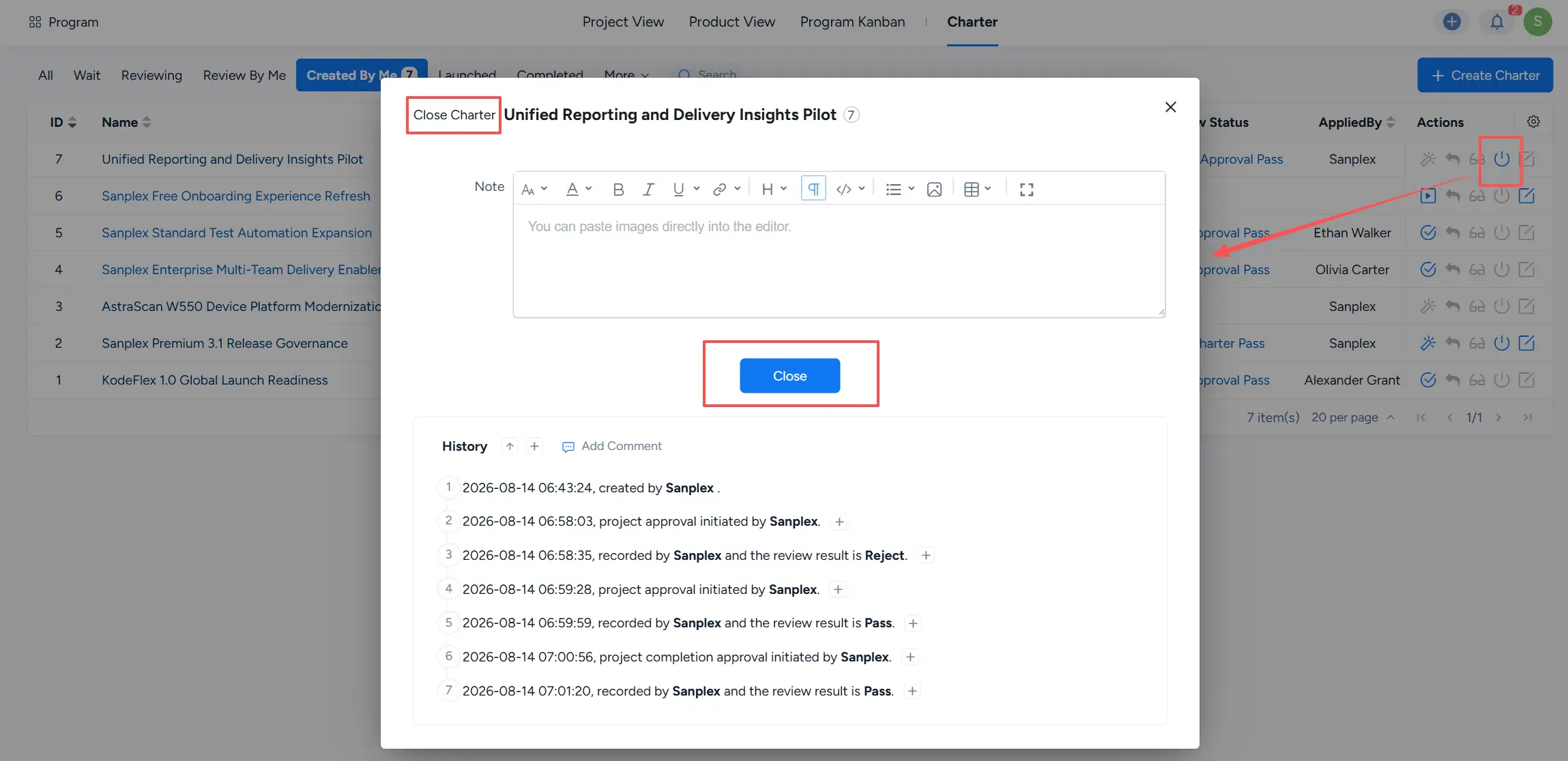
In the Close Charter window, enter a note if needed, then click Close.
5. View Charter Details
Click a Charter name to open its details page.
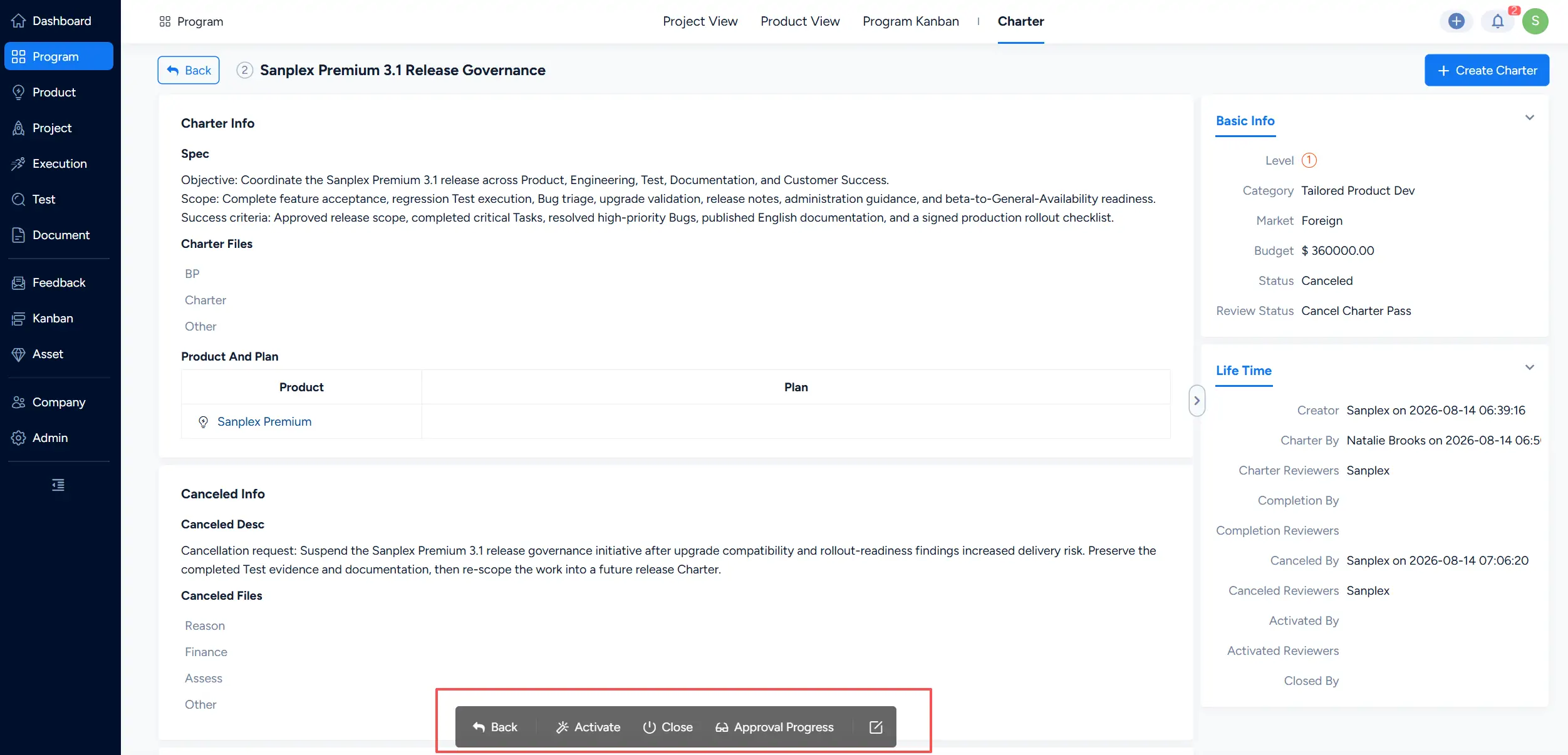
The details page provides lifecycle and governance information for the Charter. Depending on its current status and history, the page can include Charter information, related Products and Plans, basic information, lifecycle records, approval history, completion or cancellation information, and other related details.