

Project requirements are managed through the Story feature in Sanplex. After opening a specific project, you can create Stories directly or link existing Stories from an associated Product.
The following example uses a Waterfall project to explain how project requirements are managed.
Go to Project > Select a Waterfall Project > Story. Click Create Story to create a Story directly, or click Link Stories to link Stories from an associated Product.
The project Story page provides a unified view for managing Story items and their hierarchy. You can filter Stories by hierarchy and status, search for specific items, and use the available actions to manage them.

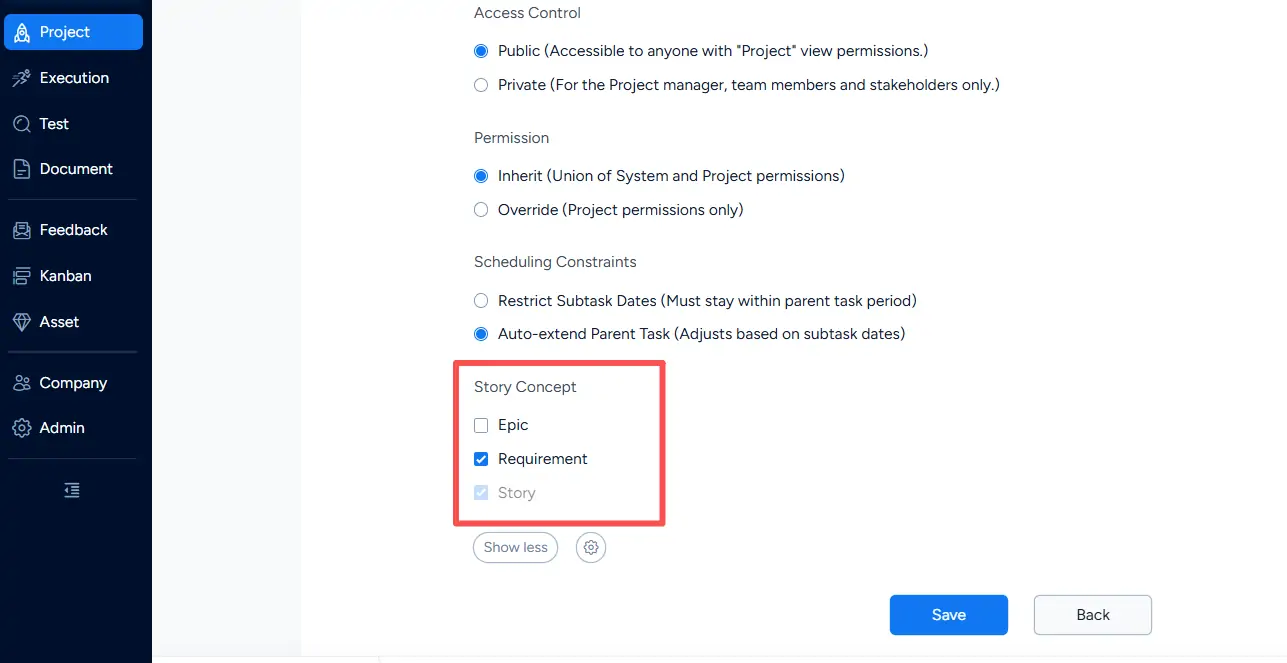
The Story levels available in a project depend on the Story Concept settings configured when creating or editing the project.
Available Story concepts include:
- Epic
- Requirement
- Story
Story is mandatory, while Epic and Requirement can be enabled based on the project's requirement hierarchy.
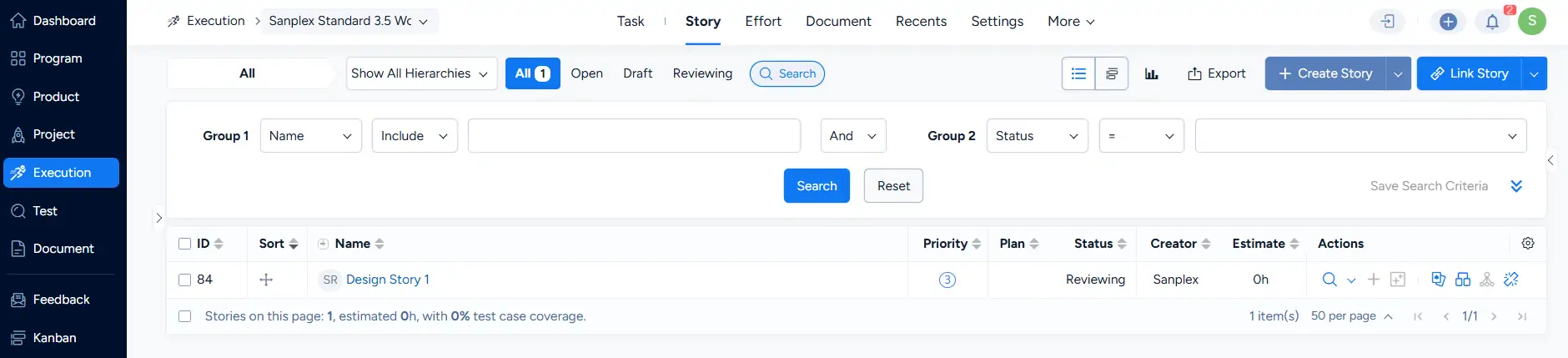
Within an Execution, open Story to manage the Stories associated with that execution. You can create a Story directly by clicking Create Story, or click Link Story to link an existing Story.
The Execution Story page also provides hierarchy and status filters for locating and managing Story items.

Stories associated with the current Execution are displayed in the Story list. The list provides information such as the Story name, priority, plan, status, creator, and estimate, together with available actions for each Story.
In a Waterfall project, the enabled Story Concept settings determine the hierarchy available at the project level. Within an Execution, the Story page is used to manage the Story items assigned to that execution.
You can also switch the Execution Story page to Kanban view to track Stories by workflow status.
In the Kanban view, Story cards are organized into status columns such as Initiated, Developing, Dev Completed, Testing, Test Completed, Accepted, and Released. This provides a visual view of Story progress throughout the execution workflow.



