Catalog
Feature Overview
The Project Issues feature helps teams identify, log, assign, track, and resolve issues that have already occurred, supporting structured issue management and follow-up throughout project delivery.
By reviewing issues over time, teams can capture lessons learned, improve future issue handling, and support better project delivery and execution.
Use Cases
- Issue logging and assignment: During project execution, teams can log issues as they arise and assign them to the appropriate team members for follow-up.
- Issue prioritization: Teams can set severity and priority levels to identify issues that require greater attention.
- Cross-team collaboration: Project members can track issue status and ownership to stay aligned on progress and follow-up actions.
- Issue lifecycle management: Teams can manage issues from creation through confirmation, assignment, resolution, cancellation, or closure.
- Knowledge reuse: Representative issues can be imported to the library for future reference and reuse.
An issue represents a project-related problem that has already occurred and can be tracked separately within the project.
Sanplex provides multiple issue types, including Design, Code, Performance, Version, New Story, Story Change, Story Deleted, and Data.
1. Create an Issue
Go to Project > Select a Project > Issue, then click Create Issue.

On the Create Issue page, enter the Issue Name, select a Type, and complete the applicable issue information.
The page also provides fields for Project, Severity, Priority, Assigned to, Reporter, Deadline, Description, and file attachments.
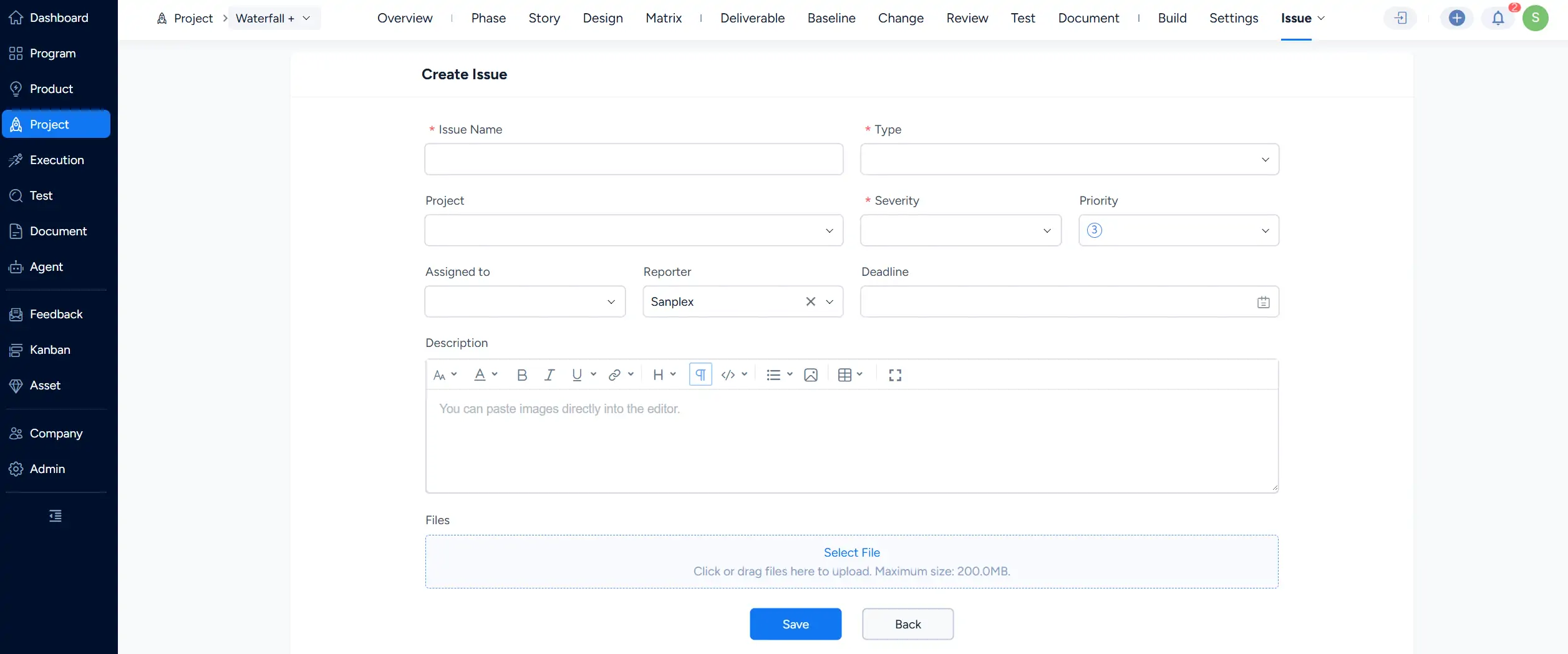
Click Save to create the issue. The issue then appears on the project Issue list.
2. Manage Issues
The Issue list provides status-based filters such as All, Active, Assigned to Me, Assigned by Me, Closed, Resolved, and Cancelled.
The list displays key information including the issue name, priority, severity, reporter, created date, assignee, and result. Use the icons in the Actions column to perform available actions on an issue.

Click an issue name to open its details page.
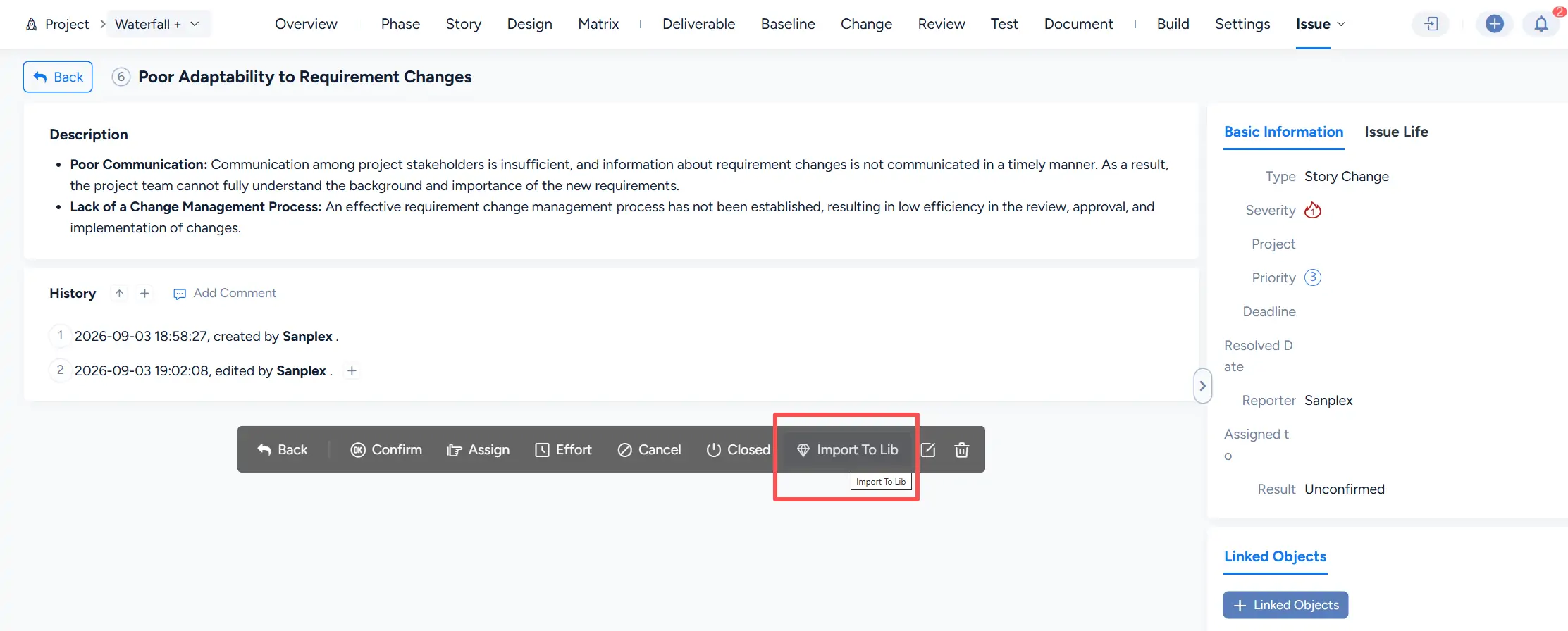
The details page displays the issue description, history, basic information, and linked objects. The action bar provides controls including Confirm, Assign, Effort, Cancel, Closed, Import To Lib, Edit, and Delete, depending on the current issue state.
Use Import To Lib to save a representative issue to the library for future reference and reuse.