Catalog
Sanplex provides multiple views for tracking Product planning, development, delivery, and release progress. Product managers can monitor progress across Products or open an individual Product for more detailed tracking.
I. View All Products
1. Product Overview
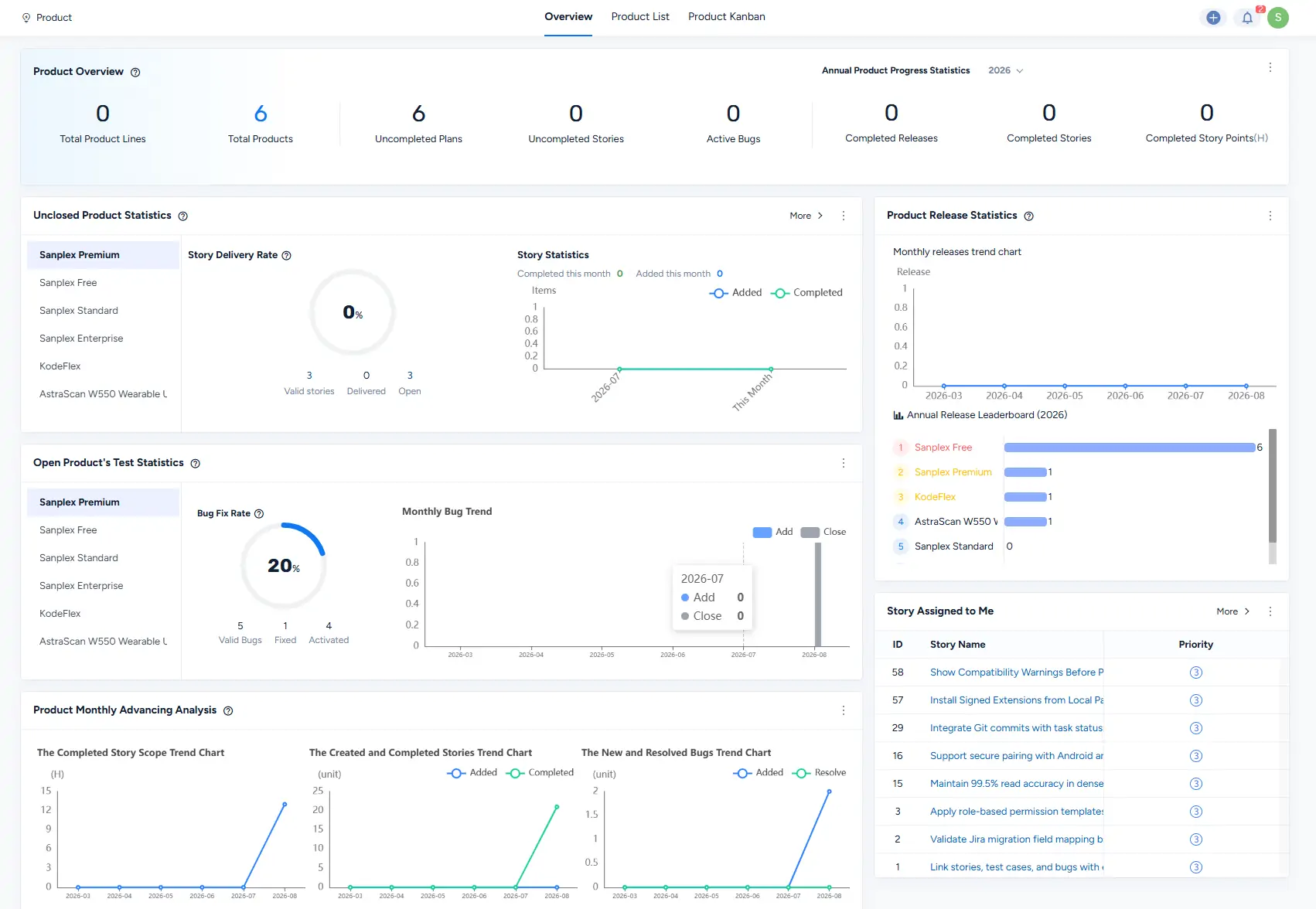
Open the Product module and select Overview to view overall Product progress.
The Product Overview presents Product-level statistics and trends, including Product counts, Plans, Stories, Bugs, Releases, delivery rates, testing statistics, and monthly progress analysis.
2. Product List
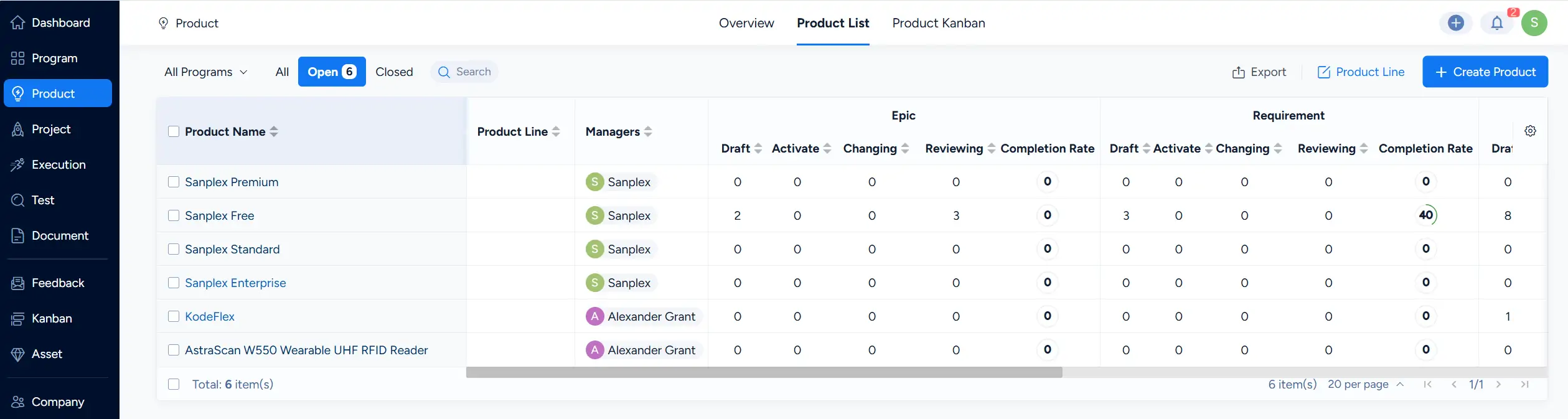
Open Product List to view Products and their key statistics.
The list displays information such as Product name, Product Line, managers, and statistics for Epic, Requirement, and other Product work items. You can use the available filters and search to locate Products more efficiently.
3. Export the Product List
Click Export on the Product List page to export Product data.
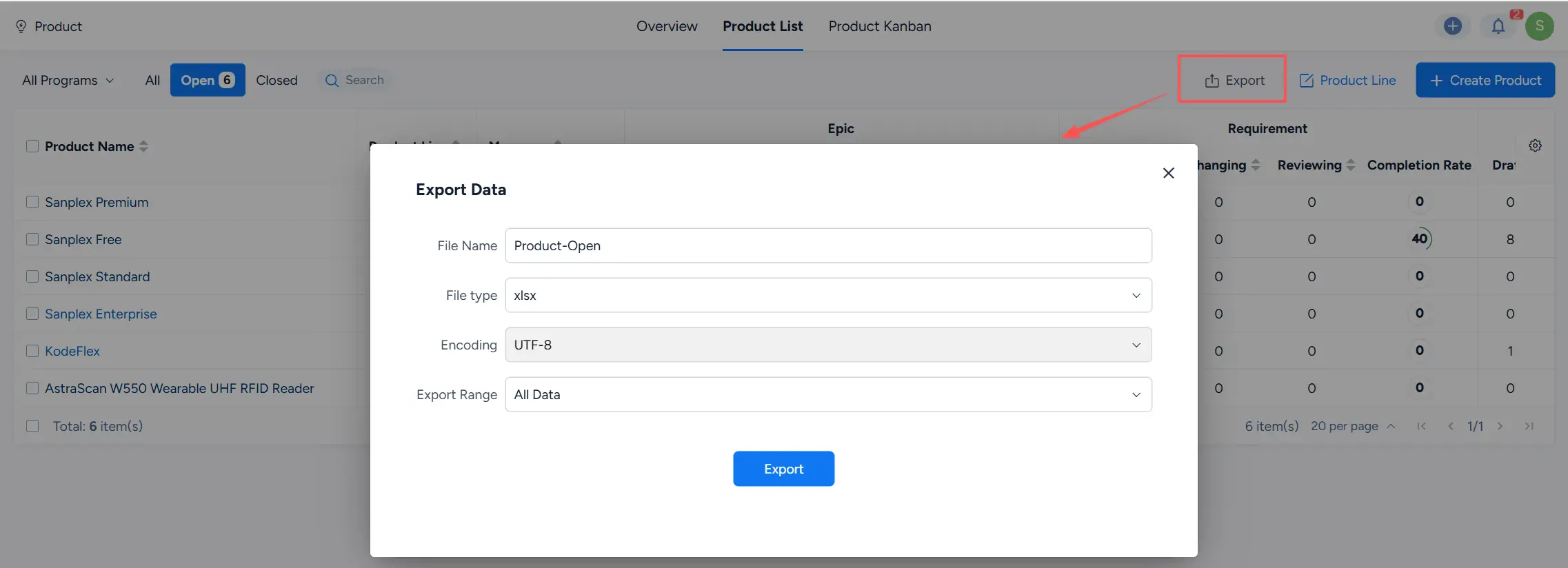
In the Export Data dialog, specify the file name and select the available file type and export range. The Encoding field is also displayed for applicable export formats.
II. View a Single Product
Open a Product to track its planning and delivery progress in more detail.
1. Overview
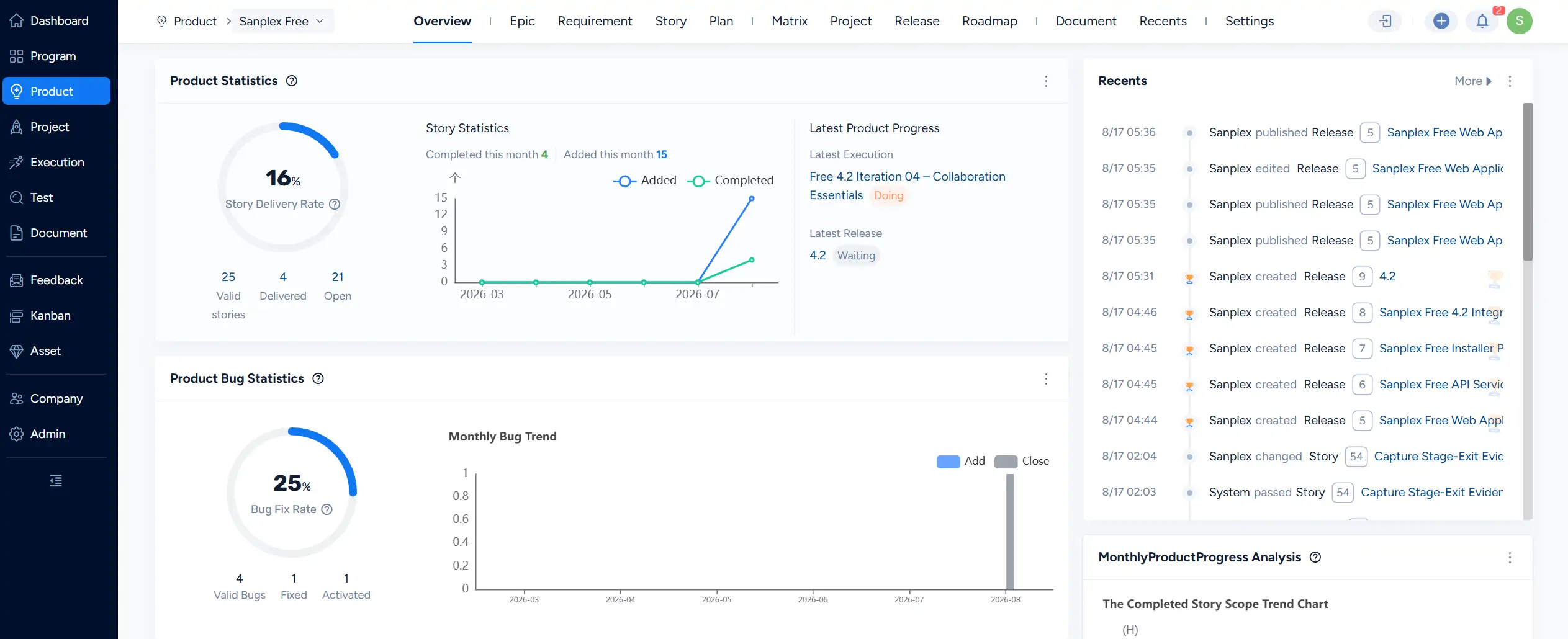
On the Product Overview page, product managers can review Story and Bug statistics, delivery rates, monthly trends, recent activity, and the latest Product progress.
The page provides a consolidated view of current Product development and delivery information.
2. Plans
Open Plan to view the Plans for the current Product.
Sanplex provides both List View and Kanban View for tracking Plan status and schedule.


3. Releases
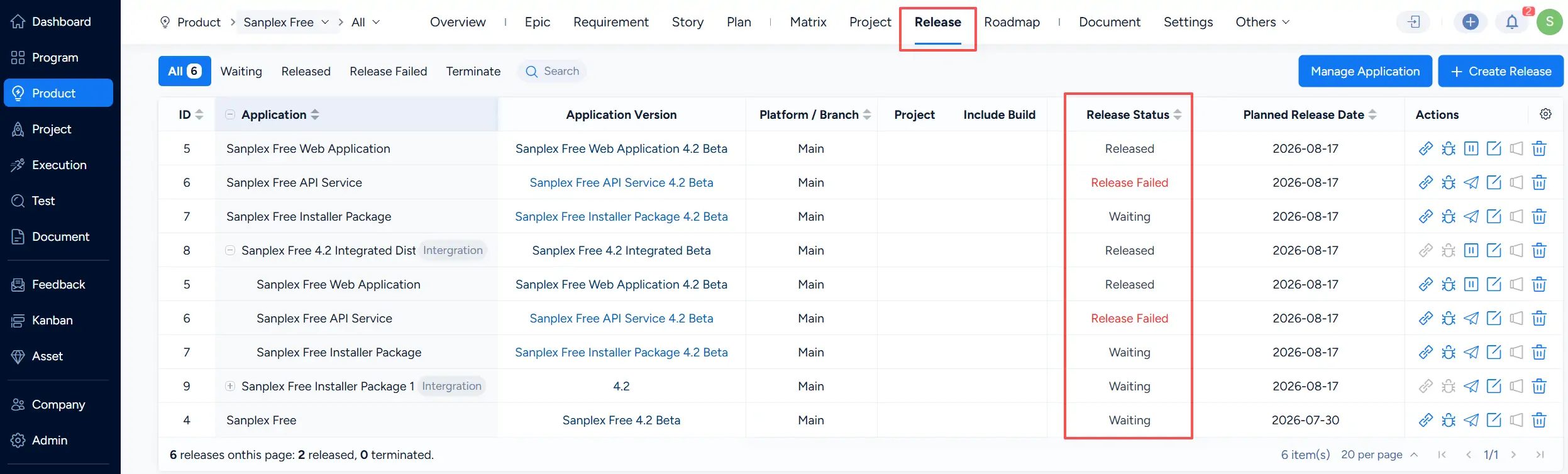
Open Release to view Product Releases and their current statuses.
The Release list displays information such as Application, Application Version, Platform or Branch, linked Build, Release Status, and planned release date.
4. Roadmap
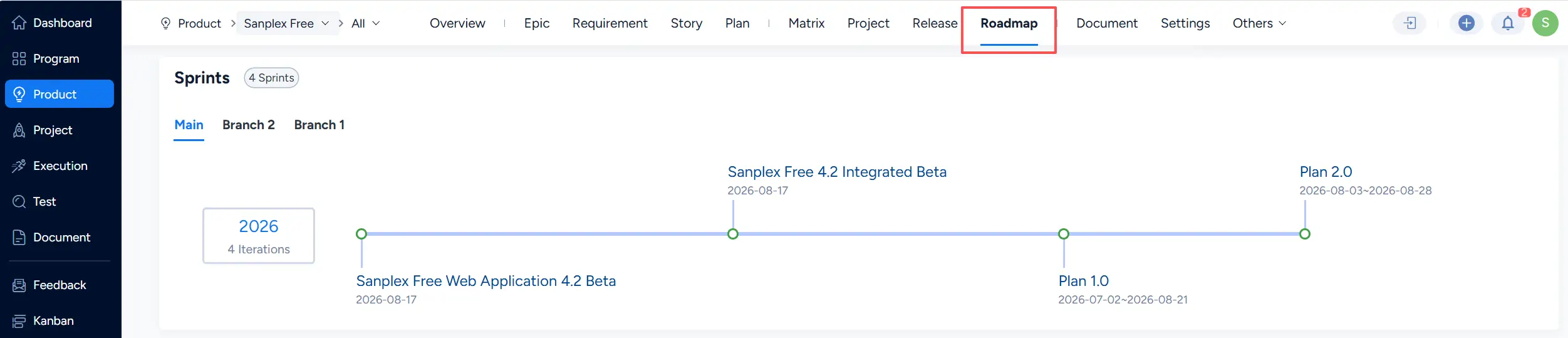
Open Roadmap to review Product planning and release information on a timeline.
The Roadmap can display Plans and release versions together and organize roadmap information by branch when branches are available.
5. Matrix
The Matrix provides a traceability view that connects Product requirements with downstream delivery information.
The current Matrix can present traceability across objects such as:
- Epic
- Requirement
- Story
- Project
- Execution
- Design
- Code Commit
Additional linked information, such as Tasks, Bugs, and Test Cases, can also be displayed through the Matrix settings.
This allows product managers to follow work from the requirement hierarchy into Project and Execution activities and review the related delivery information in one view.
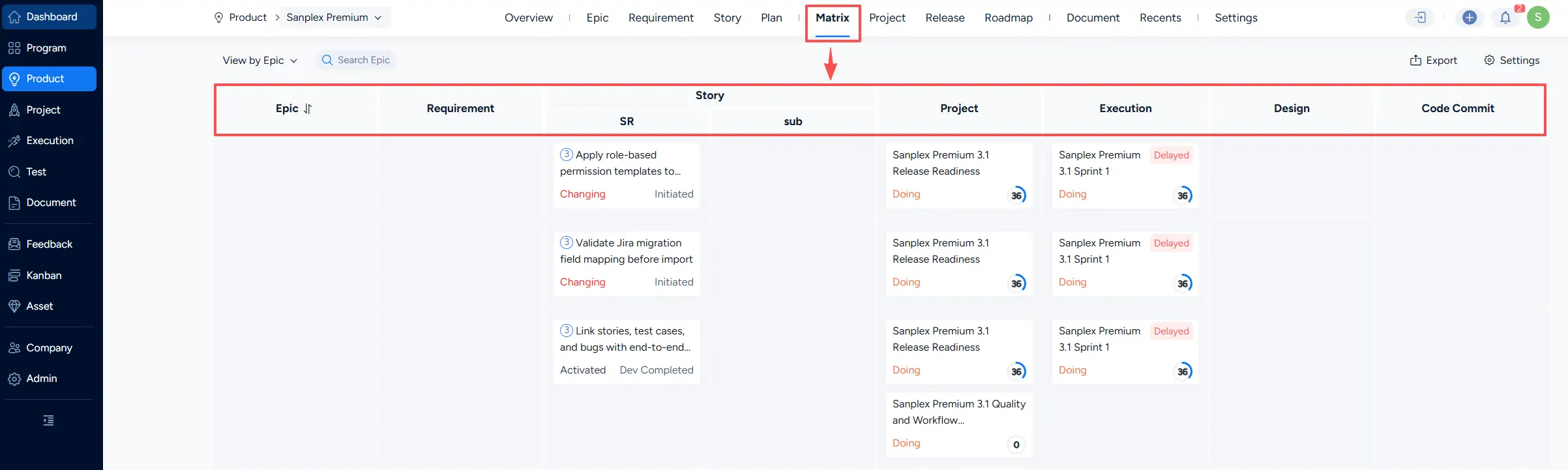
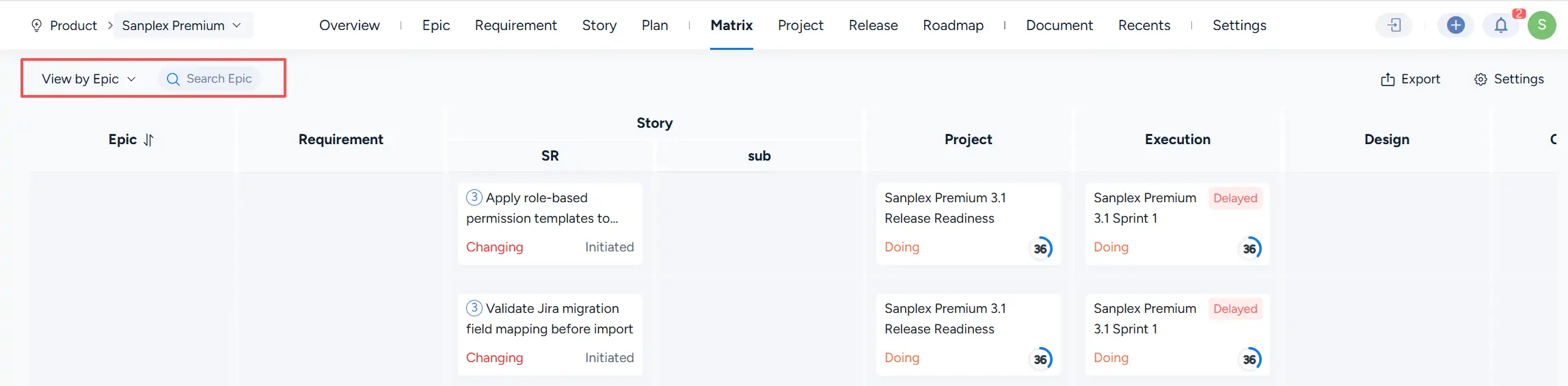
The Matrix provides a View by selector and a corresponding search field so you can focus on the required traceability scope.
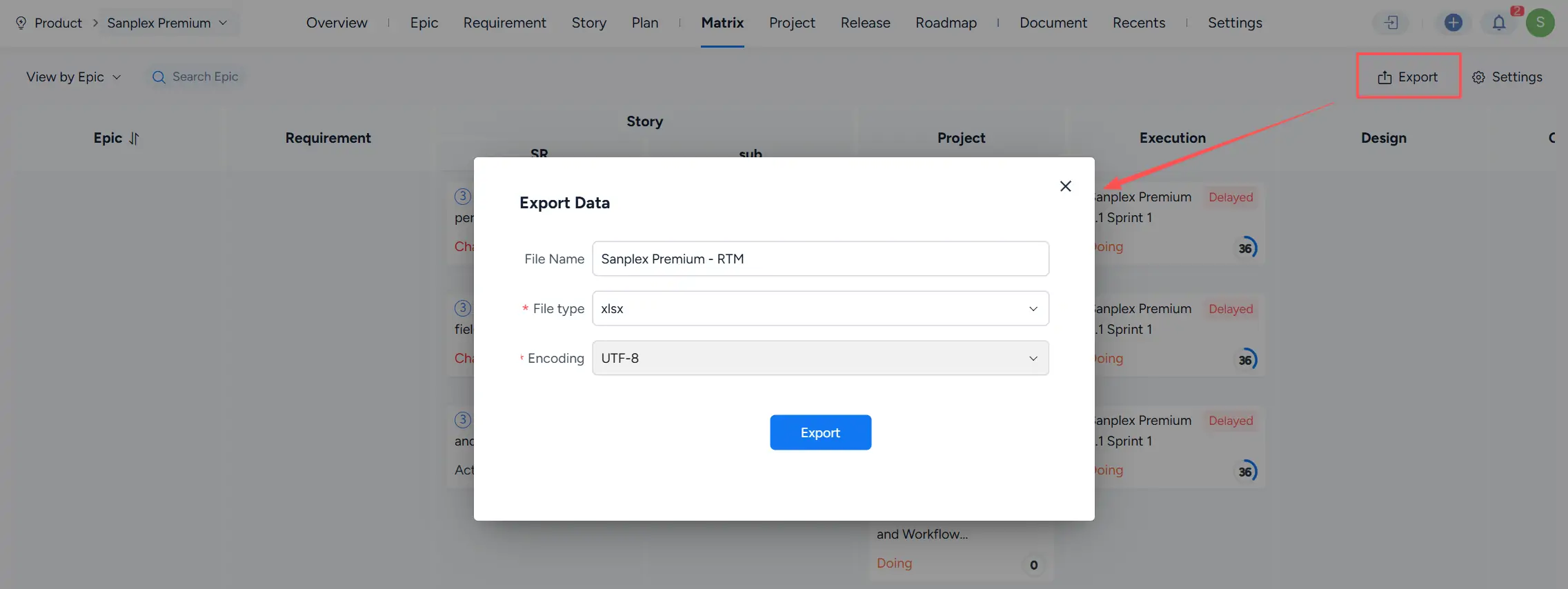
To export Matrix data, click Export.

In the Export Data dialog, specify the file name and select the available file type and encoding before exporting.
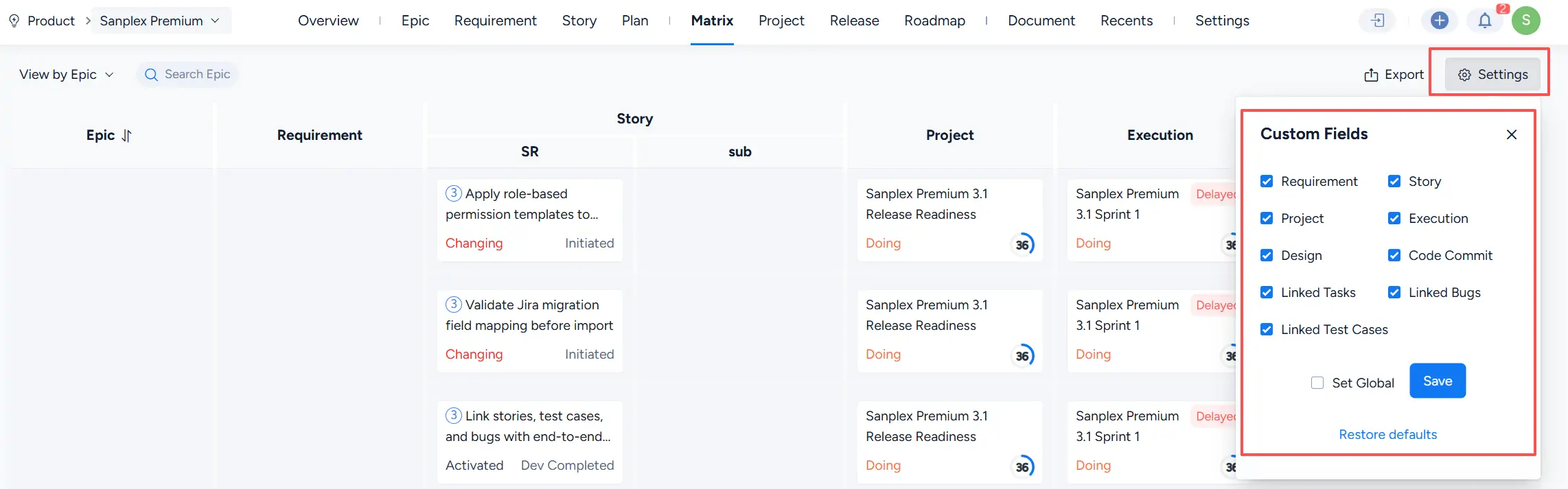
The Matrix also supports configurable columns. Click Settings to choose which information is displayed.
Available fields shown in the current settings include:
- Requirement
- Story
- Project
- Execution
- Design
- Code Commit
- Linked Tasks
- Linked Bugs
- Linked Test Cases
Clear a checkbox to hide the corresponding column or linked information from the Matrix, then click Save.
Select Set Global when the configuration should be saved as a global setting. Click Restore defaults to return the Matrix fields to their default configuration.
6. Recents
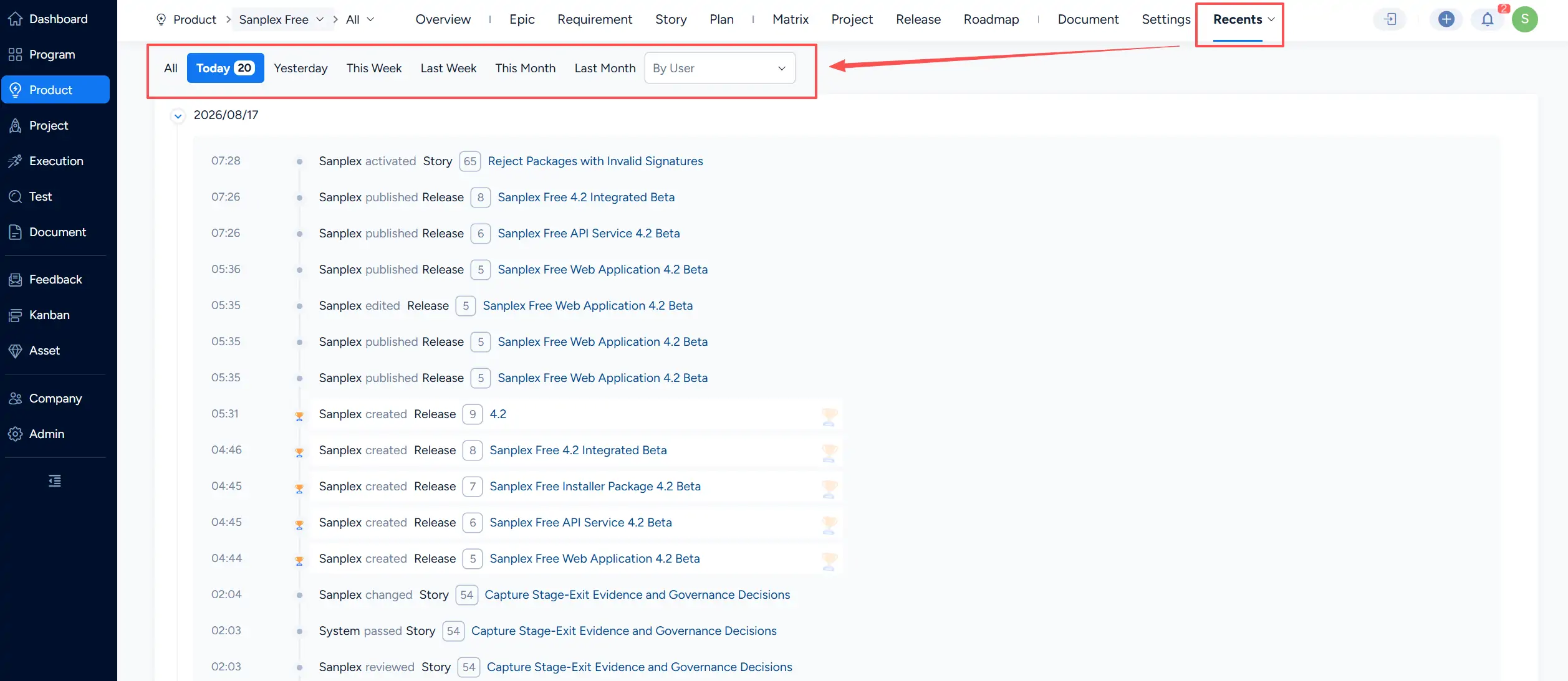
Open Recents to review recent actions associated with the Product.
Activity records can be filtered using time ranges such as Today, Yesterday, This Week, Last Week, This Month, and Last Month. You can also use the By User filter to focus on activity performed by a specific user.
III. Product Kanban
Open Product Kanban to monitor the planning and delivery status of multiple Products in one view.
The Kanban can display information such as:
- Unexpired Plans
- Ongoing Projects
- Ongoing Executions
- Standard Releases
Products are shown in separate rows, allowing product owners to compare planning and delivery progress across Products.
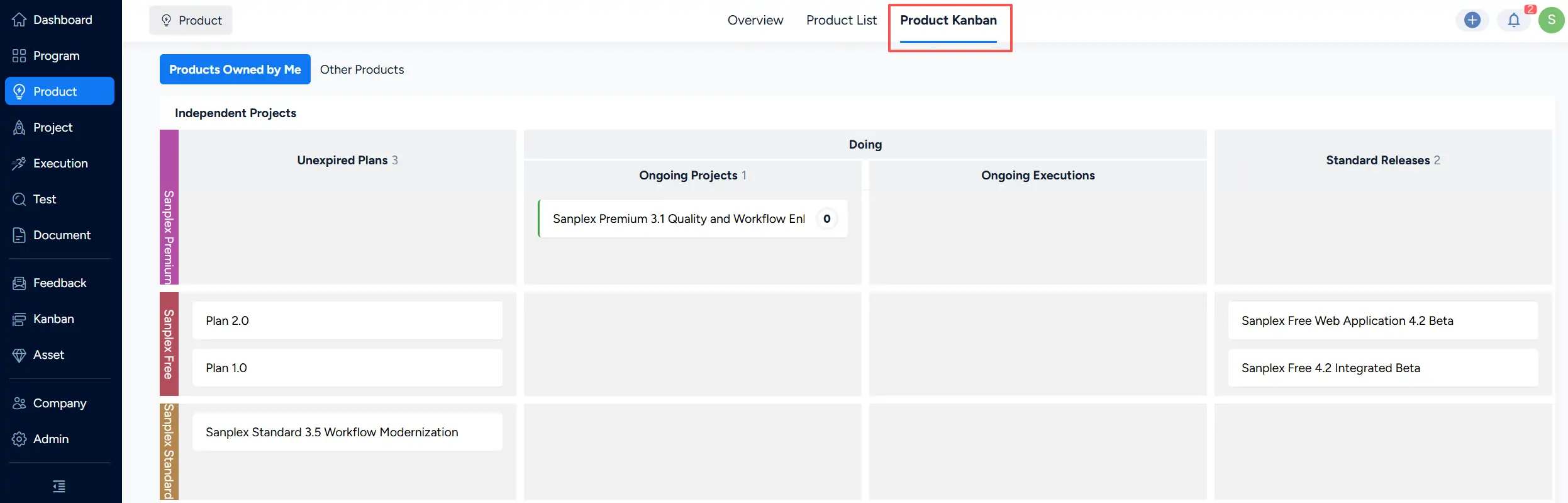
The Kanban also provides direct access to related work items. For example, ongoing Executions are displayed in the Ongoing Executions area.
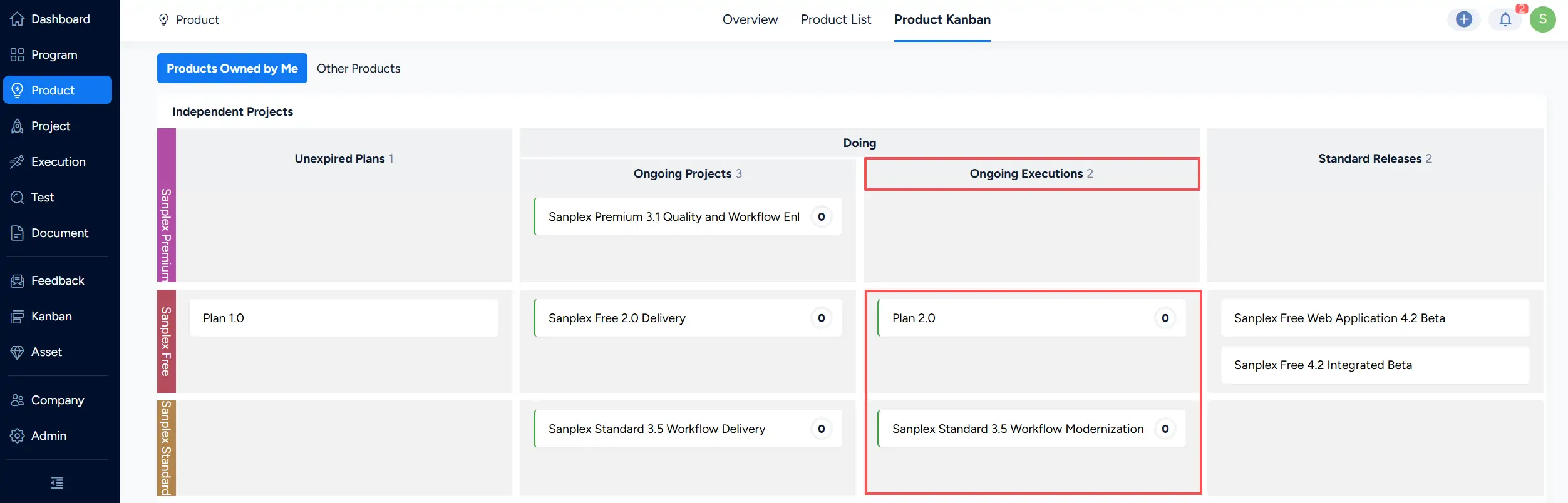
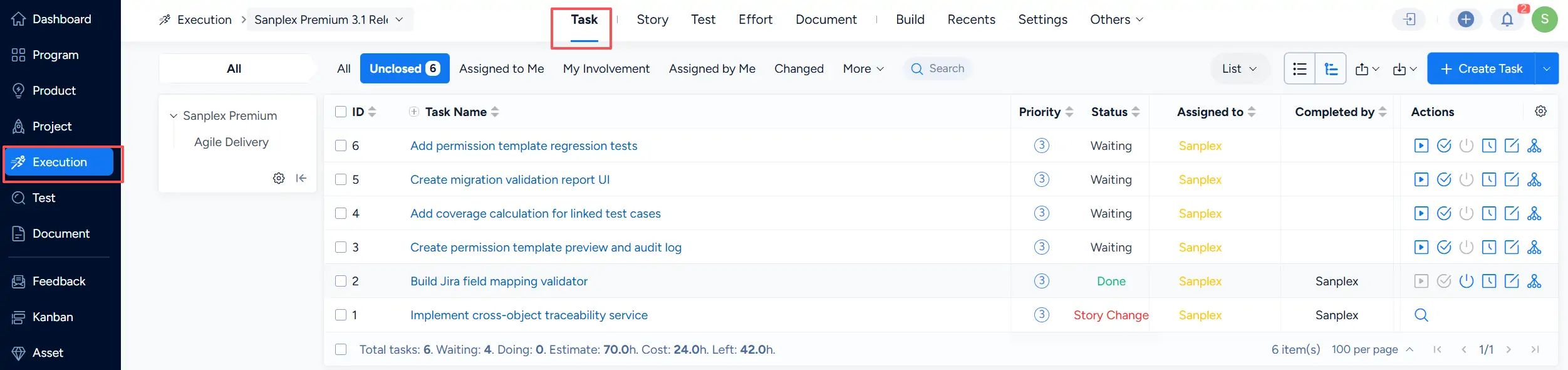
Click an item name in Product Kanban to open the corresponding item and continue reviewing its details. For example, opening an Execution provides access to its Task list and other Execution information.