Catalog
Feature Overview
A baseline is a deliverable or configuration item that has been formally reviewed and approved at a key point in the project and then placed under controlled management. This process is called baselining.
The Project Baseline feature allows project managers to establish approved project content as baselines and track baseline versions. It helps teams clarify project objectives, control subsequent changes, and maintain traceability throughout project delivery.
Use Cases
- Establish approved project objectives: Project managers can create baselines for key project deliverables to define the approved scope, quality expectations, and delivery basis for subsequent work.
- Start development from an approved requirement scope: A requirements specification can be baselined after review, providing a stable reference for task planning and project execution.
- Support change traceability and auditing: When project content changes, teams can compare baselines and review baseline history to identify differences between approved versions and support project audits and retrospectives.
I. Configure the Baseline Feature
Before using project baselines, configure the related project flow, review, deliverable, and permission settings as needed.
- In Admin > Project Flow, select the applicable project flow and confirm that the baseline-related feature is enabled.
- Under the selected project flow, configure the Baseline Review and its approval flow in Review.
- Configure the deliverables that can be managed as baseline configuration items.
- Configure the required user permissions for creating, reviewing, and managing baselines.
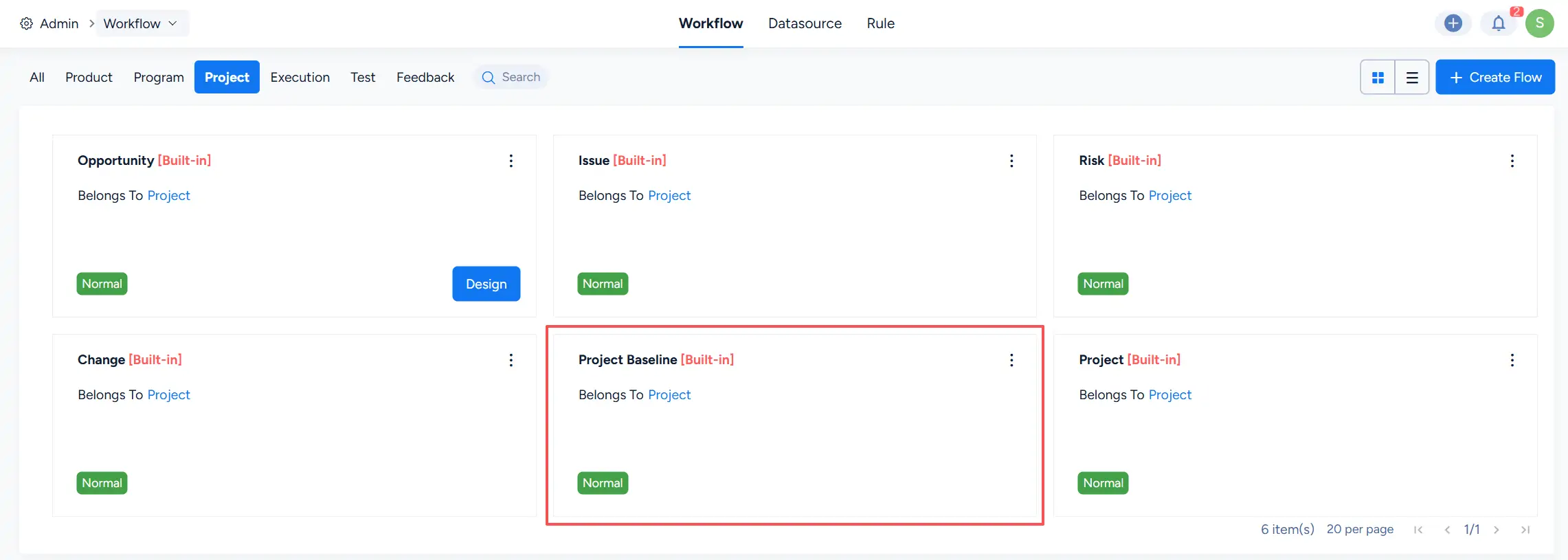
Sanplex also provides a built-in Project Baseline workflow under Admin > Workflow > Project, which can be used to manage baseline workflow behavior at the system level.
II. Create a Baseline
In a project, go to Baseline and click Create to create a new baseline.

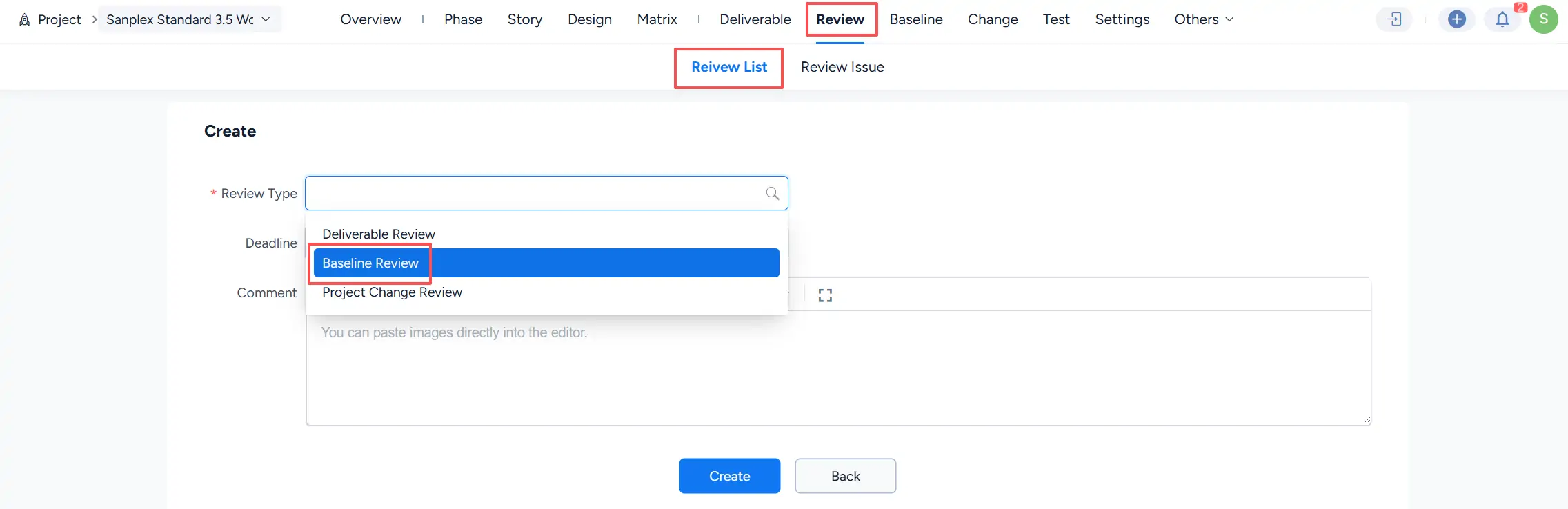
You can also create a baseline through the project review process. Go to Review > Review List, create a new review, and select Baseline Review as the review type.
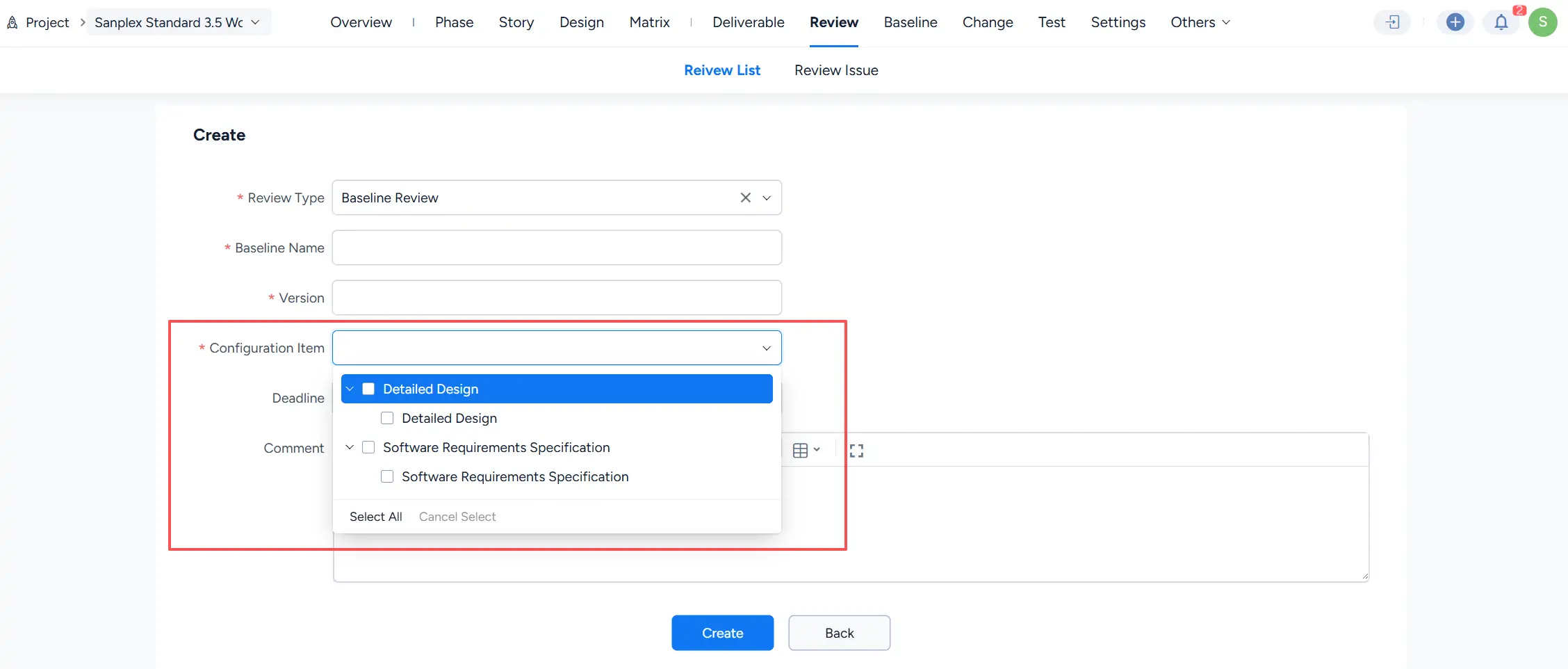
When creating the baseline, enter the Baseline Name and Version, then select the required Configuration Item.
The Configuration Item list displays available project content that can be included in the baseline, such as approved requirements or design deliverables.
III. Review a Baseline
After a baseline is submitted, Sanplex starts the configured Baseline Review process. The review page displays the baseline content together with review information such as its version, status, reviewer, deadline, and history.

Baseline review rules are managed in the corresponding project flow. Go to Admin > Project Flow, select the project flow, and open Review > Baseline to view the Baseline Review configuration and its approval flow.
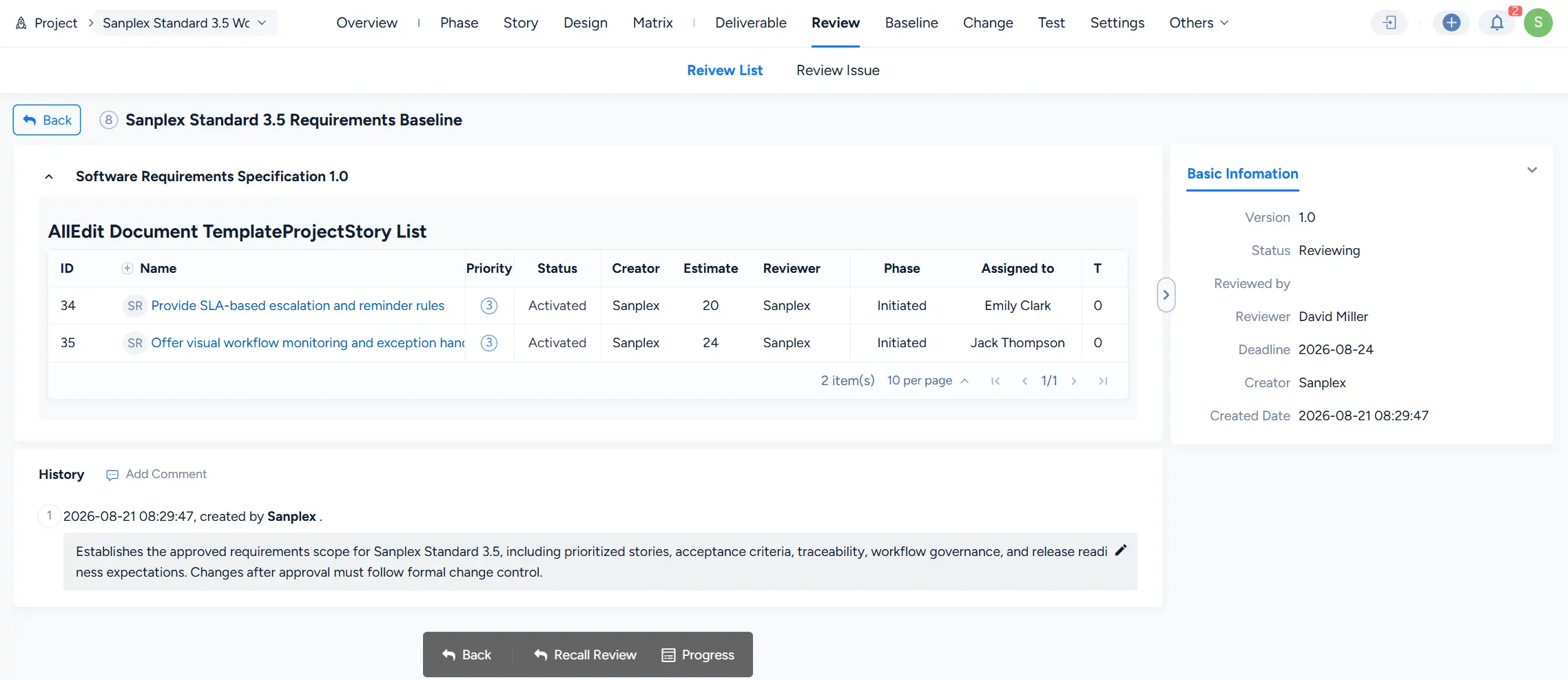
After the baseline review is approved, the baseline becomes an approved project baseline and records the selected configuration items and their versions.
If further updates are required, the relevant project content can proceed through the applicable review or change process before a new baseline version is established.
IV. Manage Baselines with Project Change
When Project Change is enabled for the project flow, baselines work together with the change-control process to maintain approved project content.
When creating a baseline, the Configuration Item list contains eligible reviewed project content. Once content is included in a baseline and placed under change control, subsequent modifications follow the configured project change process.
The controlled content depends on the type of configuration item:
- Project Plan: The approved project plan and related project phases can be managed as controlled project content.
- Project Requirements Specification: Approved project requirements can be managed through the baseline and change-control process.
- Design-type deliverables: Selected design deliverables and their related design items can be included in baseline control.
- Test-type deliverables: Test-related deliverables can be included according to the project flow configuration.
- Documents and other deliverable types: Submitted project documents and other configured deliverables can also be managed as baseline configuration items.
This allows teams to establish new approved baseline versions after controlled project changes are completed.
V. Compare Baselines
To compare changes between project baselines, click Baseline Comparative on the Baseline page to open the comparison view.
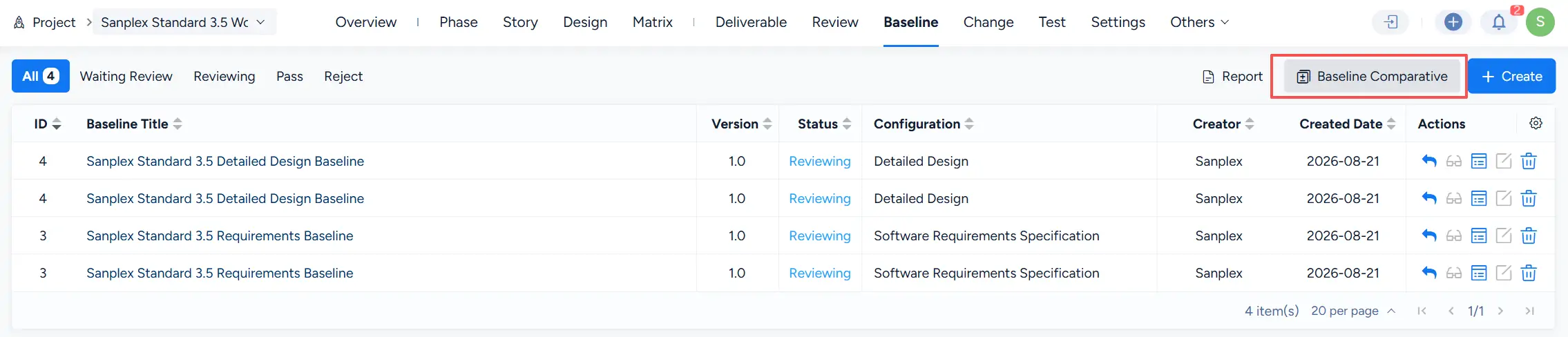
The comparison results show the configuration items and their versions across the selected baselines.
- Black indicates that the configuration item has the same version in both baselines.
- Green indicates that the configuration item appears in the later baseline.
- Red strikethrough indicates that the configuration item appears in the earlier baseline but not in the later baseline.
- Orange indicates that the configuration item exists in both baselines but has different versions.

To focus on differences between the selected baselines, select Only Changes. The comparison then displays only configuration items that differ between the baselines.

VI. View the Baseline Report
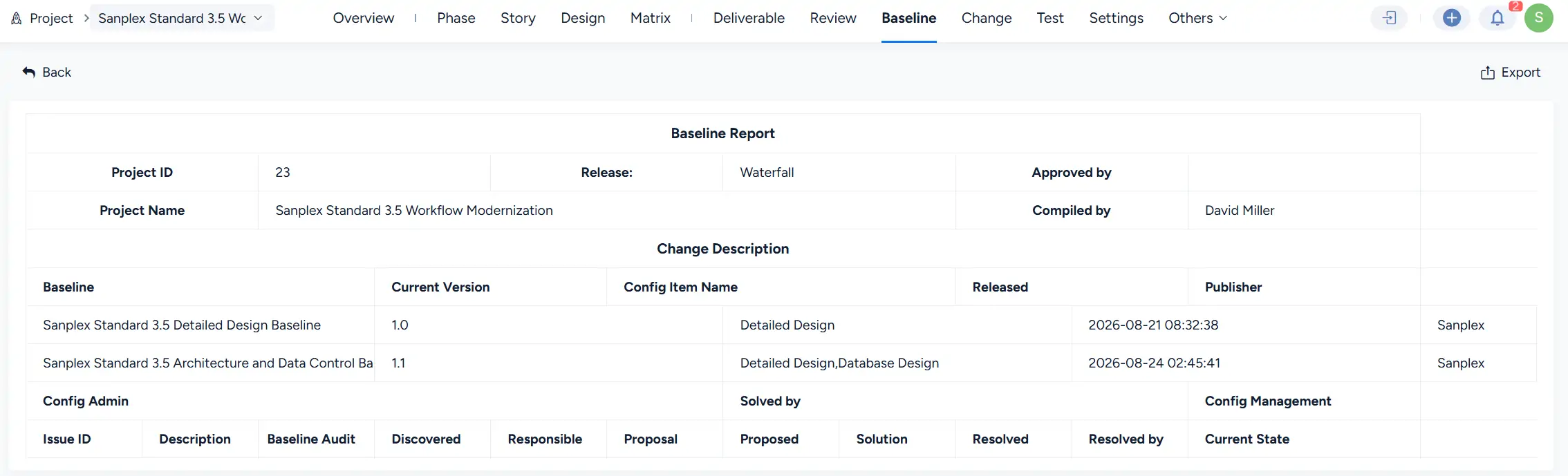
The Baseline Report provides an overview of project baseline information, including baseline names, current versions, configuration items, release information, and publishers. It also includes fields for recording and tracking configuration management issues related to the baselines.
Click Export to export the baseline report for further review or record keeping.
VII. Configure the Baseline Workflow
Sanplex provides a built-in Project Baseline workflow for managing baseline behavior.
Go to Admin > Workflow > Project and locate Project Baseline to view or configure the workflow according to your organization’s process requirements.