
Dashboard
1. Introduction of Sanplex features
1.1. Core Management Framework
1.1.1 Program
1.1.2 Project
1.1.3 Product
1.1.4 Execution
1.1.5 Management Models
1.2. Dashboard
1.2.1 Getting Started with Tutorials
1.2.2 Quick Add
1.2.3 Notification Center
1.2.4 Effort Tracking
1.2.5 Dashboard - Project and Execution
1.2.6 Dashboard - My Work, Contribution, and Recents
1.2.7 Dashboard - Approval
1.2.8 Contacts
1.3. Program
1.3.1 Program List
1.3.2 Program Kanban
1.3.3 Create Program
1.3.4 Create Sub-Programs
1.3.5 Project Charter Management
1.4. Product
1.4.1 Create Product
1.4.2 Manage Modules
1.4.3 Multi-Branch and Multi-Platform Management
1.4.4 Manage Plans
1.4.5 Manage Requirements
1.4.6 Requirement Reviews
1.4.7 Requirement Status and Phase
1.4.8 Create Releases
1.4.9 Track Progress
1.4.10 Business Requirements and Multi-Level Requirements
1.5. Project
1.5.1 Scrum Project
1.5.2. Waterfall Project
1.5.2.1 Manage Project Phases
1.5.2.2 Project Design
1.5.2.3 Project Matrix
1.5.2.4 Project Reports and Earned Value Management
1.5.2.5 Project Baselines
1.5.2.6 Project Change
1.5.3. Kanban Project
1.5.3.1 Set Up Kanban Projects
1.5.3.2 Configure Kanban Boards
1.5.3.3 Use Kanban Boards
1.5.4 Hybrid Agile Project
1.5.5 Hybrid Waterfall Project
1.5.6. Project Settings
1.5.6.1 Project Setup
1.5.6.2 Project Executions
1.5.6.3 Project Requirements
1.5.6.4 Project Builds
1.5.6.5 Project Tests
1.6. Admin Settings
1.6.1 Confluence Data Import
1.7. Workflow

Notification Center

2026-08-13 22:39:34
Sanplex Content
348
Last edited by Jing WANG on 2026-08-13 22:40:54
Share links
Summary: Learn how to view and manage notifications in Sanplex, configure personal notification preferences, and understand the system-wide notification settings available to administrators.

View Notifications

Click the notification icon in the upper-right corner to open the Notification Center and view your notifications.

Unread notifications are marked as read after you open them.
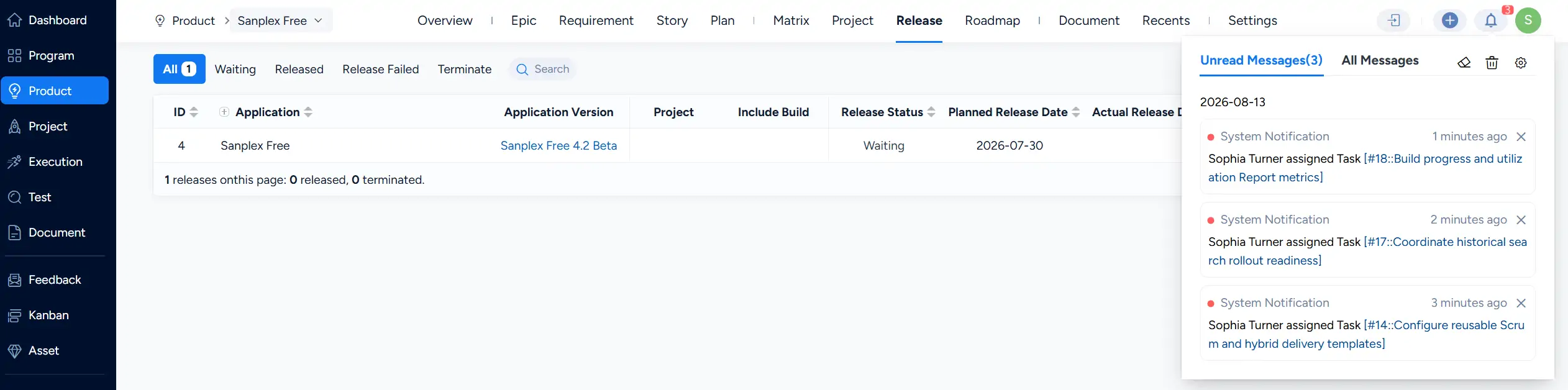
Notification Center showing unread and all-message views with recent system notifications.

Mark a Notification as Unread

To mark a read notification as unread again, right-click the notification and select Mark as Unread.
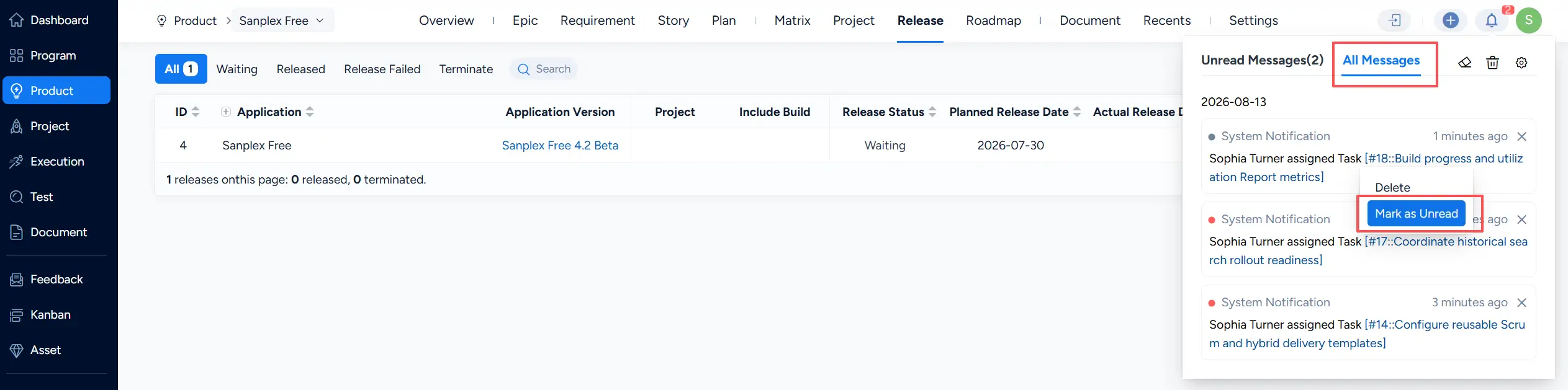
Notification Center showing the option to mark a read notification as unread.

Configure Personal Notification Settings

Click the settings icon in the Notification Center to open More Settings. These settings apply only to the current user.

  • Browser Notification: Turn this option off to stop browser pop-up notifications. Notifications will still remain available in the Notification Center.
  • Notification Count: Turn this option off to hide the notification count and display a red dot instead, reducing visual interruption.
  • Retention Days: Set how long notifications are retained before they are cleared.
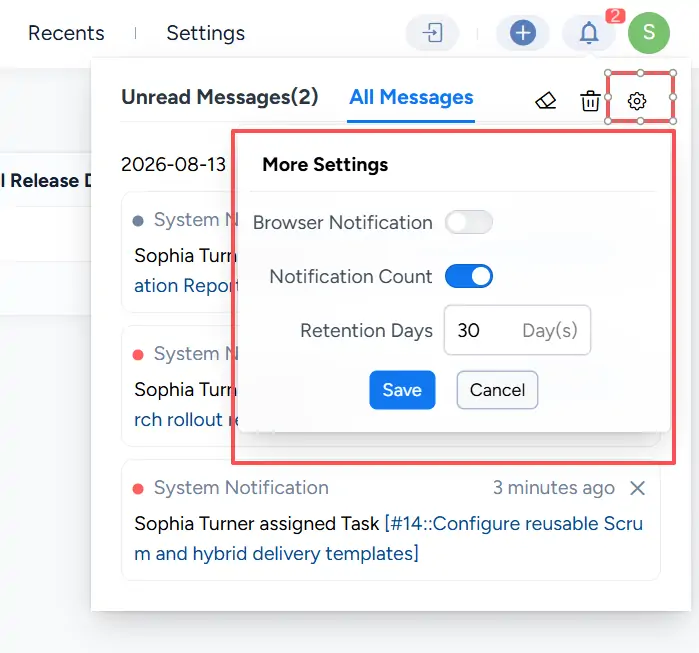
More Settings window showing personal notification options such as browser notifications, notification count, and retention days.

Configure System Notifications

Administrators can configure system-wide notification settings under Admin → Notifications → System Notification.

Here, administrators can enable or disable system notifications and set the Polling Interval for checking new notifications. If system notifications are turned off, the notification icon in the upper-right corner will be hidden for all users.
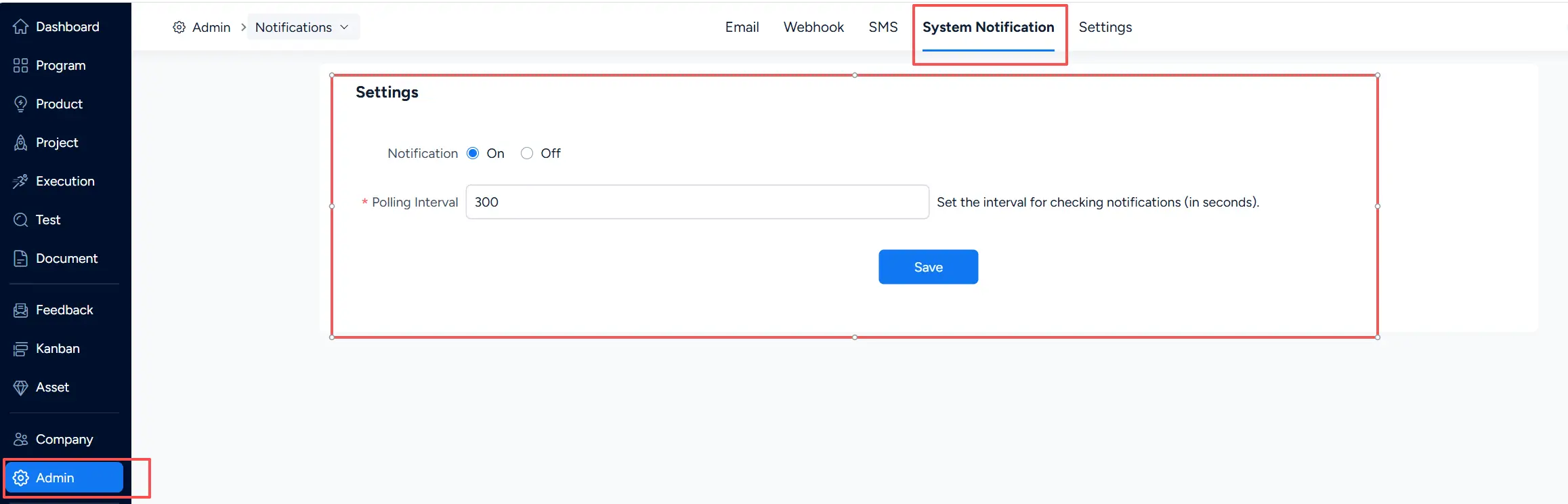
System Notification settings in Admin showing controls for enabling notifications and configuring the polling interval.

Write a Comment
Comment will be posted after it is reviewed.
