Catalog
Feature Overview
Project Templates help teams create projects more efficiently by reusing an existing project structure and configuration. A template can preserve project setup and stage information so teams can apply a consistent structure when creating similar projects.
Templates can be created from existing projects, maintained independently, and selected when creating new projects.
Use Cases
- Standardize project delivery
Reuse a consistent project structure for projects that follow similar workflows and delivery practices. - Reduce project setup effort
Create new projects from an existing template instead of configuring the project structure from scratch. - Capture reusable project structures
Convert an established project setup into a reusable template for future projects. - Support recurring project scenarios
Use templates for projects that repeatedly follow the same stages, executions, or delivery structure.
1. Create a Project Template
Go to Project > Template.
Click Create Template in the upper-right corner.

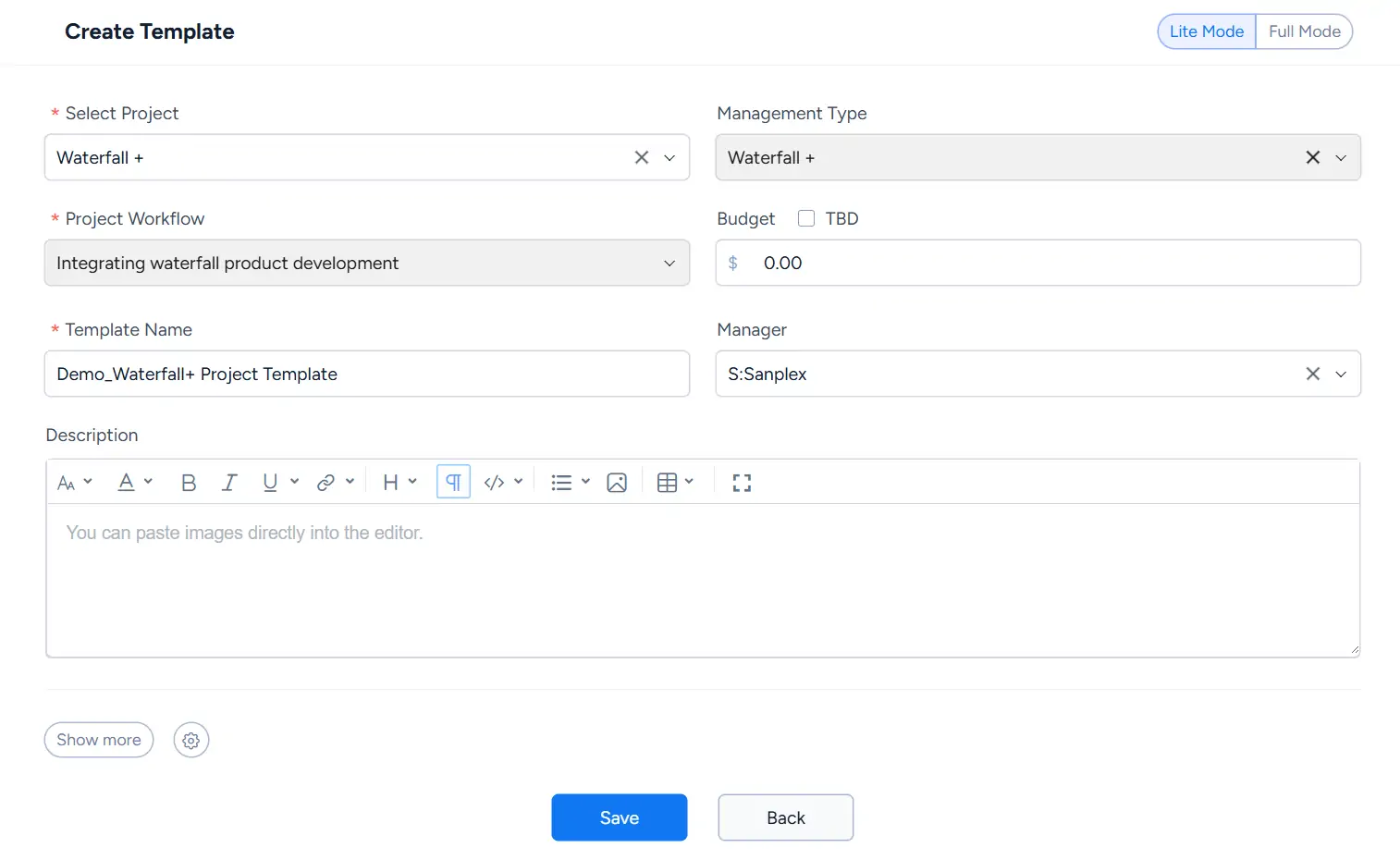
On the Create Template page, select the source project and complete the template information.
The page includes fields such as:
- Select Project
- Management Type
- Project Workflow
- Budget
- Template Name
- Manager
- Description
Click Save to continue.
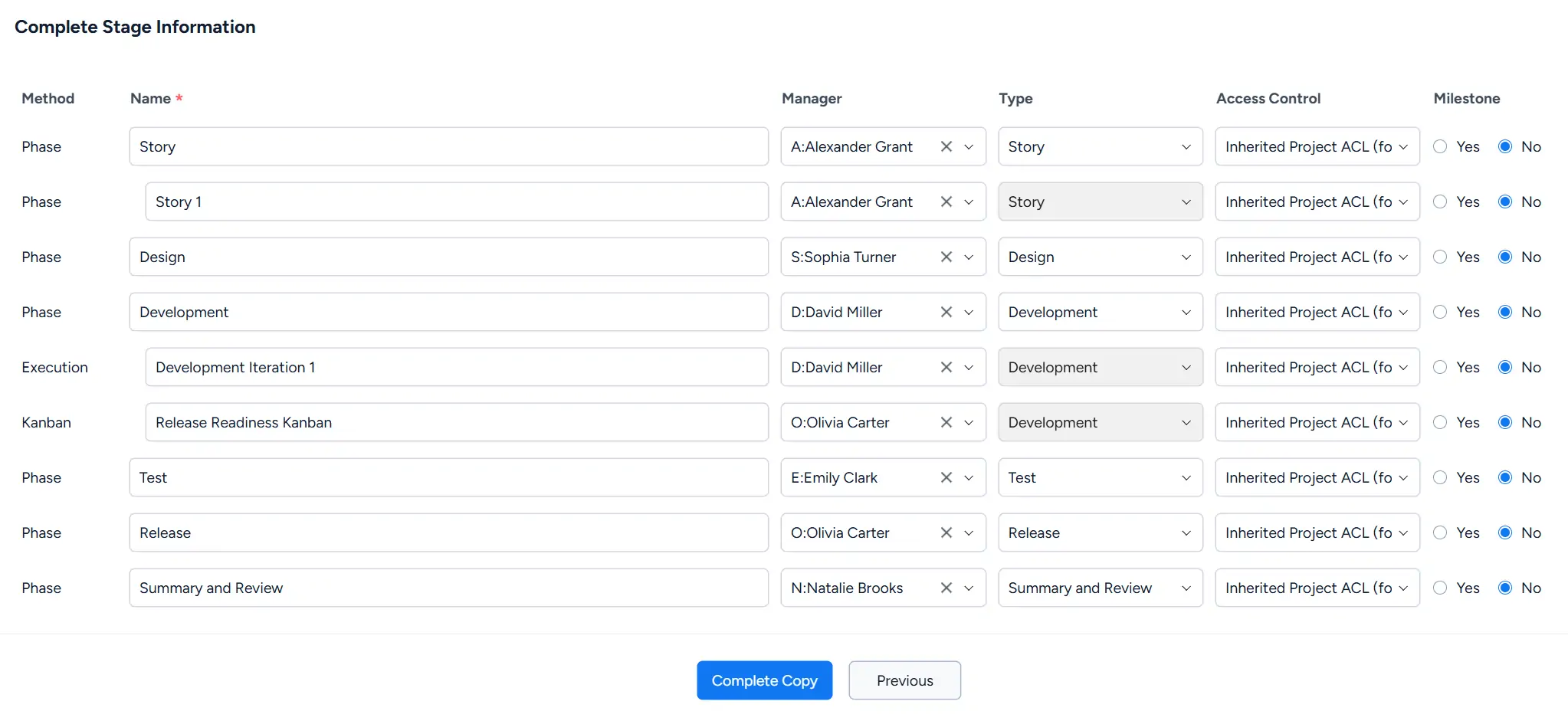
Next, complete the stage information to be copied into the template. Depending on the source project, the copied structure can include phases, executions, and Kanban items.
For each item, you can review information such as the Name, Manager, Type, Access Control, and Milestone setting.
Click Complete Copy to finish creating the template.
2. Manage a Project Template
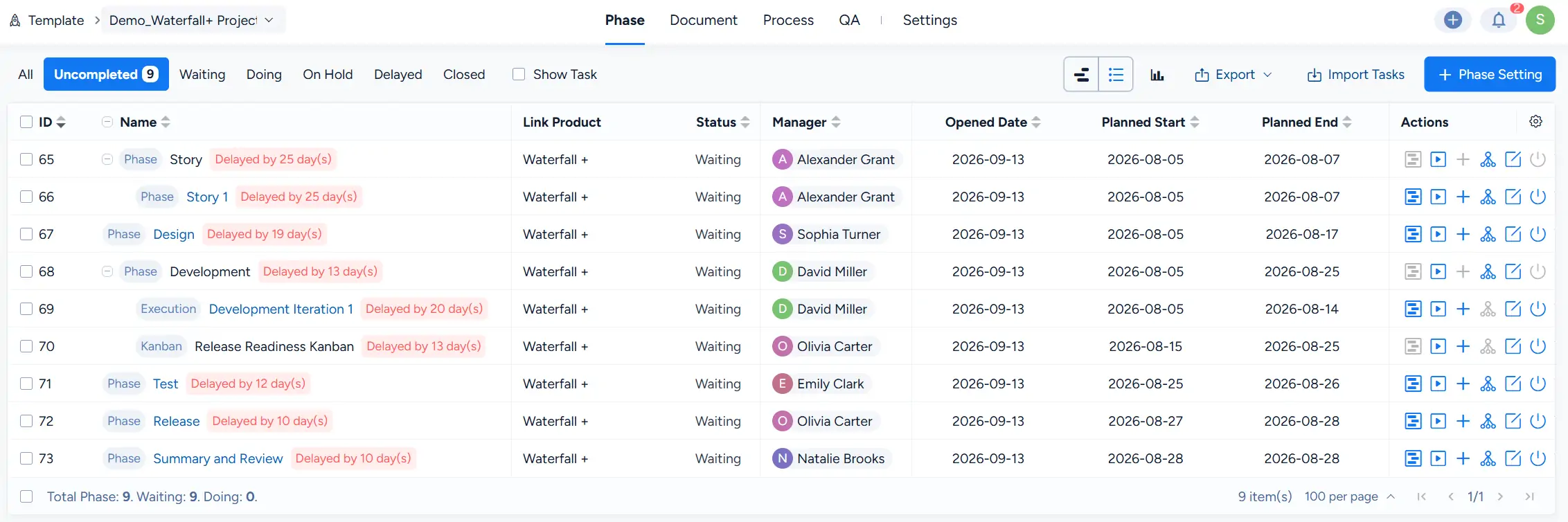
Click the template name to open the template workspace.
The current template workspace provides dedicated pages for:
- Phase
- Document
- Process
- QA
- Settings
On the Phase page, you can view and maintain the stage structure copied into the template, including phases, executions, and Kanban items.
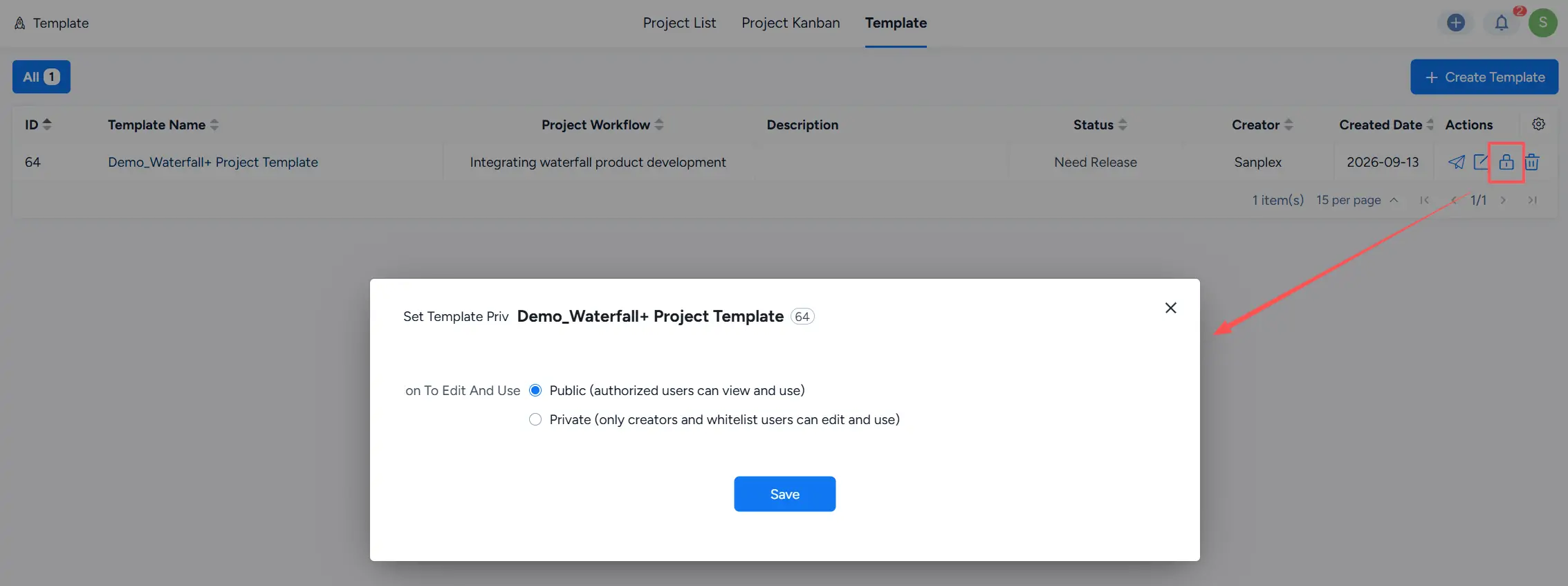
You can also configure who can use and edit the template.
Template access can be set to:
- Public: Authorized users can view and use the template.
- Private: Only the creator and whitelist users can edit and use the template.
3. Disable or Delete a Project Template
From the Actions column on the Template page, you can disable a template that is currently in use.
A disabled template is no longer available for selection when creating projects from templates.

You can also use Delete Template from the Actions column to remove a template that is no longer needed.

4. Use a Project Template
Click Create Project from the Project List page.
In the Select management type dialog, open the Template tab and select an available project template.
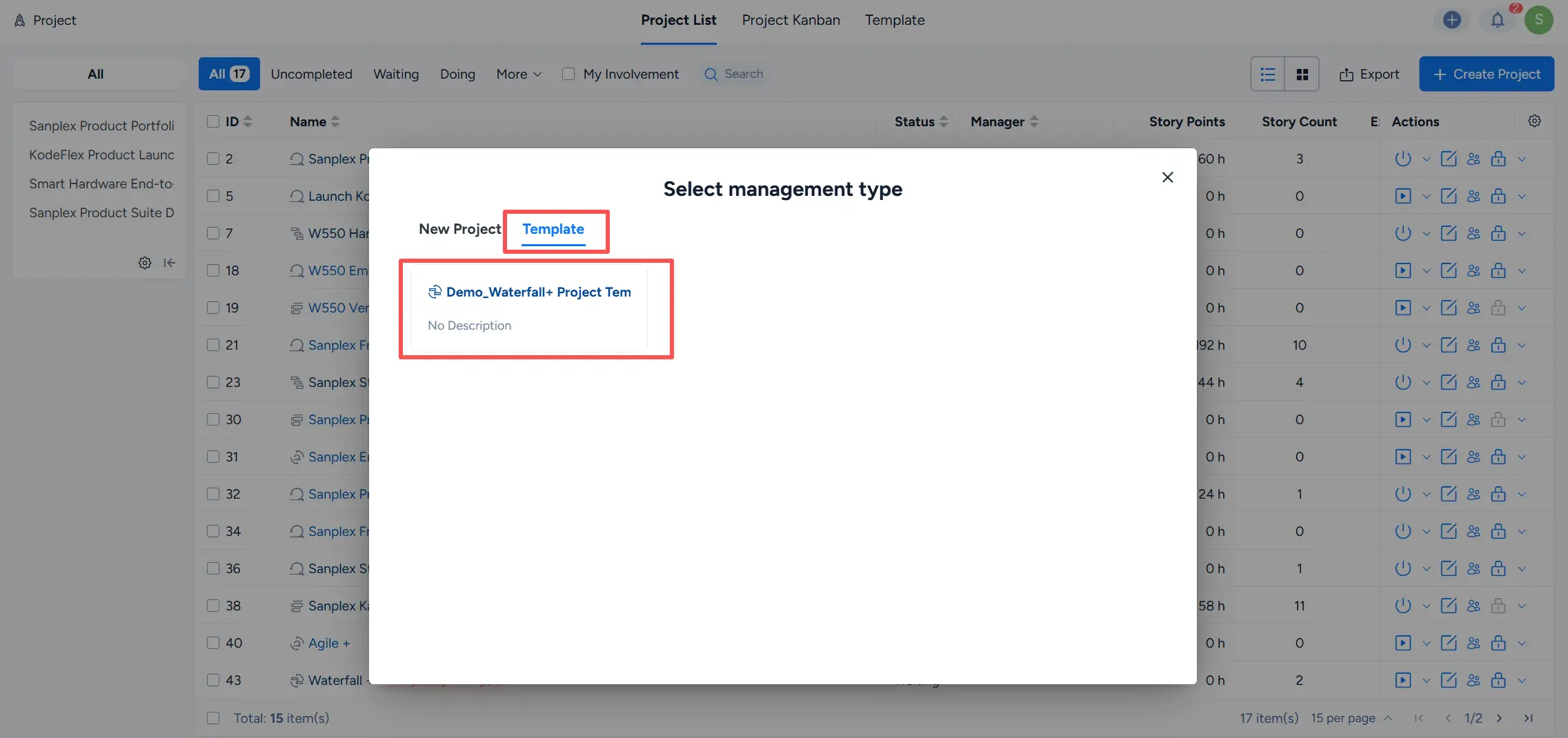
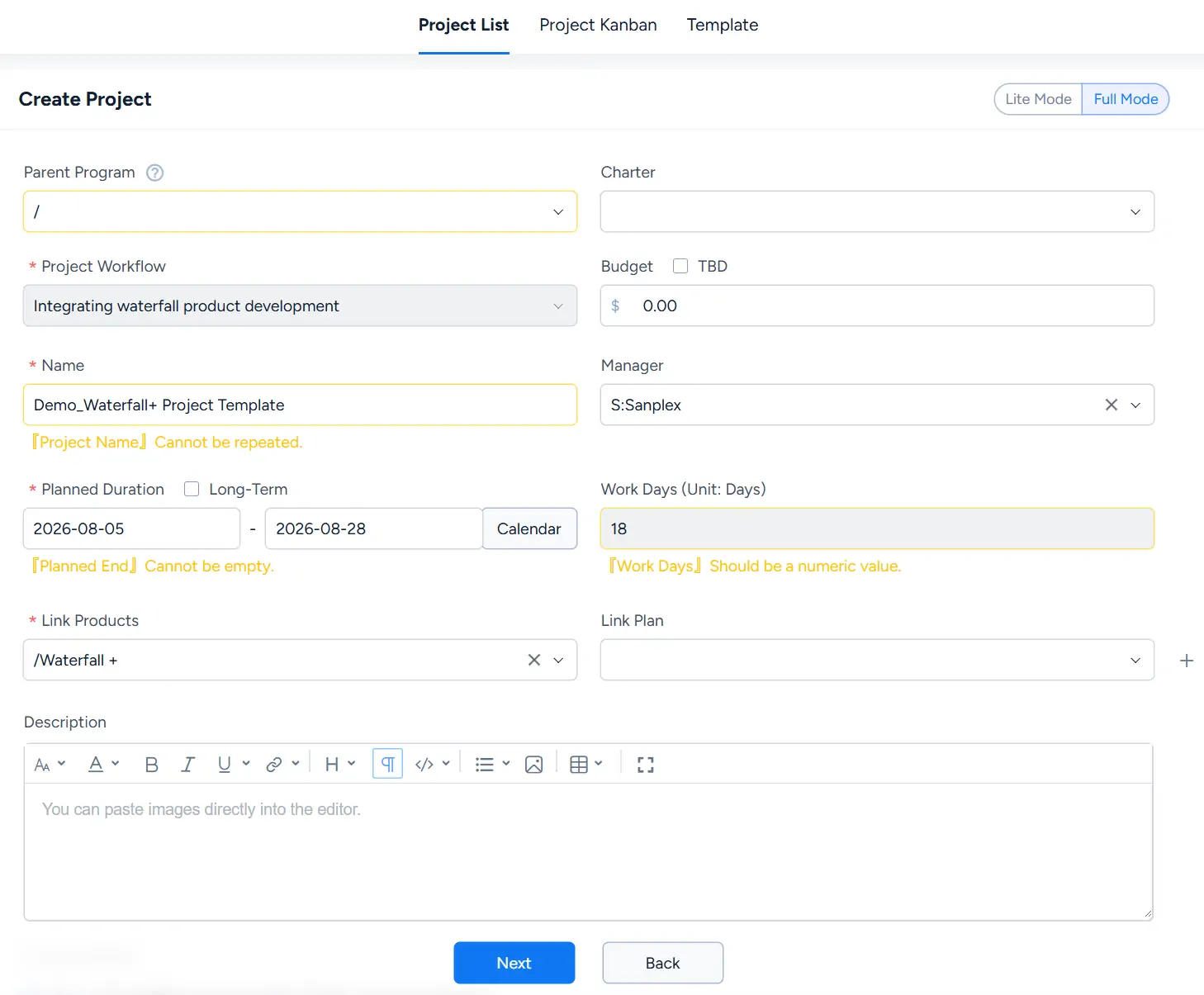
The selected template is then applied to the Create Project form. Template-related project information, including the project workflow and other project settings, is loaded into the form.
Review the information, complete the required fields, and continue creating the project.
5. Data Included in Project Templates
Based on the current template workflow, project templates can preserve and organize project information such as:
- Project setup information, including the project workflow, management type, manager, budget, and description
- Stage information, including phases, executions, and Kanban items
- Stage managers, types, access control settings, and milestone settings
- Documents
- Process configuration
- Quality Assurance configuration
- Template settings
These reusable settings provide a structured starting point when creating projects from a template.