Catalog
This section describes how to view team members and their work information in Company > Team.
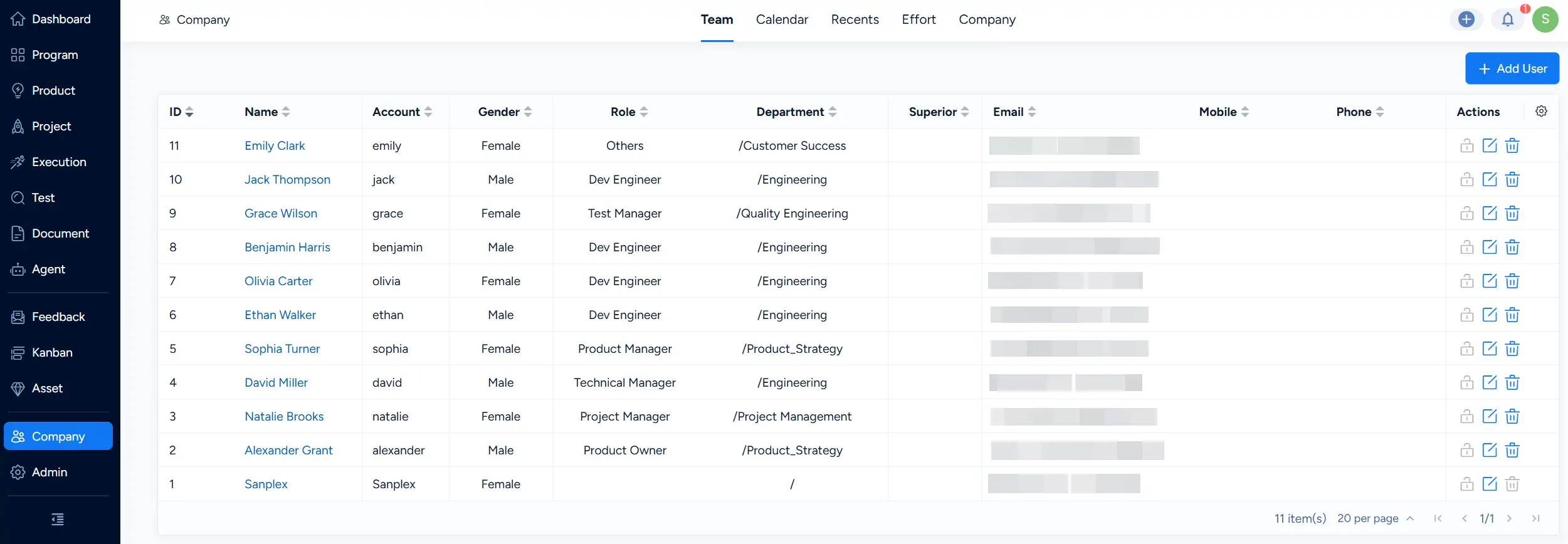
In Company > Team, you can view team members and basic user information, including Name, Account, Gender, Role, Department, Superior, Email, Mobile, and Phone.
I. Assign Permissions
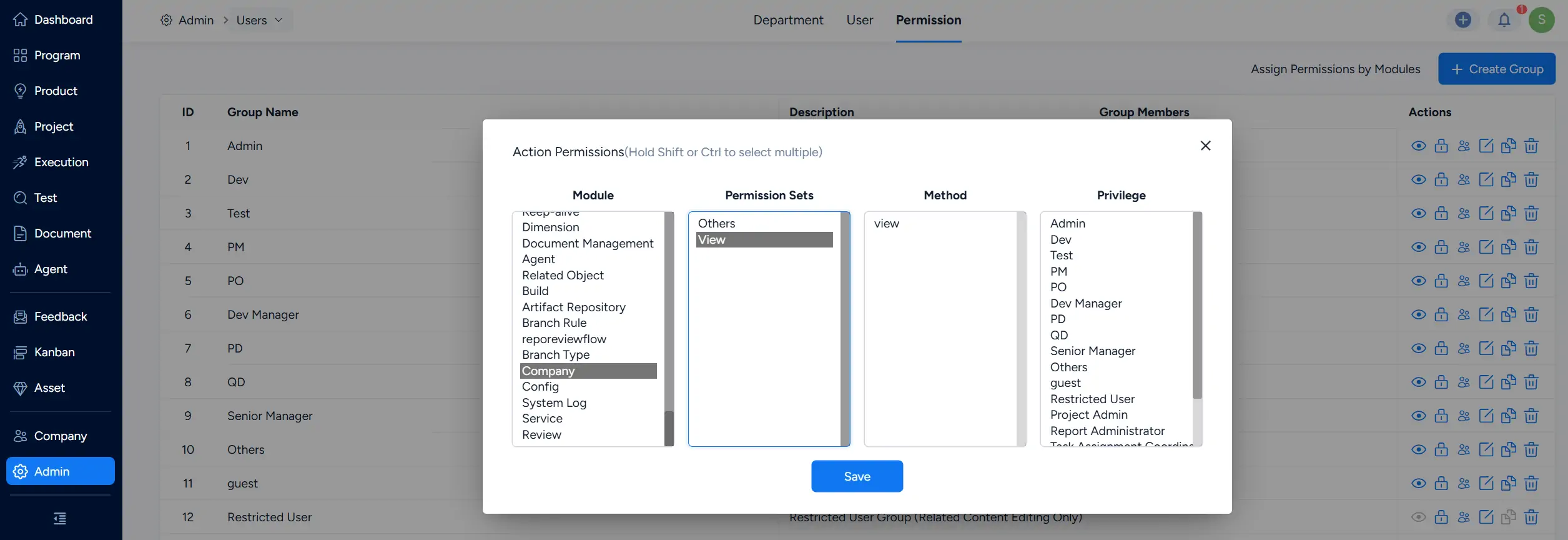
To access Company > Team, go to Admin > Users > Permission and assign the required Company view permission to the appropriate privilege group.
II. Add a User
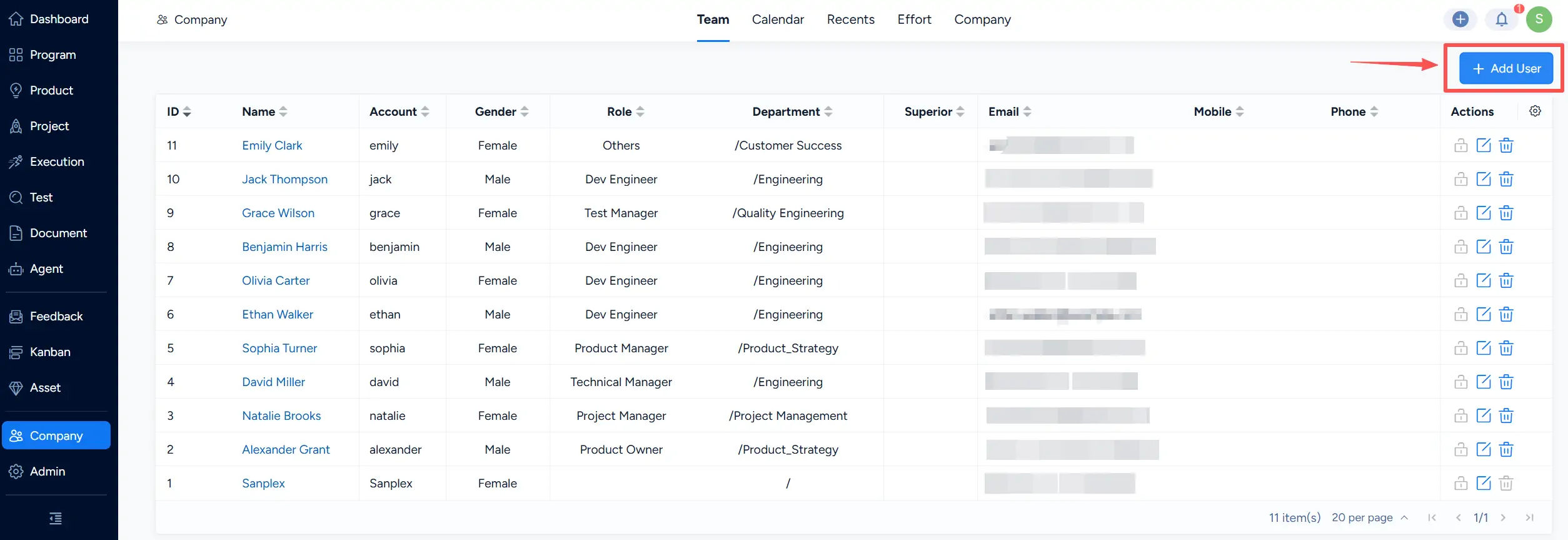
On the Company > Team page, click Add User in the upper-right corner.
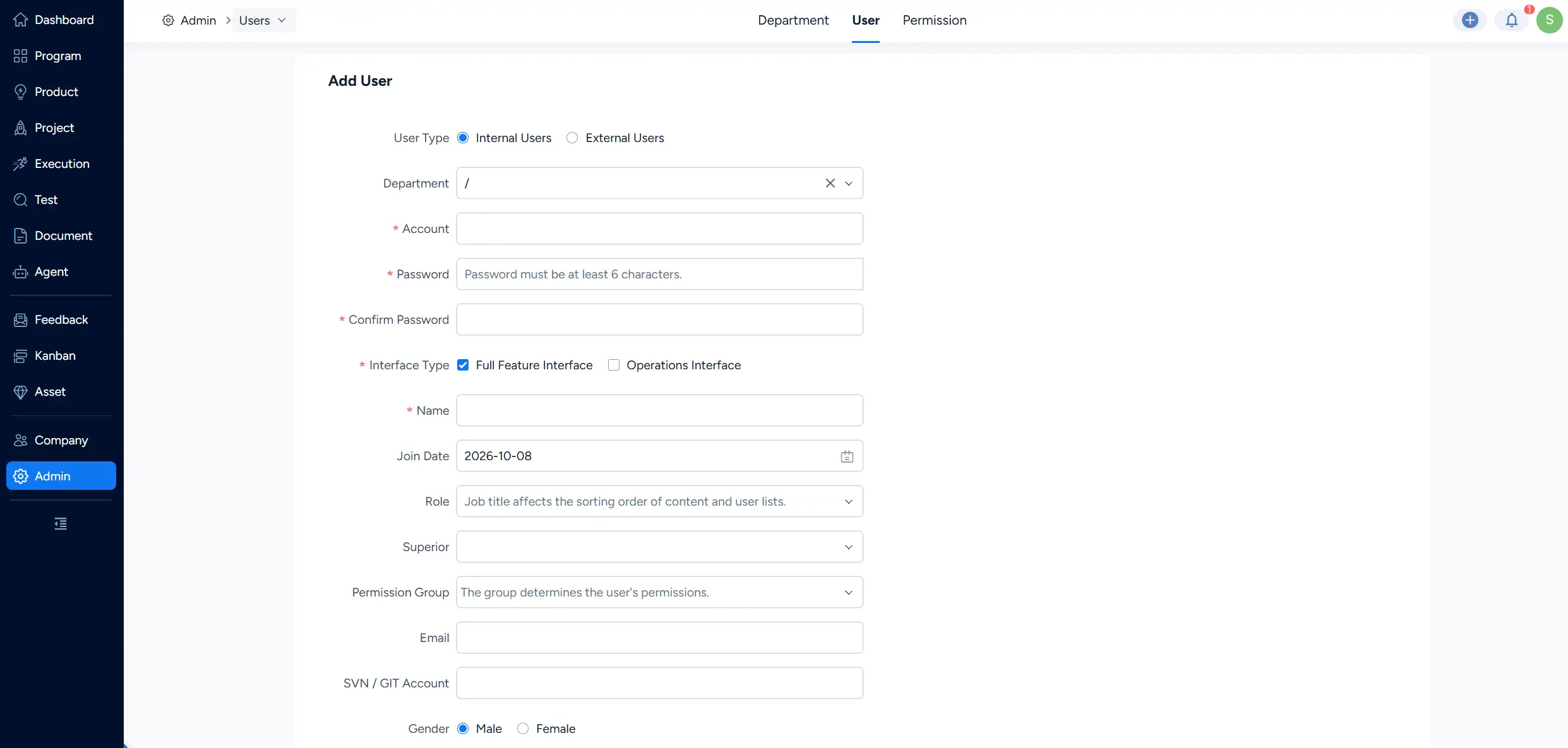
The system opens the Admin > Users > User page and displays the Add User form. Enter the required user information and complete the user setup.
III. View Member Work Information
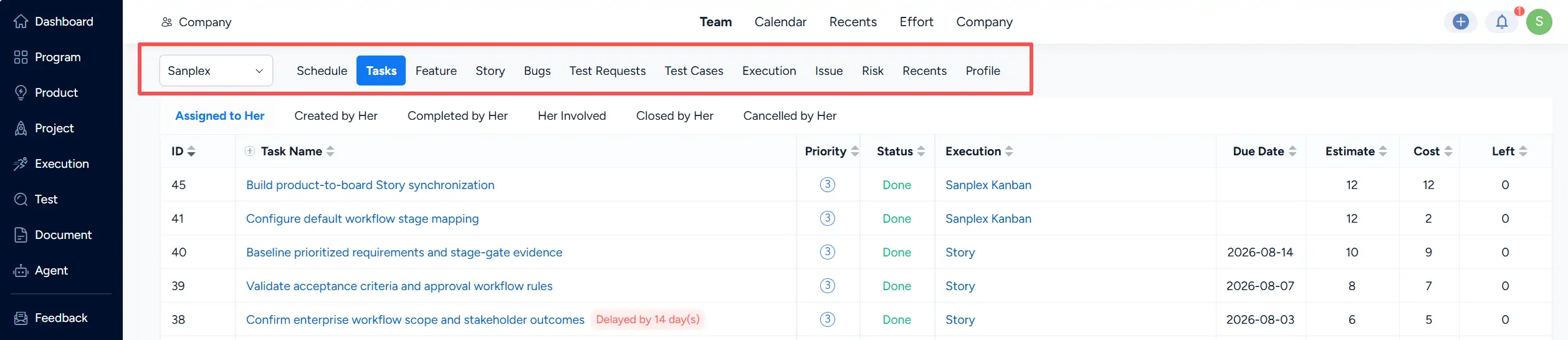
Click a member name in the Team list to open the member’s work information.
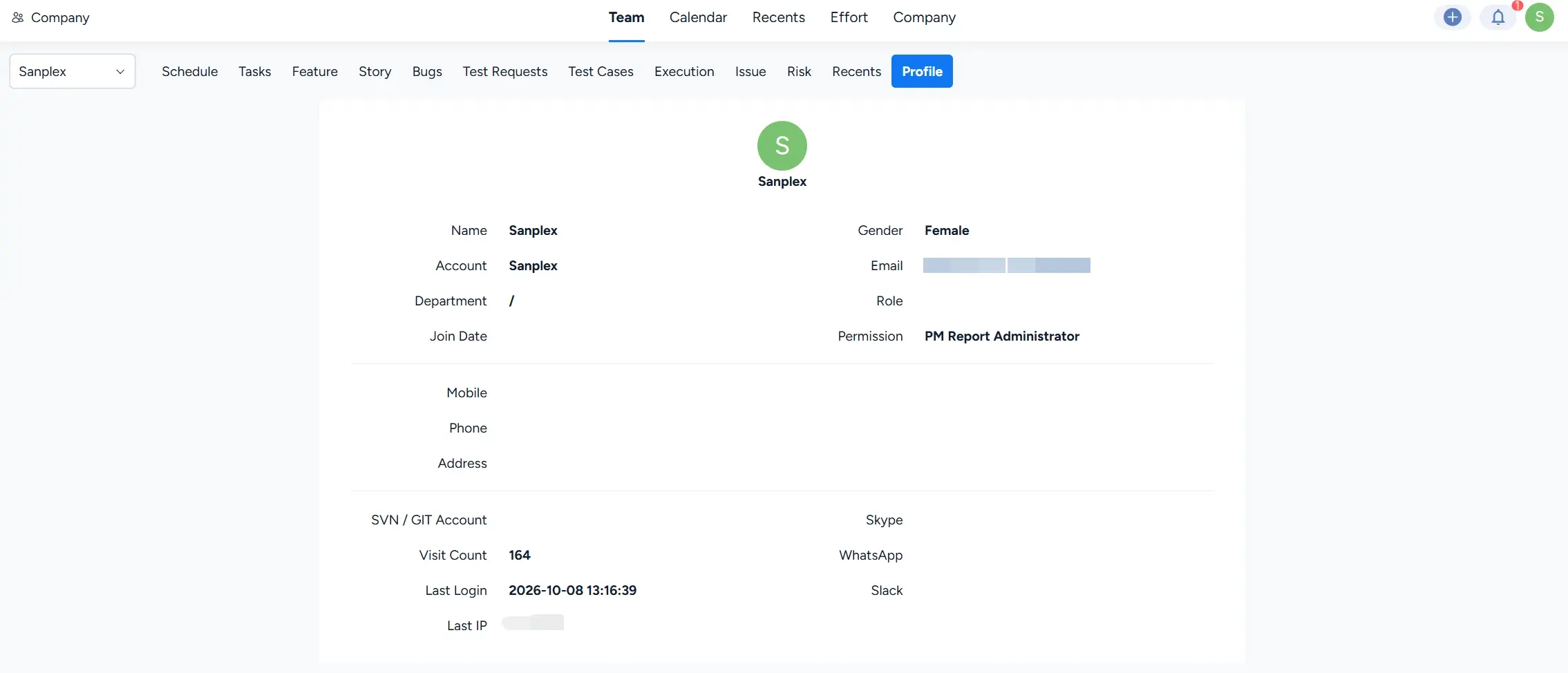
The page provides tabs for Schedule, Tasks, Feature, Story, Bugs, Test Requests, Test Cases, Execution, Issue, Risk, Recents, and Profile. Select a tab to view the corresponding information for that member.
IV. View Member Profile
Click Profile to view detailed user information, including account information, department, role, permission, contact information, and login information.