Catalog
Interface Modes
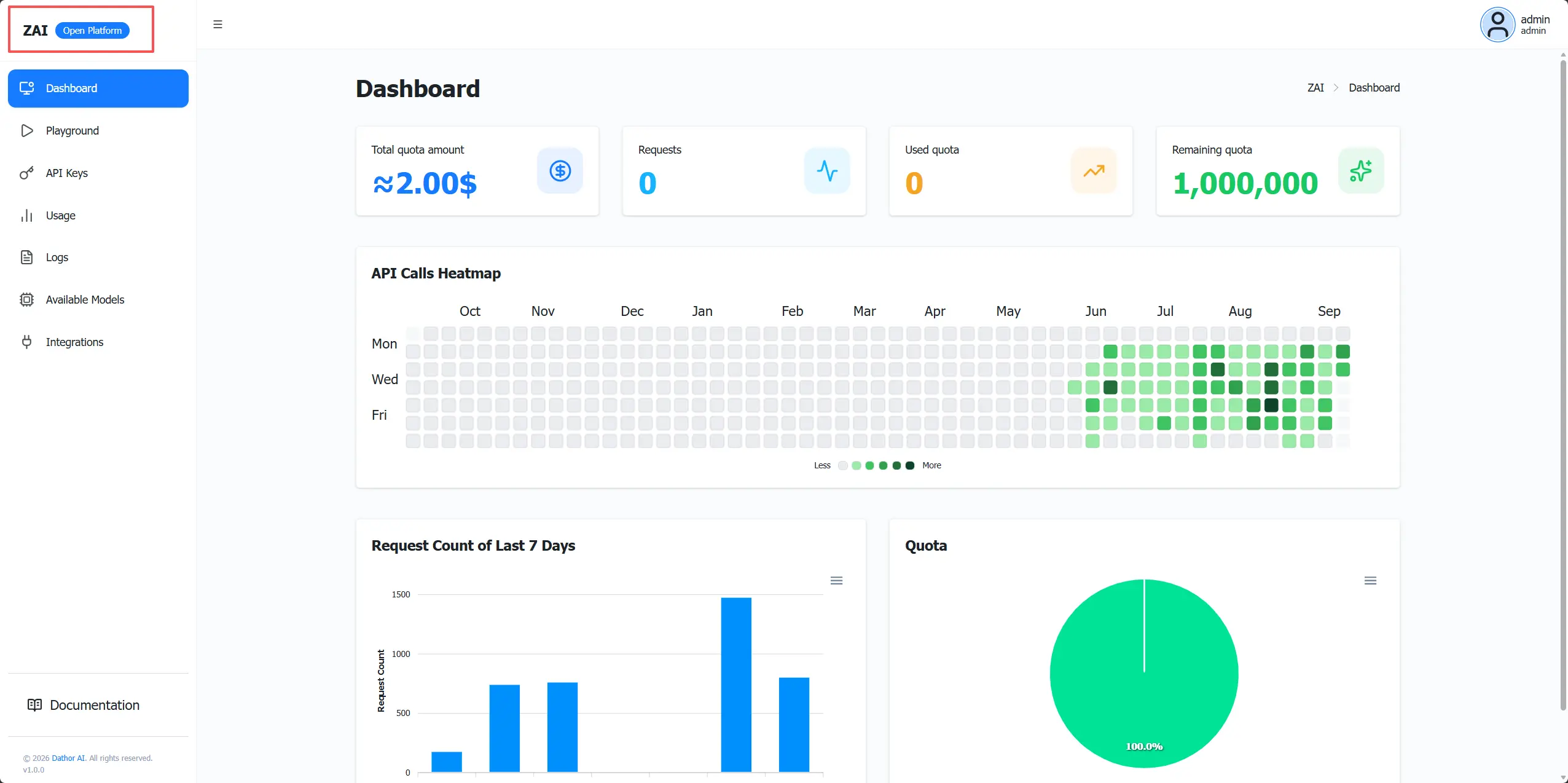
ZAI provides two interface modes: Open Platform and Admin Panel. Each mode offers different capabilities.
Open Platform
The Open Platform is designed for general users. Users can:
- Test large language models (LLMs)
- Obtain API keys
- View usage statistics and access logs
- Check available models and application integration information
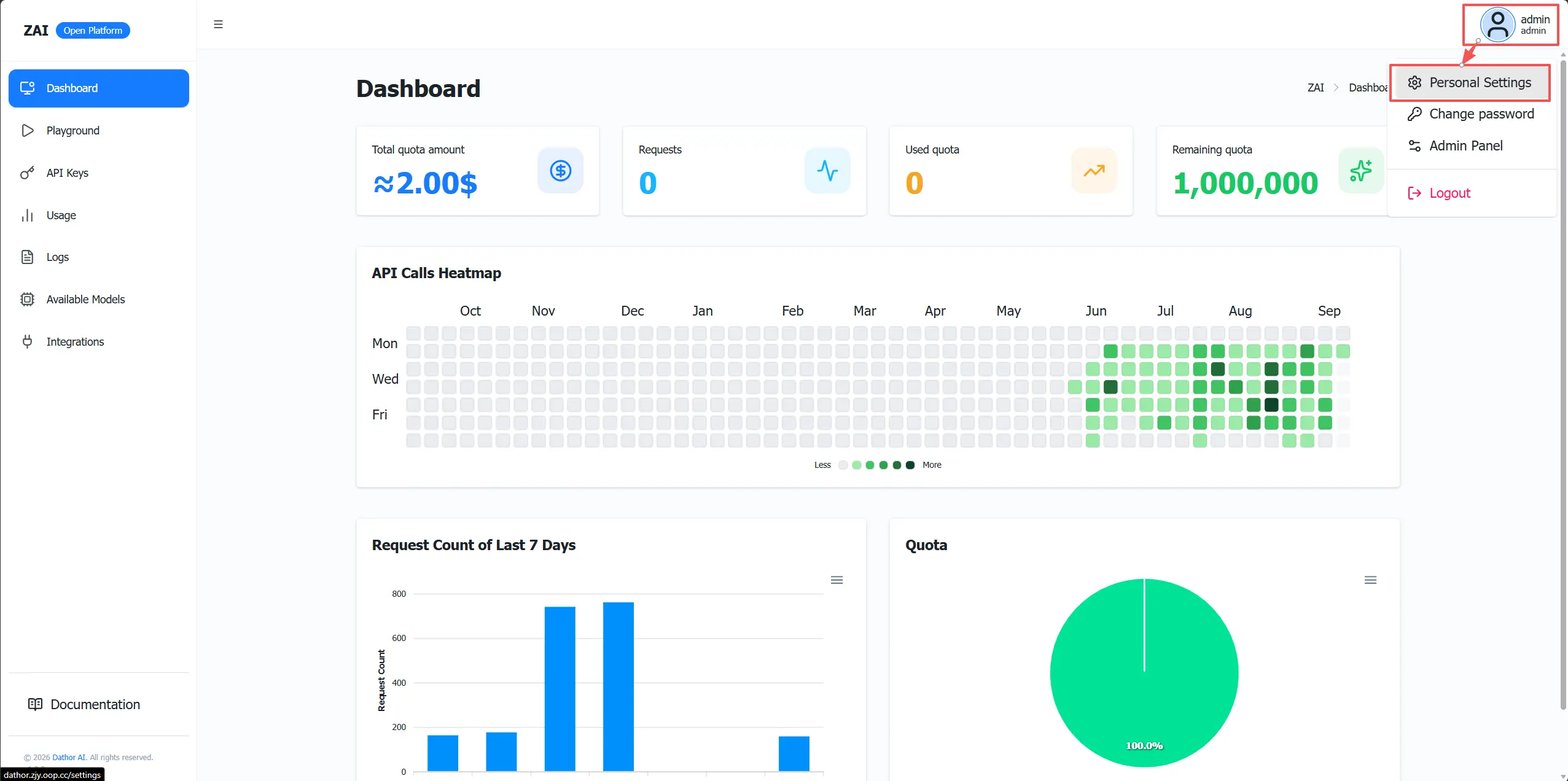
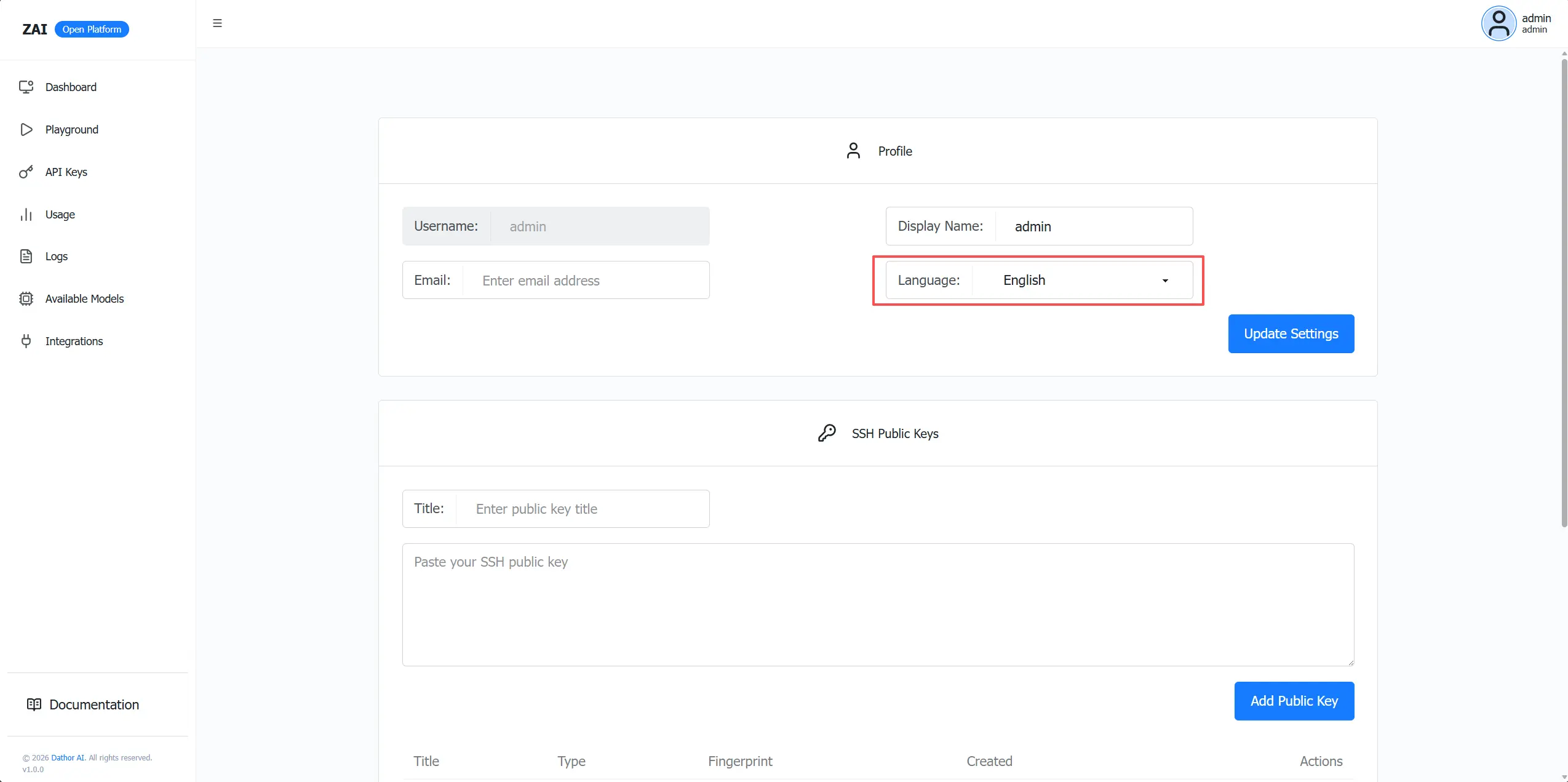
Note: If English is not your default language, please click your avatar, go to Personal Settings, and set the language to English.
Admin Panel
In the Open Platform, click your avatar in the top-right corner to expand the menu, then click Admin Panel to switch to the Admin Panel.
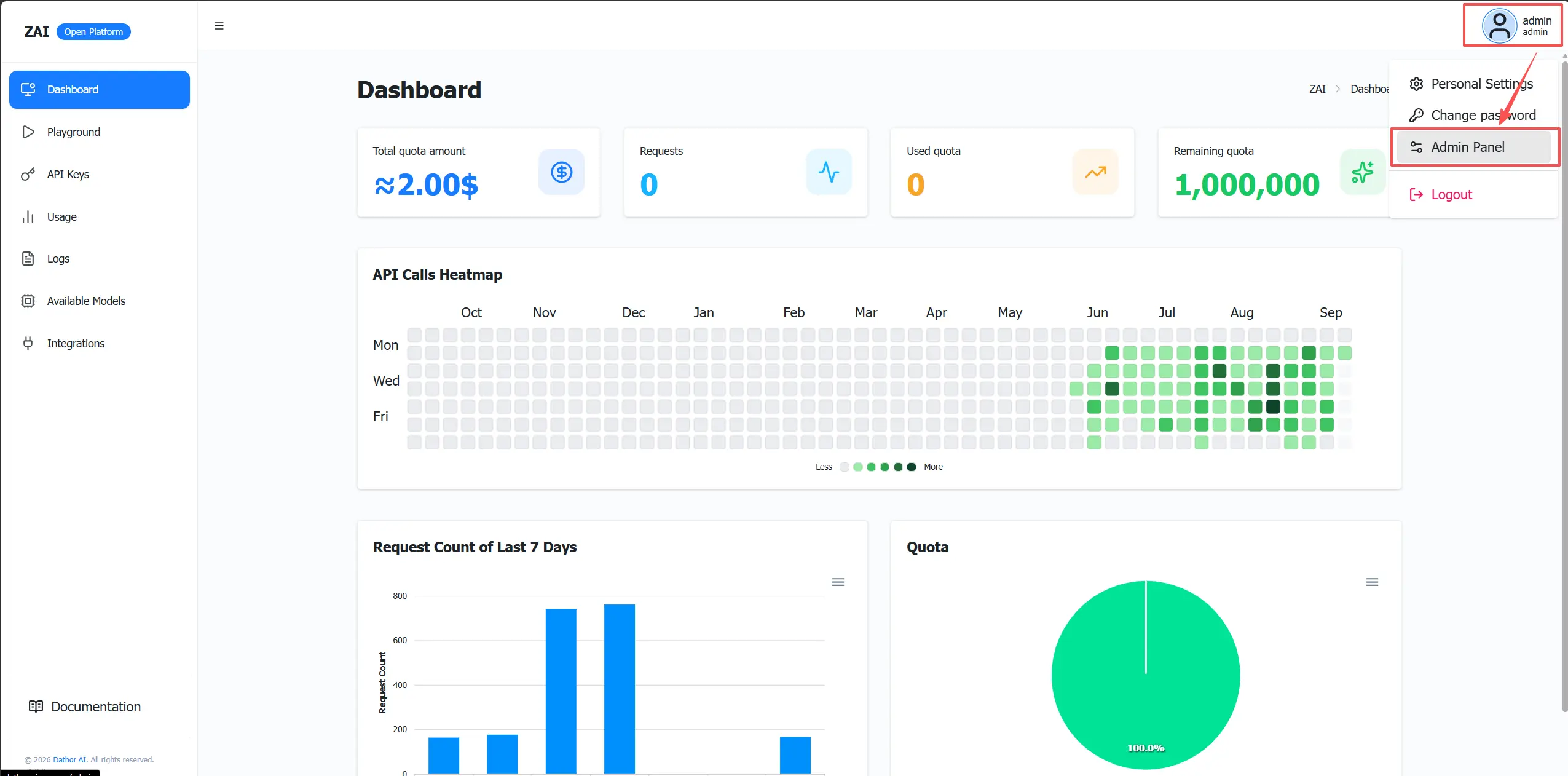
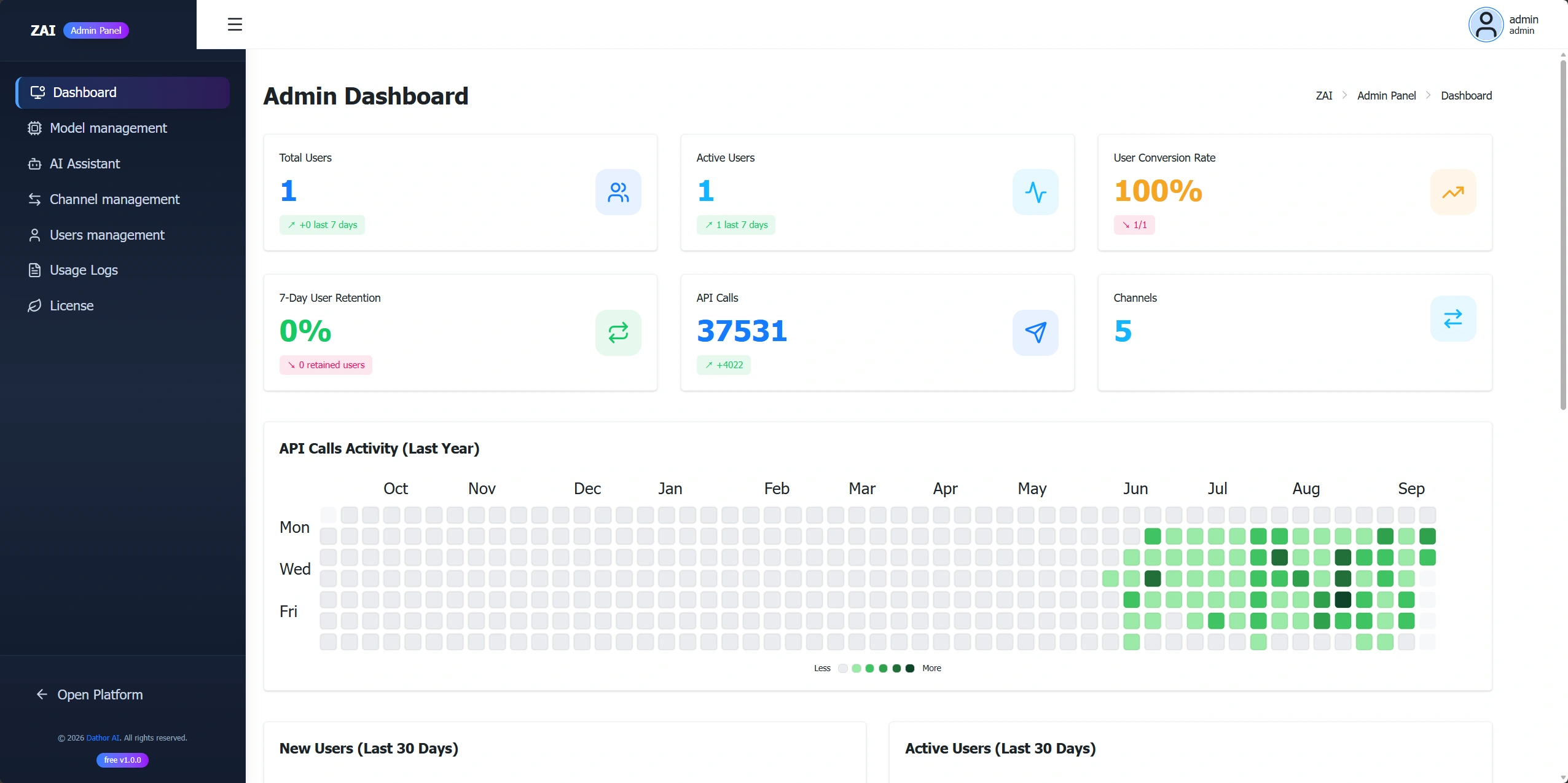
The Admin Panel is designed for administrators. Admins can manage the ZAI service here, including model management, channel management, and integration management.
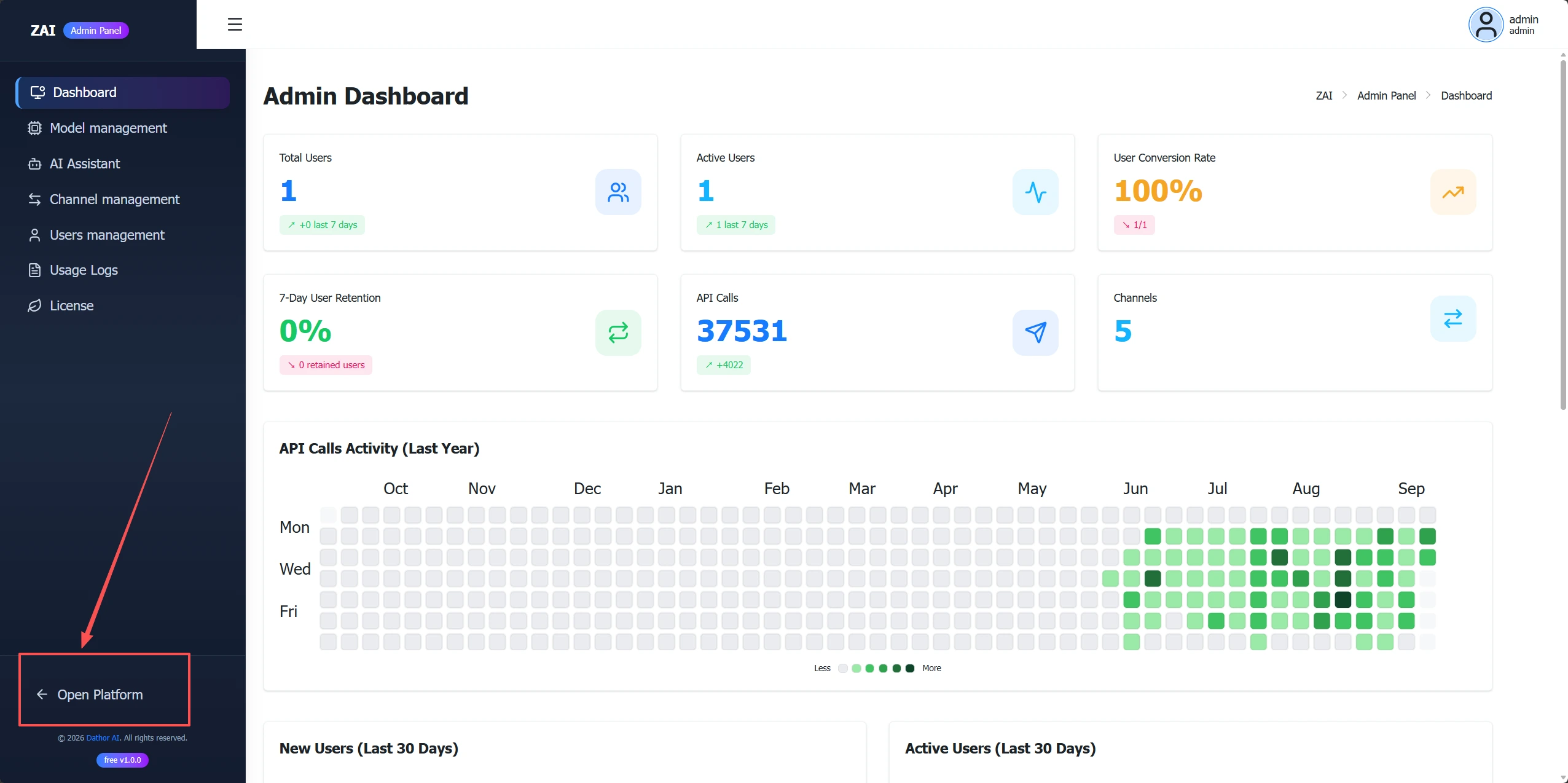
In the Admin Panel, click Open Platform in the lower-left corner to switch back to the Open Platform.
User Management
User Management is used to maintain ZAI users, including adding, editing, and disabling users. Go to the Admin Panel, then click User Management in the left sidebar to open the user list.
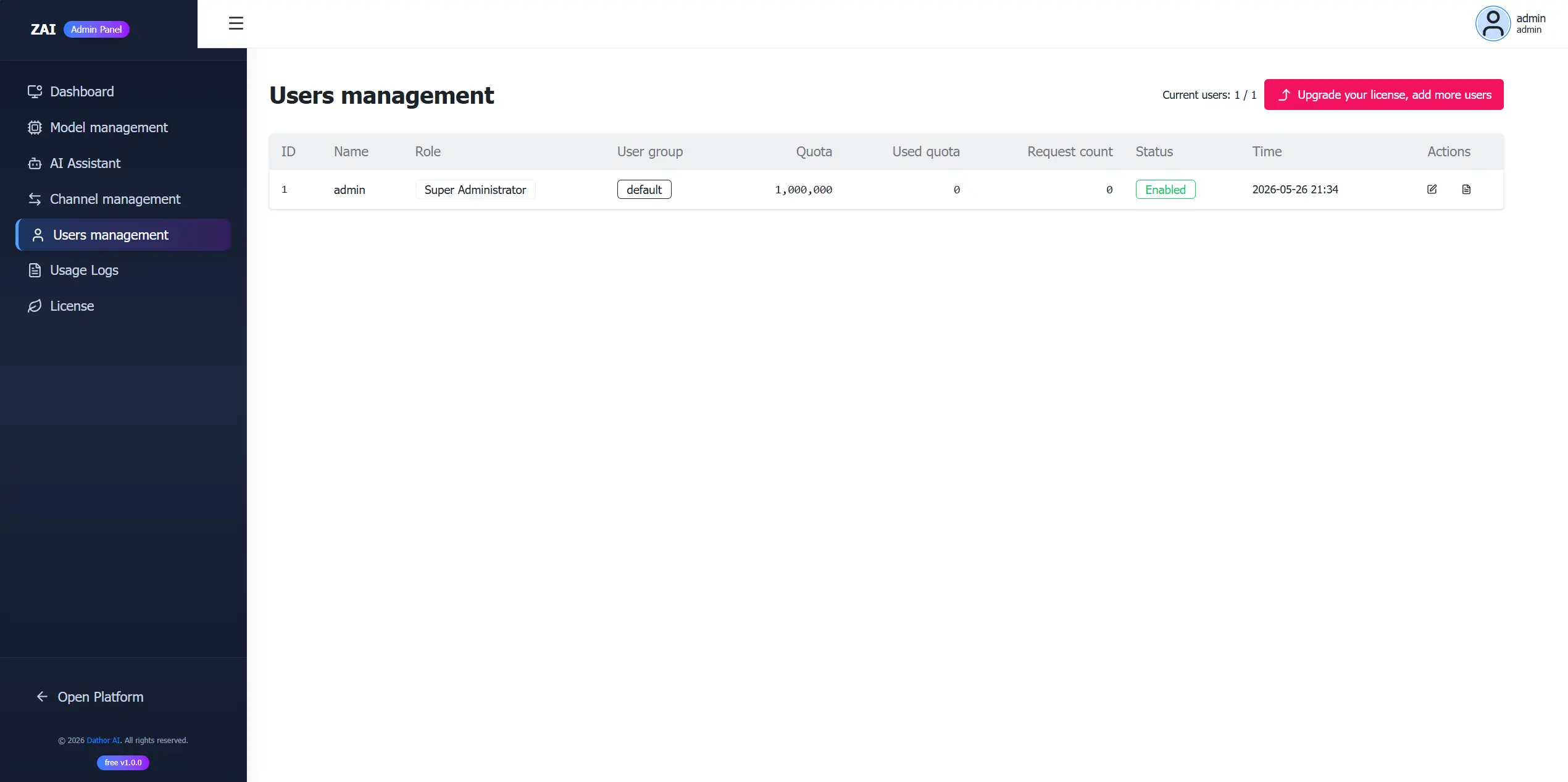
In the user list, you can view all user details, add new users, edit existing users, and view each user’s usage logs.
Model Configuration
ZAI does not include built-in LLMs. You must connect to third-party or local models through supported providers. ZAI supports online providers such as OpenAI, Azure, and DeepSeek, and also supports local model access via Ollama.
Model configuration includes two parts: Channel Management and Model Management.
Channel Management
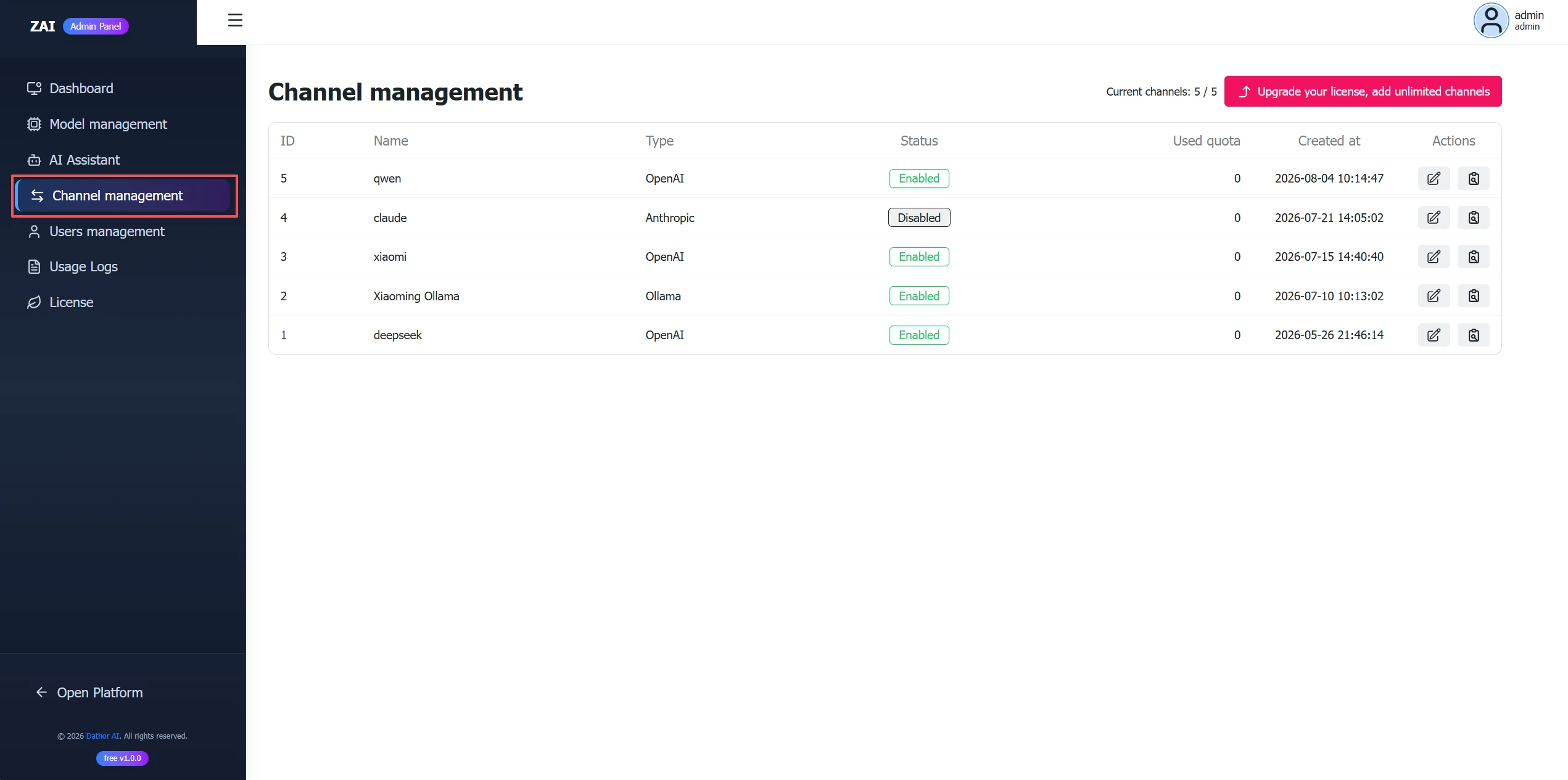
Channel Management configures the access for connecting LLMs, such as OpenAI, Azure, and DeepSeek, and also supports connecting local models through Ollama. Go to the Admin Panel, then click Channel Management in the left sidebar to open the provider list.
Channel List
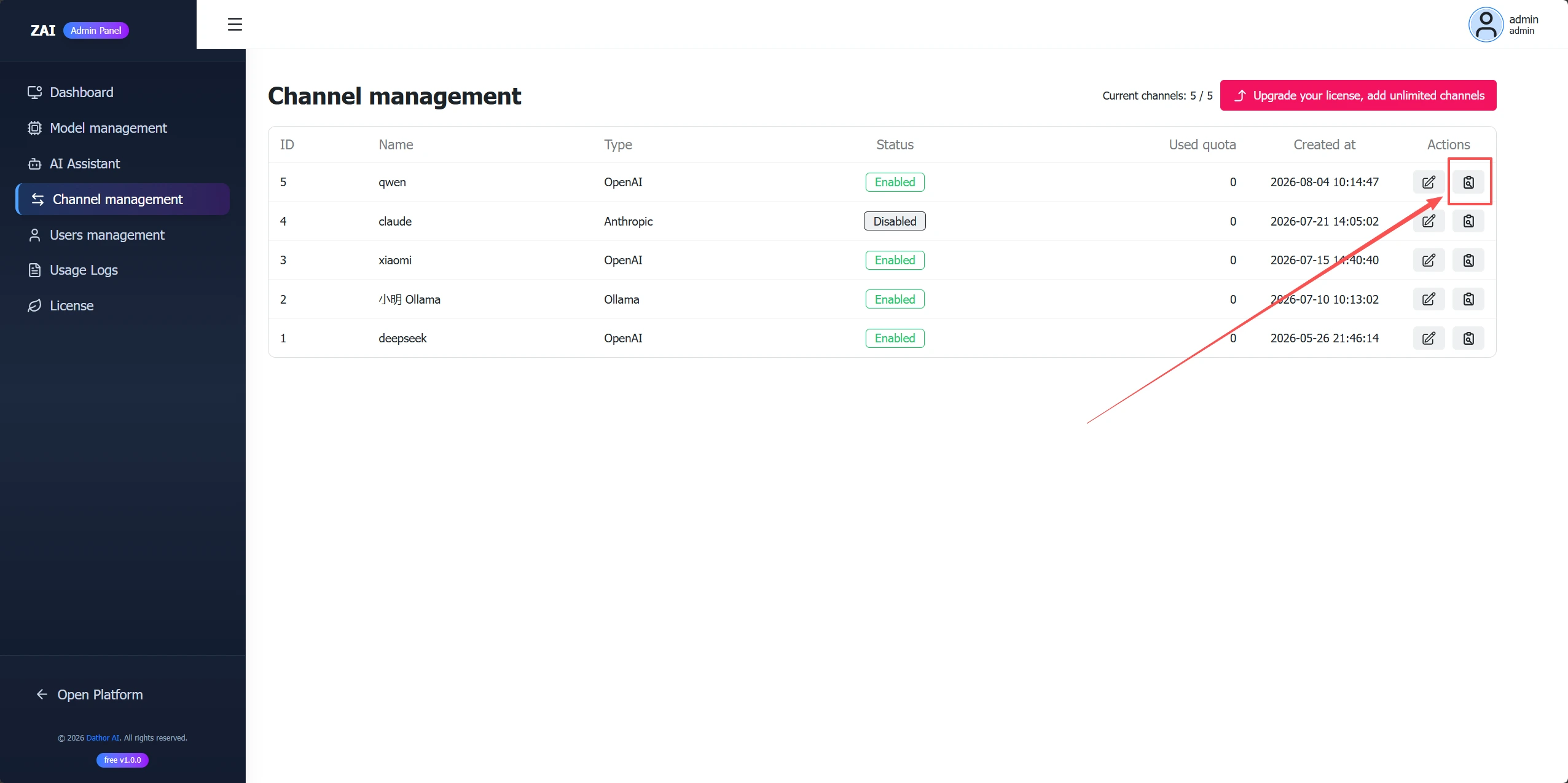
The channel list displays all configured LLM providers. You can add new channels, edit existing channels, and view each channel’s usage logs.
Add a Channel
Click Add Channel in the top-right corner, fill in the channel information, and click Submit. You do not need to enter model information when adding a channel.
Edit a Channel
Click Edit for the target channel to open the edit page. Update the channel information and submit.
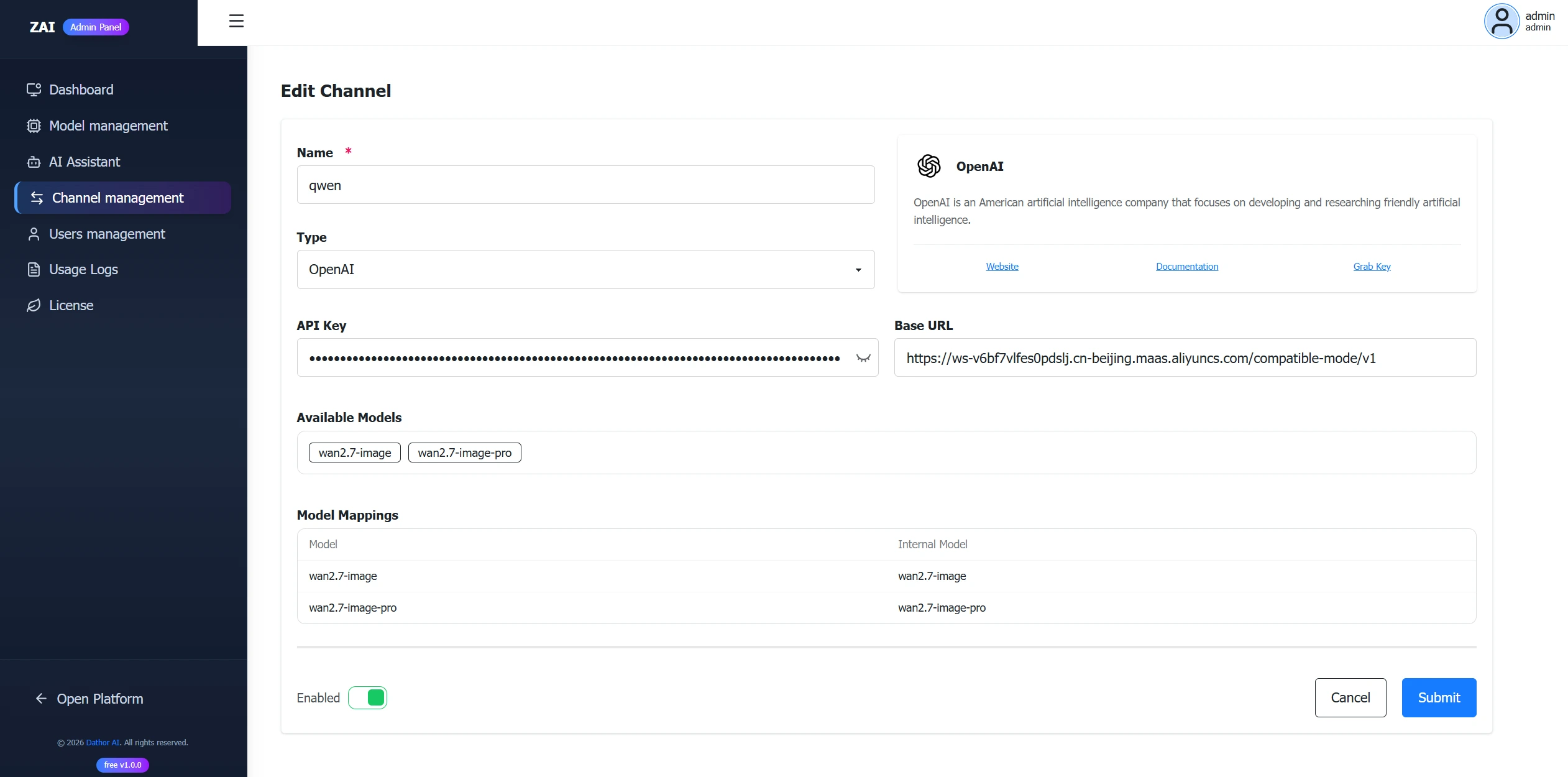
Because channels generate logs, deletion is not supported at this time. However, you can disable a channel in the edit page. Once disabled, the channel can no longer be used.
View Channel Activity Logs
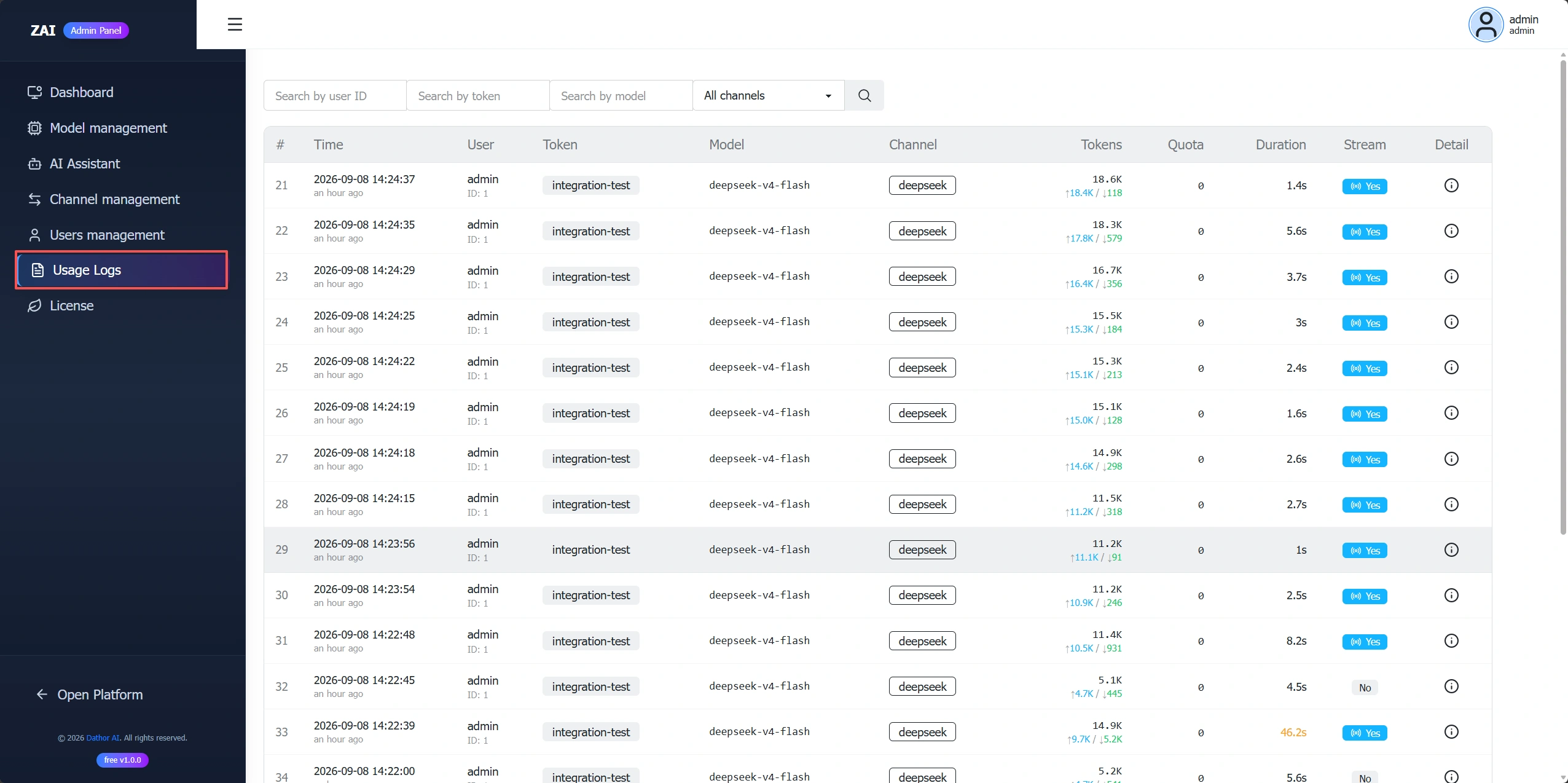
Click Usage Logs for the target channel to view its usage logs.
Model Management
Model Management maintains the models that ZAI can provide, including adding, editing, and deleting models. Go to the Admin Panel, then click Model Management in the left sidebar to open the model list.
Model List
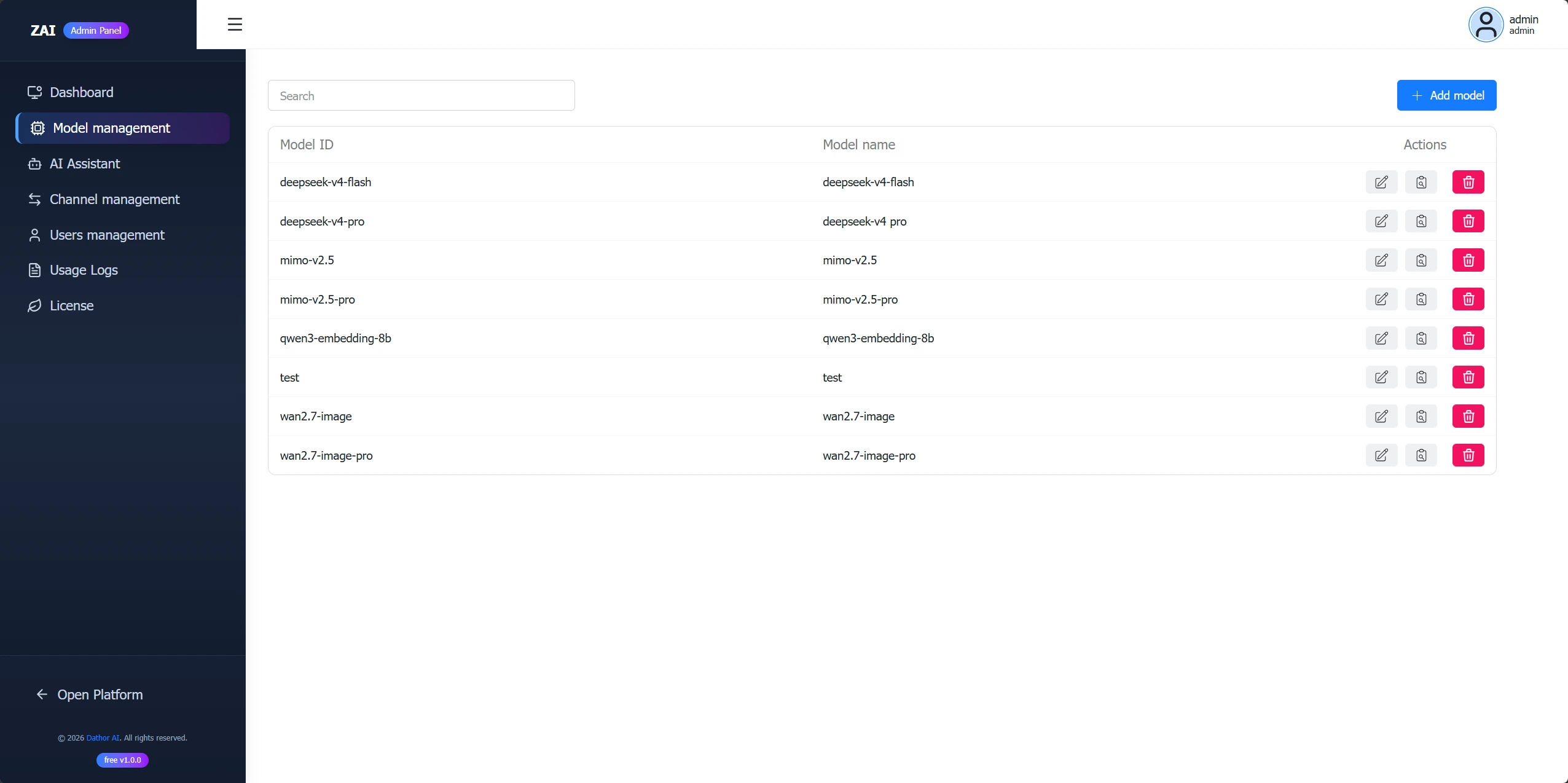
In the model list, you can view all model information, add new models, edit existing models, and view usage logs for each model.
Add a Model
Click Add Model in the top-right corner of the model list, enter the model name, and submit to create the model.
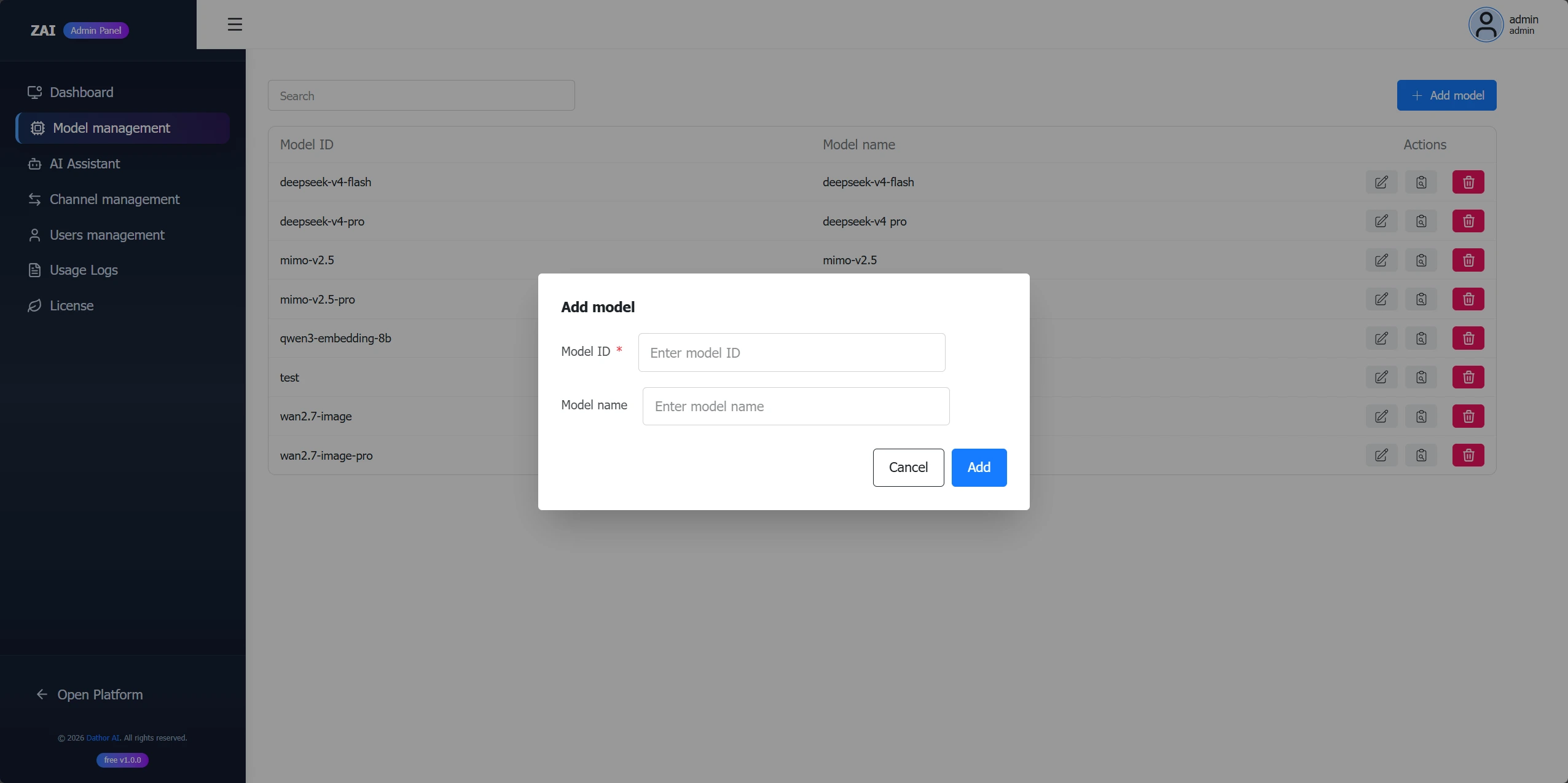
After creating a model, you must edit it to complete the configuration before it can be used.
Edit a Model
Click Edit for the target model to open the edit page. Complete the model configuration and submit. Ensure that the required channel has been added first. (The model mapping must be entered manually using the actual model name.)
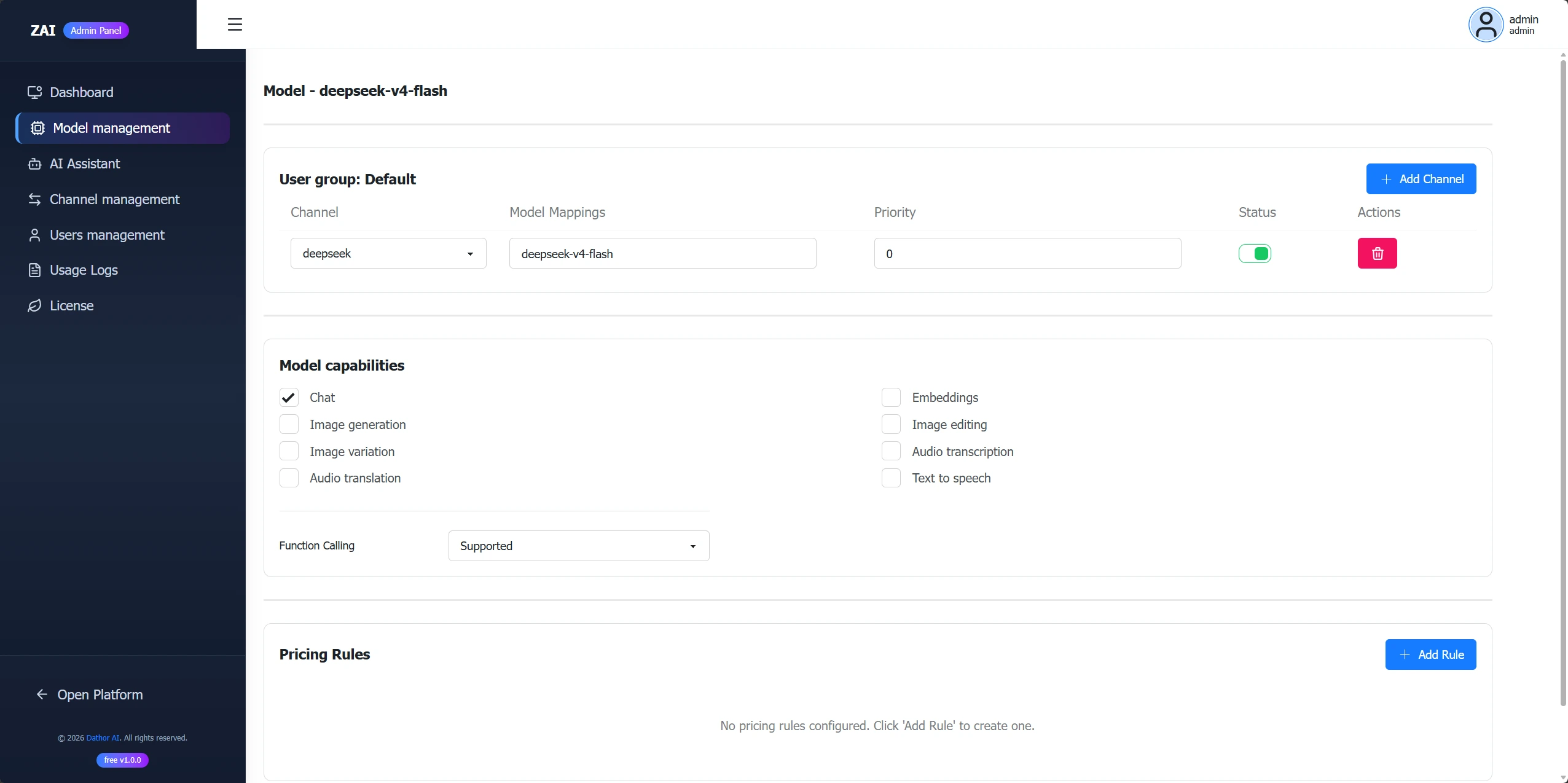
When editing a model, configure:
- User Group: which user groups can access this model
- Channel: which chennel deliver this model; configure at least one channel and set the model mapping and priority for that channel.
- Pricing Rules: the model capability, billing unit, price, and margin rate
Delete a Model
Click Delete for the target model to delete it.
View Model Usage Logs
Click View Usage Logs for the target model to view its usage logs.
Integration Management
After configuring providers and models, if you need to use ZAI in other applications, you must create an integration and obtain tokens for API calls. Go to the Open Platform, then click Integrations in the left sidebar to open the integration list.
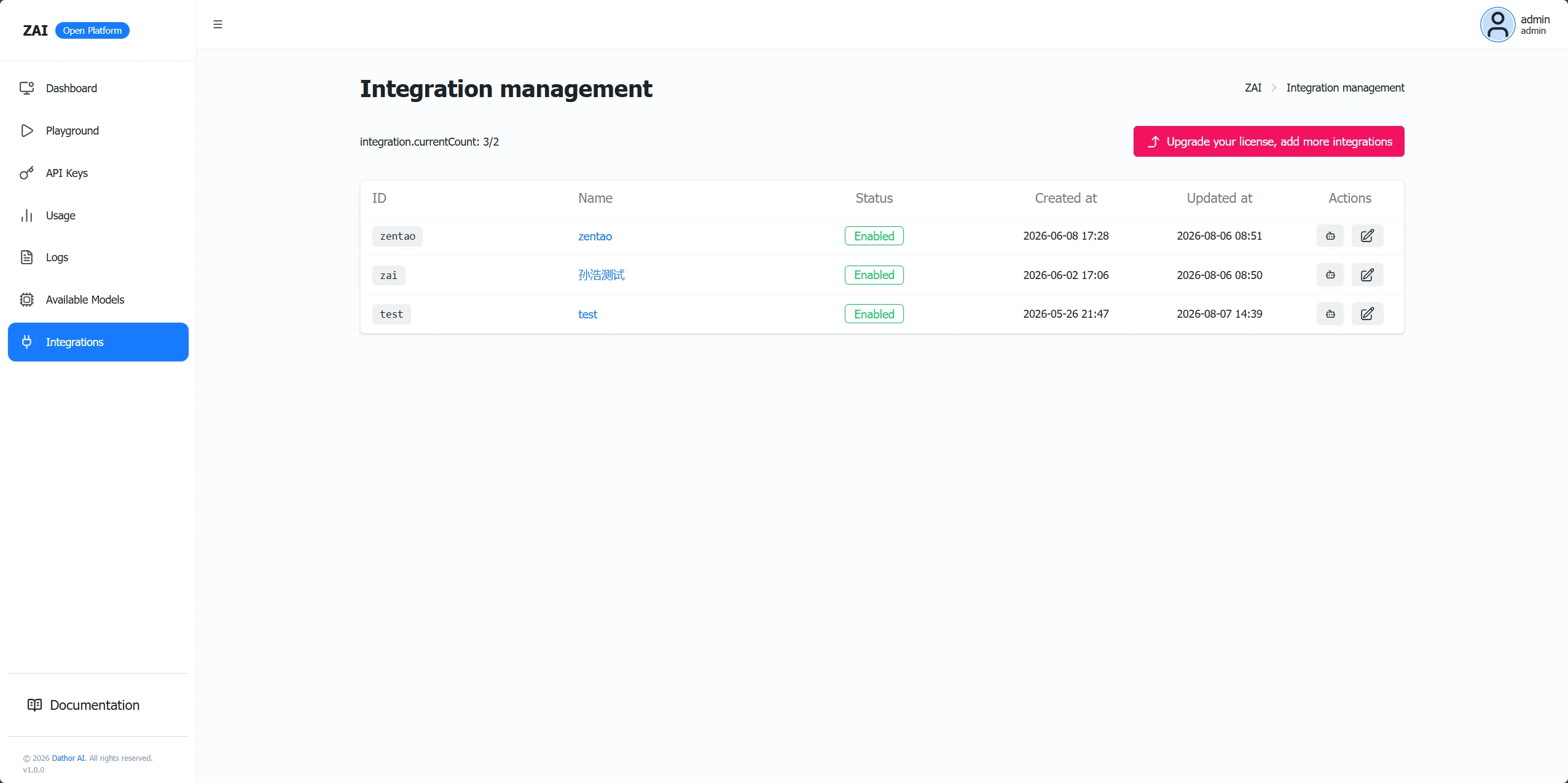
In the integration list, you can view all integrations, add new integrations, and edit existing integrations.
Add an Integration
Click Add Integration in the top-right corner of the integration list, fill in the required information, and submit to create the integration.
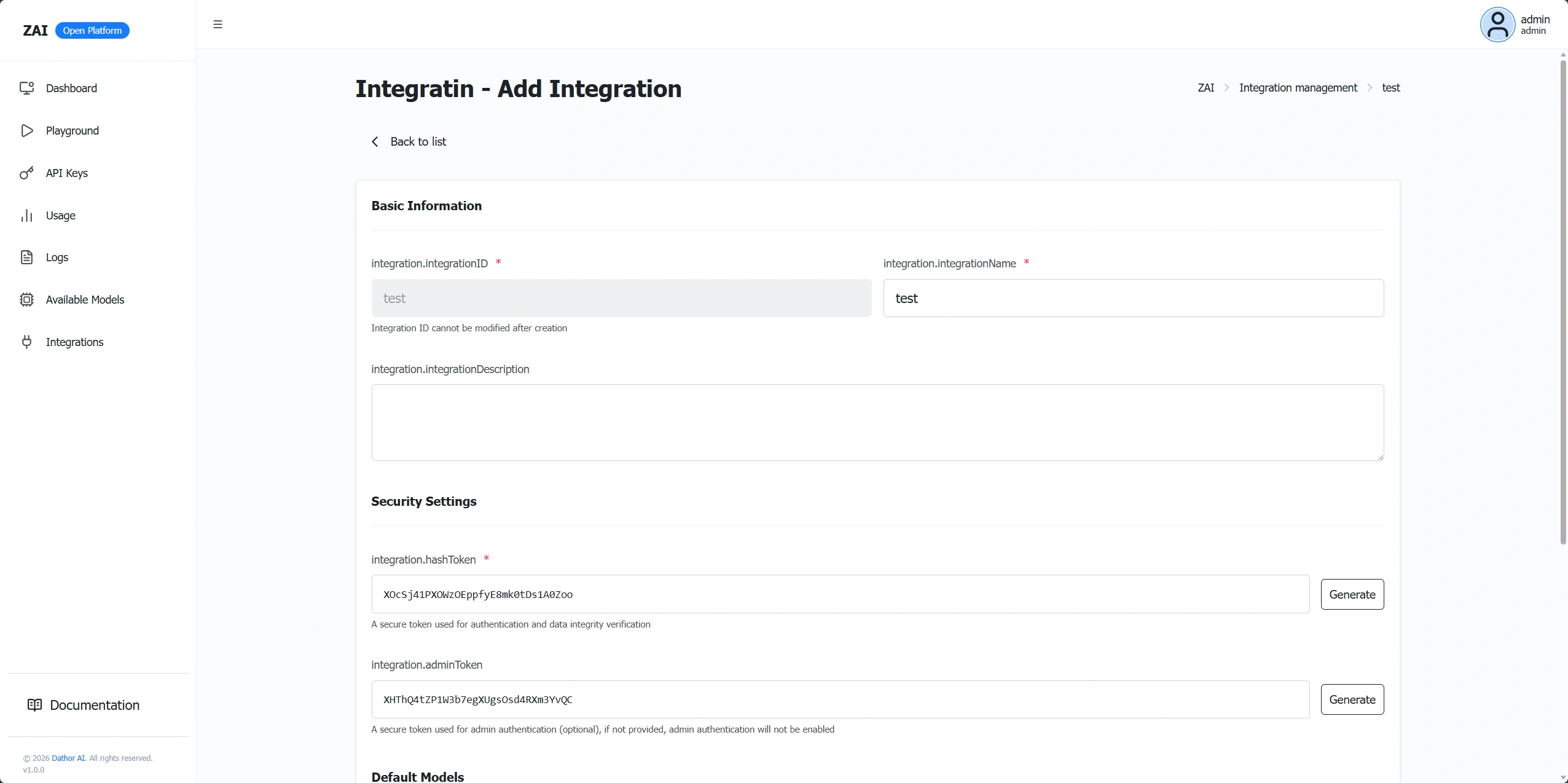
When adding an integration, configure:
- Integration ID: a unique identifier for the integration; required when calling from other applications
- Integration Name: a human-readable name
- Hash Token: the token used for standard API calls; can be customized or auto-generated
- Admin Token: the token used for admin API calls; can be customized or auto-generated
- Default Chat Model
- Default Embedding Model
Edit an Integration
Click Edit for the target integration to open the edit page, update the information, and submit.
The required fields are the same as when creating an integration.
Deletion is not supported at this time. However, you can disable an integration in the edit page. Once disabled, its tokens can no longer be used to call related APIs.
API Keys
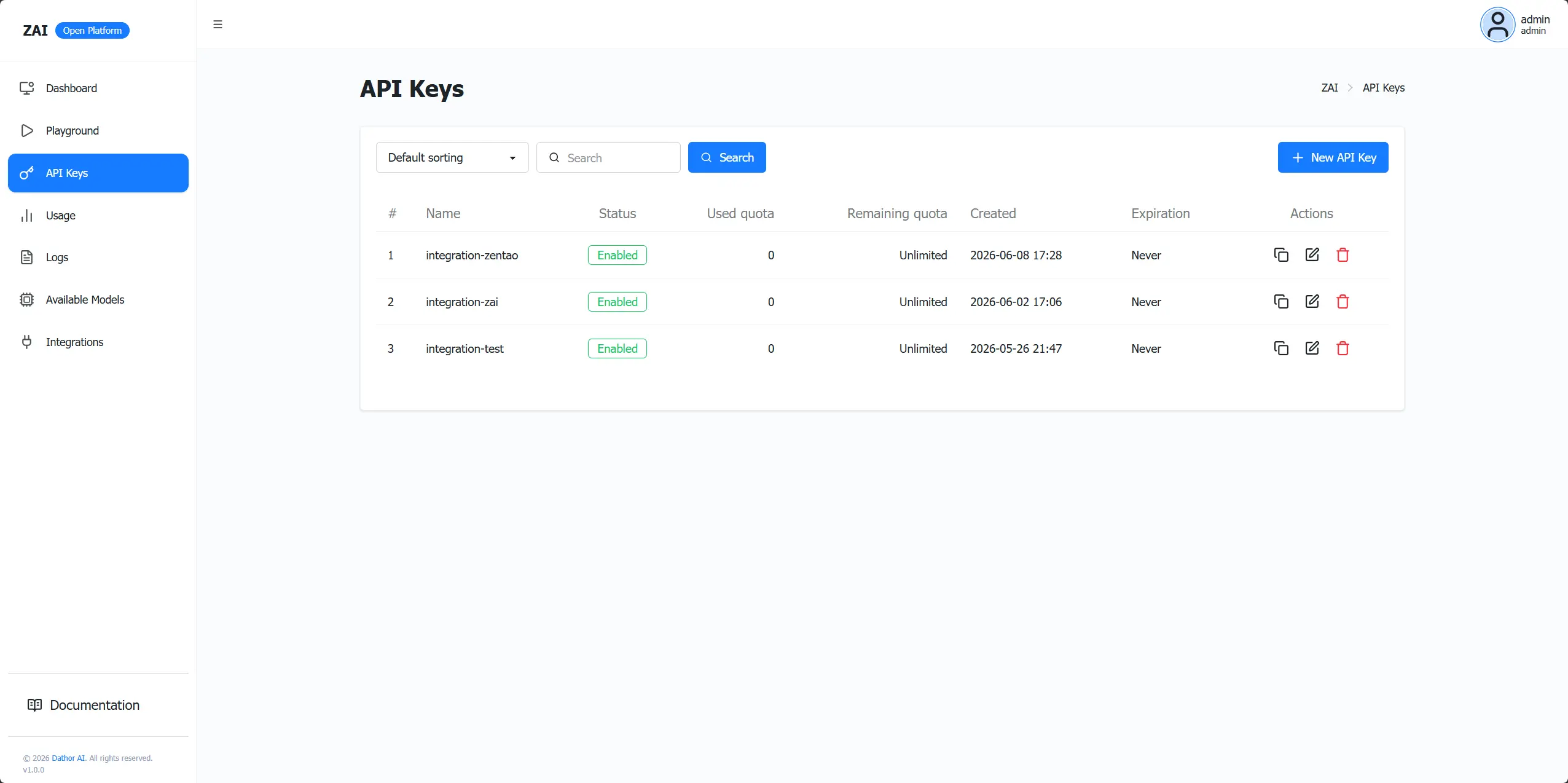
The key in this section is generated automatically when you add an integration, so you do not need to create it manually.
API Documentation
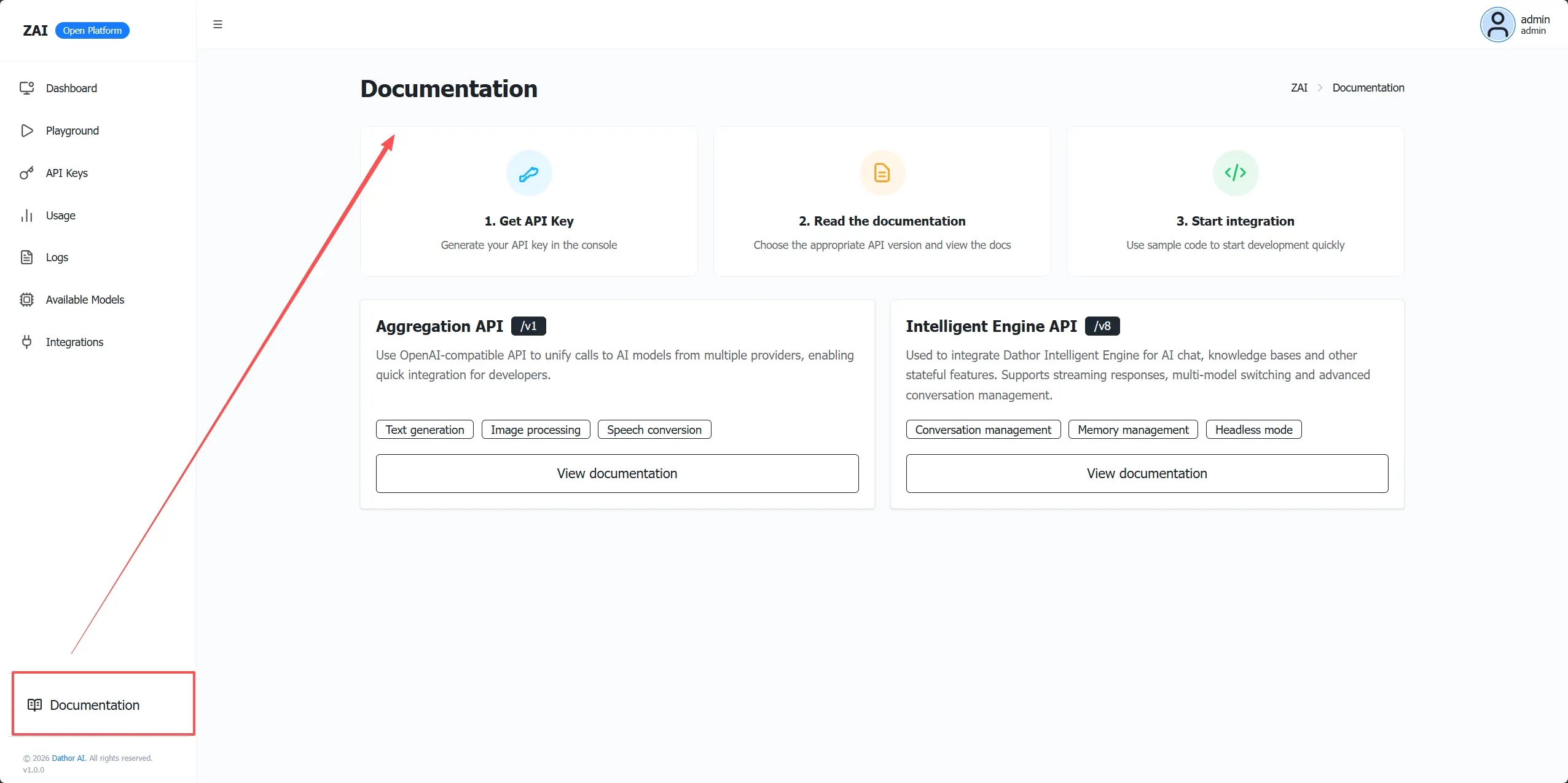
To use the ZAI service, make API calls. In the Open Platform, click Documentation in the lower-left corner to open the API documentation. ZAI currently provides two categories of APIs:
- Aggregation API: an OpenAI-compatible API to access models from multiple channels through a unified interface for quick integration
- Intelligent Engine API: for stateful capabilities such as AI chat and knowledge base in application integrations; supports streaming responses, multi-model switching, and advanced conversation management