Feature Configuration
1. Using Sanplex by Role
1.1. Administrator
1.1.1 Manage Departments
1.1.2 Manage Users
1.1.3 Manage Permissions
1.1.4 Configure Notifications
2. Introduction of Sanplex features
2.1. Core Management Framework
2.1.1 Program
2.1.2 Project
2.1.3 Product
2.1.4 Execution
2.1.5 Management Models
2.2. Dashboard
2.2.1 Getting Started with Tutorials
2.2.2 Quick Add
2.2.3 Notification Center
2.2.4 Effort Tracking
2.2.5 Dashboard - Project and Execution
2.2.6 Dashboard - My Work, Contribution, and Recents
2.2.7 Dashboard - Approval
2.2.8 Contacts
2.3. Program
2.3.1 Program List
2.3.2 Program Kanban
2.3.3 Create Program
2.3.4 Create Sub-Programs
2.3.5 Project Charter Management
2.4. Product
2.4.1 Create Product
2.4.2 Manage Modules
2.4.3 Multi-Branch and Multi-Platform Management
2.4.4 Manage Plans
2.4.5 Manage Stories
2.4.6 Story Reviews
2.4.7 Story Status and Phase
2.4.8 Create Releases
2.4.9 Track Progress
2.4.10 Epics and Multi-Level Stories
2.5. Project
2.5.1 Scrum Project
2.5.2. Waterfall Project
2.5.2.1 Manage Project Phases
2.5.2.2 Project Design
2.5.2.3 Project Matrix
2.5.2.4 Project Reports and Earned Value Management
2.5.2.5 Project Baselines
2.5.2.6 Project Change
2.5.3. Kanban Project
2.5.3.1 Set Up Kanban Projects
2.5.3.2 Configure Kanban Boards
2.5.3.3 Use Kanban Boards
2.5.4 Hybrid Agile Project
2.5.5 Hybrid Waterfall Project
2.5.6. Project Settings
2.5.6.1 Project Setup
2.5.6.2 Project Executions
2.5.6.3 Project Requirements
2.5.6.4 Project Builds
2.5.6.5 Project Tests
2.5.6.6 Project Docs
2.5.6.7 Project Releases
2.5.6.8 Project Reports
2.5.6.9 Project Risks
2.5.6.10 Project Issues
2.5.6.11 Project Opportunities
2.5.6.12 Project Deliverables
2.5.6.13 Project Reviews
2.5.6.14 Project Process
2.5.6.15 Deliverables
2.5.6.16 Quality Assurance
2.5.6.17 Project-specific Workflow Management
2.5.7 Project Templates
2.6. Execution
2.6.1 Product Planning and Task Breakdown
2.6.2 Task Assignment and Daily Tracking
2.6.3 Build Creation and Test Requests
2.6.4 Bug Confirmation and Resolution
2.6.5 Execution Kanban Boards
2.7. Testing
2.7.1 Write Test Cases
2.7.2 Execute Test Cases
2.7.3 Bug Submission and Reports
2.7.4 Verify and Close Bugs
2.7.5 Test Case Scenes
2.7.6 Submit a Test Request
2.7.7 Test Report
2.8. Agent
2.8.1 Conversation
2.8.2 Sanplex Agents
2.8.3 General Agents
2.8.4 Skill Management
2.8.5 AI Knowledge Library
2.8.6 Models
2.8.7 ZAI Service Installation
2.8.8 ZAI Service Control Panel
2.8.9 ZAI Configuration
2.9. Kanban
2.9.1 Kanban Spaces
2.9.2 Kanban Regions
2.9.3 Kanban Cards
2.10. Company
2.10.1 View Team Members and Work Information
2.10.2 View Recent Company Activity
2.10.3 View and Edit Company Information
2.11. Feedback
2.11.1 Configure, Create, and Review Feedback
2.11.2 Process Feedback and Send Notifications
2.11.3 Tickets
2.12. Admin Settings
2.12.1. System Settings
2.12.1.1 Mode
2.12.1.2 Backup
2.12.1.3 Trash
2.12.1.4 License
2.12.1.5 Security
2.12.1.6 Cron Job
2.12.1.7 Time Zone
2.12.1.8 Rebuild Index
2.12.1.9 LDAP
2.12.1.10 Table Engine
2.12.2 Feature Options
2.12.3. Users Management
2.12.3.1 Set Departments and Edit Company Profile
2.12.3.2 Manage Users
2.12.3.3 Set Permisions
2.12.4. Feature Configuration
2.12.4.1 Dashboard
2.12.4.2 Product
2.12.4.3 Project
2.12.4.4 Execution
2.12.4.5 Test
2.12.4.6 Kanban
2.12.4.7 Feedback
2.12.4.8 Tickets
2.12.4.9 User
2.12.4.10 Relations (Standard Version)
2.12.4.11 Meaturement
2.12.5 Migrate Jira Data to Sanplex
2.12.6 Jira to Sanplex Migration Mapping
2.12.7 Migrate Confluence Data to Sanplex
2.12.8. Agent Configuration
2.13. Asset Library (Premium)
2.13.1 Asset Library Management (Premium)

Project

2026-09-29 14:30:11
Kelsea Zhang
71
Last edited by Kelsea Zhang on 2026-09-30 14:00:51
Share links
Summary: This guide walks you through configuring the general elements of projects in Sanplex, covering required fields, closure settings, builds, working hours, risks, opportunities, quality assurance, estimates, and expense accounts.

Go to Admin > Feature Options > Project to configure the general project elements, such as Project, Build, Workflow, Workload Ratio, Man-hour(s), Project Change, Issue, Risk, Opportunity, Quality Assurance, Estimate, and Expense Account.
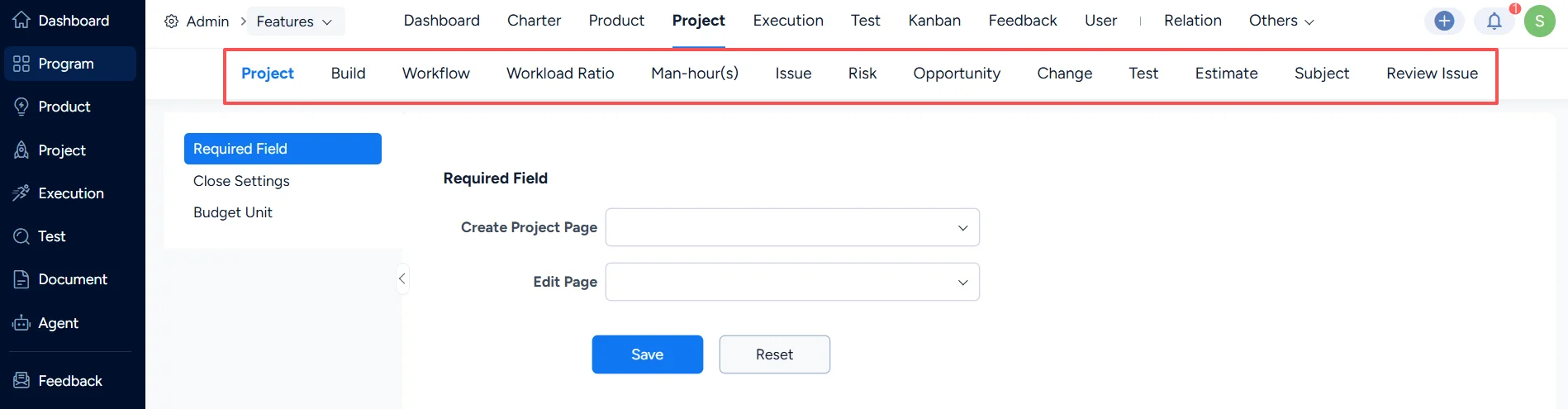
Project settings in Admin

Ⅰ. Project

Under Project > Required Field, you can set which fields are mandatory on the project creation and edit pages.
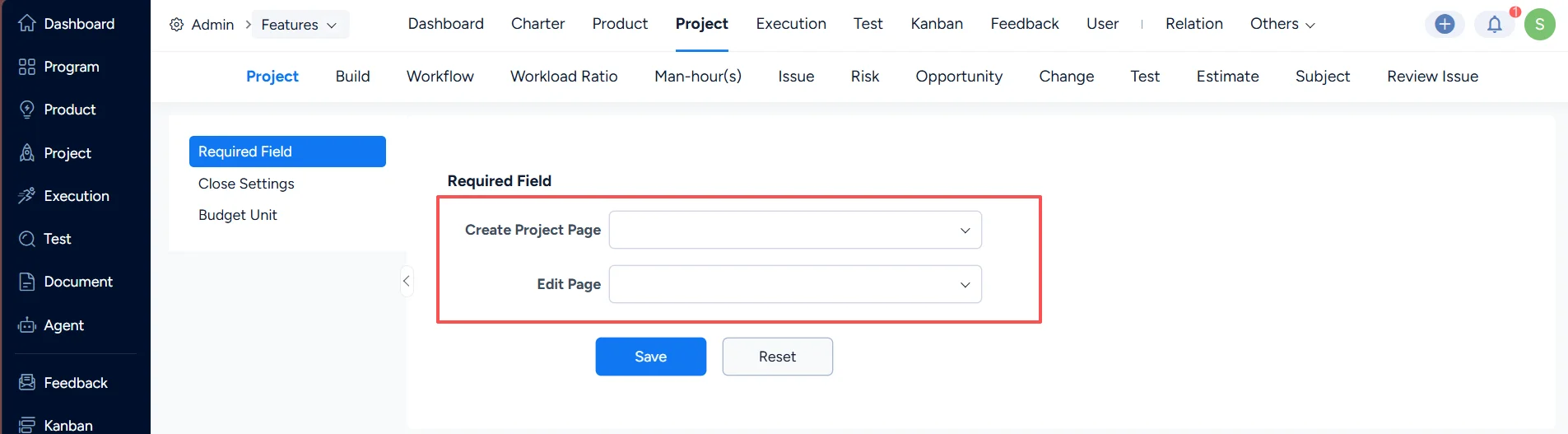
Set required fields for project

Under Project > Close Settings, you can configure whether data can still be modified once a project is closed.
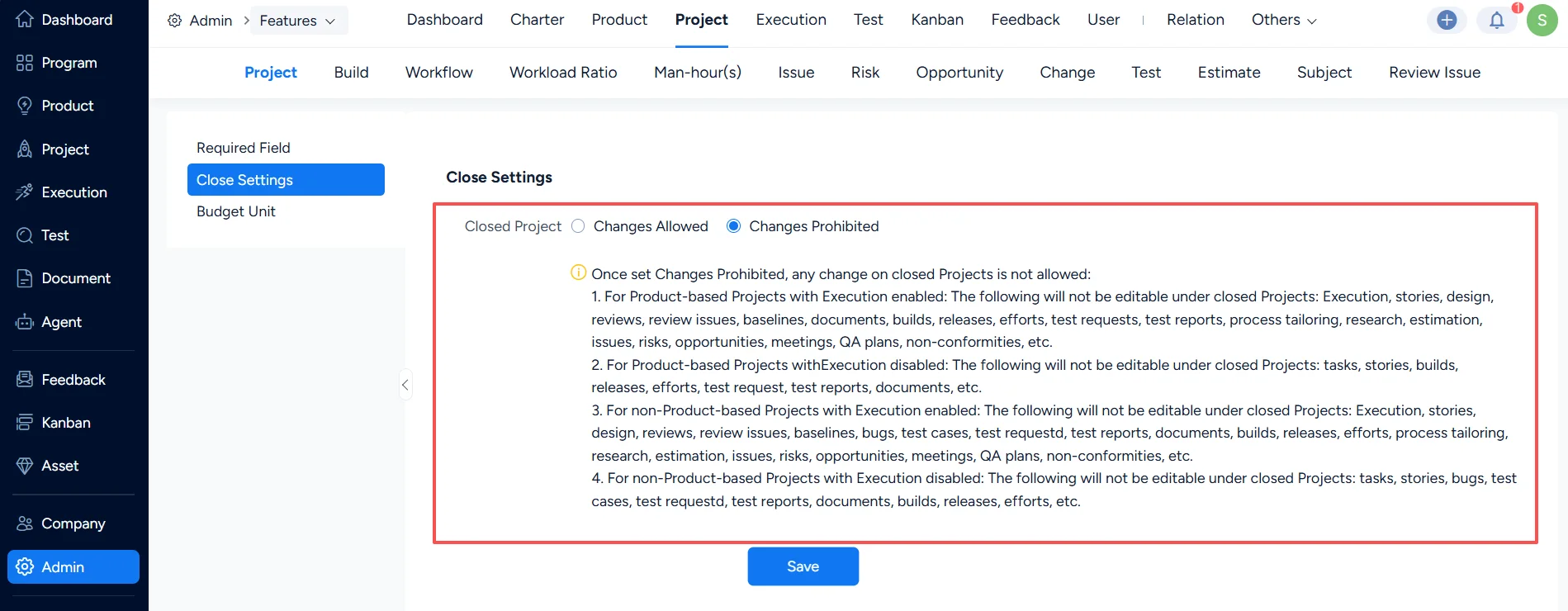
Project close settings

Under Project > Budget Unit, you can configure the unit used for project budgets.
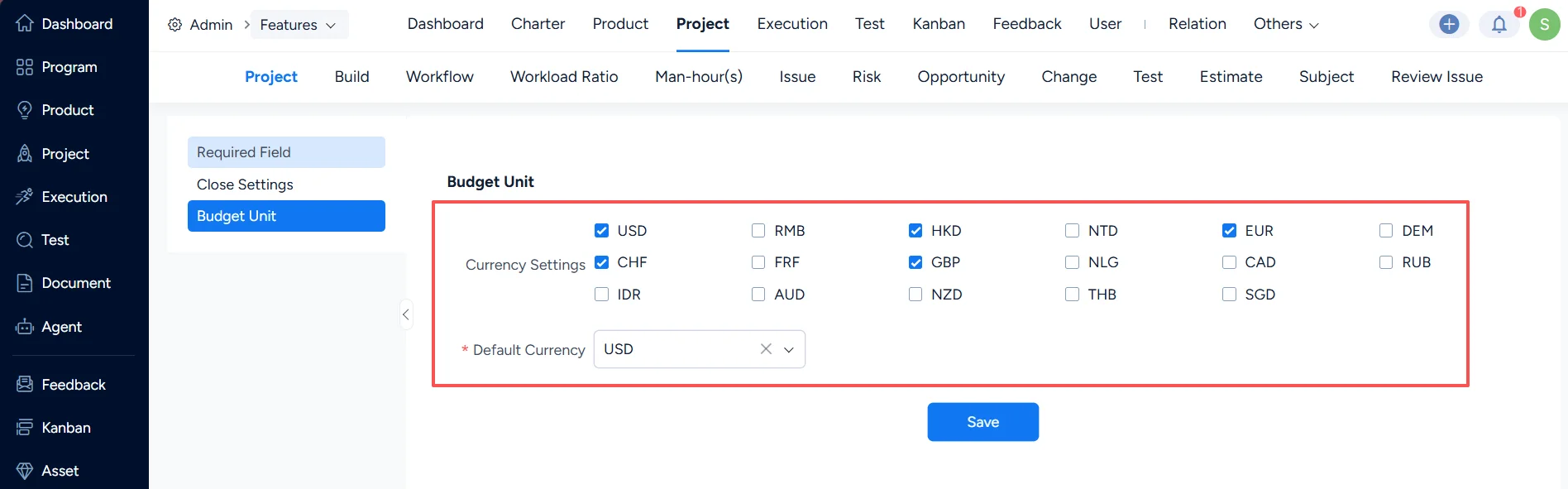
Set budget unit for projects

Ⅱ. Build

Under Project > Build, you can set which fields are mandatory on the build creation and edit pages.
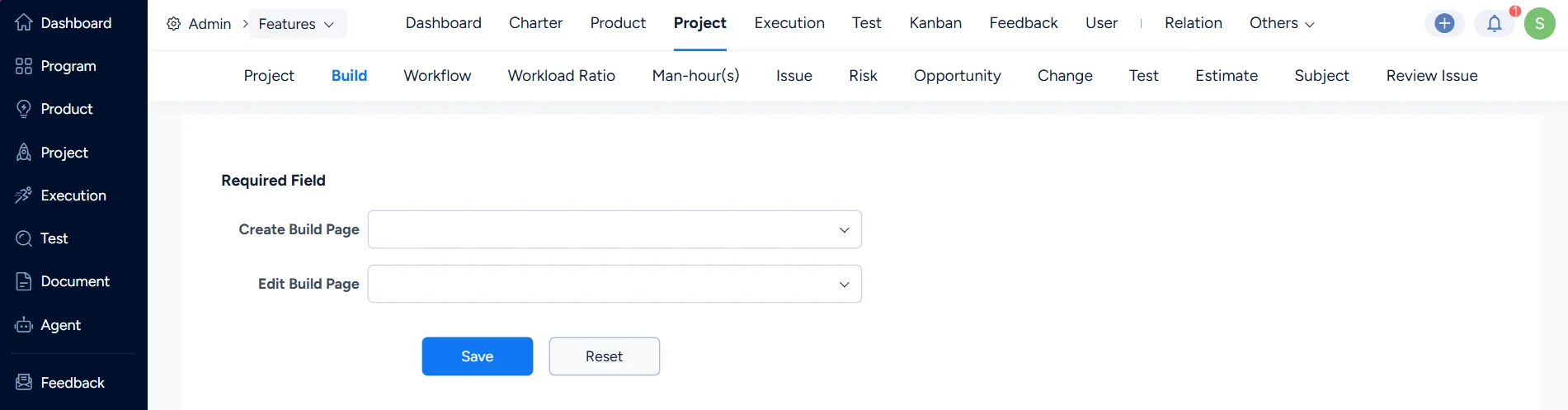
Set required fileds for builds

Ⅲ. Workflow Settings

Under Project > Workflow, you can configure how projects, products, and executions are managed, as well as the unit used for size estimation.
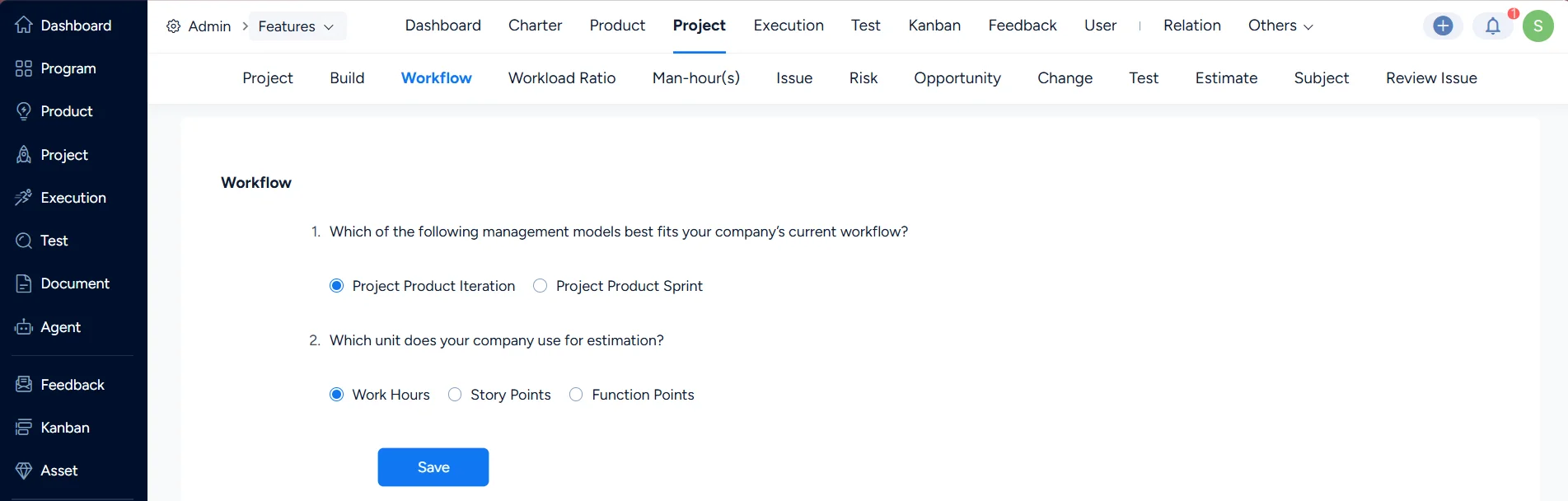
Workflow settings

Ⅳ. Workload Ratio

Under Project > Workload Ratio, you can configure whether the Workload Ratio setting is enabled for stages in waterfall projects.
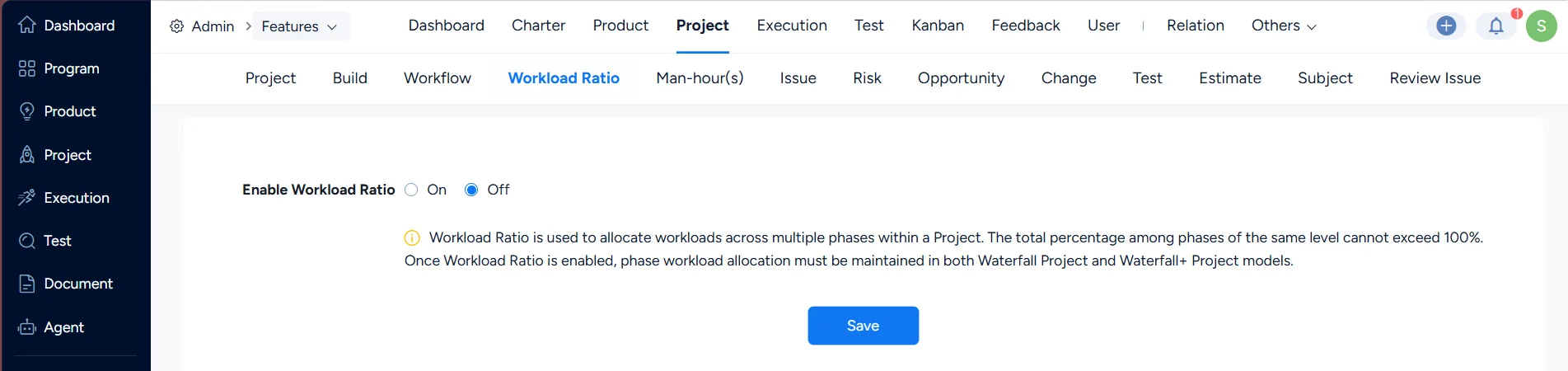
Workload ratio settings

Ⅴ. Man-hour(s)

Under Project > Man-hour(s), you can configure the hours available per day.
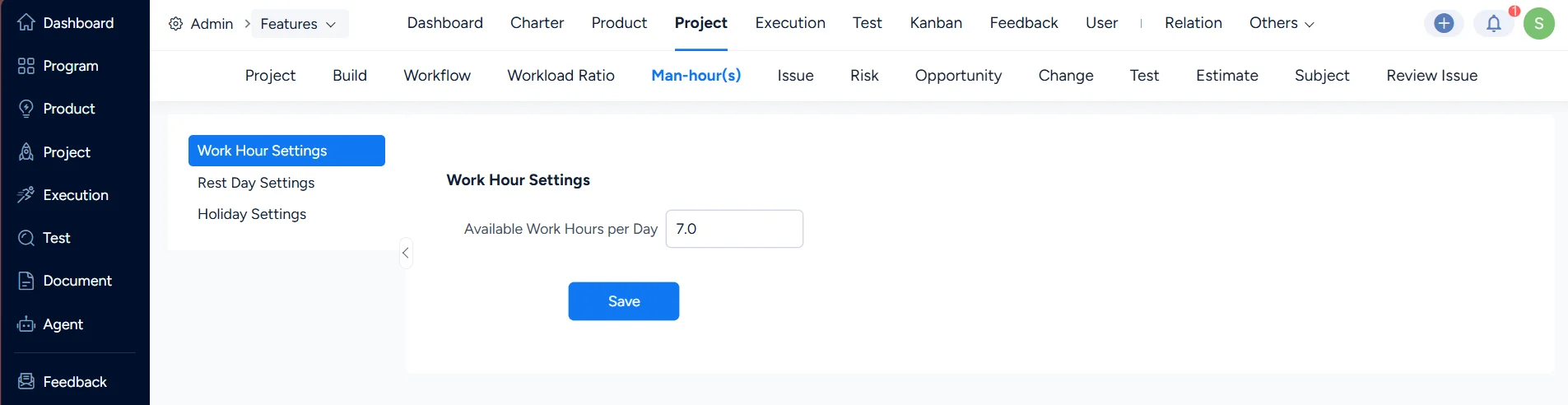
Work hours settings

You can also set the rest days here, choosing either a one-day or a two-day weekend.
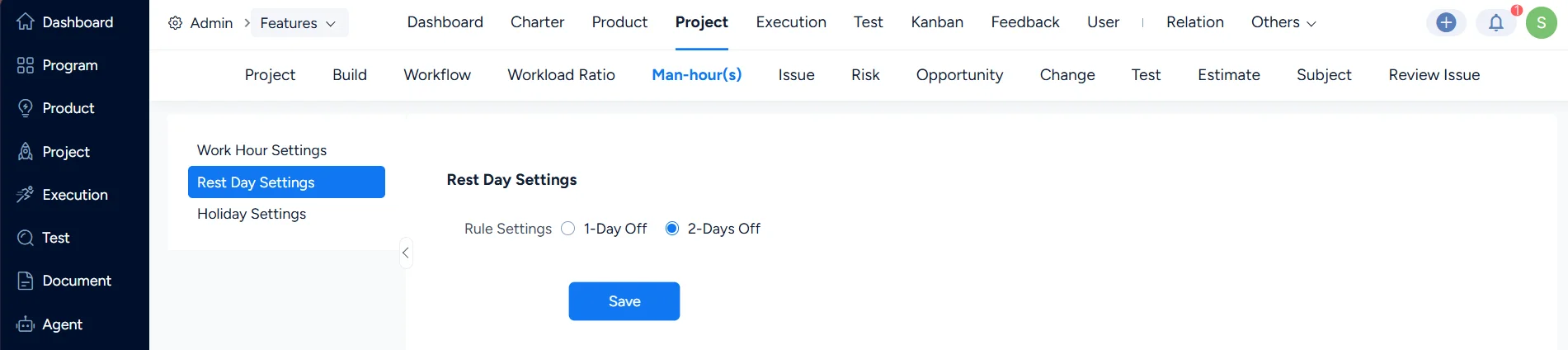
Rest day settings

Holidays can be configured as well: add them manually, or import national statutory holidays if the deployed environment has internet access.
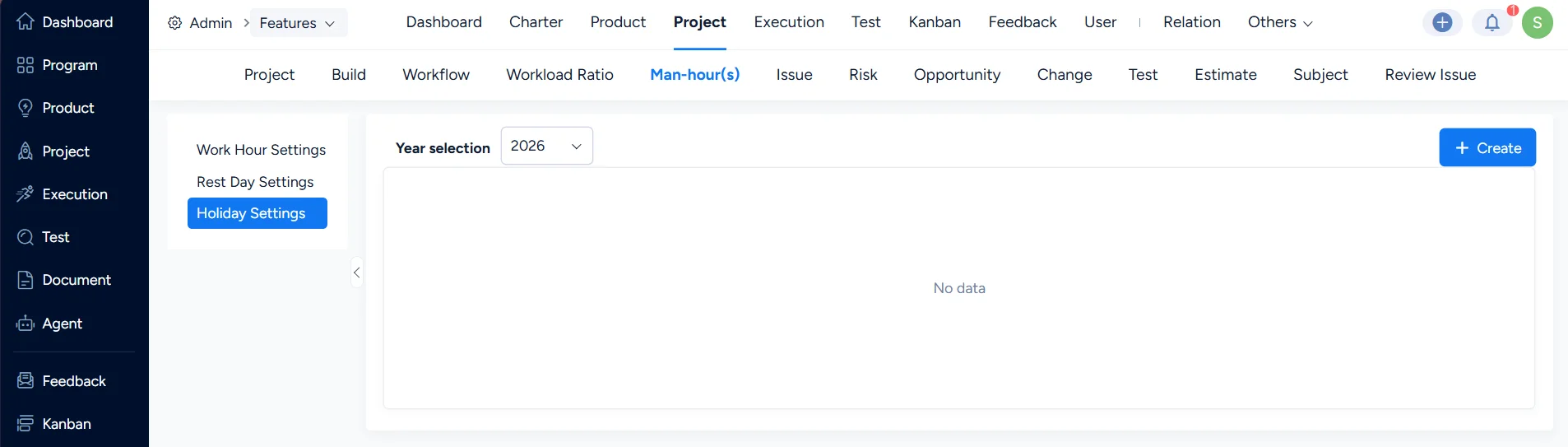
Holiday settings

Ⅵ. Project Change

Under Urgency Level, you can define your own urgency levels.
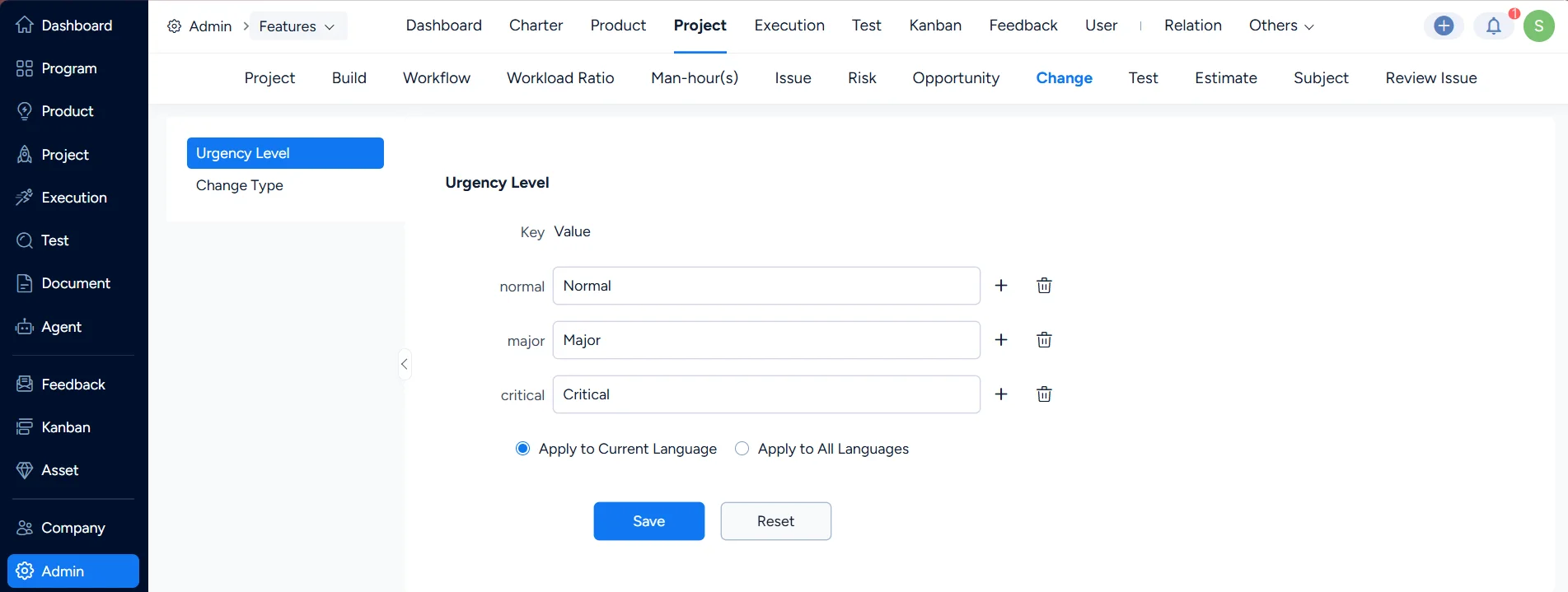
Set urgency levels for projects

Under Change Type, you can define your own change types.
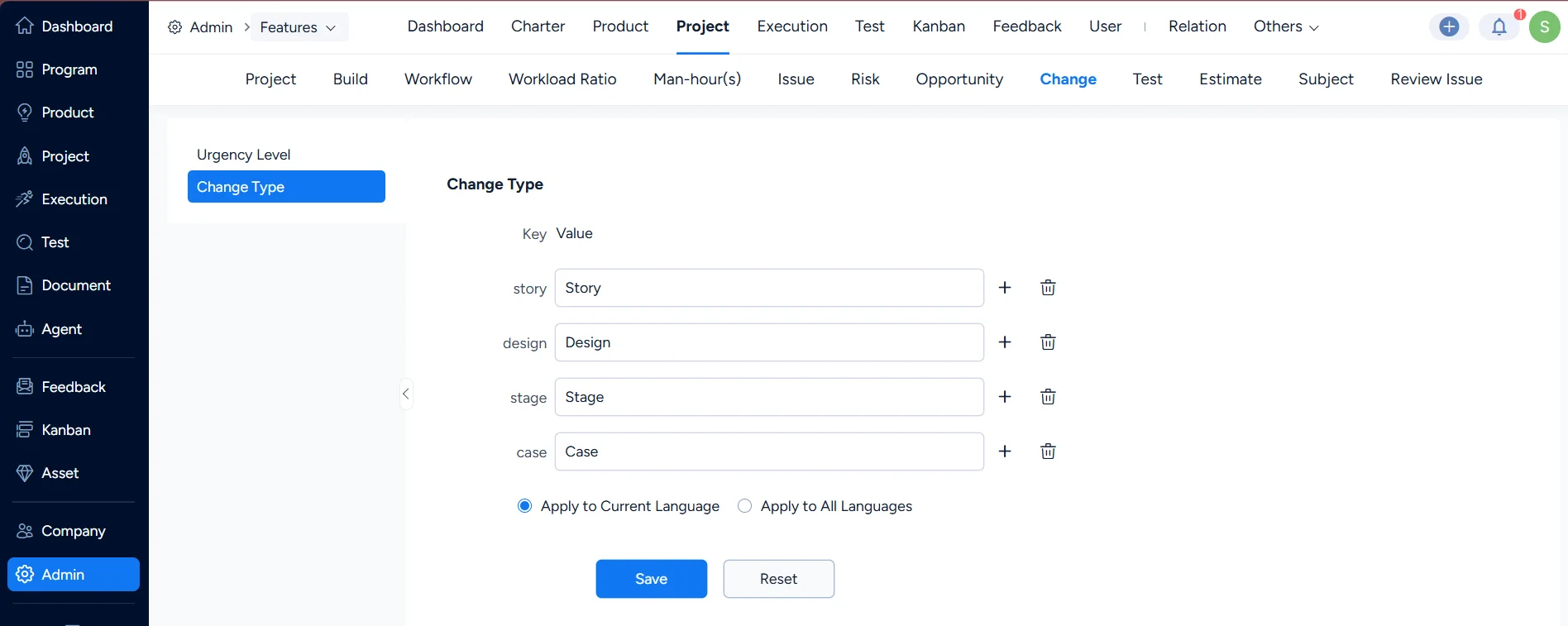
Set project change types

Ⅶ. Issue

Under Issue Settings, you can define your own issue types.
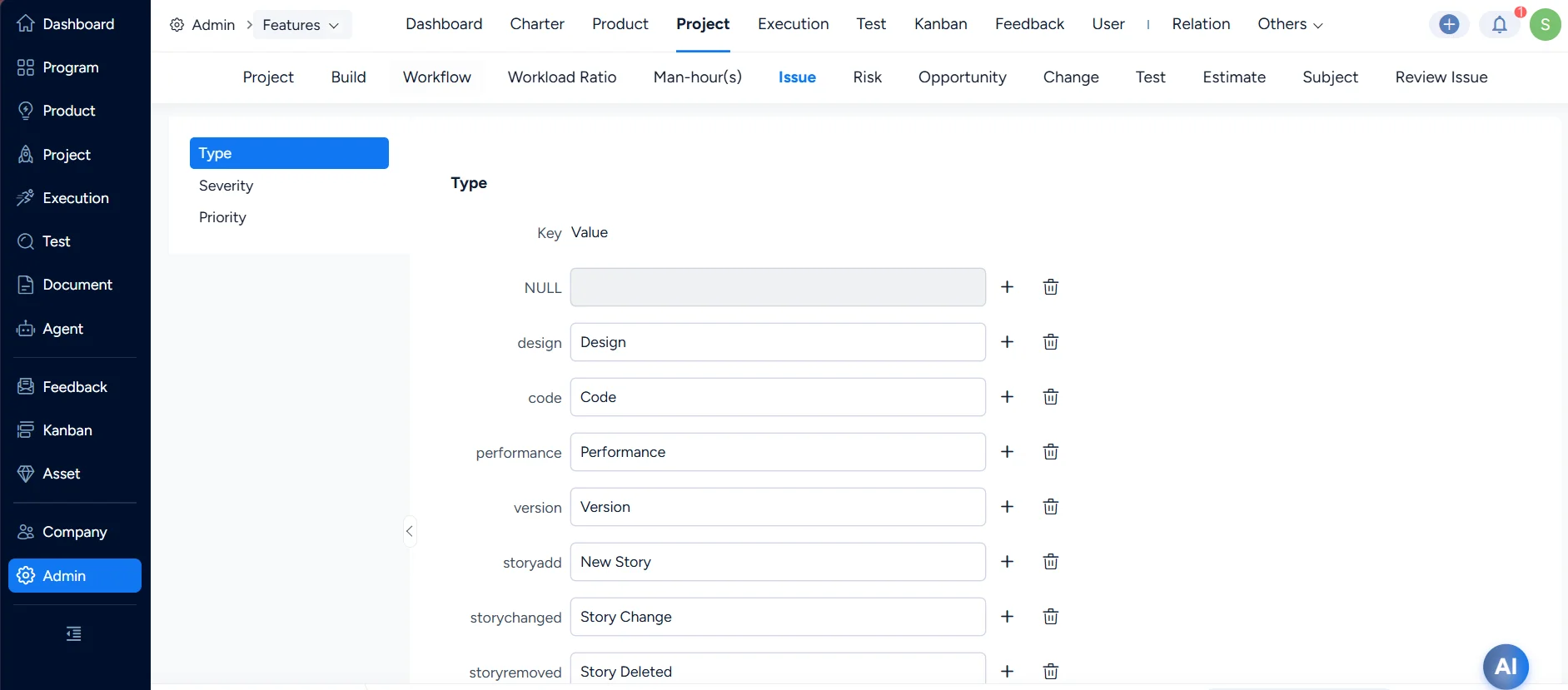
Set issue types

You can also define your own issue severity levels.
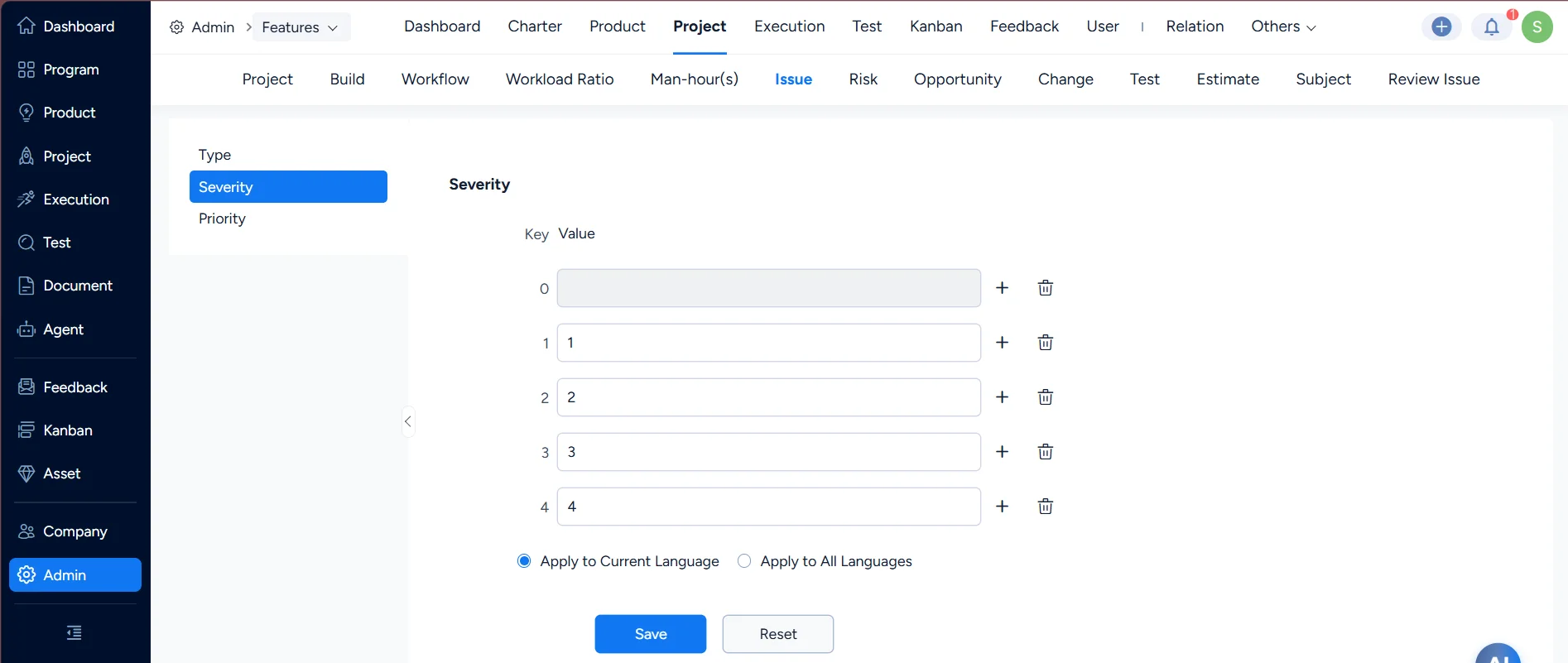
Set issue severity

Issue priorities can be defined in the same way.
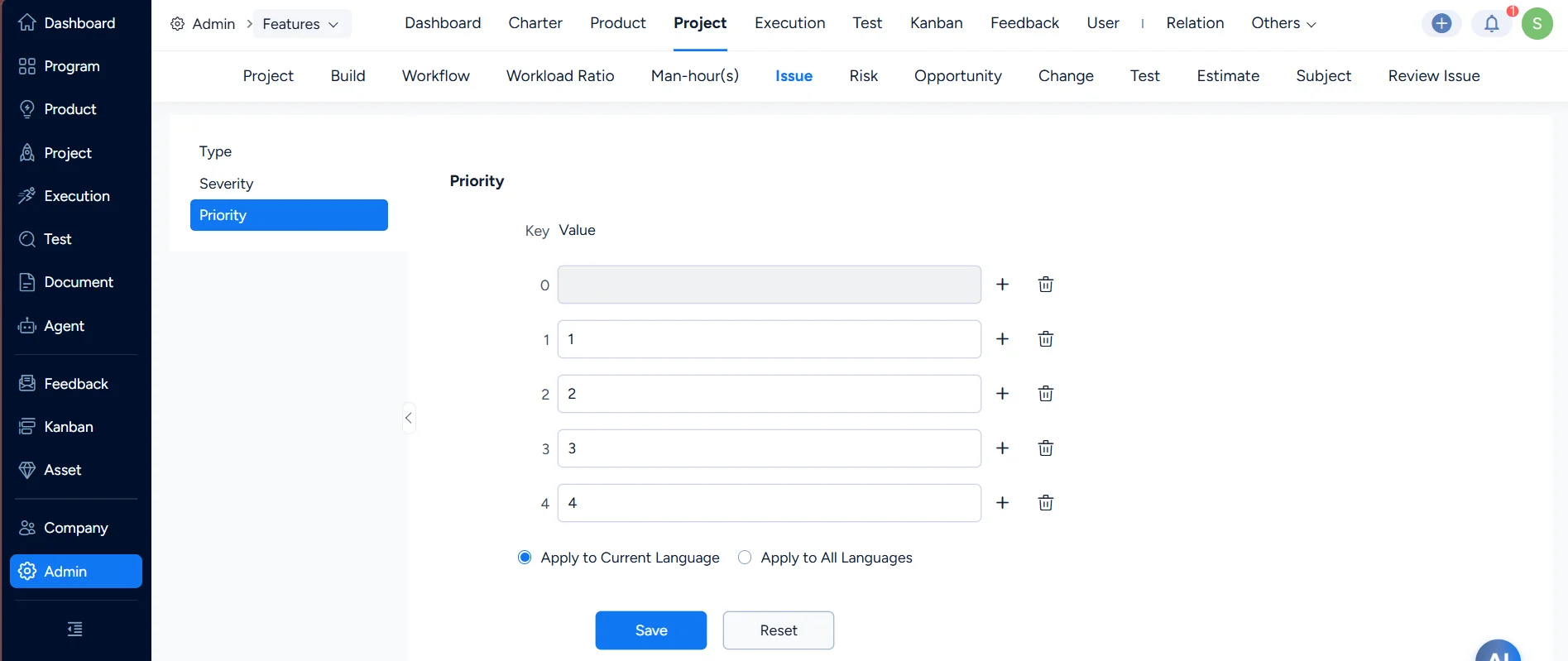
Set issue priority

VIII. Risk

Under Risk, you can define your own risk sources.
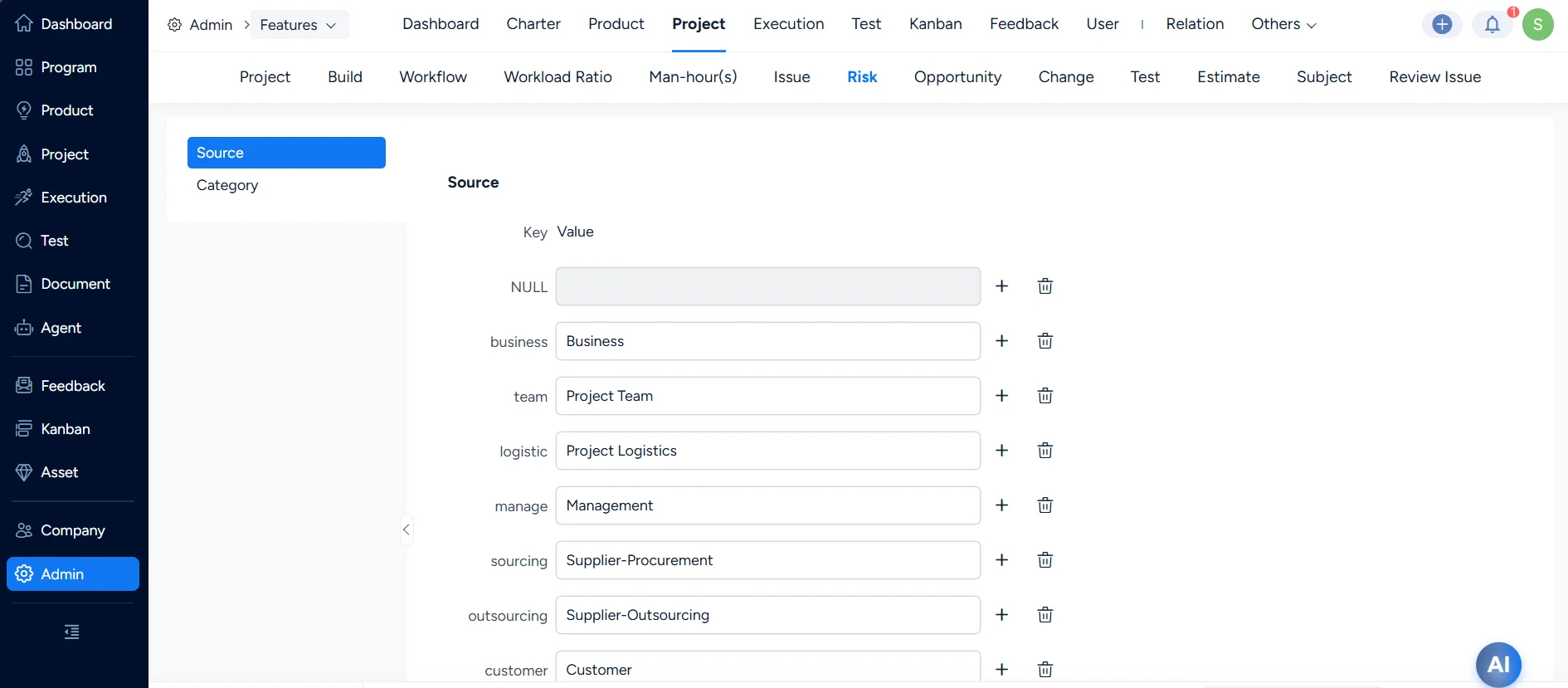
Project risk source

You can also define your own risk catagories.
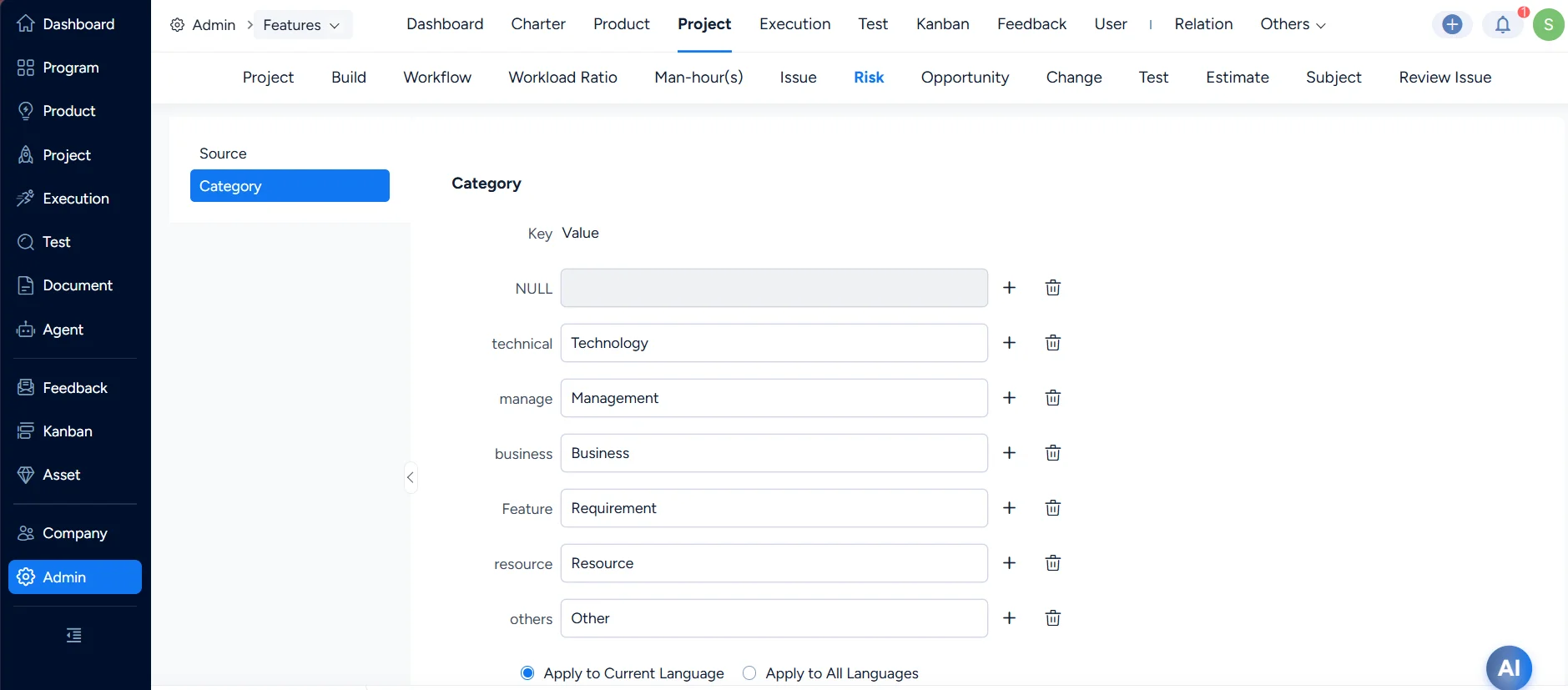
Project risk catagory

Ⅸ. Opportunity

Under Opportunity, you can define your own opportunity sources.
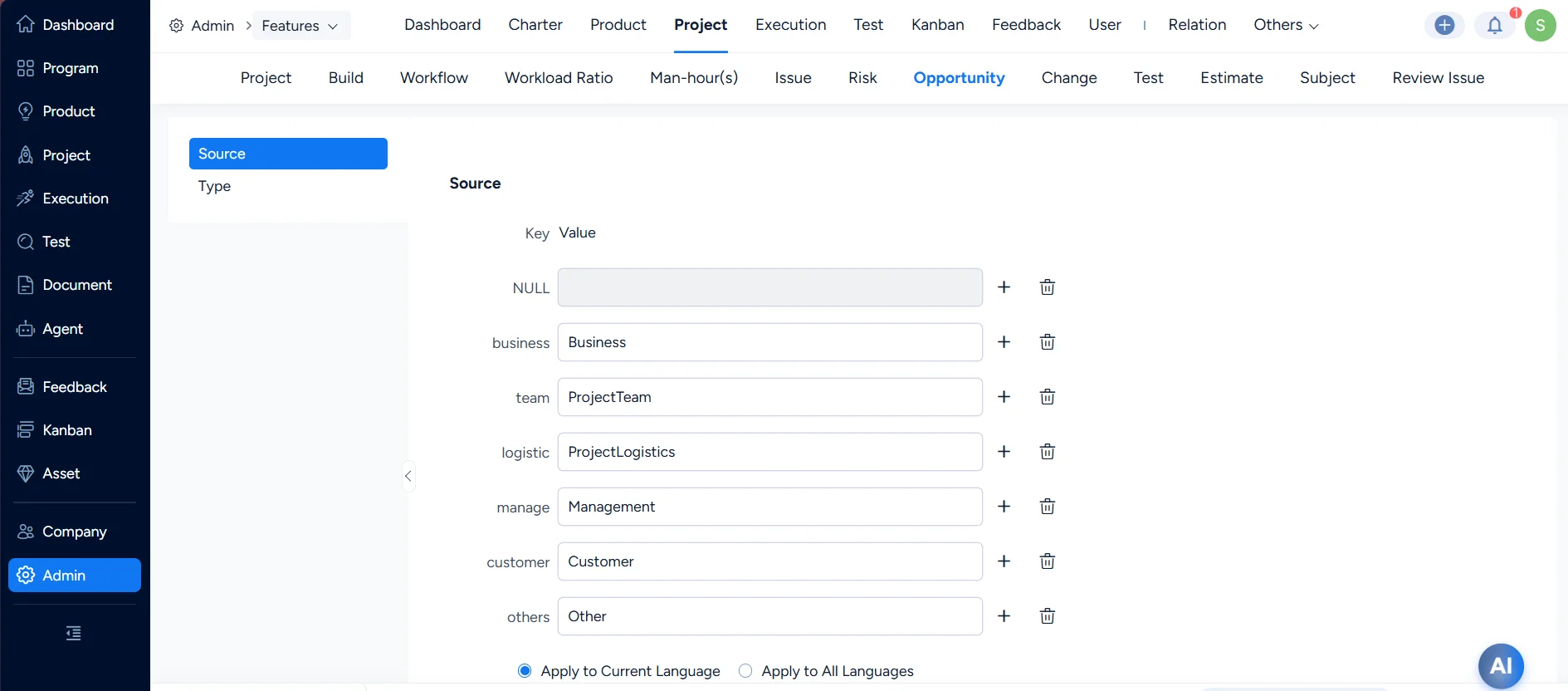
Project opportunity source

You can also define your own opportunity types.
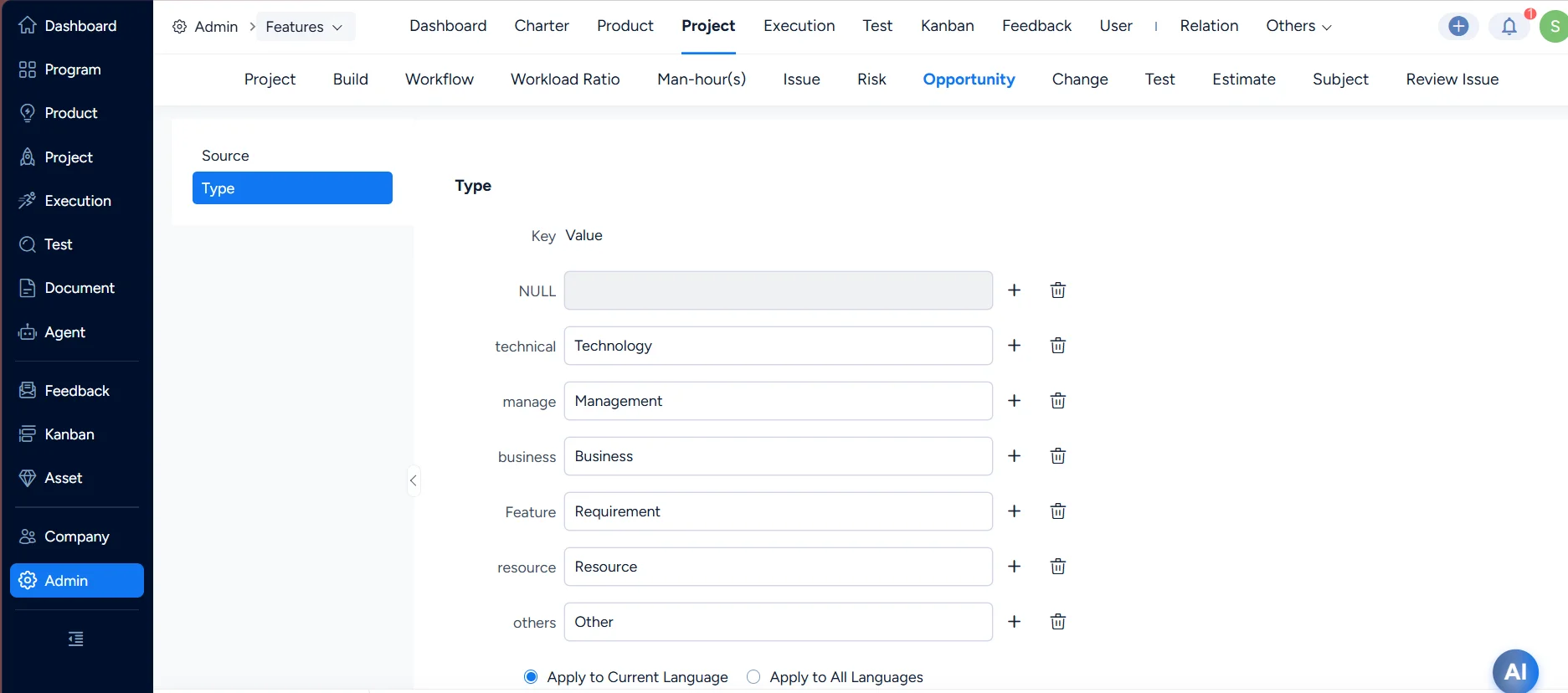
Project opportunity types

Ⅹ. Quality Assurance

Under Quality Assurance, you can define your own quality assurance types.
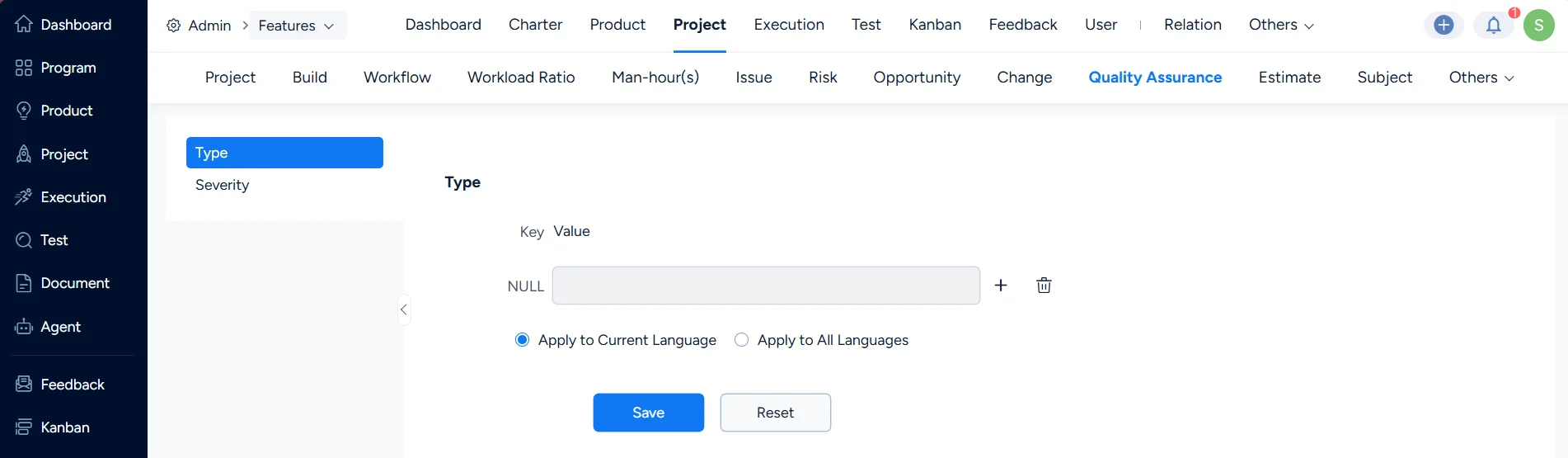
Quality Assurance types

You can also define your own quality assurance severity levels.
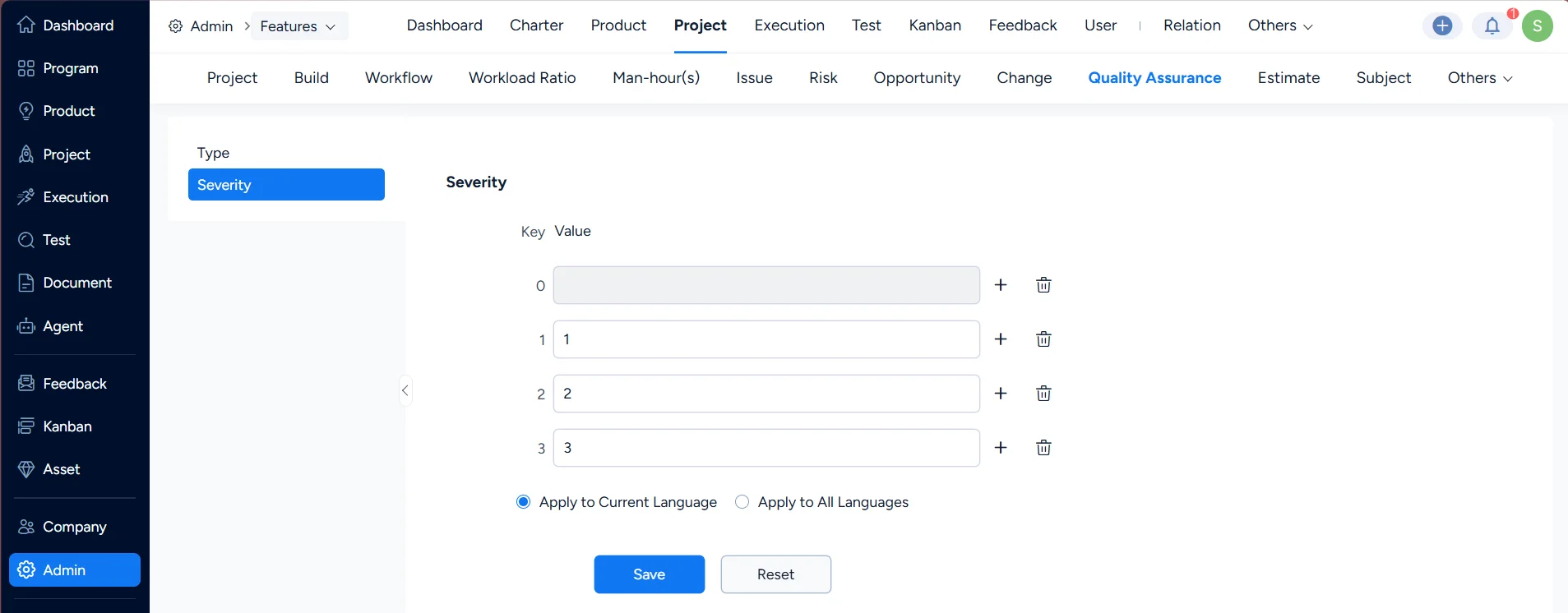
Quality Assurance severity

Ⅺ. Estimate

Under Estimate, you can define the estimate unit, labor cost per unit, working hours per day, and working days per week.
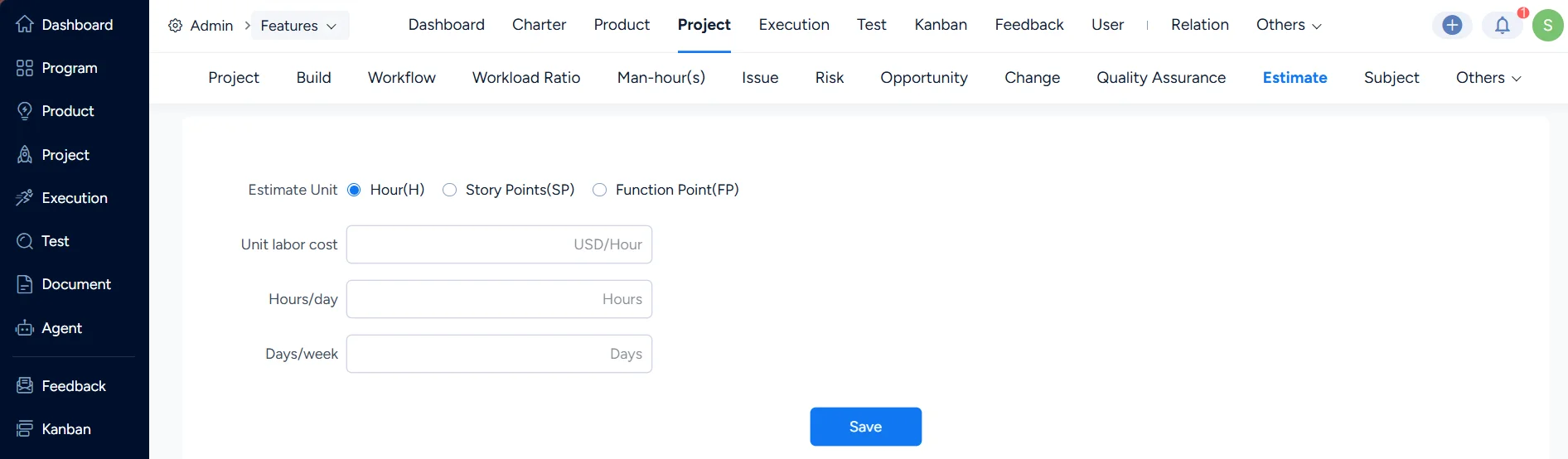
Set project estimation

Ⅻ. Expense Account

Under Expense Account, you can define your own expense accounts.
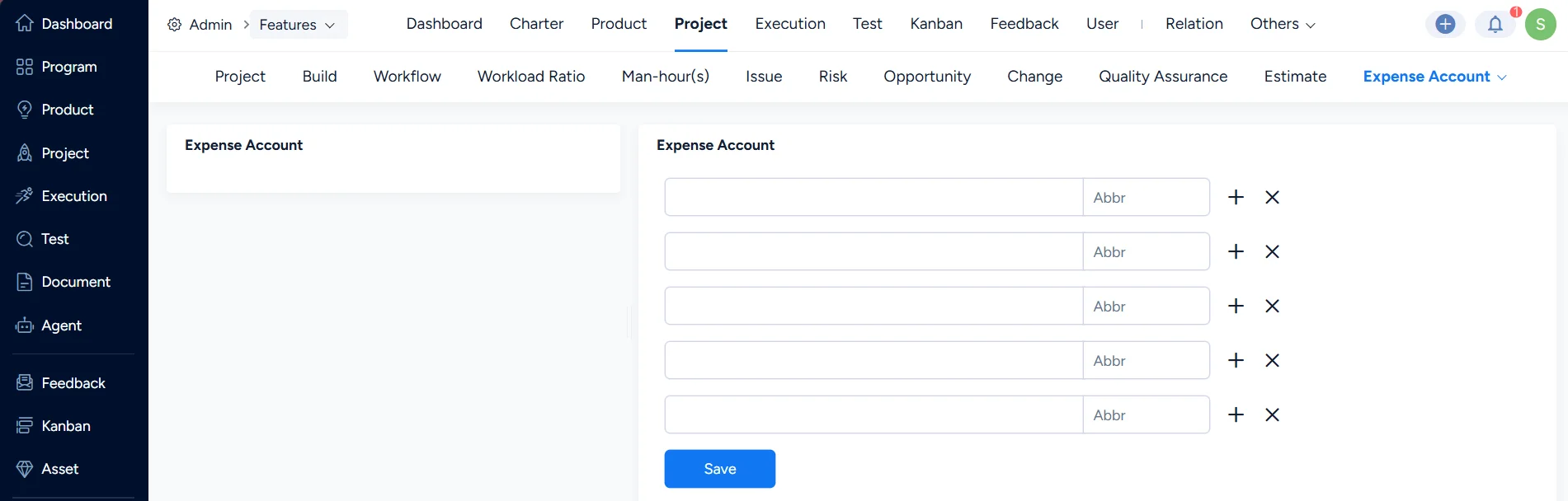
Expence account


Write a Comment
Comment will be posted after it is reviewed.