Testing
1. Introduction of Sanplex features
1.1. Core Management Framework
1.1.1 Program
1.1.2 Project
1.1.3 Product
1.1.4 Execution
1.1.5 Management Models
1.2. Dashboard
1.2.1 Getting Started with Tutorials
1.2.2 Quick Add
1.2.3 Notification Center
1.2.4 Effort Tracking
1.2.5 Dashboard - Project and Execution
1.2.6 Dashboard - My Work, Contribution, and Recents
1.2.7 Dashboard - Approval
1.2.8 Contacts
1.3. Program
1.3.1 Program List
1.3.2 Program Kanban
1.3.3 Create Program
1.3.4 Create Sub-Programs
1.3.5 Project Charter Management
1.4. Product
1.4.1 Create Product
1.4.2 Manage Modules
1.4.3 Multi-Branch and Multi-Platform Management
1.4.4 Manage Plans
1.4.5 Manage Requirements
1.4.6 Requirement Reviews
1.4.7 Requirement Status and Phase
1.4.8 Create Releases
1.4.9 Track Progress
1.4.10 Business Requirements and Multi-Level Requirements
1.5. Project
1.5.1 Scrum Project
1.5.2. Waterfall Project
1.5.2.1 Manage Project Phases
1.5.2.2 Project Design
1.5.2.3 Project Matrix
1.5.2.4 Project Reports and Earned Value Management
1.5.2.5 Project Baselines
1.5.2.6 Project Change
1.5.3. Kanban Project
1.5.3.1 Set Up Kanban Projects
1.5.3.2 Configure Kanban Boards
1.5.3.3 Use Kanban Boards
1.5.4 Hybrid Agile Project
1.5.5 Hybrid Waterfall Project
1.5.6. Project Settings
1.5.6.1 Project Setup
1.5.6.2 Project Executions
1.5.6.3 Project Requirements
1.5.6.4 Project Builds
1.5.6.5 Project Tests
1.5.6.6 Project Docs
1.5.6.7 Project Releases
1.5.6.8 Project Reports
1.5.6.9 Project Risks
1.5.6.10 Project Issues
1.5.6.11 Project Opportunities
1.5.6.12 Project Deliverables
1.5.6.13 Project Reviews
1.5.6.14 Project Process
1.5.6.15 Deliverables
1.5.6.16 Quality Assurance
1.5.6.17 Project-specific Workflow Management
1.5.7 Project Templates
1.6. Execution
1.6.1 Product Planning and Task Breakdown
1.6.2 Task Assignment and Daily Tracking
1.6.3 Build Creation and Test Requests
1.6.4 Bug Confirmation and Resolution
1.6.5 Execution Kanban Boards
1.7. Admin Settings
1.7.1. System Settings
1.7.1.1 Mode
1.7.1.2 Backup
1.7.1.3 Trash
1.7.1.4 License
1.7.1.5 Security
1.7.1.6 Cron Job
1.7.1.7 Time Zone
1.7.1.8 Rebuild Index
1.7.1.9 LDAP
1.7.1.10 Table Engine
1.7.2 Feature Options
1.7.3. Permission Management and Access Control
1.7.4. Agent Configuration
1.8. Asset Library (Premium)
1.8.1 Asset Library Management (Premium)

Write Test Cases

2026-09-28 00:03:24
Sanplex Content
545
Last edited by Jing WANG on 2026-09-28 09:24:11
Share links
Summary: Learn how to create and batch-add test cases, organize cases by type, module, scene, and linked Story, import cases from Excel or other sources, export test case data and reusable templates, and add frequently used cases to the Case Library.

Feature Overview

Test cases are a core component of the software and hardware development and quality management lifecycle. They help teams verify that product functionality, performance, security, and other quality requirements meet expected standards. With systematic test case management, teams can design, execute, and track testing activities efficiently.

Sanplex supports structured test cases with information such as prerequisites, steps, expectations, linked Stories, modules, scenes, types, phases, and priorities. Test cases can be organized and reused to support consistent testing throughout the development lifecycle.

Typical Use Scenarios

  • Functional Testing: After new features are implemented, testers validate their behavior using test cases to ensure the features work as expected.
    Example: A new payment method is added to an e-commerce platform; test cases verify each step of the payment flow.
  • Regression Testing: After a release update or bug fix, the team reruns relevant test cases to verify that existing functionality continues to work correctly.
    Example: After fixing a shopping cart bug, testers rerun related cases to confirm that the cart still works properly.
  • Performance Testing: Teams can create test cases for performance-related validation under different operating conditions.
    Example: An online education platform evaluates system behavior during periods of high concurrent usage.
  • Security Testing: Test cases can be used to verify security controls and identify potential vulnerabilities.
    Example: A financial system validates access controls designed to protect user and transaction data.

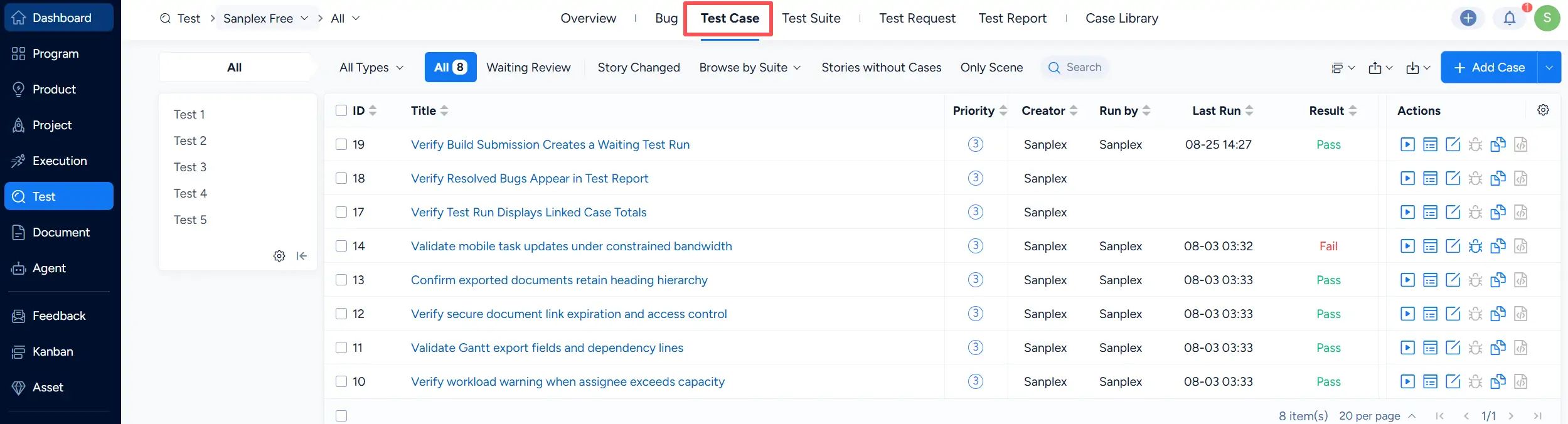
After joining the team, testers can create and manage test cases under Test > Test Case.

Sanplex provides the following test case types:

  • Interface
  • Feature
  • Installation
  • Configuration
  • Performance
  • Security
  • Others

Sanplex Test Case list under Test, showing existing test cases, filters, modules, execution results, and the Add Case action.

I. Create Test Cases

Click Add Case in the upper-right corner of the Test Case list. The menu provides Add Case, Batch Add, and Add Scene.
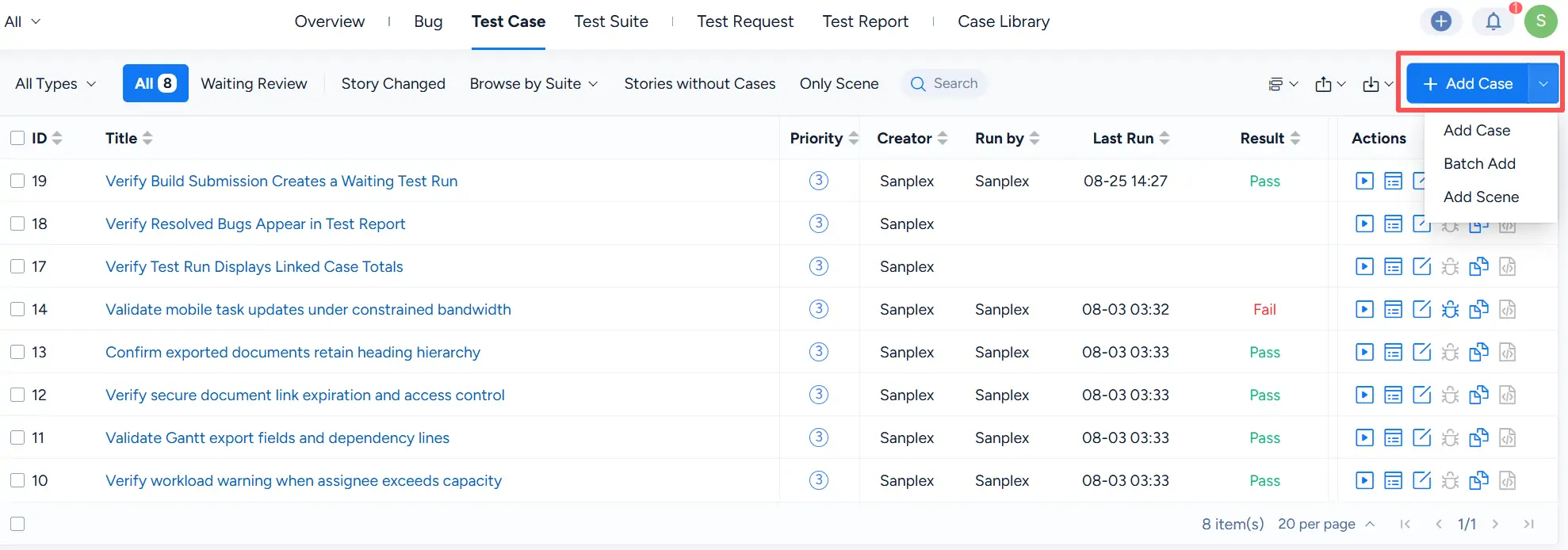
Test Case list with the Add Case menu expanded, showing Add Case, Batch Add, and Add Scene.

To create an individual test case, select Add Case. On the Add Case page, select or enter the relevant information, such as Product, Module, Linked Story, Scene, Type, Phase, Priority, title, description, steps, expectations, and tags.

The Type field provides options including Interface, Feature, Installation, Configuration, Performance, Security, and Others.
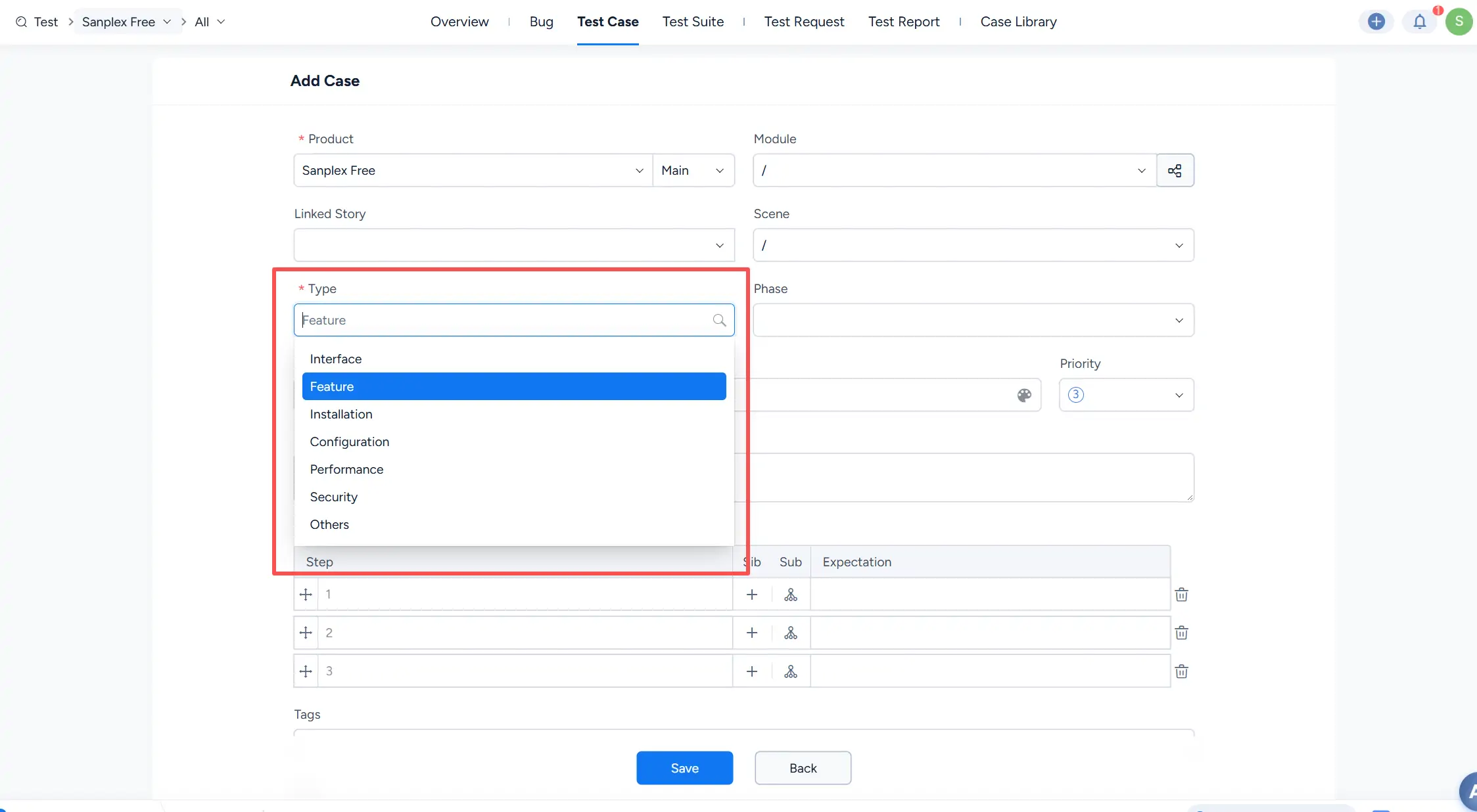
Add Case page showing Product, Module, Linked Story, Scene, Type, Phase, Priority, steps, and expectations, with the Type dropdown expanded.

For creating multiple test cases, select Add Case > Batch Add. On the Batch Add page, enter multiple cases in the table. You can also use Bulk entry for efficient multi-case entry.
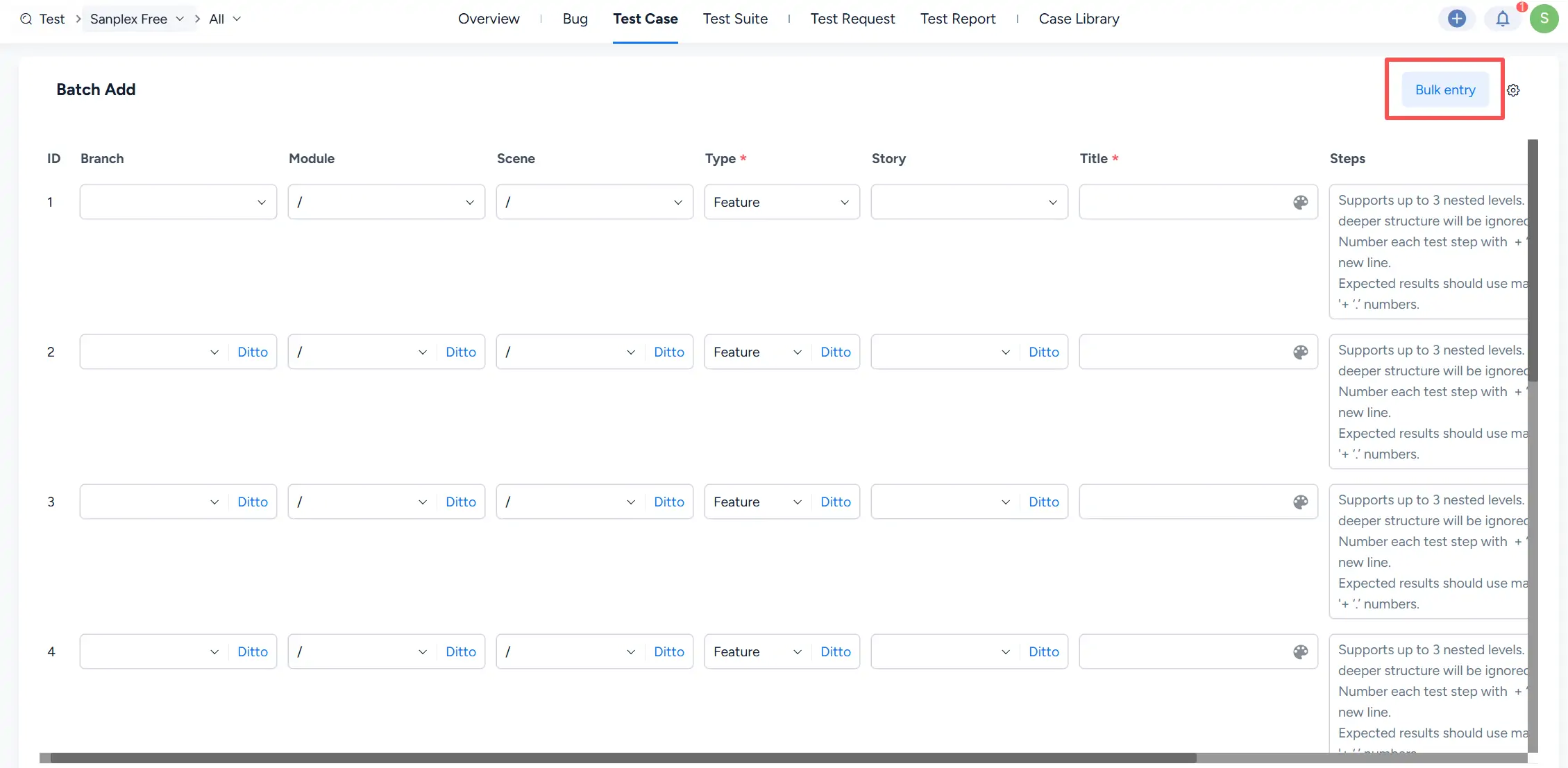
Batch Add page for creating multiple test cases, showing Branch, Module, Scene, Type, Story, Title, Steps, and the Bulk entry action.

II. Import Test Cases

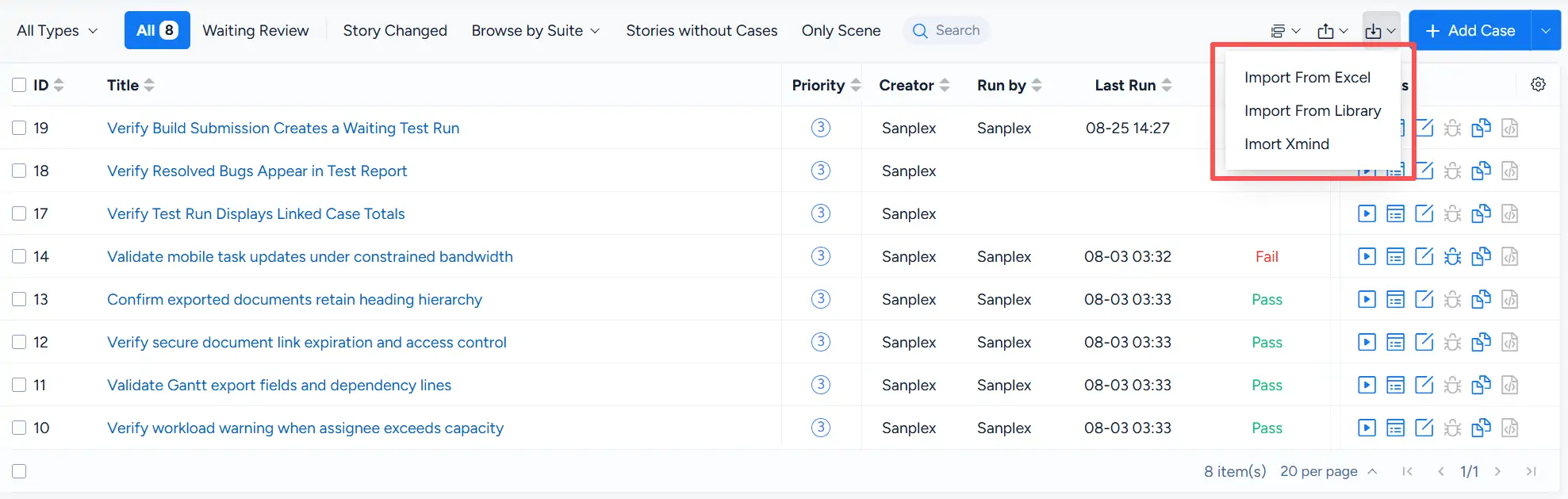
Sanplex supports importing test cases from Excel, the Case Library, and Xmind.

Open the import menu on the Test Case list to select:

  • Import From Excel
  • Import From Library
  • Import Xmind

Test Case list with the import menu expanded, showing Import From Excel, Import From Library, and Import Xmind.

For an Excel import, you can first download a template from Export > Export Template. The Export menu also provides Export Data, Export Xmind, and Export FreeMind.
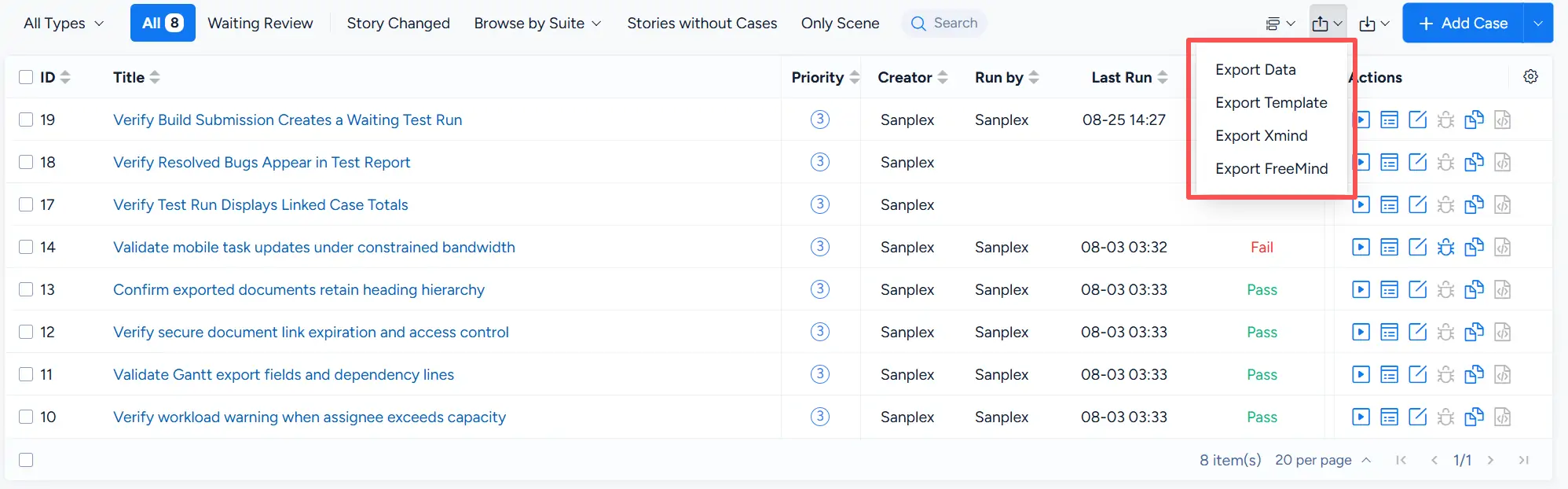
Test Case list with the Export menu expanded, showing Export Data, Export Template, Export Xmind, and Export FreeMind.

In the Export Template dialog, specify the number of records and select the file type. The screenshot below uses xlsx.
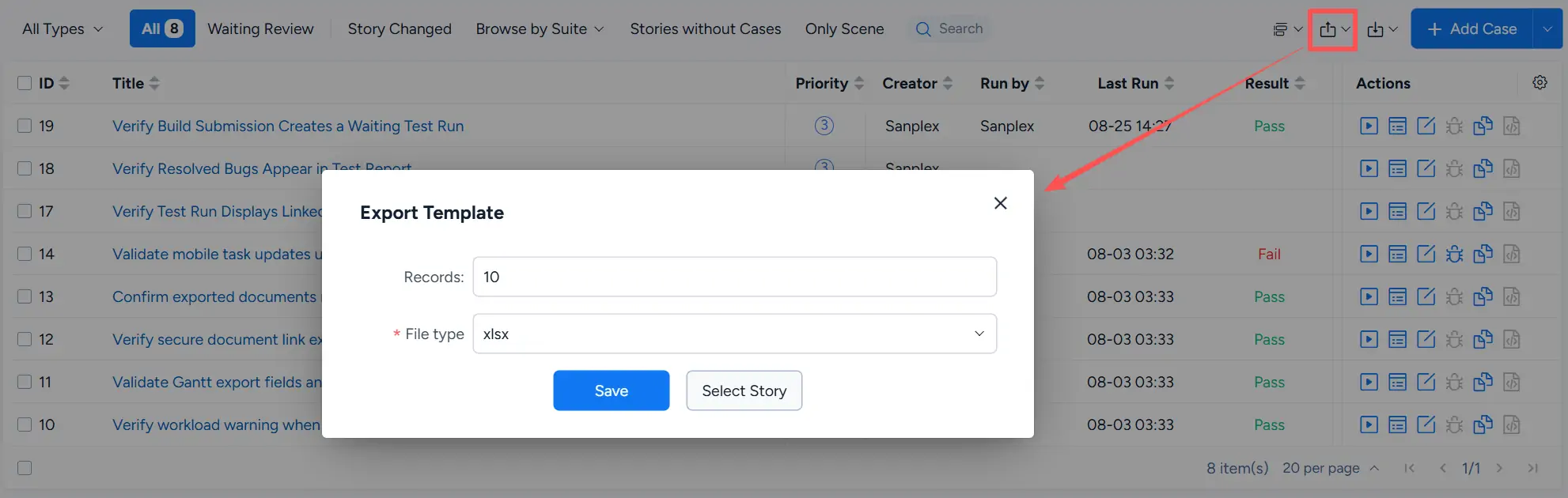
Export Template dialog showing the Records field, xlsx file type, Save button, and Select Story option.

Click Save to download the template. Enter the test case data in the corresponding columns, such as Product, Branch/Platform, Module, Scene, Story, Title, Prerequisite, Tags, Priority, Type, Phase, Status, Step, and Expectation.
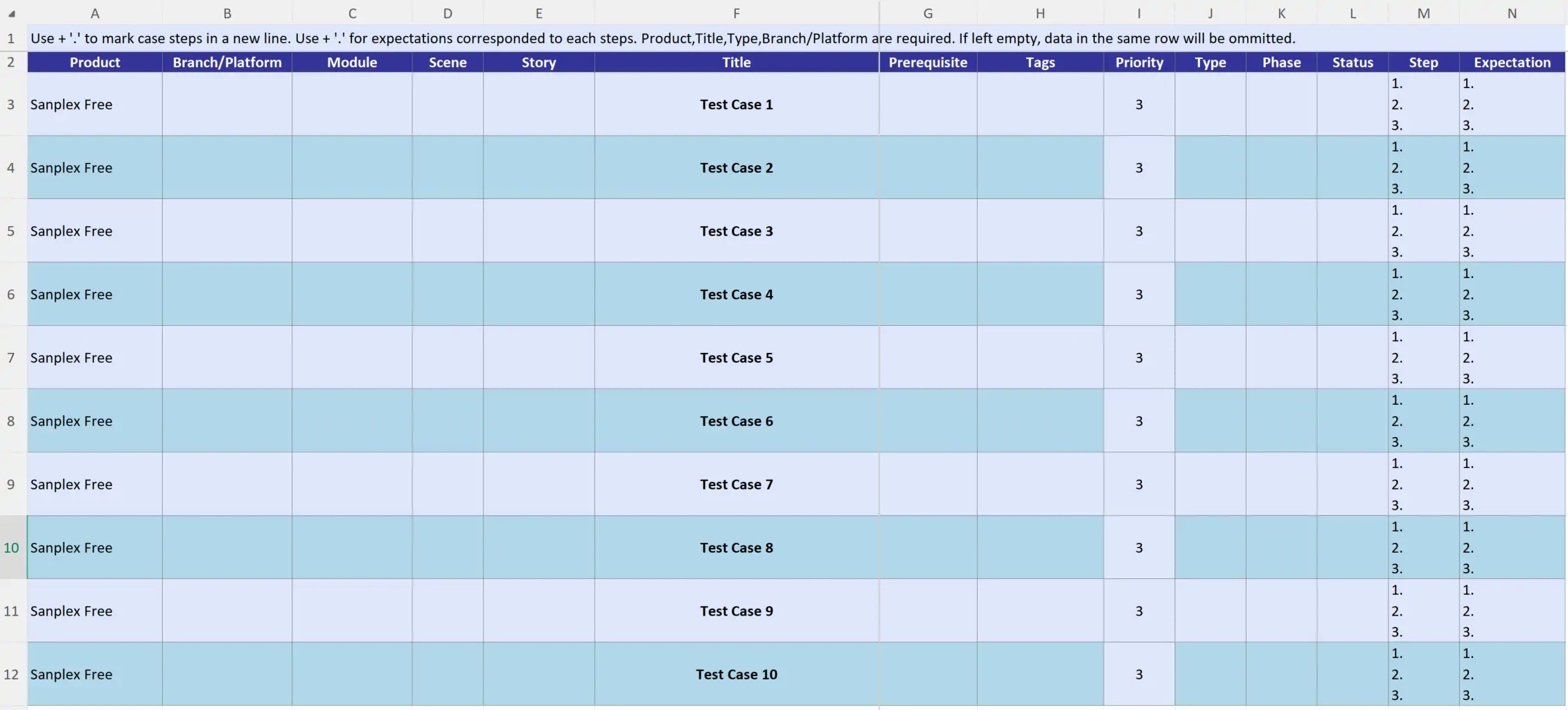
Excel template for test case import with columns for Product, Branch/Platform, Module, Scene, Story, Title, Prerequisite, Tags, Priority, Type, Phase, Status, Step, and Expectation.

After completing the template, return to the Test Case list and select Import From Excel.
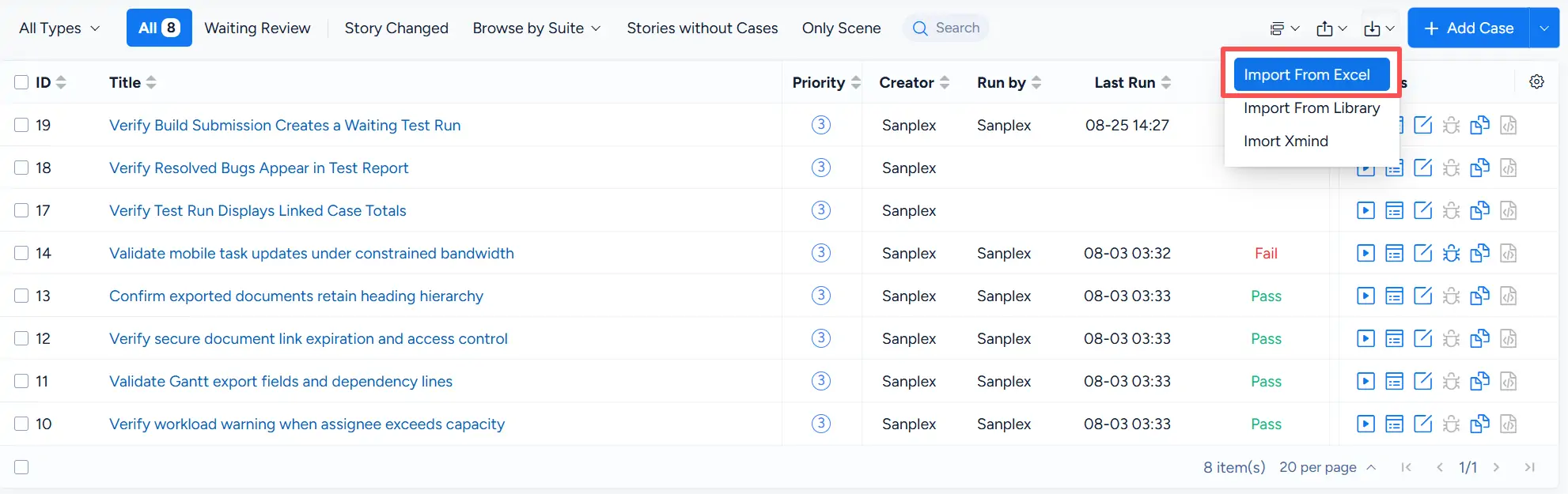
Test Case list with the import menu expanded and Import From Excel selected.

Sanplex displays the imported test case data on the Import page, where you can review information such as Branch, Title, Module, Scene, Story, Type, Priority, and other case fields before completing the import.
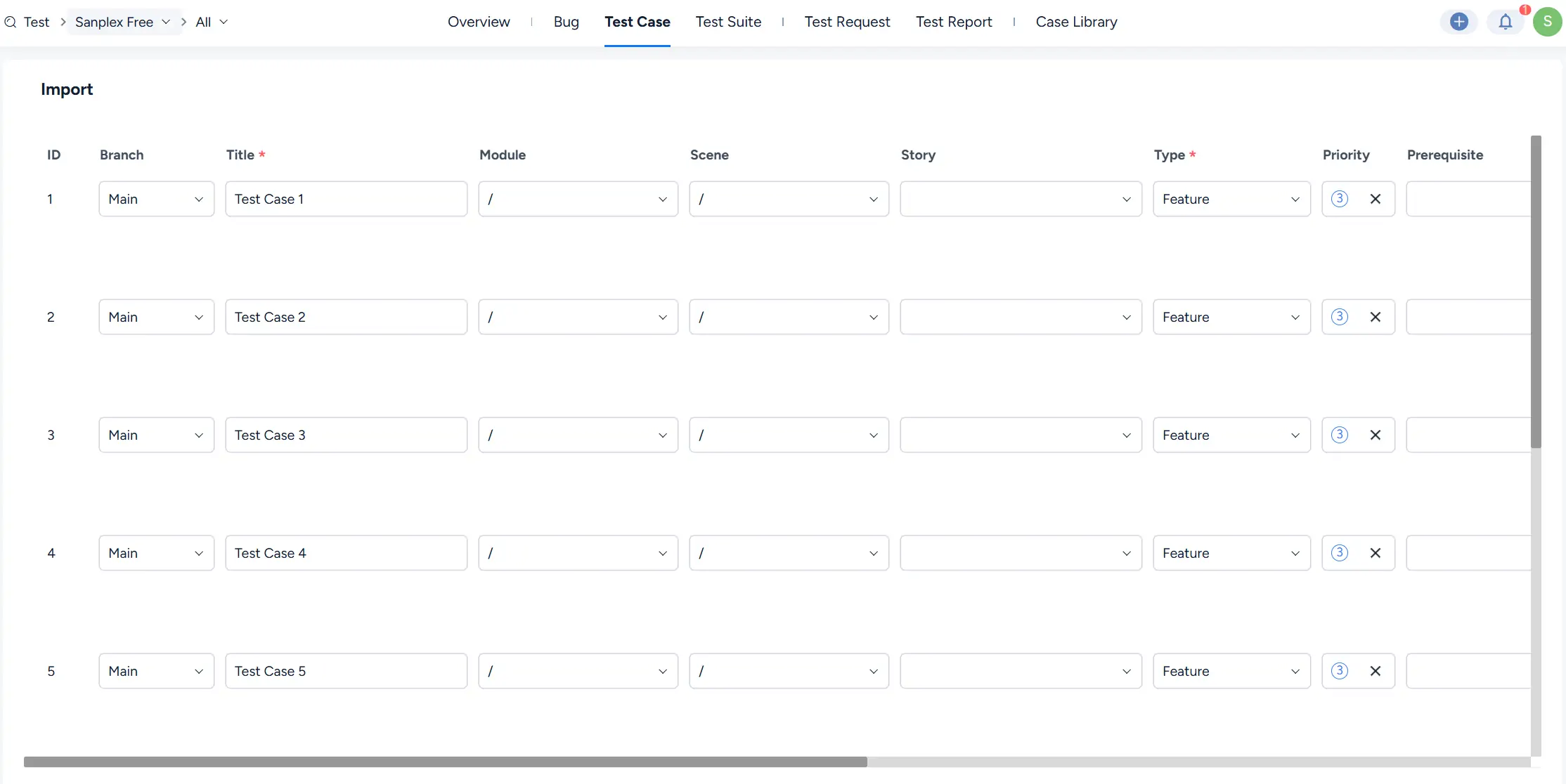
Import page showing multiple test cases with Branch, Title, Module, Scene, Story, Type, Priority, and Prerequisite fields for review.

III. Export Test Cases

Sanplex supports exporting either all test case data or selected records.

Select Export > Export Data. In the Export Data dialog, configure the file name and file type, then select All Data or Selected Data under Export Range.
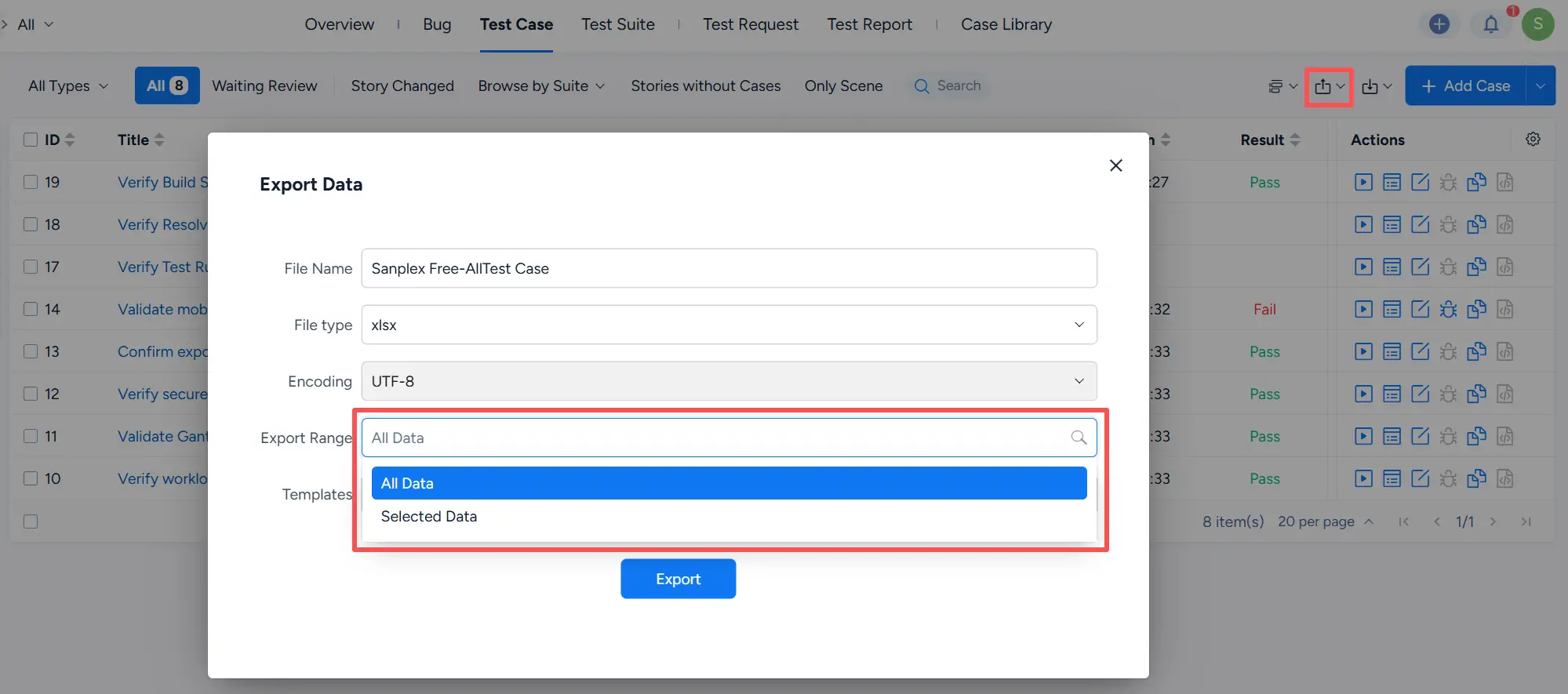
Export Data dialog showing file name, xlsx file type, UTF-8 encoding, and Export Range options for All Data and Selected Data.

You can also customize an export template. Enable Settings to select the fields to include, enter a Template Name, and save the template for future exports.
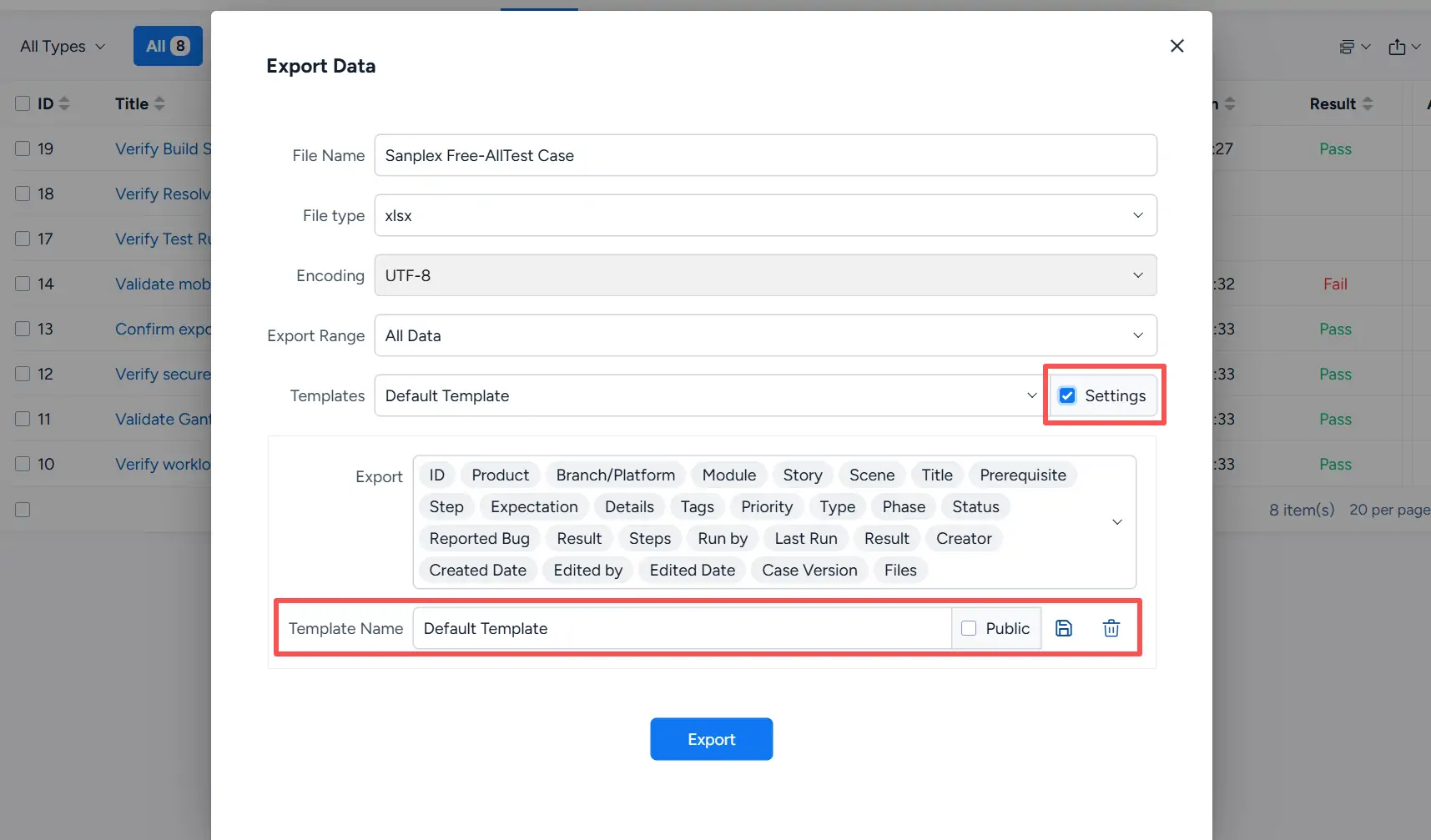
Export Data dialog with template settings enabled, showing selectable export fields, Template Name, Public option, and template save and delete actions.

IV. Import Test Cases into the Case Library

Frequently used test cases can be added to the Case Library for centralized reuse and management.

Open a test case and click Import To Library in the action bar to add the case to the Case Library.
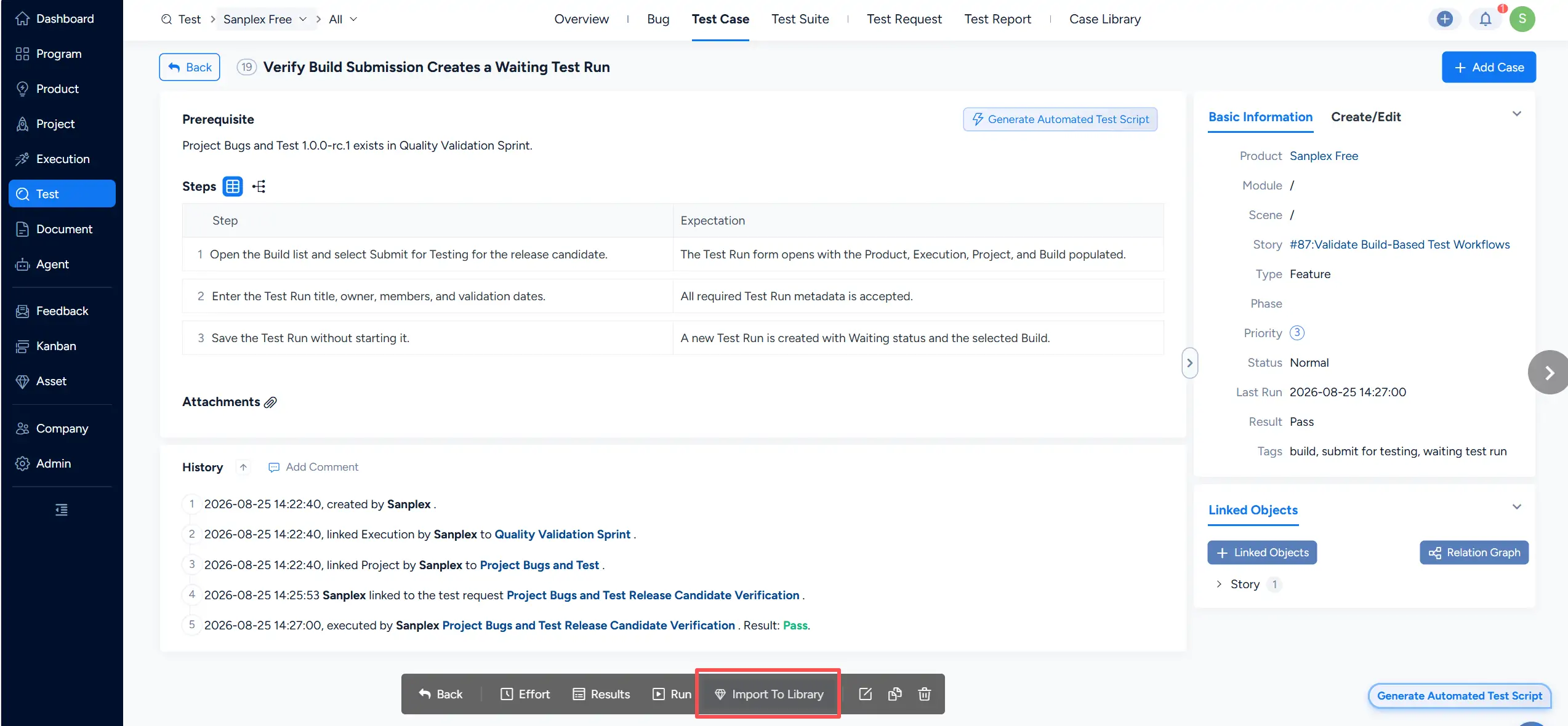
Test case detail page showing prerequisites, test steps and expectations, basic information, history, and the Import To Library action.

Write a Comment
Comment will be posted after it is reviewed.