
Feature Configuration
1. Introduction of Sanplex features
1.1. Core Management Framework
1.1.1 Program
1.1.2 Project
1.1.3 Product
1.1.4 Execution
1.1.5 Management Models
1.2. Dashboard
1.2.1 Getting Started with Tutorials
1.2.2 Quick Add
1.2.3 Notification Center
1.2.4 Effort Tracking
1.2.5 Dashboard - Project and Execution
1.2.6 Dashboard - My Work, Contribution, and Recents
1.2.7 Dashboard - Approval
1.2.8 Contacts
1.3. Program
1.3.1 Program List
1.3.2 Program Kanban
1.3.3 Create Program
1.3.4 Create Sub-Programs
1.3.5 Project Charter Management
1.4. Product
1.4.1 Create Product
1.4.2 Manage Modules
1.4.3 Multi-Branch and Multi-Platform Management
1.4.4 Manage Plans
1.4.5 Manage Requirements
1.4.6 Requirement Reviews
1.4.7 Requirement Status and Phase
1.4.8 Create Releases
1.4.9 Track Progress
1.4.10 Business Requirements and Multi-Level Requirements
1.5. Project
1.5.1 Scrum Project
1.5.2. Waterfall Project
1.5.2.1 Manage Project Phases
1.5.2.2 Project Design
1.5.2.3 Project Matrix
1.5.2.4 Project Reports and Earned Value Management
1.5.2.5 Project Baselines
1.5.2.6 Project Change
1.5.3. Kanban Project
1.5.3.1 Set Up Kanban Projects
1.5.3.2 Configure Kanban Boards
1.5.3.3 Use Kanban Boards
1.5.4 Hybrid Agile Project
1.5.5 Hybrid Waterfall Project
1.5.6. Project Settings
1.5.6.1 Project Setup
1.5.6.2 Project Executions
1.5.6.3 Project Requirements
1.5.6.4 Project Builds
1.5.6.5 Project Tests
1.5.6.6 Project Docs
1.5.6.7 Project Releases
1.5.6.8 Project Reports
1.5.6.9 Project Risks
1.5.6.10 Project Issues
1.5.6.11 Project Opportunities
1.5.6.12 Project Deliverables
1.5.6.13 Project Reviews
1.5.6.14 Project Process
1.5.6.15 Deliverables
1.5.6.16 Quality Assurance
1.5.6.17 Project-specific Workflow Management
1.5.7 Project Templates
1.6. Execution
1.6.1 Product Planning and Task Breakdown
1.6.2 Task Assignment and Daily Tracking
1.6.3 Build Creation and Test Requests
1.6.4 Bug Confirmation and Resolution
1.6.5 Execution Kanban Boards
1.7. Admin Settings
1.7.1. System Settings
1.7.1.1 Mode
1.7.1.2 Backup
1.7.1.3 Trash
1.7.1.4 License
1.7.1.5 Security
1.7.1.6 Cron Job
1.7.1.7 Time Zone
1.7.1.8 Rebuild Index
1.7.1.9 LDAP
1.7.1.10 Table Engine
1.7.2 Feature Options
1.7.3. Users Management
1.7.3.1 Set Departments and Edit Company Profile
1.7.3.2 Manage Users
1.7.3.3 Set Permisions
1.7.4. Feature Configuration
1.7.4.1 Dashboard
1.7.4.2 Product
1.7.4.3 Execution
1.7.4.4 Project
1.7.5. Agent Configuration
1.8. Asset Library (Premium)
1.8.1 Asset Library Management (Premium)

Execution

2026-01-03 16:10:51
Sanplex Content
171
Last edited by Kelsea Zhang on 2026-09-29 14:15:19
Share links
Summary: Execution configuration in Sanplex lets administrators define required fields and close behavior for executions, and customize task attributes such as required fields, priority, type, status, and date constraints.

In Admin > Features > Execution, configure elements for Executions, Phases and Tasks.
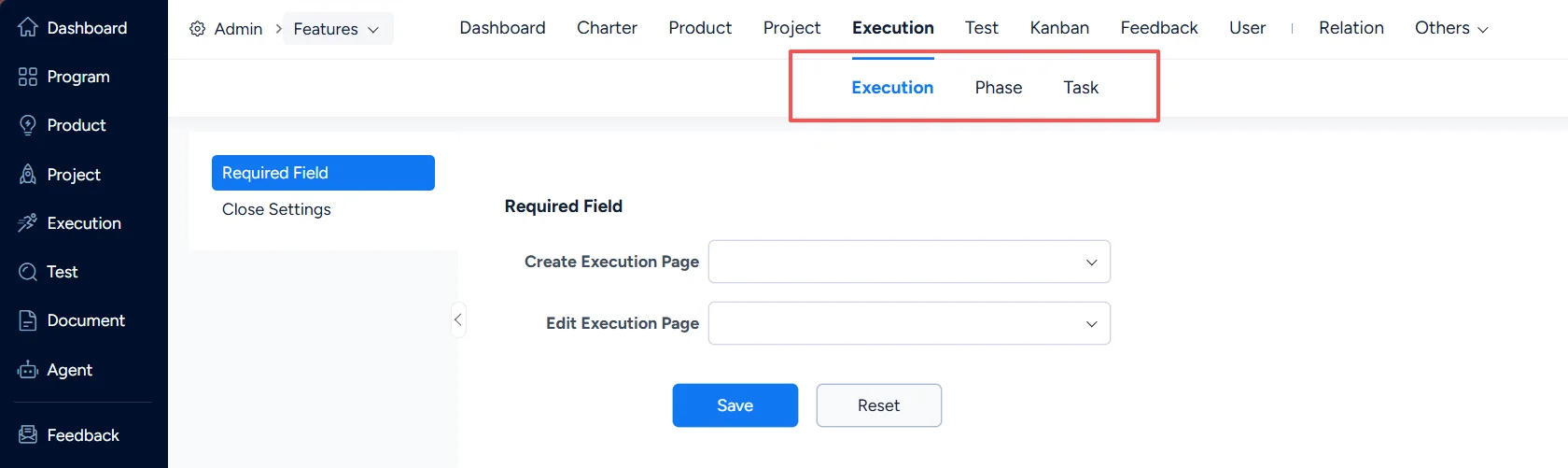
Execution settings

I. Execution Settings

1. Execution – Required Fields

In Execution > Required Field, configure required fields on the Create Execution and Edit Execution pages.
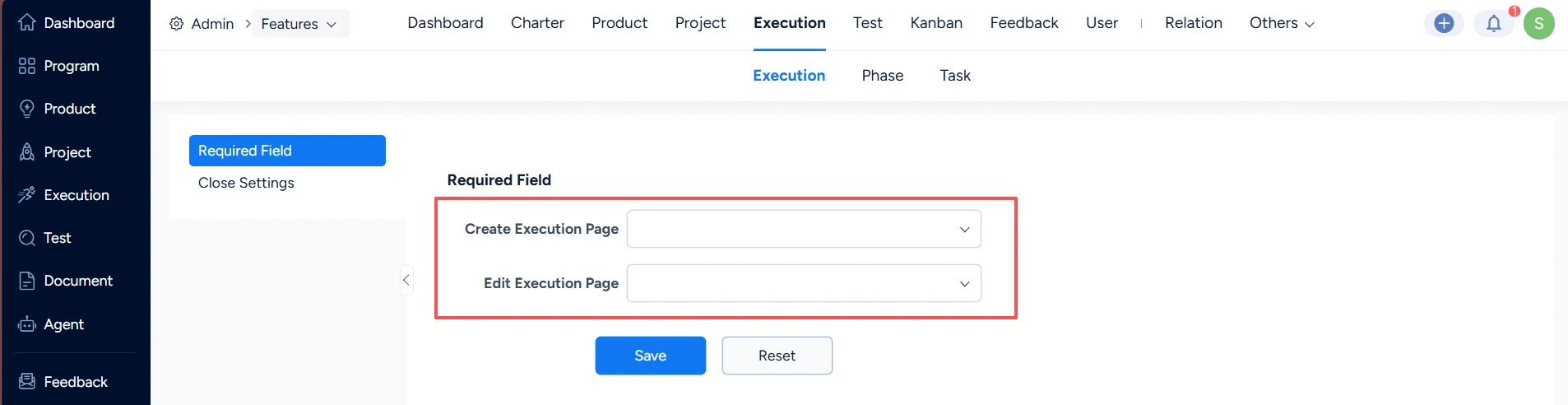
Set required fields for execution

2. Execution – Close Settings

In Execution Close Settings, you can configure whether an execution in the Closed status is still allowed to be changed.

If changed prohibited, the following items under a closed execution cannot be modified: Tasks, Efforts, Versions, Test Requests, Test Reports, Documents, Issues, Risks, Test, Meetings, and linked stories, etc.
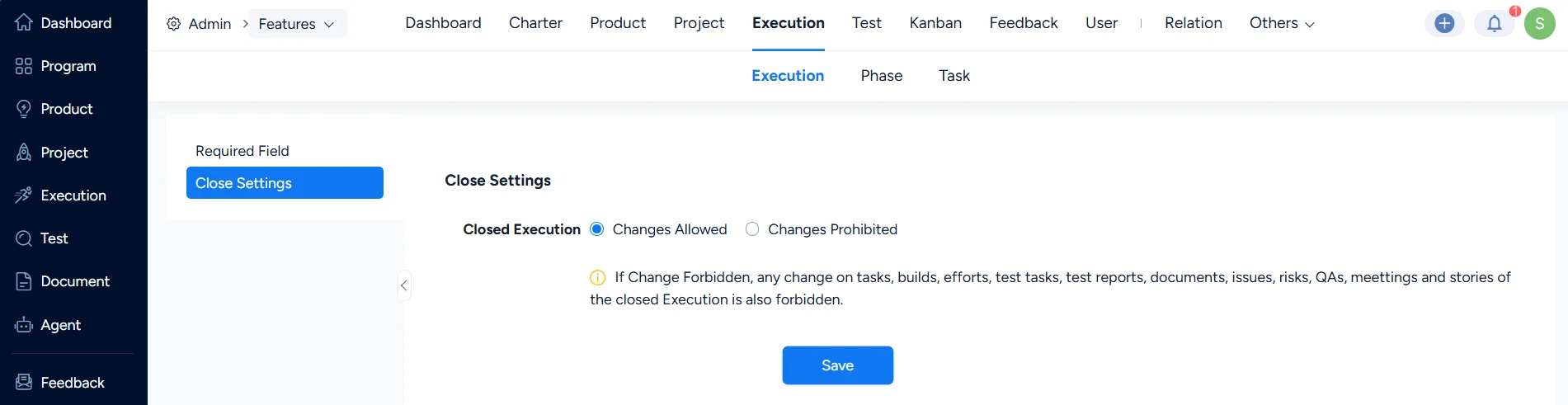
Close settings for execution

II. Phase Settings

In Execution > Phase, set phase types for the waterfall projects.
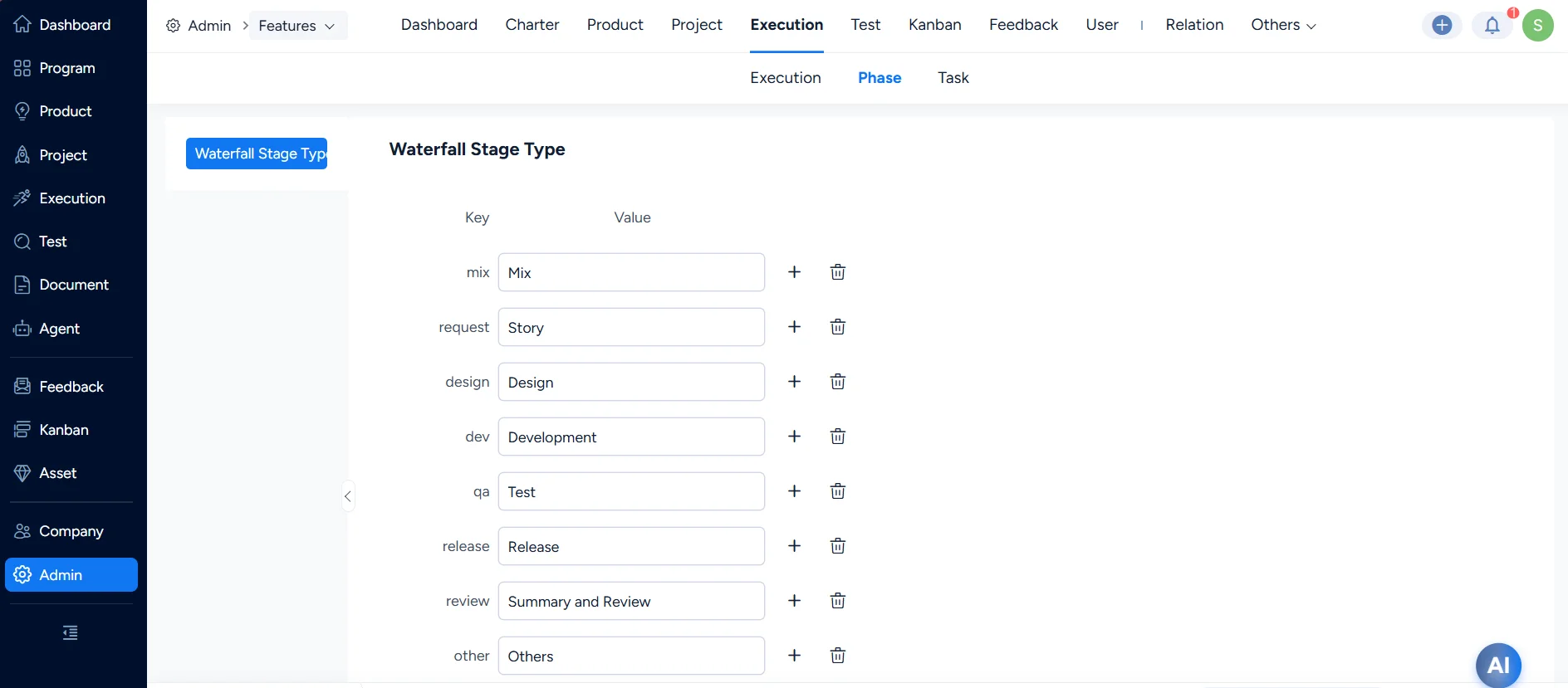
Set phase types for the waterfall projects

Ⅲ. Execution Task Settings

1. Task – Required Fields

In Task > Required Field, configure required fields for tasks on relevant action pages.
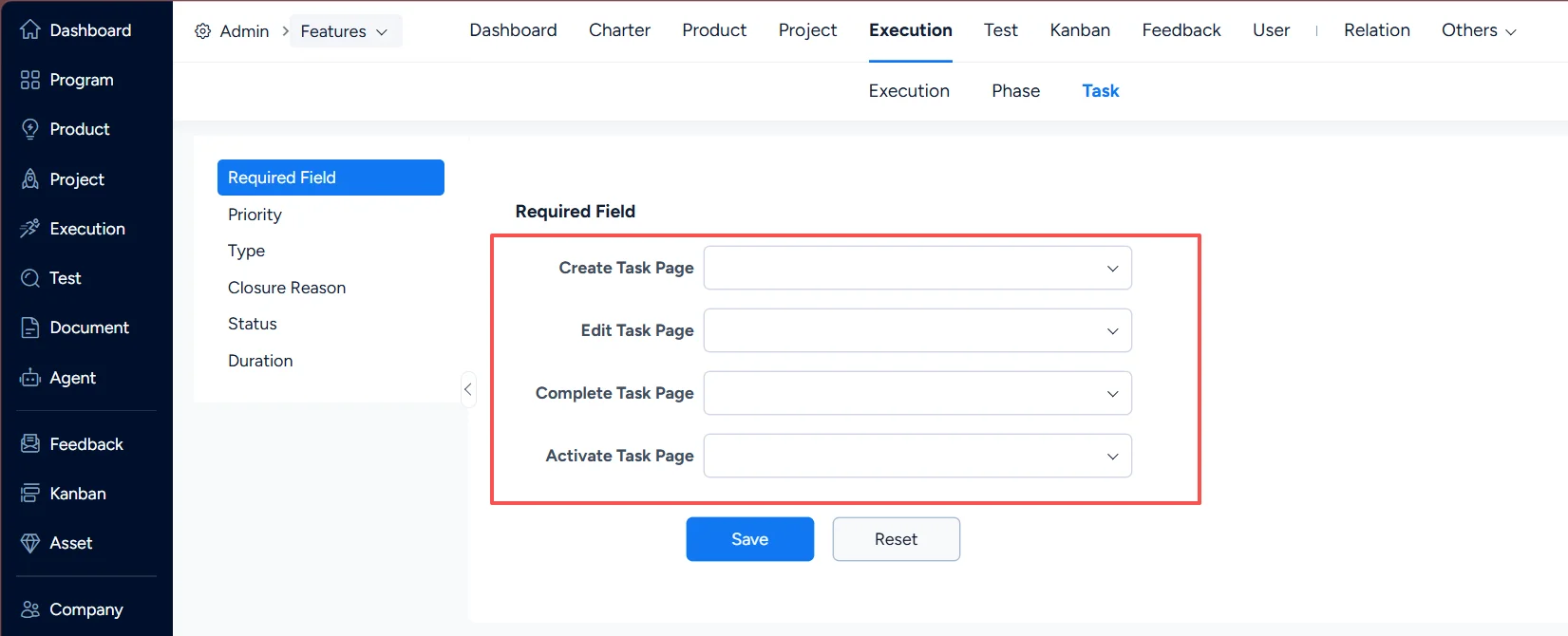
Set required fields for task

2. Task – Priority

In Task > Priority, configure task priorities.
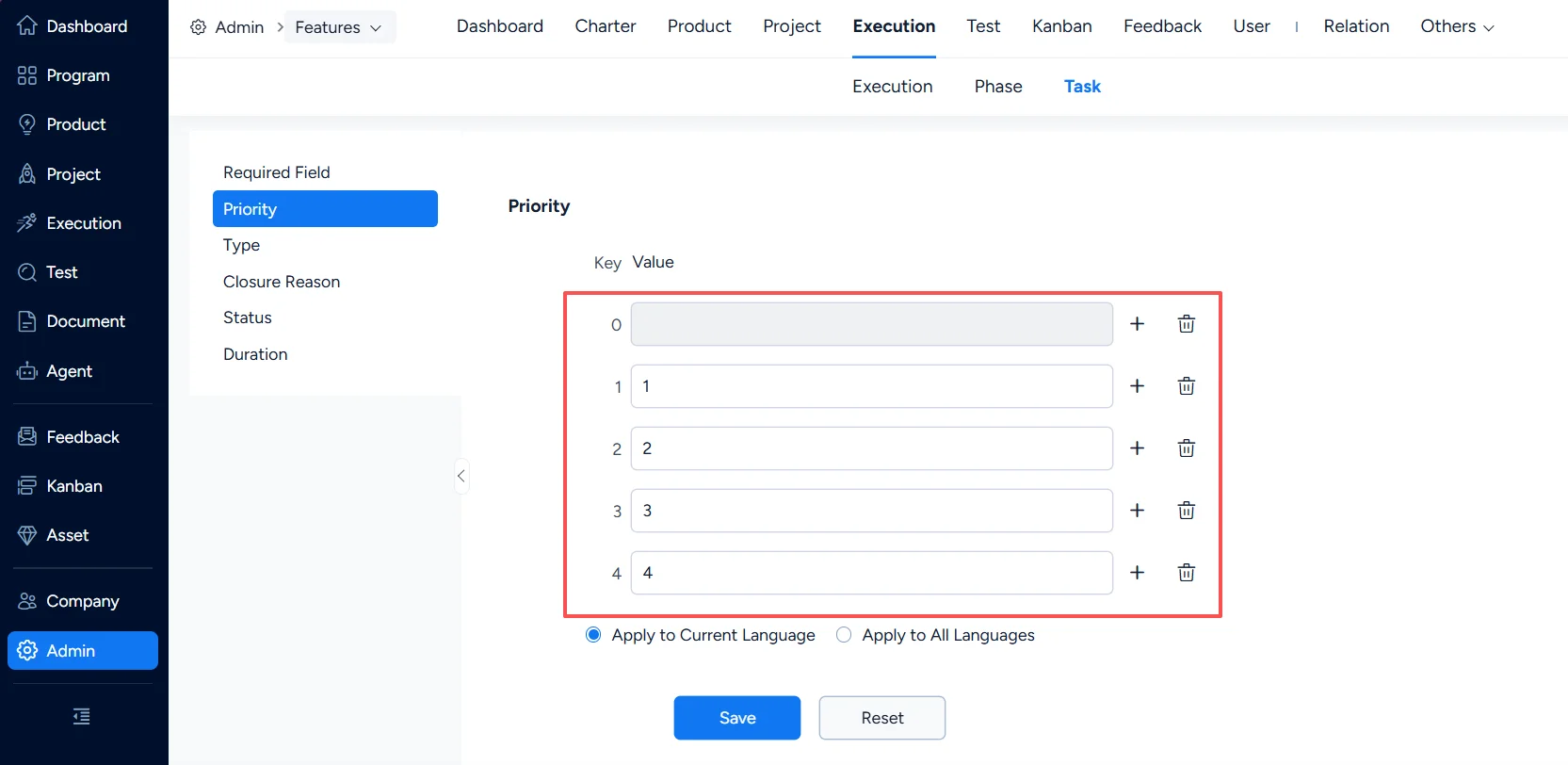
Set task priority

3. Task – Type

In Task > Type, configure the keys and values for task types.
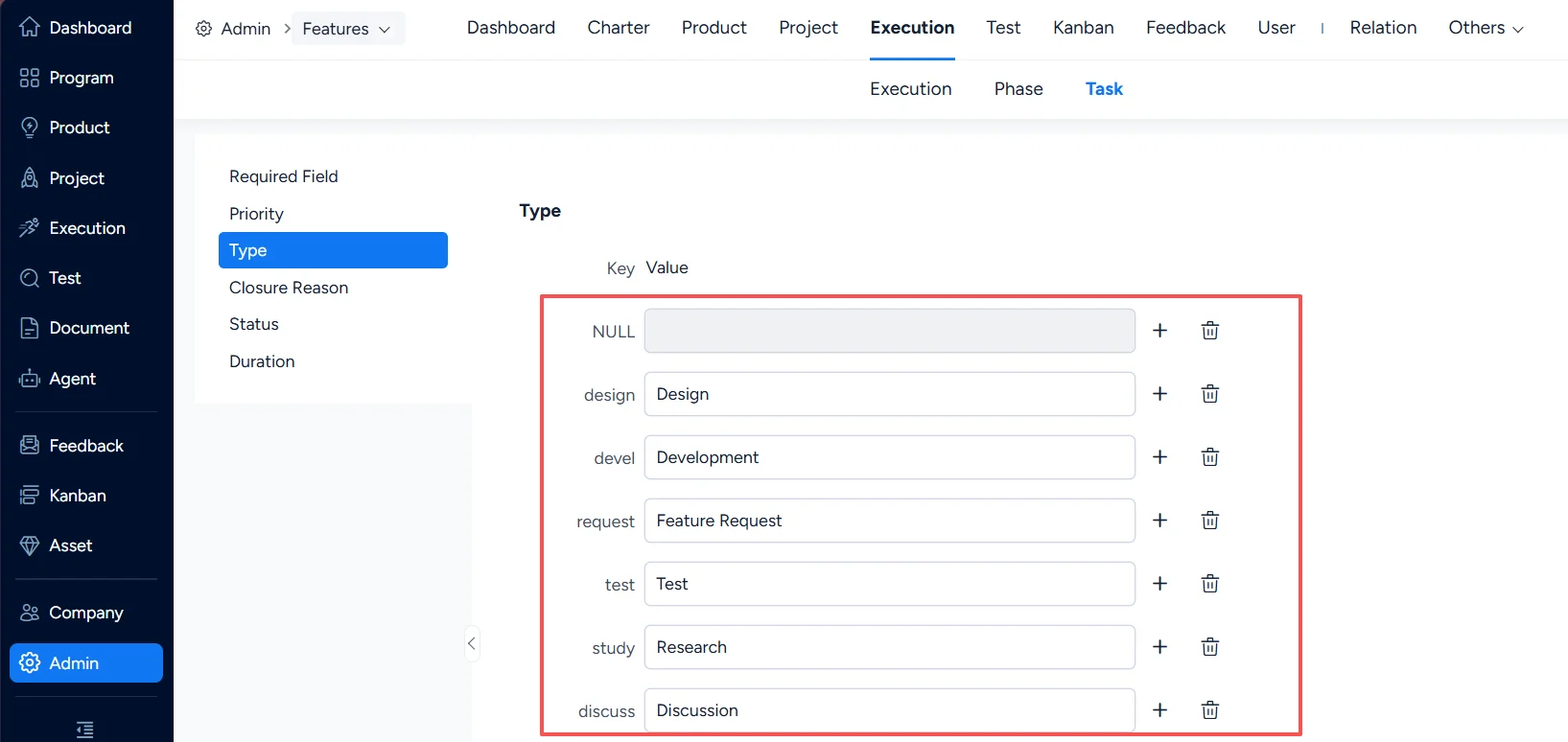
Set task types

4. Task – Close Reason

In Task > Closure Reason, configure closure reasons for tasks.
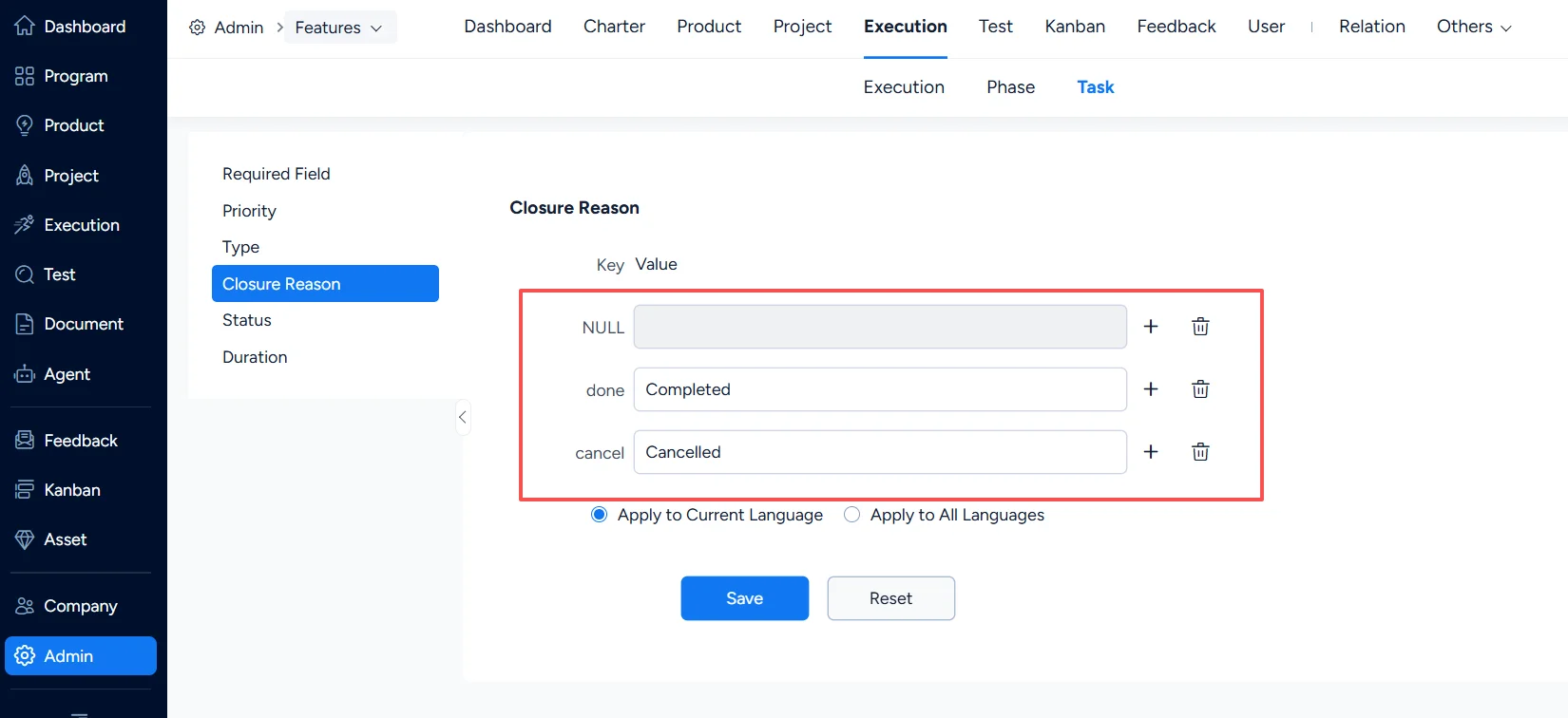
Set task closure reason

5. Task – Status

In Task > Status, configure task statuses.
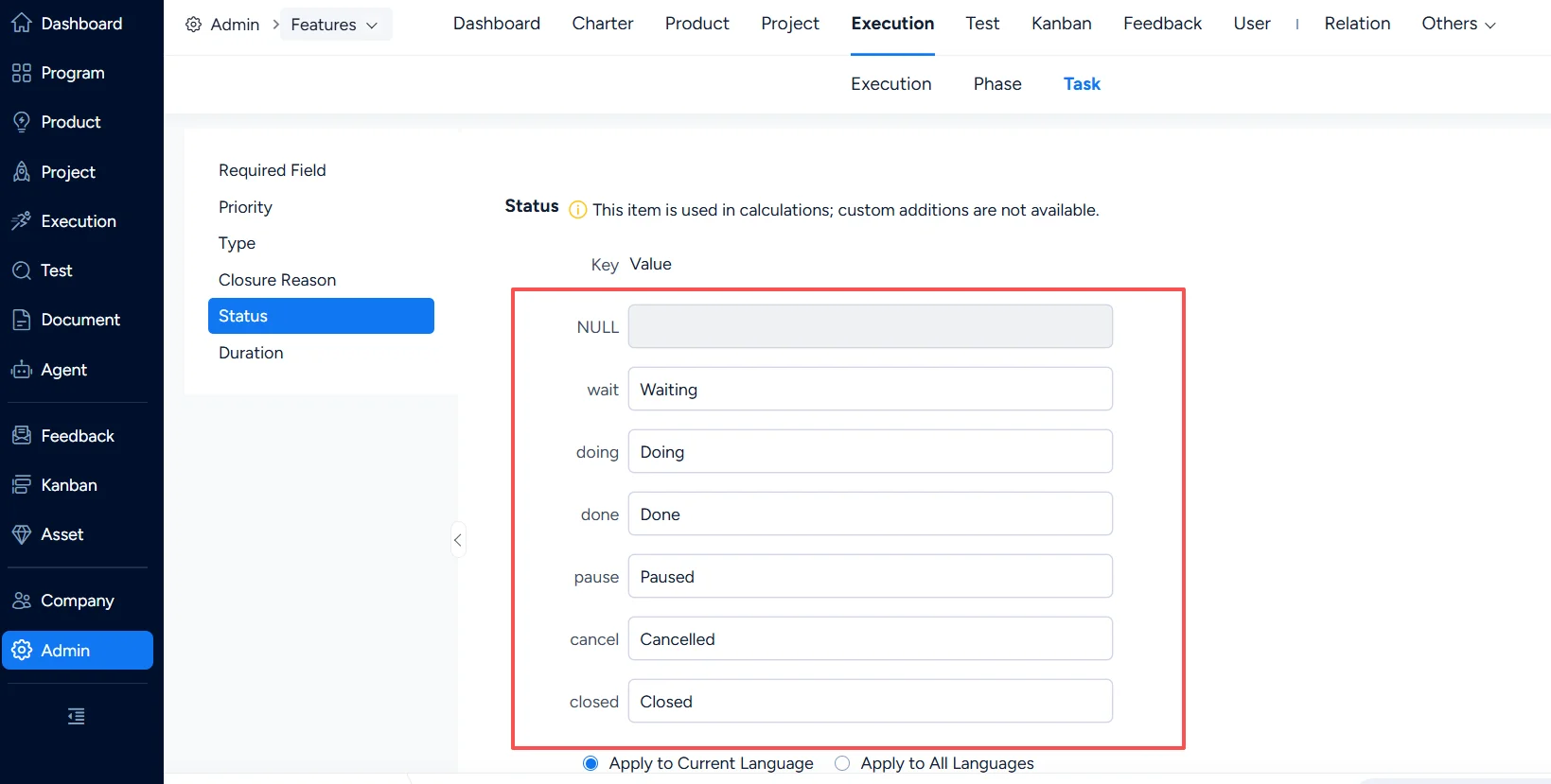
Set task status

6. Task – Duration

In Task > Duration, configure the allowable range for planned task duration. By default, there is no restriction. If you enable restrictions, then when creating or editing a task, the planned start/end dates must fall within the start/end date range of the execution it belongs to.
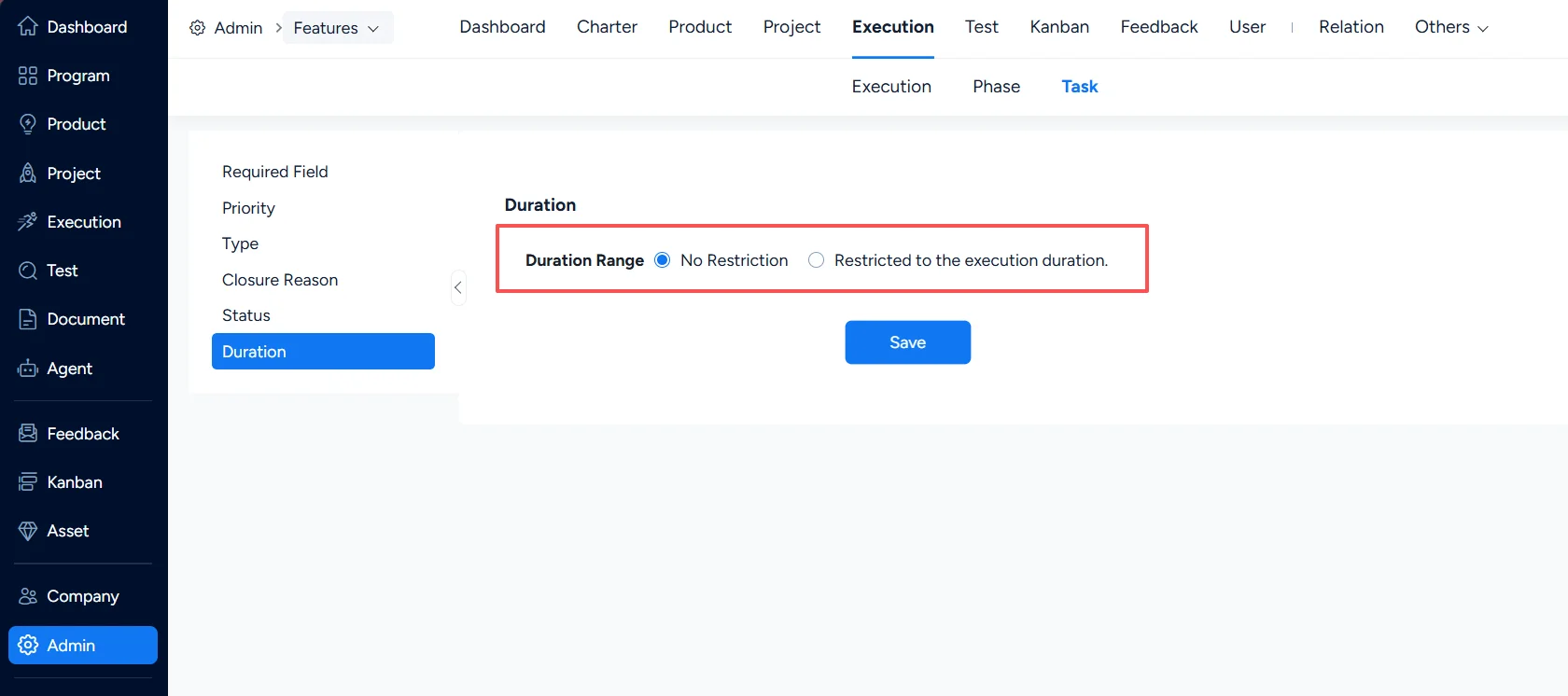
Set task duration limatition

Write a Comment
Comment will be posted after it is reviewed.
