
Feature Configuration
1. Introduction of Sanplex features
1.1. Core Management Framework
1.1.1 Program
1.1.2 Project
1.1.3 Product
1.1.4 Execution
1.1.5 Management Models
1.2. Dashboard
1.2.1 Getting Started with Tutorials
1.2.2 Quick Add
1.2.3 Notification Center
1.2.4 Effort Tracking
1.2.5 Dashboard - Project and Execution
1.2.6 Dashboard - My Work, Contribution, and Recents
1.2.7 Dashboard - Approval
1.2.8 Contacts
1.3. Program
1.3.1 Program List
1.3.2 Program Kanban
1.3.3 Create Program
1.3.4 Create Sub-Programs
1.3.5 Project Charter Management
1.4. Product
1.4.1 Create Product
1.4.2 Manage Modules
1.4.3 Multi-Branch and Multi-Platform Management
1.4.4 Manage Plans
1.4.5 Manage Requirements
1.4.6 Requirement Reviews
1.4.7 Requirement Status and Phase
1.4.8 Create Releases
1.4.9 Track Progress
1.4.10 Business Requirements and Multi-Level Requirements
1.5. Project
1.5.1 Scrum Project
1.5.2. Waterfall Project
1.5.2.1 Manage Project Phases
1.5.2.2 Project Design
1.5.2.3 Project Matrix
1.5.2.4 Project Reports and Earned Value Management
1.5.2.5 Project Baselines
1.5.2.6 Project Change
1.5.3. Kanban Project
1.5.3.1 Set Up Kanban Projects
1.5.3.2 Configure Kanban Boards
1.5.3.3 Use Kanban Boards
1.5.4 Hybrid Agile Project
1.5.5 Hybrid Waterfall Project
1.5.6. Project Settings
1.5.6.1 Project Setup
1.5.6.2 Project Executions
1.5.6.3 Project Requirements
1.5.6.4 Project Builds
1.5.6.5 Project Tests
1.5.6.6 Project Docs
1.5.6.7 Project Releases
1.5.6.8 Project Reports
1.5.6.9 Project Risks
1.5.6.10 Project Issues
1.5.6.11 Project Opportunities
1.5.6.12 Project Deliverables
1.5.6.13 Project Reviews
1.5.6.14 Project Process
1.5.6.15 Deliverables
1.5.6.16 Quality Assurance
1.5.6.17 Project-specific Workflow Management
1.5.7 Project Templates
1.6. Execution
1.6.1 Product Planning and Task Breakdown
1.6.2 Task Assignment and Daily Tracking
1.6.3 Build Creation and Test Requests
1.6.4 Bug Confirmation and Resolution
1.6.5 Execution Kanban Boards
1.7. Agent
1.7.1 Conversation
1.7.2 Sanplex Agents
1.7.3 General Agents
1.7.4 Skill Management
1.7.5 AI Knowledge Library
1.7.6 Models
1.7.7 ZAI Service Installation
1.7.8 ZAI Service Control Panel
1.7.9 ZAI Configuration
1.8. Admin Settings
1.8.1. System Settings
1.8.1.1 Mode
1.8.1.2 Backup
1.8.1.3 Trash
1.8.1.4 License
1.8.1.5 Security
1.8.1.6 Cron Job
1.8.1.7 Time Zone
1.8.1.8 Rebuild Index
1.8.1.9 LDAP
1.8.1.10 Table Engine
1.8.2 Feature Options
1.8.3. Users Management
1.8.3.1 Set Departments and Edit Company Profile
1.8.3.2 Manage Users
1.8.3.3 Set Permisions
1.8.4. Feature Configuration
1.8.4.1 Dashboard
1.8.4.2 Product
1.8.4.3 Project
1.8.4.4 Execution
1.8.4.5 Test
1.8.4.6 Kanban
1.8.4.7 Feedback
1.8.4.8 Tickets
1.8.4.9 User
1.8.4.10 Relations (Standard Version)
1.8.4.11 Meaturement
1.8.5. Agent Configuration
1.9. Asset Library (Premium)
1.9.1 Asset Library Management (Premium)

Test

2026-09-30 10:26:29
Kelsea Zhang
317
Last edited by Kelsea Zhang on 2026-09-30 14:00:51
Share links
Summary: This guide explains how to configure the customizable modules and fields of the Test feature in Sanplex, covering Bugs, Test Cases, Test Suites, Test Requests, Test Reports, and the Test Case Library.

Go to Admin > Feature Options > Test to configure the elements of Bugs, Test Cases, Test Suites, Test Requests, Test Reports, and the Test Case Library.
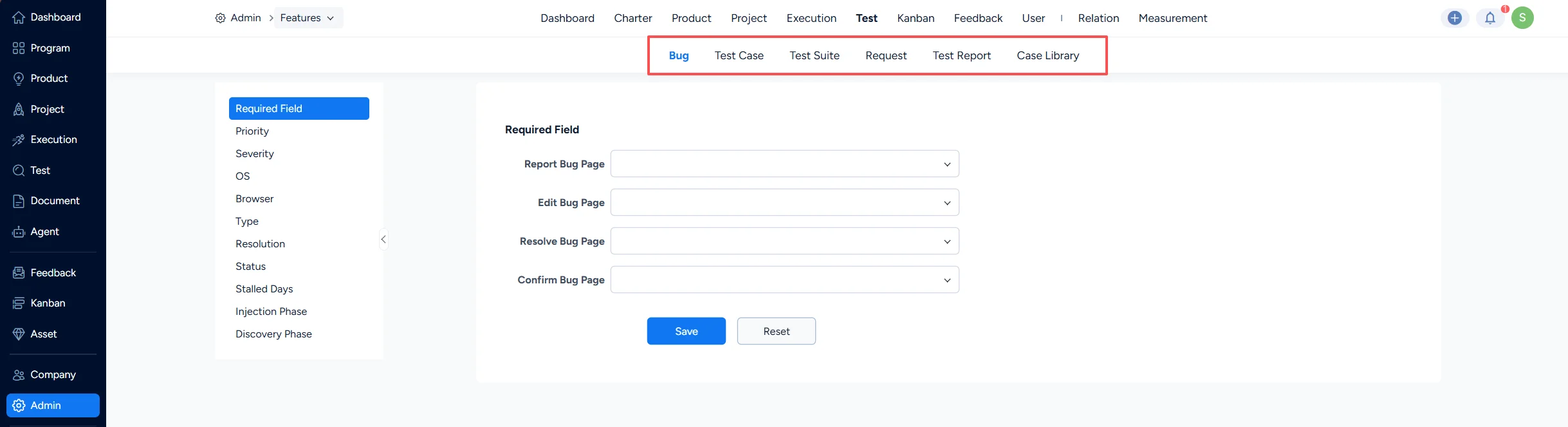
Test configuration in the Admin

I. Bug Settings

1. Bug – Required Fields

Under Test > Bug > Required Field, you can set which fields are mandatory when a bug is submitted, edited, or resolved.
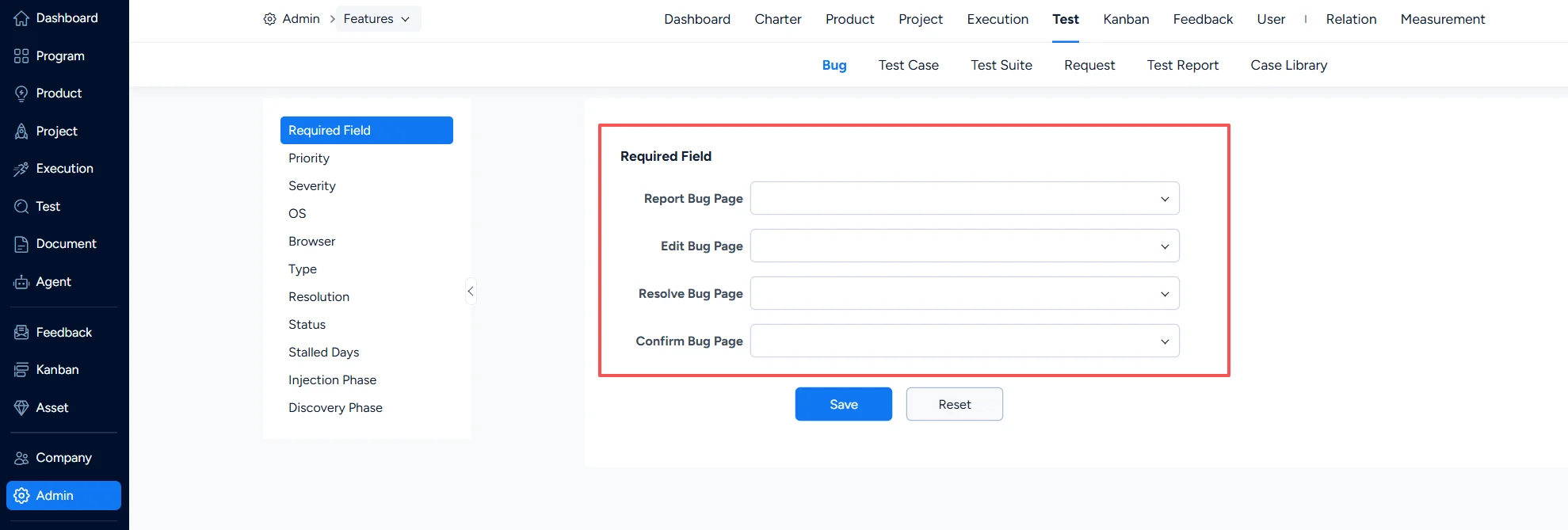
Set mandatory fileds of bugs

2. Bug – Priority

Under Test > Bug > Priority, you can configure bug priorities.
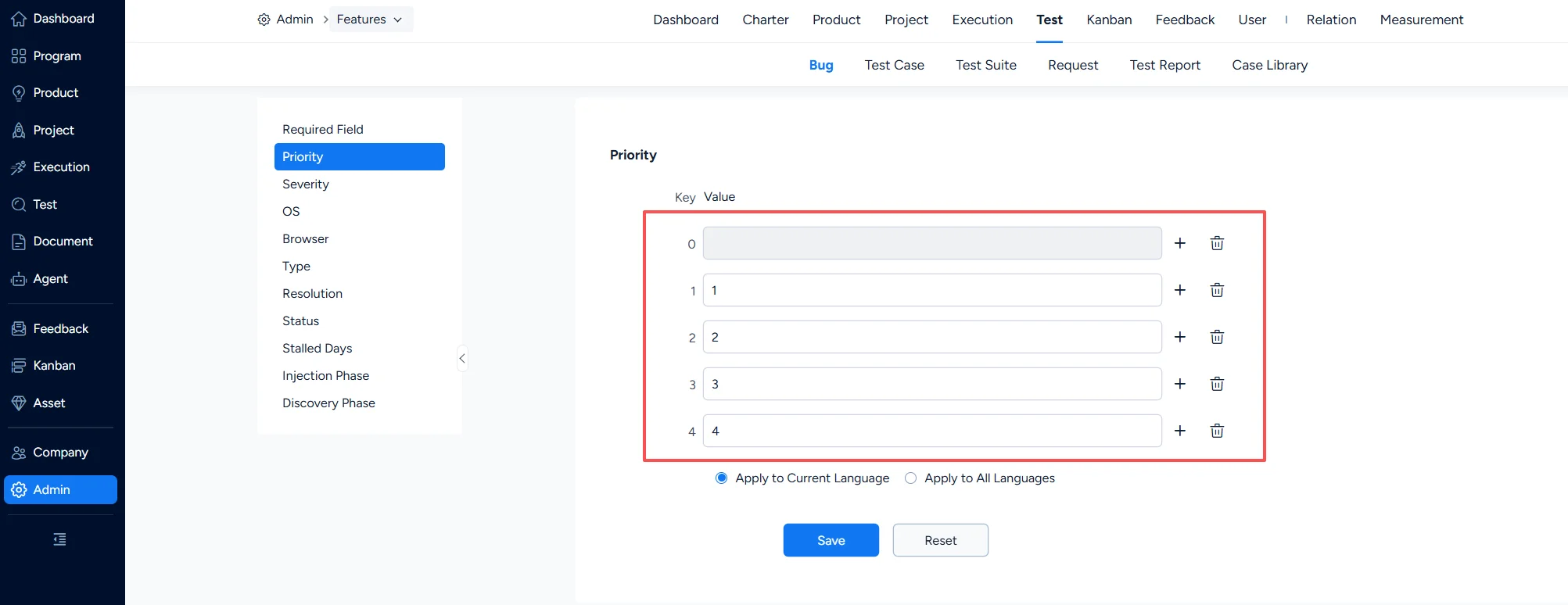
Set priorities of bugs

3. Bug – Severity

Under Test > Bug > Severity, you can configure bug severity levels.
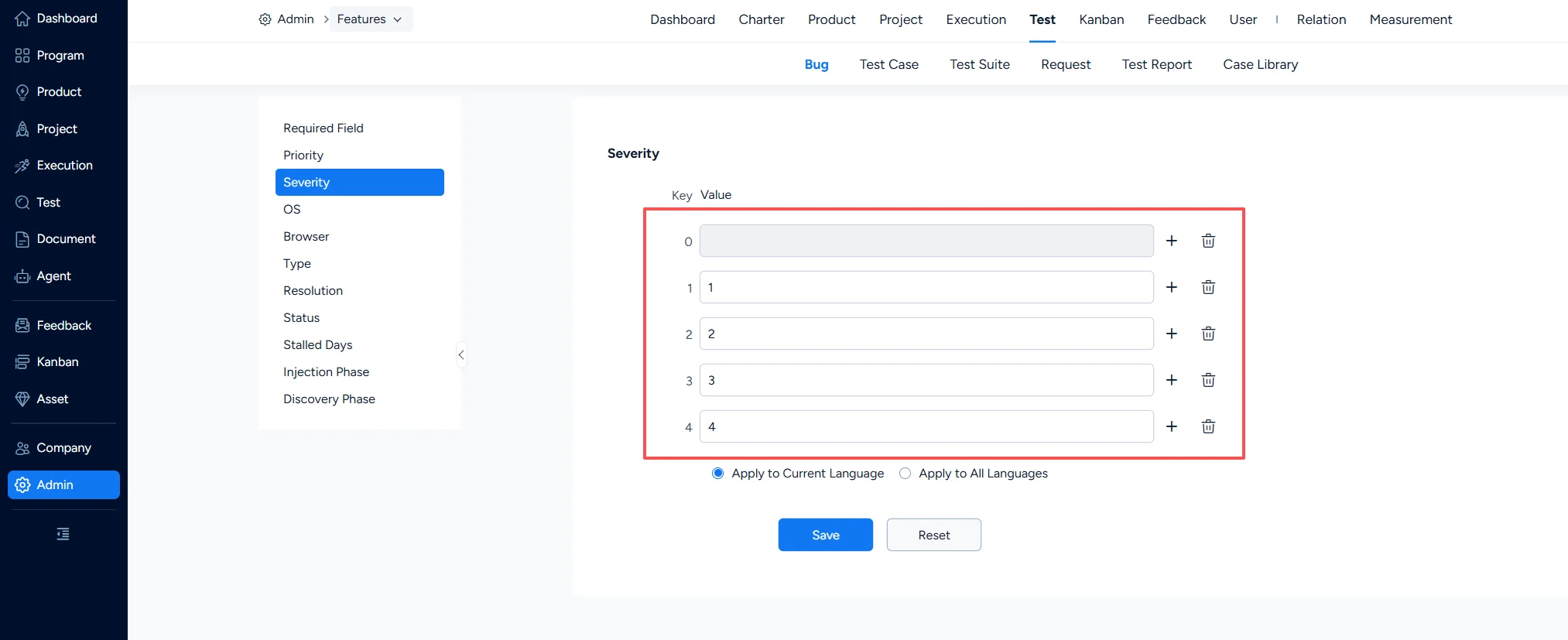
Set severity for bugs

4. Bug – Operating System

Under Test > Bug > OS, you can configure the operating systems associated with bugs.
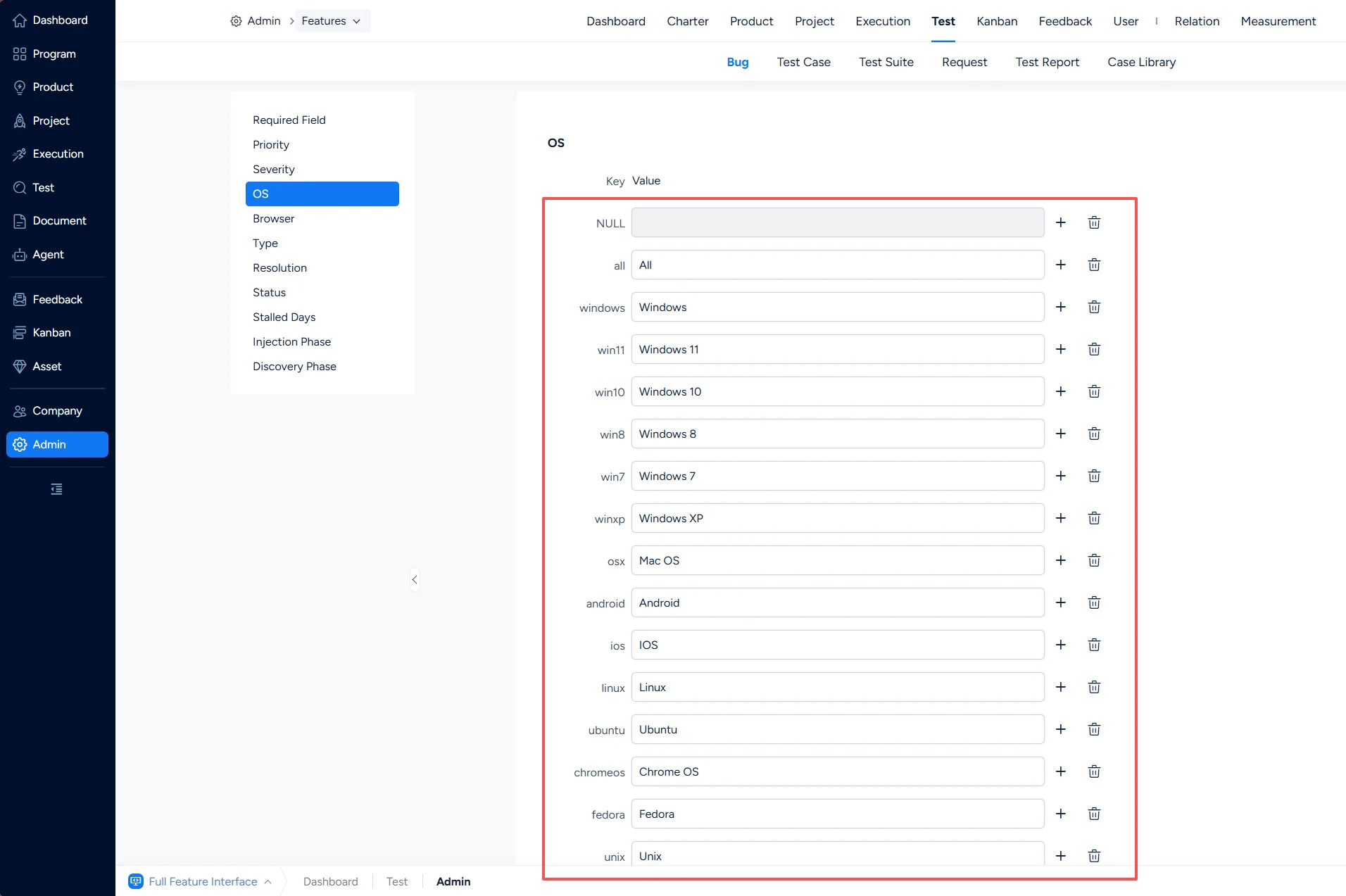
Set opration system for bugs

5. Bug – Browser

Under Test > Bug > Browser, you can configure the browsers associated with bugs.
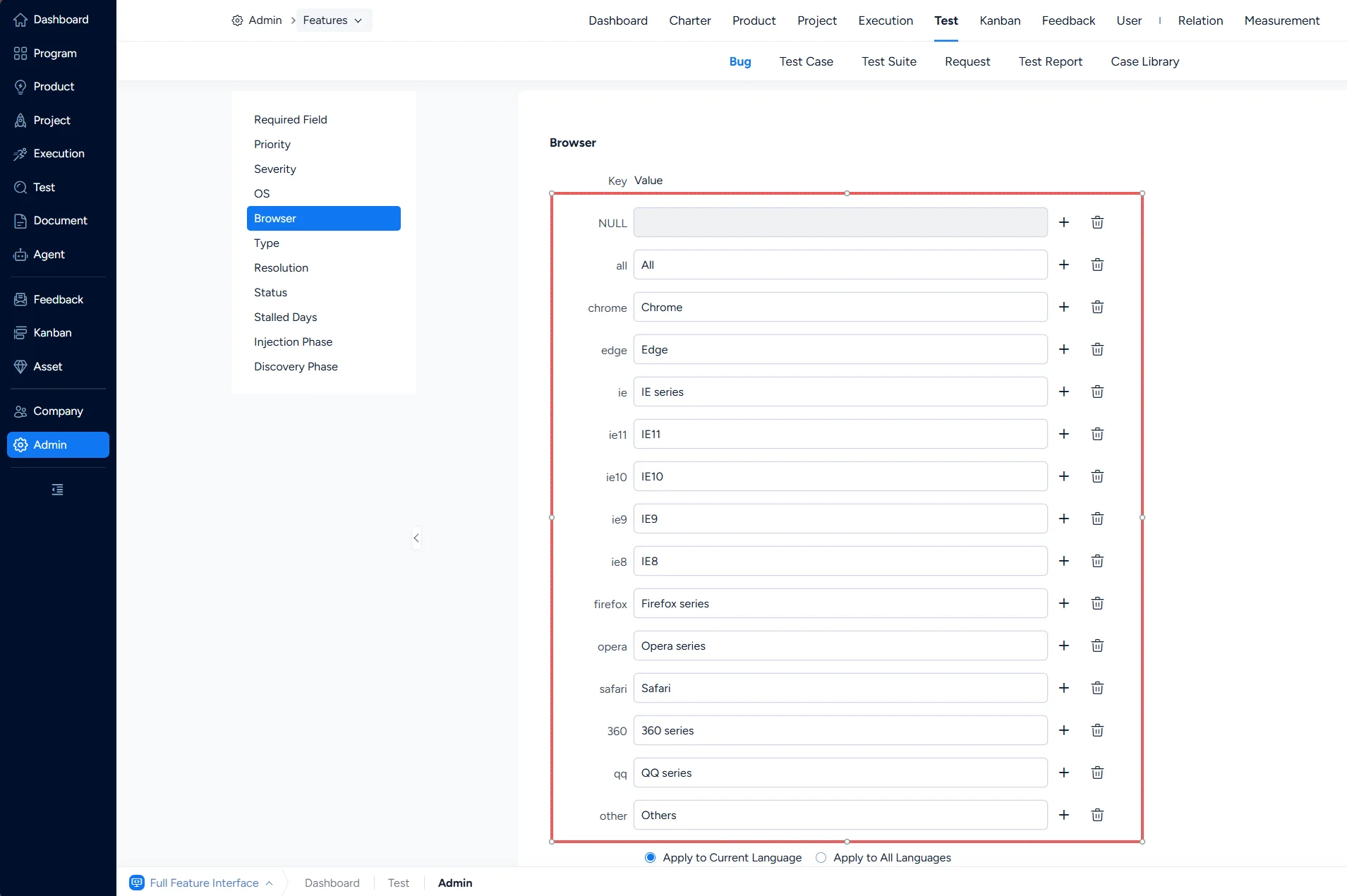
Set browsers for bugs

6. Bug – Type

Under Test > Bug > Type, you can configure bug types.
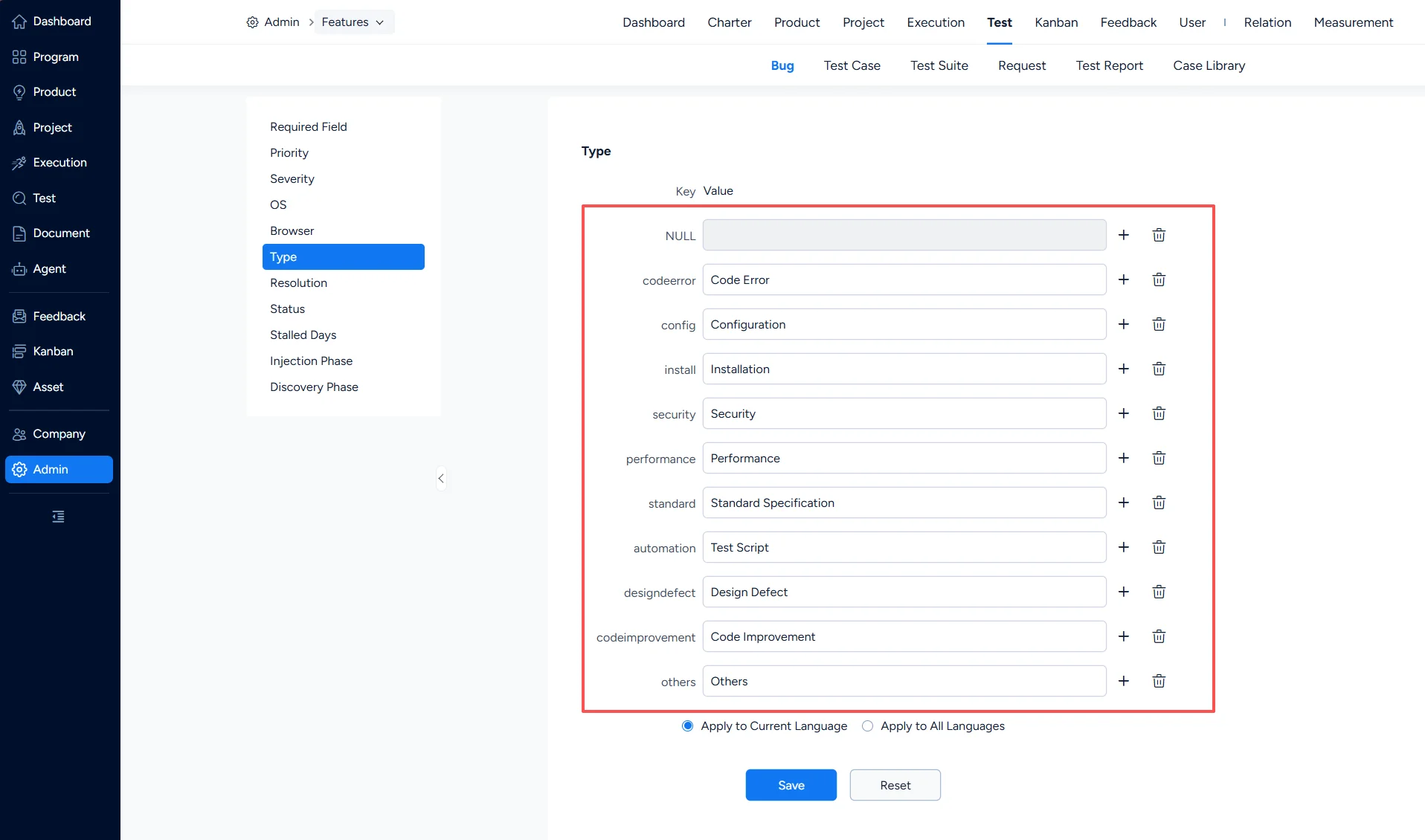
Bug types

7. Bug – Resolution

Under Test > Bug > Resolution, you can configure bug resolutions.
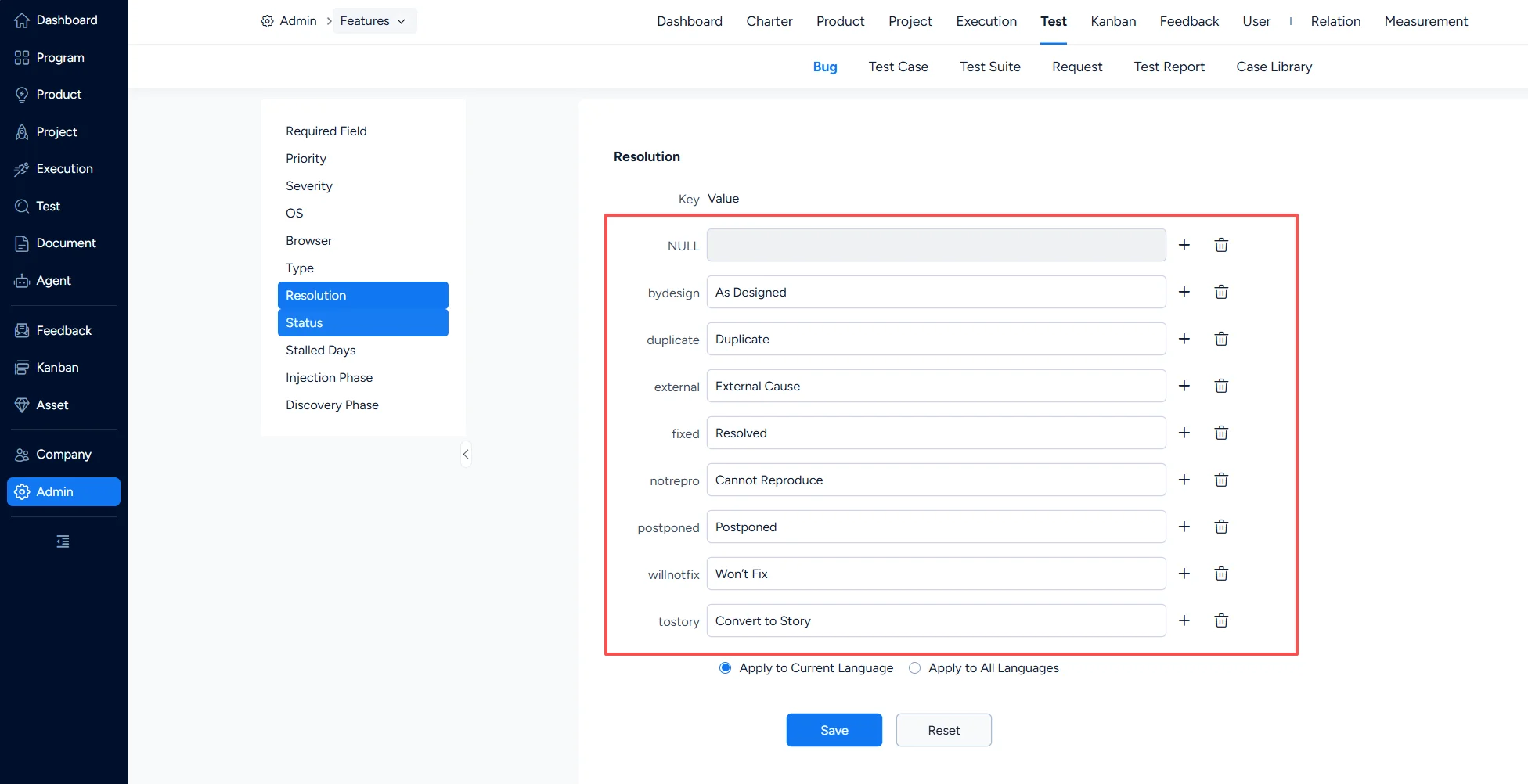
Bug resolutions

8. Bug – Status

Under Test > Bug > Status, you can configure bug statuses.
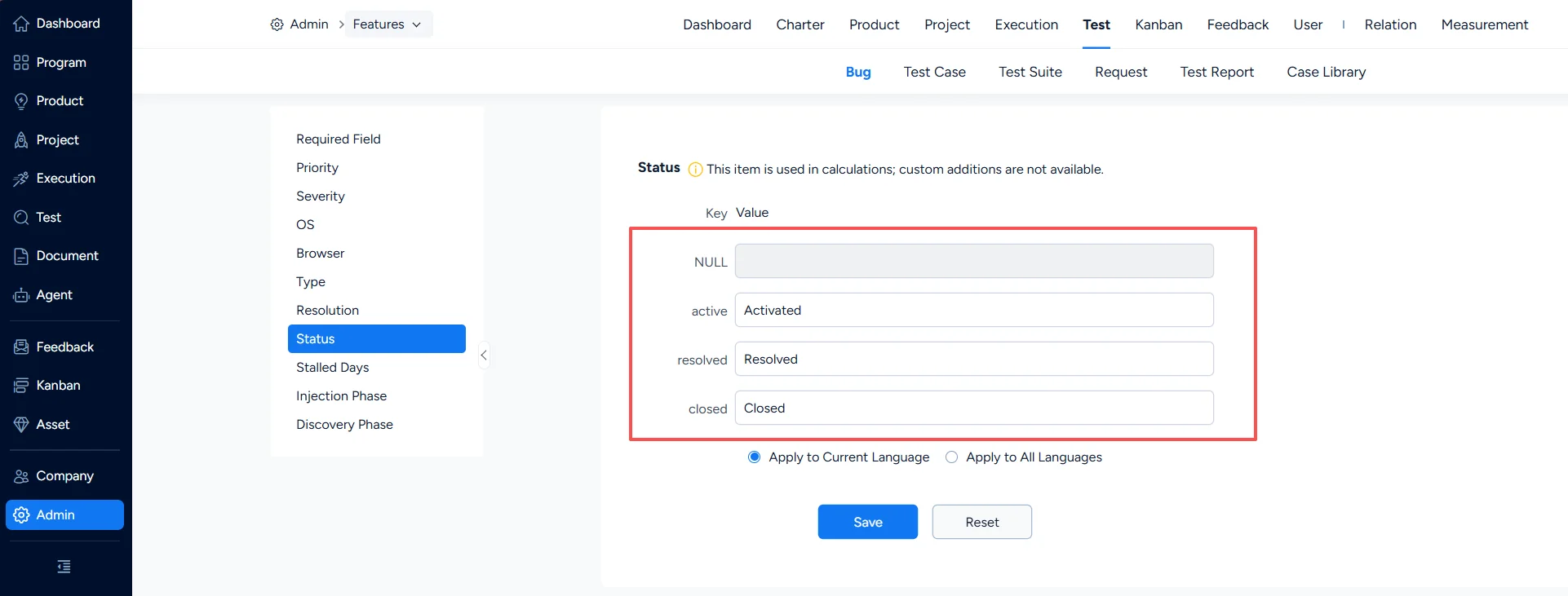
Bug status

9. Bug – Stalled Days

Under Test > Bug > Stalled Days, you can configure the Stale tag on the bug list page, so that bugs left unhandled before the specified number of days are listed.
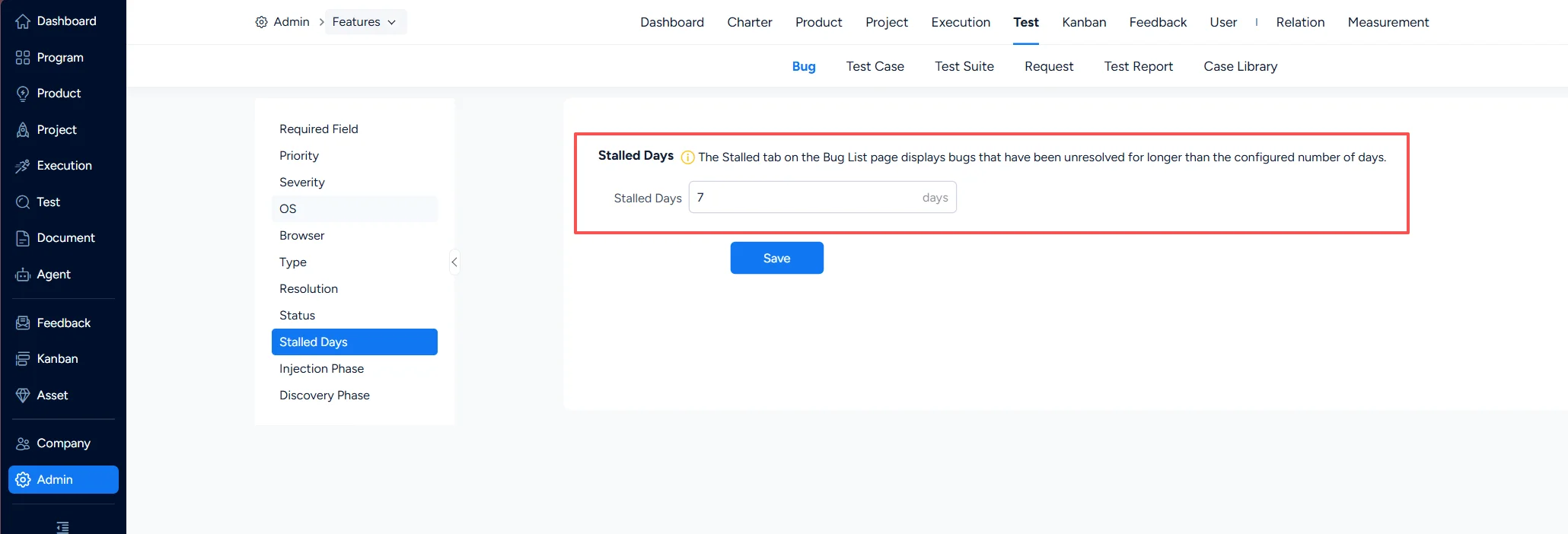
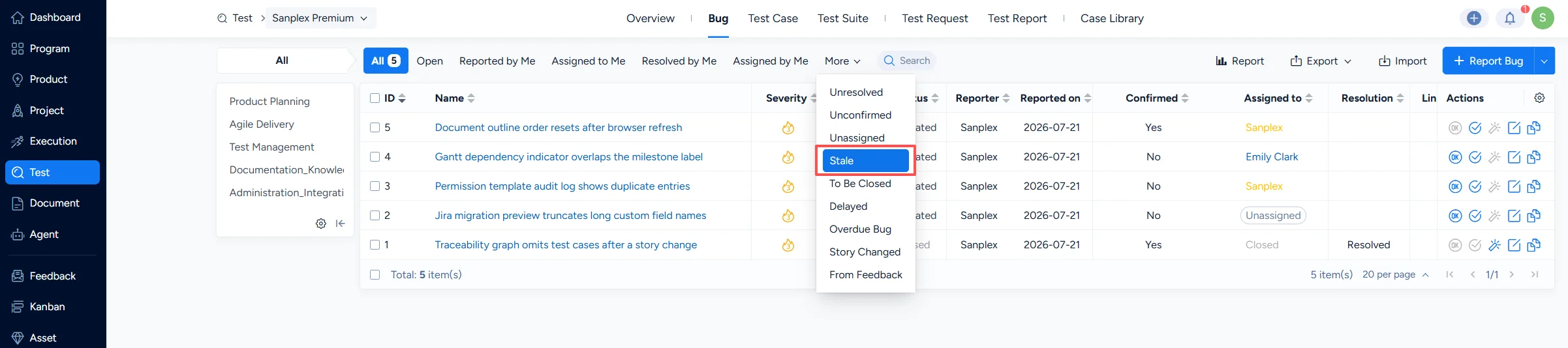
Set bug stalled days

Check stalled bugs in the list

II. Test Case Settings

1. Test Case – Required Field

Under Test > Test Case > Required Field, you can set which fields are mandatory when a test case is created or edited.
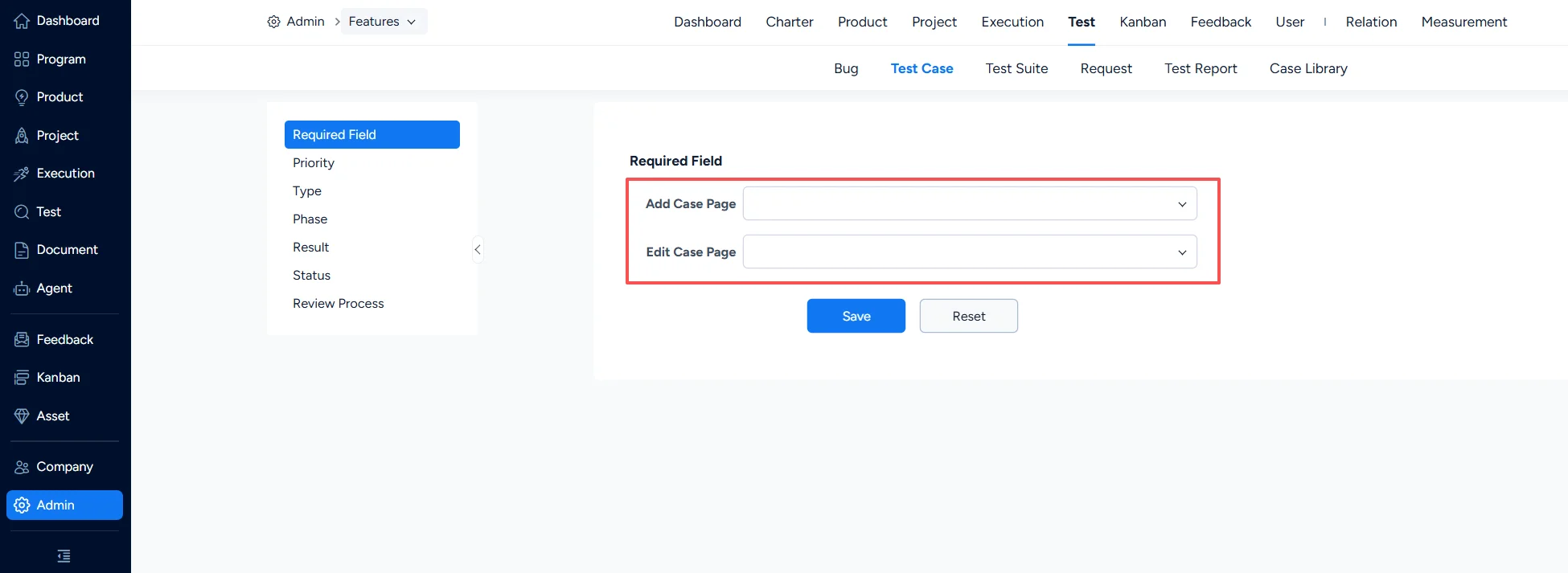
Set mandatory fields for test cases

2. Test Case – Priority

Under Test > Test Case > Priority, you can configure test case priorities.
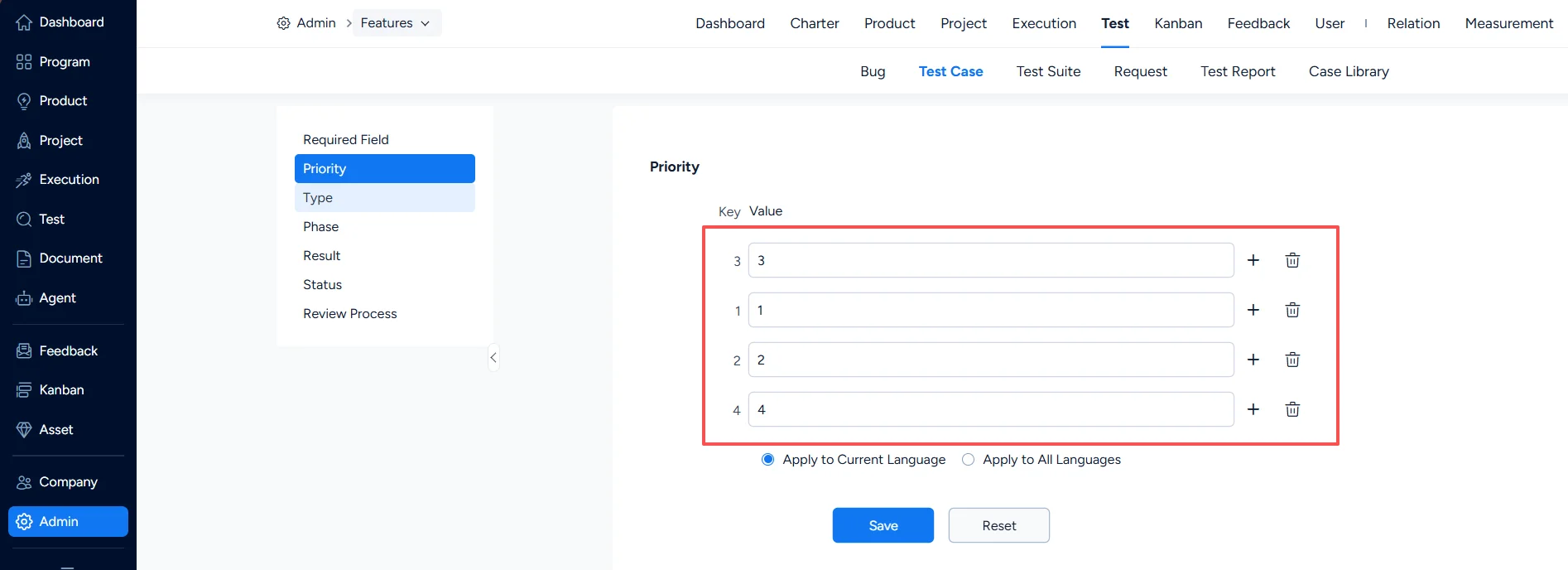
Test case priorities

3. Test Case – Type

Under Test > Test Case > Type, you can configure test case types.
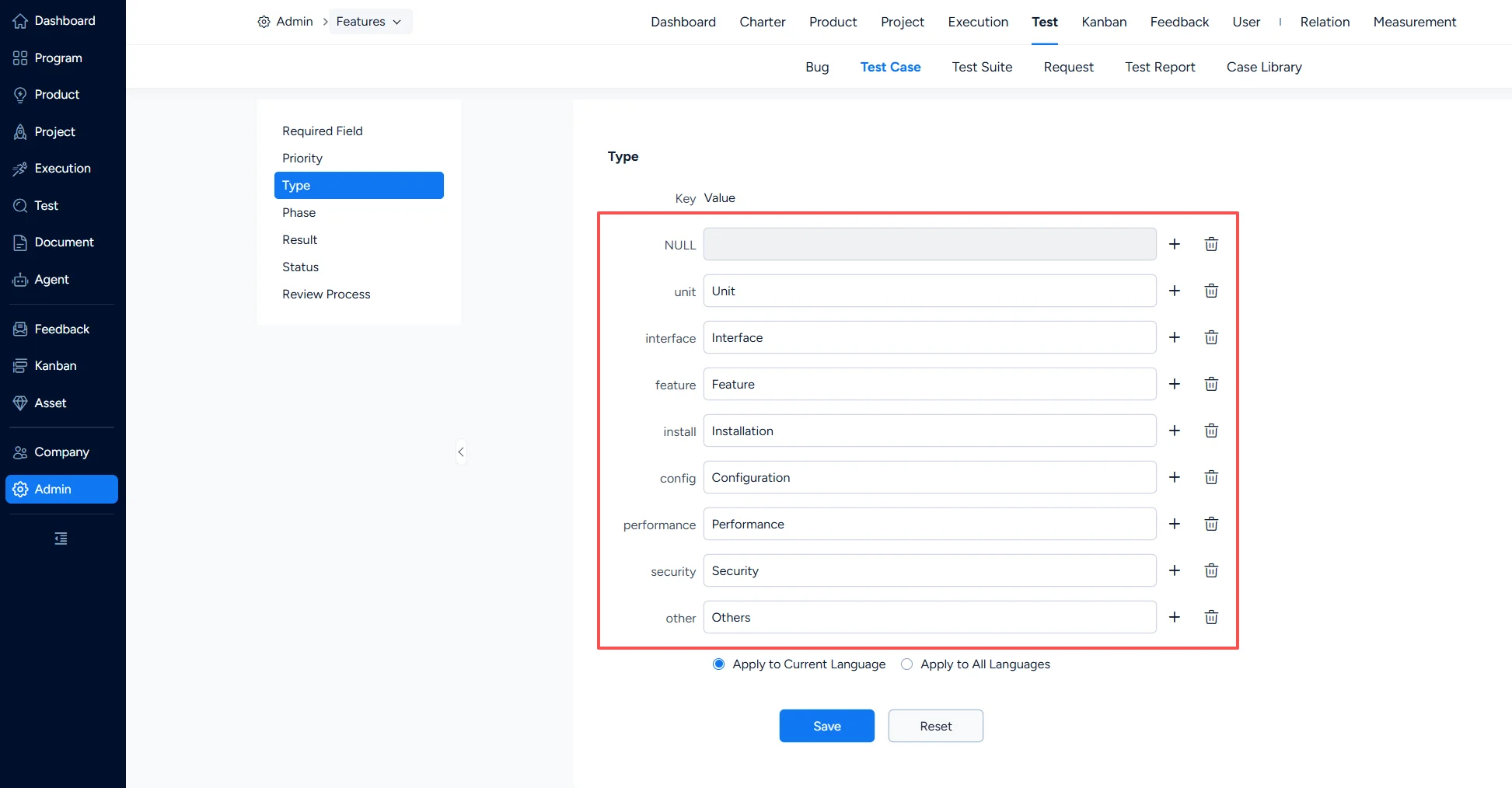
Test case types

4. Test Case – Phase

Under Test > Test Case > Phase, you can configure the phases that test cases apply to. The phases you configure here are automatically generated as a corresponding Phase list under the Test category of Deliverable Types in Admin > Project Flow.
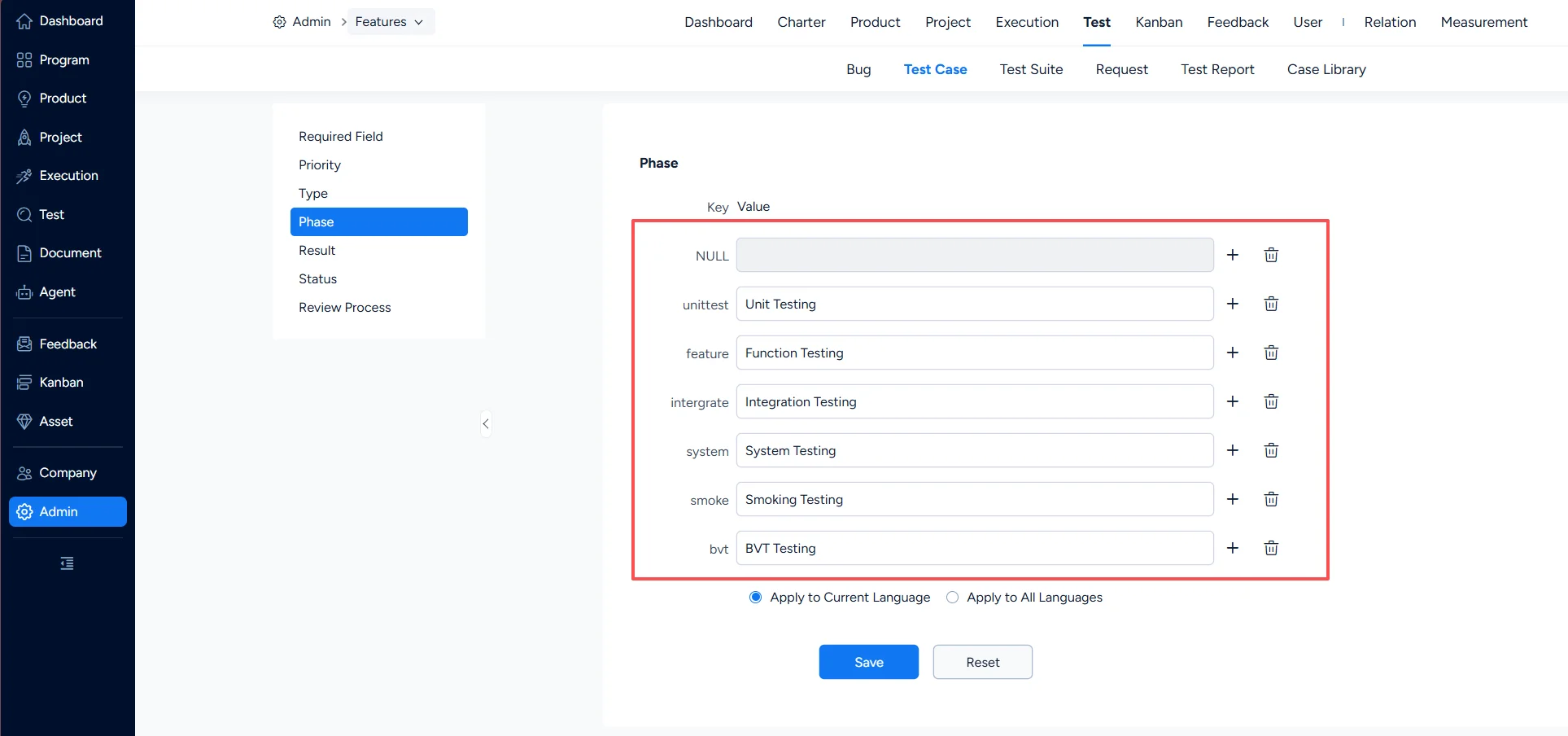
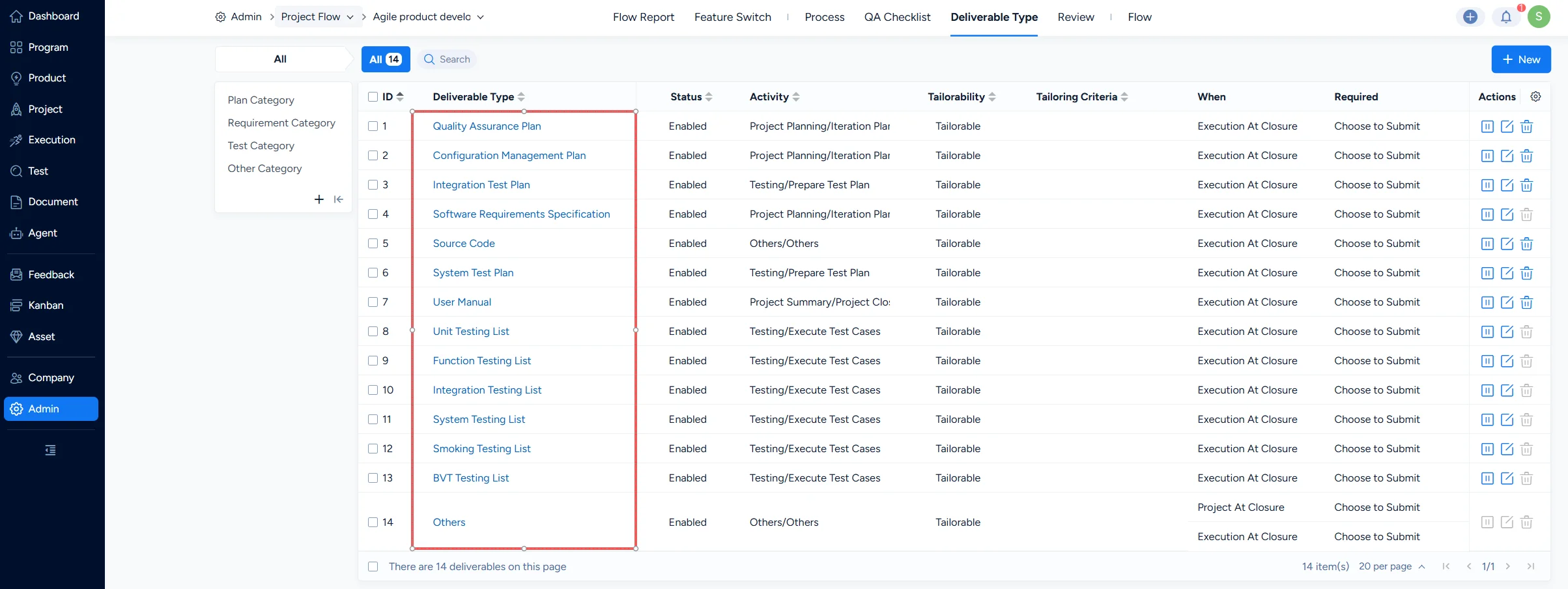
Test case phases

Diliverable types

5. Test Case – Result

Under Test > Test Case > Result, you can configure test case results.
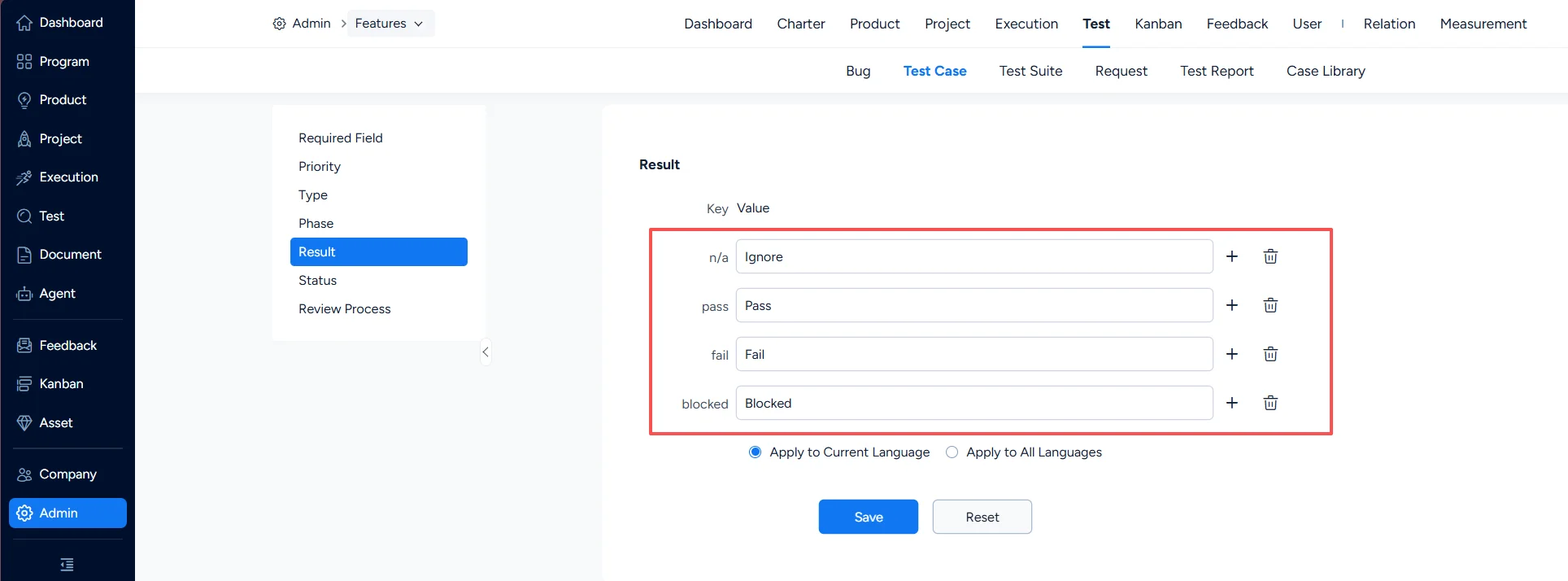
Test case result

6. Test Case – Status

Under Test > Test Case > Status, you can configure test case statuses.
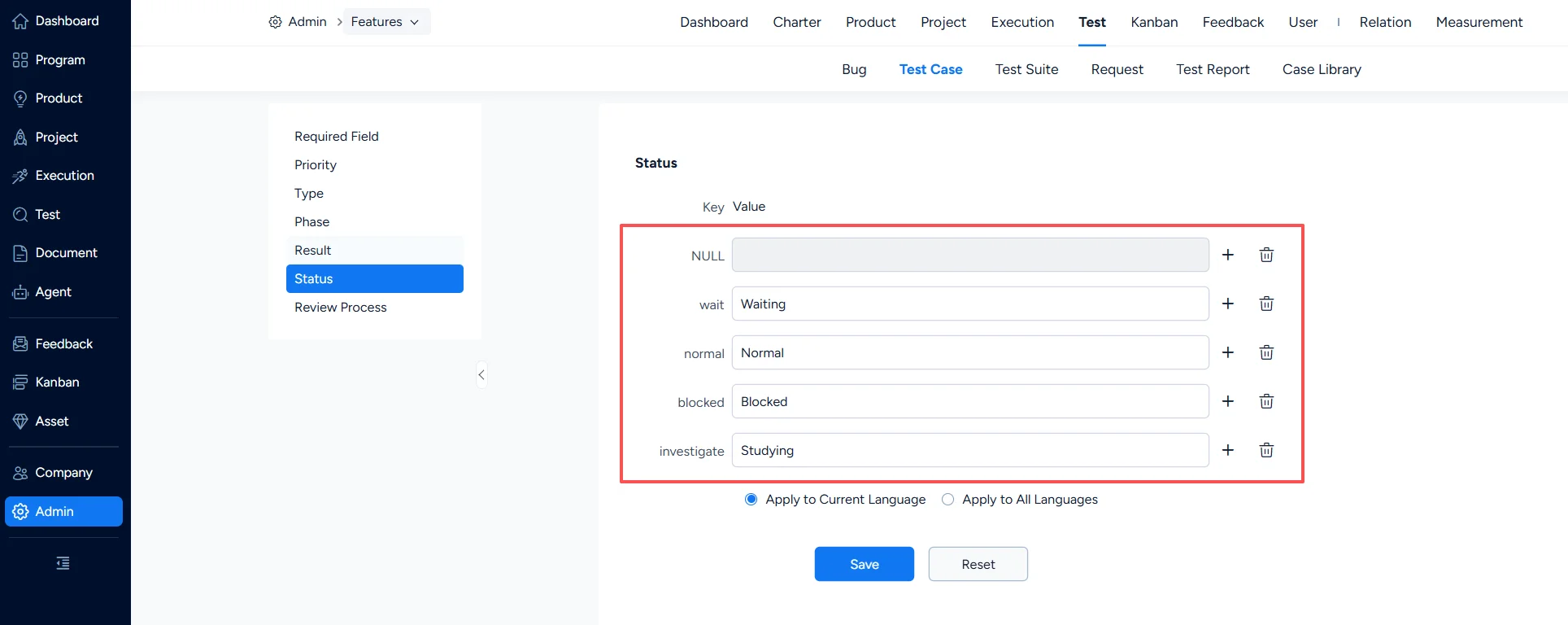
Test case status

7. Test Case – Review Process

Under Test > Test Case > Review Process, you can configure whether the review process is enabled for test cases. If a mandatory reviewer is designated, test cases submitted by that reviewer must go through the review process, whether or not the review process is enabled.
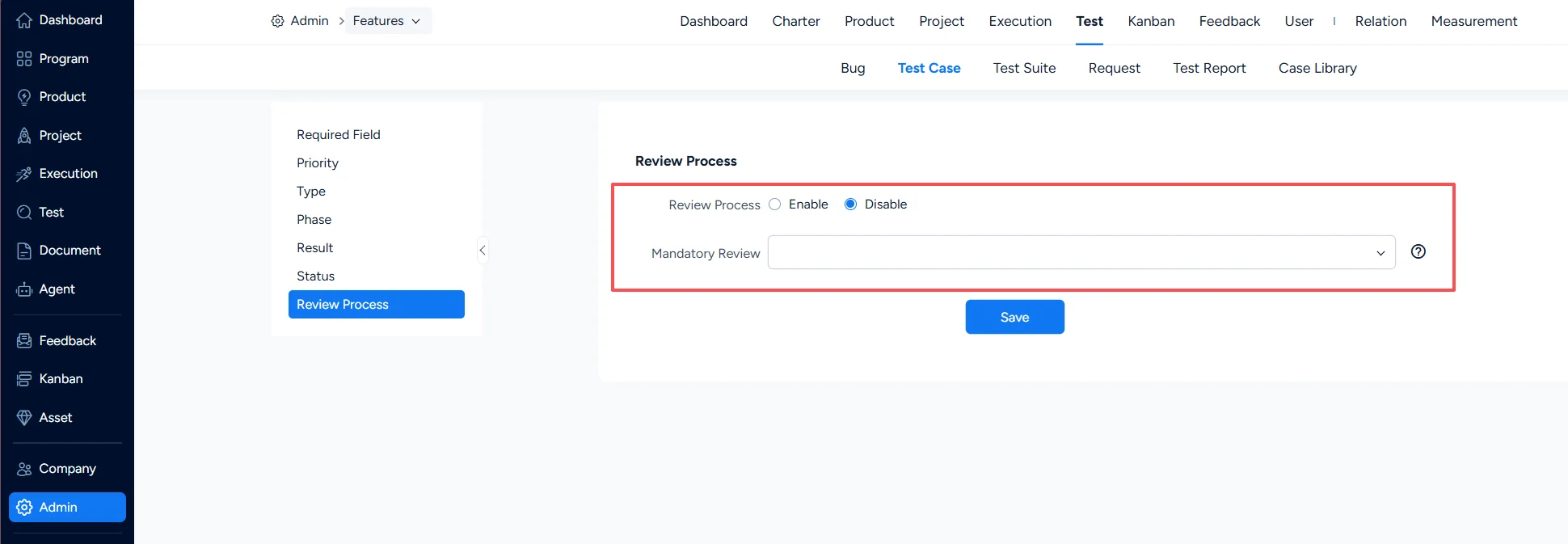
Review process

III. Test Suite Settings

Under Test > Test Suite > Required Field, you can set which fields are mandatory when a test suite is created or edited.
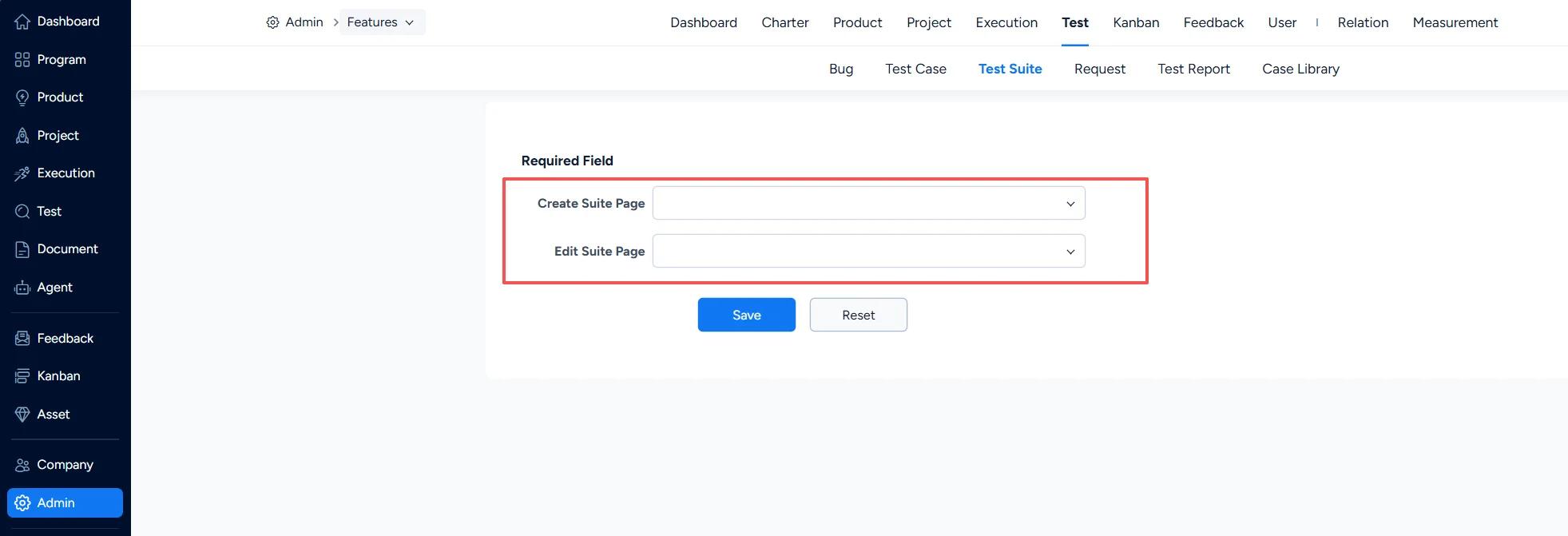
Set mandatory fields for test suite

IV. Test Request Settings

1. Test Request – Required Field

Under Test > Test Request > Required Field, you can set which fields are mandatory for a test request.
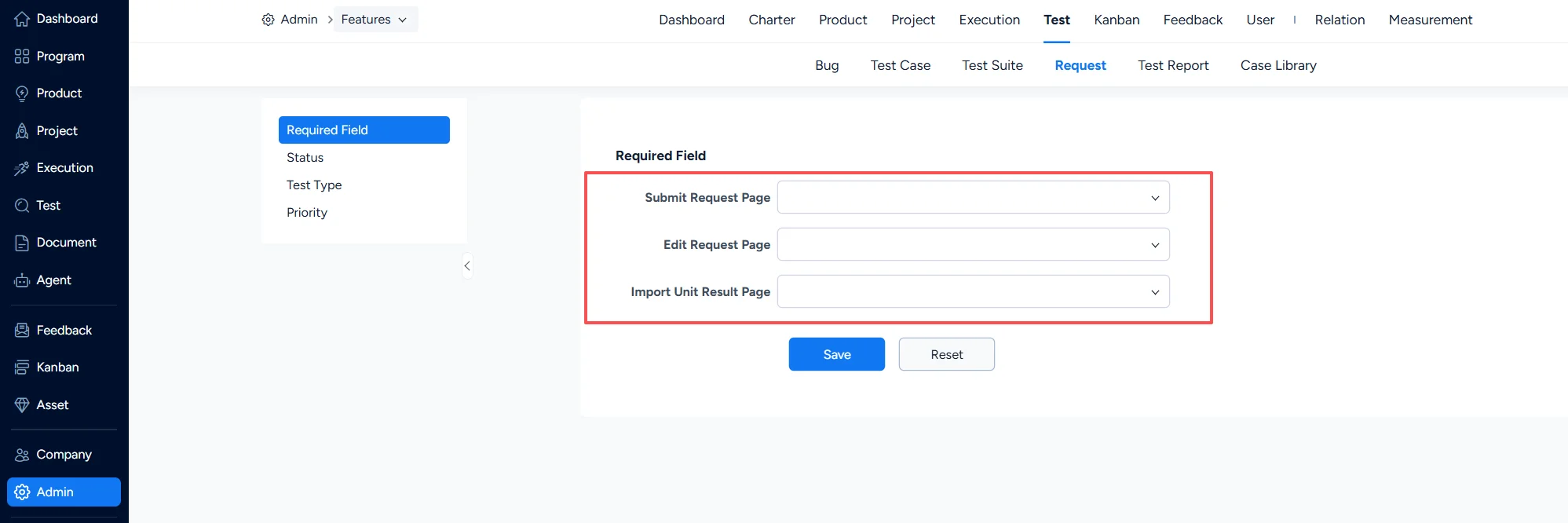
Set mandatory fields for test requests

2. Test Request – Status

Under Test > Test Request > Status, you can configure test request statuses.
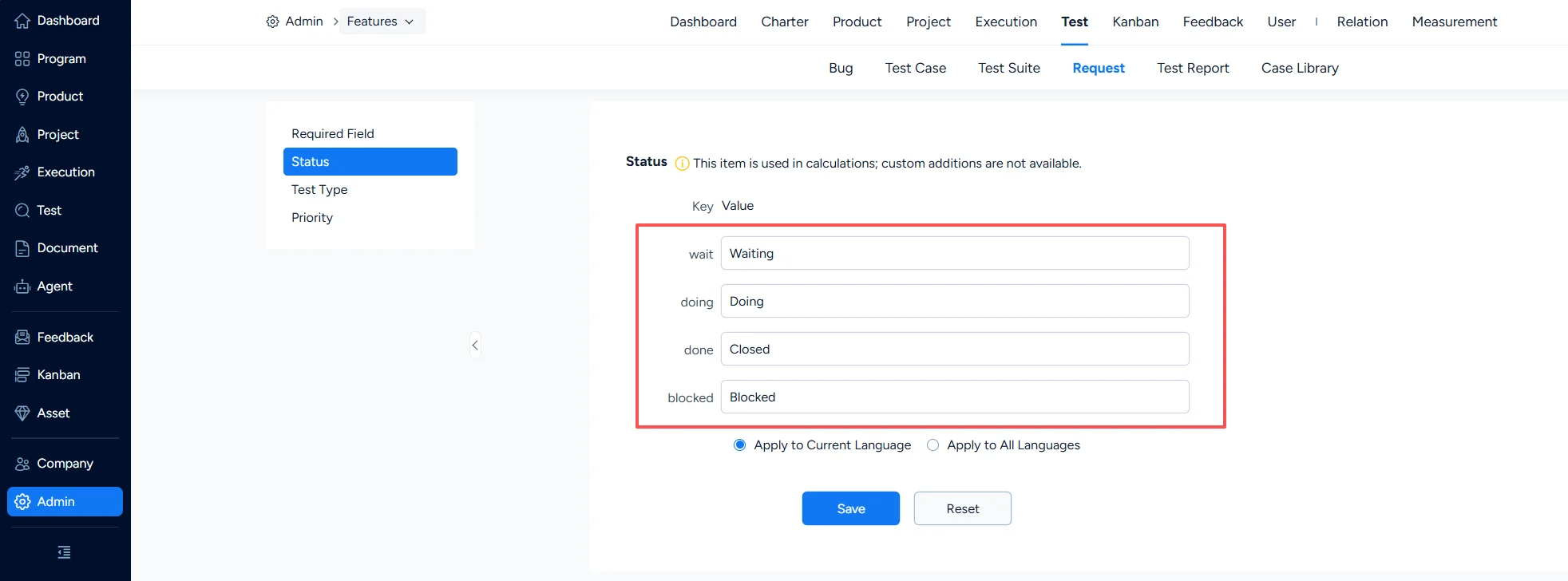
Test suite status

3. Test Request – Test Type

Under Test > Test Request > Test Type, you can configure the test types of test requests.
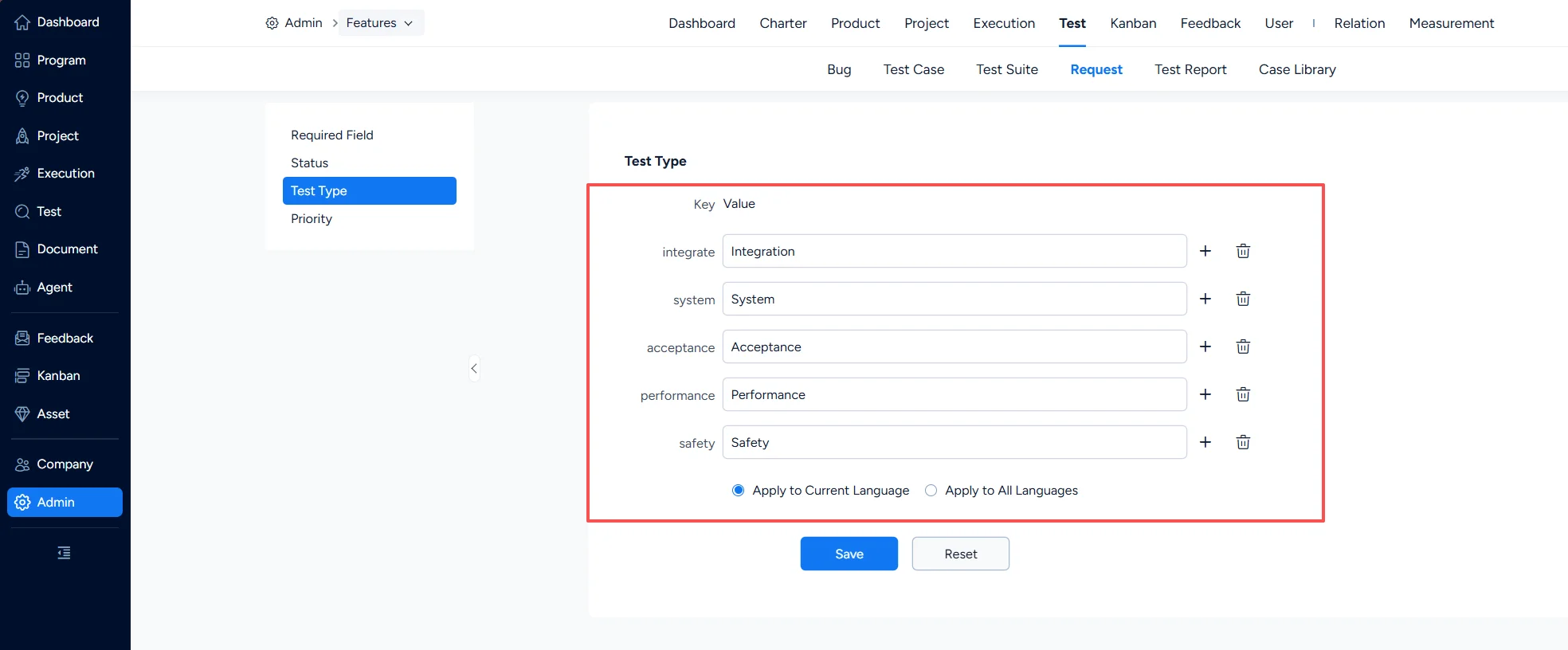
Test request types

4. Test Request – Priority

Under Test > Test Request > Priority, you can configure test request priorities.
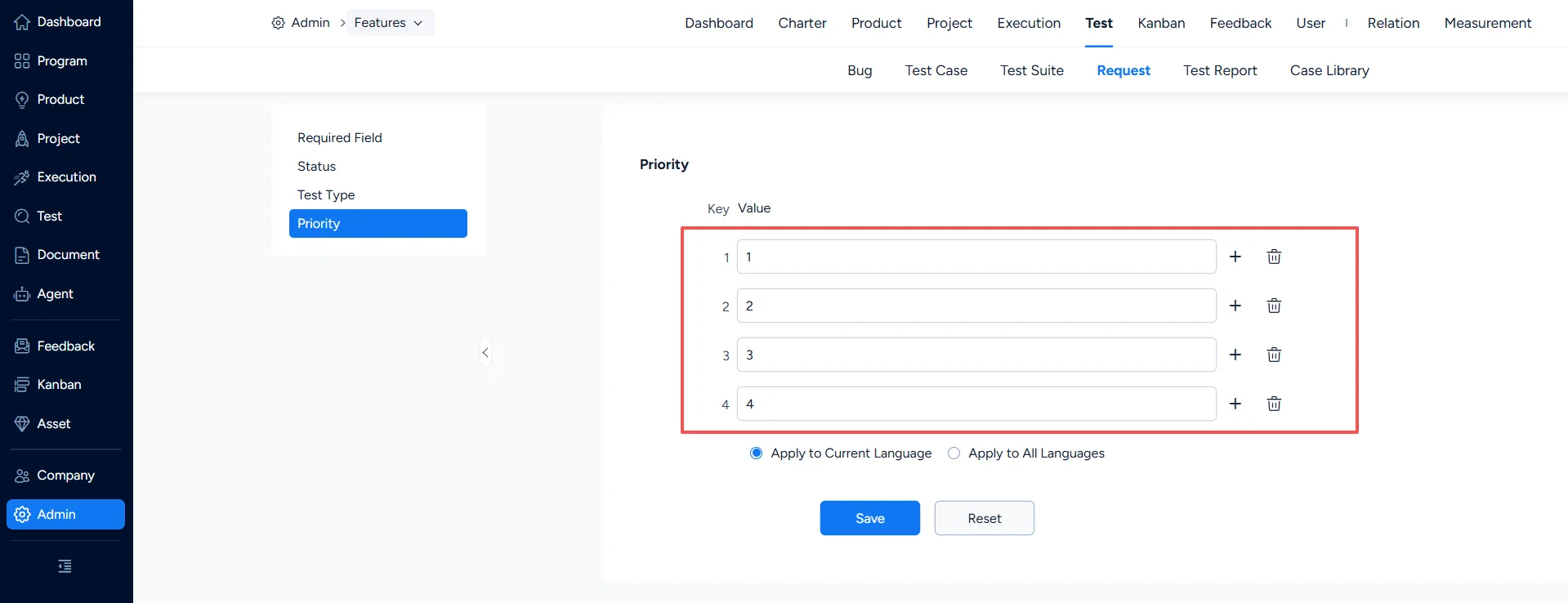
Test request priorities

V. Test Report Settings

Under Test > Test Report > Required Field, you can set which fields are mandatory when a test report is created or edited.
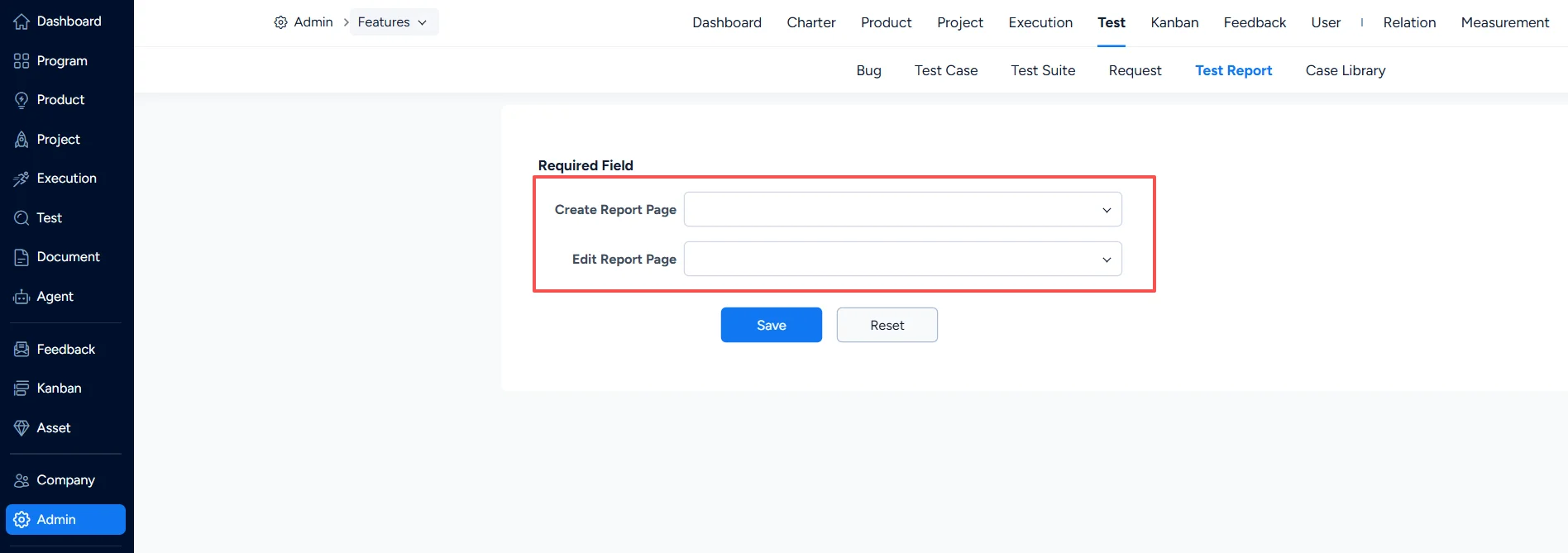
Set mandatory fields for test report

VI. Test Case Library Settings

Under Test > Test Case Library > Required Field, you can set which fields are mandatory when a test case library is created or edited.
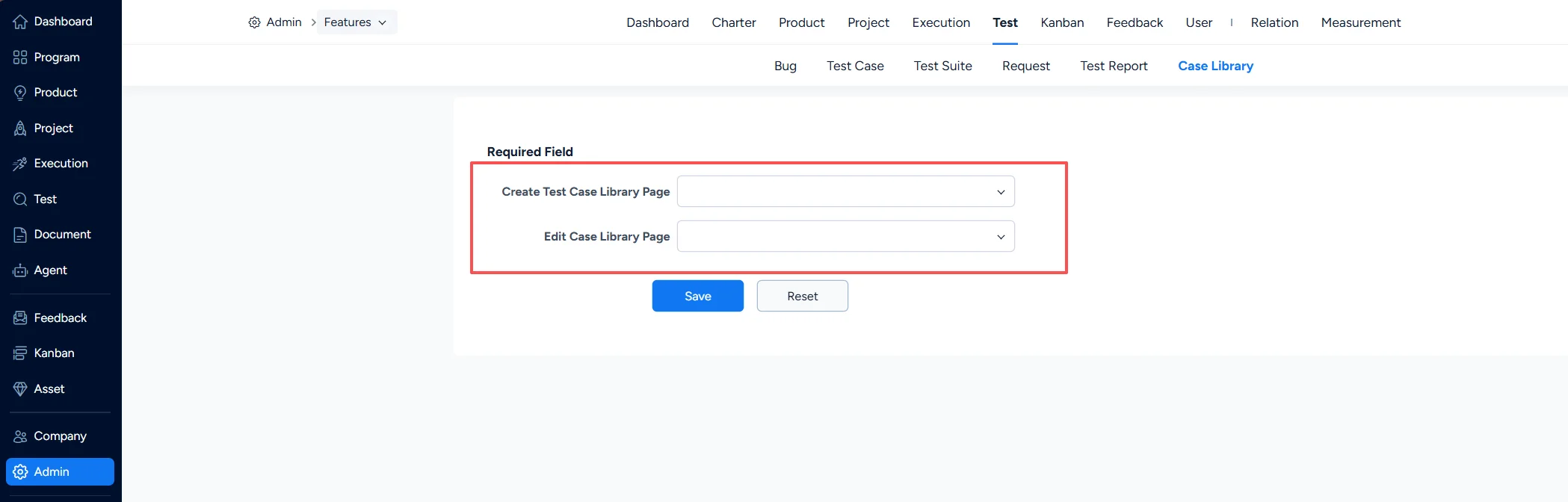
Set mandatory fields for test case library

Write a Comment
Comment will be posted after it is reviewed.
