Agent
1. Using Sanplex by Role
1.1. Administrator
1.1.1 Manage Departments
1.1.2 Manage Users
1.1.3 Manage Permissions
1.1.4 Configure Notifications
1.2. Program Manager
1.2.1 Create a Program
1.2.2 Create a Product
1.2.3 Create a Project
1.2.4 Manage Program Members
1.2.5 Manage Stakeholders
2. Introduction of Sanplex features
2.1. Core Management Framework
2.1.1 Program
2.1.2 Project
2.1.3 Product
2.1.4 Execution
2.1.5 Management Models
2.2. Dashboard
2.2.1 Getting Started with Tutorials
2.2.2 Quick Add
2.2.3 Notification Center
2.2.4 Effort Tracking
2.2.5 Dashboard - Project and Execution
2.2.6 Dashboard - My Work, Contribution, and Recents
2.2.7 Dashboard - Approval
2.2.8 Contacts
2.3. Program
2.3.1 Program List
2.3.2 Program Kanban
2.3.3 Create Program
2.3.4 Create Sub-Programs
2.3.5 Project Charter Management
2.4. Product
2.4.1 Create Product
2.4.2 Manage Modules
2.4.3 Multi-Branch and Multi-Platform Management
2.4.4 Manage Plans
2.4.5 Manage Stories
2.4.6 Story Reviews
2.4.7 Story Status and Phase
2.4.8 Create Releases
2.4.9 Track Progress
2.4.10 Epics and Multi-Level Stories
2.5. Project
2.5.1 Scrum Project
2.5.2. Waterfall Project
2.5.2.1 Manage Project Phases
2.5.2.2 Project Design
2.5.2.3 Project Matrix
2.5.2.4 Project Reports and Earned Value Management
2.5.2.5 Project Baselines
2.5.2.6 Project Change
2.5.3. Kanban Project
2.5.3.1 Set Up Kanban Projects
2.5.3.2 Configure Kanban Boards
2.5.3.3 Use Kanban Boards
2.5.4 Hybrid Agile Project
2.5.5 Hybrid Waterfall Project
2.5.6. Project Settings
2.5.6.1 Project Setup
2.5.6.2 Project Executions
2.5.6.3 Project Requirements
2.5.6.4 Project Builds
2.5.6.5 Project Tests
2.5.6.6 Project Docs
2.5.6.7 Project Releases
2.5.6.8 Project Reports
2.5.6.9 Project Risks
2.5.6.10 Project Issues
2.5.6.11 Project Opportunities
2.5.6.12 Project Deliverables
2.5.6.13 Project Reviews
2.5.6.14 Project Process
2.5.6.15 Deliverables
2.5.6.16 Quality Assurance
2.5.6.17 Project-specific Workflow Management
2.5.7 Project Templates
2.6. Execution
2.6.1 Product Planning and Task Breakdown
2.6.2 Task Assignment and Daily Tracking
2.6.3 Build Creation and Test Requests
2.6.4 Bug Confirmation and Resolution
2.6.5 Execution Kanban Boards
2.7. Testing
2.7.1 Write Test Cases
2.7.2 Execute Test Cases
2.7.3 Bug Submission and Reports
2.7.4 Verify and Close Bugs
2.7.5 Test Case Scenes
2.7.6 Submit a Test Request
2.7.7 Test Report
2.8. Agent
2.8.1 Conversation
2.8.2 Sanplex Agents
2.8.3 General Agents
2.8.4 Skill Management
2.8.5 AI Knowledge Library
2.8.6 Models
2.8.7 ZAI Service Installation
2.8.8 ZAI Service Control Panel
2.8.9 ZAI Configuration
2.9. Kanban
2.9.1 Kanban Spaces
2.9.2 Kanban Regions
2.9.3 Kanban Cards
2.10. Company
2.10.1 View Team Members and Work Information
2.10.2 View Recent Company Activity
2.10.3 View and Edit Company Information
2.11. Feedback
2.11.1 Configure, Create, and Review Feedback
2.11.2 Process Feedback and Send Notifications
2.11.3 Tickets
2.12. Admin Settings
2.12.1. System Settings
2.12.1.1 Mode
2.12.1.2 Backup
2.12.1.3 Trash
2.12.1.4 License
2.12.1.5 Security
2.12.1.6 Cron Job
2.12.1.7 Time Zone
2.12.1.8 Rebuild Index
2.12.1.9 LDAP
2.12.1.10 Table Engine
2.12.2 Feature Options
2.12.3. Users Management
2.12.3.1 Set Departments and Edit Company Profile
2.12.3.2 Manage Users
2.12.3.3 Set Permisions
2.12.4. Feature Configuration
2.12.4.1 Dashboard
2.12.4.2 Product
2.12.4.3 Project
2.12.4.4 Execution
2.12.4.5 Test
2.12.4.6 Kanban
2.12.4.7 Feedback
2.12.4.8 Tickets
2.12.4.9 User
2.12.4.10 Relations (Standard Version)
2.12.4.11 Meaturement
2.12.5 Migrate Jira Data to Sanplex
2.12.6 Jira to Sanplex Migration Mapping
2.12.7 Migrate Confluence Data to Sanplex
2.12.8. Agent Configuration
2.13. Asset Library (Premium)
2.13.1 Asset Library Management (Premium)

ZAI Configuration

2026-09-09 14:59:47
Sanplex Content
1070
Last edited by Kelsea Zhang on 2026-09-30 13:22:44
Share links
Summary: This guide explains how to configure ZAI so Sanplex can use its AI capabilities, covering the ZAI server address, port, application integration ID, application secret, and management secret required for the connection.

Installing the ZAI Service

Make sure ZAI is installed. For details, see ZAI Service Installation.

  • ZAI Server Address: The address Sanplex uses to call the ZAI API to power its Agent features. You can enter the server host's IP address or domain name, for example localhost.

  • ZAI Server Port: The port Sanplex uses to call the ZAI API. The default port is 8000.

  • App Integration ID: The ID assigned to Sanplex when it connects to the ZAI platform as an application, for example zai.

    Integration management - ZAI

  • Hash Token: Sanplex uses this token to securely authenticate calls to the ZAI API. Keep it safe. For example: qAs0y85cebIOWBPsBDaHmwkv8WNfgDSw.

  • Admin Token: Sanplex uses this token to securely authenticate calls to the ZAI management API. Keep it safe. For example: z1Jh0GrchSCE5CBCRvJhsx1JPZKj2kPR.
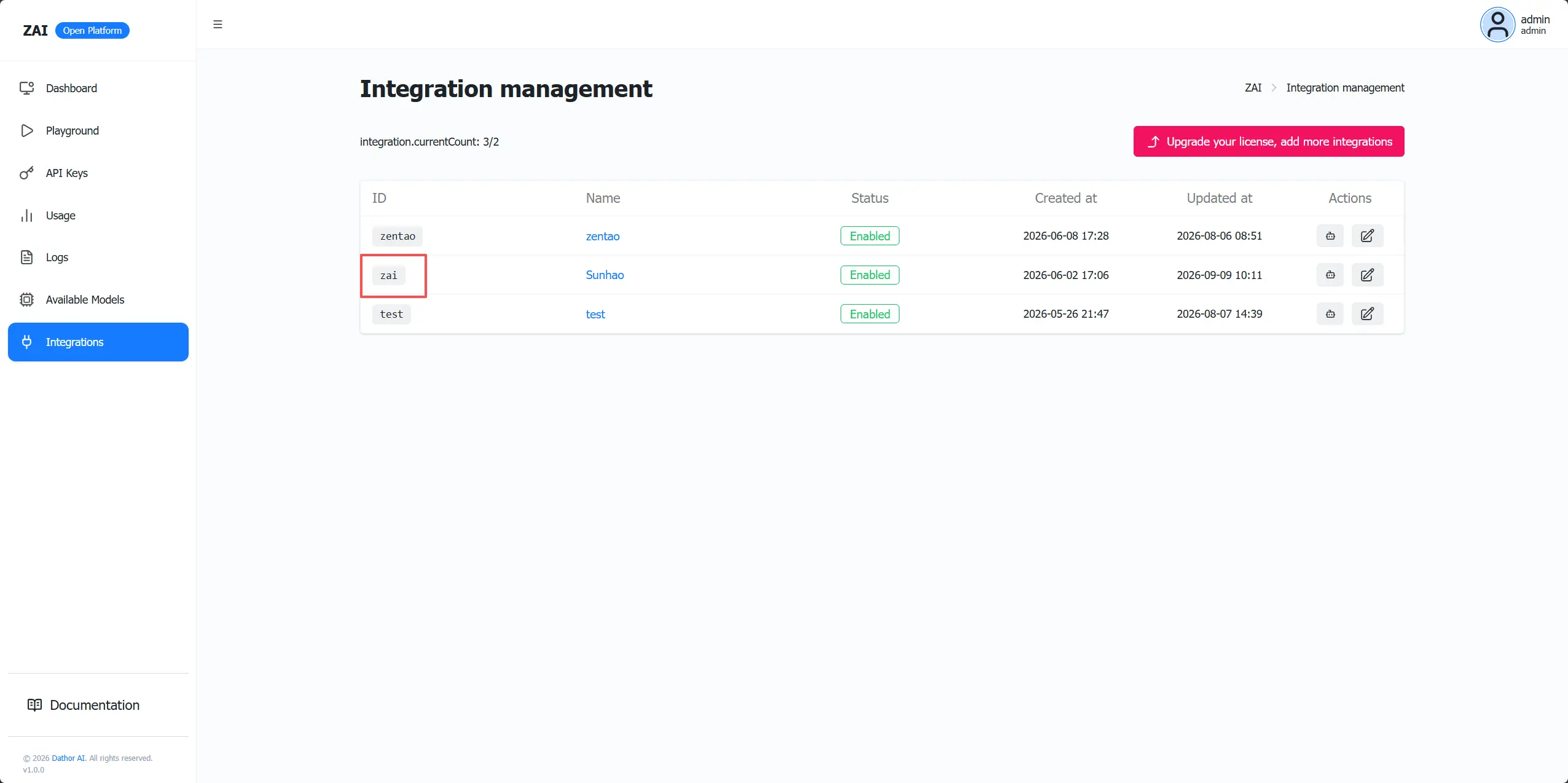
    Security settings

Once you have the host, application integration ID, port, Hash Token (which is under Integration Management) and Admin Token (which is under Integration Management), save them and Sanplex will connect to the ZAI service. (Enter the actual IP address of the ZAI server here. 127.0.0.1 and localhost are not accepted.)
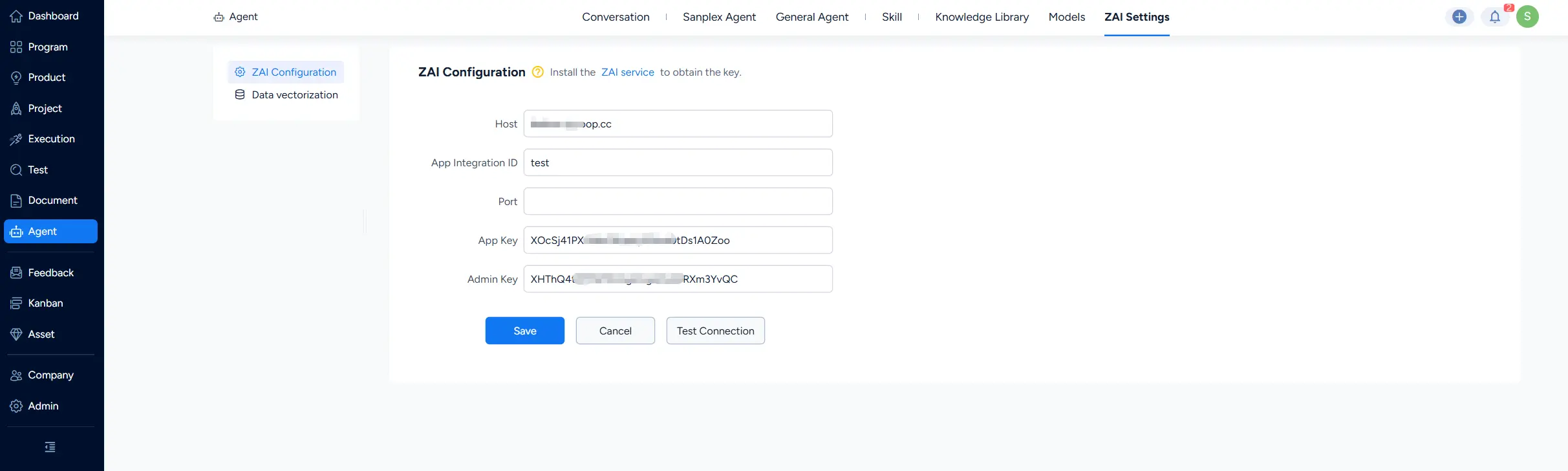
ZAI Settings in Sanplex

Next, configure the Content Security Policy (CSP) rules for Sanplex. Edit the config/my.php file in the Sanplex deployment directory and add the following configuration:

Even if ZAI and Sanplex are deployed on the same server, do not use localhost in the CSP settings. Enter the server's actual IP address instead.

$config->CSPs = array("form-action 'self';connect-src 'self' http://<server-ip>:8000"); 

Note: Make sure the ZAI server can be accessed over the same protocol as Sanplex. For example, if Sanplex is accessed over HTTPS, the ZAI server must also support HTTPS, which usually means configuring a reverse proxy with the appropriate certificates.

Sanplex Data Vectorization

Data vectorization converts data generated in Sanplex (for example, stories, bugs, and documents) into vectors so the AI can cite them in Conversation and answer questions more accurately.

On first use, it must be enabled manually: Go to Agent - ZAI Settings - Data Vectorization, click the Enable Data Vectorization button. Sanplex data vectorization requires the Admin Key to be configured in ZAI Configuration in advance. For details, see ZAI Service Installation.

Once enabled, vectorization needs an initial sync. Click Start Sync to begin, and the page will show the sync progress for each type of object.
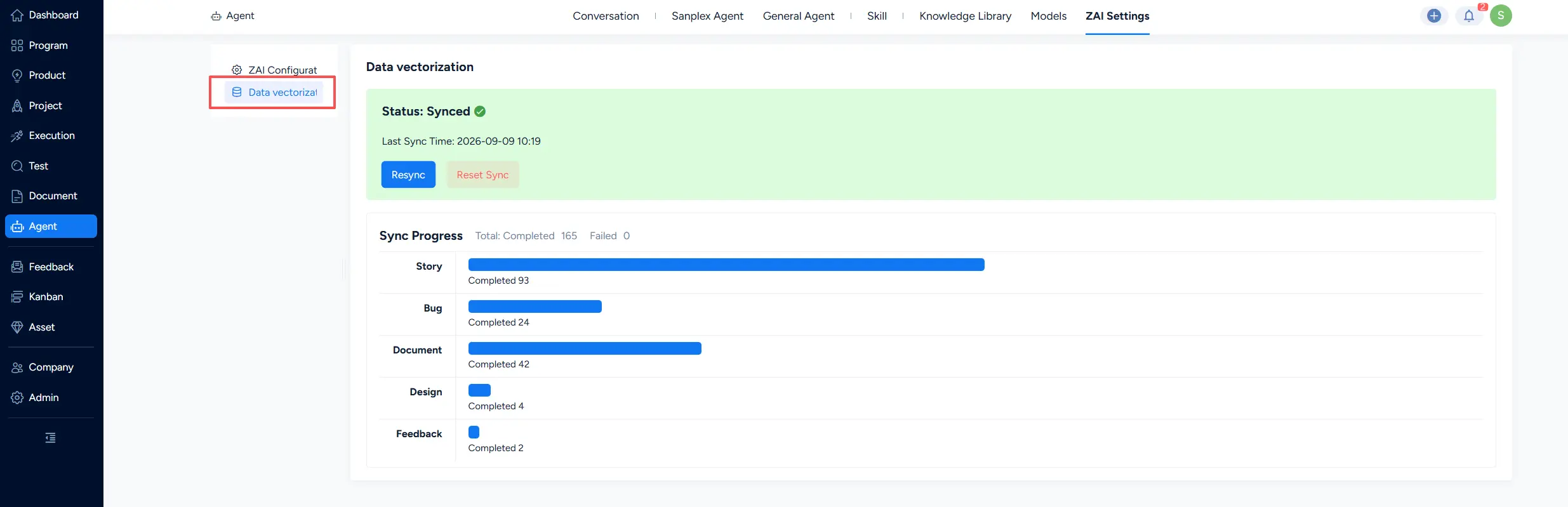
Data vectorization

When the sync finishes, you can reference Sanplex data in Conversation.

Write a Comment
Comment will be posted after it is reviewed.