
Dashboard
1. Introduction of Sanplex features
1.1. Core Management Framework
1.1.1 Program
1.1.2 Project
1.1.3 Product
1.1.4 Execution
1.1.5 Management Models
1.2. Dashboard
1.2.1 Getting Started with Tutorials
1.2.2 Quick Add
1.2.3 Notification Center
1.2.4 Effort Tracking
1.2.5 Dashboard - Project and Execution
1.2.6 Dashboard - My Work, Contribution, and Recents
1.2.7 Dashboard - Approval
1.2.8 Contacts
1.3. Program
1.3.1 Program List
1.3.2 Program Kanban
1.3.3 Create Program
1.3.4 Create Sub-Programs
1.3.5 Project Charter Management
1.4. Product
1.4.1 Create Product
1.4.2 Manage Modules
1.4.3 Multi-Branch and Multi-Platform Management
1.4.4 Manage Plans
1.4.5 Manage Requirements
1.4.6 Requirement Reviews
1.4.7 Requirement Status and Phase
1.4.8 Create Releases
1.4.9 Track Progress
1.4.10 Business Requirements and Multi-Level Requirements
1.5. Project
1.5.1 Scrum Project
1.5.2. Waterfall Project
1.5.2.1 Manage Project Phases
1.5.2.2 Project Design
1.5.2.3 Project Matrix
1.5.2.4 Project Reports and Earned Value Management
1.5.2.5 Project Baselines
1.5.2.6 Project Change
1.5.3. Kanban Project
1.5.3.1 Set Up Kanban Projects
1.5.3.2 Configure Kanban Boards
1.5.3.3 Use Kanban Boards
1.5.4 Hybrid Agile Project
1.5.5 Hybrid Waterfall Project
1.5.6. Project Settings
1.5.6.1 Project Setup
1.5.6.2 Project Executions
1.5.6.3 Project Requirements
1.5.6.4 Project Builds
1.5.6.5 Project Tests
1.6. Admin Settings
1.6.1 Confluence Data Import
1.7. Workflow

Dashboard - My Work, Contribution, and Recents

2026-08-14 09:56:25
Sanplex Content
390
Last edited by Jing WANG on 2026-08-14 09:56:38
Share links
Summary: Learn how to use My Work, Contribution, and Recents on the Dashboard to manage work that requires your attention, review your contributions, and follow recent activity in Sanplex.

On the Dashboard, My Work brings together work items that require your attention. Depending on the available modules and your permissions, you can switch between different work types, such as Task, Story, Requirement, Epic, Bug, Test Case, Test Request, Issue, Risk, Review Issue, Feedback, Ticket, and other available items.

The Contribution view helps you review work you have participated in from different contribution perspectives, such as items Created by Me, Reviewed by Me, Closed by Me, or Assigned by Me.

The Recents view provides a chronological record of recent activities in Sanplex and allows you to review activity records from different time periods.

The examples below use Stories to illustrate how these views work.

1. View Pending Work

Go to Dashboard → My Work and select Story. You can switch between Assigned to Me and My Pending Review to review Stories that require your attention, or use Search to locate specific items.

Dashboard My Work view showing assigned work items and available work categories.

The Story list supports different display modes, allowing you to review individual Stories in a list or view their hierarchical relationships when needed.

My Work Story view showing Stories with available list and hierarchy display options.

2. Process Pending Work

Use the available options in the Actions area to process a Story. The actions available for each item may vary depending on its status, your permissions, and the current workflow.

My Work Story list showing available actions for processing assigned Stories.

Other work types in My Work can be reviewed and handled in a similar way according to their available actions.

3. View Contributions

Go to Dashboard → Contribution to review work you have participated in. Select a work type and use the available contribution filters, such as Created by Me, Reviewed by Me, Closed by Me, or Assigned by Me, to view the corresponding records.
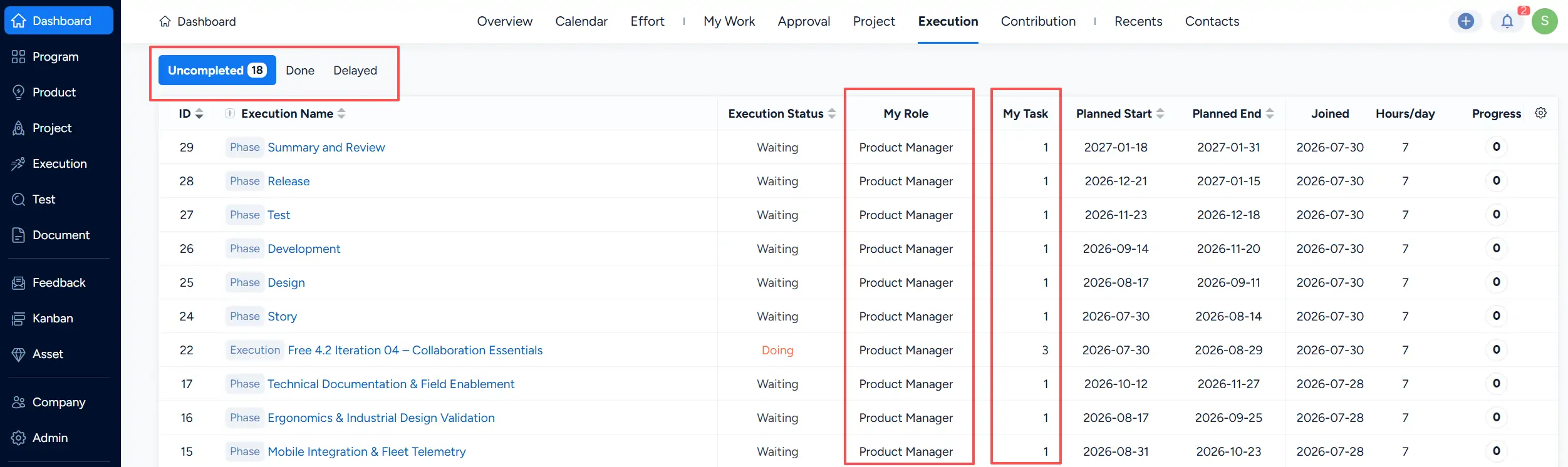
Dashboard Contribution view showing work records with different contribution filters.

4. View Recent Activities

Go to Dashboard → Recents to review recent activity records. You can view all records or use the available time filters, such as Today, Yesterday, This Week, Last Week, This Month, and Last Month, to narrow the activity history.
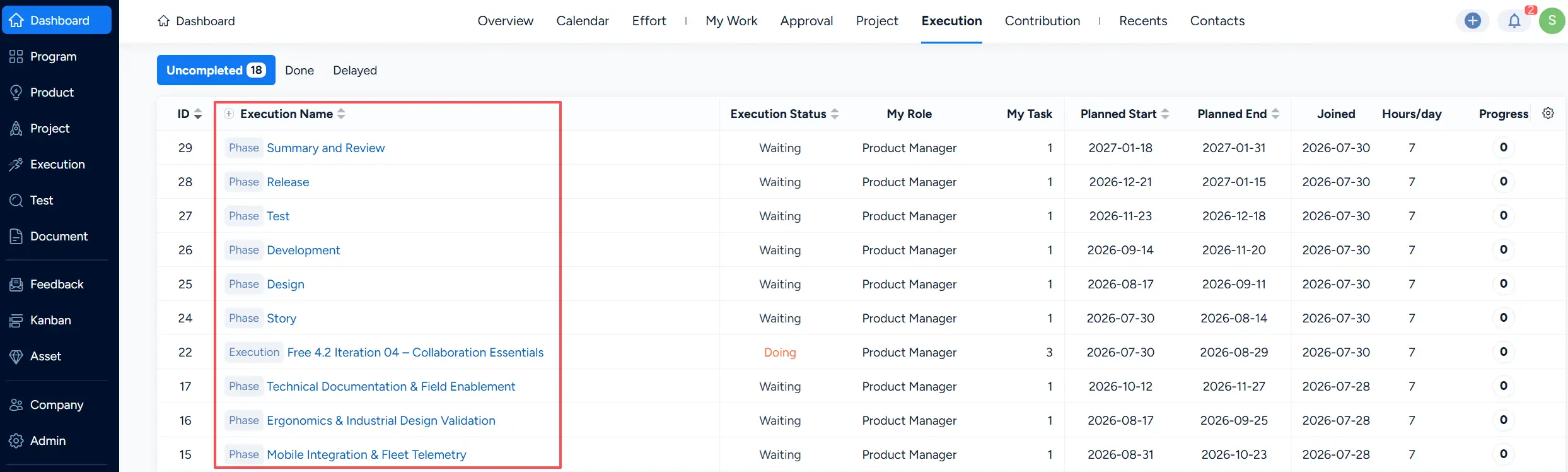
Dashboard Recents view showing chronological activity records with available time filters.


Write a Comment
Comment will be posted after it is reviewed.
