

Catalog
After the Development Kanban Board is configured, teams can organize cards, move work through workflow stages, keep board data synchronized with project objects, and use the Cumulative Flow Diagram (CFD) to analyze delivery trends.
This section explains how to work with board cards and analyze Kanban delivery data.
I. Group and View Board Cards
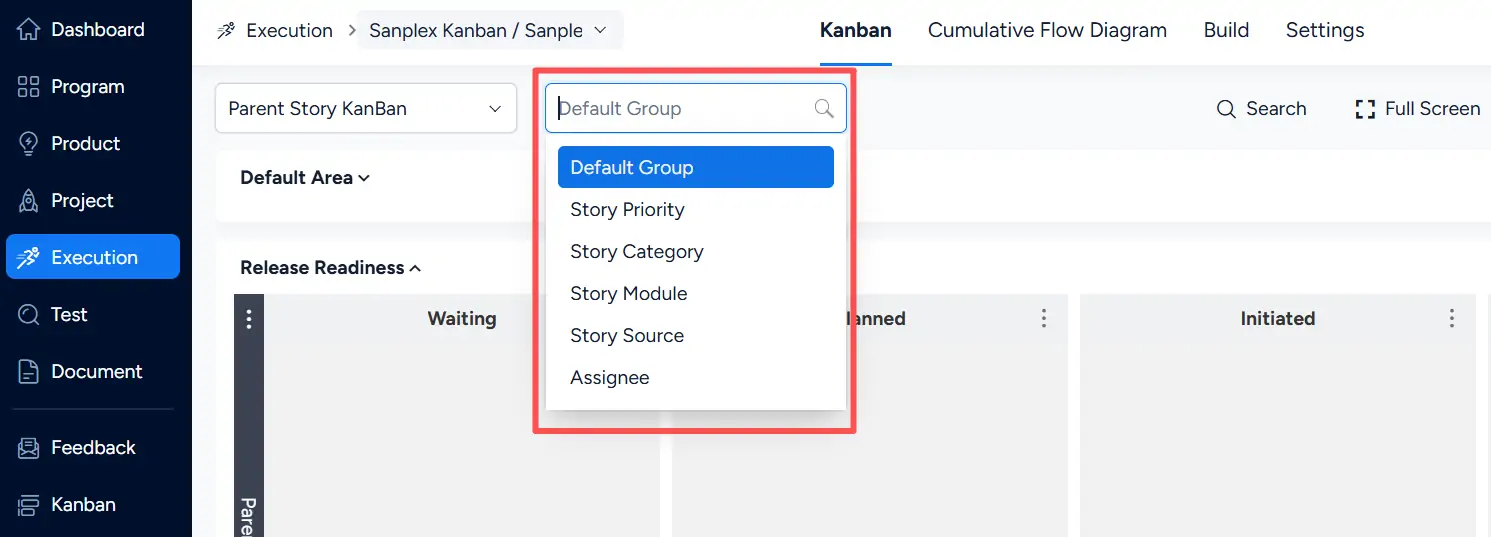
When viewing the Parent Story KanBan, use the grouping selector to organize Story cards.
Available grouping options include:
- Default Group
- Story Priority
- Story Category
- Story Module
- Story Source
- Assignee
II. Drag and Drop Cards
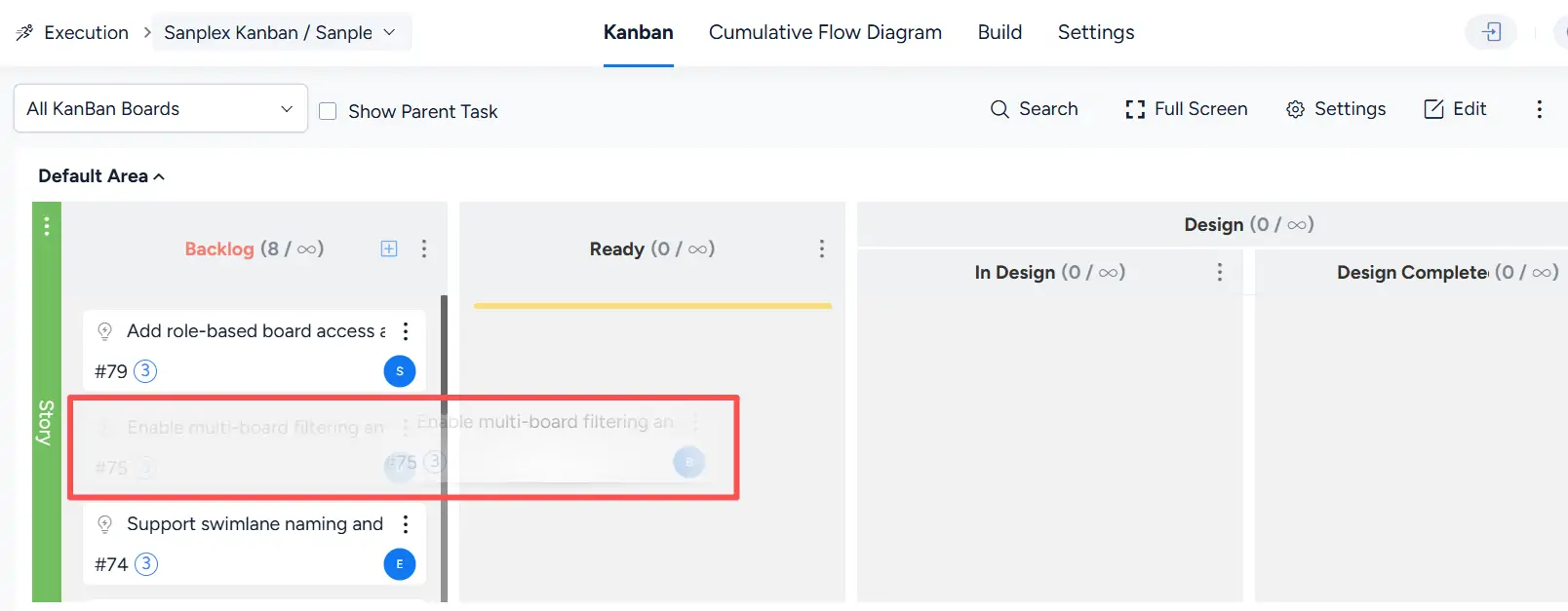
Cards can be moved between compatible board columns by drag and drop.
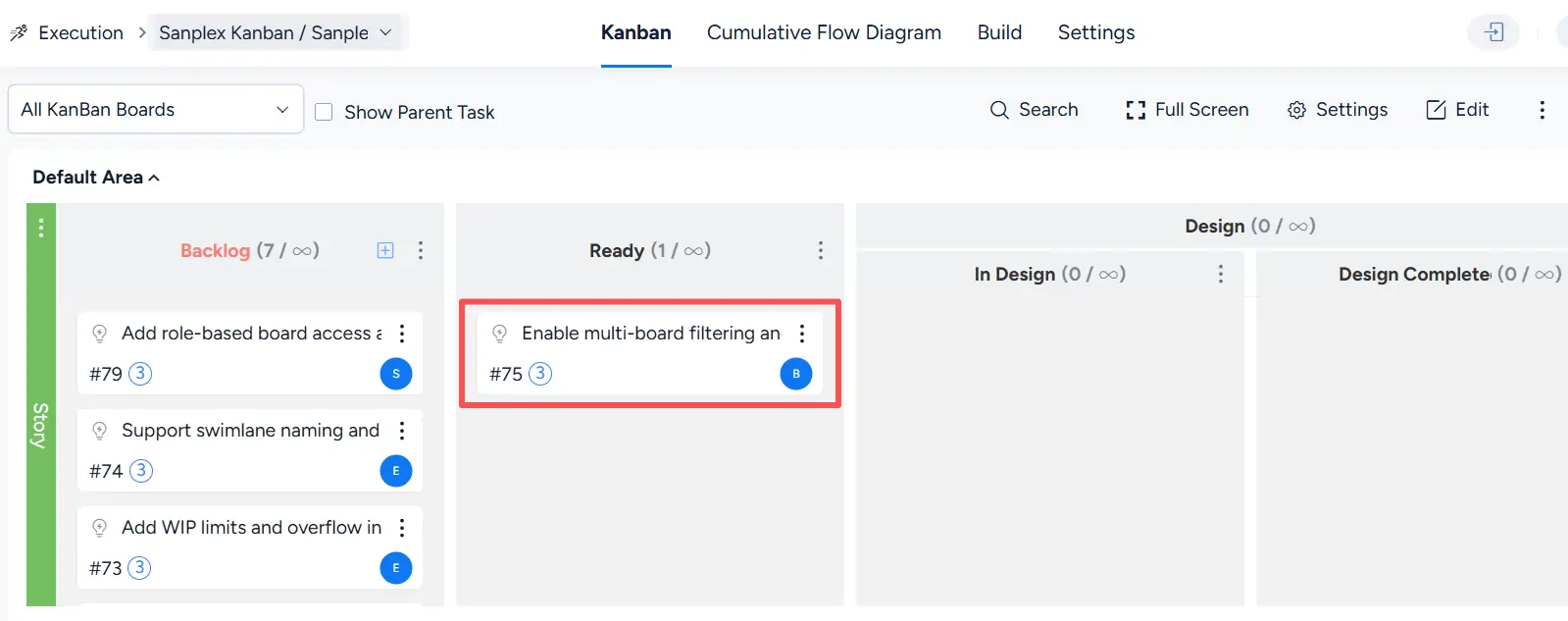
For example, on the Story board, drag a Story card from Backlog to Ready and release the mouse to complete the move.
After the move is completed, the Story appears in the Ready column.
III. Board Display and Synchronization Rules
1. Story Display Rules
Newly created Stories are displayed in the Backlog column by default. Stories can be moved between Backlog and Ready as work is prepared for development.
Story progress is also reflected according to the status of related development work.
When a linked development-type task is under development, the related Story is displayed under Development > Doing, while the corresponding task is shown under Development > In Development in the Task lane.
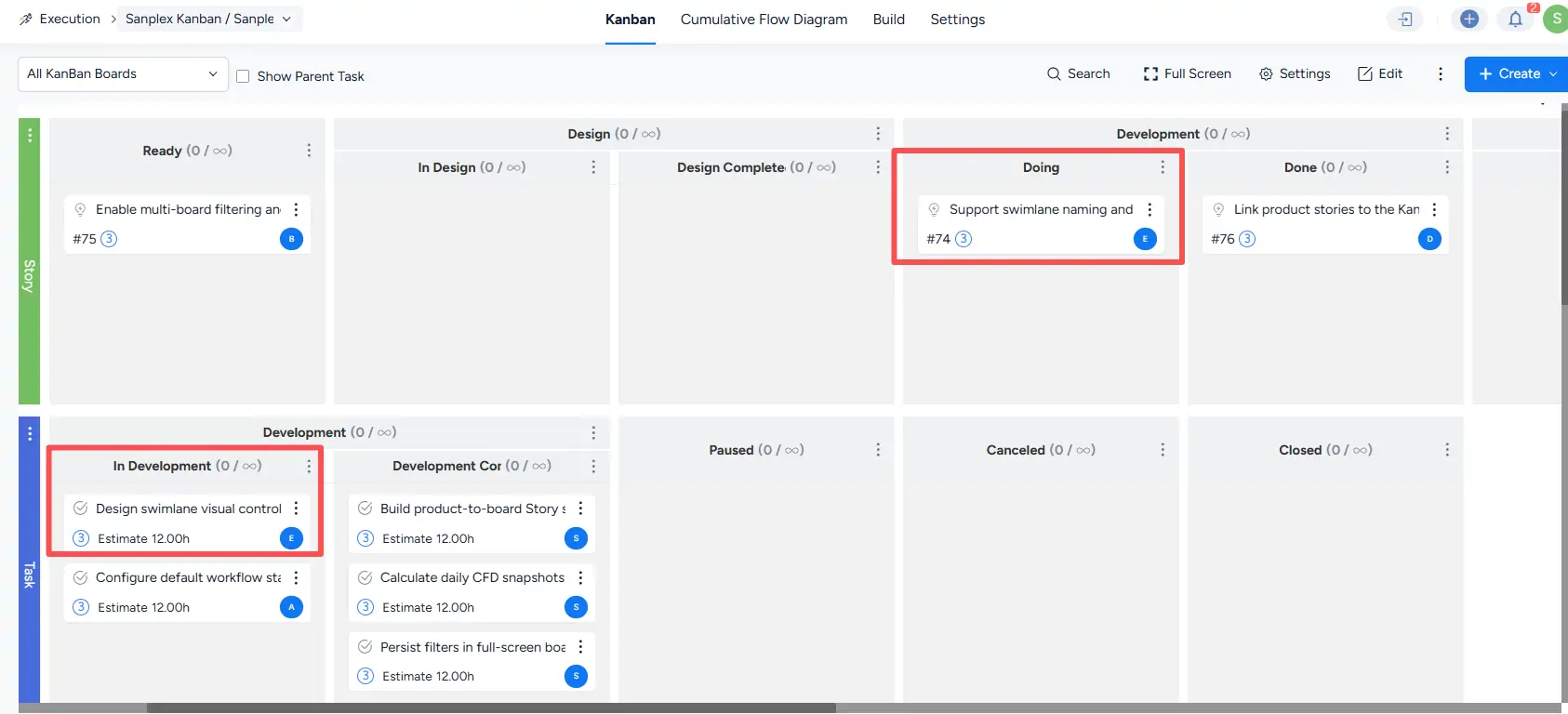
After the related development work is completed, the Story is displayed under Development > Done, while the completed task appears under Development Completed.
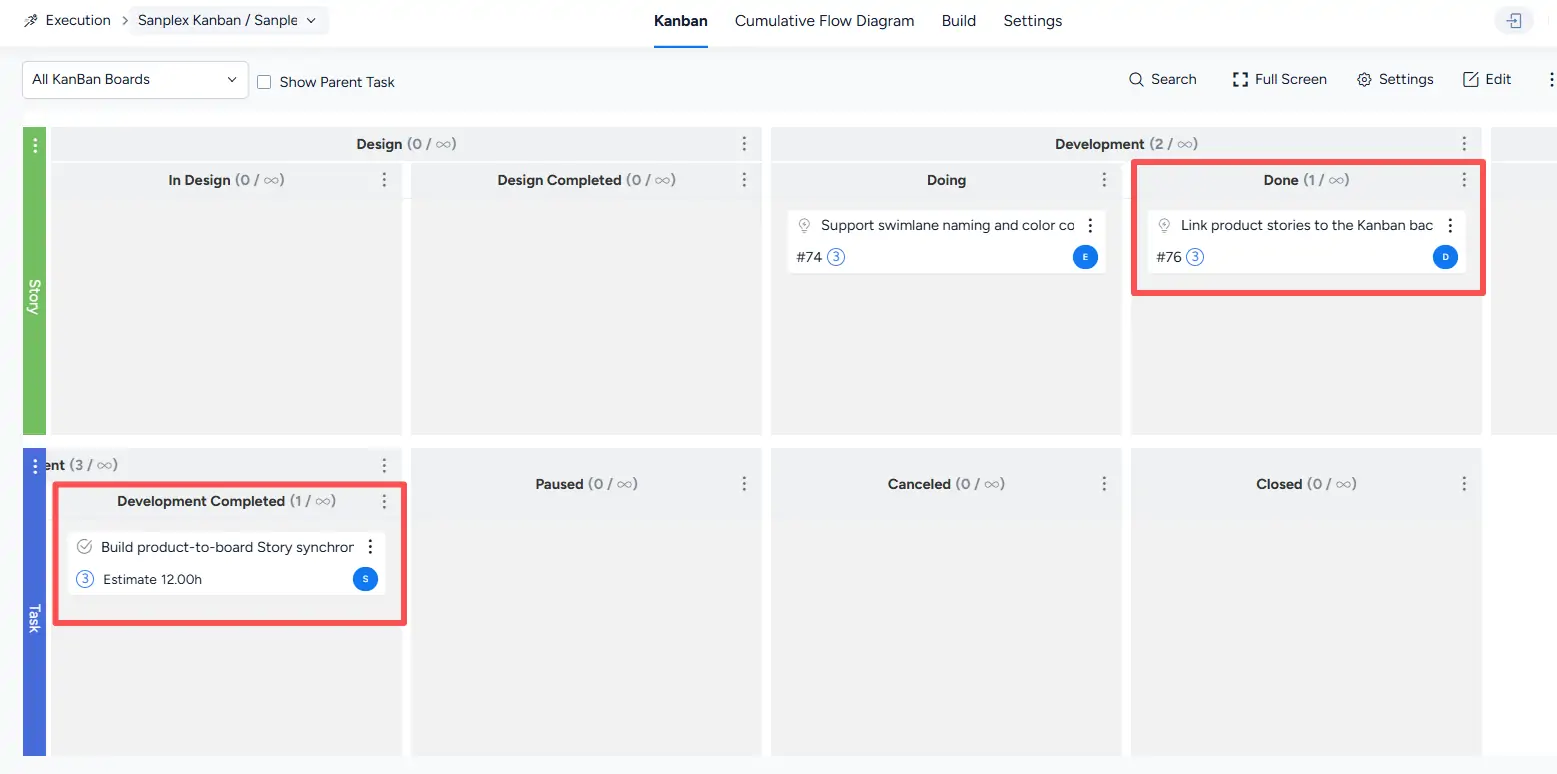
The progress of related test-type tasks is likewise reflected in the corresponding testing columns on the board.
As a Story moves through later workflow states, including acceptance, delivery or release, and closure, its card is displayed in the corresponding board column according to its current status and phase.
2. Bug and Task Display Rules
The Bug and Task lanes display cards according to their current workflow status.
- Newly created Bug cards are displayed under Waiting Confirmation.
- Bug cards can move through status-compatible columns such as Confirmed, Resolving, Test, and Closed. Resolving and testing stages can contain their corresponding subcolumns.
- Newly created Tasks are displayed according to their task status, including stages such as Waiting, In Development, Development Completed, Paused, Canceled, and Closed.
3. Synchronize Board and Product Data
For products linked to a Kanban project, Story and Bug operations performed in the corresponding product lists are synchronized with the board.
Likewise, operations performed on the board, such as creating items or changing their status through drag and drop, are synchronized back to the corresponding product data.
4. View the Board in Full Screen
Click Full Screen in the upper-right corner of the board to expand the Kanban Board for a larger working view.
Press Esc to exit full-screen mode.

IV. Cumulative Flow Diagram
Kanban boards include a Cumulative Flow Diagram (CFD) for viewing accumulated work across workflow stages over time.
The horizontal axis represents dates, while the vertical axis represents the number of work items. The accumulated areas reflect changes in workload across different stages and can help teams observe WIP, delivery trends, and lead time.
Open the Cumulative Flow Diagram tab to access the CFD controls. The page provides options such as Compute Cumulative Flow diagrams, Include Weekend, a view selector, a date range, and View.
The help information on the page also explains the basic interpretation of the CFD.
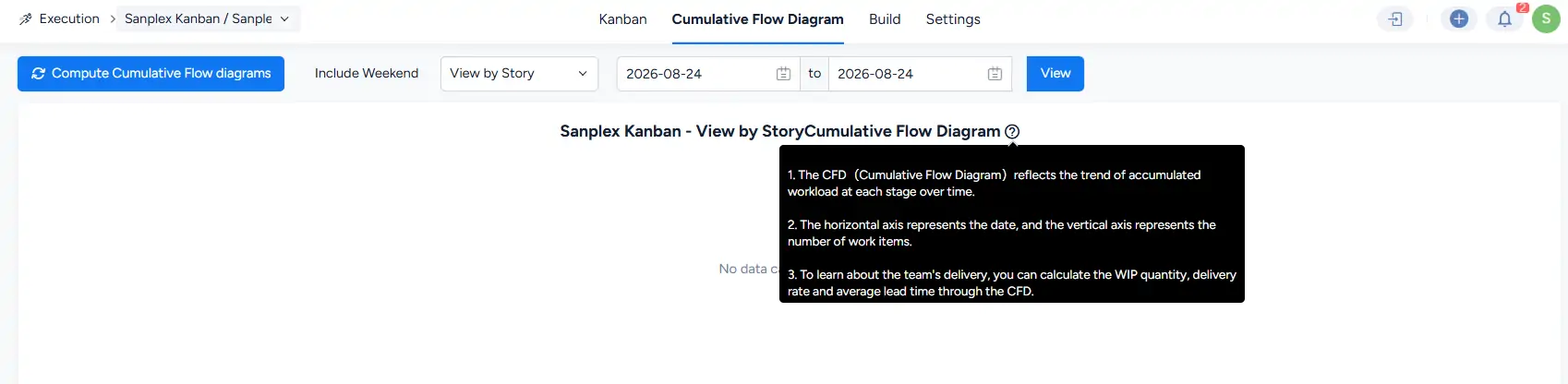
After sufficient board data has been accumulated, the CFD displays the workflow trend across the selected period.
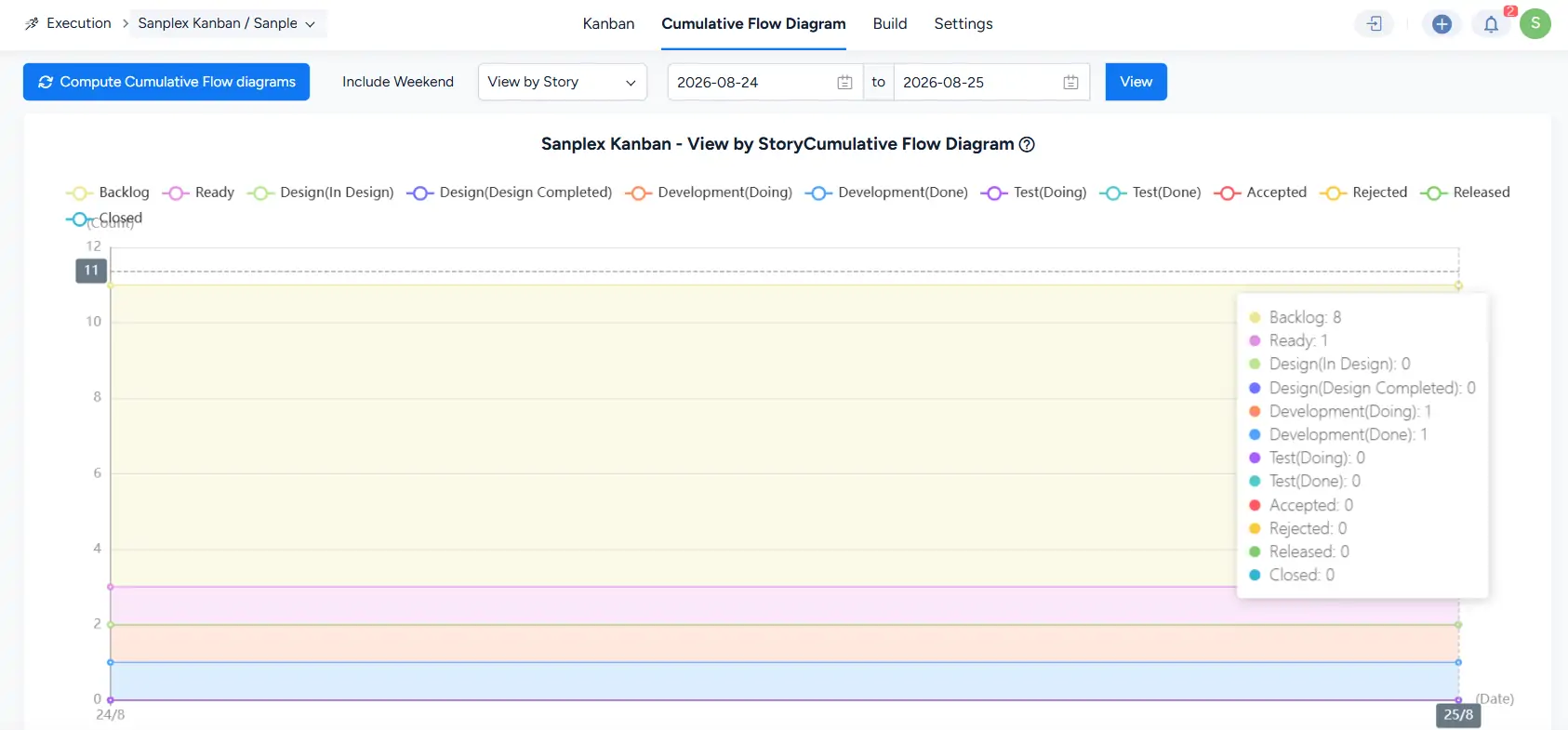
1. Default CFD Display Range
By default, the CFD shows data for the most recent 14 days, including weekends.
If the board has existed for fewer than 14 days, the available data since the board was created is displayed. For example, if a board was created on July 13 and the current date is July 17, the displayed period is July 13 through July 17.
On the day a board is created, the CFD may display No data while no historical board data is available.
If weekends are excluded, the default display range is 10 days.
2. View Up to Three Months of CFD Data
Use the date selector to adjust the displayed period. The maximum supported date range is three months.
3. CFD Data Scope
CFD calculations and display use data from the default board columns.
V. Development Kanban Board and General Kanban
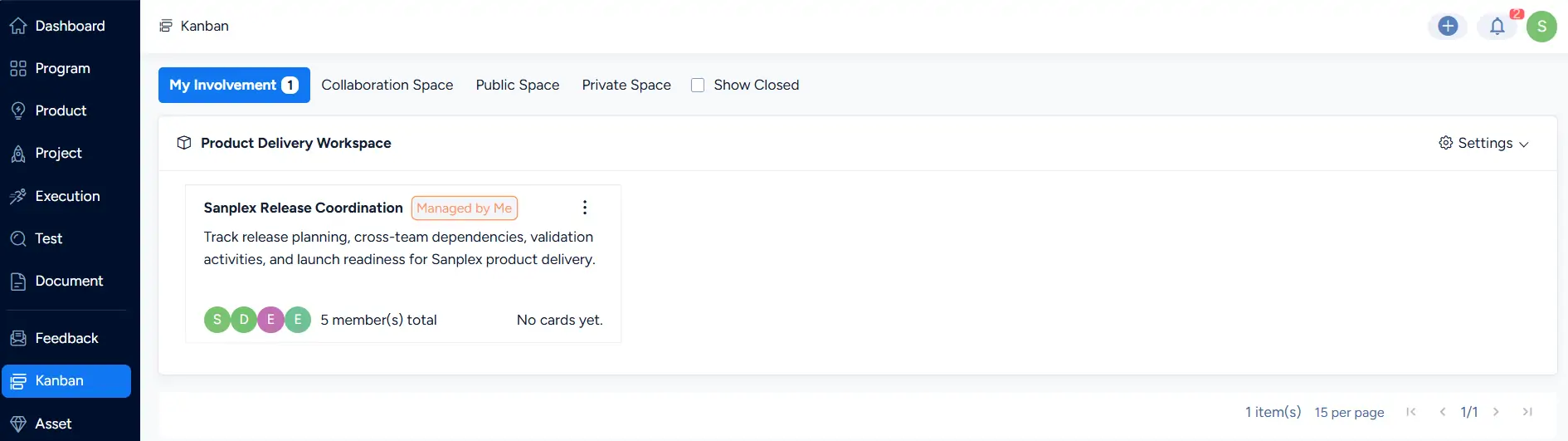
Sanplex provides both the Development Kanban Board used within Kanban projects and the general Kanban workspace available from the main Kanban module.
The general Kanban workspace provides views such as My Involvement, Collaboration Space, Public Space, and Private Space.
1. Target Users
- The Development Kanban Board is mainly designed for project and development teams managing software delivery.
- The general Kanban workspace is suitable for broader collaborative and day-to-day work management.
2. Functionality
- The Development Kanban Board manages project work through Story, Bug, and Task boards and connects board states with development data.
- The general Kanban workspace provides flexible visual boards for organizing and managing collaborative work.
3. Workflow Flexibility
- In the Development Kanban Board, card movement follows the status rules and linked project data of the corresponding work items.
- General Kanban boards provide a more flexible board structure for organizing work in different collaboration spaces.
4. Similarities
Both types of Kanban support visual work management and team collaboration through board-based workflows.


