Catalog
I. Process Feedback
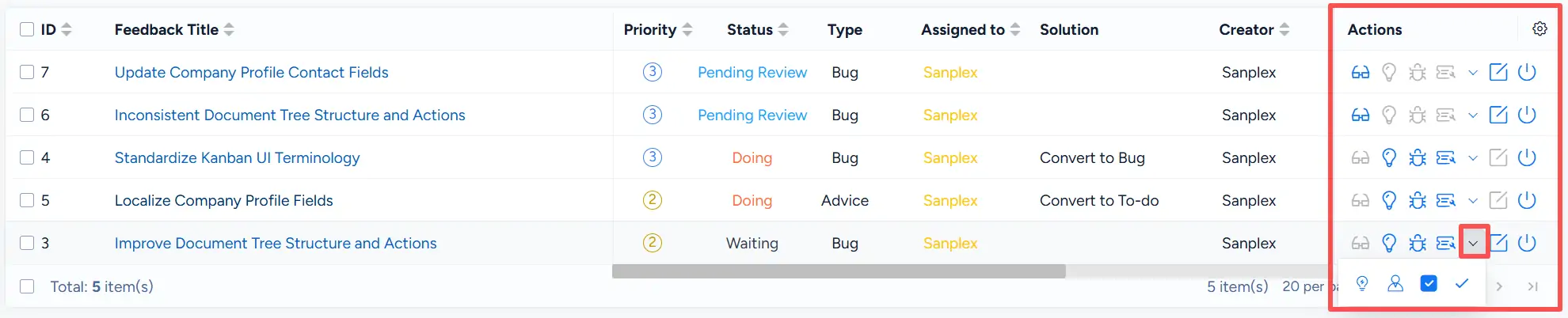
Submitted feedback can be processed directly from the feedback list. If a Feedback Manager is configured for the product, the feedback workflow can be assigned to the responsible manager.
The Actions column provides processing actions based on the feedback status and available workflow operations.
Open a feedback item to view its description, basic information, processing history, and linked objects. The details page also provides access to information such as Linked Objects, Source, and Internal Contact.
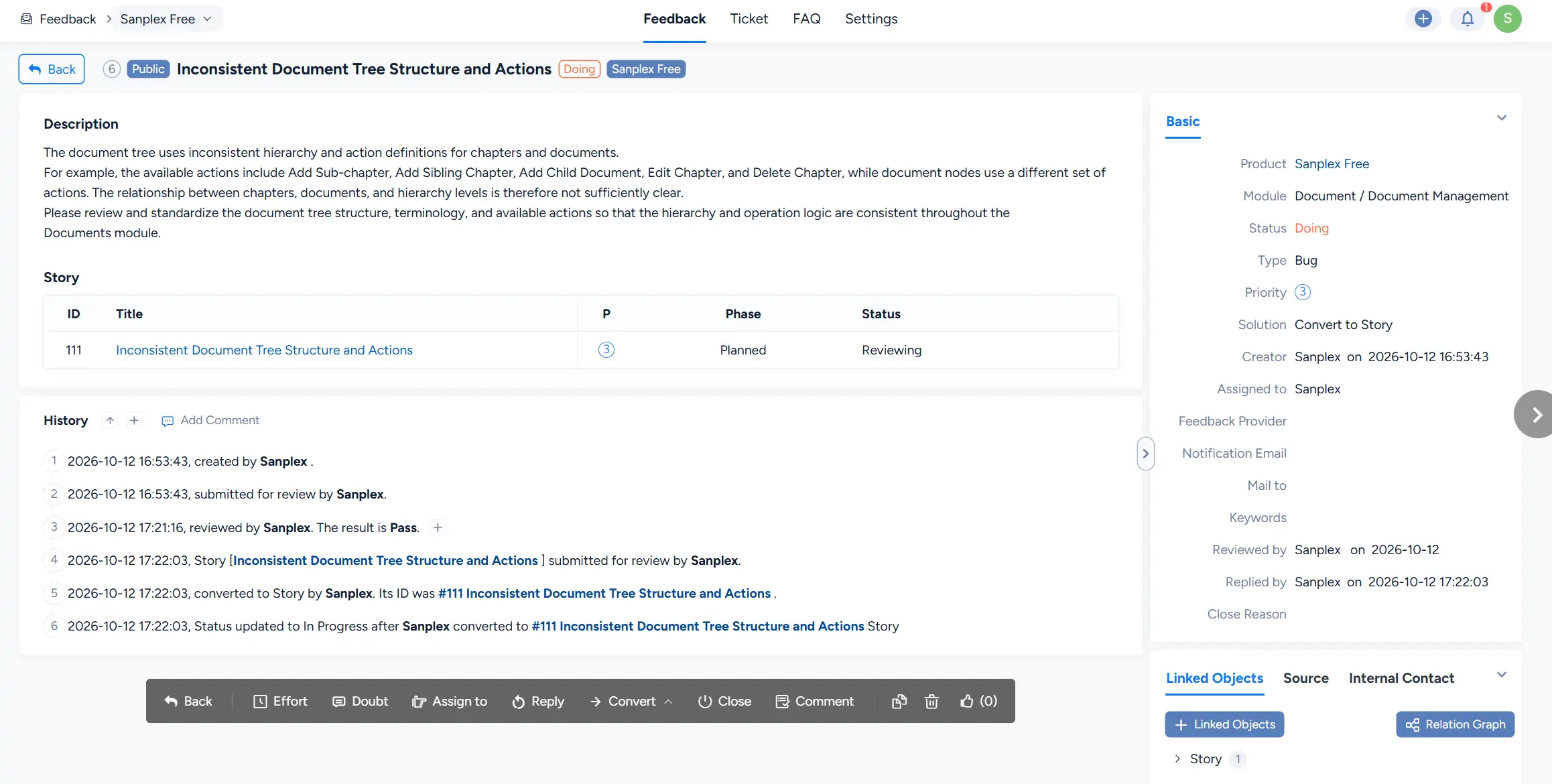
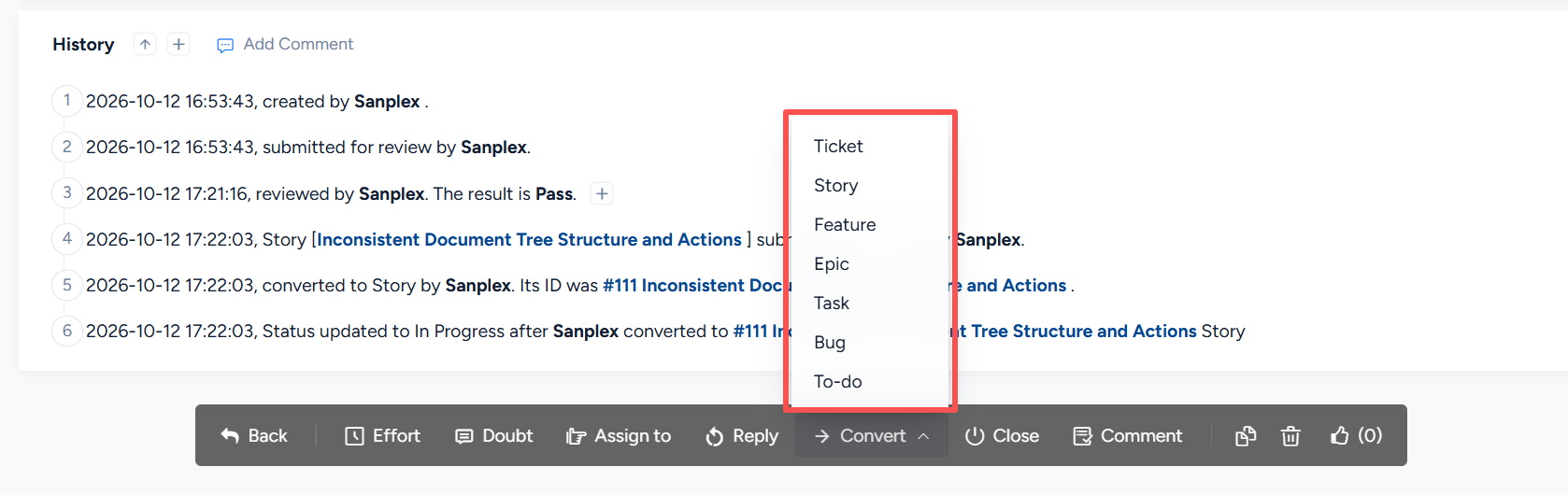
From the feedback details page, click Convert to convert the feedback into another work item.
Available conversion options include:
- Ticket
- Story
- Feature
- Epic
- Task
- Bug
- To-do
1. Convert Feedback to a Ticket
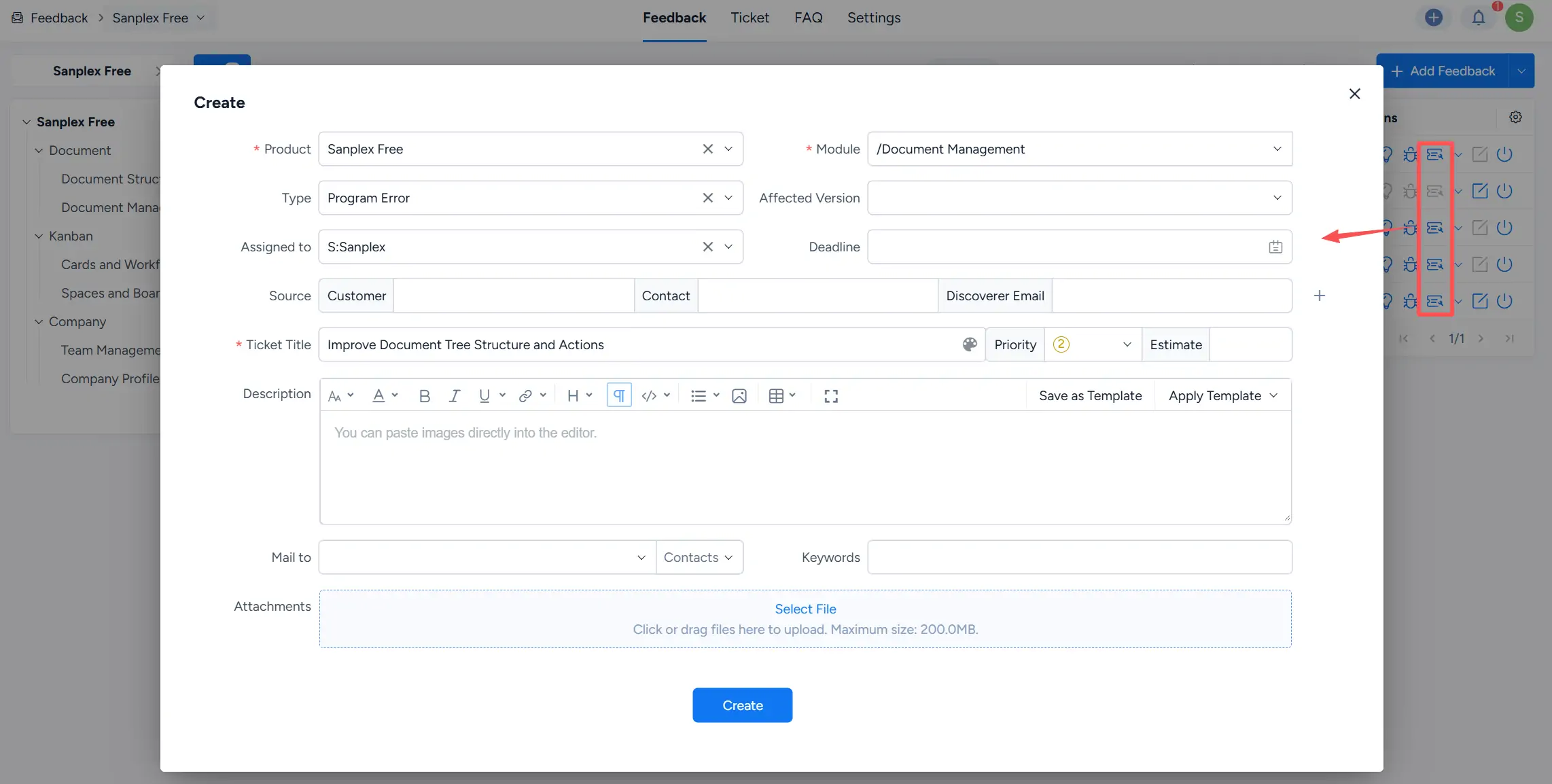
Select Convert > Ticket to open the ticket creation form.
Sanplex uses available feedback information to prefill relevant ticket fields, such as the product, module, ticket title, and priority. Review the ticket information, complete any required fields, and create the ticket.
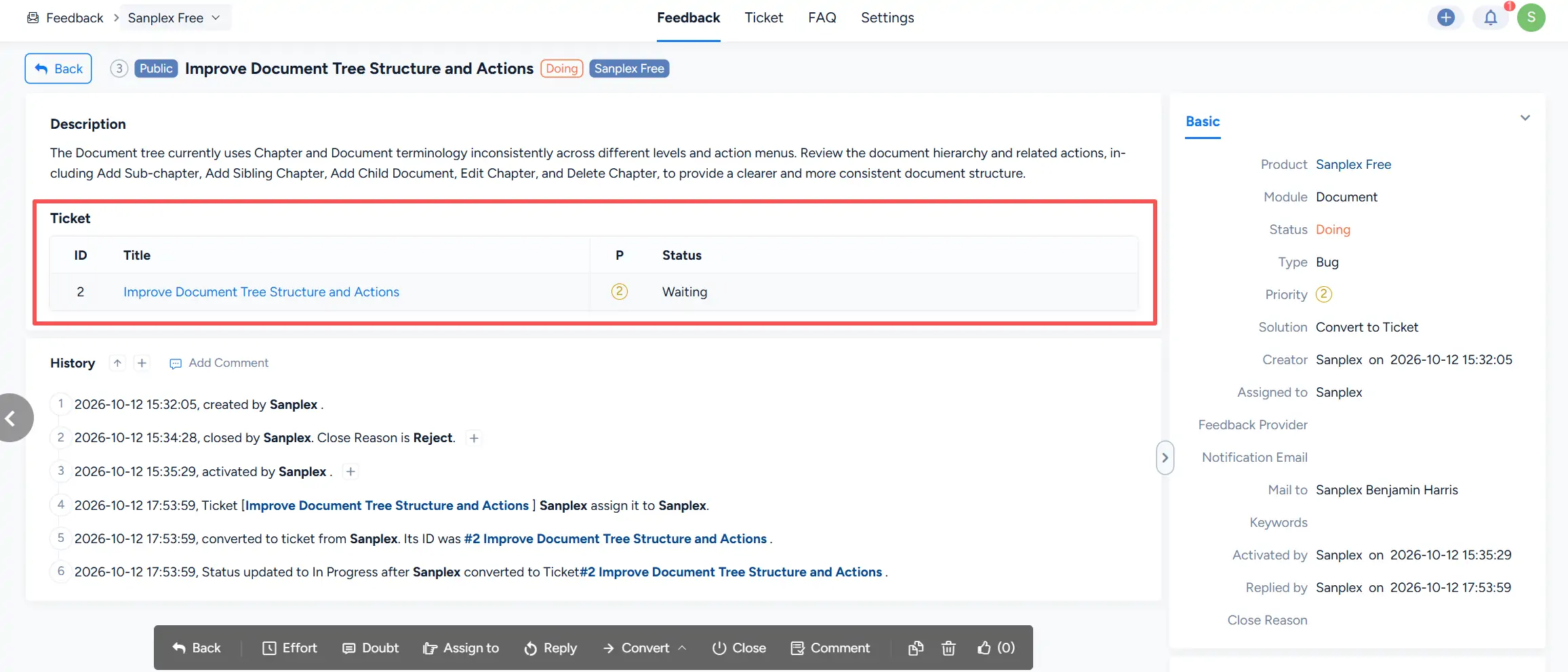
After the ticket is created, it appears on the feedback details page as a linked Ticket. The conversion is also recorded in the feedback history.
2. Convert Feedback to a Story, Feature, or Epic
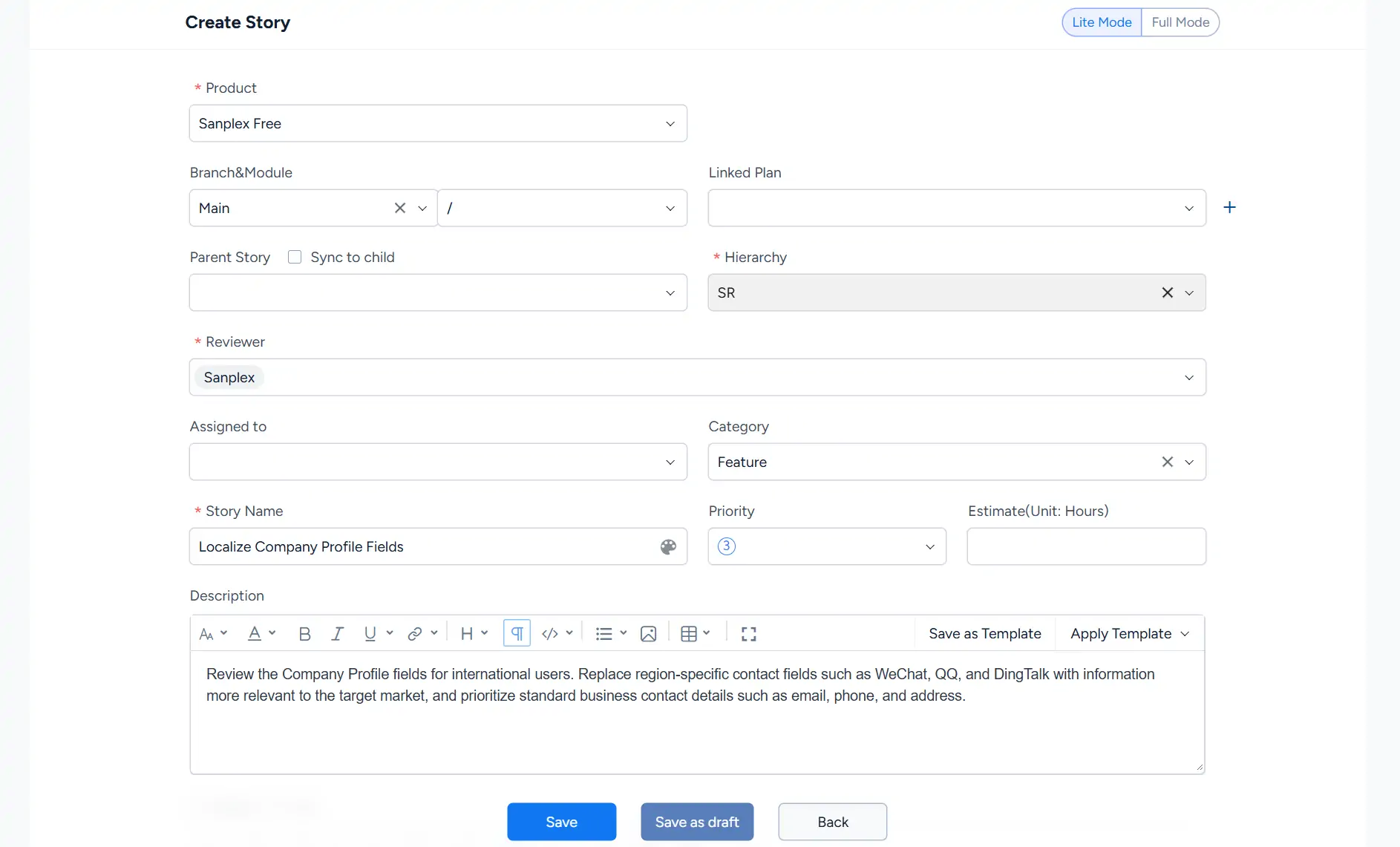
Select Convert > Story, Feature, or Epic to create the corresponding work item.
For example, when converting feedback to a Story, Sanplex opens the Create Story page and carries available feedback information into the new item. Review the product, branch and module, hierarchy, reviewer, category, story name, priority, and description before saving.
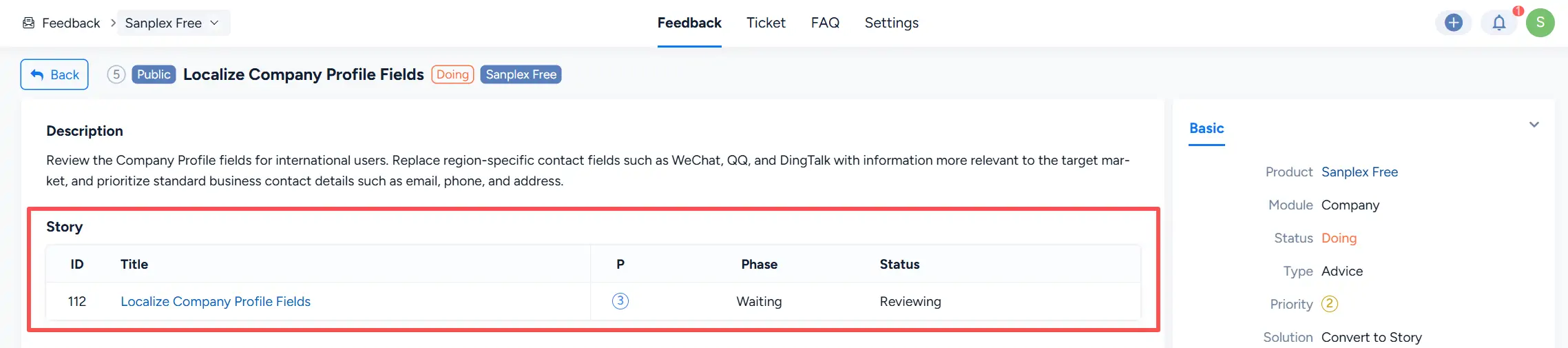
After conversion, the created item is displayed on the feedback details page under the corresponding linked item section.
3. Convert Feedback to a Task
Select Convert > Task from the feedback details page.
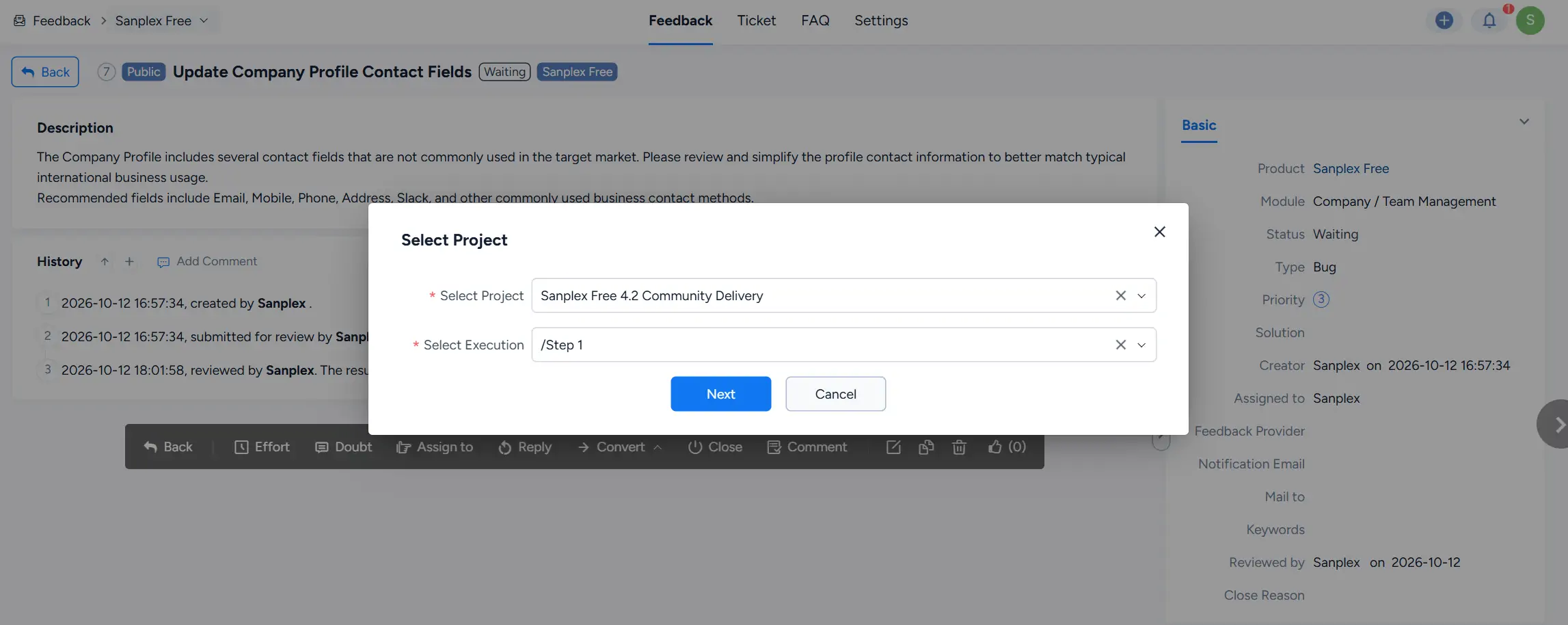
Before creating the task, select the Project and Execution where the task will be created, then click Next.
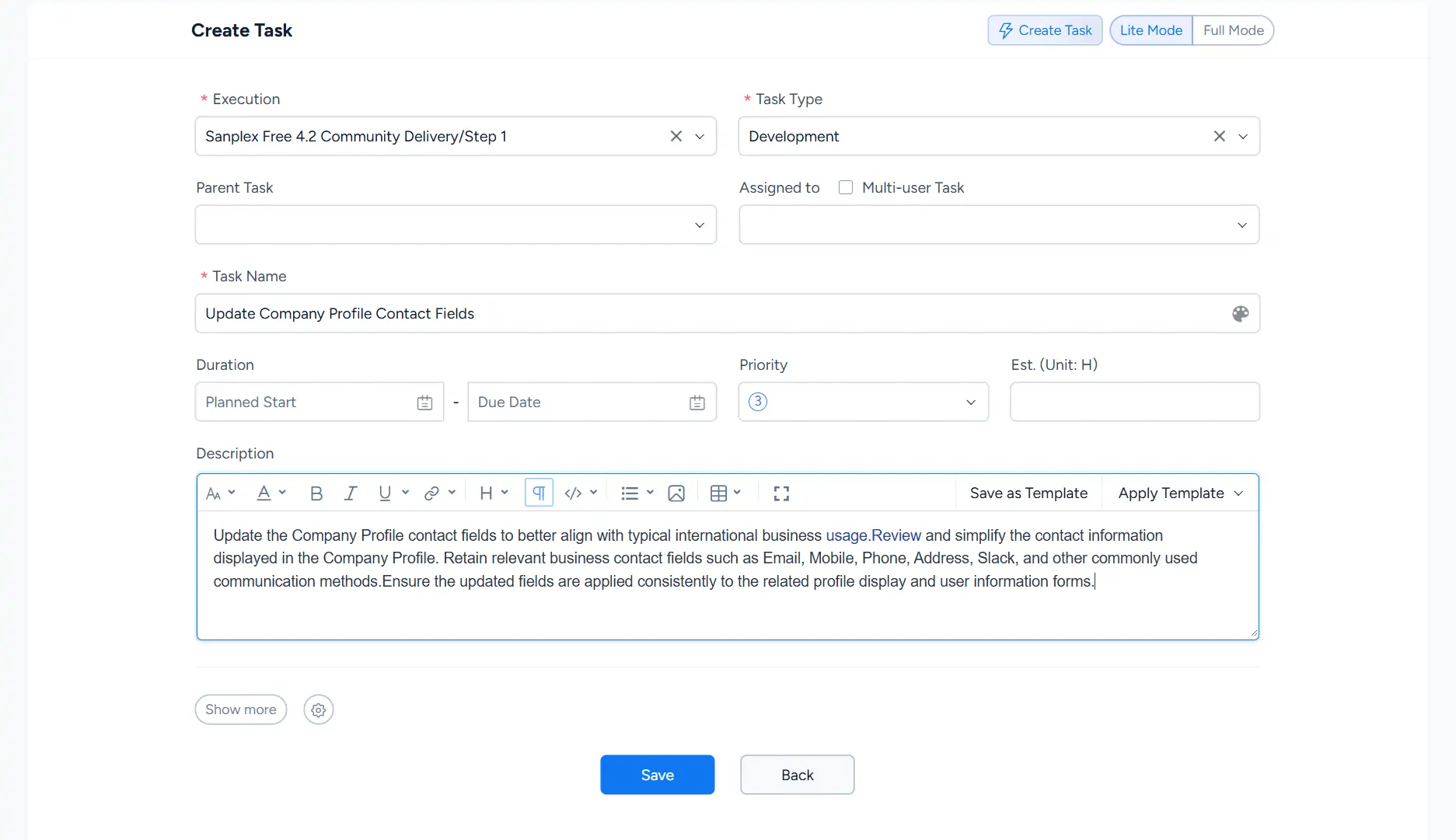
On the Create Task page, review the execution, task type, task name, priority, description, and other task information, then click Save.
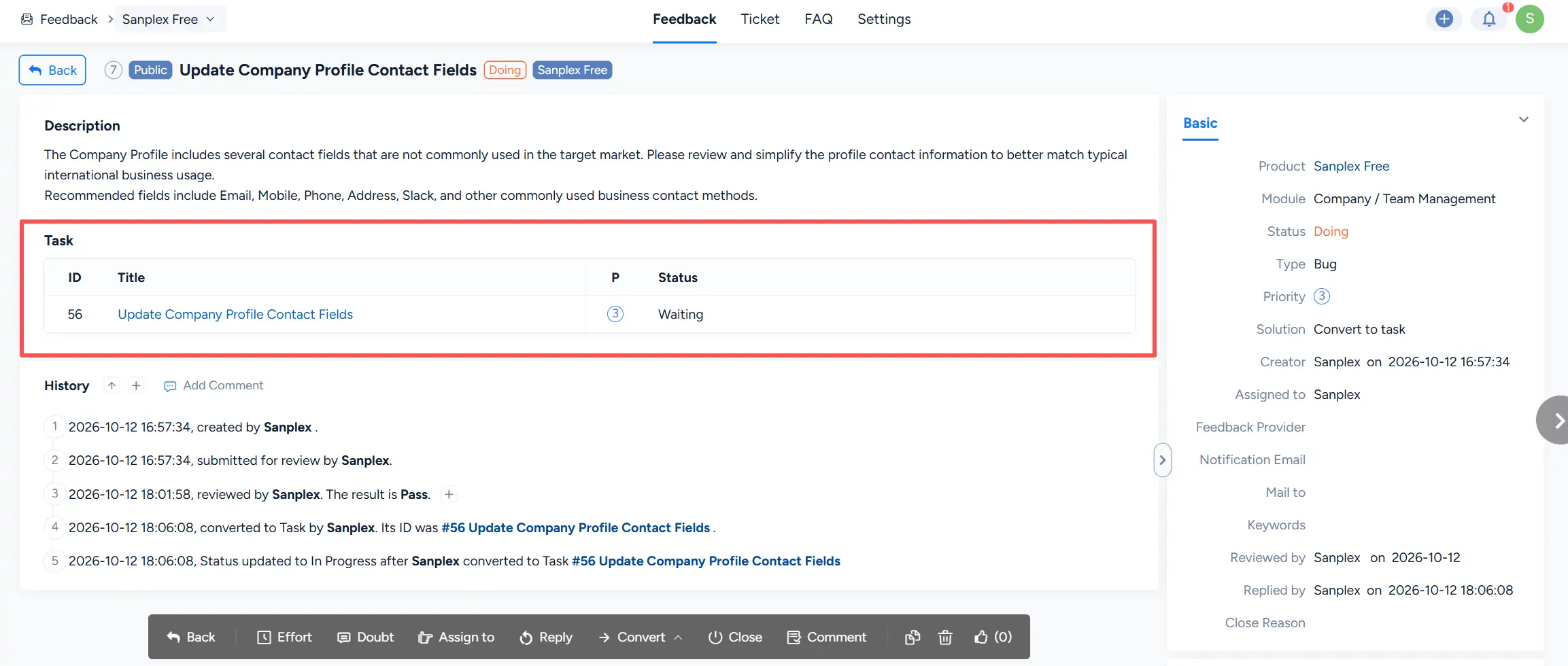
After the task is created, it appears in the Task section of the feedback details page. The conversion is recorded in the feedback history, and the feedback moves into processing.
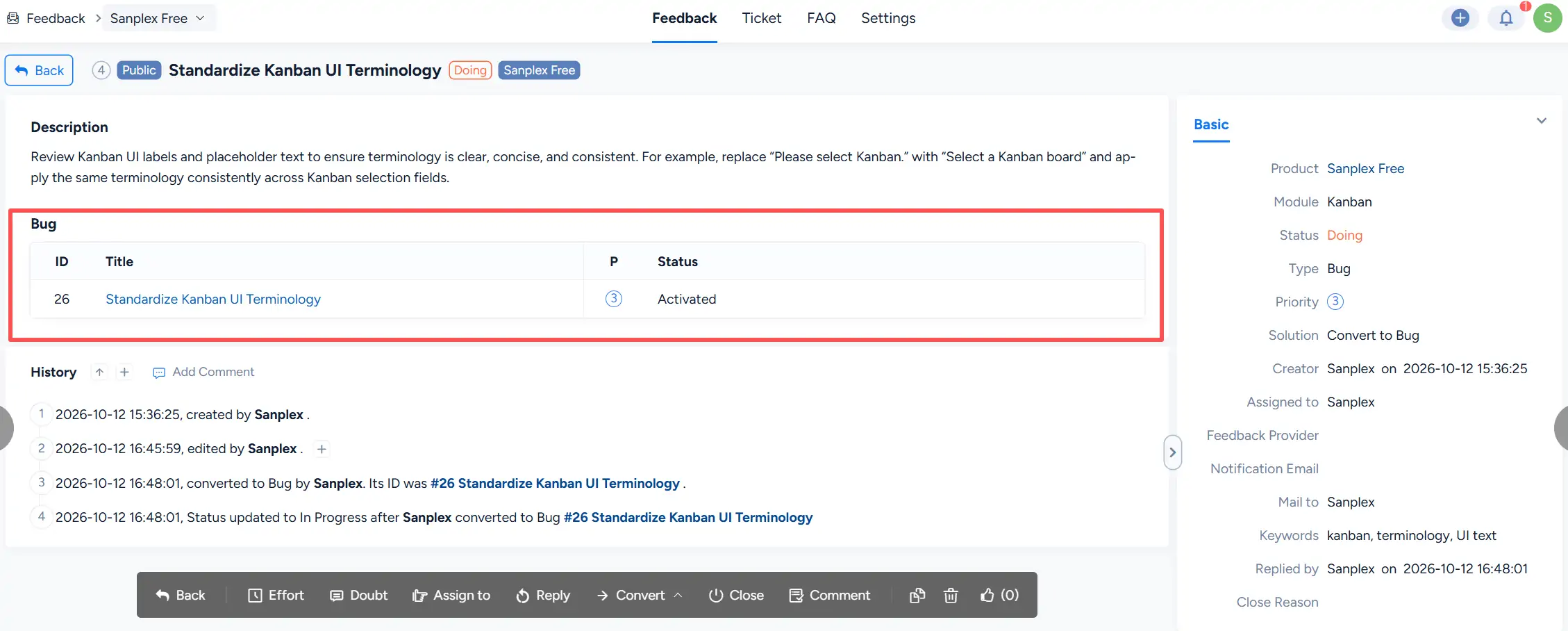
4. Convert Feedback to a Bug
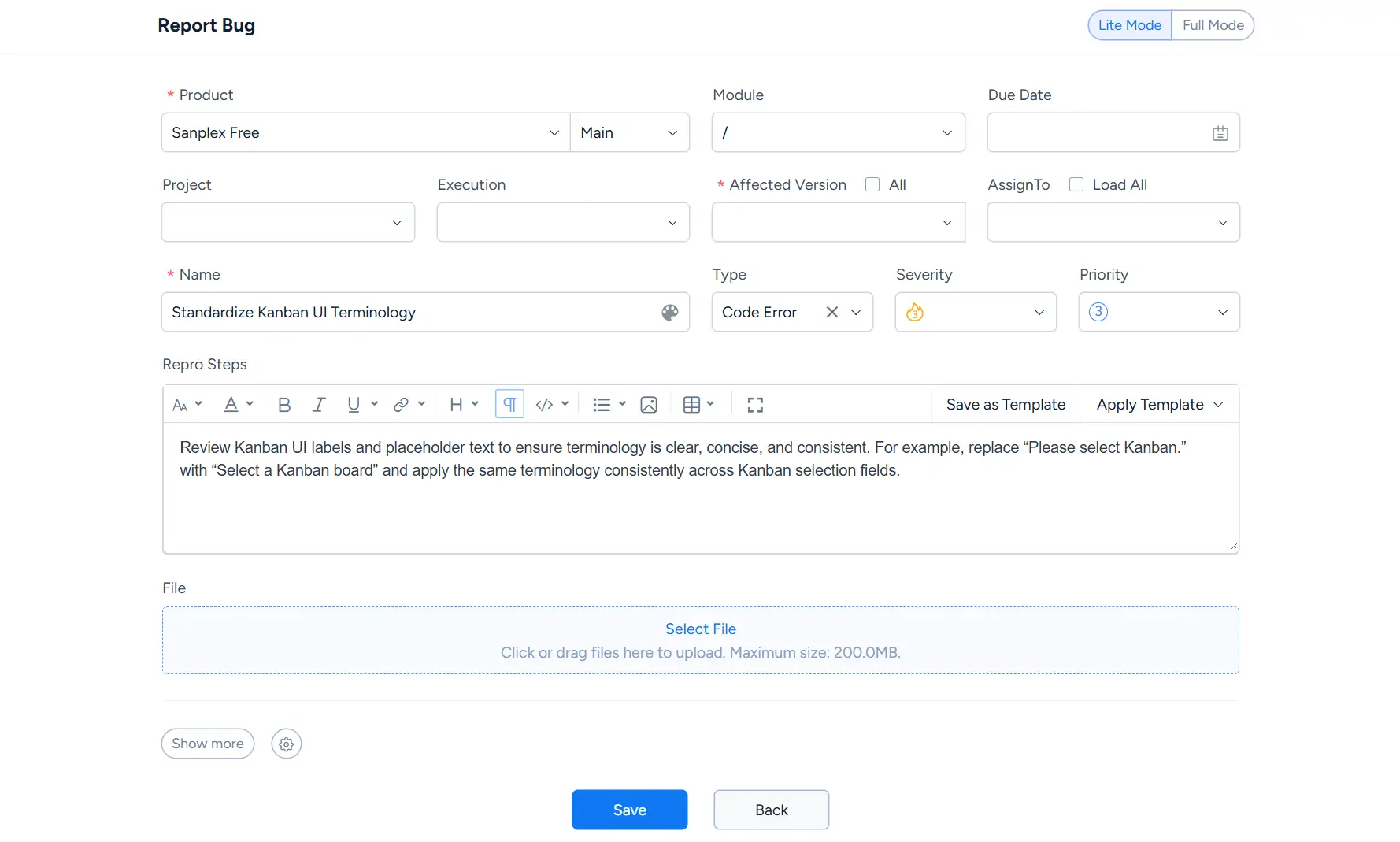
Select Convert > Bug to open the Report Bug page.
Review the product, module, affected version, bug name, type, severity, priority, reproduction information, and other available fields before saving the bug.
After creation, the bug appears in the Bug section of the feedback details page.
5. Convert Feedback to a To-do
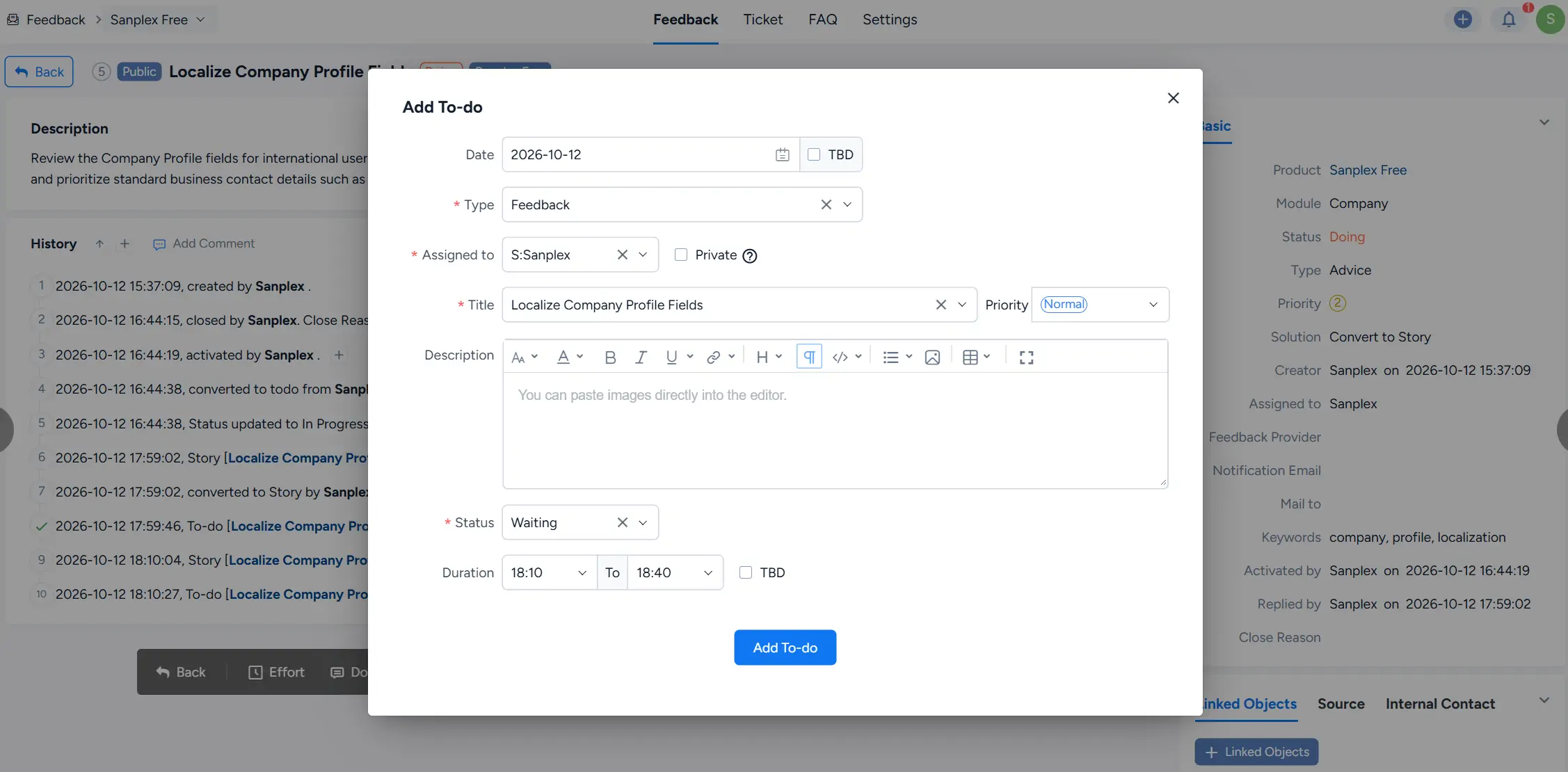
Select Convert > To-do to open the Add To-do dialog.
The feedback title is used as the default to-do title. Configure the date, type, assignee, priority, status, duration, and description as needed, then click Add To-do.
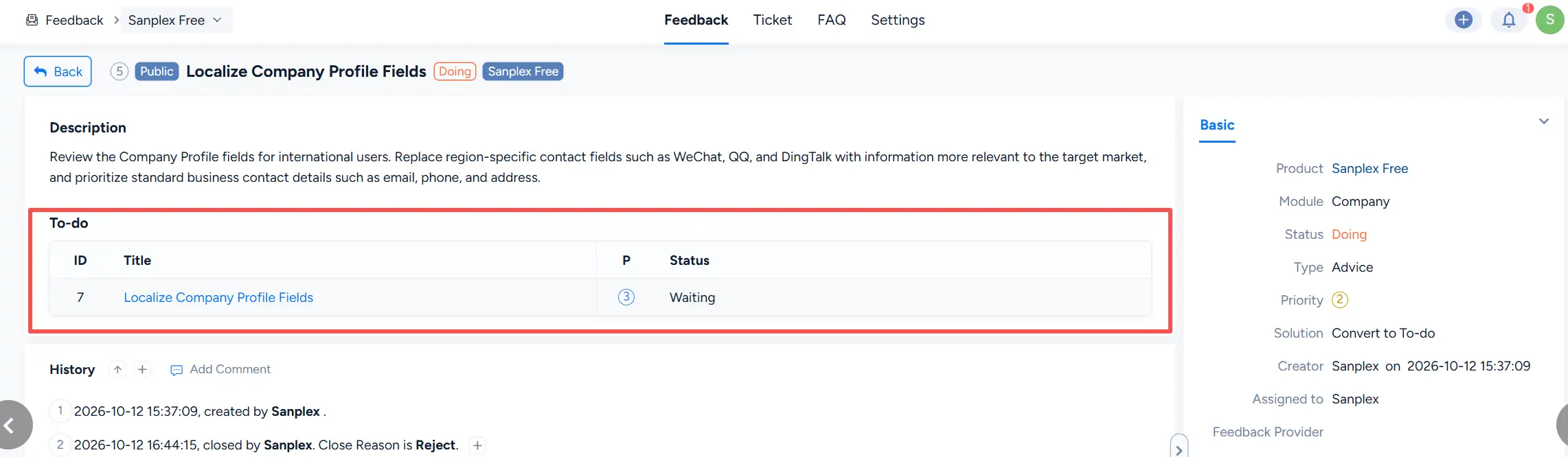
After creation, the to-do appears in the To-do section of the feedback details page.
II. Feedback Notifications
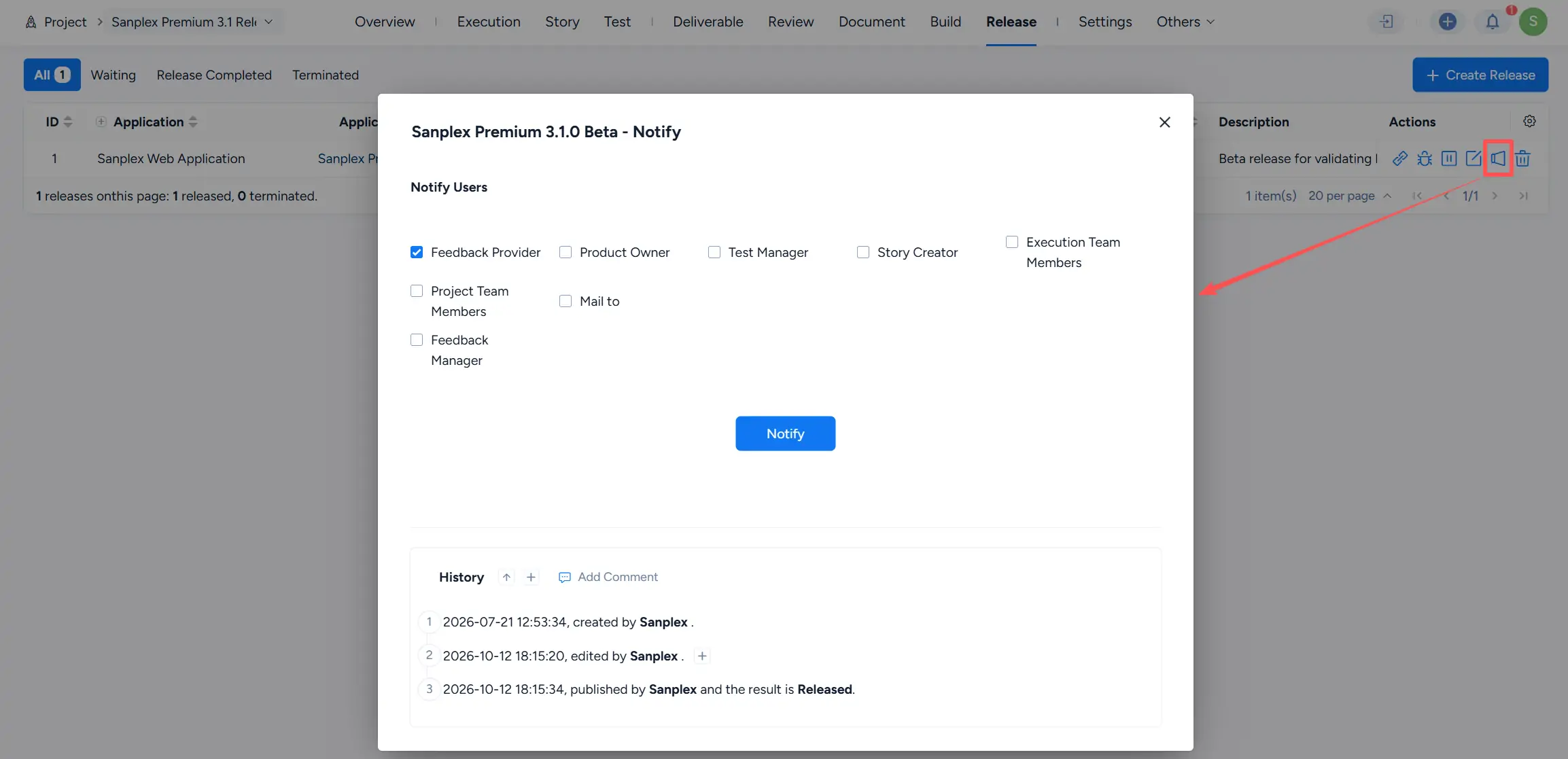
Feedback-related notifications can be sent from a release after the associated work has progressed into the release workflow.
When a release is still in Waiting, the Notify action is unavailable.

After the release status changes to Released, the Notify action becomes available.

Click Notify to open the Notify Users dialog. Available recipients include:
- Feedback Provider
- Product Owner
- Test Manager
- Story Creator
- Execution Team Members
- Project Team Members
- Mail to
- Feedback Manager
Select the required recipients, then click Notify.