Catalog
I. Overview
Sanplex provides custom approval flows that can be tailored to your business process. You can design approval flows flexibly with approval nodes, approvers, approval roles, CC recipients, conditional branches, and other settings.
Approver settings support consecutive management levels, the initiator, initiator-selected approvers, and approvers selected by the previous node. Approval flows can also use percentage-based approval, opinion collection, and approver removal.
During approval, Sanplex supports Return, Transfer, Initiator Withdraw, and required approval comments.
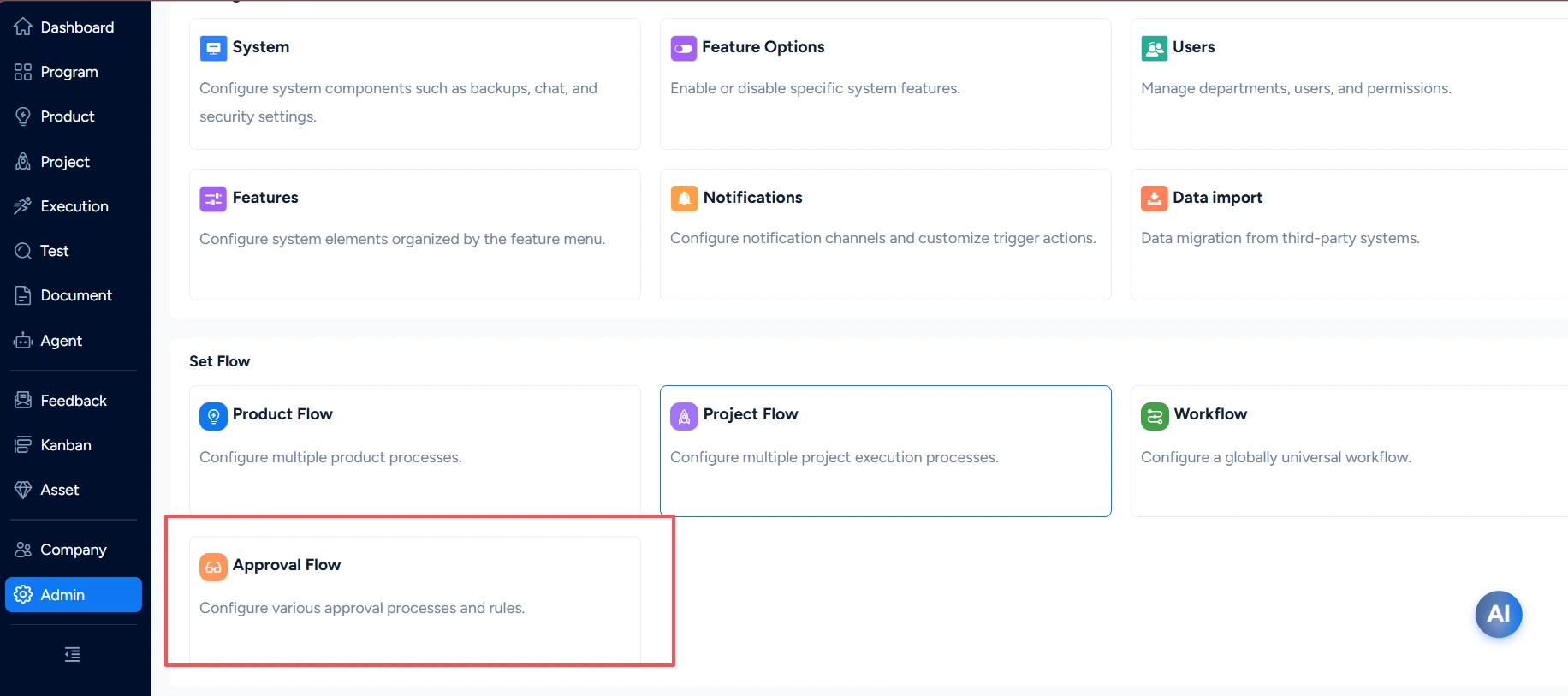
Approval Flow is available under Admin > PApproval Flow.
II. Entry
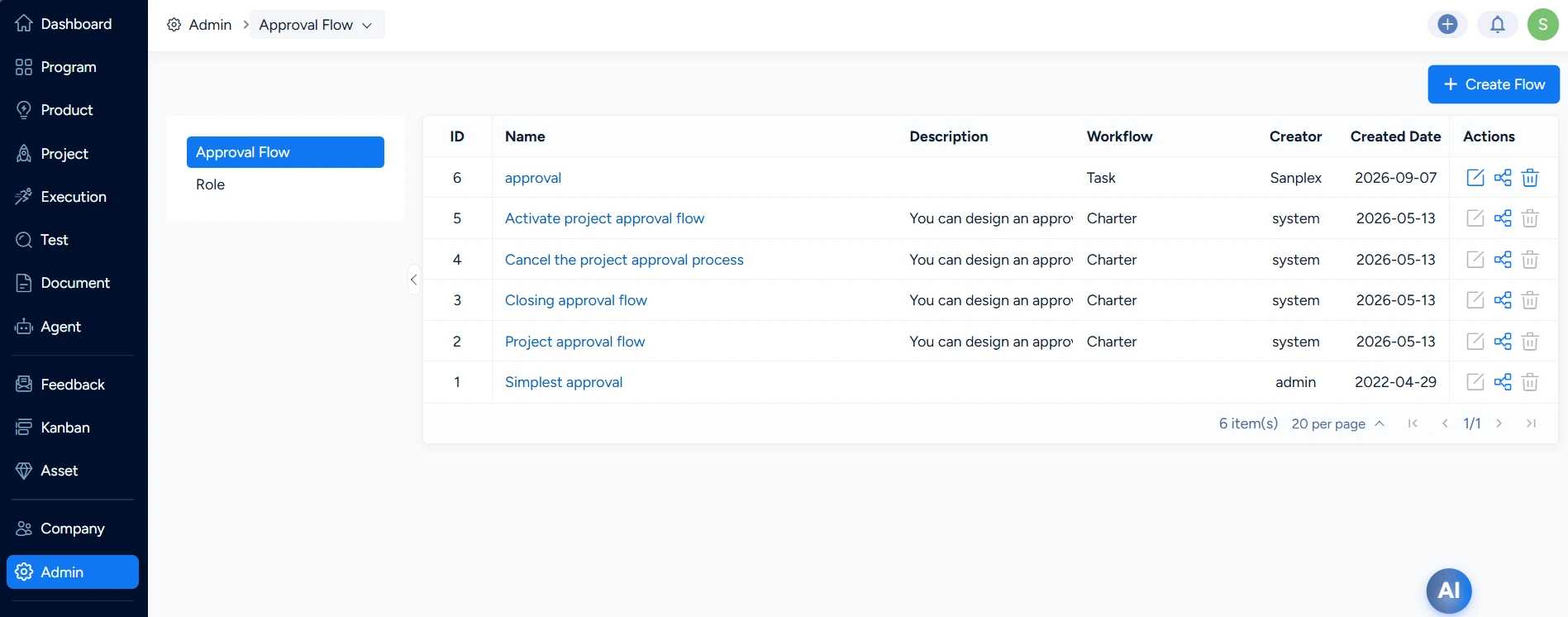
Go to Admin > Approval Flow to open the Approvals page. Approval permissions must be granted by a system administrator. You can configure approval flows and approval roles on this page.
III. Create an Approval Flow
On the Approvals page, click Create Approval Flow to add an approval flow, or use the action buttons on the right side of the list to edit an existing approval flow.
On the creation page, enter the approval flow name, type, and description.
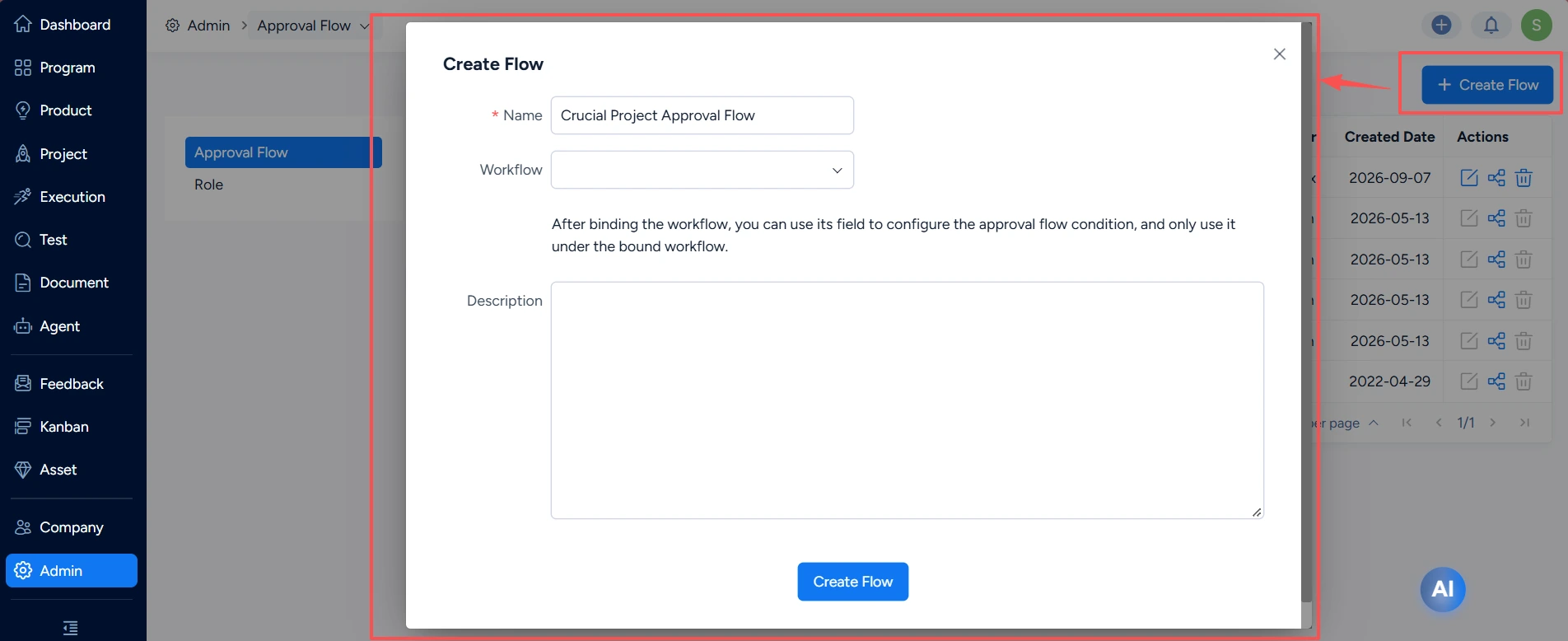
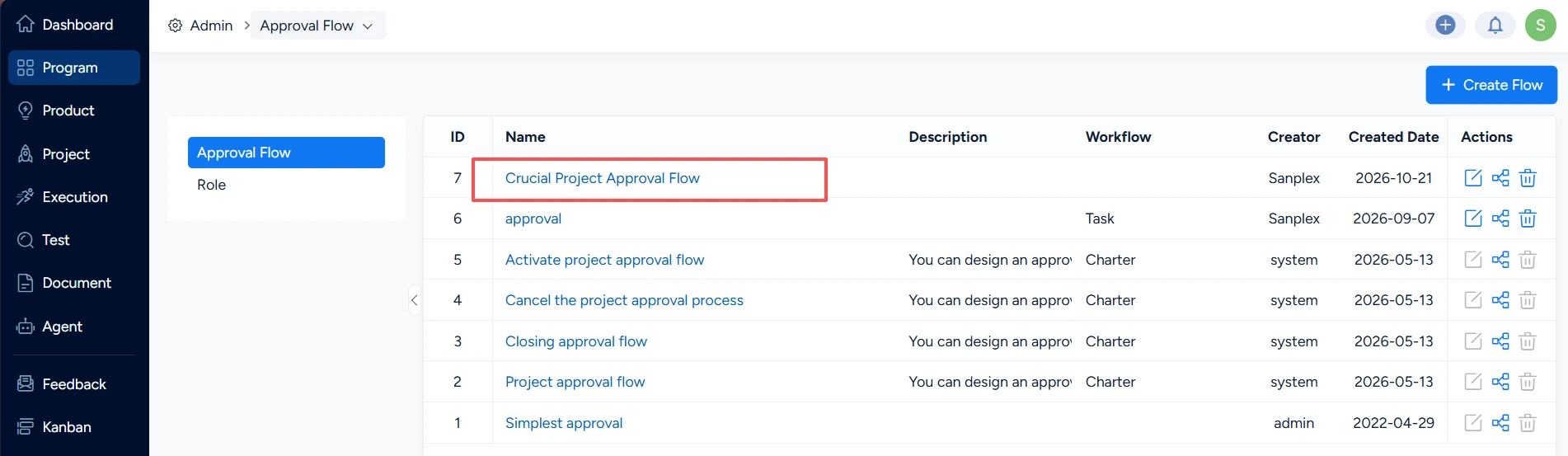
Click Create Flow. The page returns to the list, where the newly created approval flow is displayed.
IV. Design an Approval Flow
In the action column on the right side of the list, click Design Flow to open the design page.
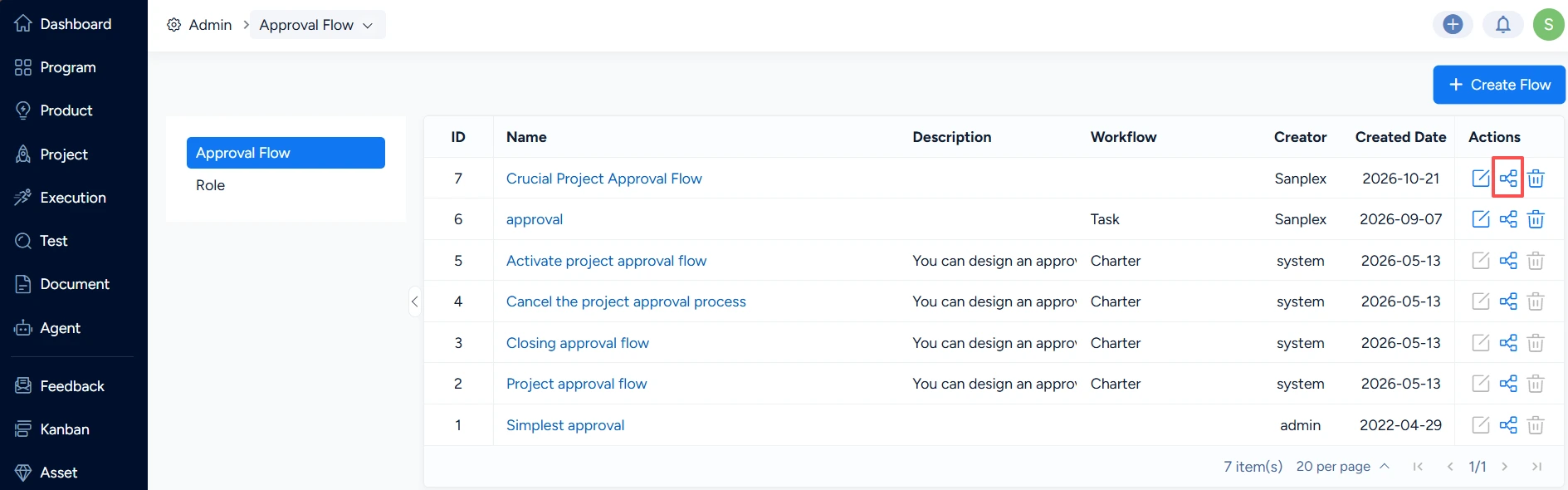
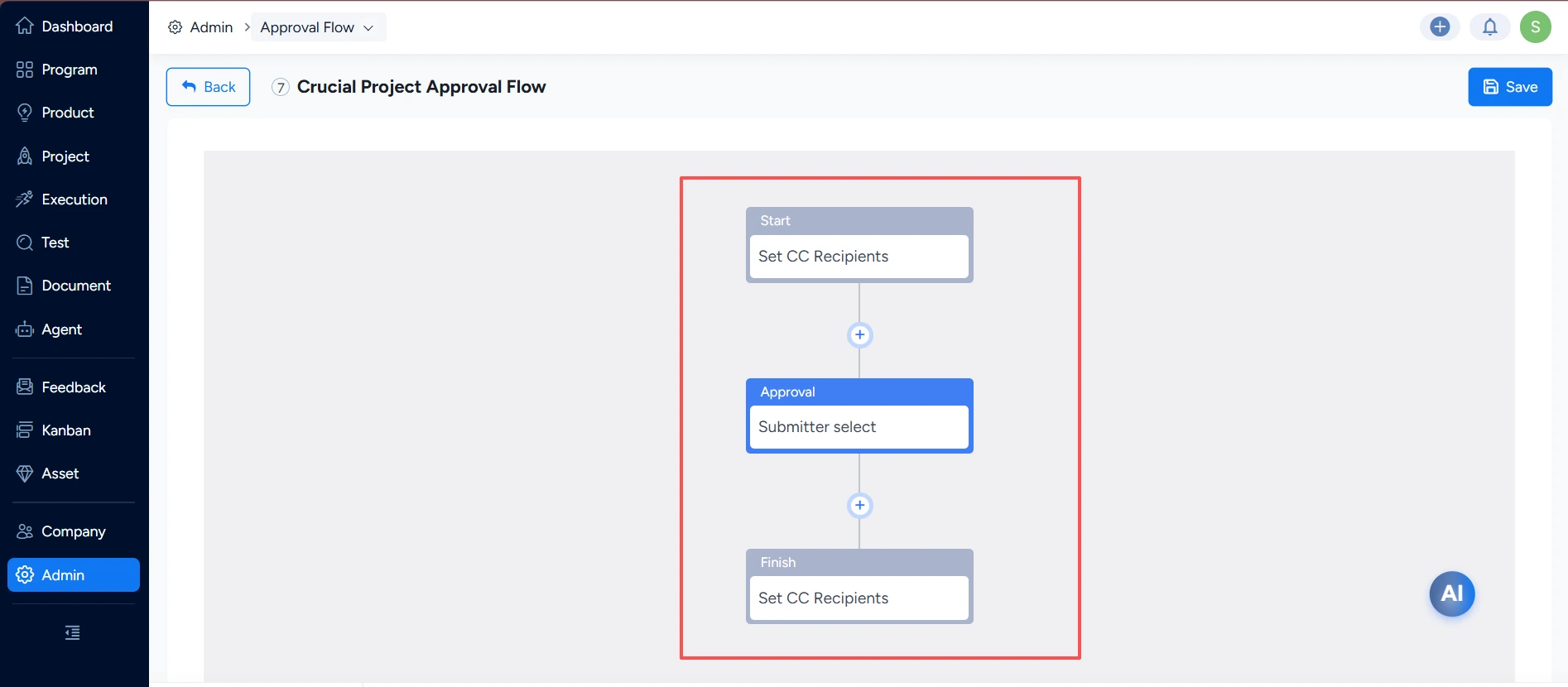
A newly created approval flow contains three default nodes: Start, Approval, and Finish.
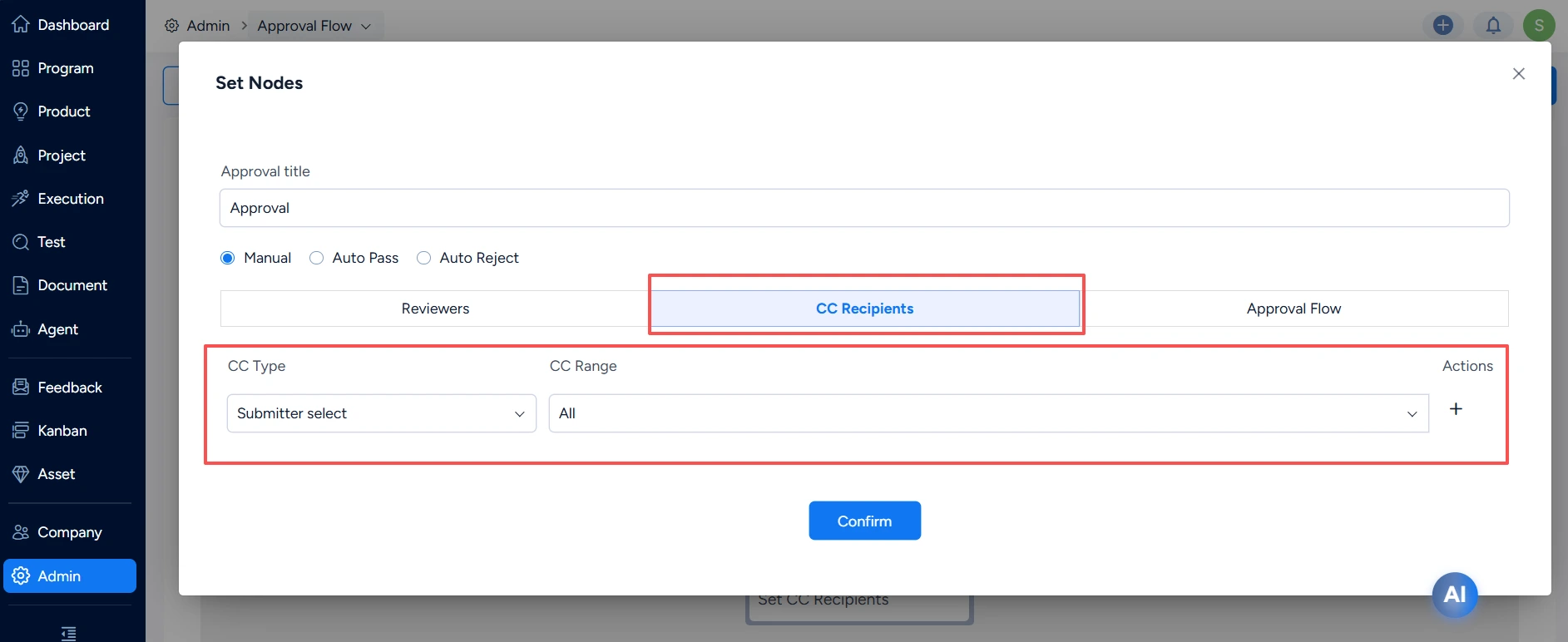
You can click each approval node to configure it. The following screenshot shows the configuration of a CC node, where you can set CC recipients:
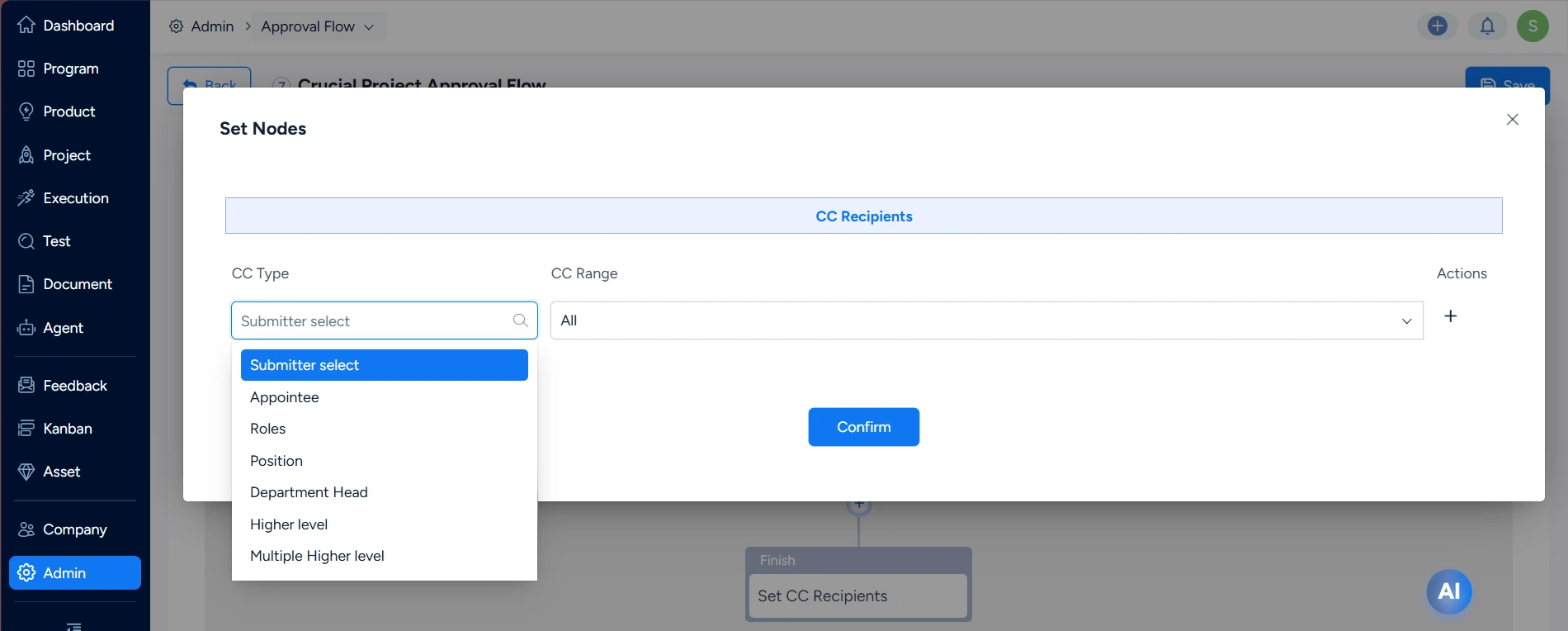
- Submitter select: The initiator selects CC recipients manually on the approval initiation page.
- Appointee: Specify a user to receive the CC notification.
- Roles: An approval role maintained under Approvals > Roles.
- Department Head: The department manager defined in Sanplex’s department structure.
The following sections describe the configuration of an approval node.
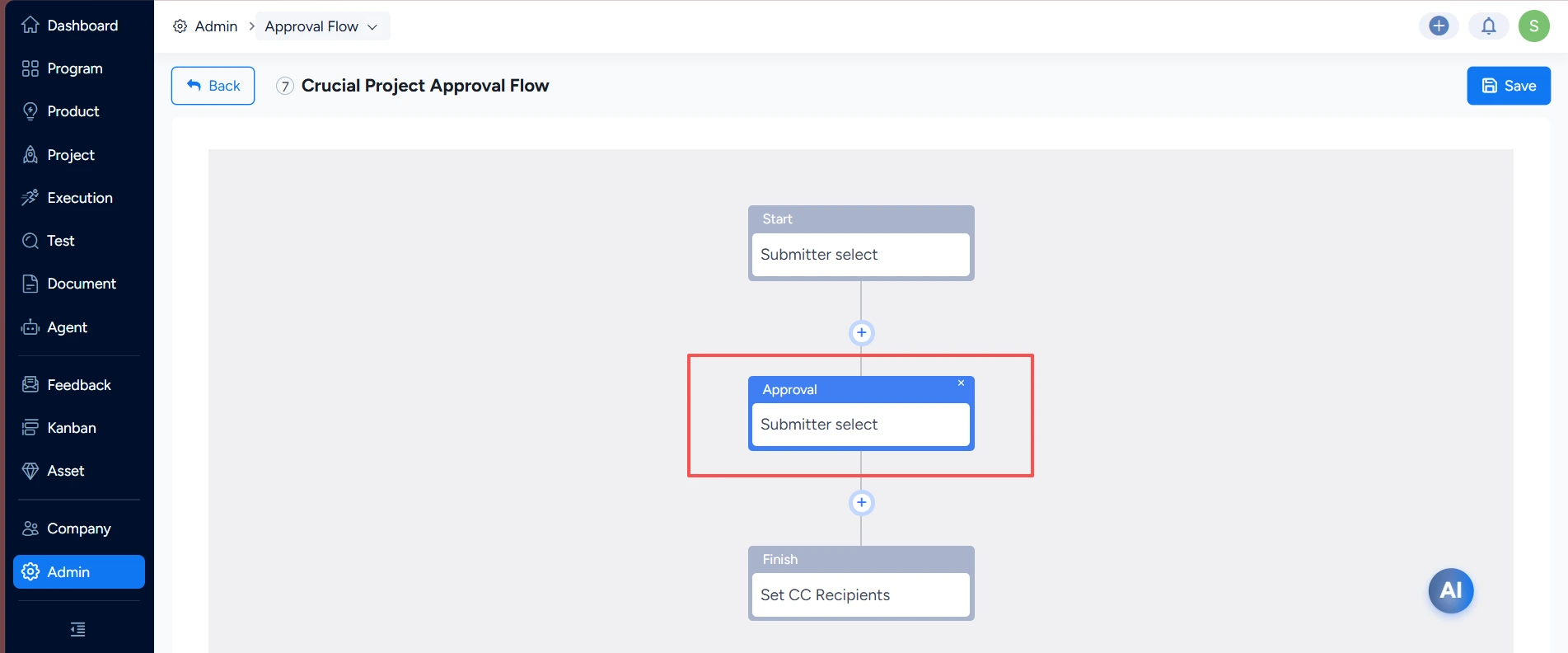
1. Configure Basic Information
Configure the approval title and approval type.
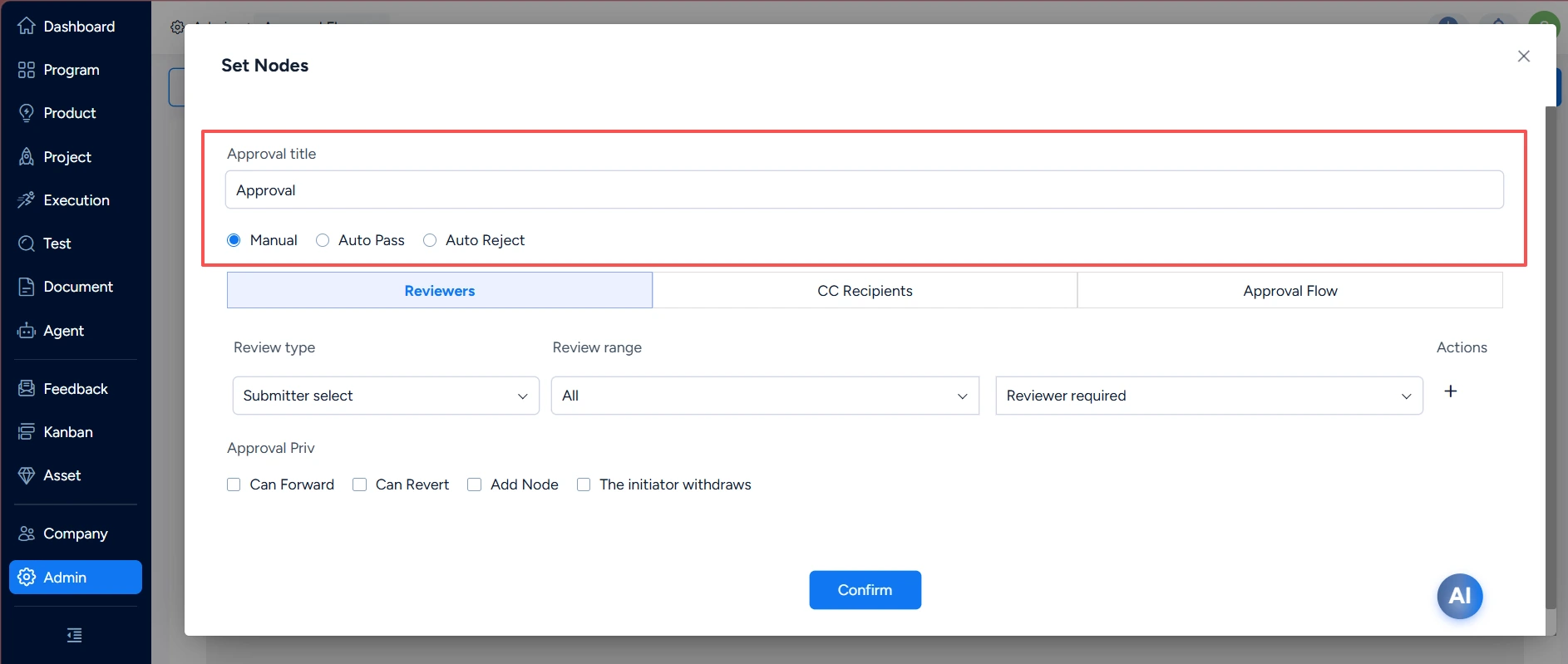
Approval title: The name of the approval node.
Approval Node Type:
- Manual: A user must manually click Approve or Reject.
- Auto- Pass: Mainly used when a multi-branch flow has no approver configured.
- Auto Reject: Mainly used when a multi-branch flow has no approver configured.
2. Configure Approvers
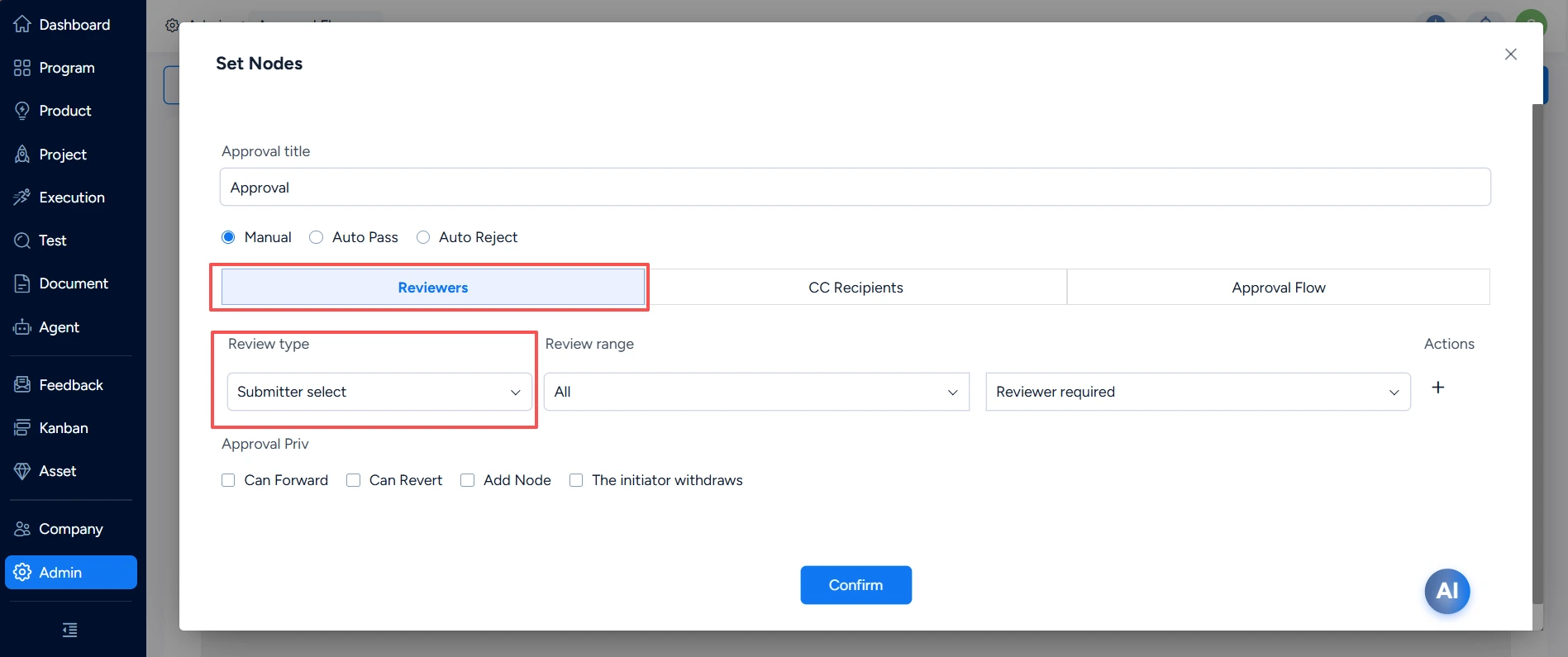
Approver Type:
- Submitter select: The initiator selects approvers on the approval initiation page. The range can be unrestricted or limited by role, department, or position.
- Oneself: The initiator approves the request.
- Roles: All users in the selected role review the request together. Roles can be configured in Admin.
- Position: All users in the selected position review the request together. Positions can be configured in Admin.
- Department Head: The manager of the initiator’s department reviews the request.
- Higher level: The initiator’s direct manager reviews the request. Direct managers can be configured for users in Admin.
- Multiple Higher level: The initiator’s managers at multiple consecutive levels review the request together. The approval can end at the top manager or at the second, third, fourth, or fifth manager level.
- Previous node selects approver: The approver of the previous node selects the reviewer for this node. This option is unavailable for the first node.
- Execution Roles: Roles associated with the execution that owns the approval object, including Product Owner, Test Owner, Release Owner, and Execution Owner.
- Product Roles: Roles associated with the product that owns the approval object, including Product Owner, Test Owner, Release Owner, Feedback Owner, Ticket Owner, and Story Reviewer.
- Project Roles: Roles associated with the project that owns the approval object, including Project Owner and Project Stakeholder.
3. Configure Action Permissions During Approval
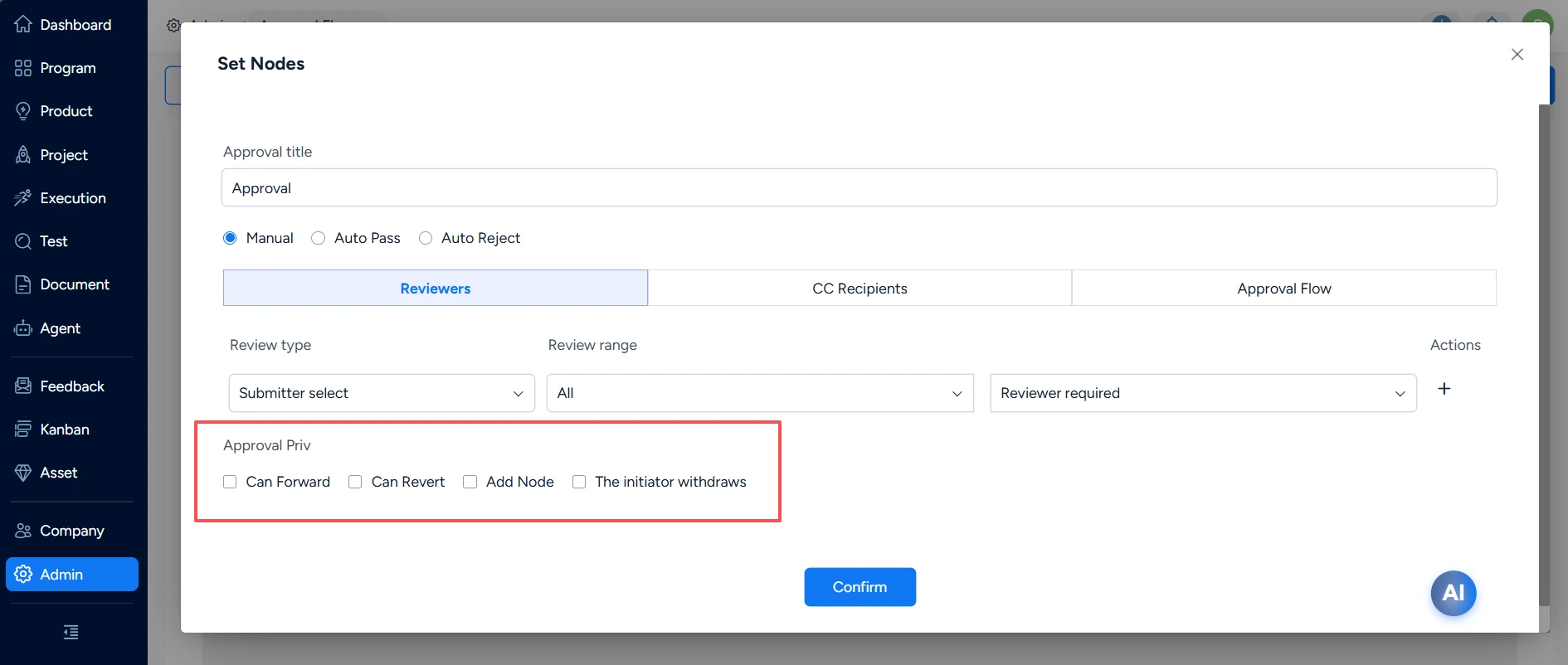
Can Forward: After transfer, another user becomes the approver. Only one user can be selected.
Can Revert: You can return the approval to any node before the current node, including Initiate.
- Follow approval flow sequence: After the returned node is approved, the approval proceeds to the next node in sequence.
- Resume from the current review node: After the returned node is approved, the approval jumps to the current node for review.
Add Node: You can add an approval node before or after the current node, or add approvers to the current node.
- Add before: Add a node before the current node. You can select multiple approvers and reconfigure the multi-approver rule when multiple approvers are selected. Other approval settings are the same as those of the current approval flow.
- Add after: Add a node after the current node. You can select multiple approvers and reconfigure the multi-approver rule when multiple approvers are selected. Other approval settings are the same as those of the current approval flow.
- Add approvers at current node: This option is not displayed when the current approval flow has only one approver.
The initiator withdraws: When selected, the initiator can withdraw the approval while this node is under review.
4. Configure CC Recipients
You can select the scope of CC recipients. The same personnel restrictions as those for approvers apply.
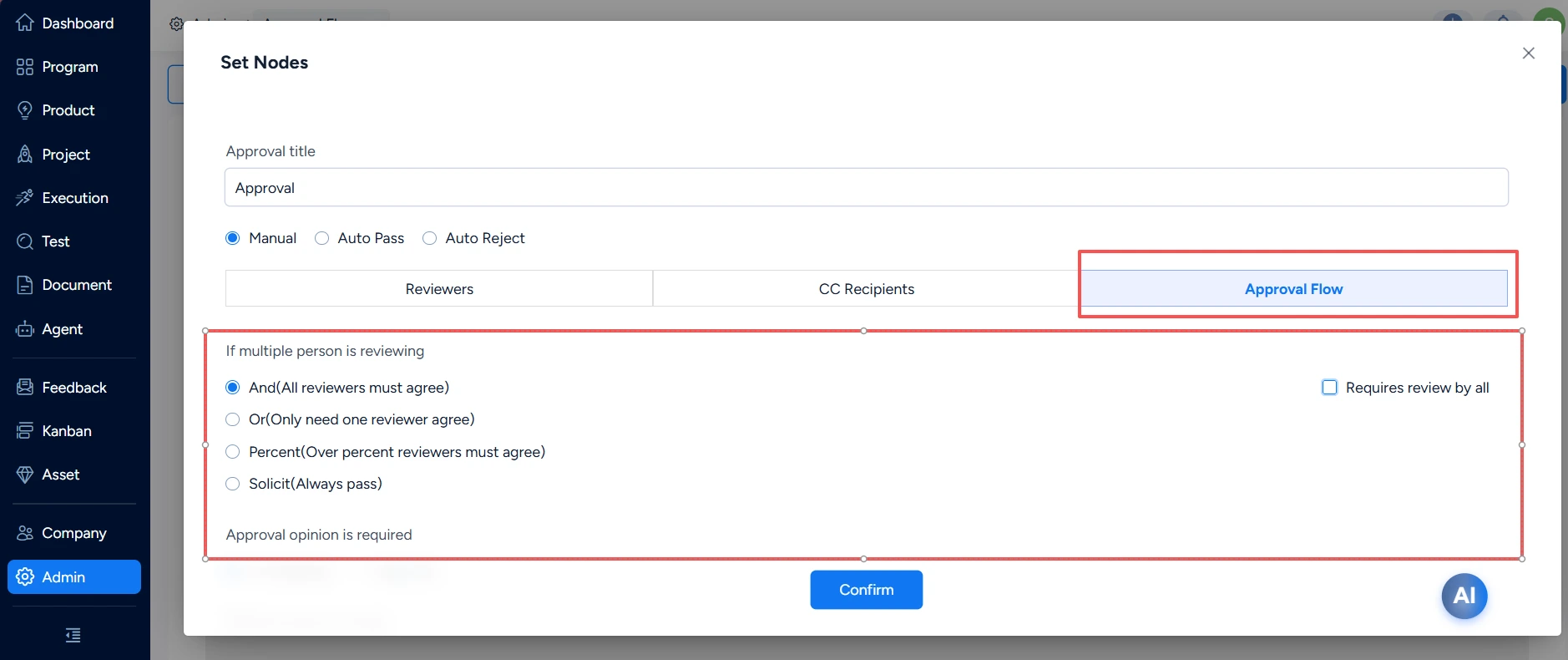
5. Configure Approval Rules
You can configure multi-approver rules, whether approval comments are required, and other restrictions.
Multi-approver modes:
- Joint approval (all approve): The approval passes when all approvers approve.
- Any approval (one approves): The approval passes when any one approver approves.
- Joint approval (percentage threshold): The approval passes when the configured approval percentage is reached.
- Collect opinions (result: approved): Primarily used to collect opinions; the result does not affect progression to the next node. If Require all reviewers to complete their reviews is cleared, the node ends once the calculation condition is met. If it is selected, the flow waits for every reviewer to finish before moving to the next node, regardless of the review results.
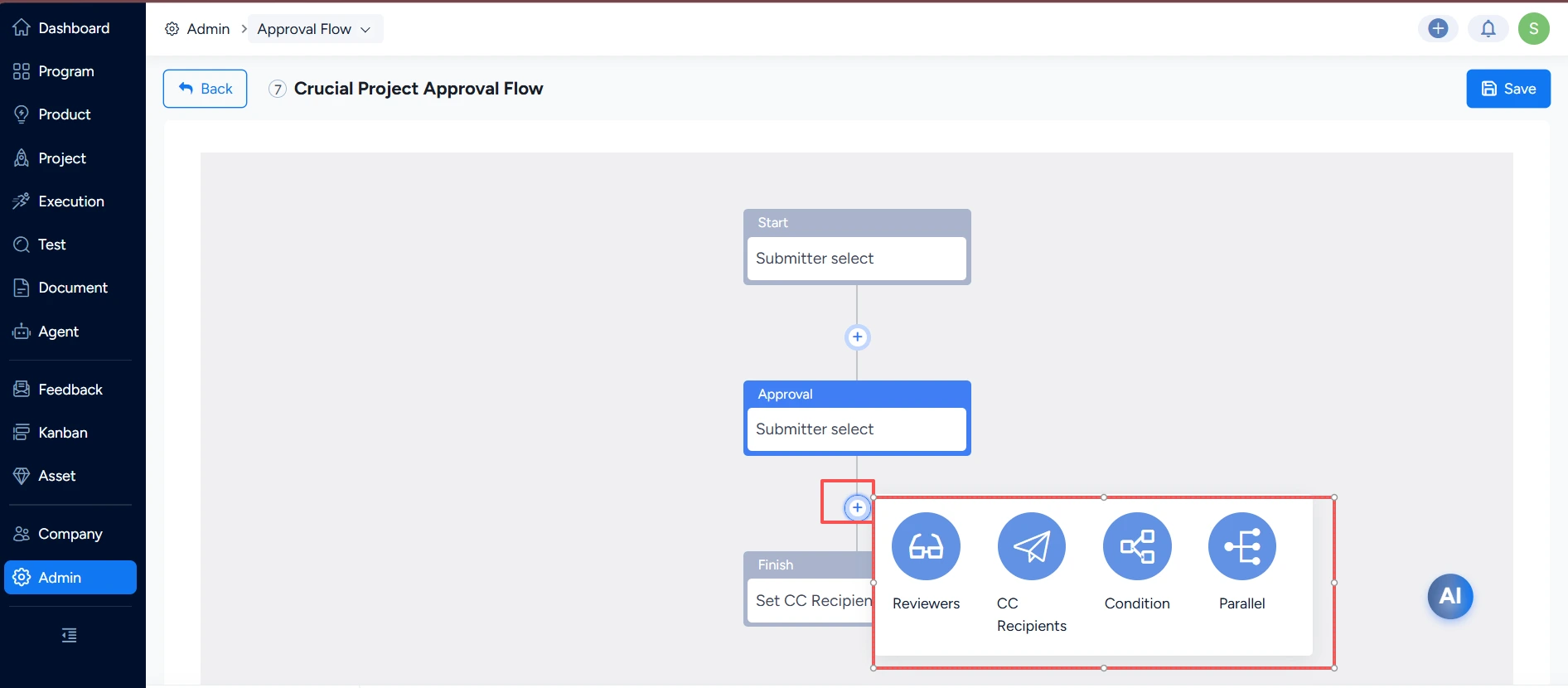
You can also click the plus icon between nodes to add nodes or branches to the approval flow.
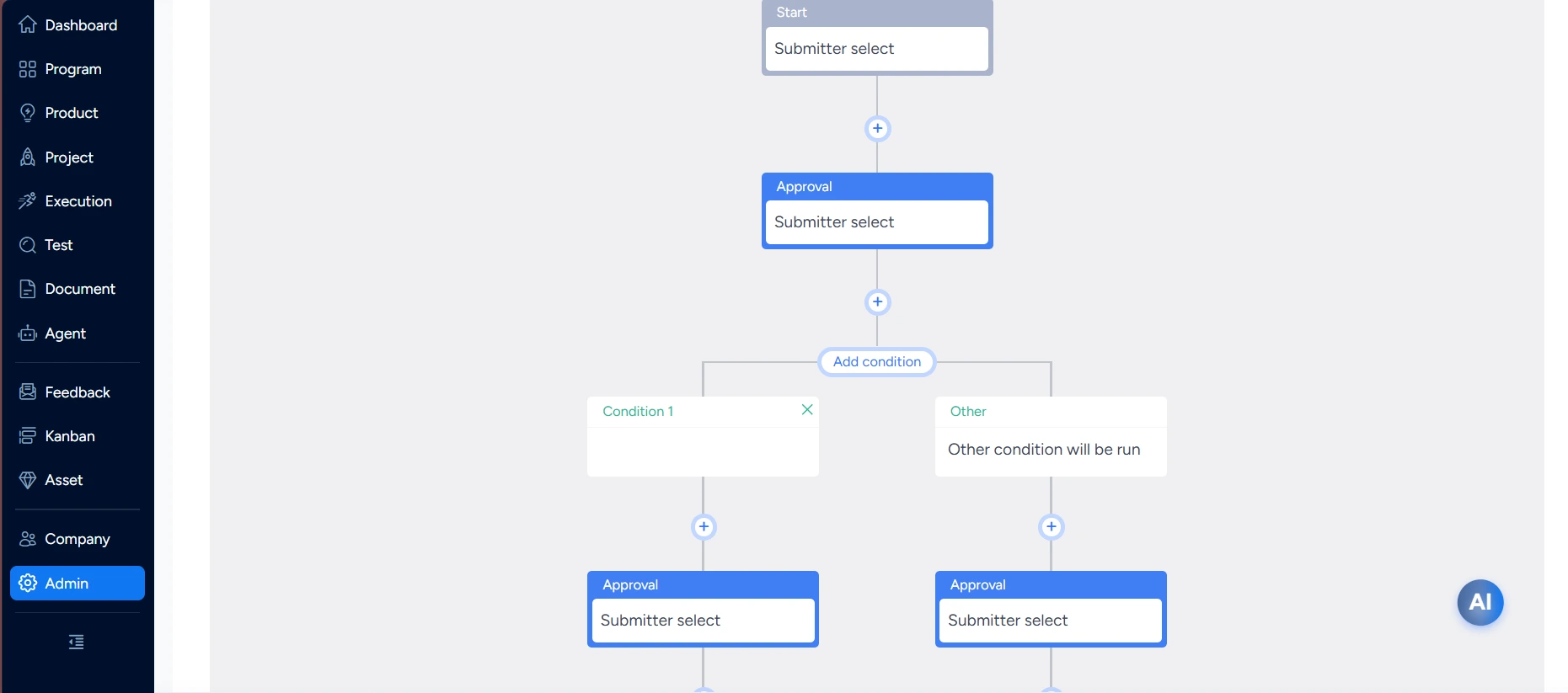
Conditional branches: Only one branch proceeds. Branches are prioritized from left to right. If none of the left branches meets its condition, the flow uses the default branch on the far right.
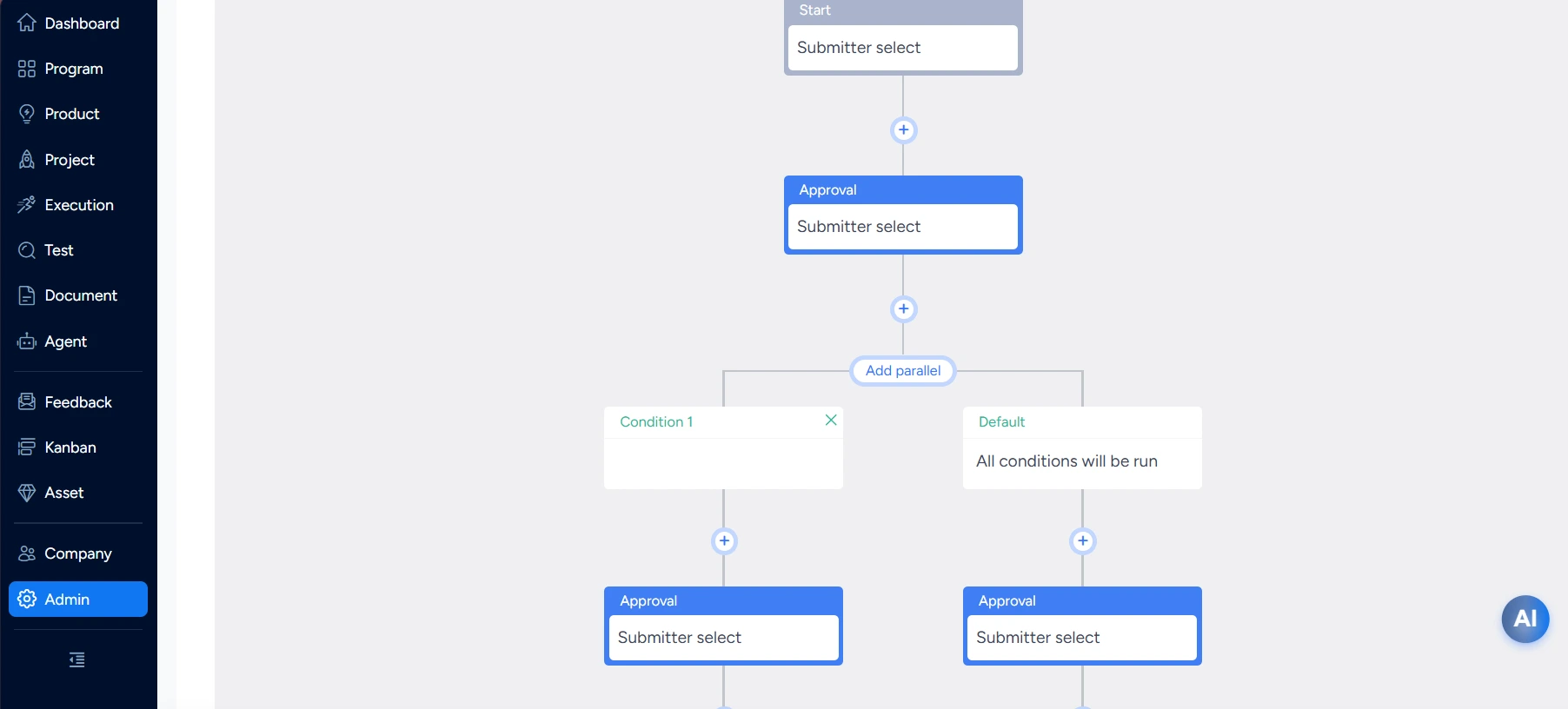
Parallel branches: Multiple branches can proceed at the same time. Any branch that meets its condition runs, and the default branch always runs.
V. Use Approval Flows in Projects
See Project Approval Flow Settings.
After configuration, you can use the approval flow in a project.
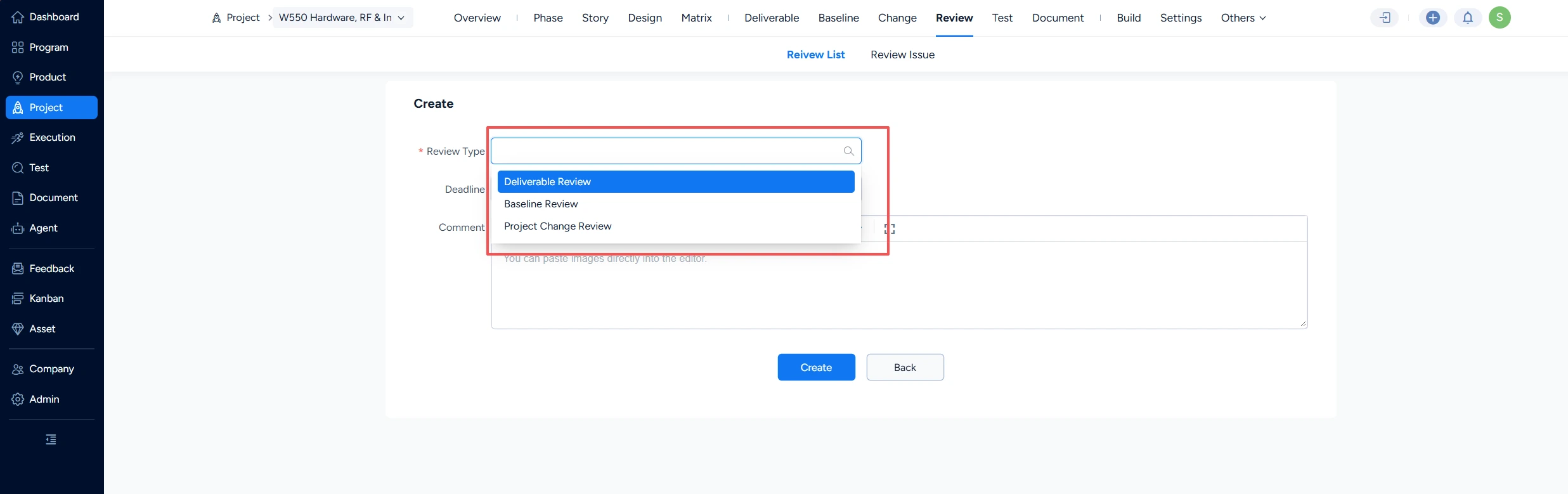
After you select a review object, Sanplex retrieves all approval nodes from the approval flow bound to the object. If the configuration uses Initiator selects, the approvers must be selected manually.
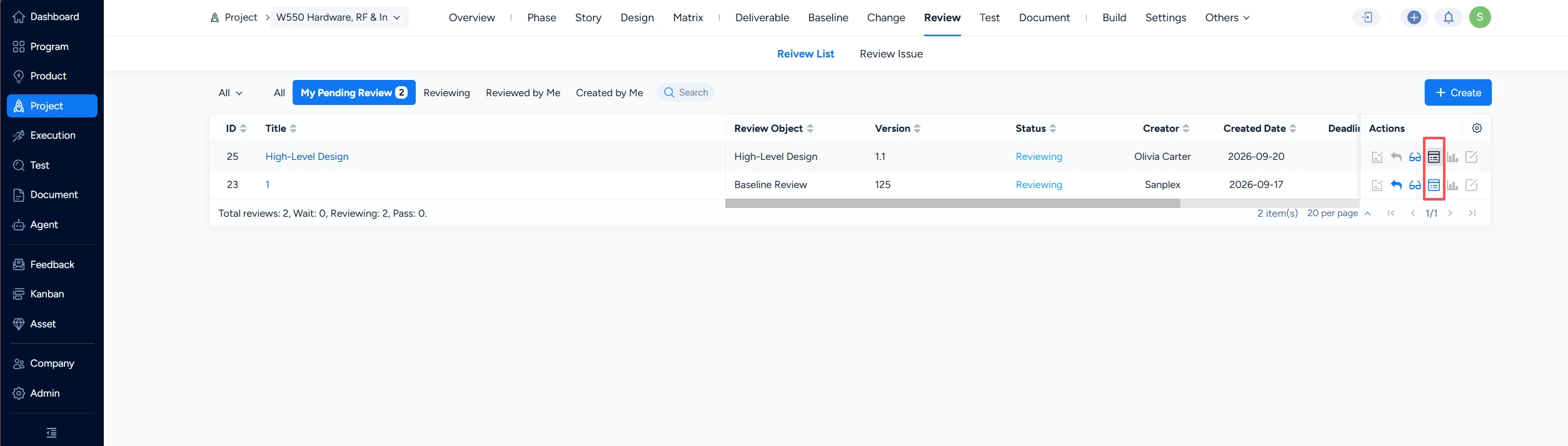
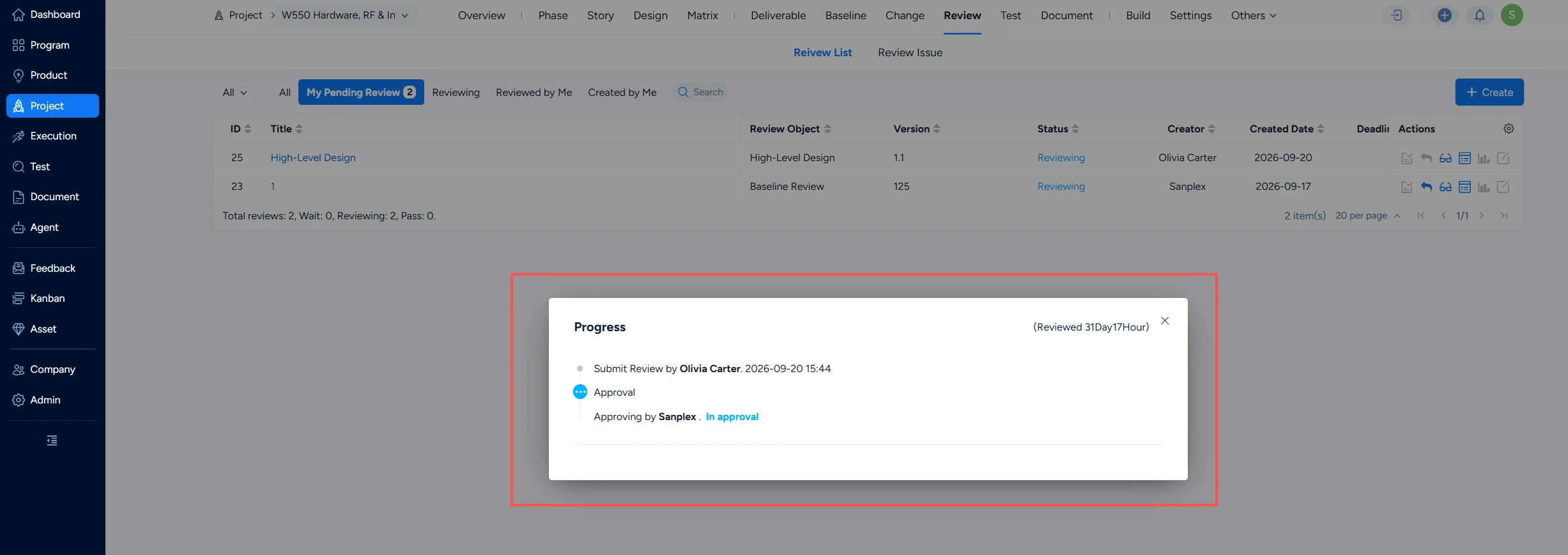
After a review is initiated, click Progress on the list page to monitor the approval flow.
A blue node represents an approval that is in progress.
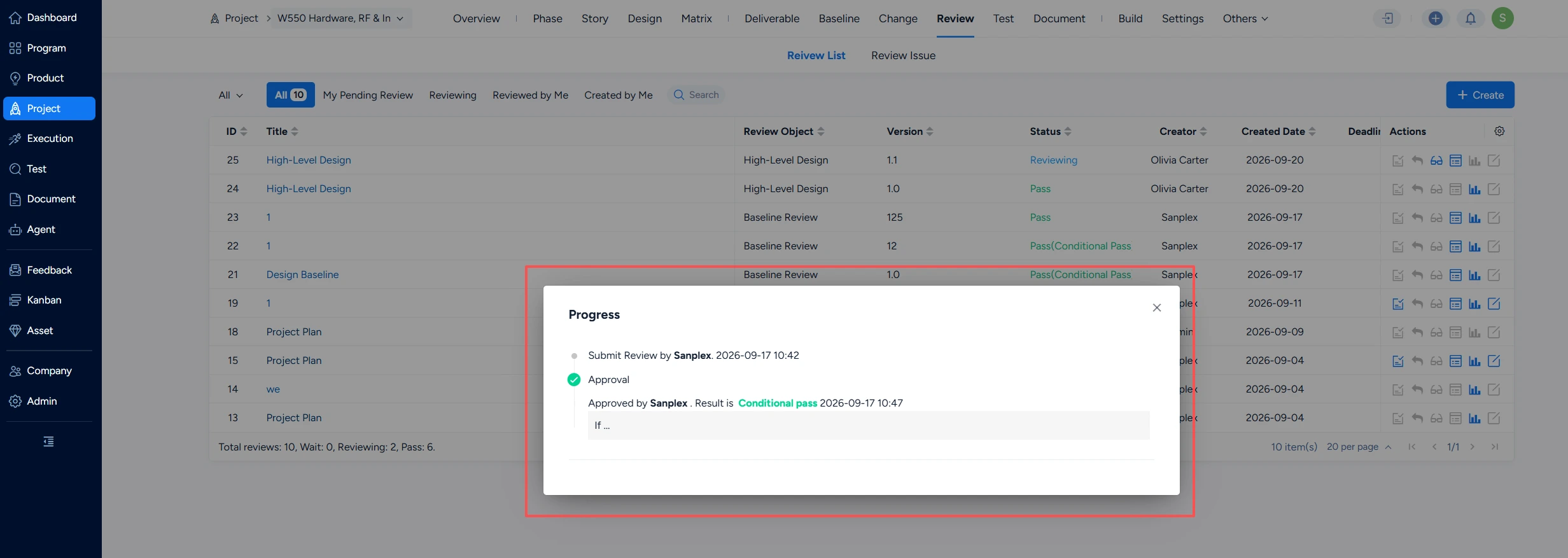
A green node represents an approval that is complete.
When an approval reaches a node, Sanplex sends email reminders to the approvers and CC recipients for that node.
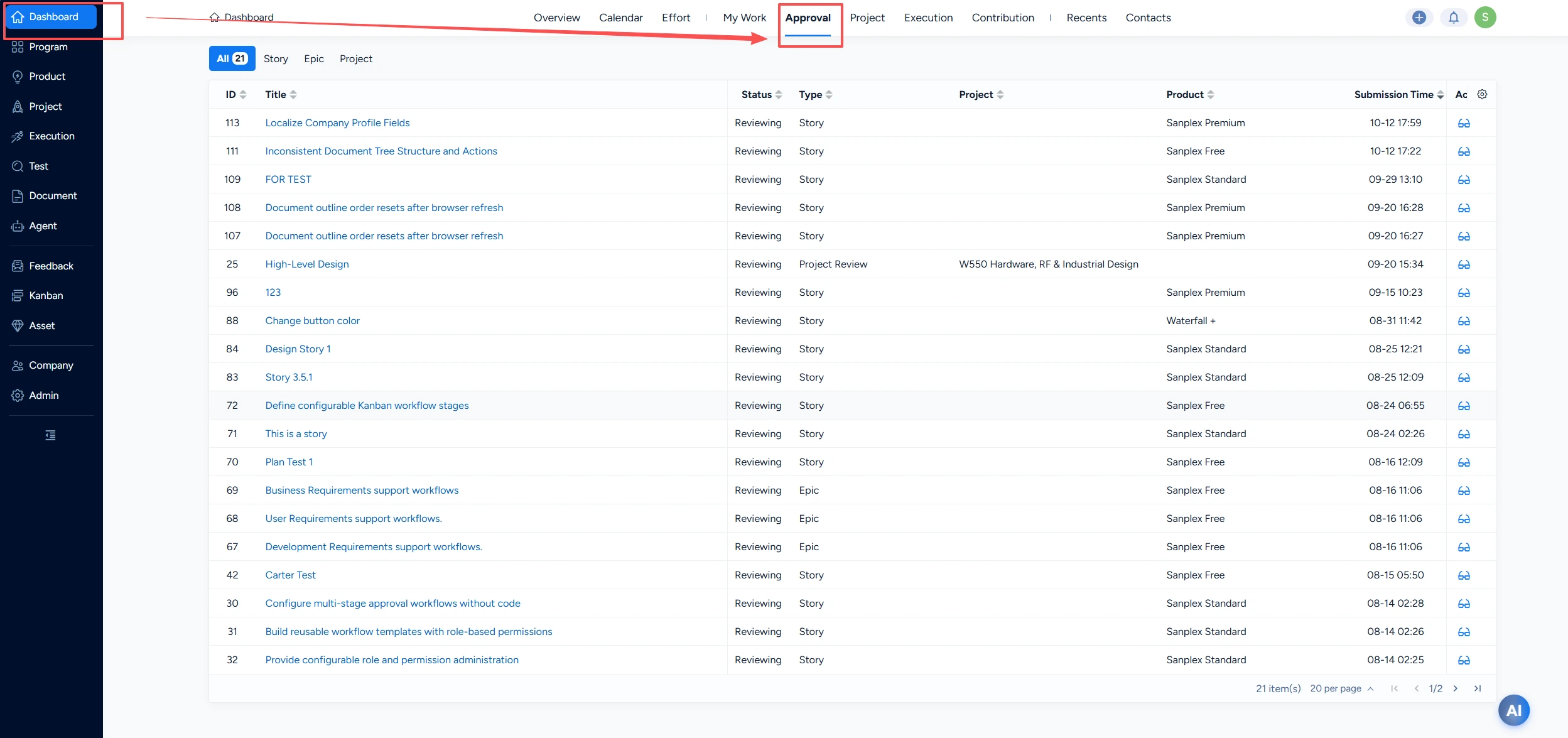
Go to Dashboard > Approval to view all approval items awaiting your review.
VI. Use Approval Flows in Workflows
Select Workflow Approval as the approval type for an approval flow. After the approval flow is configured, it can be used in workflows.
1. Configure a Workflow
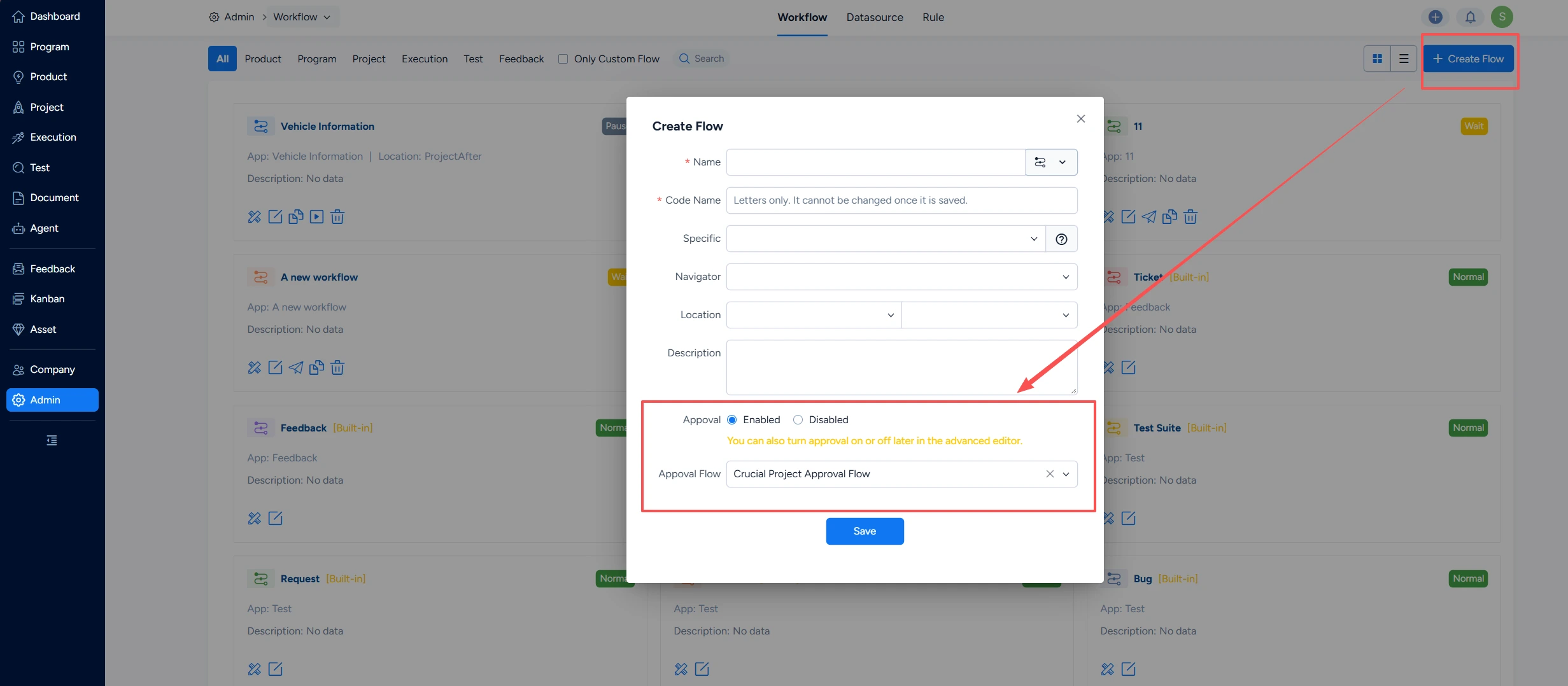
When creating a workflow, you can enable approvals directly.
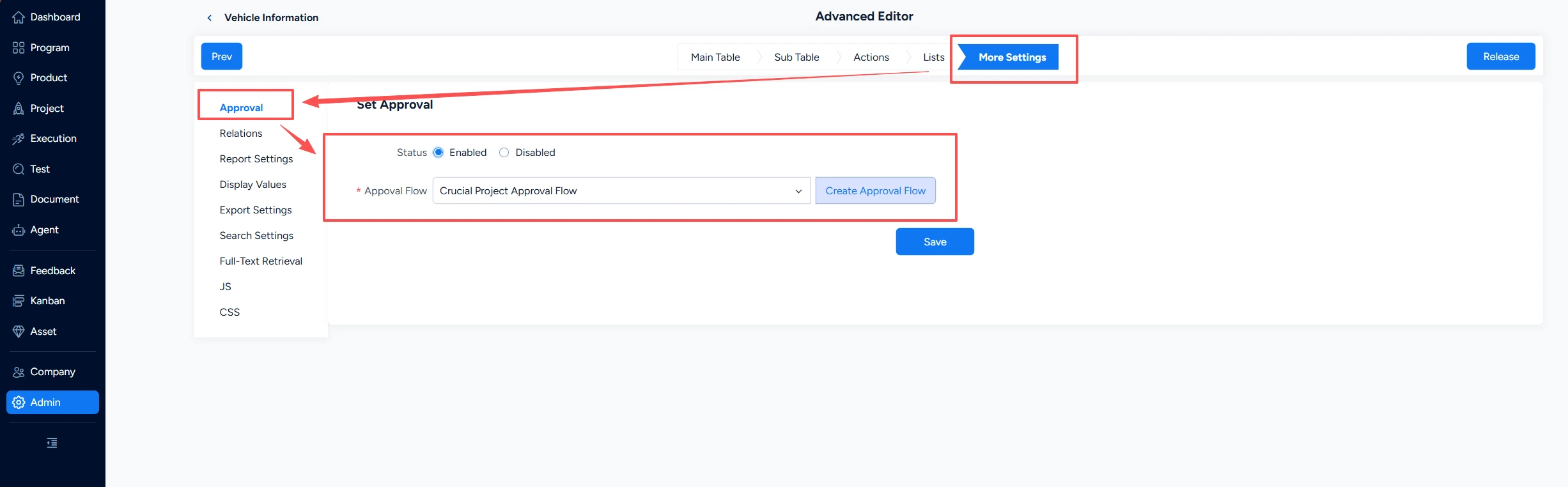
For an existing workflow, enable approvals through the approval settings in the Advanced Editor.
If the user configuring the workflow is not a super administrator, that user must have the Approval Settings permission.
After approvals are enabled, default fields, actions, and labels are added:
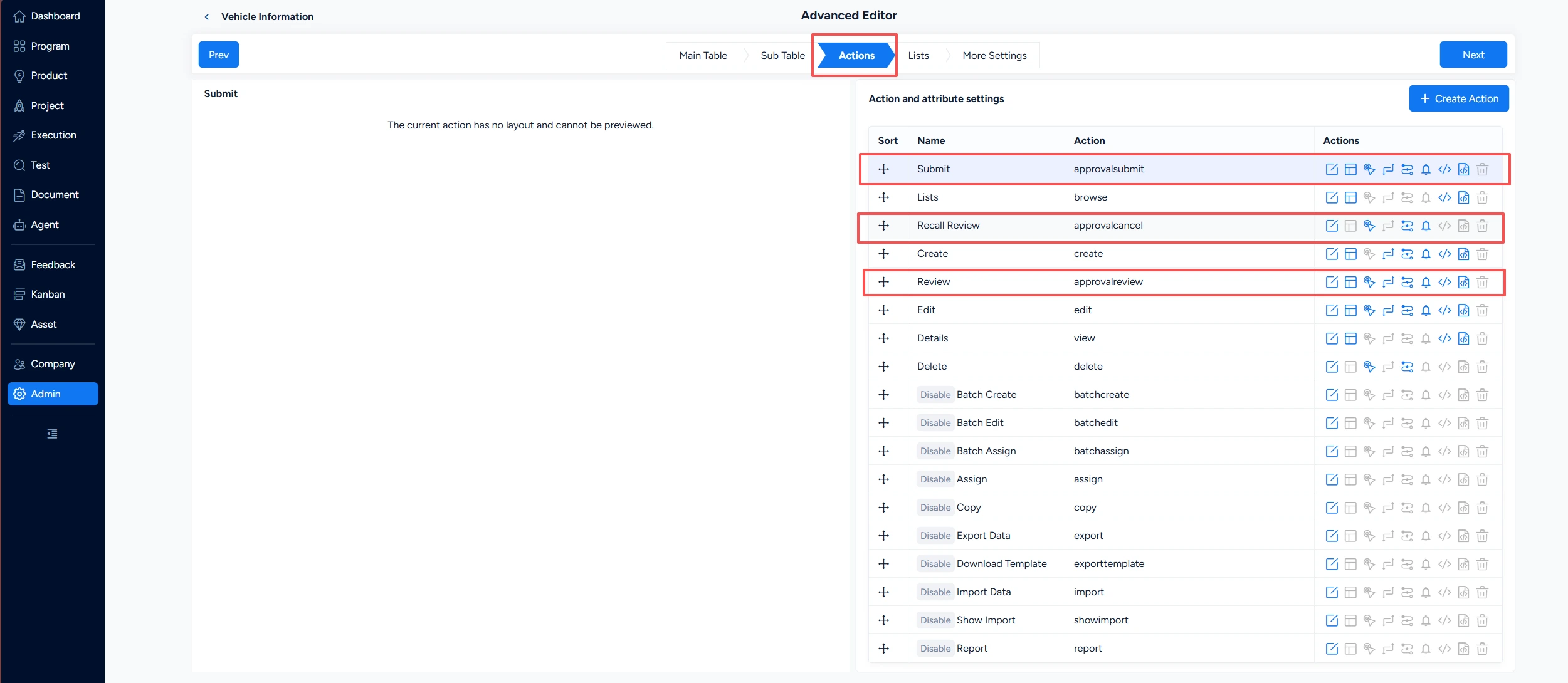
Configure the settings related to Submit, Recall, and Review.
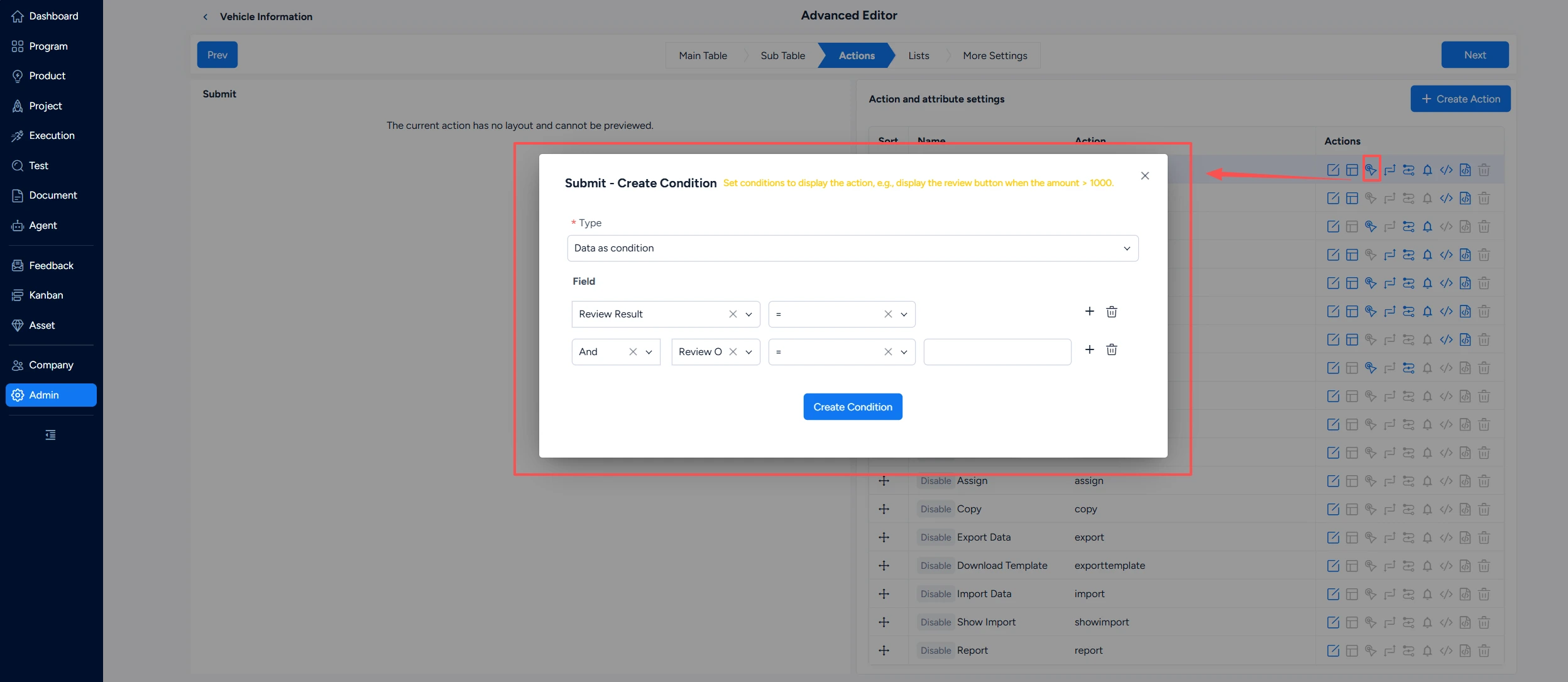
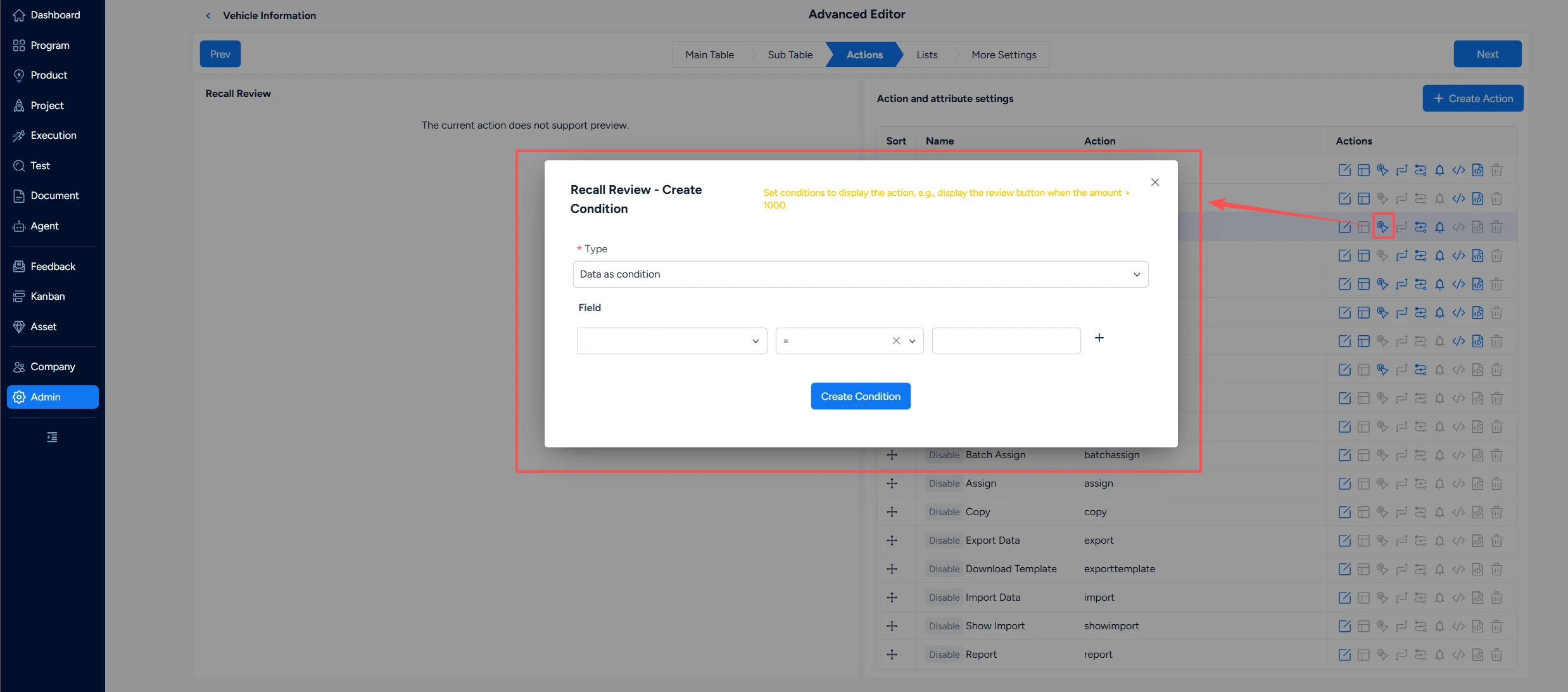
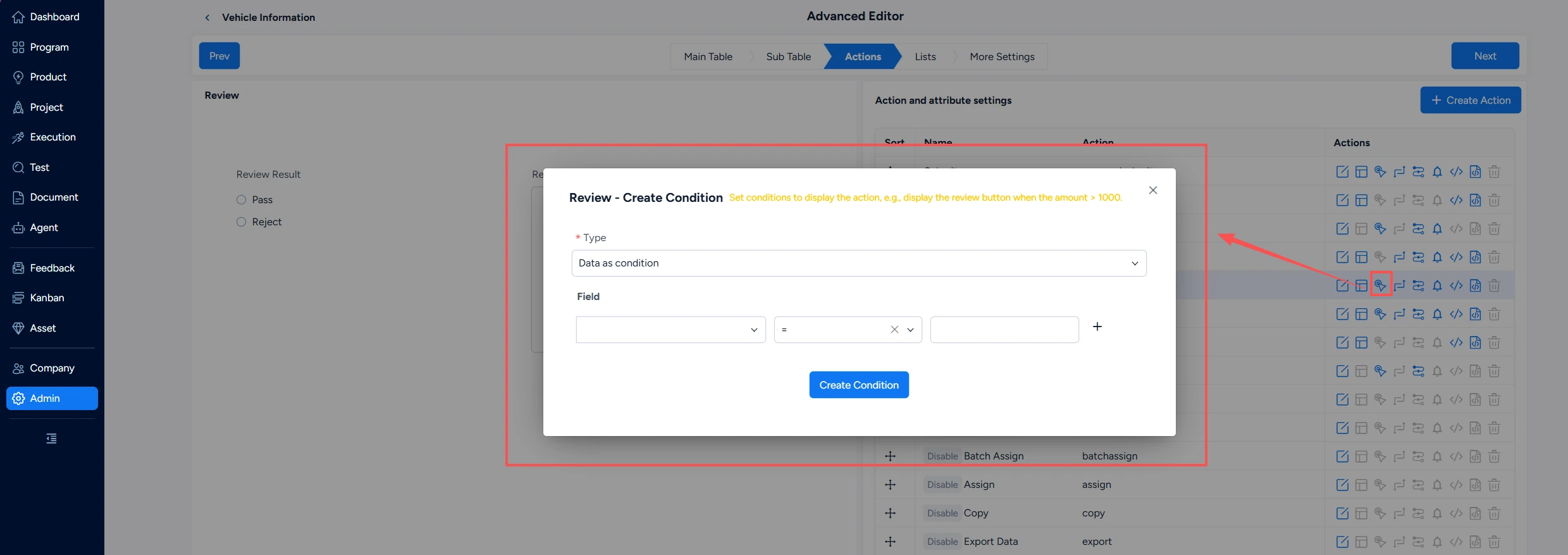
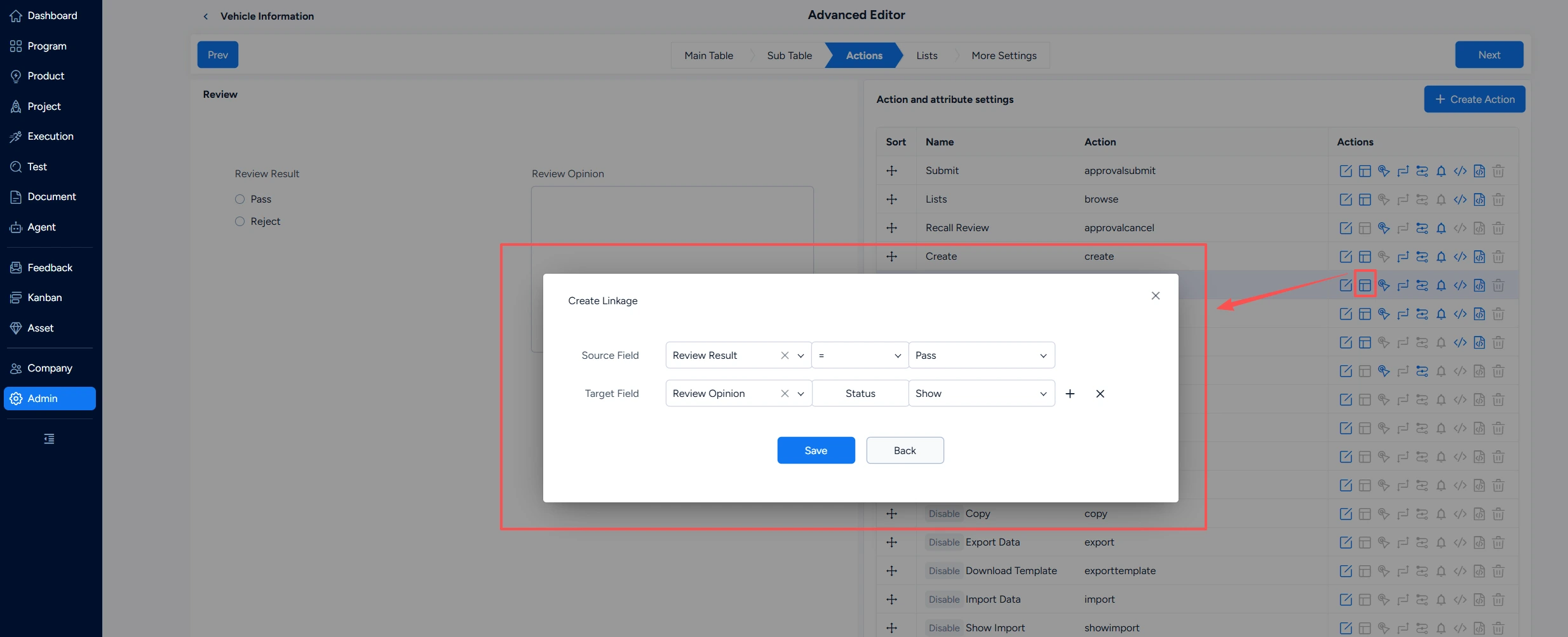
After the actions are configured, the approval feature is ready.
2. Extend a Built-in Workflow
If the list contains too much data, you can also configure the fields on the approval initiation and approval pages.
The approval progress is the same as that for project approvals.
3. Use Approvals
You can initiate, approve, and recall approvals from lists and detail pages.