

Catalog
Testers’ primary responsibilities include writing test cases and executing tests.
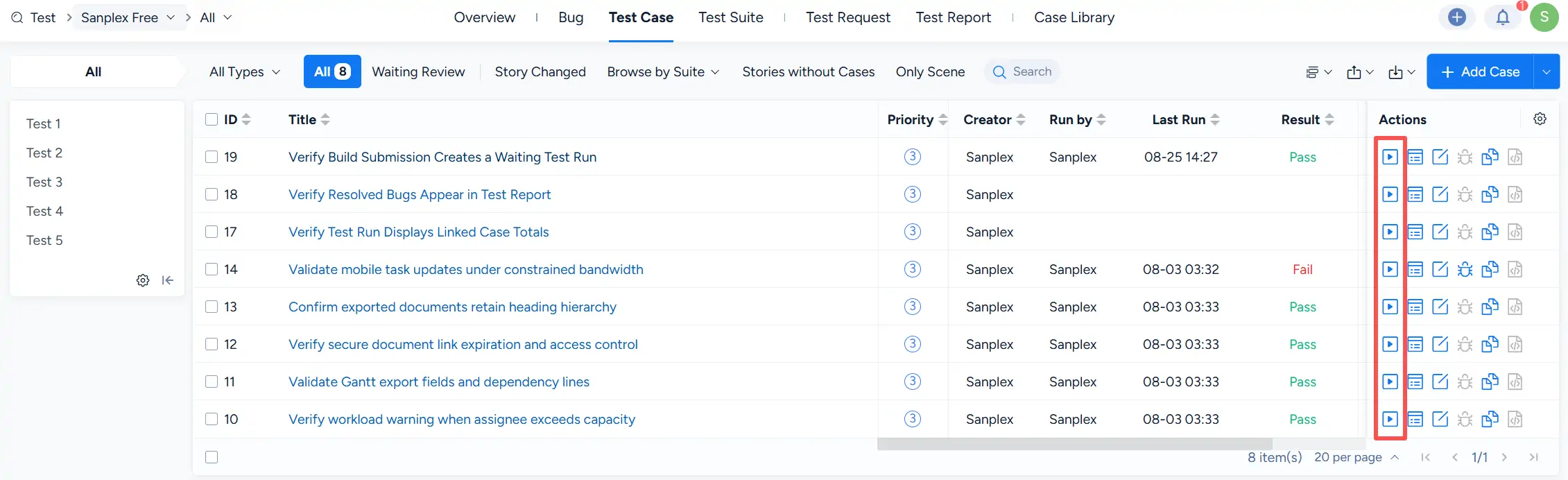
In Test > Test Case, use the actions in the Actions column to run test cases, review execution results, and report bugs when issues are found.
I. Execute a Test Case
Click Run in the Actions column to execute a test case.
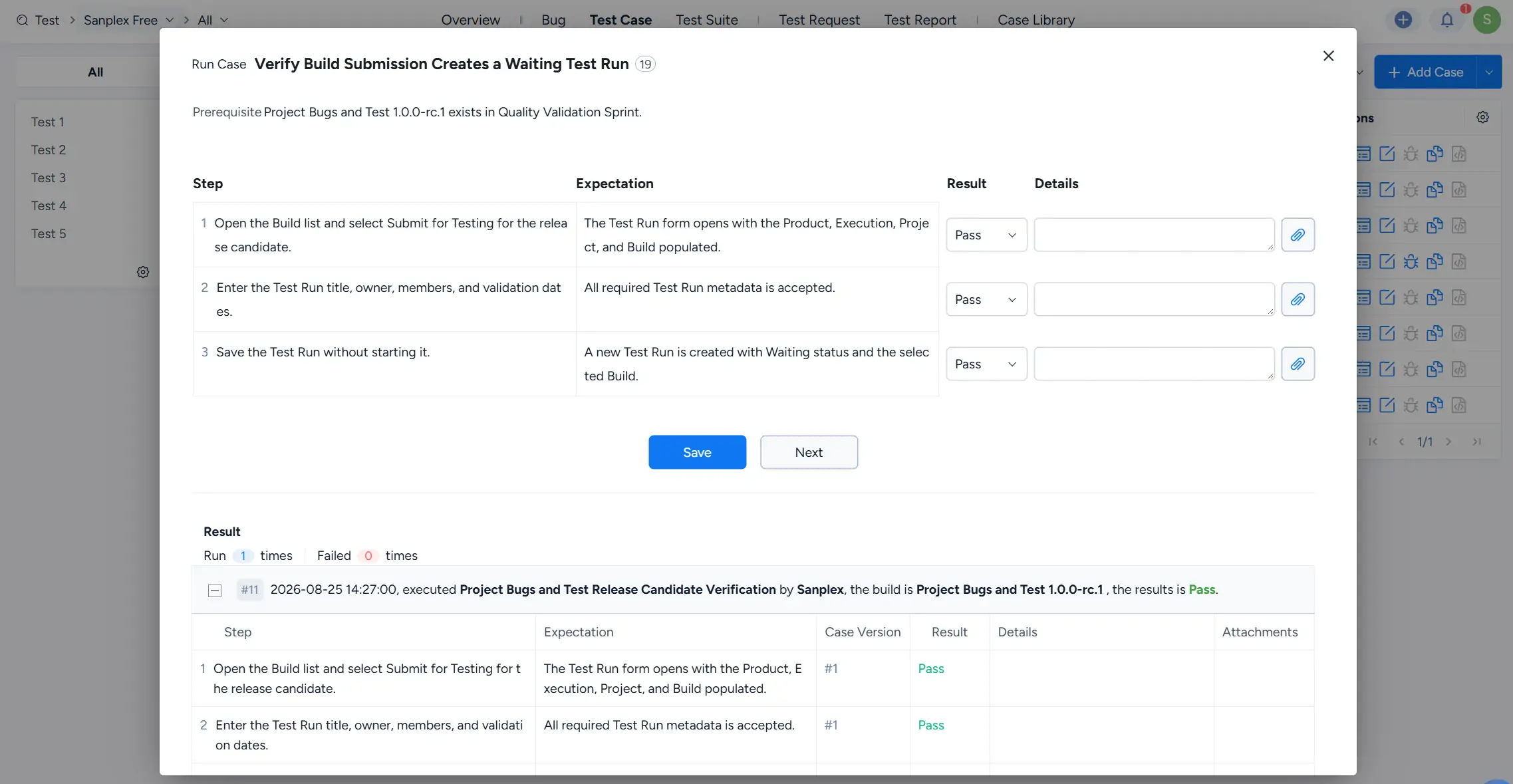
The Run Case dialog displays the test case prerequisite, steps, expectations, and fields for recording the execution result and details.
For each step, select the appropriate result. Sanplex supports the following execution results:
- Skip
- Pass
- Fail
- Blocked
The default result is Pass.
You can also enter additional information in Details for each step.
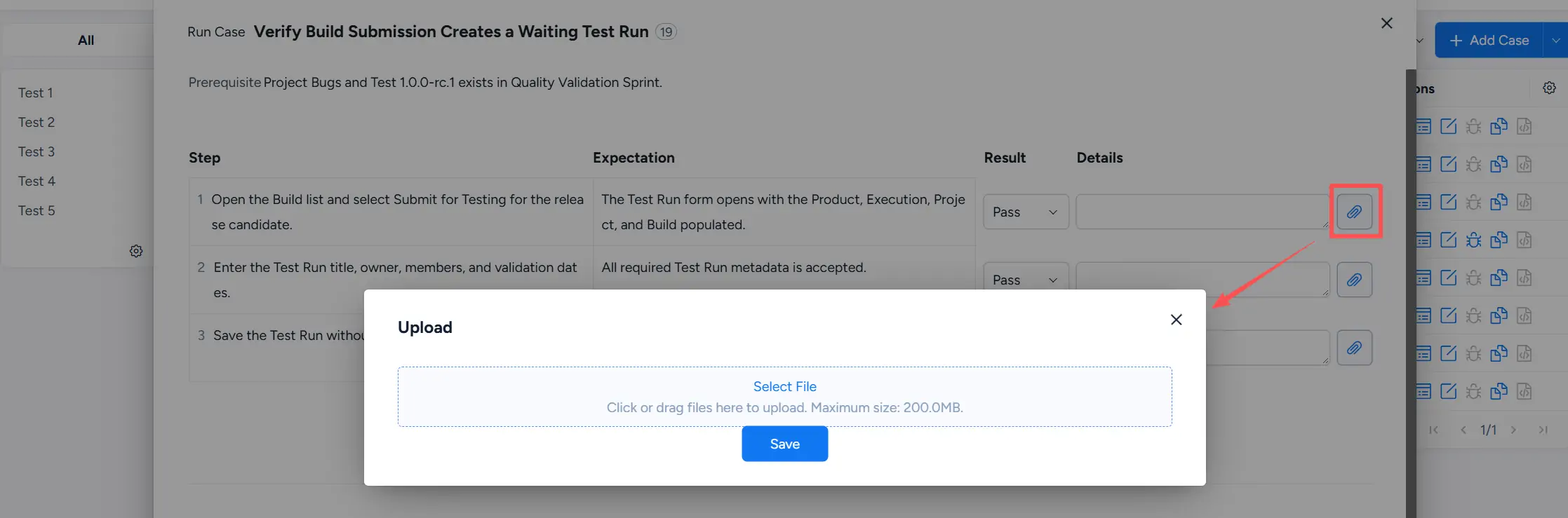
To attach supporting files to a test step, click the attachment icon beside the Details field. In the Upload dialog, select or drag a file into the upload area, and then click Save.
After completing the execution, click Save to record the results. You can use Next to continue to the next test case.
II. Report a Bug from a Test Case
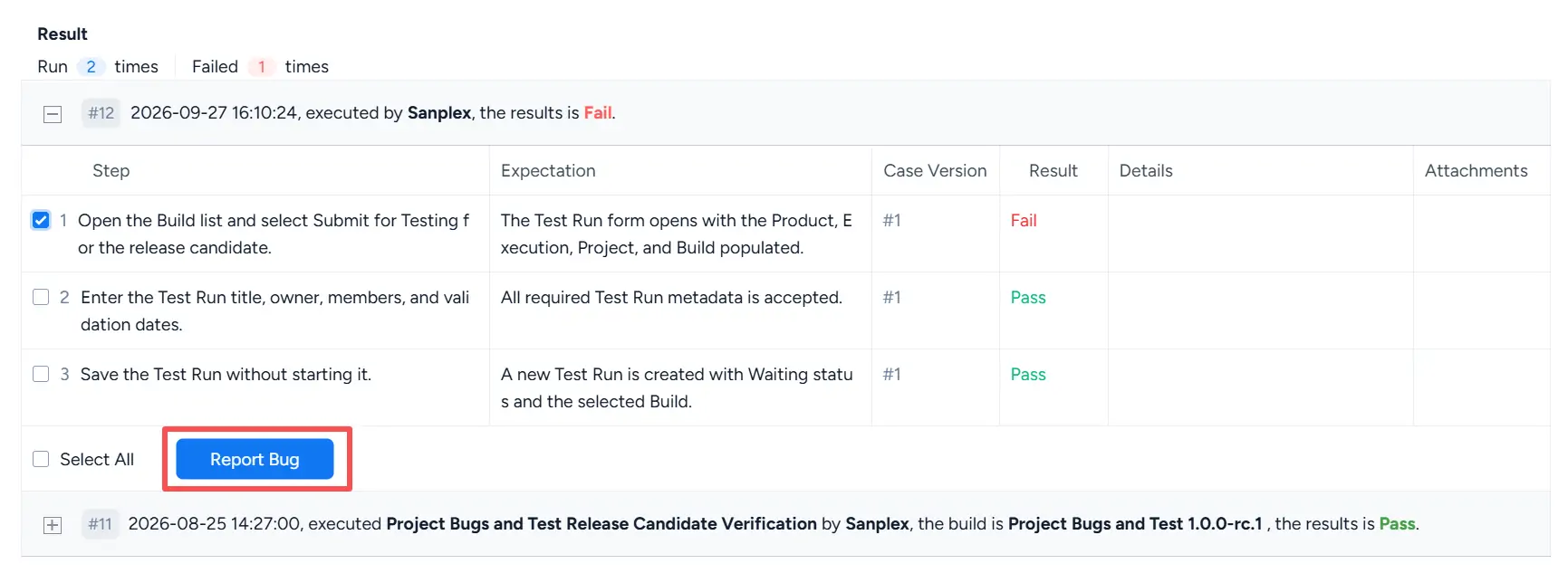
When a test step fails, the execution result is recorded in the test case history. The result details show the executed steps, expectations, case version, and result.
For failed results, select the relevant failed step and click Report Bug to create a bug from the test result.
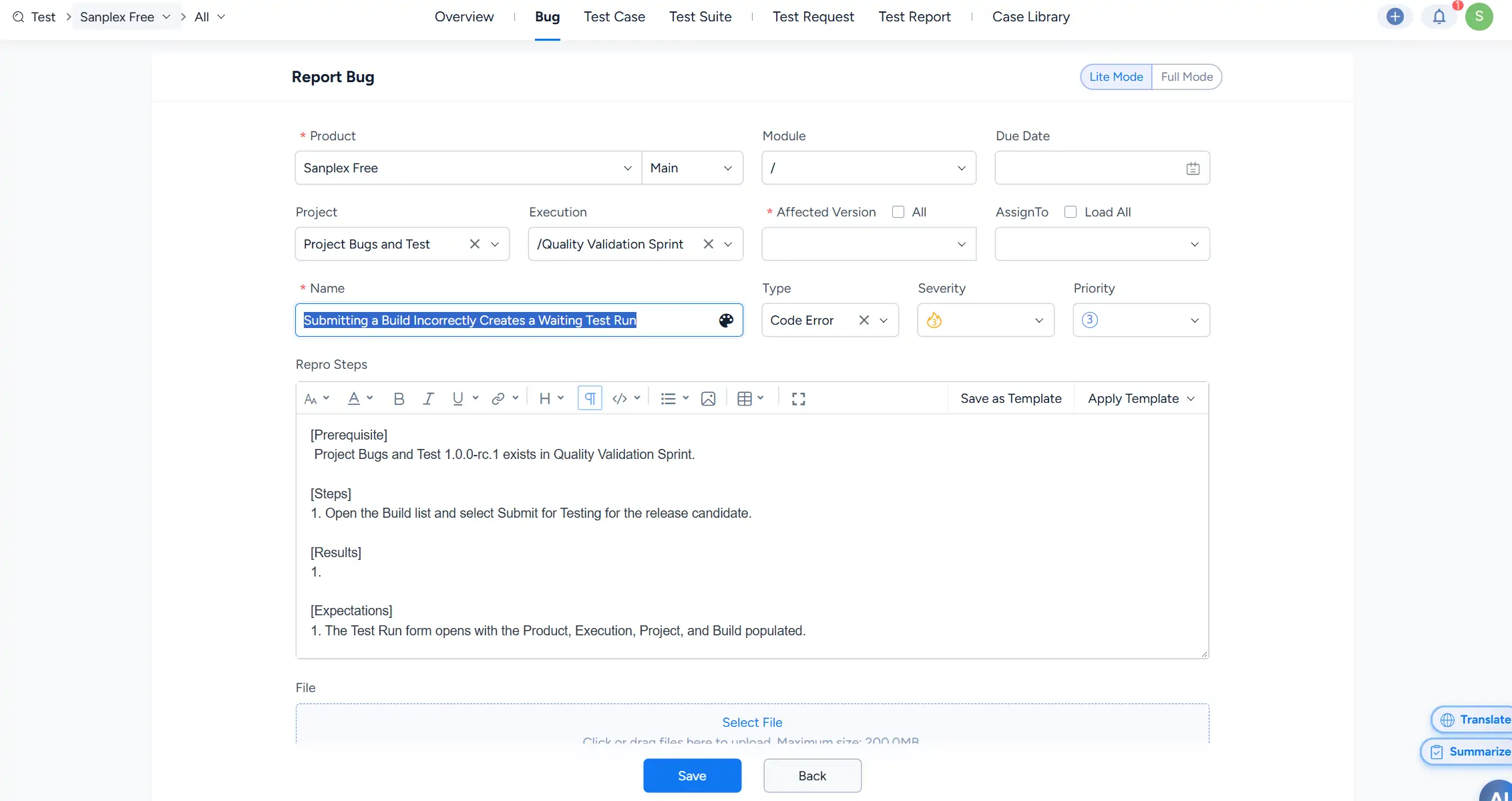
Sanplex opens the Report Bug page and carries relevant information from the test case into the bug, including the test case context and reproduction information.
Complete the required bug fields and click Save.
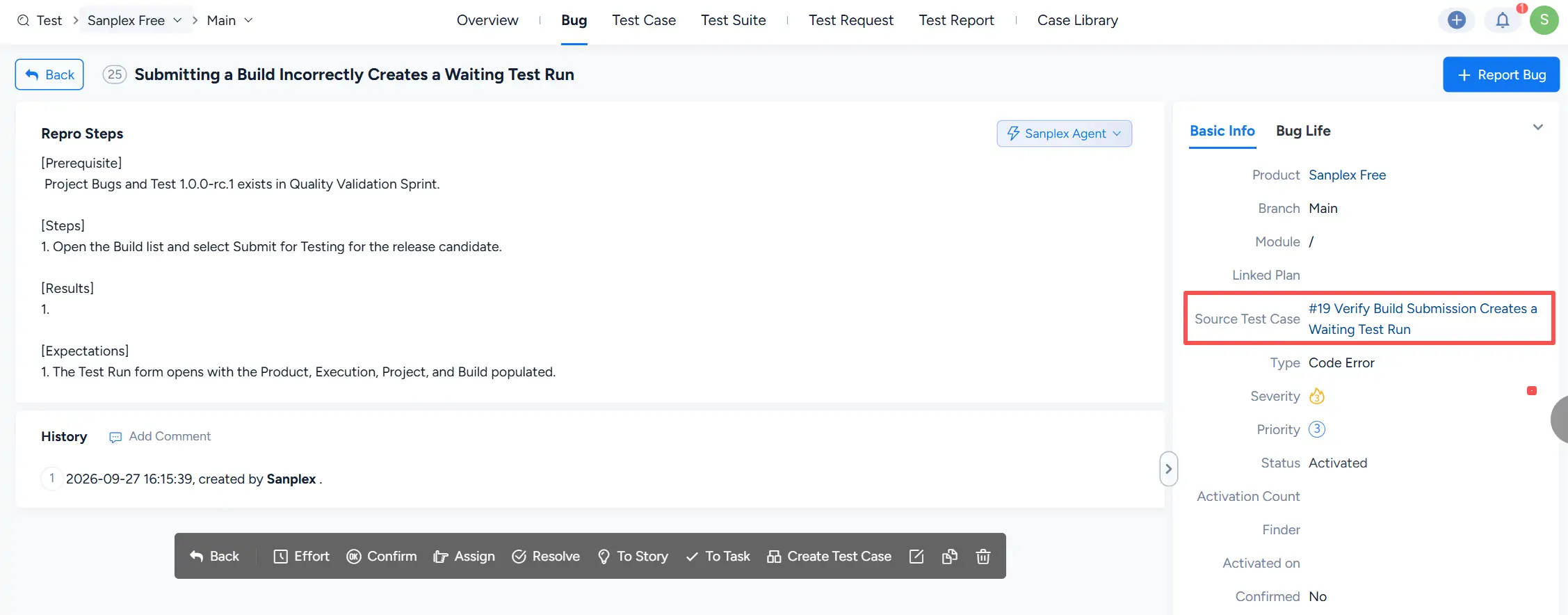
After the bug is created, its Basic Info panel displays the originating test case in the Source Test Case field.
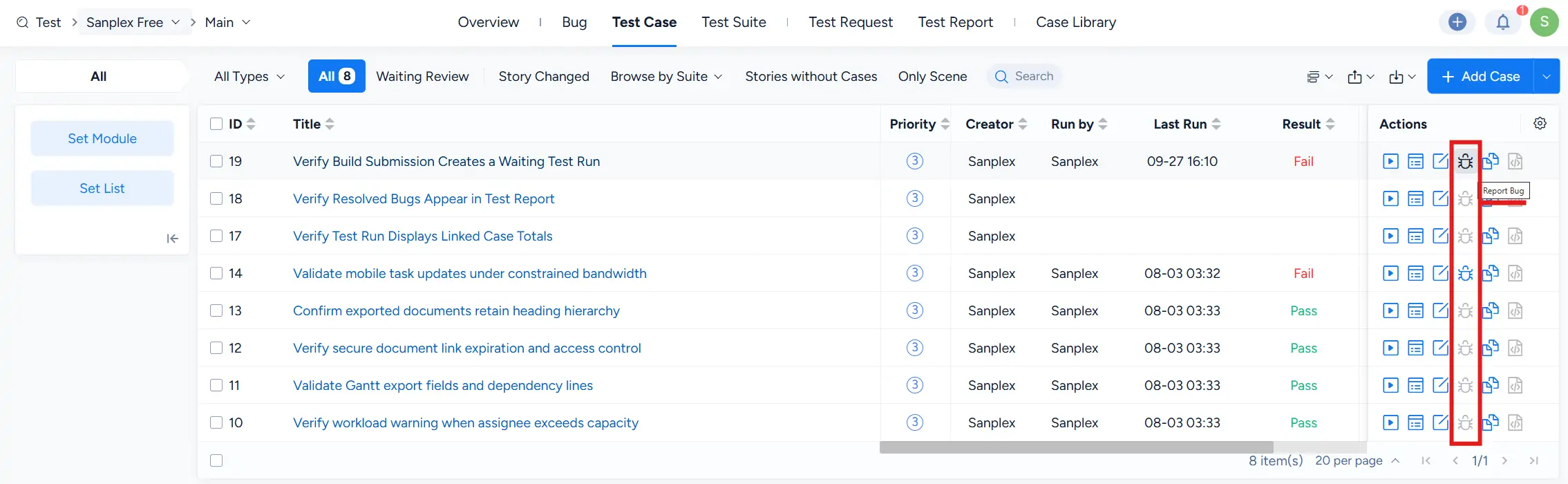
You can also use the Report Bug action directly from the Test Case list.
III. View Execution Results
In the Test Case list, click Results in the Actions column to review the execution history for a test case.
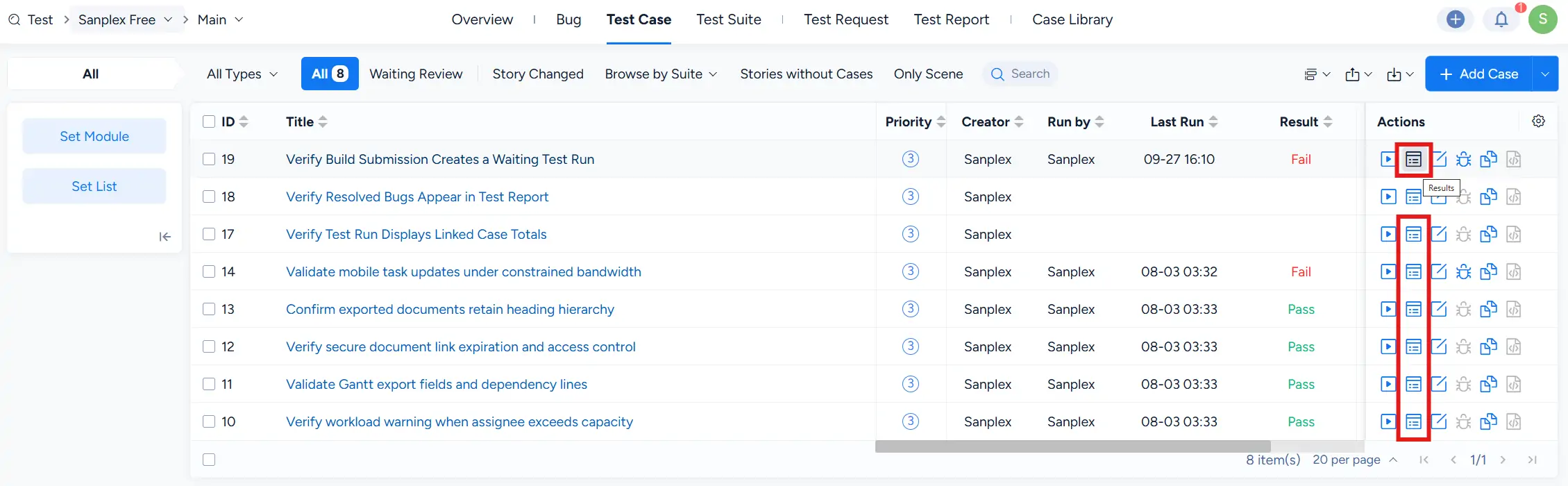
The execution history records previous runs and their results, including step-level expectations, results, details, attachments, and case versions.


