Catalog
Sanplex provides built-in Tutorials to help users learn the system through interactive guidance and hands-on tasks. The tutorials are organized into three categories: Get Started, Basic Tutorial, and Advance Tutorial.
You can choose the tutorial category that best fits your needs. By following the interactive guidance and completing tasks step by step, you can quickly become familiar with Sanplex's core features and workflows. You can also choose tutorials that match your organization's workflow and exit a tutorial at any time.
Open Tutorials
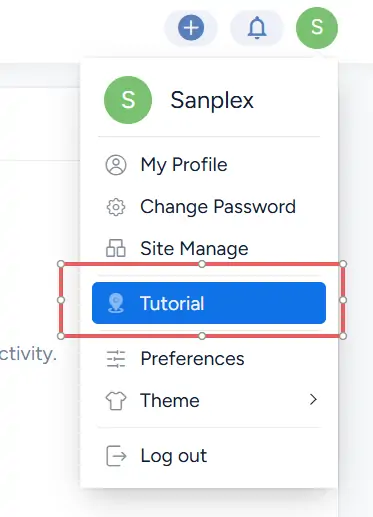
Using the tutorials under the full lifecycle management model as an example, click your avatar and select Tutorial.
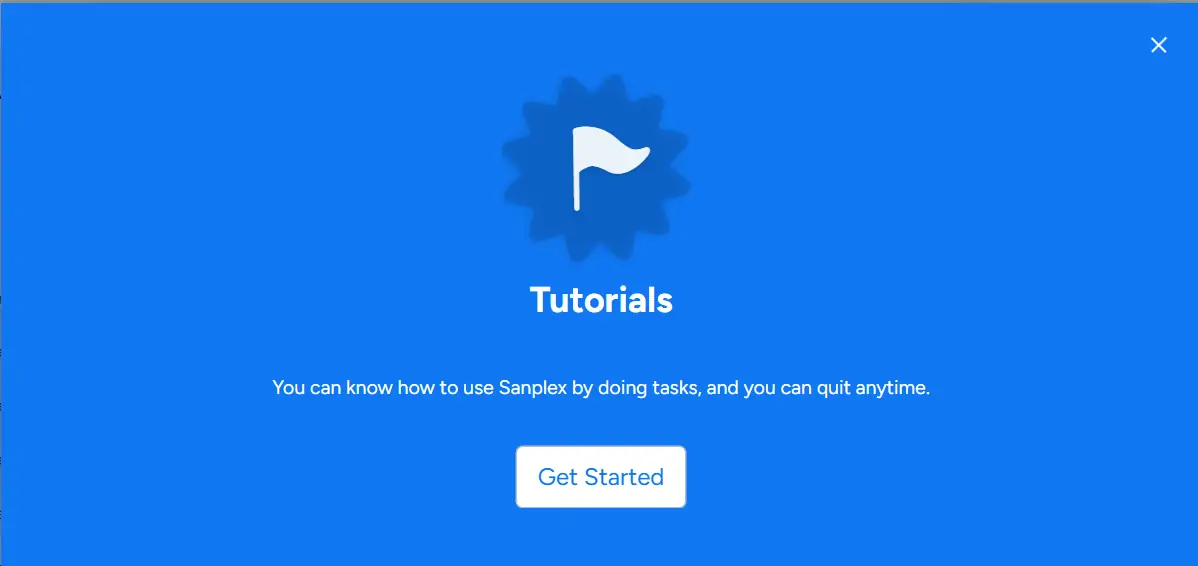
On the Tutorials welcome screen, click Get Started to open the tutorial panel.
Get Started
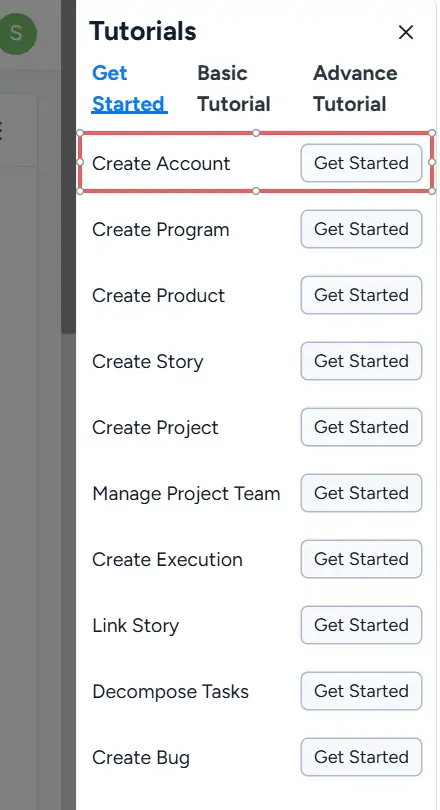
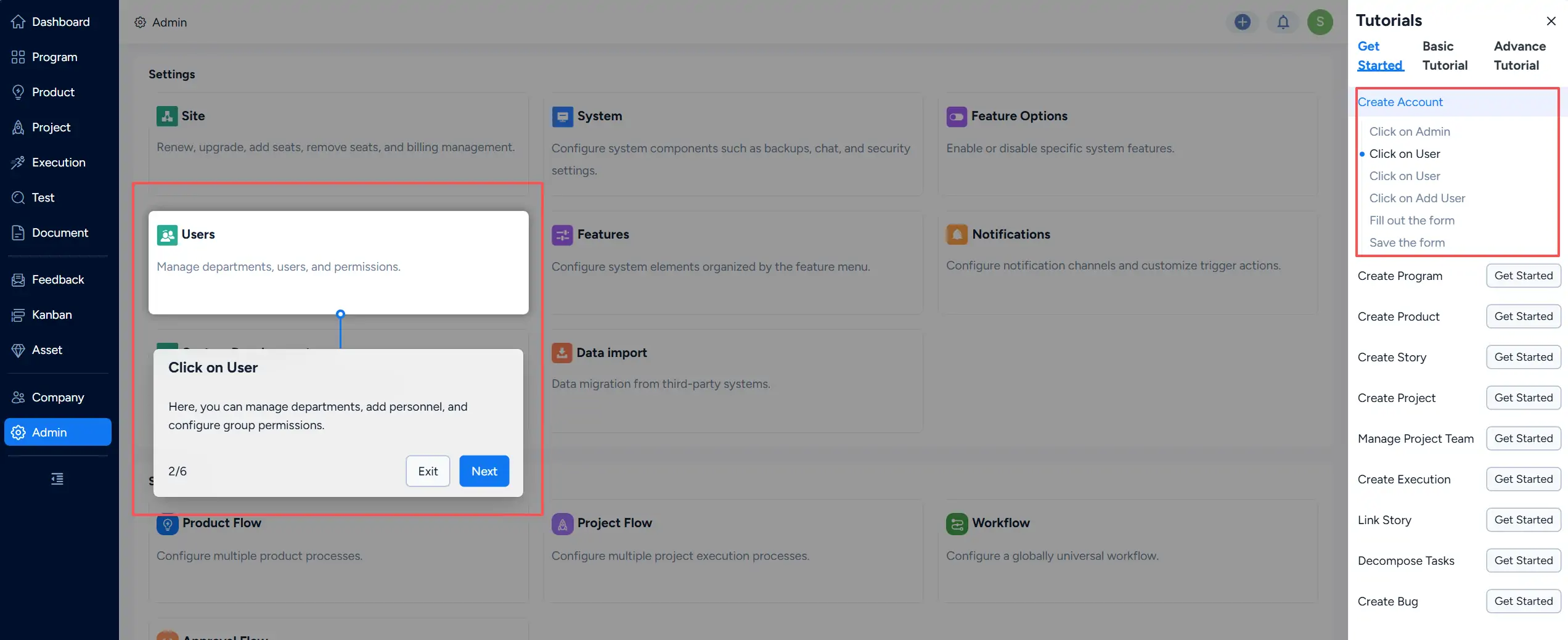
In the tutorial panel, select Get Started to access guided tasks for common Sanplex operations. These tasks introduce key workflows such as creating and managing accounts, Programs, Products, Stories, Projects, Executions, and other frequently used objects.
Select a task and click Get Started, then follow the on-screen instructions and interact with the corresponding areas of Sanplex to complete each step.
Basic Tutorial
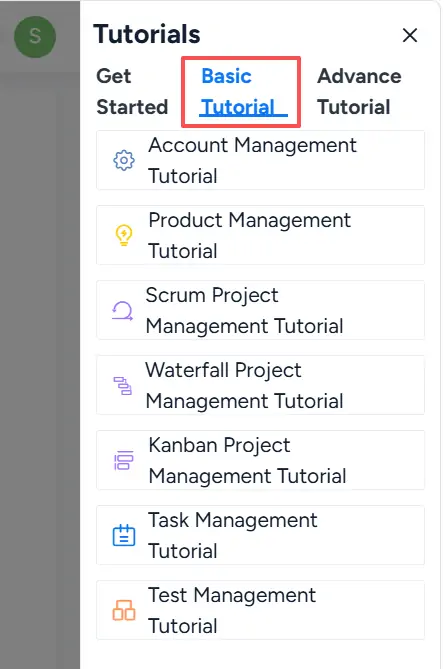
The Basic Tutorial category provides guided learning for core management workflows. It includes tutorials for areas such as account management, product management, Scrum, Waterfall, Kanban, task management, and test management.
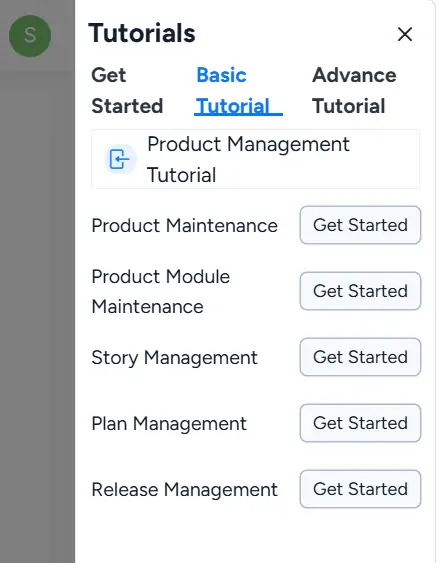
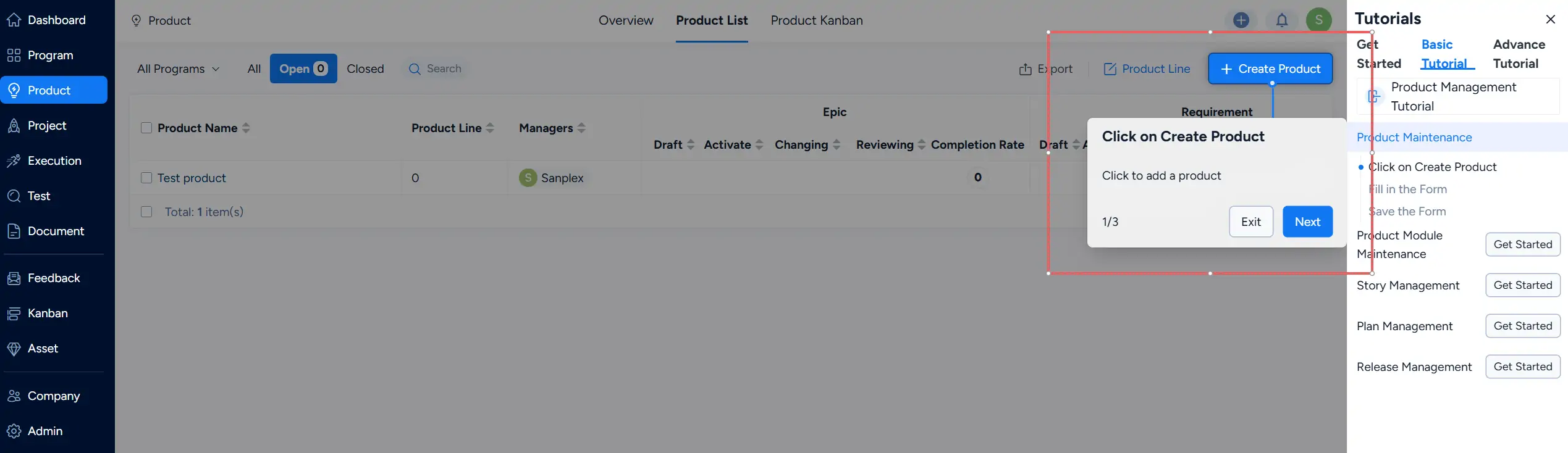
Select a tutorial to view the available learning tasks. Click Get Started for the task you want to learn, then follow the on-screen guidance to complete the workflow.
Advance Tutorial
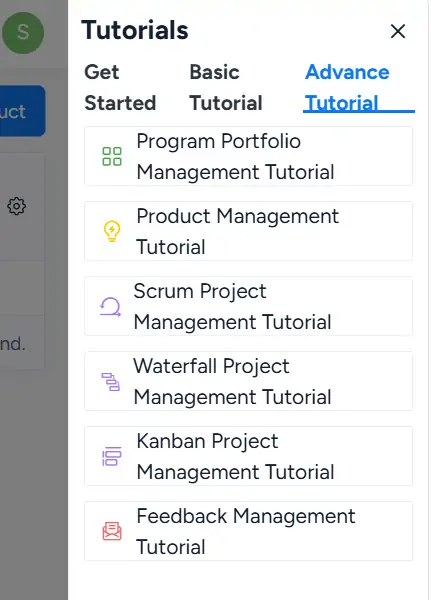
The Advance Tutorial category covers broader workflows that span multiple areas of Sanplex. It is suitable for teams and organizations that need to understand more comprehensive management processes.
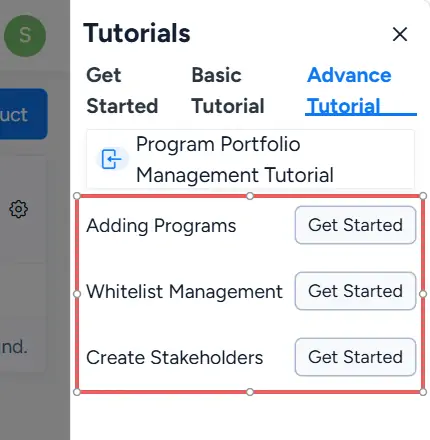
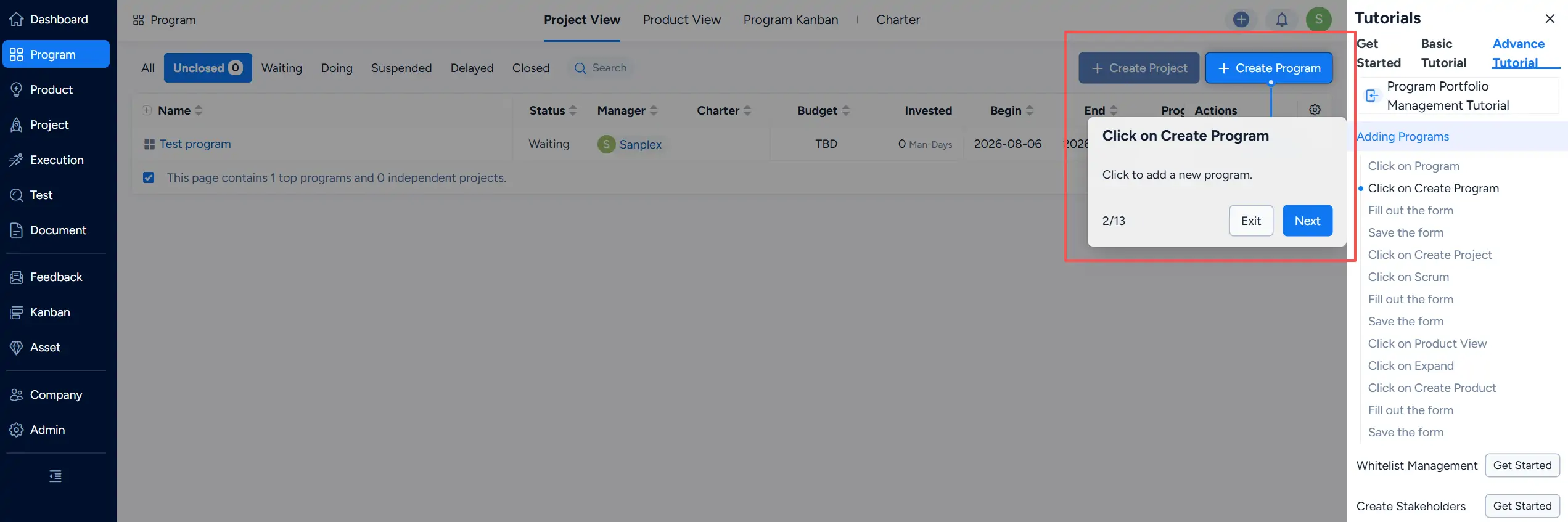
Available tutorials cover areas such as Program portfolio management, product management, different project management models, feedback management, and other end-to-end workflows. Select a tutorial and click Get Started for the workflow you want to learn, then follow the on-screen guidance to complete each step.
Notes
- Data generated while completing tutorial tasks is not saved.
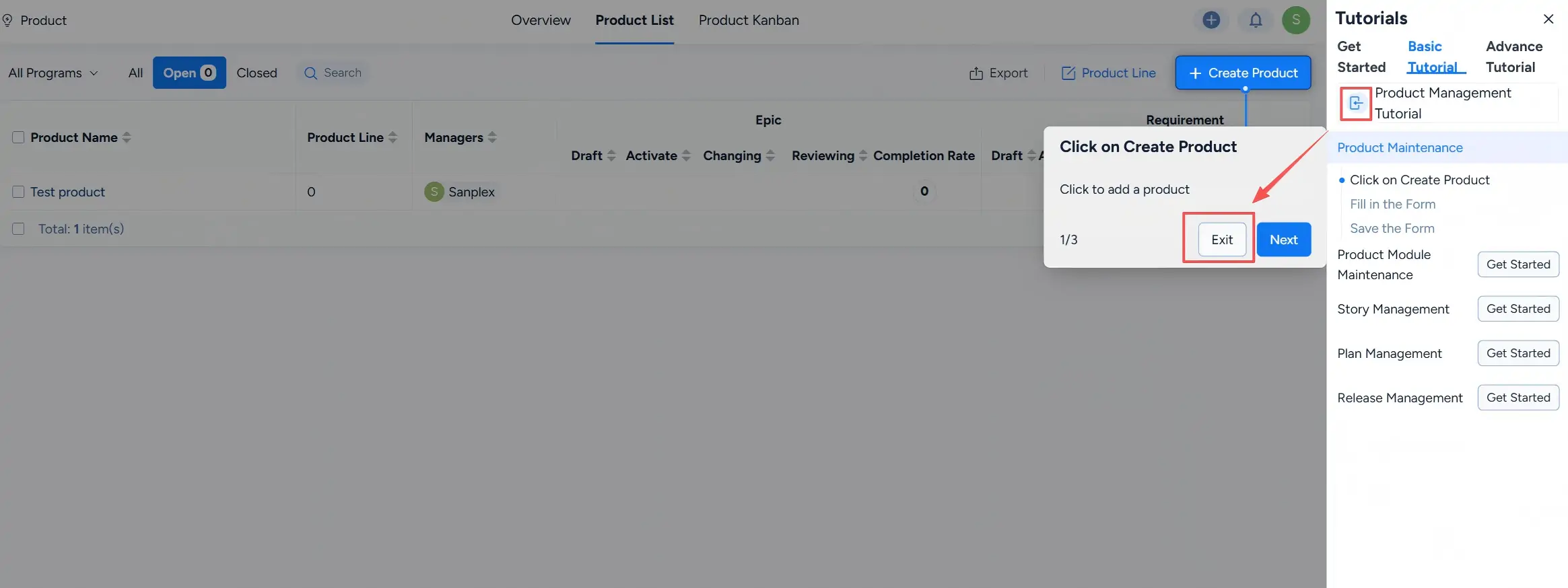
- You can click Exit in the step-by-step guidance window to leave the current task. You can also leave the tutorial during the guided process.
- After closing Tutorials, you can reopen them at any time by clicking your avatar and selecting Tutorial.