Catalog
In a Waterfall Project, work is organized into Phases that represent different parts of the project lifecycle. Sanplex provides both List View and Gantt Chart for managing and tracking these Phases.
The Phase List provides detailed information about each Phase and supports status-based filtering, while the Gantt Chart provides a visual timeline of planned project work.
I. Create a Waterfall Project
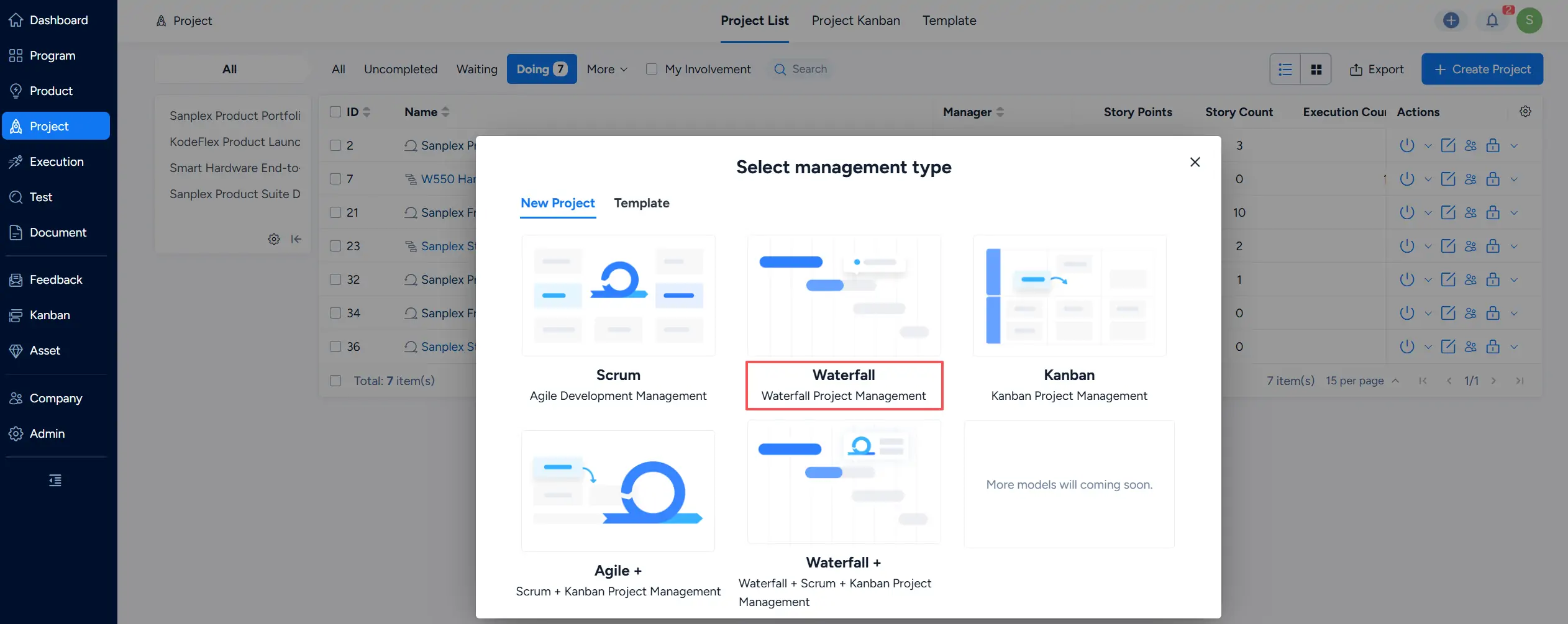
Go to Project > Project List and click Create Project.
In the Select management type window, select Waterfall — Waterfall Project Management, complete the required Project information and settings, and save the Project.
II. Manage Phases
1. Configure Phases for a Waterfall Project
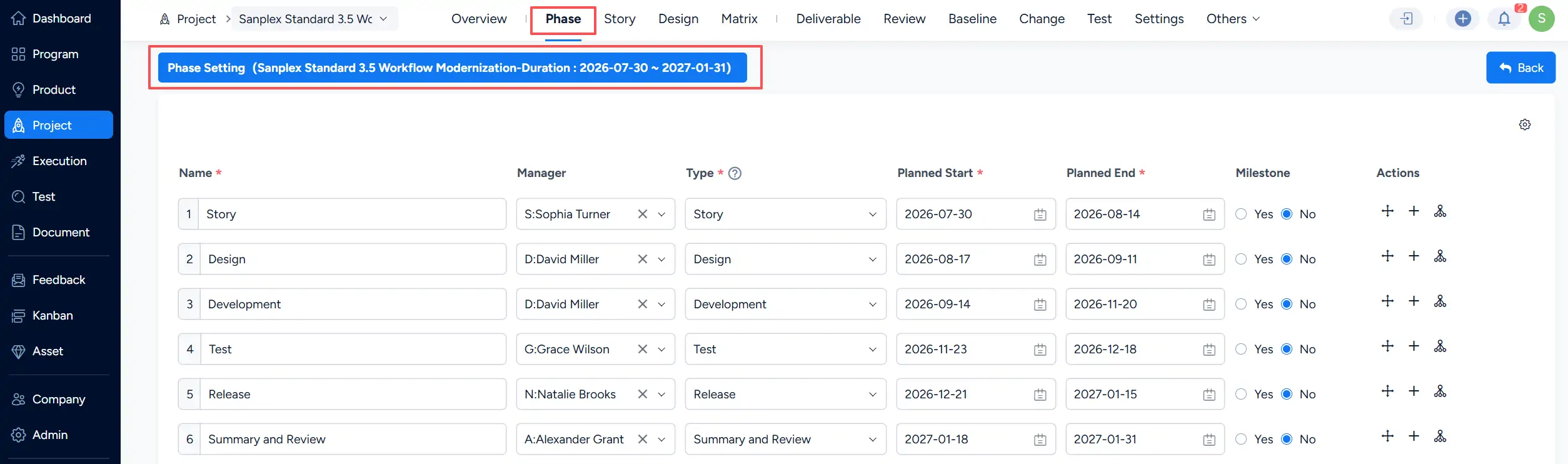
After the Waterfall Project is created, use Phase Setting to configure its project Phases.
For each Phase, specify information such as:
- Name
- Manager
- Type
- Planned Start
- Planned End
- Milestone
Available Phase types can include Story, Design, Development, Test, Release, and Summary and Review.
Use the available actions to maintain the Phase structure as needed.
2. View the Gantt Chart (Premium)
On the Phase page, use the view buttons to switch between List View and Gantt Chart.
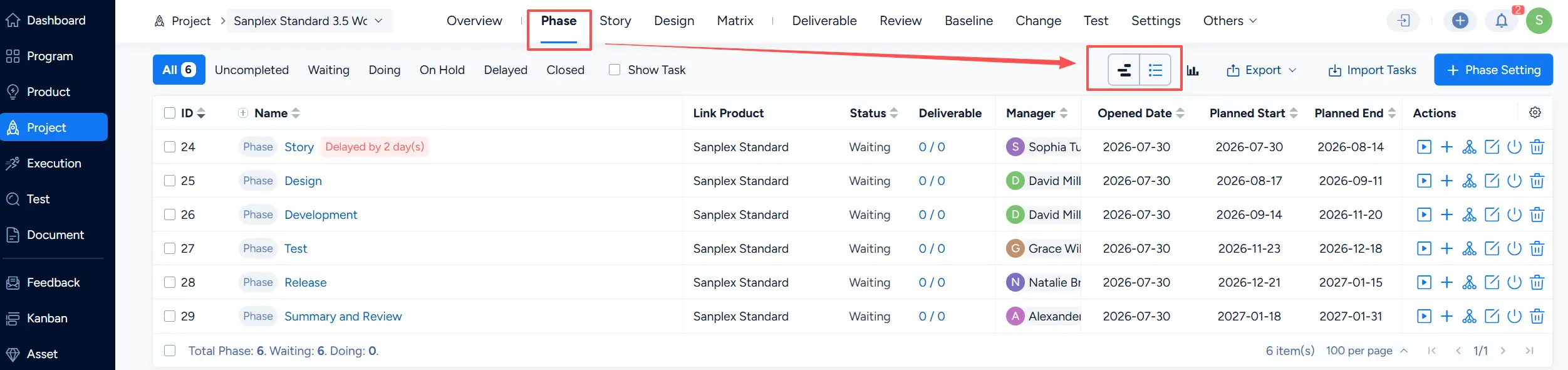
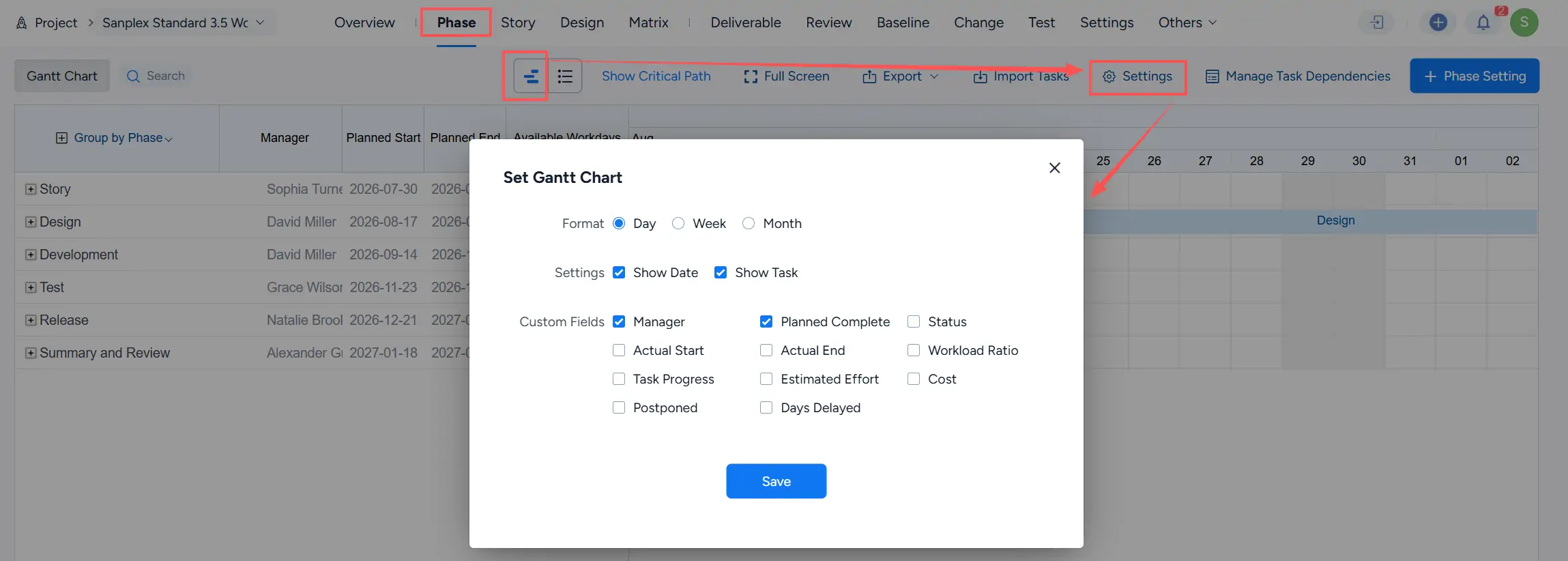
In Gantt Chart view, click Settings to configure how project information is displayed.
You can select a time format of:
- Day
- Week
- Month
You can also configure display options such as Show Date and Show Task, and choose additional fields such as Manager, Planned Complete, Status, Actual Start, Actual End, Workload Ratio, Task Progress, Estimated Effort, Cost, Postponed, and Days Delayed.
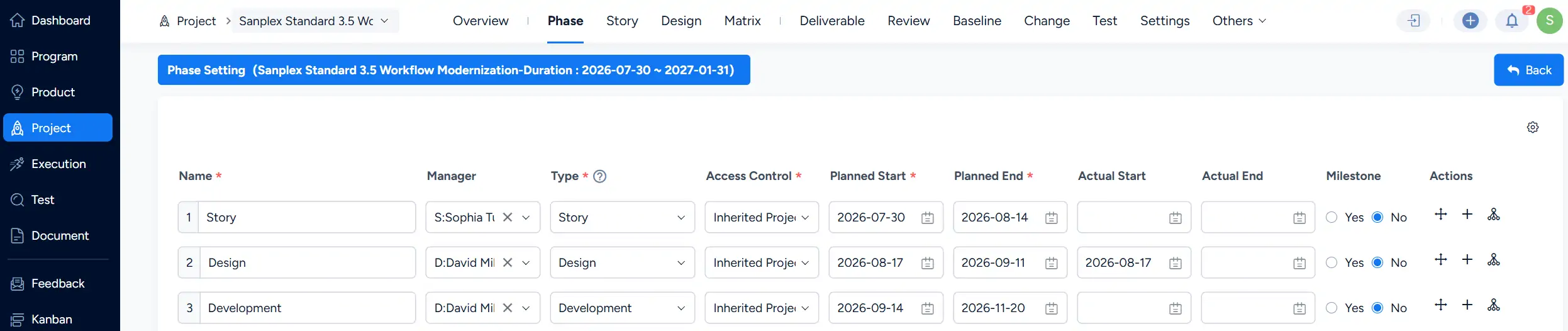
The detailed configuration of each Phase determines how the project schedule is organized. On the Phase Setting page, you can maintain additional information such as Access Control, Actual Start, and Actual End, in addition to the Phase manager, type, planned dates, and milestone setting.
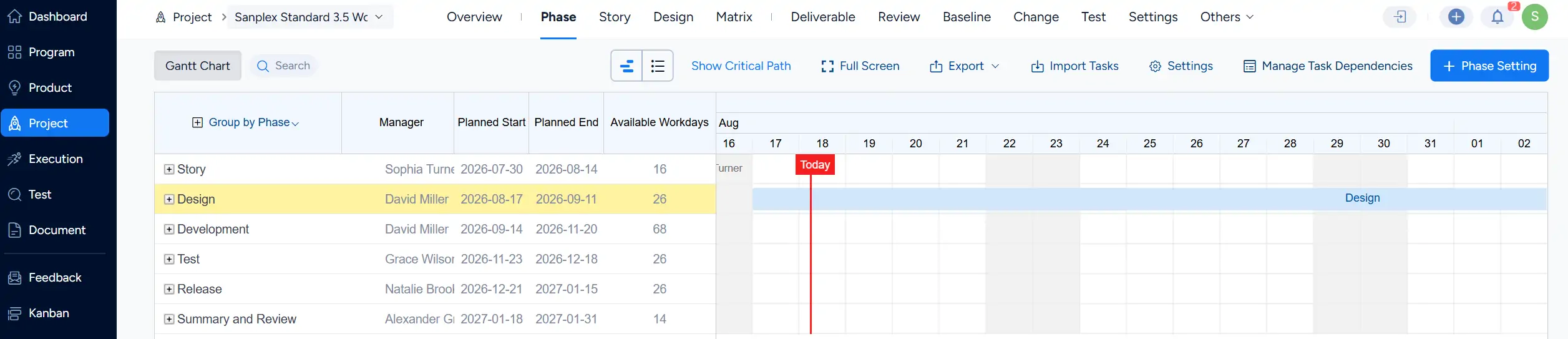
The configured Phase schedule is then displayed in the Gantt Chart, where each Phase can be reviewed against its planned dates and available workdays.
3. View and Manage the Phase List
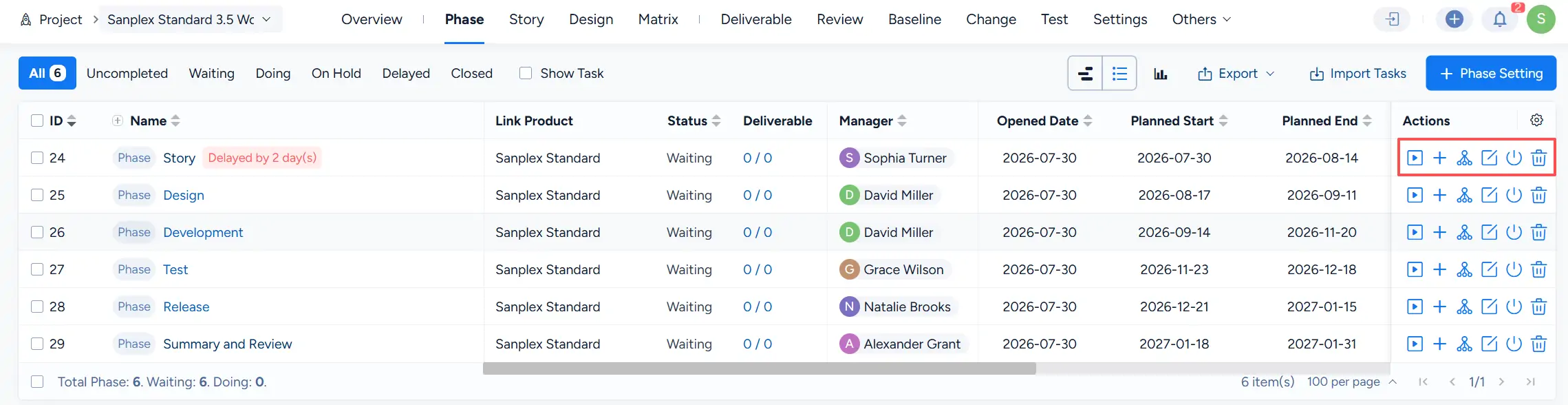
The Phase List displays all Phases in the Project together with key information such as:
- Link Product
- Status
- Deliverable
- Manager
- Opened Date
- Planned Start
- Planned End
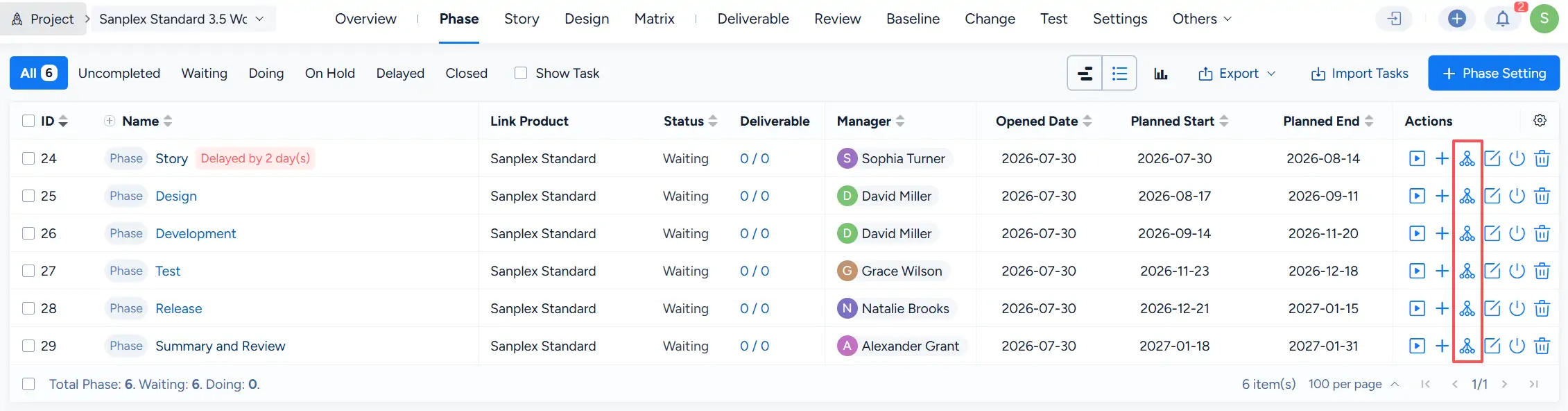
The Actions column provides controls for managing individual Phases, including starting a Phase, adding related work, creating a sub-Phase, editing, closing, and deleting where applicable.
4. Create a Sub-Phase
Use the Create Sub-Phase action for a Phase to further break down project work.
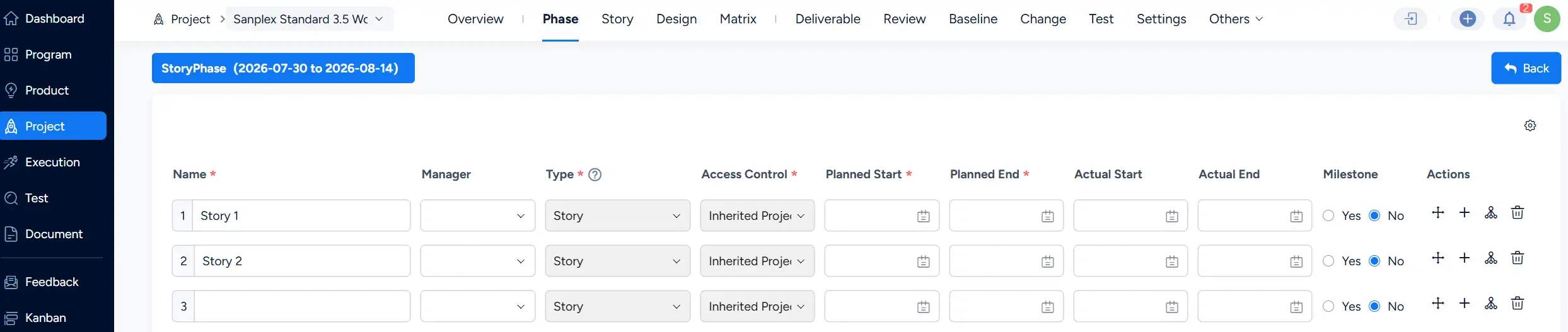
On the sub-Phase configuration page, enter the required information for each child Phase.
Available fields include:
- Name
- Manager
- Type
- Access Control
- Planned Start
- Planned End
- Actual Start
- Actual End
- Milestone
The parent Phase and its date range are displayed at the top of the page for reference. Use the available actions to add or maintain child Phase entries.
III. View Phases
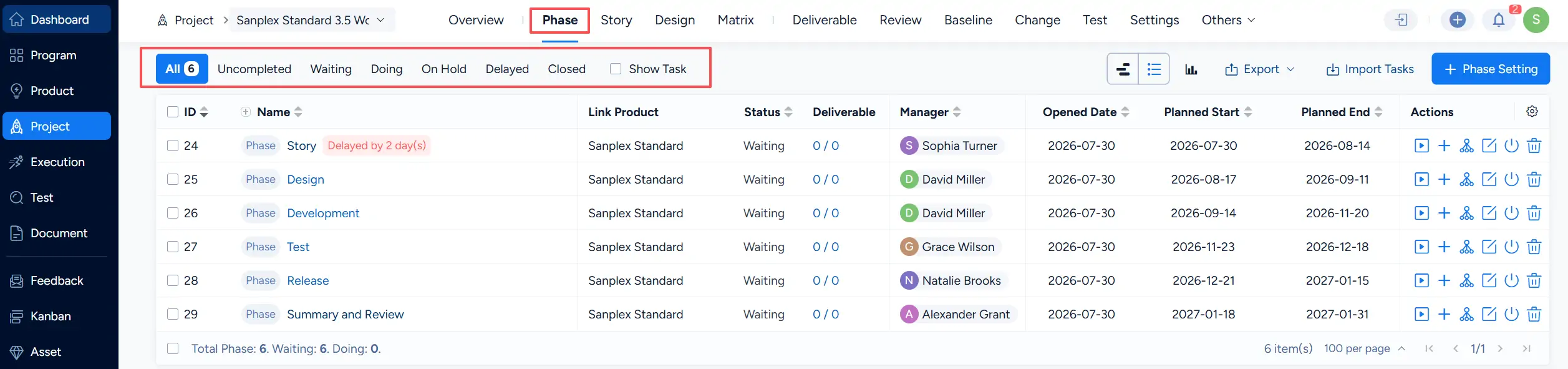
Open Phase in the Project to view and track all Project Phases.
Use the available filters to view:
- All
- Uncompleted
- Waiting
- Doing
- On Hold
- Delayed
- Closed
You can also select Show Task to include Task information when reviewing the Phase structure.
IV. Customize Phase Types and the Phase List
1. Customize Stage Types
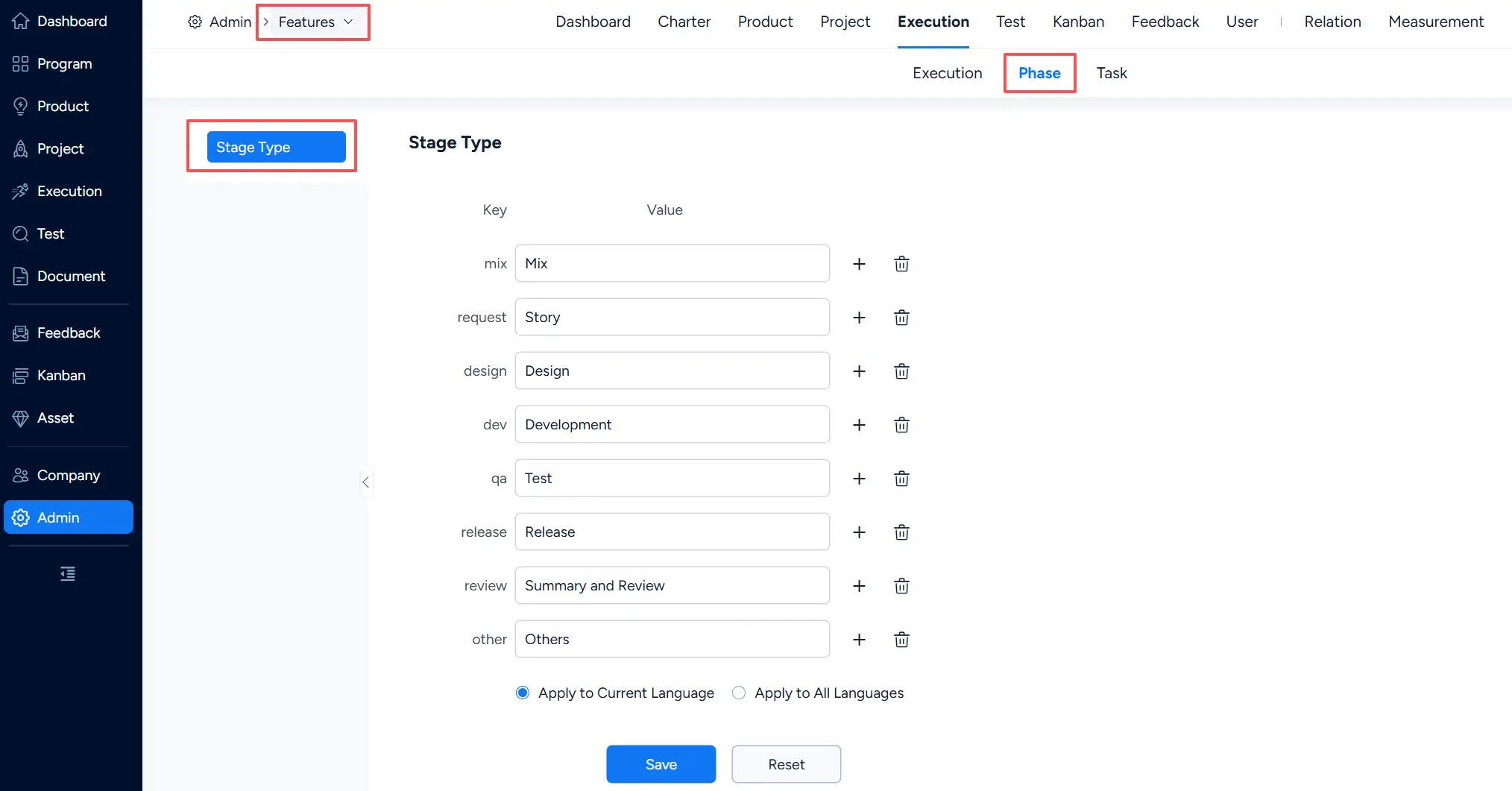
Go to Admin > Features > Execution > Phase > Stage Type to maintain the type labels available for Project Phases.
The current Stage Type configuration includes:
- Mix
- Story
- Design
- Development
- Test
- Release
- Summary and Review
- Others
You can edit the displayed values, add entries, or remove entries as needed. The configuration can be applied to the current language or to all languages.
2. Customize the Phase List
The default Phase structure for a Project Flow can be maintained under:
Admin > Project Flow > [Project Flow] > Phase List
The Phase List displays the configured Name, Type, and order of each Phase and provides actions for maintaining the list.
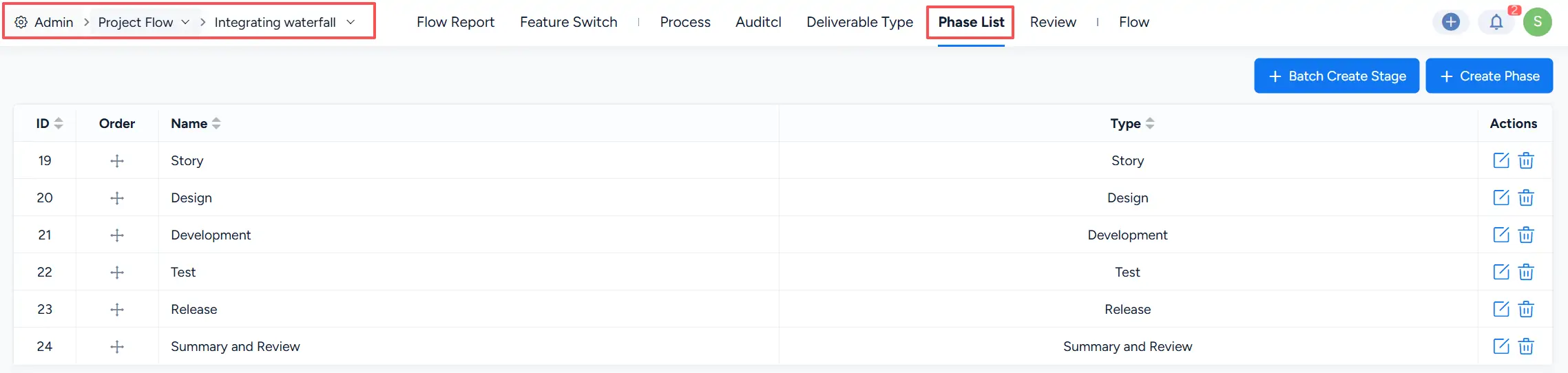
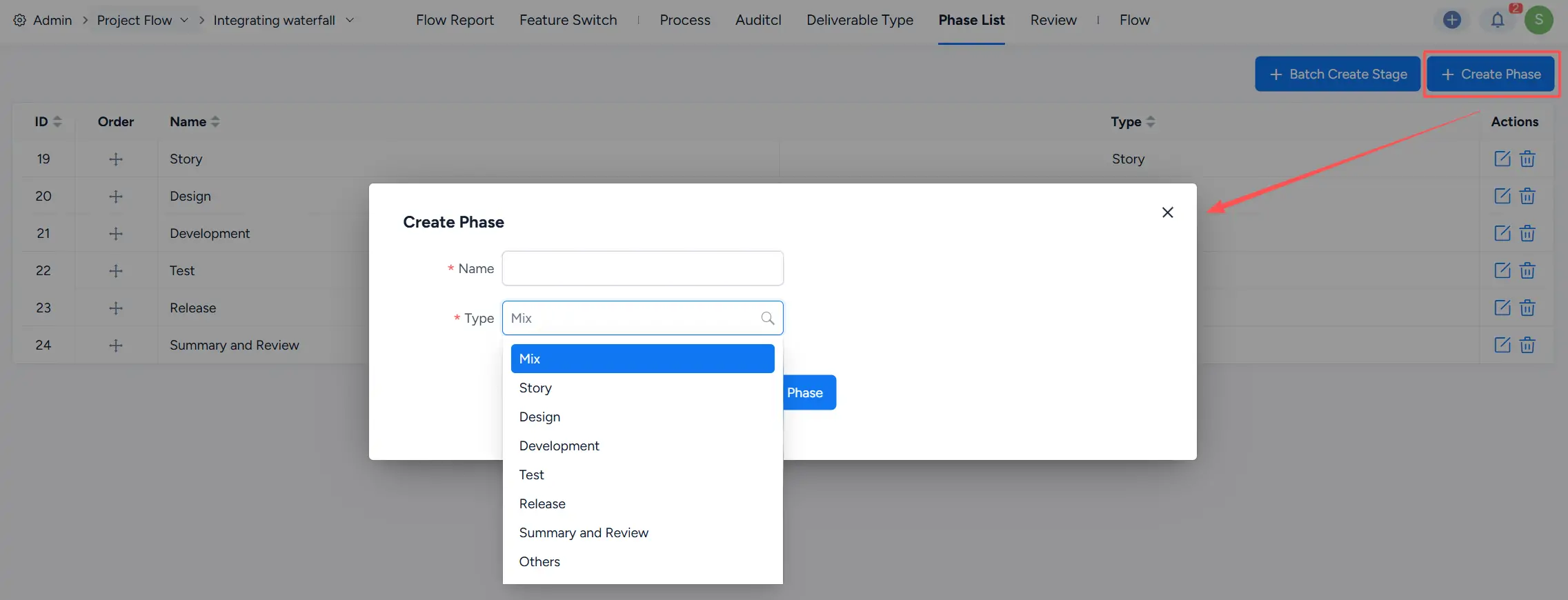
To add a Phase, click Create Phase. You can also use Batch Create Stage when multiple entries need to be added.
When creating a Phase, enter its Name and select the appropriate Type.
Available types shown in the current interface include:
Mix, Story, Design, Development, Test, Release, Summary and Review, Others