Catalog
View Notifications
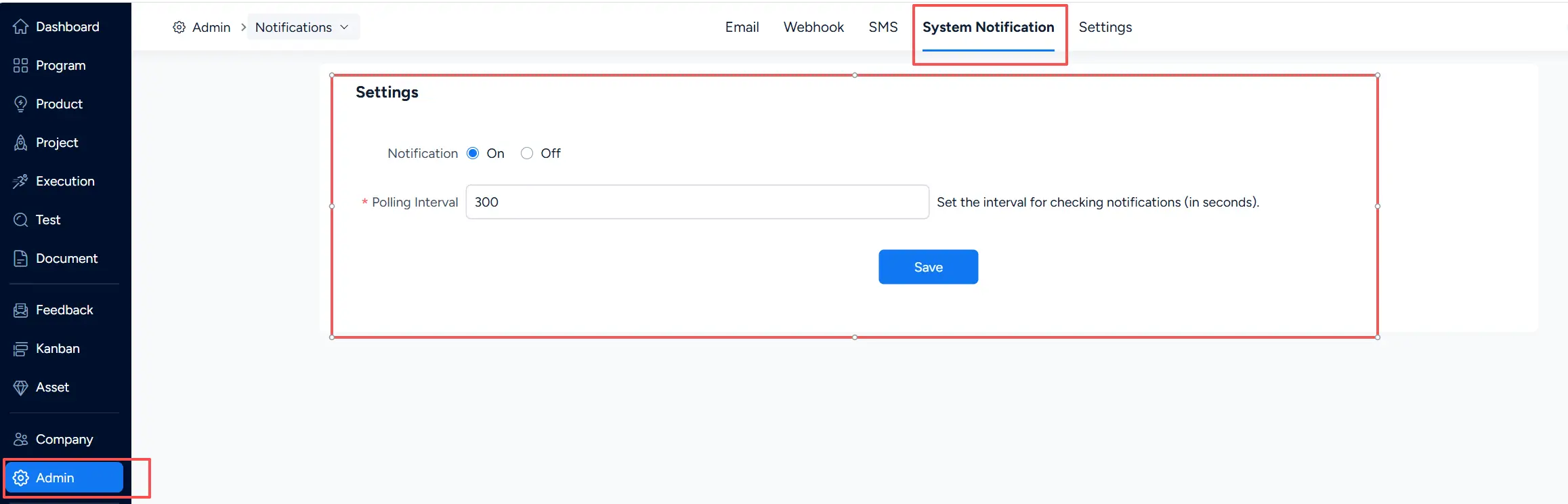
Click the notification icon in the upper-right corner to open the Notification Center and view your notifications.
Unread notifications are marked as read after you open them.
Mark a Notification as Unread
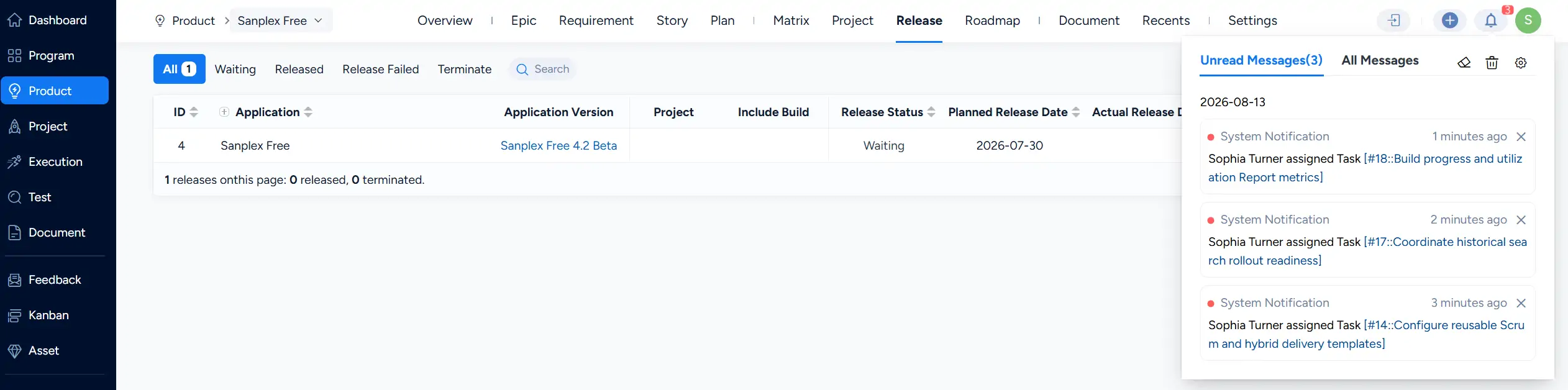
To mark a read notification as unread again, right-click the notification and select Mark as Unread.
Configure Personal Notification Settings
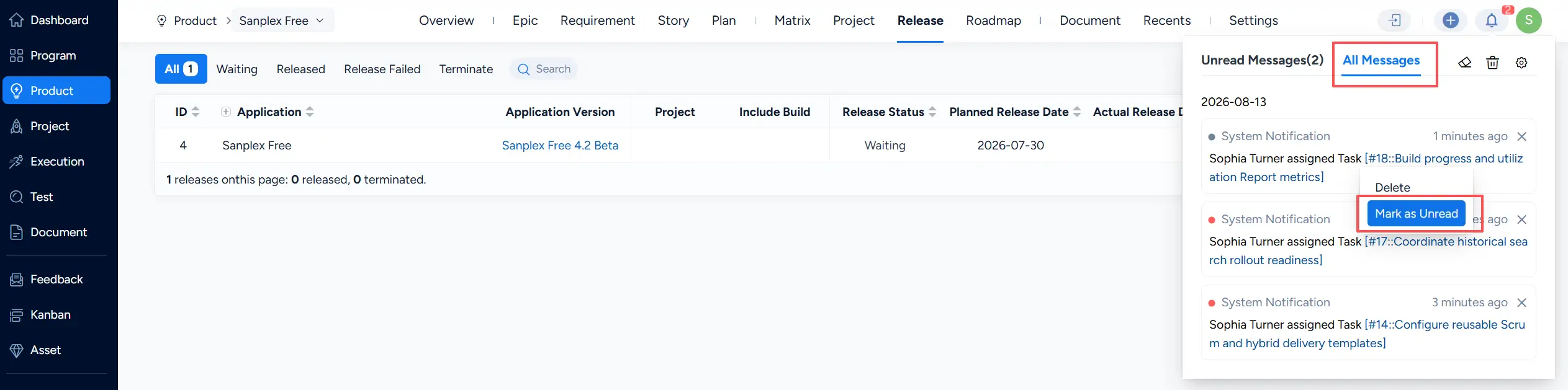
Click the settings icon in the Notification Center to open More Settings. These settings apply only to the current user.
- Browser Notification: Turn this option off to stop browser pop-up notifications. Notifications will still remain available in the Notification Center.
- Notification Count: Turn this option off to hide the notification count and display a red dot instead, reducing visual interruption.
- Retention Days: Set how long notifications are retained before they are cleared.
Configure System Notifications
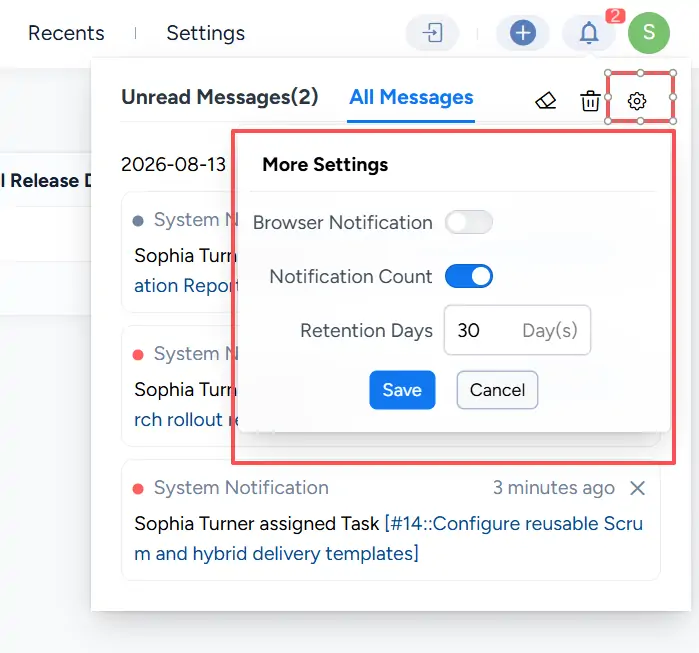
Administrators can configure system-wide notification settings under Admin → Notifications → System Notification.
Here, administrators can enable or disable system notifications and set the Polling Interval for checking new notifications. If system notifications are turned off, the notification icon in the upper-right corner will be hidden for all users.