

Catalog
I. Overview
Project process management is an important way for organizations to standardize and optimize project execution. By defining standard organization-level processes and tailoring processes within projects, it enables flexible adaptation and continuous improvement of the project development process.
Flow administrators can define organization-level project processes and activities in the Admin area, according to the company’s requirements for project process standardization.
When different business units or product lines have significantly different processes, they can define separate organization-level processes and activities to meet their own standardization requirements.
For project flows based on the Agile, Waterfall, and IPD models, the system provides three sets of built-in organization-level processes and activities, so that flow administrators can adjust the built-in data instead of configuring everything from scratch.
After processes and activities have been configured with this feature, project managers can tailor the organization-level processes and activities according to the actual situation of a project.
II. Use Cases
In their project R&D activities, organizations usually establish a standardized system of processes, methods, tools, and templates for consistent management, higher efficiency, project quality, and external audits, so that all projects have unified guidance and reference.
- Promoting best practices and continuous improvement: Organizations want to accumulate and share best practices so that the overall R&D capability of the organization keeps improving.
- Quality assurance and internal audits: Standardized process definitions provide a clear basis for quality assurance and process audits, ensuring process compliance and project quality.
- Responding to customers or external audits: When working with customers or undergoing external audits, such as a CMMI maturity assessment, organizations can demonstrate their process capability and management maturity.
III. Operations
1. Access and Switches
- Go to Admin > Project Flow, open a project flow, and then manage processes under the Process menu.
- System-level feature switch: under Admin > Feature Options, the Process switch controls the process feature for all project flows.
- Flow-level feature switch: under Admin > Project Flow > Feature Switch, the Process switch controls the process feature for the current project flow only.
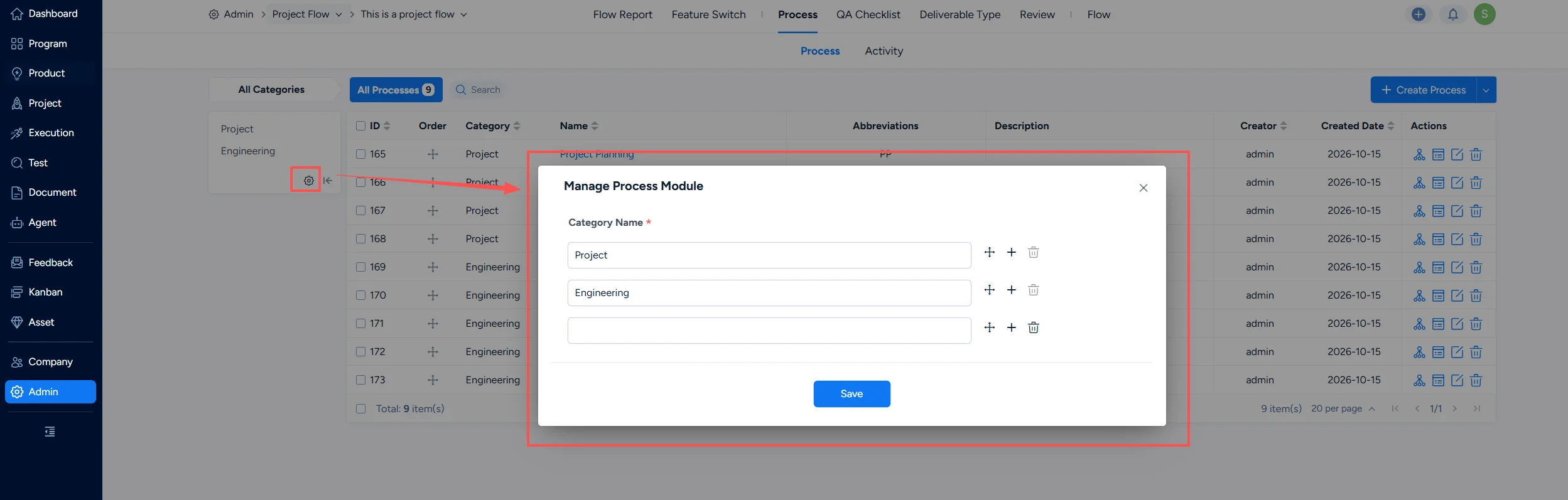
2. Process Category Management
- The system provides three built-in process categories: Project Management, Engineering Implementation, and Supporting Processes.
- On the process category maintenance page, you can add, delete, edit, and reorder categories.
3. Process Management
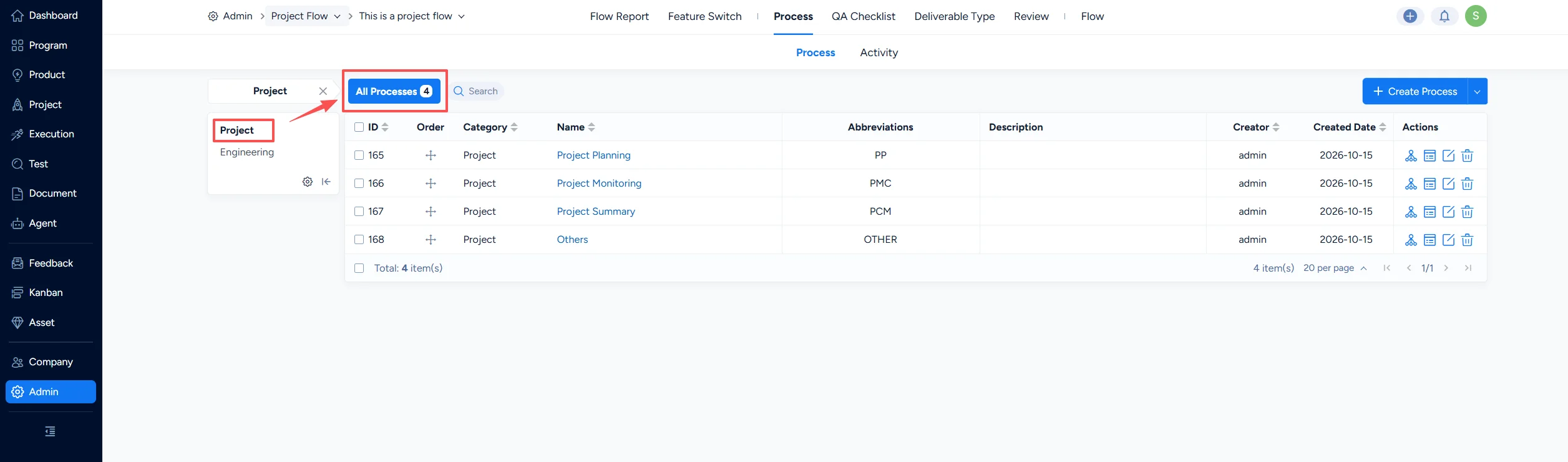
1) Viewing processes:
- Each category includes built-in generic project processes. For example, the Project Management category includes processes such as Project Initiation, Project Planning, Project Monitoring, and Risk Management.
- You can view the processes under all categories, or only the processes under one category.
2) Maintaining processes:
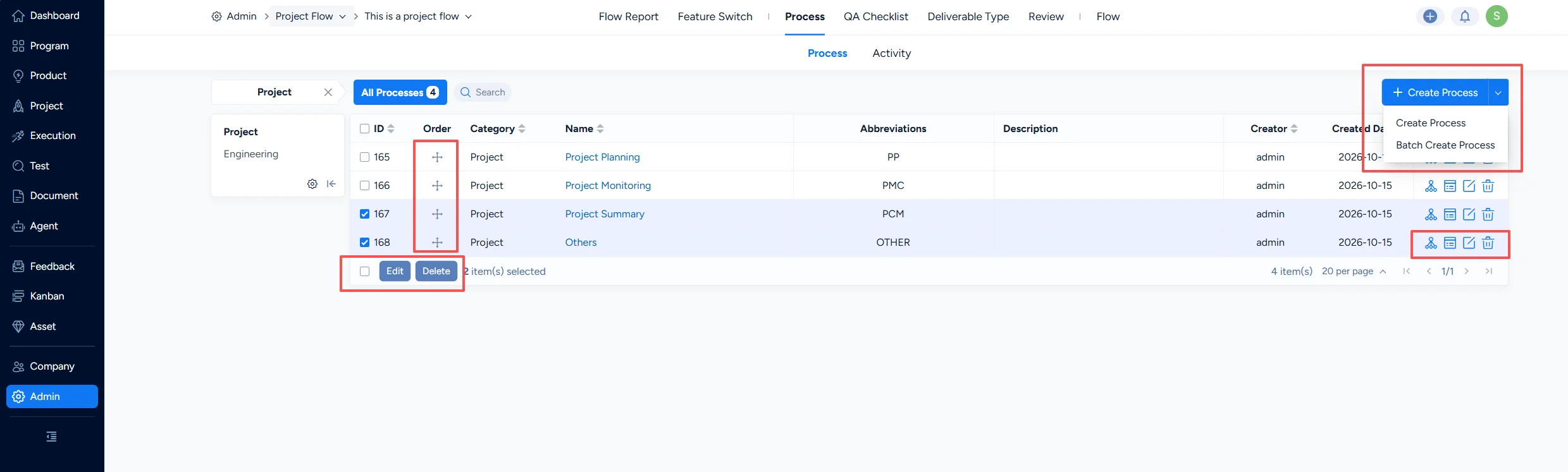
You can add, batch add, edit, batch edit, and delete processes, and you can reorder them.
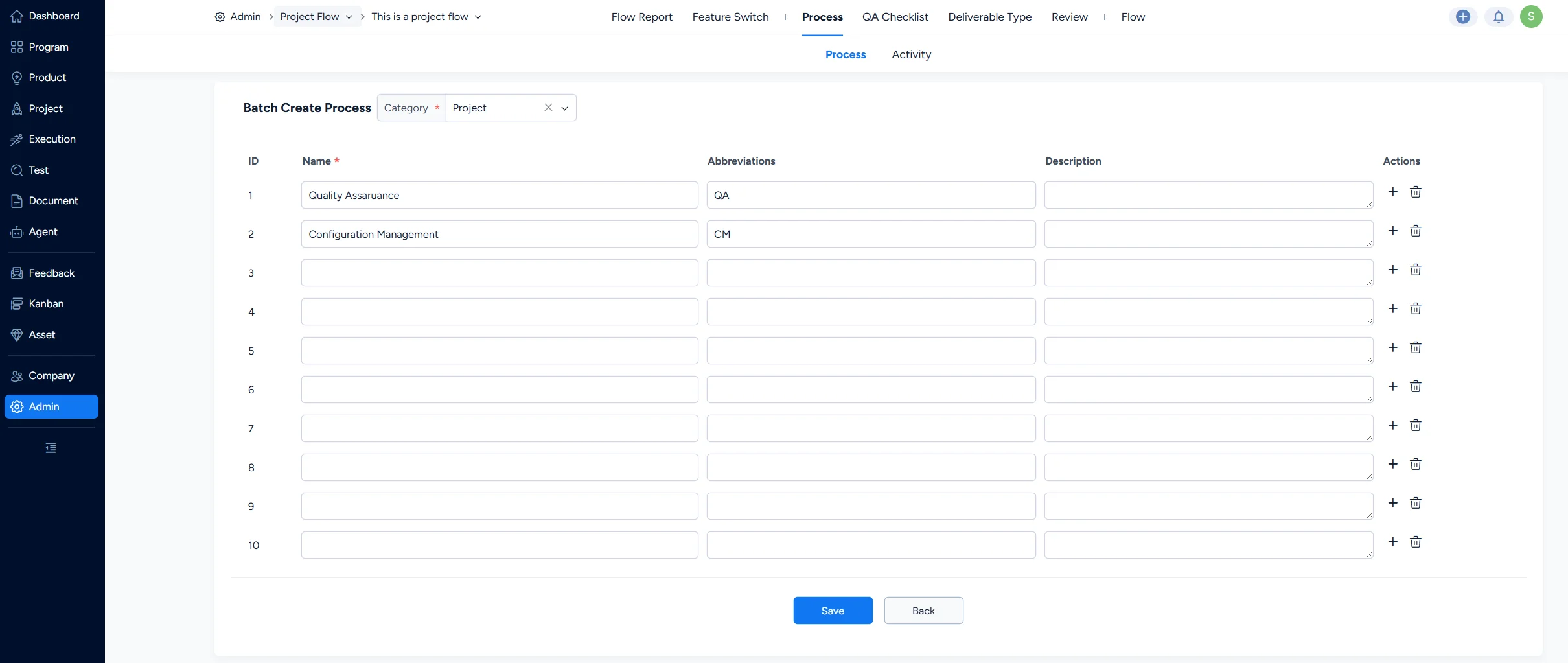
3) Adding a single process or batch creating processes:
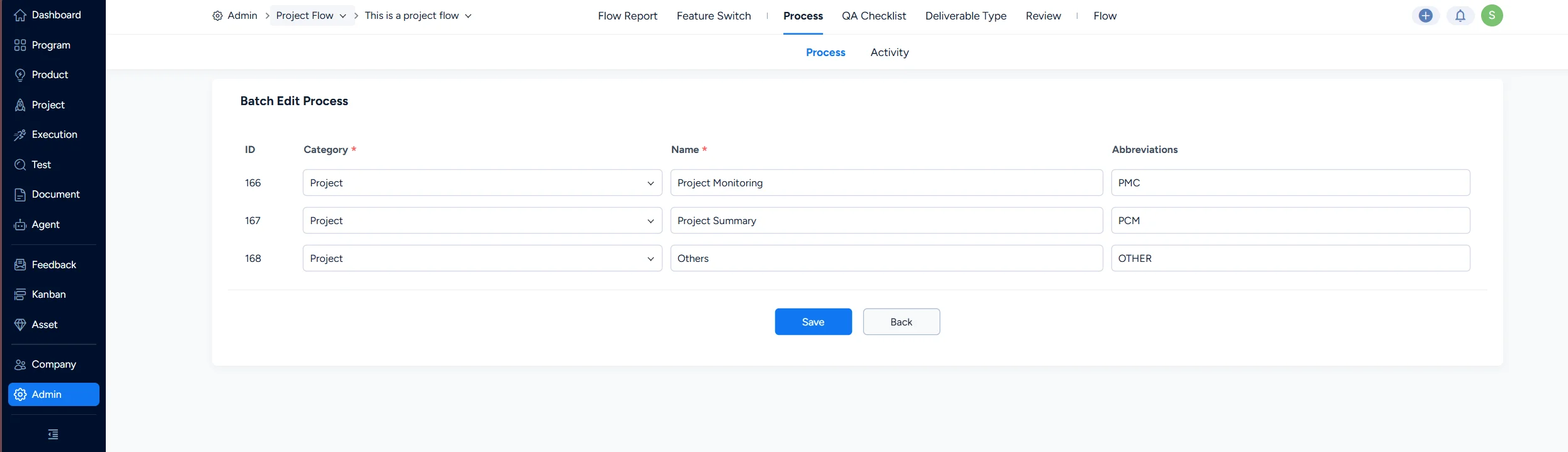
4) Editing a single process or batch editing processes:
4. Activity Management
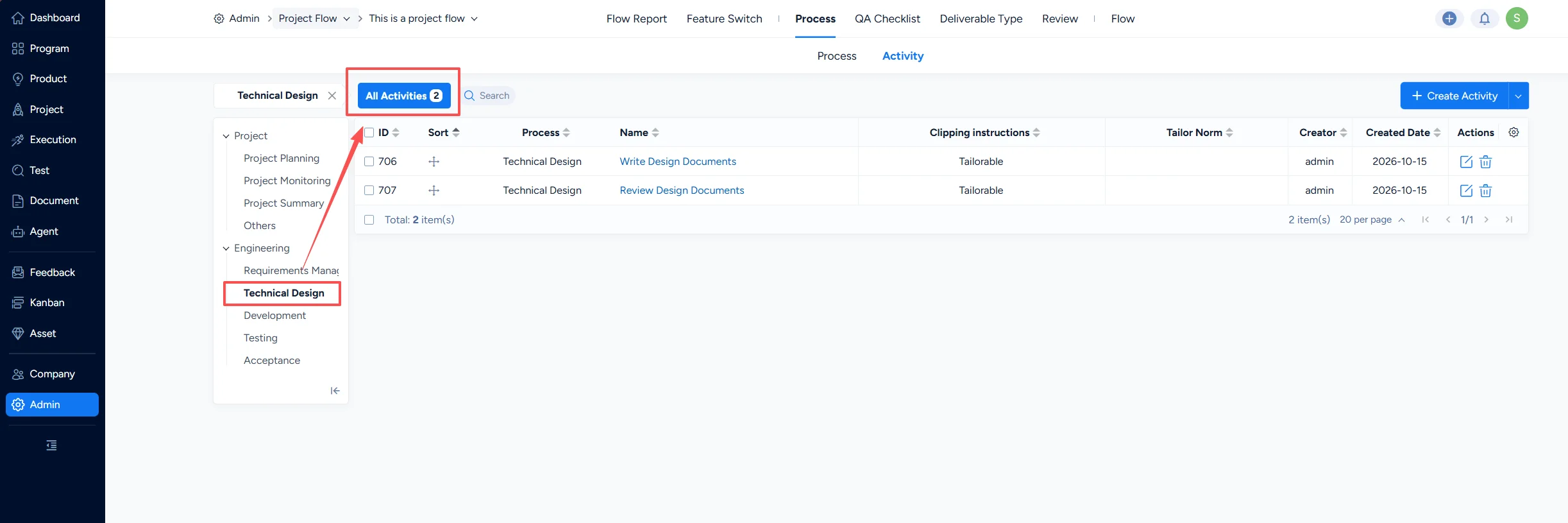
1) Viewing activities:
- Each process includes the key activities of that process. For example, the Risk Management process includes activities such as Risk Identification, Risk Assessment, and Risk Monitoring.
- You can view the activities of all processes, or only the activities of one process.
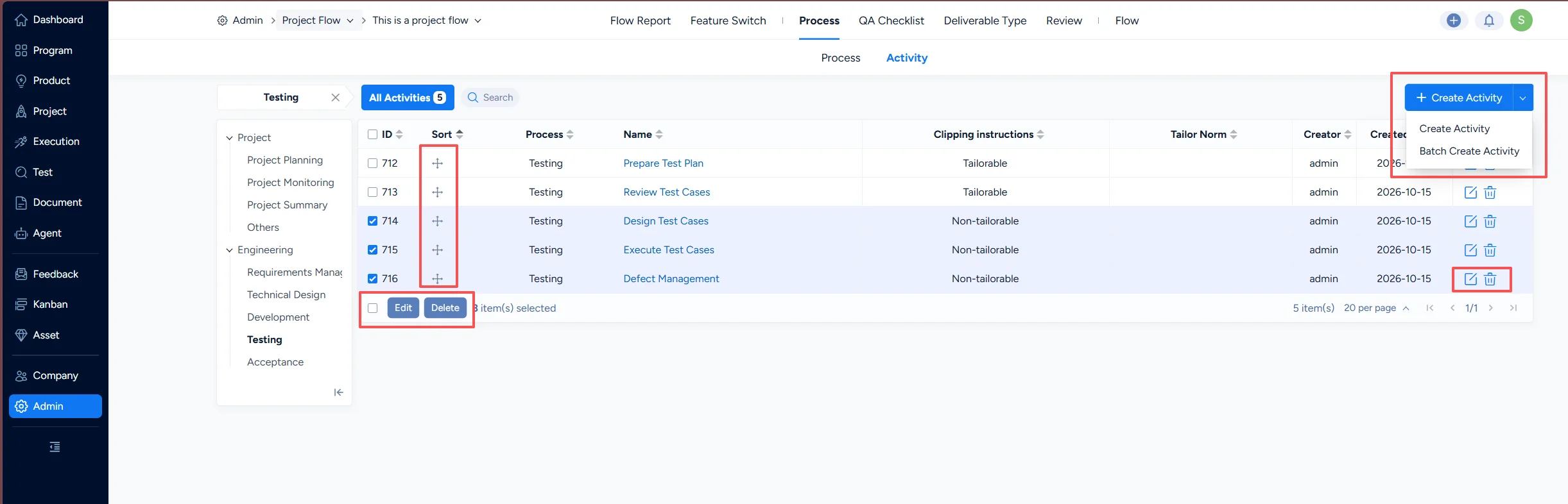
2) Maintaining activities:
You can add, batch add, edit, batch edit, and delete activities, and you can reorder them.
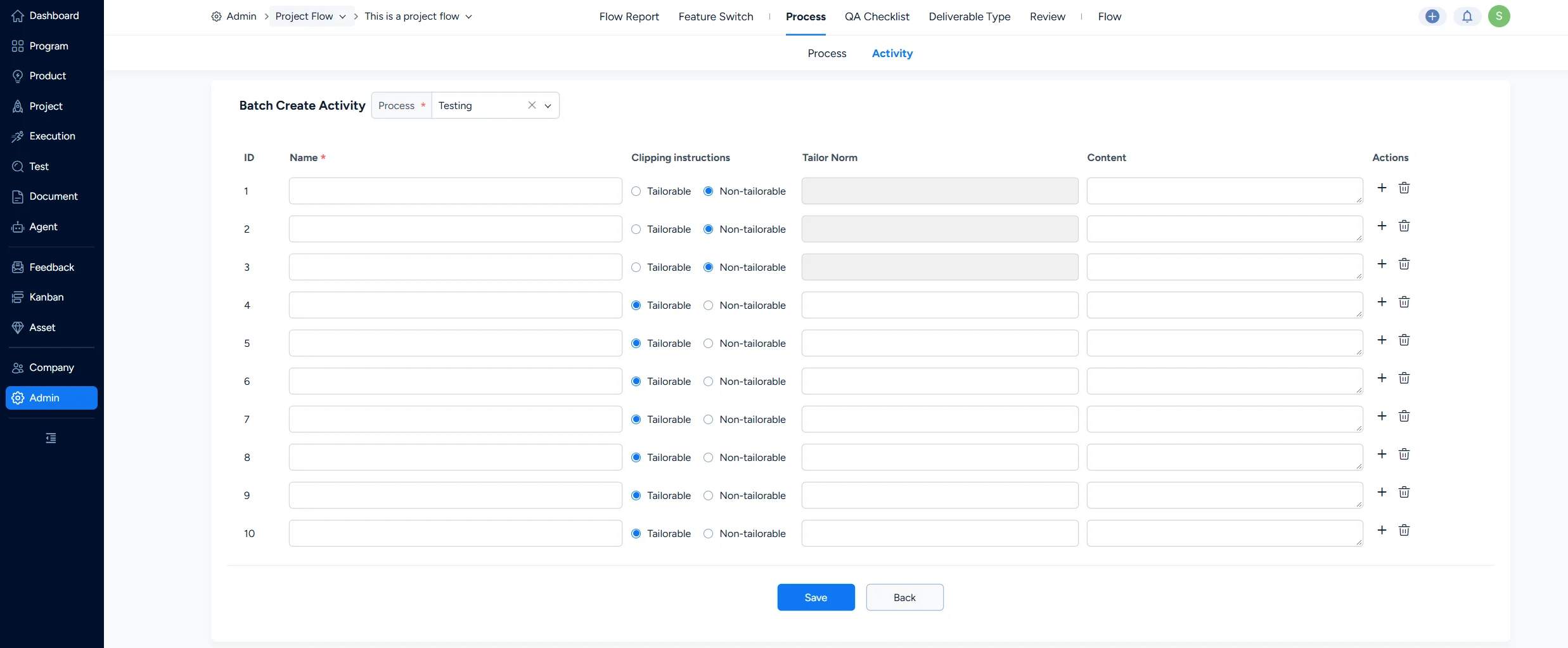
3) Adding a single activity or batch creating activities:
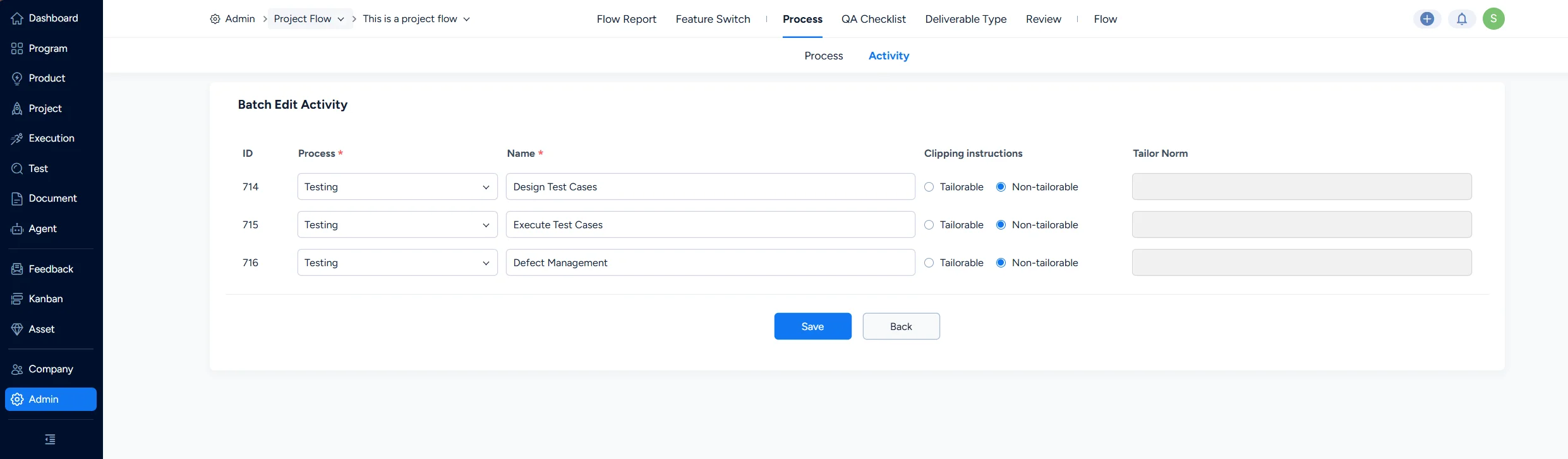
4) Adding a single activity or batch editing activities:
5. Tailoring Settings
- Tailorable: a process or activity can be tailored in an actual project only when it is set as tailorable; otherwise it must be carried out.
- Tailoring rule: describes the situations in which the item can be tailored out, that is, when it does not apply and will not be carried out.
6. Handling After Upgrading from an Earlier Version
- The document list is no longer displayed in Process Definition in the Admin area, but the tailoring results of documents in previous projects are still displayed correctly.
- Admin-area processes and activities that have tailoring results in a project are still displayed as they were before the upgrade.
- If an Admin-area process or activity has been tailored in a project, the process or activity is still displayed as it was before the upgrade.
- If an Admin-area process or activity has not been tailored in a project, the new built-in process or activity is displayed after the upgrade.


