Catalog
Feature Overview
Project Change provides a controlled process for proposing, reviewing, and tracking changes during project execution. Change records can capture information such as urgency, type, deliverable, manager, deadline, reason, and description, helping teams document why a change is needed and who is responsible for it.
Project changes can be submitted through a configured review process and tracked by review status. When used together with project baselines and other controlled project artifacts, this helps teams maintain traceability while managing necessary adjustments during project execution.
Use Cases
- Manage requirement and scope changes: Record changes that affect Stories or other project scope items so that the reason, owner, and review status remain traceable.
- Control changes to project artifacts: Use Project Change to manage adjustments involving items such as project stages, designs, cases, and related deliverables.
- Prioritize changes by urgency: Classify changes using configurable urgency levels such as Normal, Major, and Critical to help teams identify which changes require greater attention.
- Assign responsibility and deadlines: Specify a manager and deadline for each change so that ownership and expected completion time are clear.
- Support formal review and traceability: Route changes through the configured review process and track their progress through the available review statuses.
I. Access Project Change
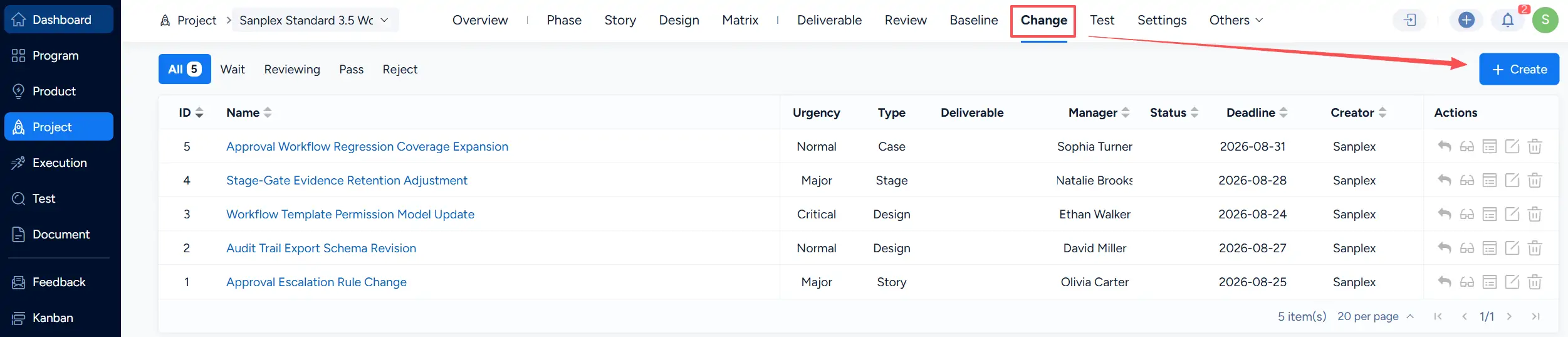
In a Waterfall project, click Change to open the Project Change list.
The list displays change records together with information such as Urgency, Type, Deliverable, Manager, Status, Deadline, and Creator. You can also use the Wait, Reviewing, Pass, and Reject tabs to view changes by review status.
Click Create to create a new Project Change.
II. Configure Project Change Options
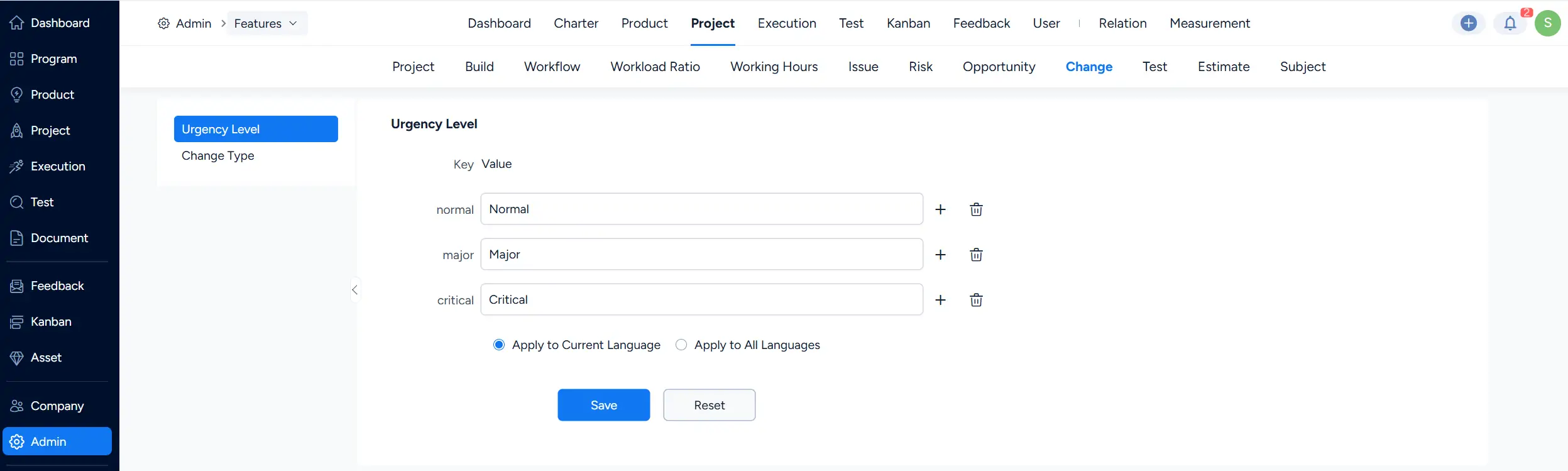
Project Change urgency levels and change types can be configured according to your project management needs.
Go to Admin > Features > Project > Change. Under Urgency Level, you can maintain values such as Normal, Major, and Critical. You can also open Change Type to maintain the available change types.
III. Create a Project Change
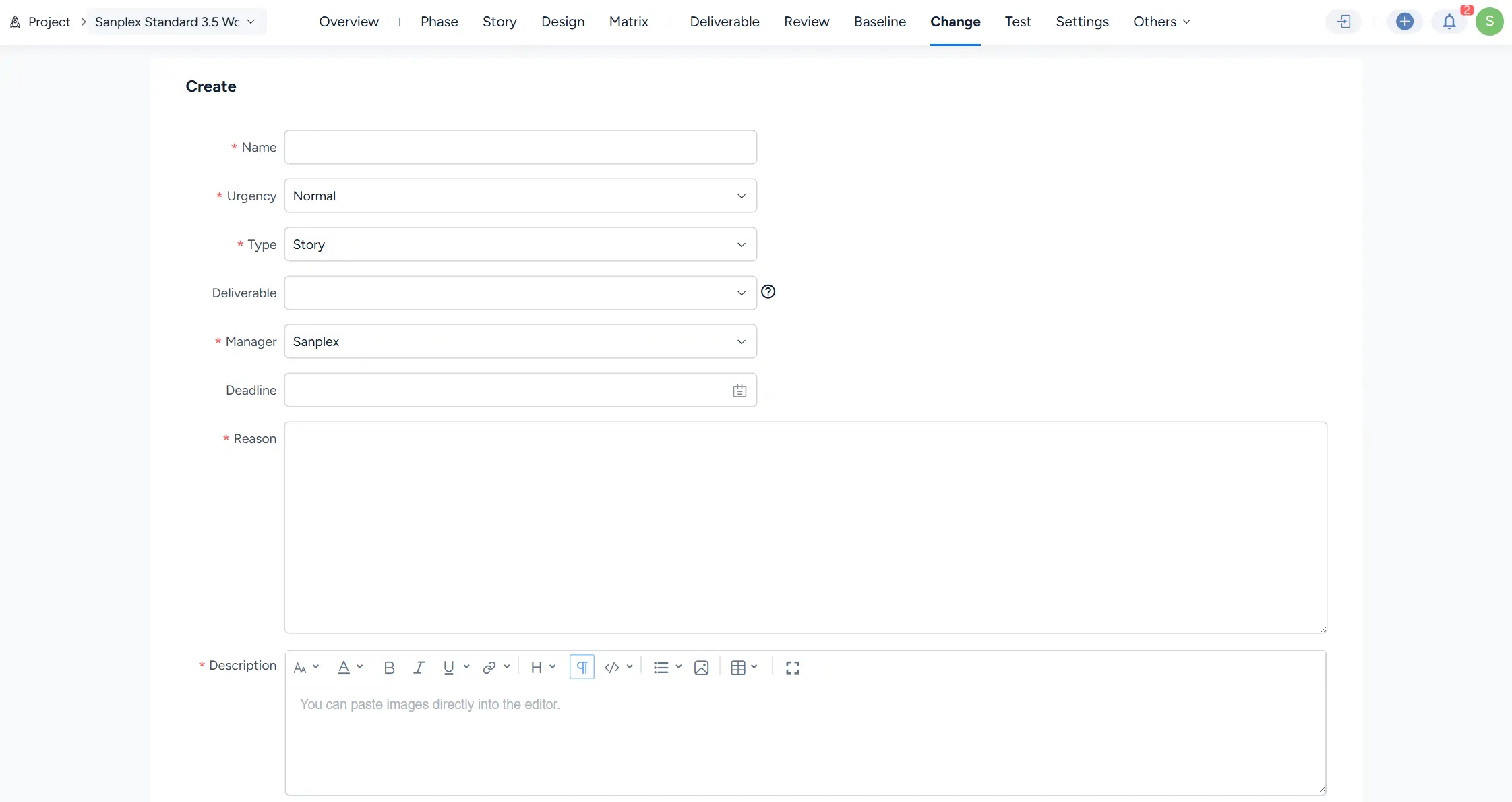
Click Create on the Change page to open the creation form.
Complete the required information for the change:
- Name: Enter a clear name for the proposed change.
- Urgency: Select the urgency level for the change.
- Type: Select the applicable change type.
- Deliverable: Select a related deliverable when applicable.
- Manager: Assign the person responsible for managing the change.
- Deadline: Specify the expected deadline when needed.
- Reason: Describe why the change is required.
- Description: Provide additional details about the proposed change.
The available urgency levels and change types are based on the Project Change settings configured by the administrator.
IV. Configure and Review Project Changes
Project Change reviews follow the approval flow configured for the corresponding project flow.
Go to Admin > Project Flow, select the applicable project flow, and then open Review > Change. The Change tab displays the available Project Change review configuration together with its Approval Flow.
For example, the current configuration uses Project Change Review with the Simplest approval flow.
After a change enters the review process, its progress can be tracked from the project’s Change page using the available review status tabs.

V. Customize the Project Change Workflow
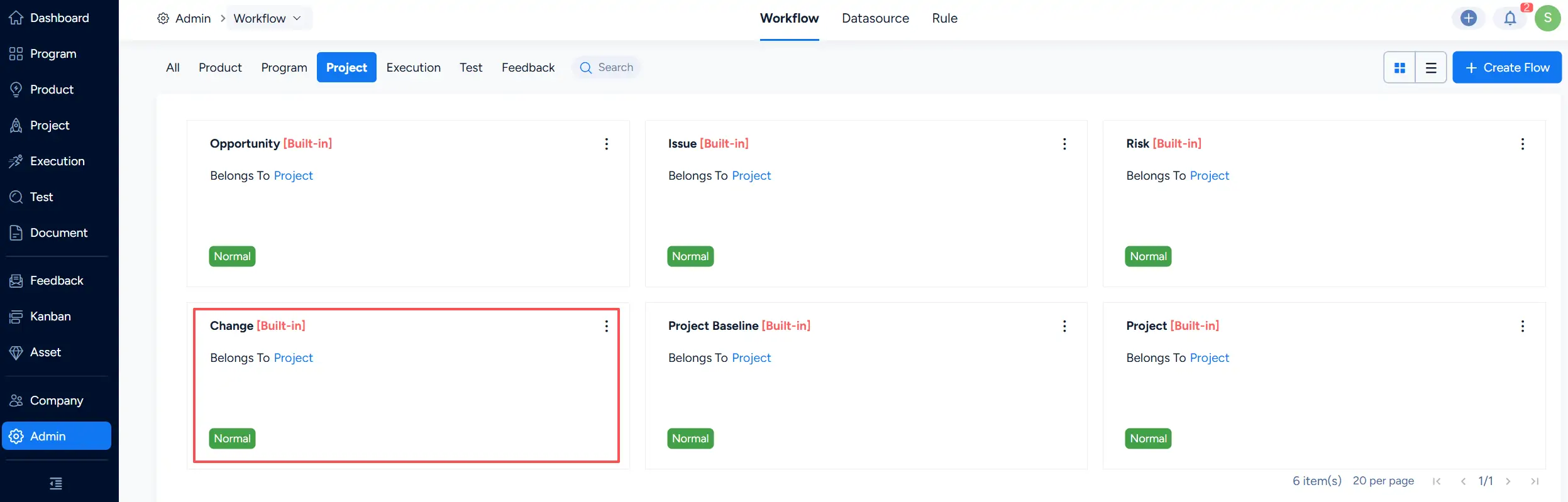
The Project Change workflow can be managed from the system workflow settings.
Go to Admin > Workflow > Project and locate the built-in Change workflow. From here, administrators can access the workflow configuration for Project Change as part of the project workflow set.