Catalog
Project deliverable management in Sanplex consists of two main layers:
- Project flow deliverable configuration: Deliverable Types are configured in the project flow, including their categories, activities, submission timing, required status, tailorability, and reference templates.
- Project-level deliverable submission and management: Project teams can view configured deliverables, submit documents, track submission and review status, and manage submitted deliverables from the project.
1. Configure Deliverable Types
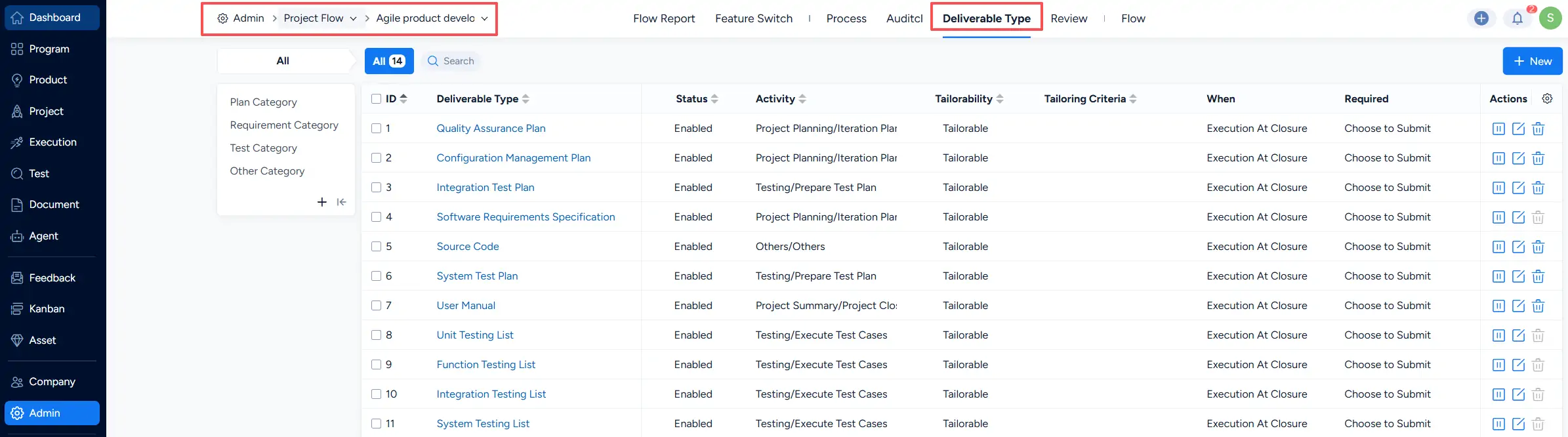
Go to Admin > Project Flow > Select a Project Flow > Deliverable Type.
The Deliverable Type page lists the deliverable types configured for the selected project flow. Deliverables are organized by category, such as Plan Category, Requirement Category, Test Category, and Other Category.
The list also displays configuration information including Status, Activity, Tailorability, Tailoring Criteria, When, and Required.
Click New to create a Deliverable Type.
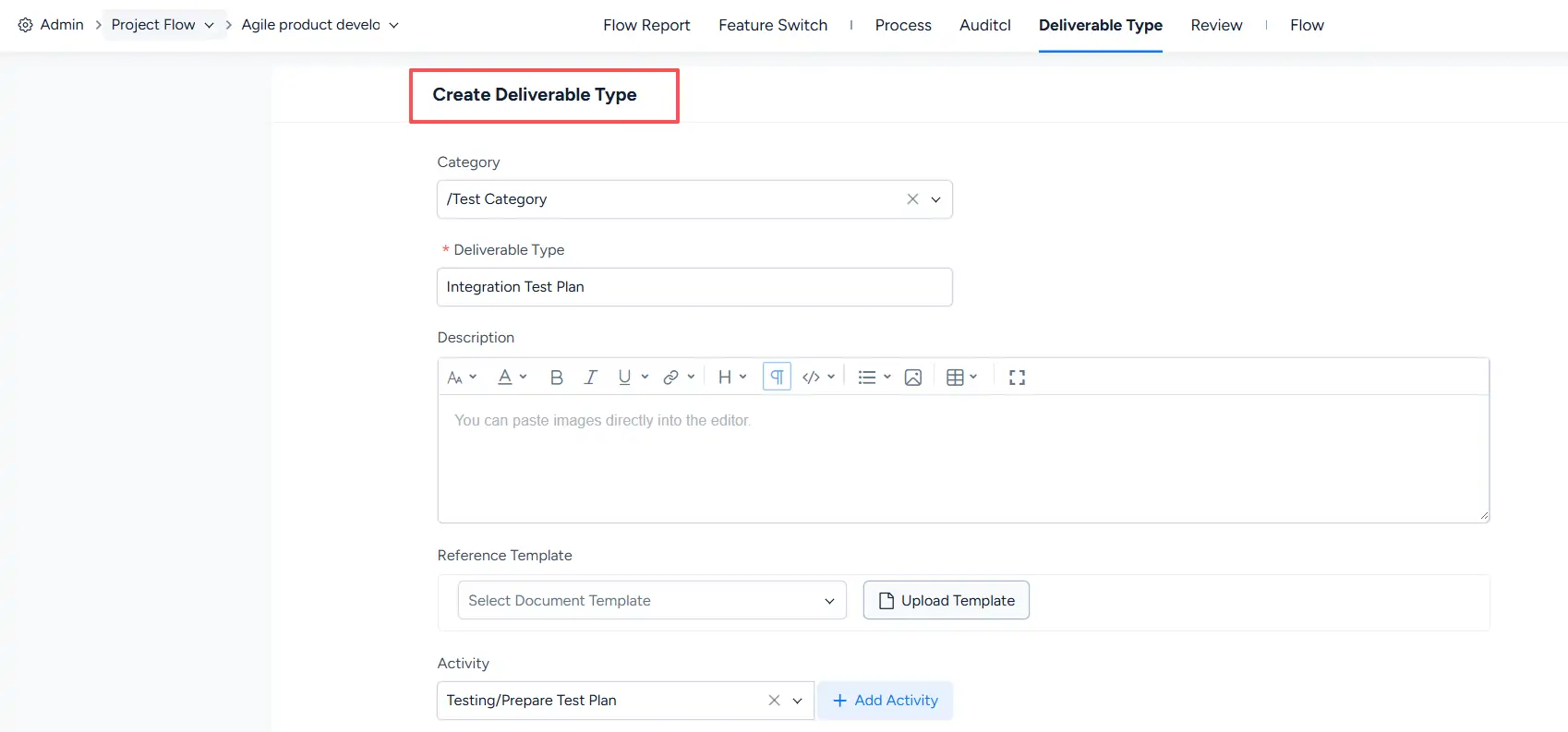
When creating a Deliverable Type, configure its category, name, description, reference template, and associated activity.
A Reference Template can be selected from existing document templates or added through Upload Template. Deliverable configuration can also define its Tailorability, submission timing under When, and whether submission is Required.
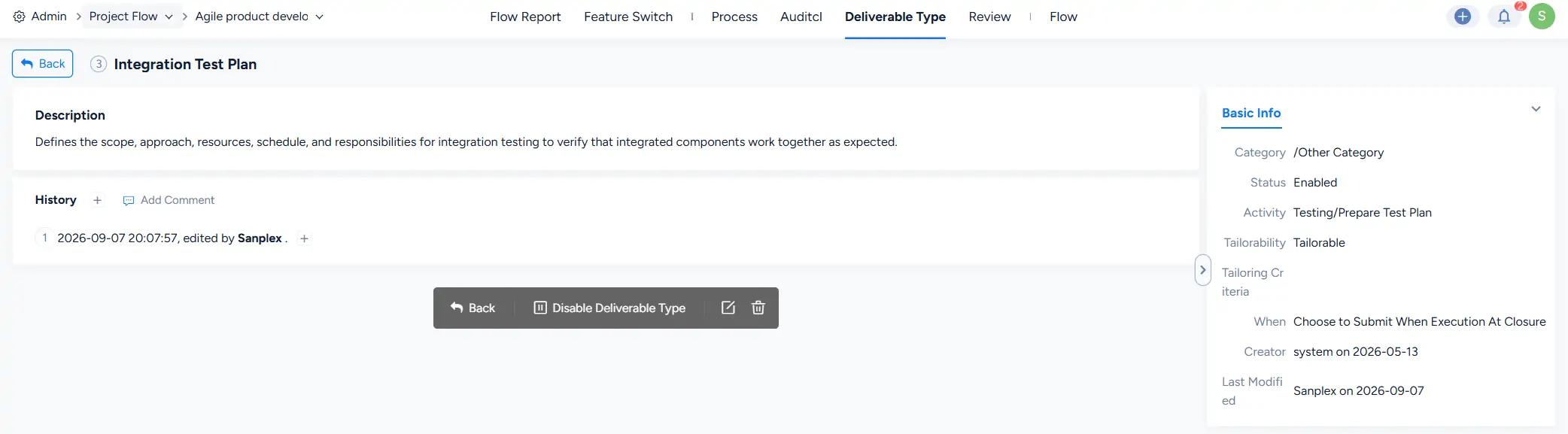
Click a Deliverable Type to open its details page.
The details page displays its current configuration, including Category, Status, Activity, Tailorability, Tailoring Criteria, and When. From this page, you can also disable, edit, or delete the Deliverable Type.
2. Submit Project Deliverables
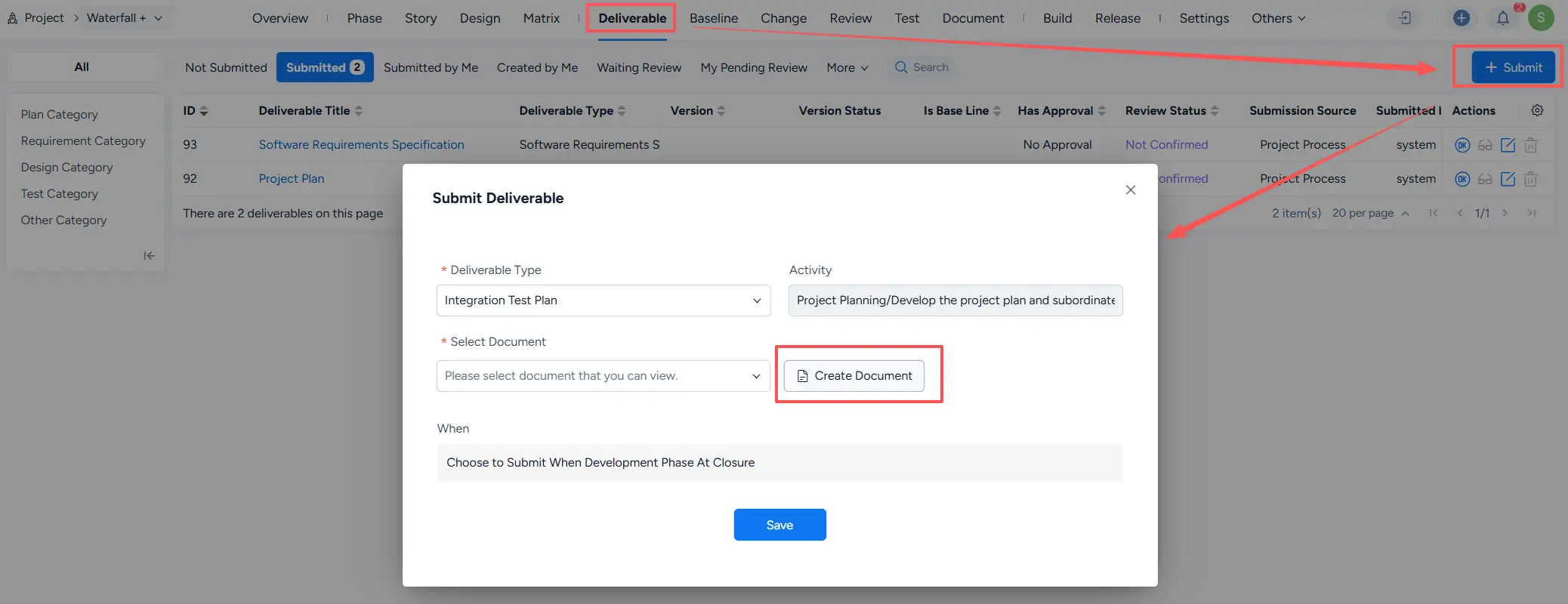
Go to Project > Select a Project > Deliverable.
Click Submit to open the Submit Deliverable form.
Select a Deliverable Type and a document to submit. The form also displays the associated Activity and the configured When condition.
If the required document has not yet been prepared in Sanplex, click Create Document to create or add a document before submitting the deliverable.
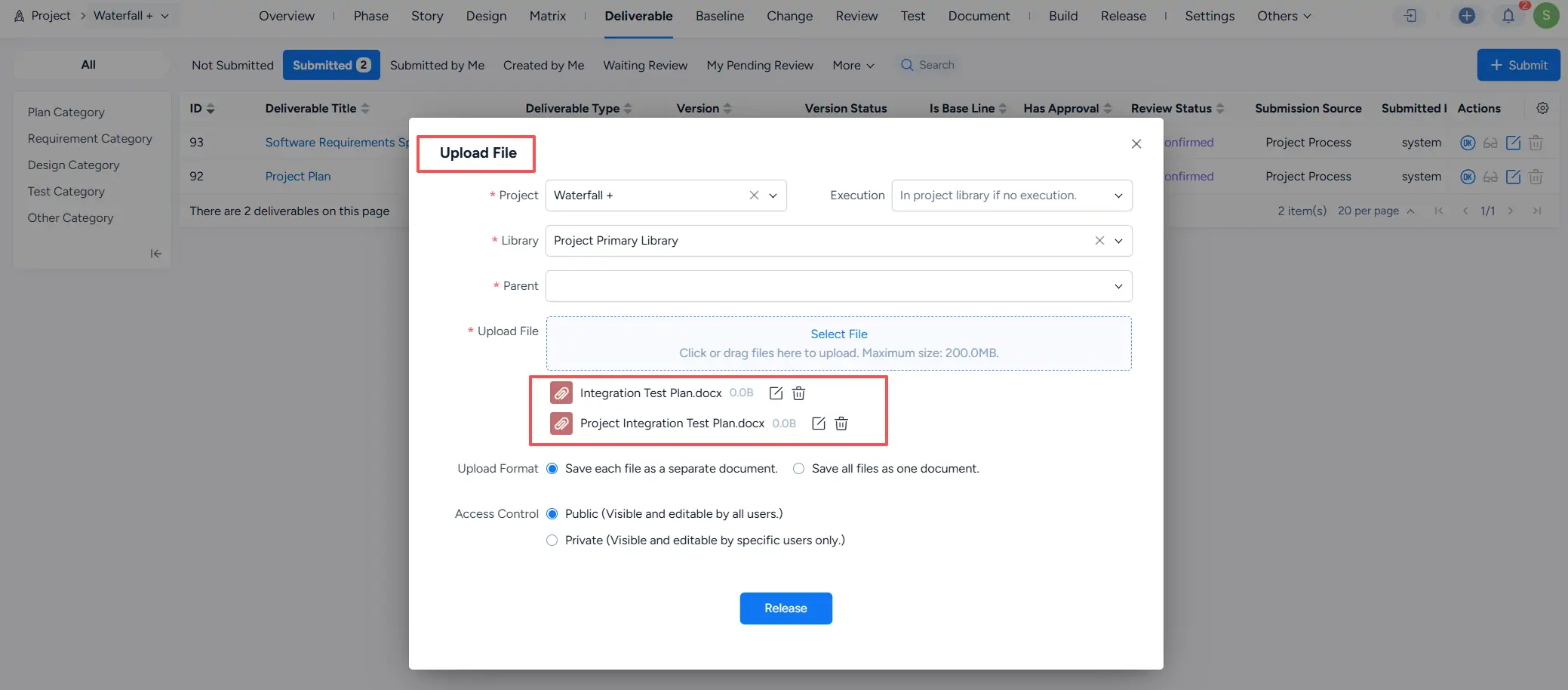
When adding document files, select the target project library and parent location, then upload the required files.
The upload dialog lets you save uploaded files as separate documents or combine them into one document. You can also configure document access as Public or Private.
3. View Deliverable Submission Progress
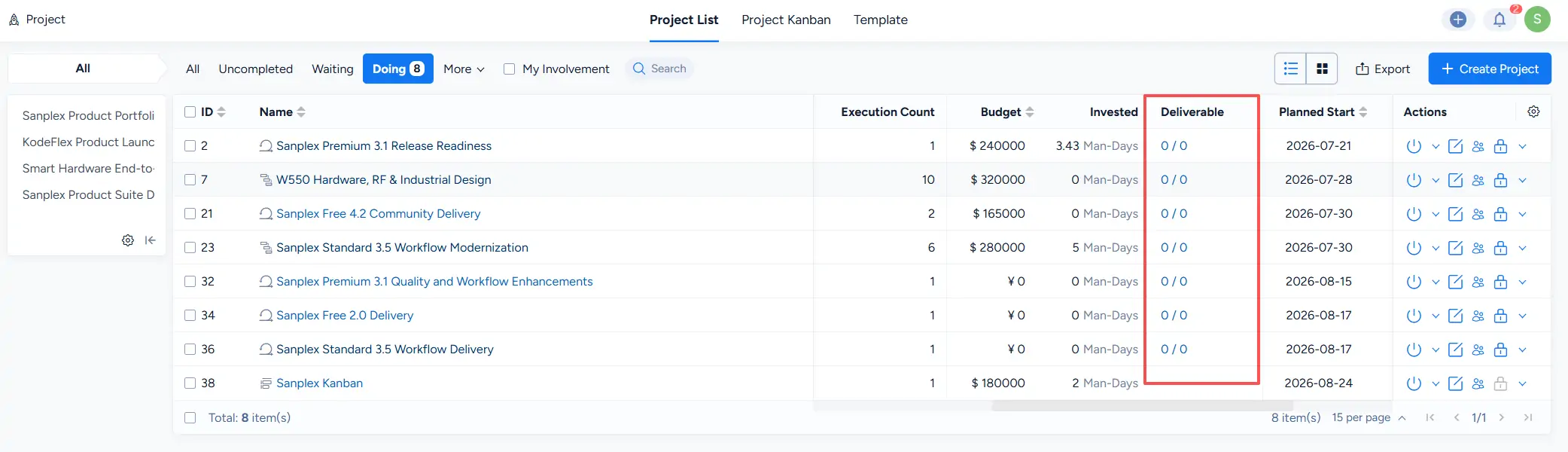
The Project List includes a Deliverable column that displays deliverable submission progress for each project as a ratio.
This provides a quick overview of deliverable completion across projects without opening each project individually.
4. Manage Project Deliverables
The Deliverable page provides a complete list of project deliverables.
You can filter deliverables by categories such as Plan Category, Requirement Category, Test Category, and Other Category, and use status views including Not Submitted, Submitted, Submitted by Me, Created by Me, Waiting Review, and My Pending Review.
The list displays information such as:
- Deliverable Title
- Deliverable Type
- Version
- Version Status
- Has Approval
- Review Status
- Submission Source
- Submitted by
You can also click Submit directly from this page to submit a deliverable in advance.