
Project Settings
1. Introduction of Sanplex features
1.1. Core Management Framework
1.1.1 Program
1.1.2 Project
1.1.3 Product
1.1.4 Execution
1.1.5 Management Models
1.2. Dashboard
1.2.1 Getting Started with Tutorials
1.2.2 Quick Add
1.2.3 Notification Center
1.2.4 Effort Tracking
1.2.5 Dashboard - Project and Execution
1.2.6 Dashboard - My Work, Contribution, and Recents
1.2.7 Dashboard - Approval
1.2.8 Contacts
1.3. Program
1.3.1 Program List
1.3.2 Program Kanban
1.3.3 Create Program
1.3.4 Create Sub-Programs
1.3.5 Project Charter Management
1.4. Product
1.4.1 Create Product
1.4.2 Manage Modules
1.4.3 Multi-Branch and Multi-Platform Management
1.4.4 Manage Plans
1.4.5 Manage Requirements
1.4.6 Requirement Reviews
1.4.7 Requirement Status and Phase
1.4.8 Create Releases
1.4.9 Track Progress
1.4.10 Business Requirements and Multi-Level Requirements
1.5. Project
1.5.1 Scrum Project
1.5.2. Waterfall Project
1.5.2.1 Manage Project Phases
1.5.2.2 Project Design
1.5.2.3 Project Matrix
1.5.2.4 Project Reports and Earned Value Management
1.5.2.5 Project Baselines
1.5.2.6 Project Change
1.5.3. Kanban Project
1.5.3.1 Set Up Kanban Projects
1.5.3.2 Configure Kanban Boards
1.5.3.3 Use Kanban Boards
1.5.4 Hybrid Agile Project
1.5.5 Hybrid Waterfall Project
1.5.6. Project Settings
1.5.6.1 Project Setup
1.5.6.2 Project Executions
1.5.6.3 Project Requirements
1.5.6.4 Project Builds
1.5.6.5 Project Tests
1.6. Admin Settings
1.6.1 Confluence Data Import
1.7. Workflow

Project Executions

2026-03-28 18:28:30
Sanplex Content
495
Last edited by Jing WANG on 2026-08-25 19:57:08
Share links
Summary: Learn how to create project executions, configure iteration or sprint terminology, and view executions in both Execution List and Execution Kanban views.

A project consists of one or more Executions.

An Execution can represent a sprint or iteration in an Agile project, or a phase in a Waterfall project.

After a project is created, you can add executions, set up the team, link requirements, break down tasks, and begin normal delivery work.

Phase setup has already been covered in the previous section. The following example uses an Agile project to show how to add an execution.

I. Add an Execution

On the Project List page, click a specific project name, such as Sanplex Free 4.2 Community Delivery, to open the project.
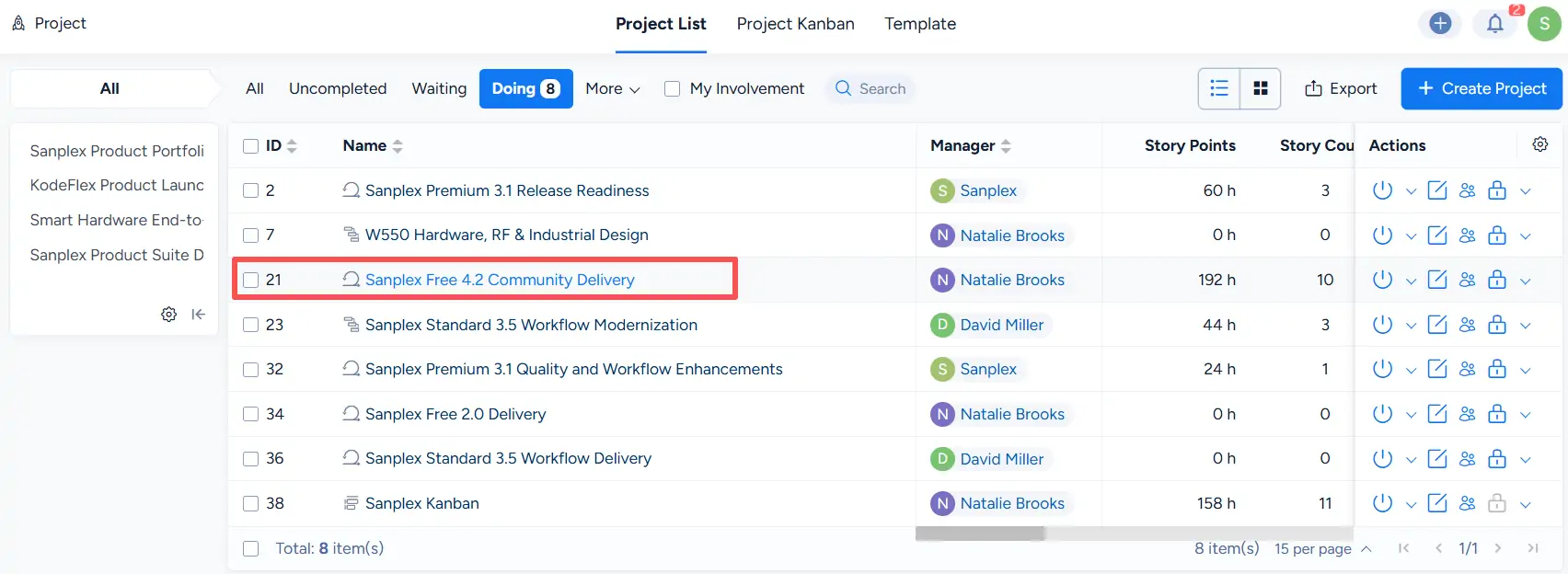
Project List showing Sanplex Free 4.2 Community Delivery highlighted as the project to open before managing its executions.

On the project page, click Execution in the top navigation bar to open the project's execution list.
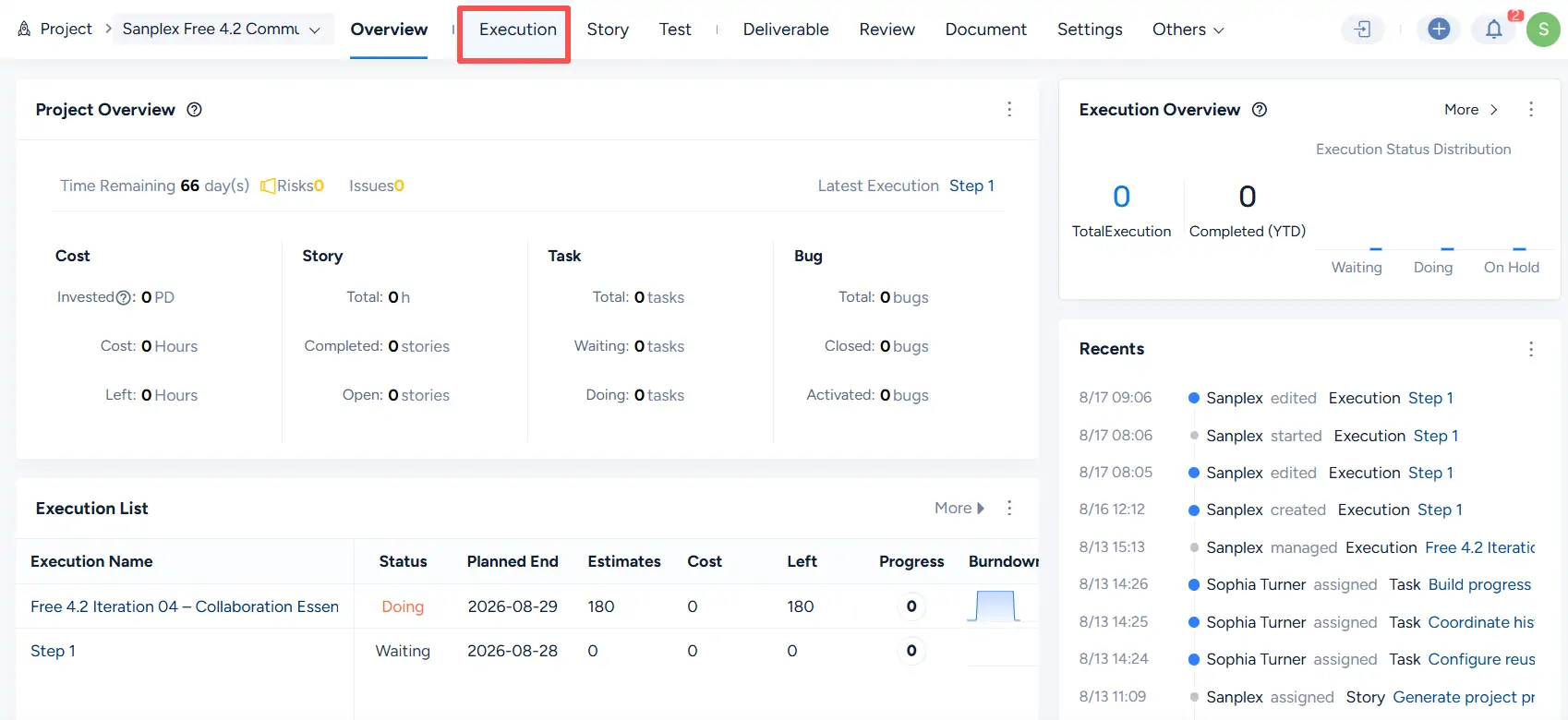
Project Overview page for Sanplex Free 4.2 Community Delivery with the Execution tab highlighted in the top navigation.

Note:

The terminology used for Agile delivery can be configured under Admin > Features > Project > Workflow.

Under the workflow settings, select either Project Product Iteration or Project Product Sprint according to the terminology used by your organization, and then click Save.
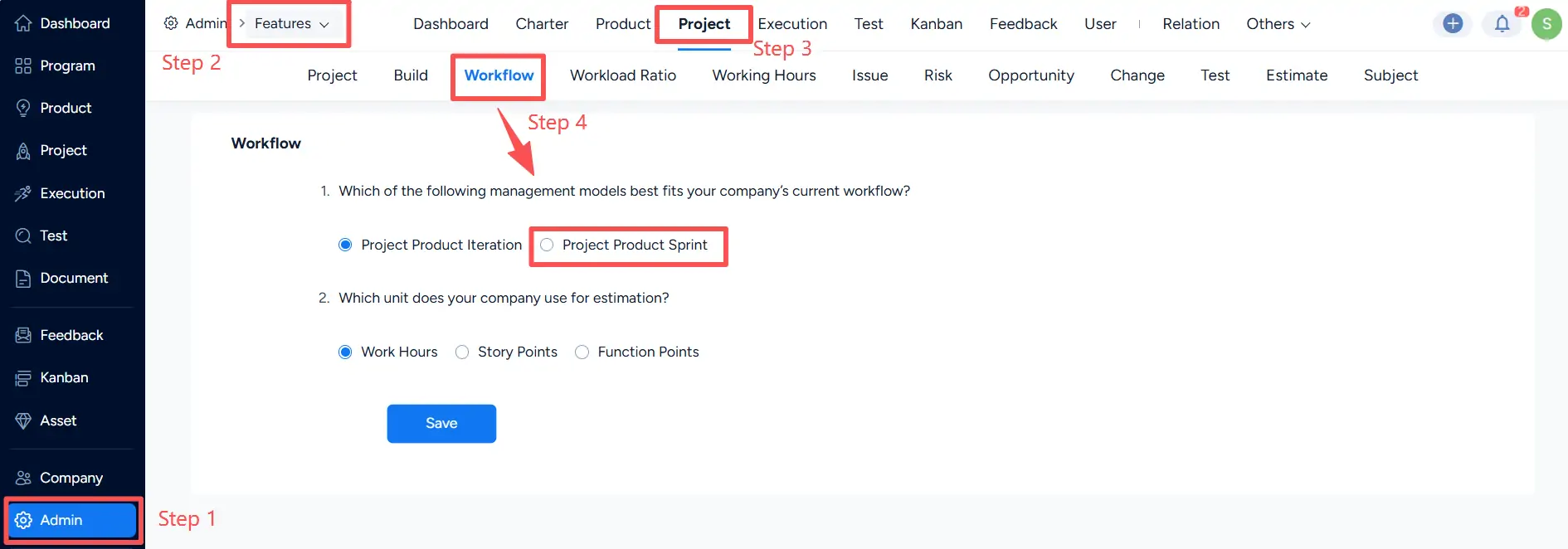
Admin workflow settings under Features > Project > Workflow showing the Project Product Iteration and Project Product Sprint options.

On the Project > Execution page, click Create Execution.

Project Execution list showing existing executions and the Create Execution button in the upper-right corner of the page.

On the Create Execution page, enter the execution information. The page includes fields such as Project, Execution Name, Execution Type, Plan Duration, Link Products, Link Plan, and Description.

Click Save to create the execution.
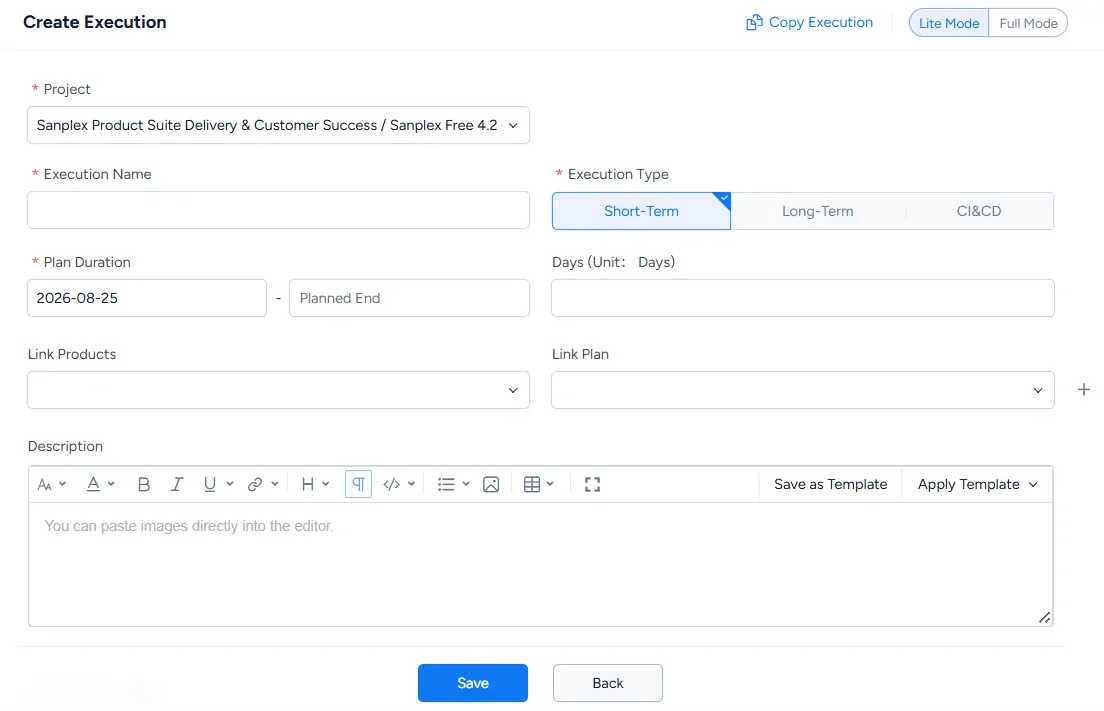
Create Execution page showing Project, Execution Name, Execution Type, Plan Duration, Link Products, Link Plan, and Description fields.

The newly created execution is then available from the project’s Execution page and the main Execution module.

II. View Executions

Executions can be viewed in both Execution List and Execution Kanban views.

Click Execution in the main navigation to open the Execution module. You can then switch between Execution List and Execution Kanban at the top of the page.

Execution module showing the Execution List tab, execution status filters, and the Create Execution button for managing executions.

1. View executions in Kanban view

Click Execution Kanban to display executions by status.

The Execution Kanban groups execution cards into status columns such as Waiting Execution, Doing Execution, Suspended Execution, and Closed Execution. Each card displays the execution name and its current progress.
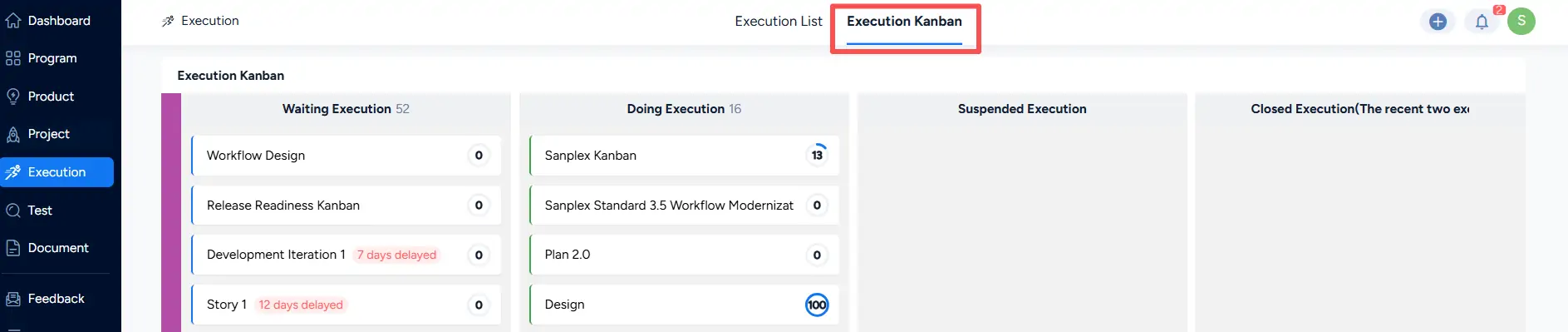
Execution Kanban displaying execution cards grouped into Waiting Execution, Doing Execution, Suspended Execution, and Closed Execution columns.

2. View executions in list view

Click Execution List to display executions in a table.

The Execution List displays information such as the Execution Name, Project, Status, Deliverable, Execution Manager, Planned Start, and Planned End.

You can use the status filters at the top of the page to view All Executions, Unfinished, Waiting, Doing, Suspended, Delayed, or Closed executions. You can also use Search to find a specific execution.

Execution List showing execution names, projects, statuses, managers, planned dates, status filters, Search, Export, and Create Execution controls.

Write a Comment
Comment will be posted after it is reviewed.
