
Project Flow
1. Using Sanplex by Role
1.1. Administrator
1.1.1 Manage Departments
2. Introduction of Sanplex features
2.1. Core Management Framework
2.1.1 Program
2.1.2 Project
2.1.3 Product
2.1.4 Execution
2.1.5 Management Models
2.2. Dashboard
2.2.1 Getting Started with Tutorials
2.2.2 Quick Add
2.2.3 Notification Center
2.2.4 Effort Tracking
2.2.5 Dashboard - Project and Execution
2.2.6 Dashboard - My Work, Contribution, and Recents
2.2.7 Dashboard - Approval
2.2.8 Contacts
2.3. Program
2.3.1 Program List
2.3.2 Program Kanban
2.3.3 Create Program
2.3.4 Create Sub-Programs
2.3.5 Project Charter Management
2.4. Product
2.4.1 Create Product
2.4.2 Manage Modules
2.4.3 Multi-Branch and Multi-Platform Management
2.4.4 Manage Plans
2.4.5 Manage Stories
2.4.6 Story Reviews
2.4.7 Story Status and Phase
2.4.8 Create Releases
2.4.9 Track Progress
2.4.10 Epics and Multi-Level Stories
2.5. Project
2.5.1 Scrum Project
2.5.2. Waterfall Project
2.5.2.1 Manage Project Phases
2.5.2.2 Project Design
2.5.2.3 Project Matrix
2.5.2.4 Project Reports and Earned Value Management
2.5.2.5 Project Baselines
2.5.2.6 Project Change
2.5.3. Kanban Project
2.5.3.1 Set Up Kanban Projects
2.5.3.2 Configure Kanban Boards
2.5.3.3 Use Kanban Boards
2.5.4 Hybrid Agile Project
2.5.5 Hybrid Waterfall Project
2.5.6. Project Settings
2.5.6.1 Project Setup
2.5.6.2 Project Executions
2.5.6.3 Project Requirements
2.5.6.4 Project Builds
2.5.6.5 Project Tests
2.5.6.6 Project Docs
2.5.6.7 Project Releases
2.5.6.8 Project Reports
2.5.6.9 Project Risks
2.5.6.10 Project Issues
2.5.6.11 Project Opportunities
2.5.6.12 Project Deliverables
2.5.6.13 Project Reviews
2.5.6.14 Project Process
2.5.6.15 Deliverables
2.5.6.16 Quality Assurance
2.5.6.17 Project-specific Workflow Management
2.5.7 Project Templates
2.6. Execution
2.6.1 Product Planning and Task Breakdown
2.6.2 Task Assignment and Daily Tracking
2.6.3 Build Creation and Test Requests
2.6.4 Bug Confirmation and Resolution
2.6.5 Execution Kanban Boards
2.7. Testing
2.7.1 Write Test Cases
2.7.2 Execute Test Cases
2.7.3 Bug Submission and Reports
2.7.4 Verify and Close Bugs
2.7.5 Test Case Scenes
2.7.6 Submit a Test Request
2.7.7 Test Report
2.8. Agent
2.8.1 Conversation
2.8.2 Sanplex Agents
2.8.3 General Agents
2.8.4 Skill Management
2.8.5 AI Knowledge Library
2.8.6 Models
2.8.7 ZAI Service Installation
2.8.8 ZAI Service Control Panel
2.8.9 ZAI Configuration
2.9. Kanban
2.9.1 Kanban Spaces
2.9.2 Kanban Regions
2.9.3 Kanban Cards
2.10. Company
2.10.1 View Team Members and Work Information
2.10.2 View Recent Company Activity
2.10.3 View and Edit Company Information
2.11. Feedback
2.11.1 Configure, Create, and Review Feedback
2.11.2 Process Feedback and Send Notifications
2.11.3 Tickets
2.12. Admin Settings
2.12.1. System Settings
2.12.1.1 Mode
2.12.1.2 Backup
2.12.1.3 Trash
2.12.1.4 License
2.12.1.5 Security
2.12.1.6 Cron Job
2.12.1.7 Time Zone
2.12.1.8 Rebuild Index
2.12.1.9 LDAP
2.12.1.10 Table Engine
2.12.2 Feature Options
2.12.3. Users Management
2.12.3.1 Set Departments and Edit Company Profile
2.12.3.2 Manage Users
2.12.3.3 Set Permisions
2.12.4. Feature Configuration
2.12.4.1 Dashboard
2.12.4.2 Product
2.12.4.3 Project
2.12.4.4 Execution
2.12.4.5 Test
2.12.4.6 Kanban
2.12.4.7 Feedback
2.12.4.8 Tickets
2.12.4.9 User
2.12.4.10 Relations (Standard Version)
2.12.4.11 Meaturement
2.12.5 Migrate Jira Data to Sanplex
2.12.6 Jira to Sanplex Migration Mapping
2.12.7 Migrate Confluence Data to Sanplex
2.12.8. Agent Configuration
2.13. Asset Library (Premium)
2.13.1 Asset Library Management (Premium)

Project Flow

2026-09-22 11:34:34
Kelsea Zhang
4
Last edited by Kelsea Zhang on 2026-10-15 14:17:50
Share links
Summary: This guide explains the Project Flow feature in Sanplex, including its use cases, the fifteen built-in project flow templates, and how to add, enable, disable, design, and delete flow templates.

Overview

The Project Flow feature lets teams define a standardized framework for project execution flows that fits their own business characteristics. With built-in or custom templates, teams can quickly create projects that match the way they work, making differentiated process management possible. It improves the efficiency of process management and keeps team collaboration standardized and consistent.

Use Cases

  • Differentiated process management for hardware and software projects: In many organizations, hardware and software projects follow significantly different workflows. For example, a “trial production” stage can be added to the hardware project flow template, while the software project flow template does not need it.
  • Different approval flows for projects of different levels: An organization may have different approval requirements for A-level and B-level projects. Because A-level projects have larger budgets, they need a stricter multi-level approval flow, and this can be managed easily through flow templates.
  • Different field configurations for product requirement forms: When managing requirements for different product types, organizations often need to fill in different form fields. For example, an organization has two product types (consumer products and industrial products): requirements for consumer products need a “user experience score”, while requirements for industrial products focus on a “technical specification description”.

Project Flow Templates

Project flow templates contain fifteen built-in flows. A project should select the flow that fits its own project type and project model.
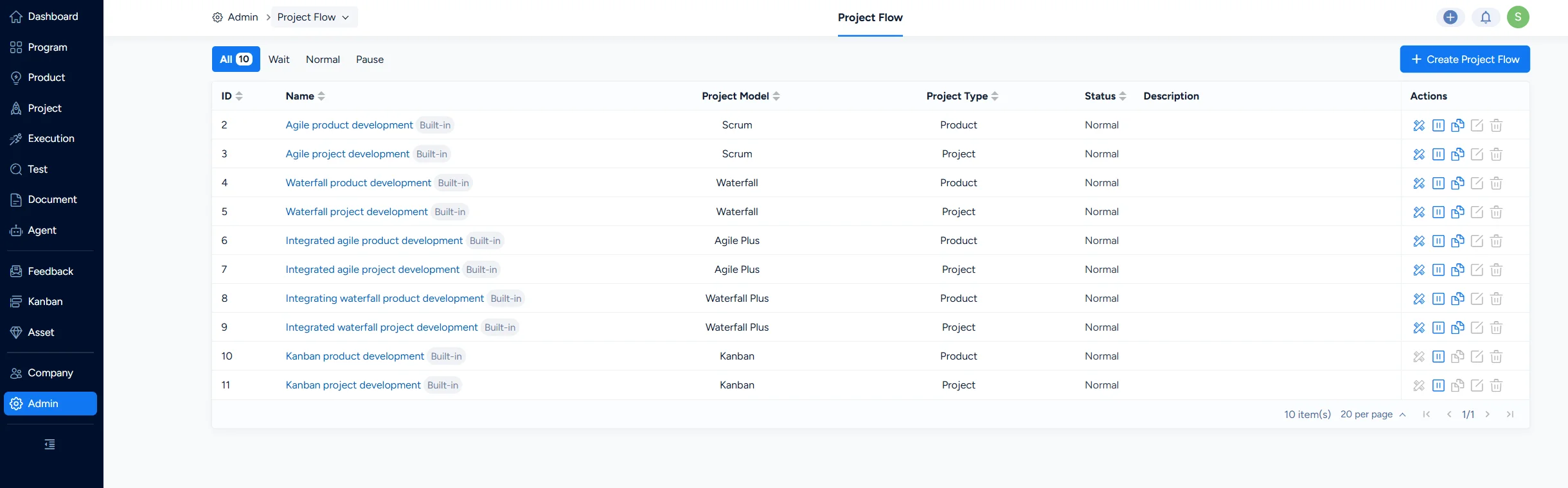
Built-in project flows

Maintaining Flow Templates

1. Add a Flow

Click Create Project Flow and enter the information in the dialog that appears.

  • For a project flow, the applicable project model and project type also need to be maintained. They cannot be edited after the flow is created.
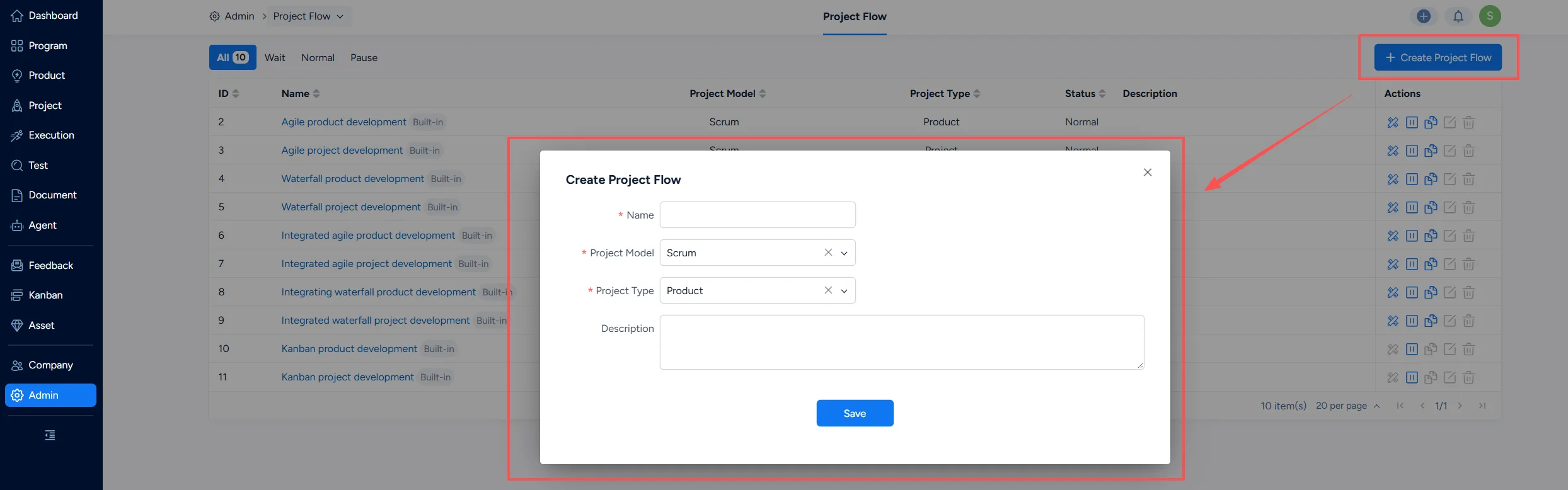
Create a project flow

2. Enable/Disable a Flow

Only enabled project flows can be used when creating or editing a project. After a flow is disabled, ongoing projects can still run according to that flow as usual.
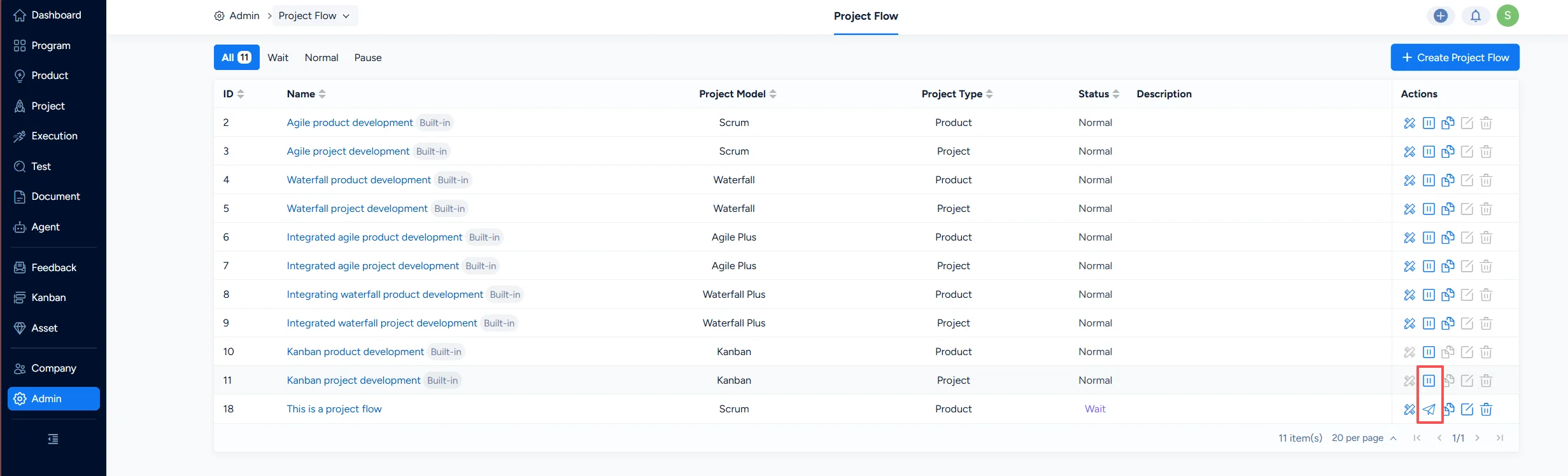
Enable and Diable a flow

3. Design a Flow

Click the Design button to open the flow details and design the specific functions of the project flow. For details on how to use these functions, see the manual below.
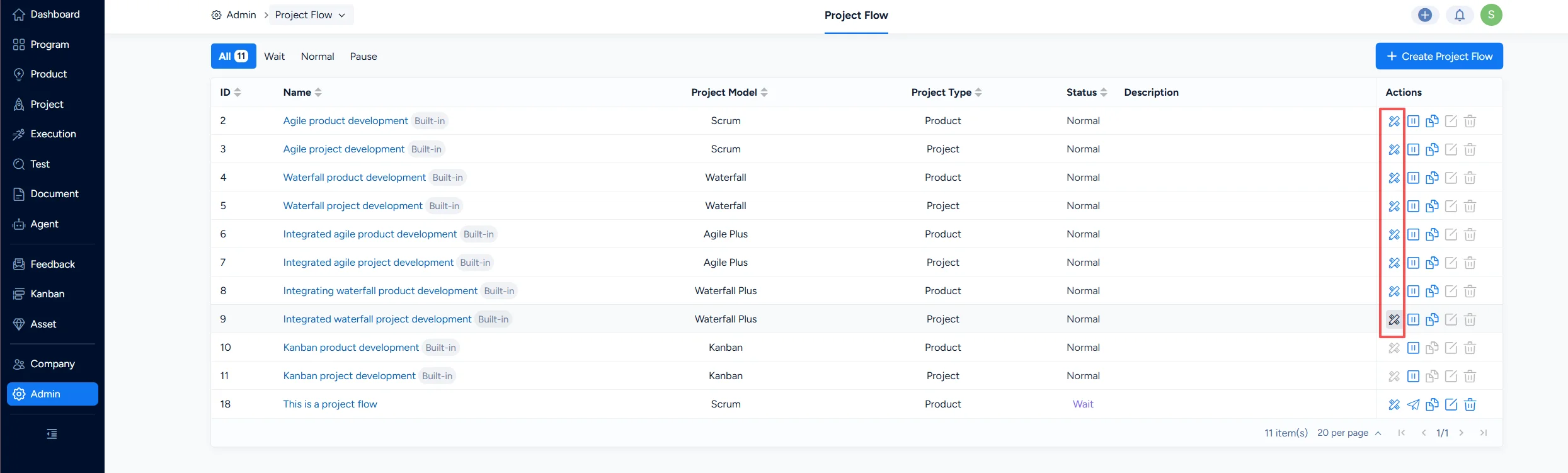
Design a project flow

4. Delete a Flow

Click the Delete button to delete a flow template. Deleting a flow template does not affect the projects that are currently using it.
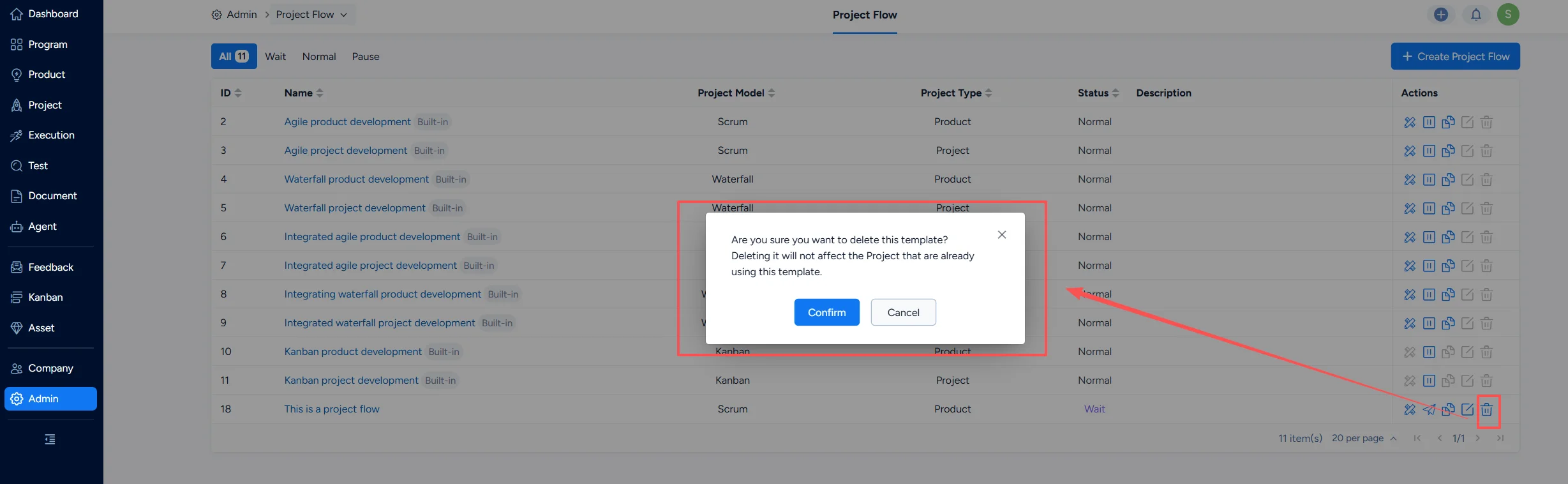
Delete a project flow

Write a Comment
Comment will be posted after it is reviewed.
