Catalog
Feature Overview
The Project Reviews feature provides a structured way to review key project outputs, record review results and suggestions, track review progress, and manage issues identified during reviews.
Sanplex supports the following review types:
- Deliverable Review
- Baseline Review
- Project Change Review
Reviews are managed under Project > Review, which includes separate Review List and Review Issue pages.
Use Cases
- Requirements review: Review requirements-related content before it moves forward in the project lifecycle.
- Design review: Review design content against defined checklist items and record review suggestions.
- Baseline review: Review a project baseline and record the review result before approval.
- Project change review: Review proposed project changes through the configured review workflow.
- Review issue management: Record, assign, resolve, close, reactivate, and delete issues identified during reviews.
1. Create a Review
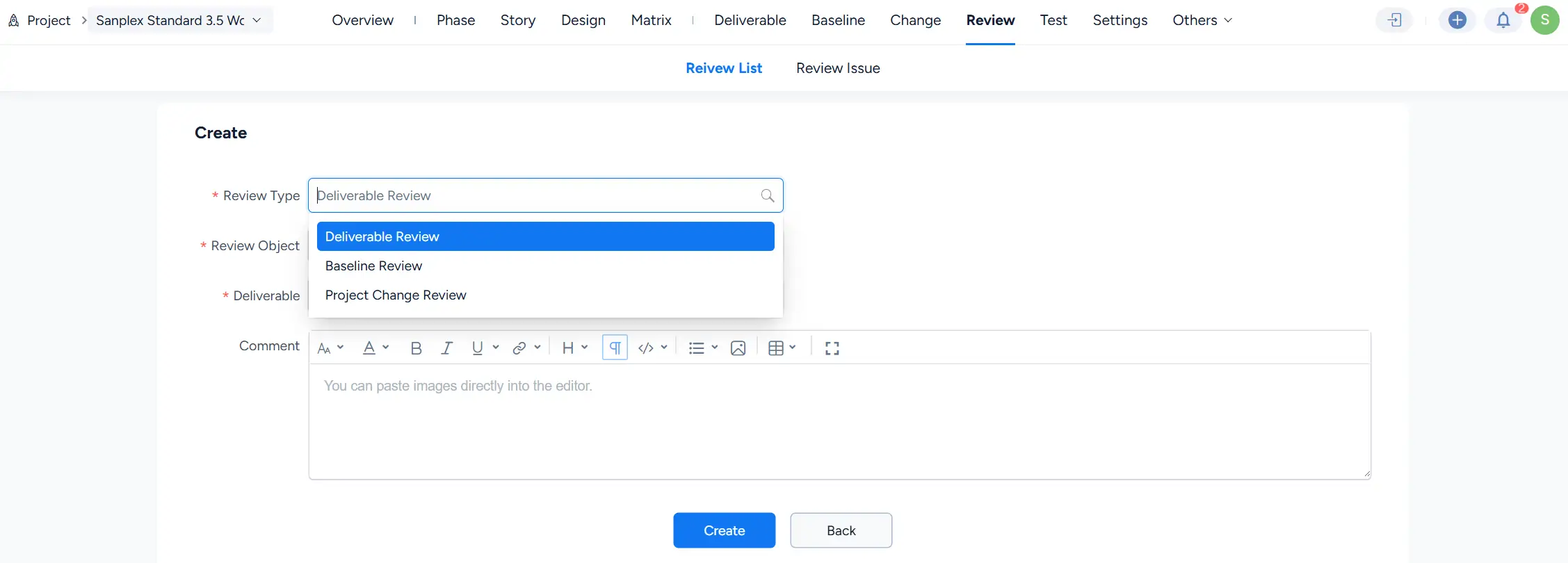
Go to Project > Review > Review List and click Create.
Select a Review Type. Available options include Deliverable Review, Baseline Review, and Project Change Review. Complete the fields displayed for the selected review type, then click Create.
2. Complete a Review
Open a review assigned to you from the Review List.
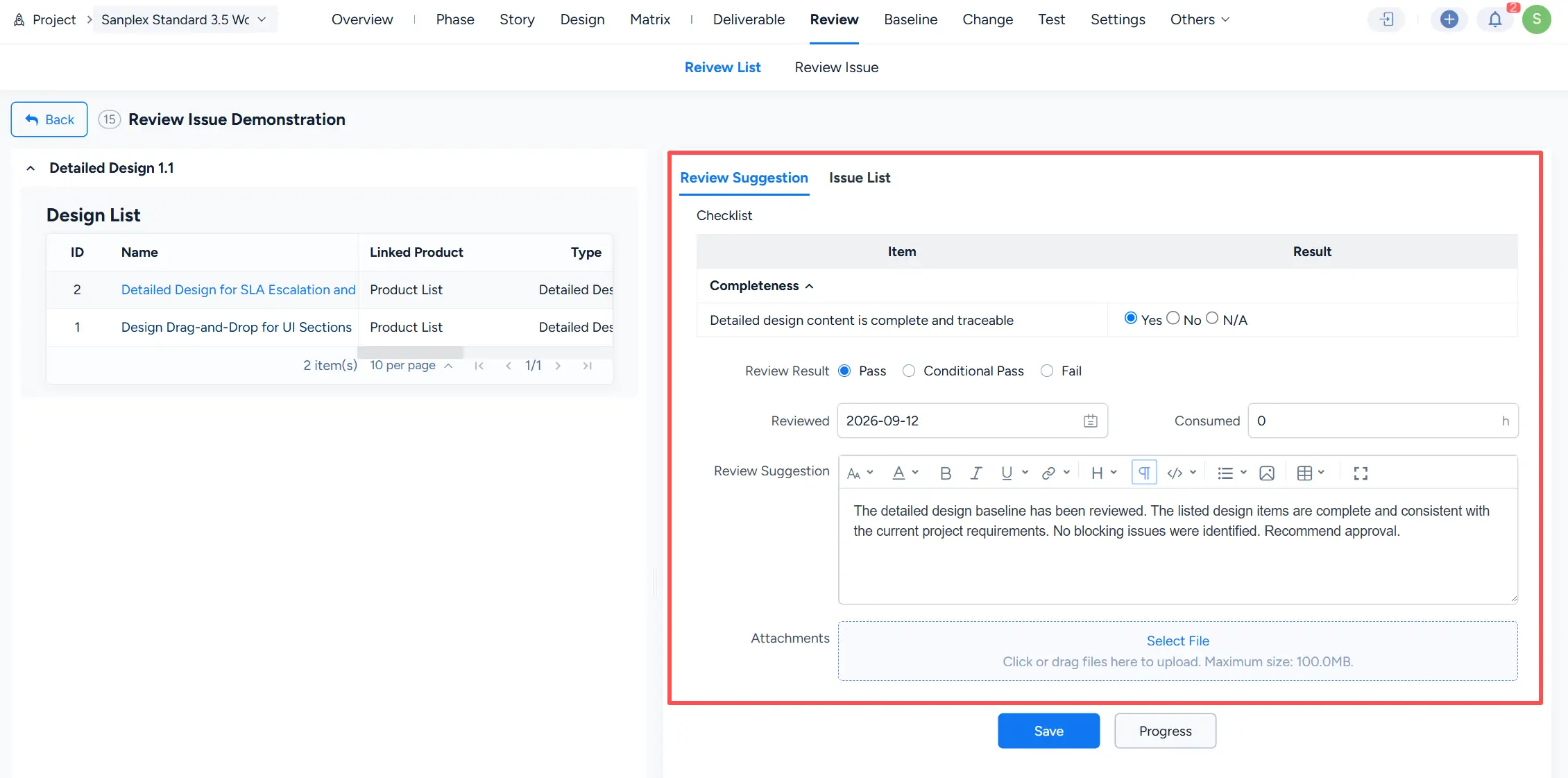
The review page displays the review object on the left and the Review Suggestion and Issue List tabs on the right.
2.1 Complete the Review Checklist
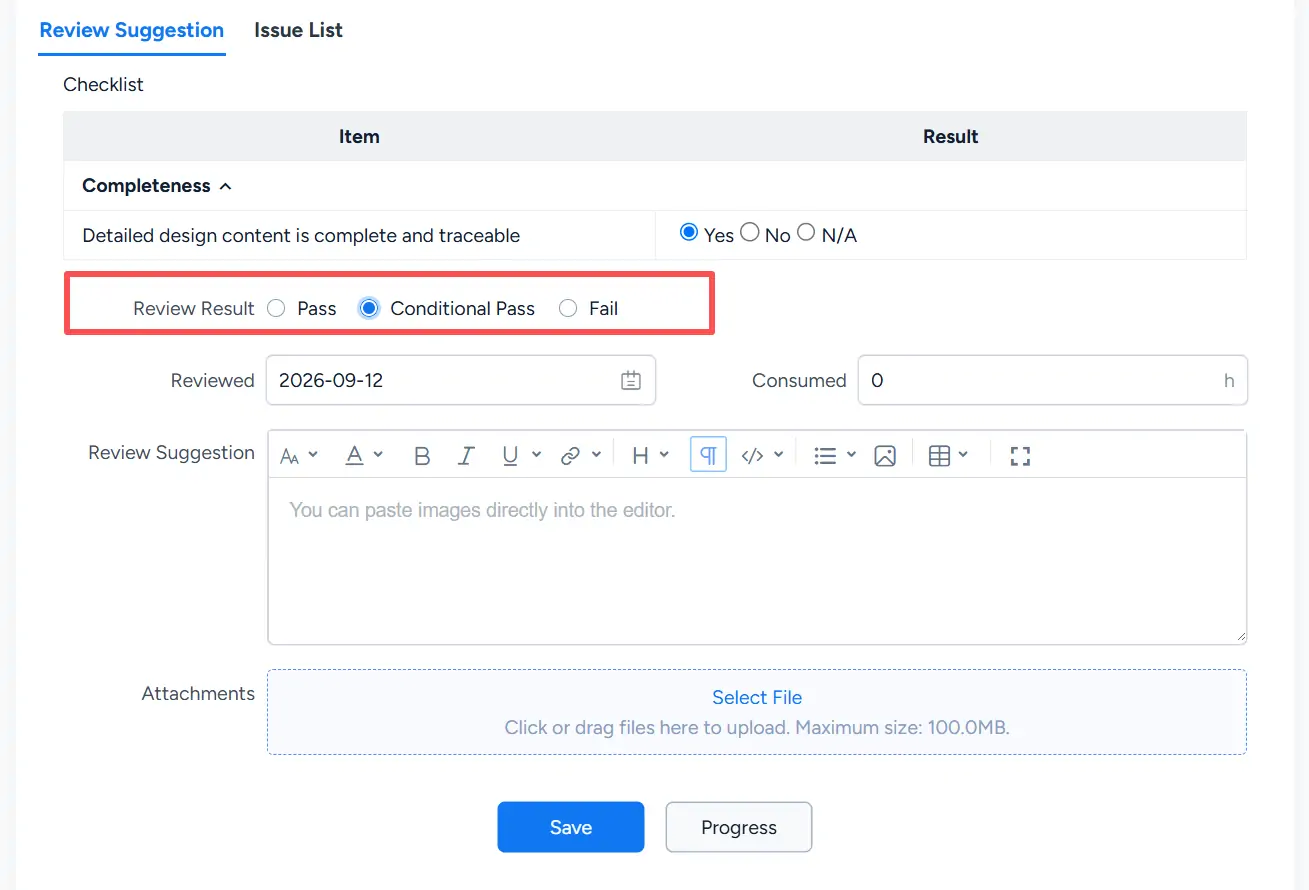
Under Review Suggestion, complete each checklist item by selecting Yes, No, or N/A.
The page also provides fields for Review Result, Reviewed, Consumed, Review Suggestion, and Attachments.
2.2 View Review Issues
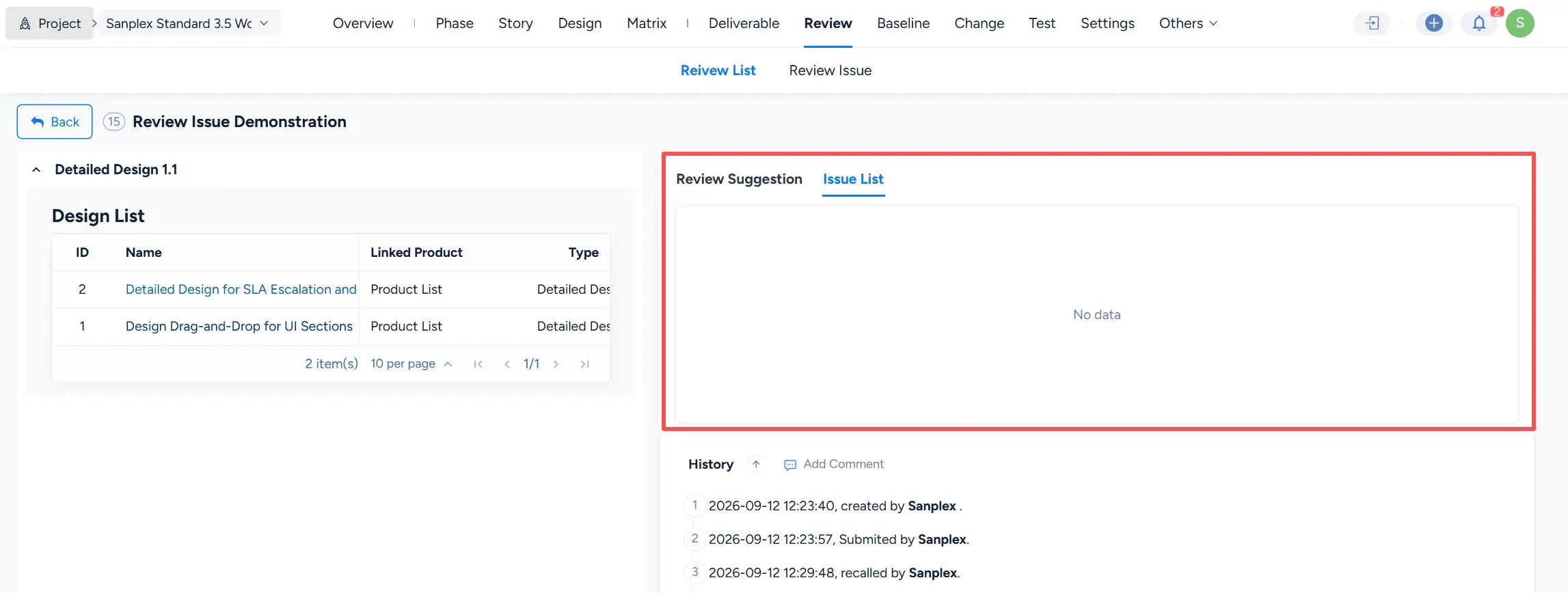
Click Issue List to view issues associated with the current review.
2.3 Record the Review Result
For Review Result, select one of the following:
- Pass
- Conditional Pass
- Fail
Enter a review suggestion as needed, then click Save.
3. View Review Progress
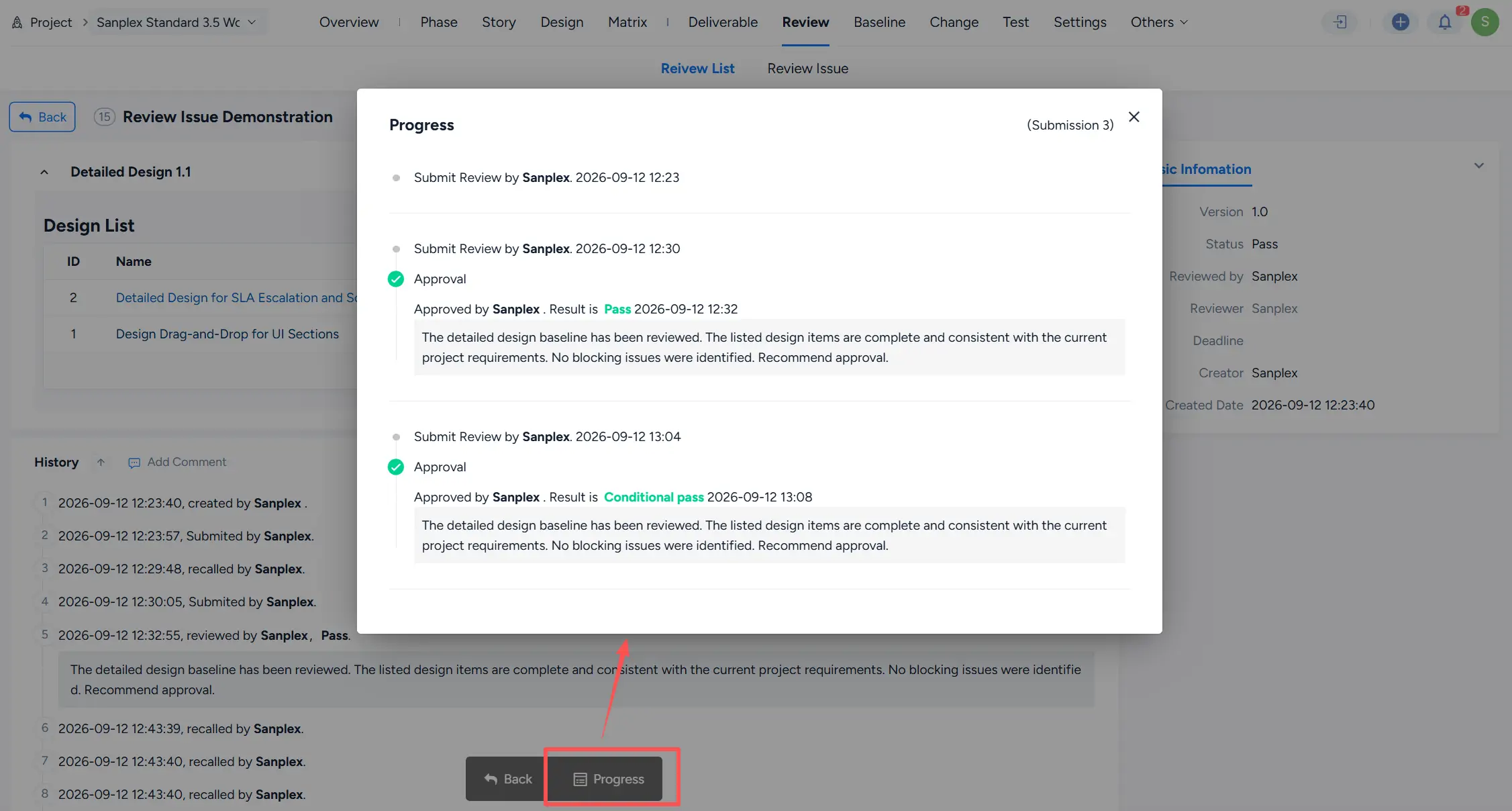
Click Progress on the review page to view submission and approval history.
The progress dialog records review submissions, approval results, reviewers, timestamps, and review comments.
4. Recall and Resubmit a Review
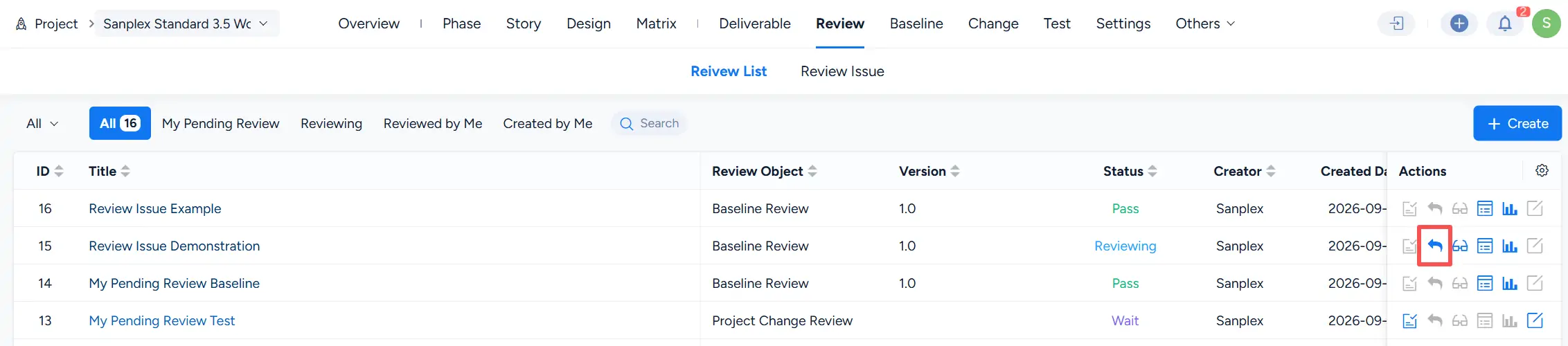
A submitted review can be recalled from the Review List when the corresponding recall action is available.
After updating the review, submit it again through the review workflow.
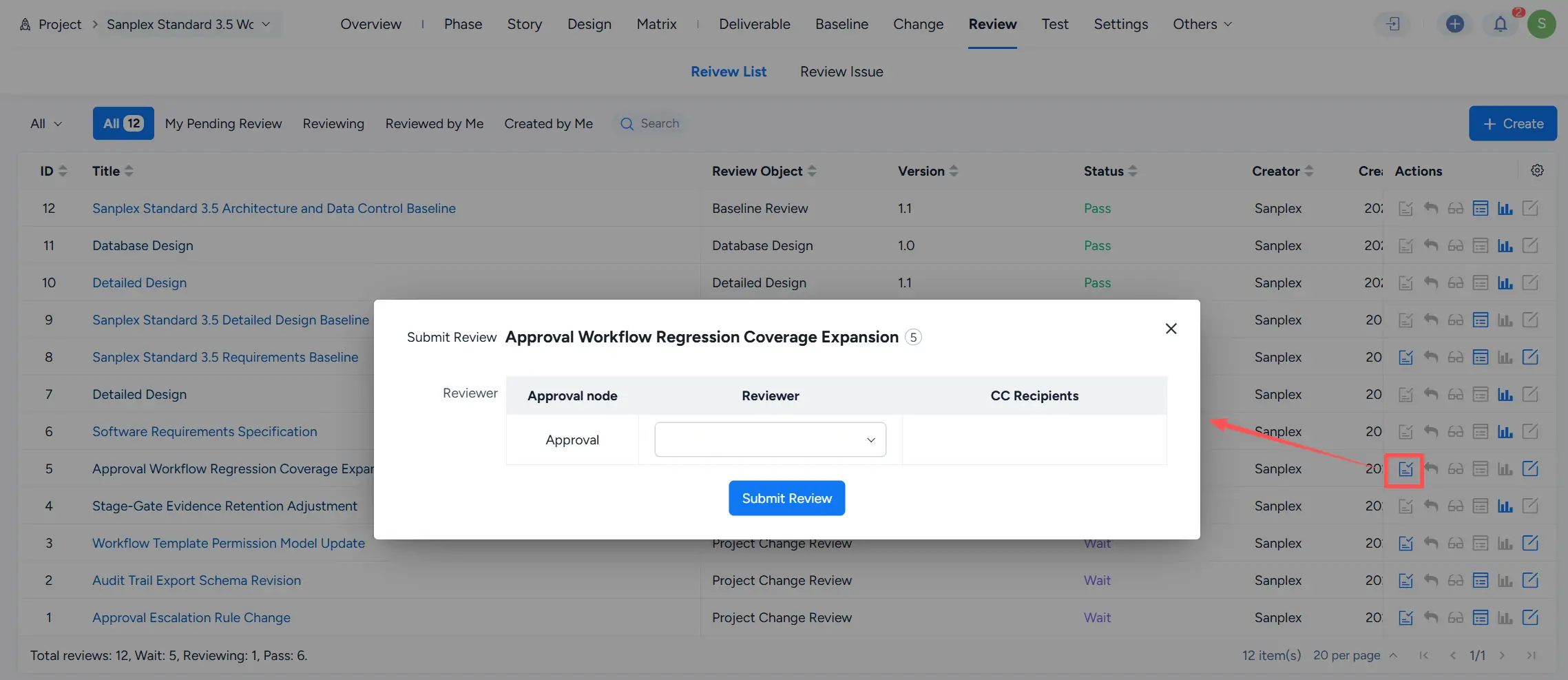
To resubmit the review, click the submit action and select the reviewer for the displayed approval node. The dialog also includes a CC Recipients column.

5. View the Review Report
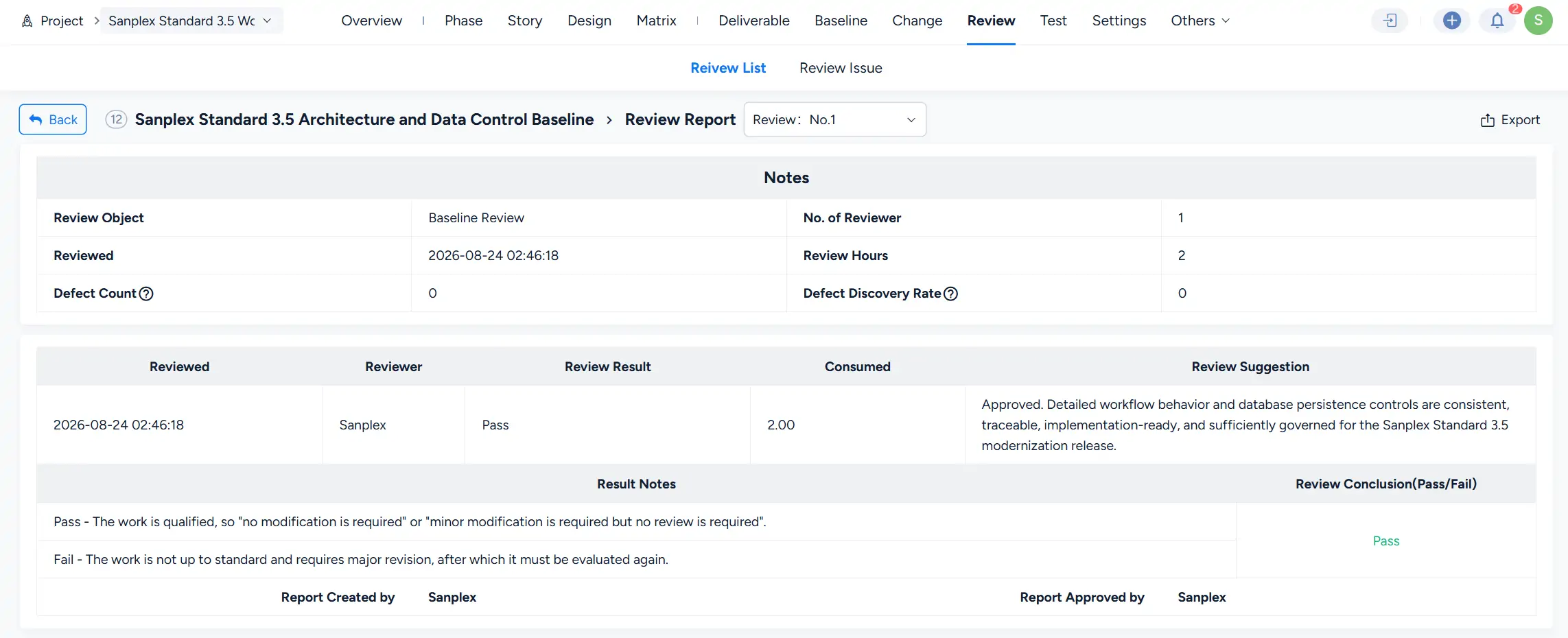
For a completed review, open the Review Report from the Review List.
The report displays review information such as the review object, review date, number of reviewers, review hours, defect count, review result, review suggestion, and review conclusion.
6. Edit a Review
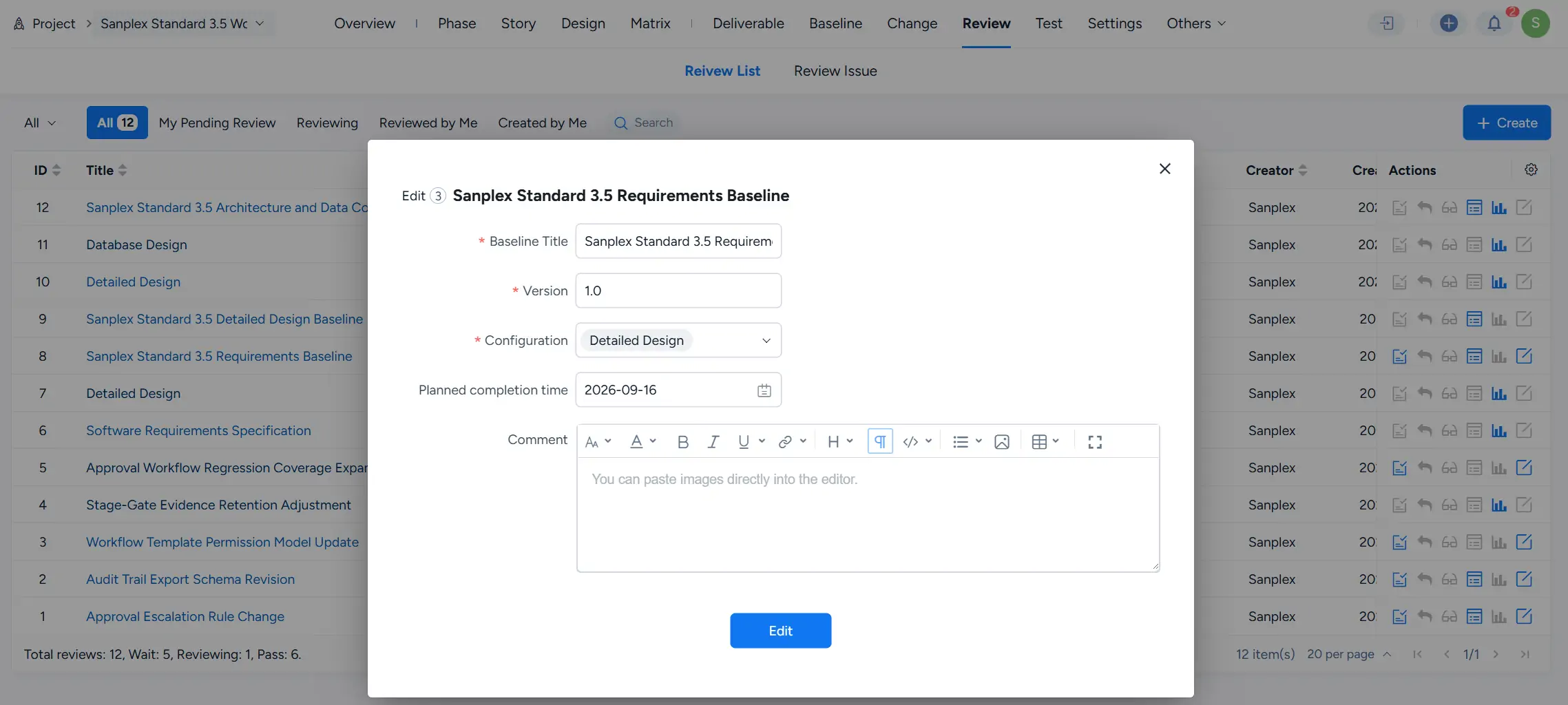
When editing is available, click Edit from the Review List.
The edit form displays fields associated with the selected review object. For a baseline review, these can include Baseline Title, Version, Configuration, Planned completion time, and Comment.
7. Manage Review Issues
Go to Project > Review > Review Issue to view and manage review issues.
The list displays information including Checklist, Review Title, Review Issue, Status, Assigned to, Resolution, Creator, and Created Date.

7.1 Create a Review Issue
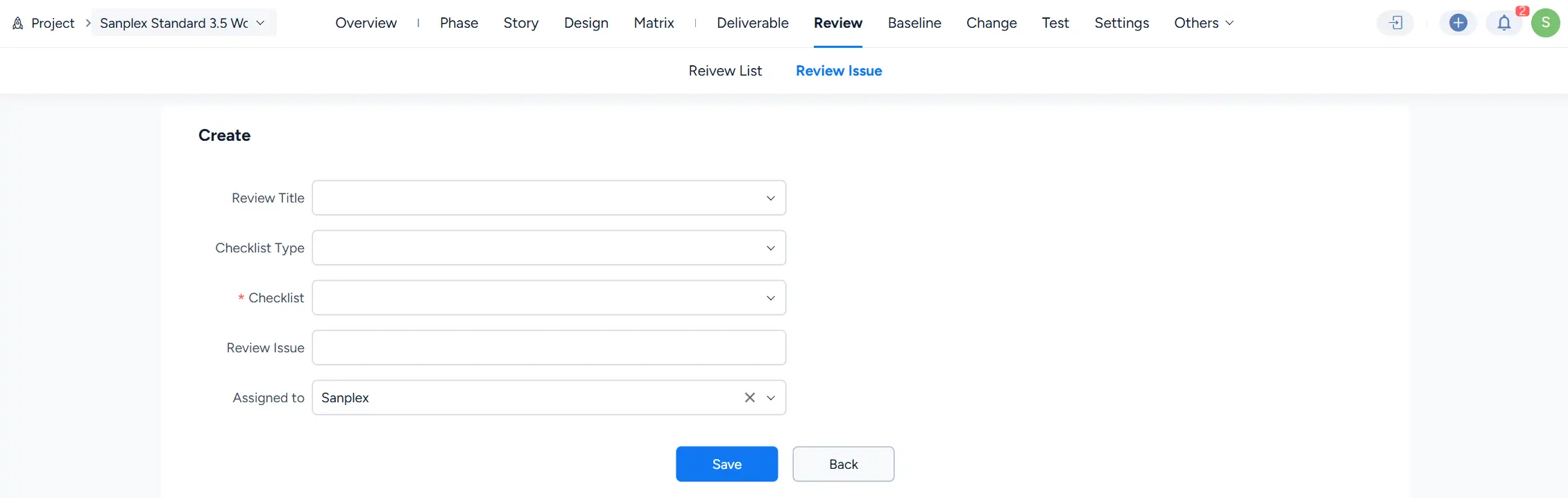
Click Create to open the review issue form.
Select the applicable Review Title, Checklist Type, and Checklist, enter the Review Issue, assign it to a user, and click Save.
7.2 Edit a Review Issue
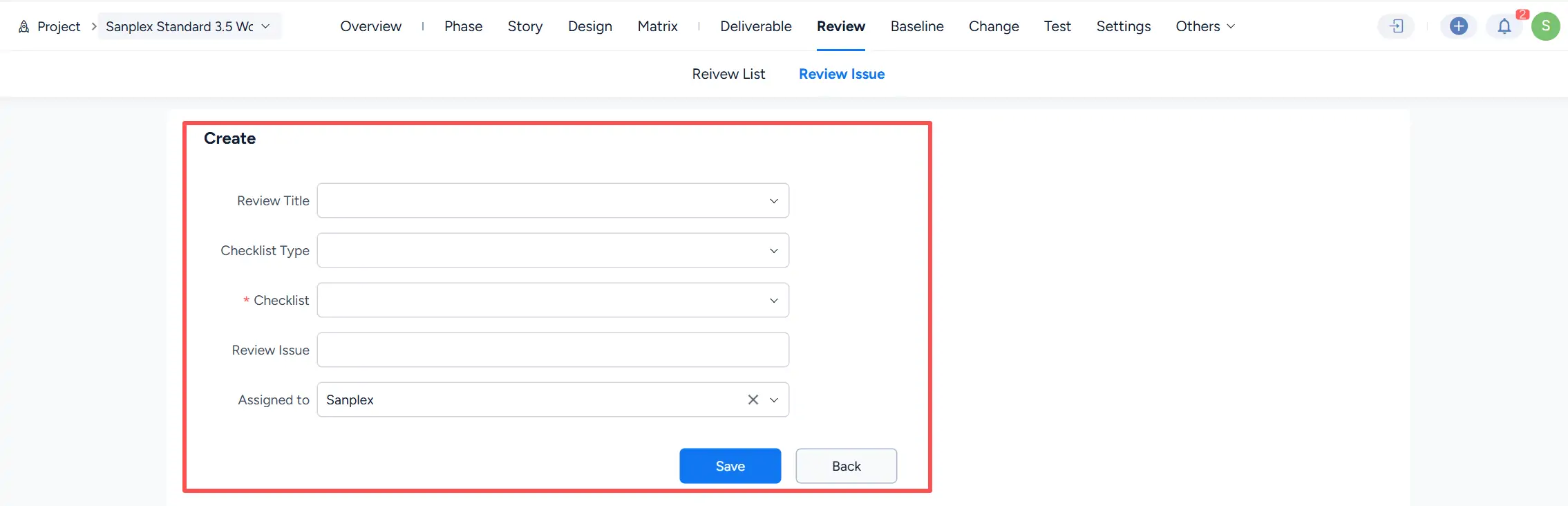
Use the edit action in the Actions column to update a review issue.
7.3 Resolve a Review Issue
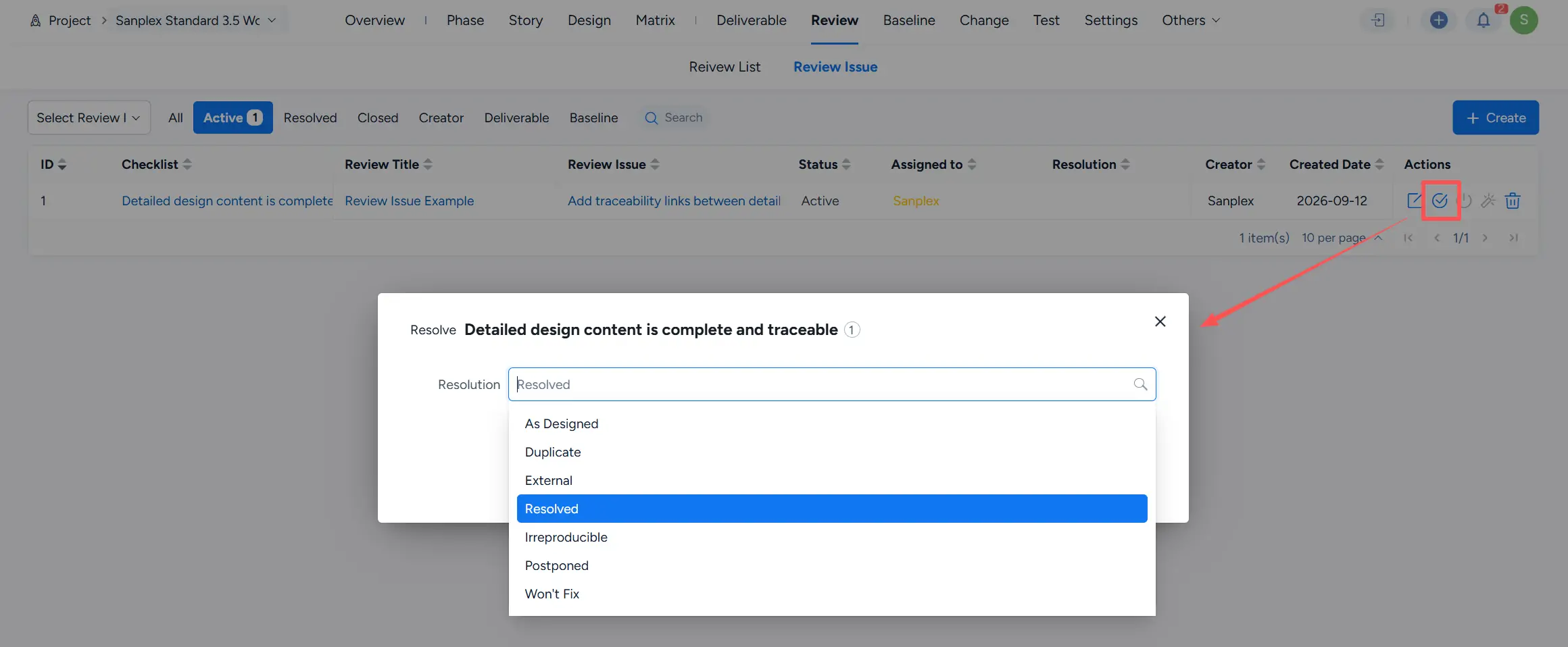
For an active review issue, click the resolve action and select a Resolution.
Available resolution values shown in the current interface include:
- As Designed
- Duplicate
- External
- Resolved
- Irreproducible
- Postponed
- Won't Fix
7.4 Close a Review Issue
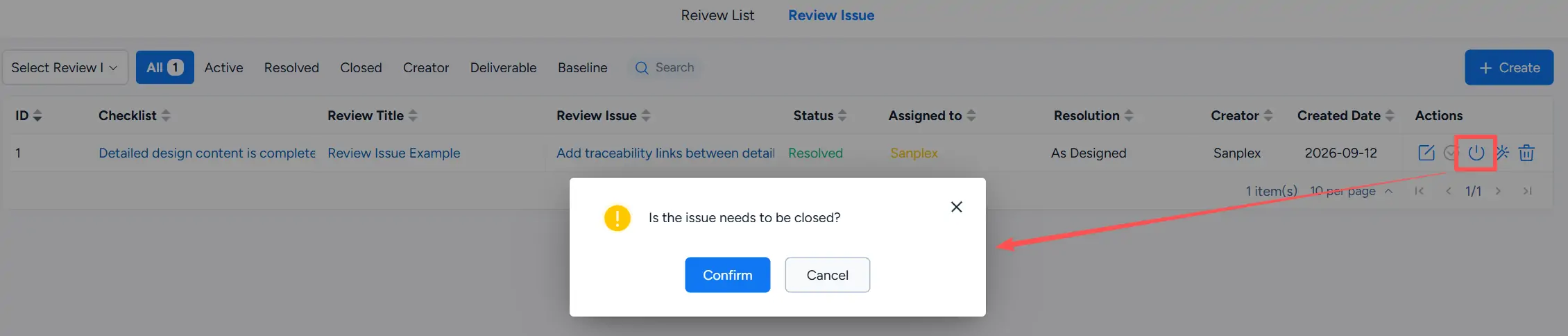
A resolved review issue can be closed from the Actions column. Confirm the operation in the dialog.
7.5 Reactivate a Review Issue
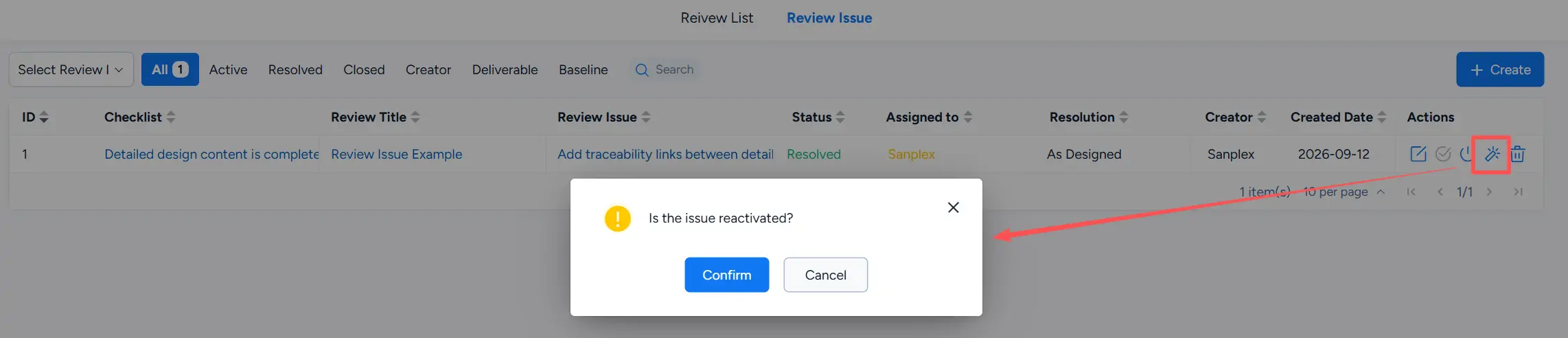
A resolved review issue can also be reactivated for additional follow-up.
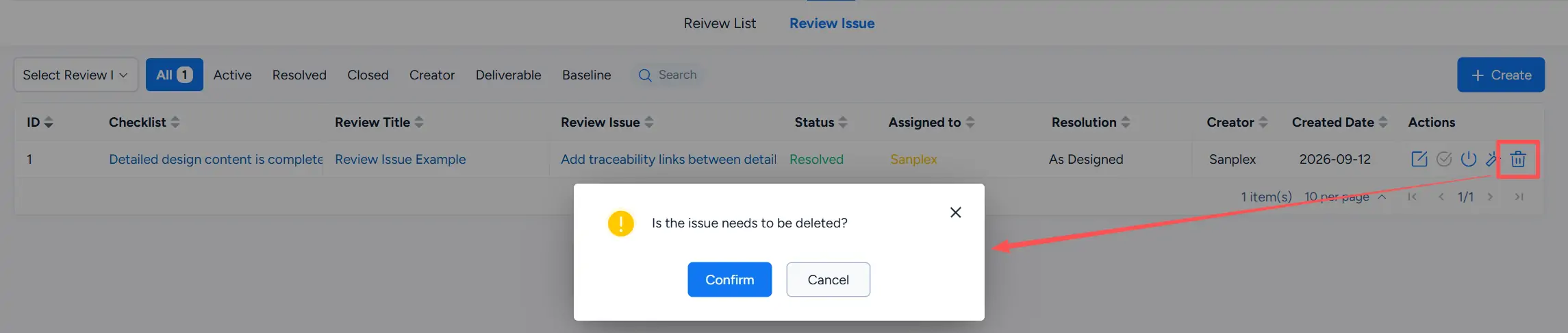
7.6 Delete a Review Issue
Click the delete action and confirm the operation to delete the review issue.