Project Settings
1. Introduction of Sanplex features
1.1. Core Management Framework
1.1.1 Program
1.1.2 Project
1.1.3 Product
1.1.4 Execution
1.1.5 Management Models
1.2. Dashboard
1.2.1 Getting Started with Tutorials
1.2.2 Quick Add
1.2.3 Notification Center
1.2.4 Effort Tracking
1.2.5 Dashboard - Project and Execution
1.2.6 Dashboard - My Work, Contribution, and Recents
1.2.7 Dashboard - Approval
1.2.8 Contacts
1.3. Program
1.3.1 Program List
1.3.2 Program Kanban
1.3.3 Create Program
1.3.4 Create Sub-Programs
1.3.5 Project Charter Management
1.4. Product
1.4.1 Create Product
1.4.2 Manage Modules
1.4.3 Multi-Branch and Multi-Platform Management
1.4.4 Manage Plans
1.4.5 Manage Requirements
1.4.6 Requirement Reviews
1.4.7 Requirement Status and Phase
1.4.8 Create Releases
1.4.9 Track Progress
1.4.10 Business Requirements and Multi-Level Requirements
1.5. Project
1.5.1 Scrum Project
1.5.2. Waterfall Project
1.5.2.1 Manage Project Phases
1.5.2.2 Project Design
1.5.2.3 Project Matrix
1.5.2.4 Project Reports and Earned Value Management
1.5.2.5 Project Baselines
1.5.2.6 Project Change
1.5.3. Kanban Project
1.5.3.1 Set Up Kanban Projects
1.5.3.2 Configure Kanban Boards
1.5.3.3 Use Kanban Boards
1.5.4 Hybrid Agile Project
1.5.5 Hybrid Waterfall Project
1.5.6. Project Settings
1.5.6.1 Project Setup
1.5.6.2 Project Executions
1.5.6.3 Project Requirements
1.5.6.4 Project Builds
1.5.6.5 Project Tests
1.5.6.6 Project Docs
1.5.6.7 Project Releases
1.5.6.8 Project Reports
1.5.6.9 Project Risks
1.5.6.10 Project Issues
1.5.6.11 Project Opportunities
1.5.6.12 Project Deliverables
1.5.6.13 Project Reviews
1.5.6.14 Project Process
1.5.6.15 Deliverables
1.5.6.16 Project-specific Workflow Management
1.6. Admin Settings
1.7. Workflow

Project-specific Workflow Management

2026-09-13 03:04:38
Sanplex Content
7
Last edited by Jing WANG on 2026-09-13 03:11:38
Share links
Summary: Learn how to manage project flows and switch an individual project to a project-level workflow for project-specific field and action customization.

Feature Overview

Building on the project flows configured in Sanplex, Project-specific Workflow Management allows teams to customize workflow behavior for an individual project.

A project can switch from its current project flow to a project-level workflow. After the switch, workflow fields and actions can be customized for the current project without changing the project flow used by other projects.

Use Cases

  • Project-specific workflow customization: For projects with unique delivery or management requirements, teams can customize workflow fields and actions for the current project while keeping the configuration isolated from other projects.

1. Manage Project Flows

Project flows are managed under Admin > Project Flow.

The Project Flow list displays information such as the Name, Project Model, Project Type, and Status of each flow. Built-in project flows are available for different project models and project types.
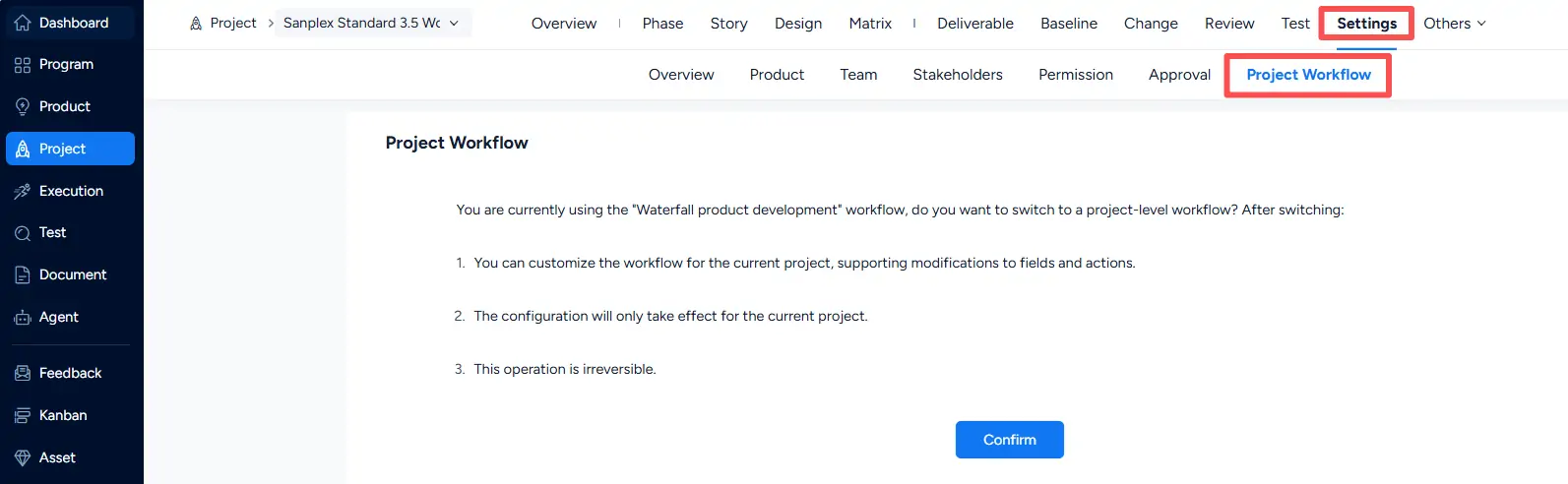
Admin > Project Flow page showing the list of built-in project flows with their project models, project types, statuses, and available actions.

2. Enable a Project-level Workflow

Within a project, go to Settings > Project Workflow.

The page shows the project flow currently used by the project and provides the option to switch to a project-level workflow.

After switching:

  • You can customize the workflow for the current project, including workflow fields and actions.
  • The configuration applies only to the current project.
  • The switch to a project-level workflow is irreversible.

Click Confirm to switch the current project to a project-level workflow.
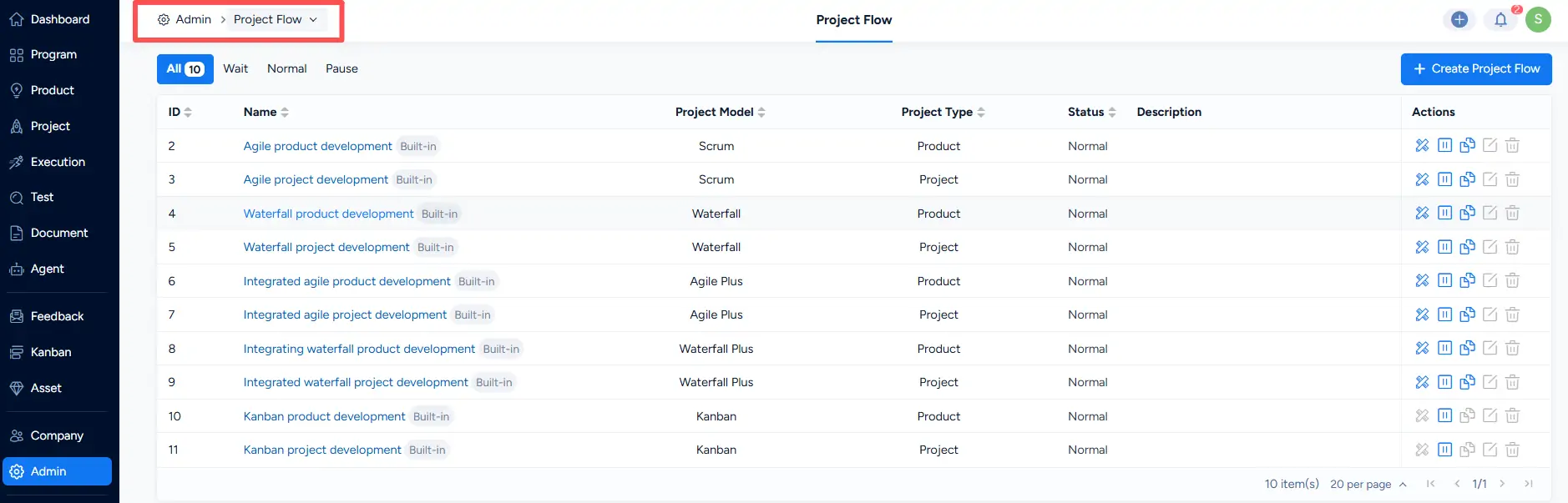
Project > Settings > Project Workflow page showing the current project flow and the confirmation option for switching to a project-level workflow.

Write a Comment
Comment will be posted after it is reviewed.