Project Settings
1. Introduction of Sanplex features
1.1. Core Management Framework
1.1.1 Program
1.1.2 Project
1.1.3 Product
1.1.4 Execution
1.1.5 Management Models
1.2. Dashboard
1.2.1 Getting Started with Tutorials
1.2.2 Quick Add
1.2.3 Notification Center
1.2.4 Effort Tracking
1.2.5 Dashboard - Project and Execution
1.2.6 Dashboard - My Work, Contribution, and Recents
1.2.7 Dashboard - Approval
1.2.8 Contacts
1.3. Program
1.3.1 Program List
1.3.2 Program Kanban
1.3.3 Create Program
1.3.4 Create Sub-Programs
1.3.5 Project Charter Management
1.4. Product
1.4.1 Create Product
1.4.2 Manage Modules
1.4.3 Multi-Branch and Multi-Platform Management
1.4.4 Manage Plans
1.4.5 Manage Requirements
1.4.6 Requirement Reviews
1.4.7 Requirement Status and Phase
1.4.8 Create Releases
1.4.9 Track Progress
1.4.10 Business Requirements and Multi-Level Requirements
1.5. Project
1.5.1 Scrum Project
1.5.2. Waterfall Project
1.5.2.1 Manage Project Phases
1.5.2.2 Project Design
1.5.2.3 Project Matrix
1.5.2.4 Project Reports and Earned Value Management
1.5.2.5 Project Baselines
1.5.2.6 Project Change
1.5.3. Kanban Project
1.5.3.1 Set Up Kanban Projects
1.5.3.2 Configure Kanban Boards
1.5.3.3 Use Kanban Boards
1.5.4 Hybrid Agile Project
1.5.5 Hybrid Waterfall Project
1.5.6. Project Settings
1.5.6.1 Project Setup
1.5.6.2 Project Executions
1.5.6.3 Project Requirements
1.5.6.4 Project Builds
1.5.6.5 Project Tests
1.5.6.6 Project Docs
1.5.6.7 Project Releases
1.5.6.8 Project Reports
1.5.6.9 Project Risks
1.5.6.10 Project Issues
1.5.6.11 Project Opportunities
1.5.6.12 Project Deliverables
1.5.6.13 Project Reviews
1.5.6.14 Project Process
1.5.6.15 Deliverables
1.5.6.16 Quality Assurance
1.5.6.17 Project-specific Workflow Management
1.5.7 Project Templates
1.6. Execution
1.6.1 Product Planning and Task Breakdown
1.6.2 Task Assignment and Daily Tracking
1.6.3 Build Creation and Test Requests
1.6.4 Bug Confirmation and Resolution
1.6.5 Execution Kanban Boards
1.7. Admin Settings
1.8. Workflow

Quality Assurance

2026-09-13 02:41:35
Sanplex Content
165
Last edited by Jing WANG on 2026-09-20 14:07:17
Share links
Summary: Learn how to create audit plans, perform QA checks, review deliverable submission status, track and resolve non-conformances, and configure QA checklist items in Sanplex.

Feature Overview

  • Quality Assurance (QA) is the set of practices used to ensure that quality management activities are carried out effectively and consistently.
  • Quality Assurance focuses on performing checks, identifying non-conformances, and improving project processes to support consistent delivery quality.
  • At the project level, Quality Assurance helps teams plan and perform quality checks through Audit Plans, review deliverable submission status through the Deliverable Checklist, and track identified Non-Conformances through resolution.
  • In Sanplex Premium, the QA module is available under Project and includes Audit Plan, Deliverable Checklist, and Non-Conformances.

Use Cases

  • Create audit plans: Project managers or quality leads can create audit plans for selected processes and activities, define planned check dates, and assign responsible users.
  • Run quality checks: Teams can perform checks against predefined QA checklist items and record the result, comments, and severity.
  • Review deliverable submission: Teams can use the Deliverable Checklist to review deliverables by process and activity and check their submission information.
  • Track non-conformances: Issues identified during quality checks can be recorded and followed through resolution.
  • Set up QA checklists: QA checklist items can be configured in the project flow so teams use consistent quality criteria across projects.
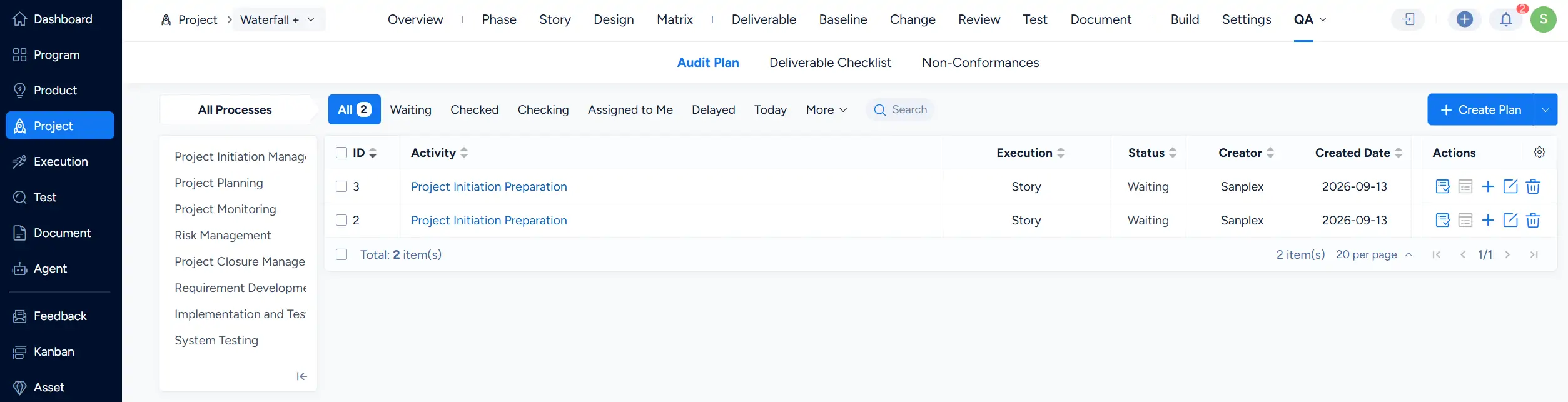
Project QA > Audit Plan page showing process filters, audit plan status filters, and the audit plan list with Activity, Execution, Status, Creator, Created Date, and Actions columns.

I. Create an Audit Plan

On the QA > Audit Plan page, click Create Plan.

Select the Process and Activity to be checked. You can also select an Execution, define planned check dates, enable Cycle when applicable, and assign responsible users.
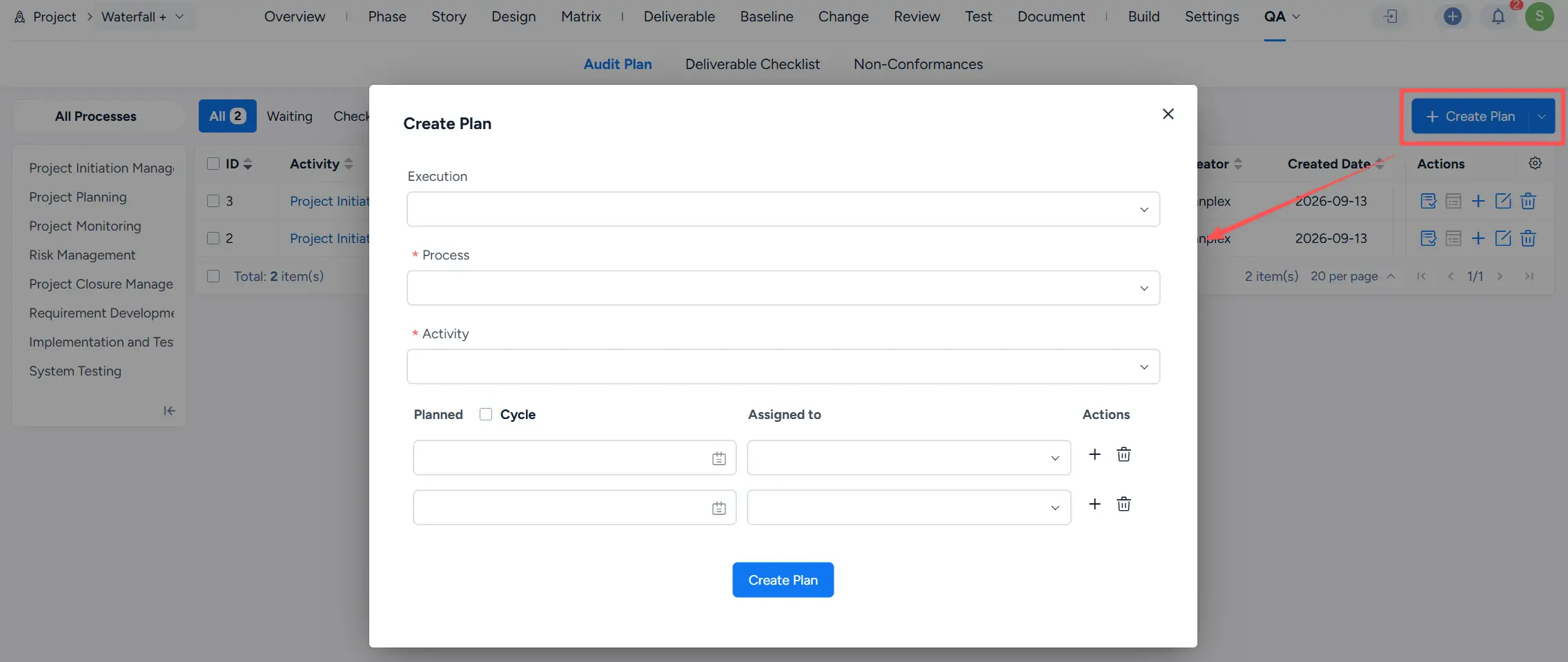
Create Plan dialog showing Execution, Process, Activity, Planned, Cycle, Assigned to, and Actions fields, with the Create Plan button at the bottom.

Click Create Plan to create the audit plan and return to the Audit Plan list.

From the Actions column, click the check action to perform the quality check.

Audit Plan list showing two plans for Project Initiation Preparation, with the Check action highlighted in the Actions column.

II. Run Quality Checks Based on the Plan

When you open a check, Sanplex displays the QA checklist items associated with the selected activity.

For each item, select one of the following results:

  • Pass
  • Fail
  • Not Applicable

You can also enter a Comment and select a Severity where applicable.

Click Save to submit the check result, or Save Draft to retain the current check information for later completion.
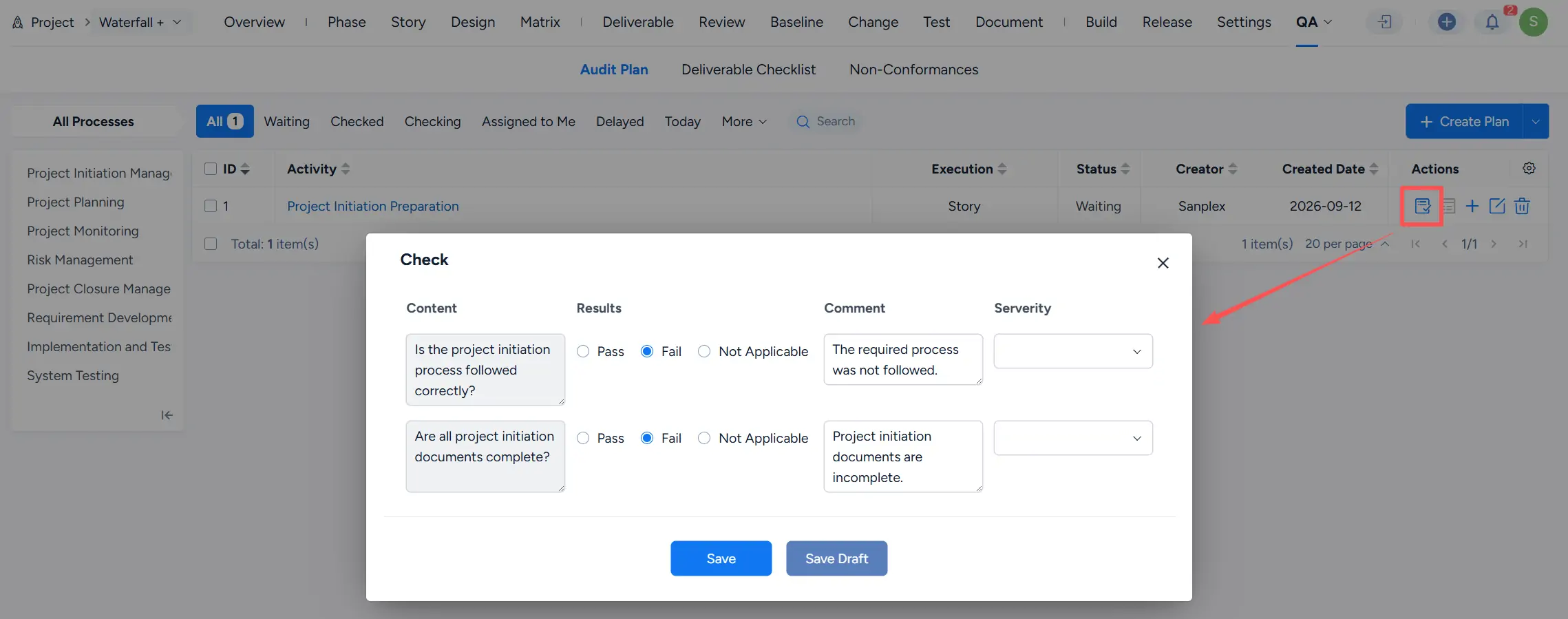
Check dialog showing two audit items with Pass, Fail, and Not Applicable options, Comment fields, Severity selectors, and Save and Save Draft buttons.

III. Deliverable Checklist

Open QA > Deliverable Checklist to review deliverables associated with project processes and activities.

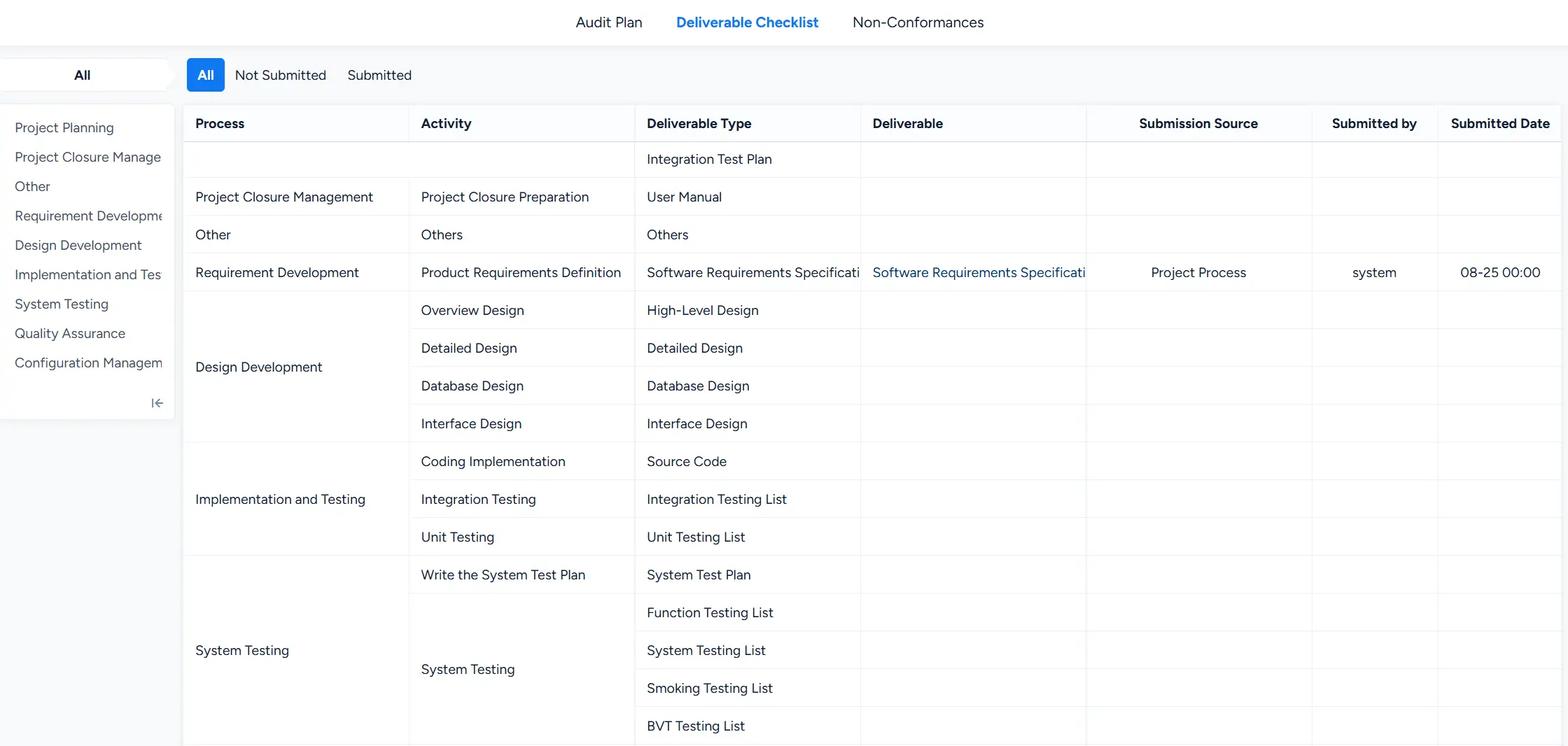
The list displays information including:

  • Process
  • Activity
  • Deliverable Type
  • Deliverable
  • Submission Source
  • Submitted by
  • Submitted Date

Use the All, Not Submitted, and Submitted filters to review deliverable submission status. Deliverable Checklist page showing deliverables grouped by process and activity, with Deliverable Type, Deliverable, Submission Source, Submitted by, and Submitted Date columns.
IV. Non-Conformances

Non-conformances identified during QA activities can be viewed under QA > Non-Conformances.

The list displays information such as Title, Severity, Status, Type, Audit Plan, Created Date, and Assigned to. You can also filter records by assignment and status.

Non-Conformances page showing two open nonconformities with Severity, Status, Audit Plan, Created Date, Assigned to, and Actions information.

To resolve a non-conformance, click the Resolve action.

In the Resolve dialog, select a Resolution, specify the Resolved Date, optionally assign a user, and enter a Description. Click Resolve to complete the action.

The dialog also displays the record's History.
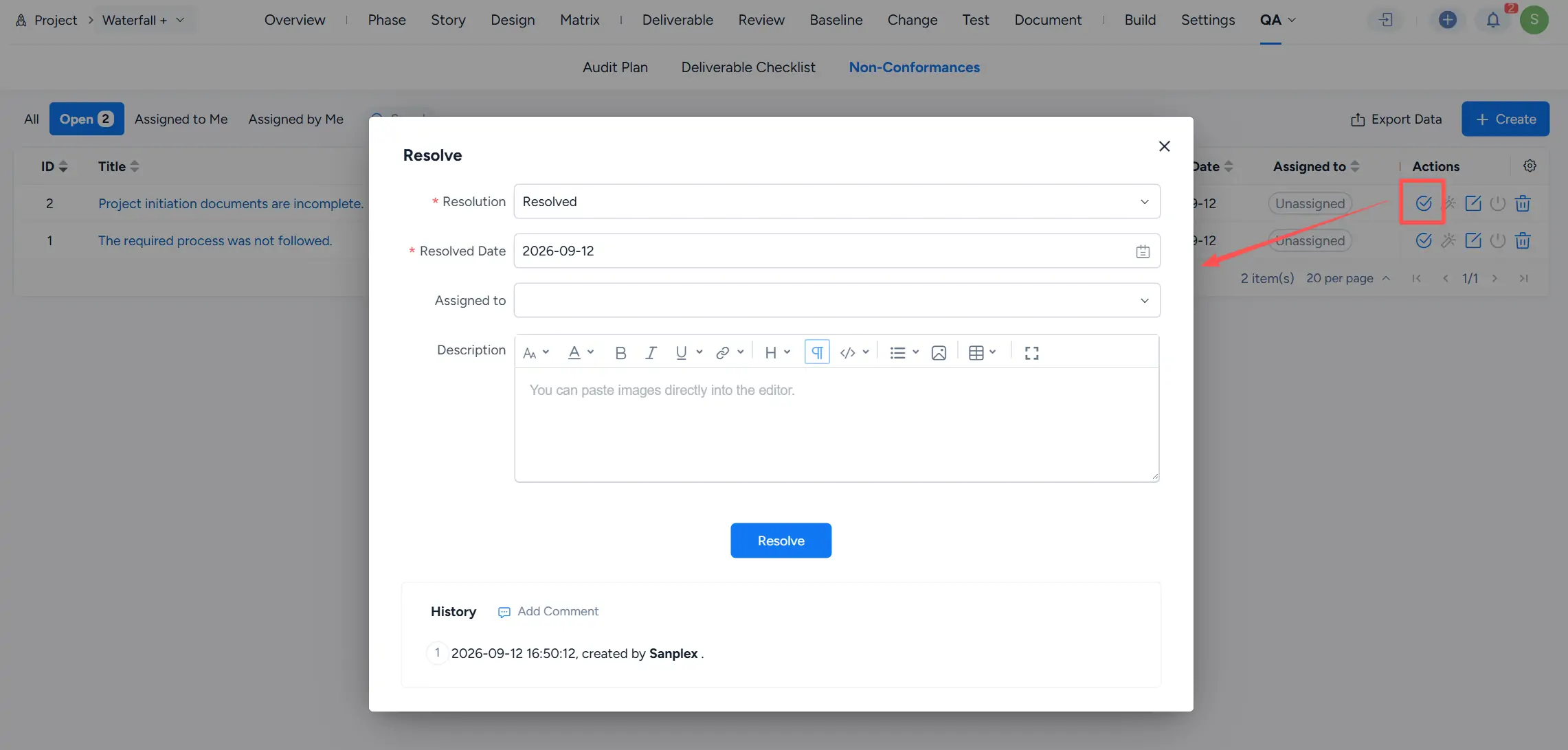
Resolve dialog for a nonconformity showing Resolution, Resolved Date, Assigned to, Description, the Resolve button, and History.

V. Set Up QA Checklists

Go to Admin > Project Flow, open the applicable project flow, and select QA Checklist.

The left panel organizes checklist configuration by process. Click Create Check Item to add a QA checklist item for the selected process or activity.

These checklist items can then be used when performing checks through project Audit Plans.
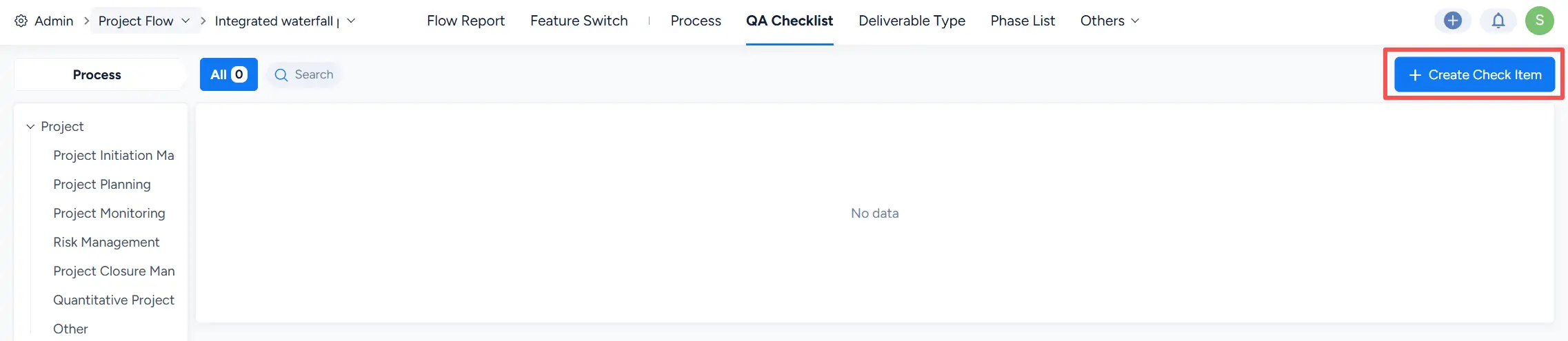
QA Checklist configuration page in Project Flow showing the process hierarchy and the Create Check Item button.

Write a Comment
Comment will be posted after it is reviewed.