Catalog
Requirement reviews help teams verify new or changed Requirements before they move forward in the product lifecycle.
Requirements can be saved as Drafts while they are still being refined and submitted for review when they are ready. Reviews are especially useful in the following situations:
- Early ideas can be saved as Drafts and reviewed after the details have been refined.
- Requirements identified during development, testing, or customer support can be submitted for review before being incorporated into subsequent work.
- Changes to important Requirement information, such as the title, description, acceptance criteria, or attachments, can go through the change and review process before becoming effective.
When a Requirement change is being prepared, its status can be Changing. After the change is submitted for review, the Requirement enters Reviewing status. The subsequent status is determined by the review result and the configured review rules.
This section explains how to configure and use Requirement reviews in Sanplex, including review rules, reviewers, Super Reviewers, multi-reviewer workflows, and review recall.
I. Configure Review Rules, Processes, and Results
Review settings are maintained under Admin > Features > Product. Sanplex provides separate configuration areas for Epic, Requirement, and Story, allowing review behavior to be configured for the corresponding requirement level.
Select the required level and use Review Rules, Review Result, and Review Process to configure its review behavior.
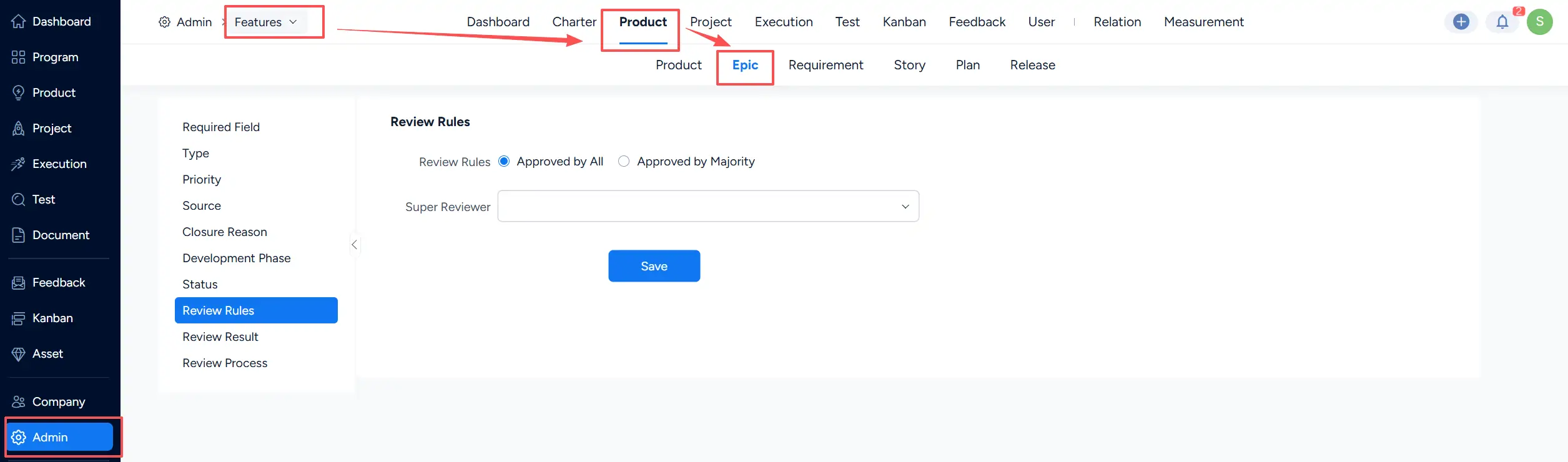
1. Review Rules
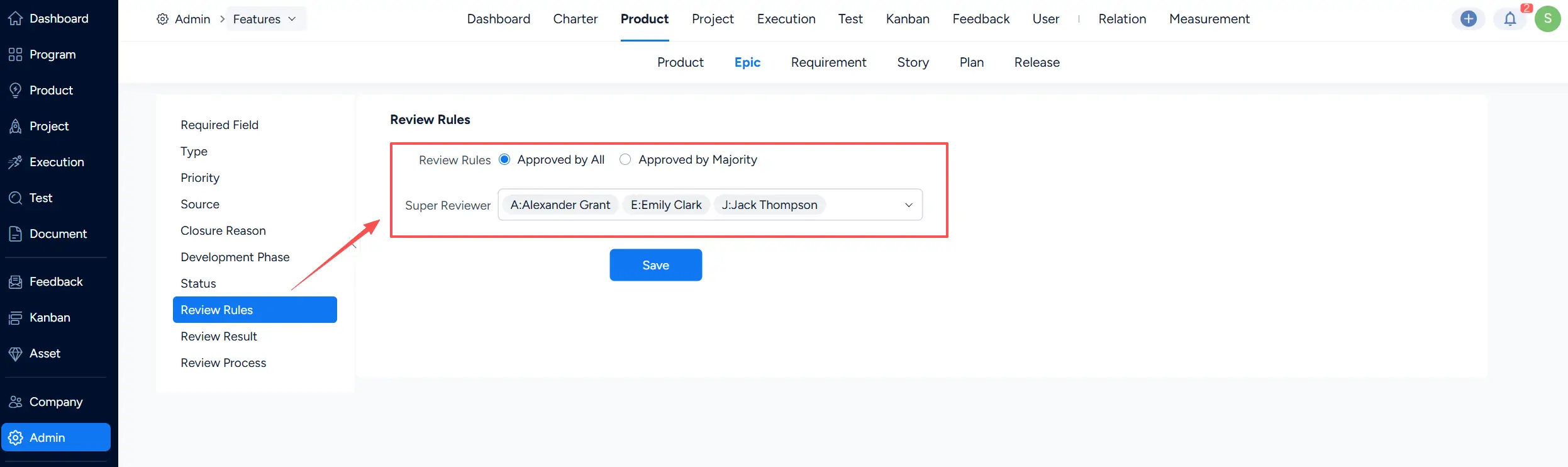
Under Review Rules, you can select the rule used to determine whether a multi-reviewer review passes. You can also configure one or more Super Reviewers.
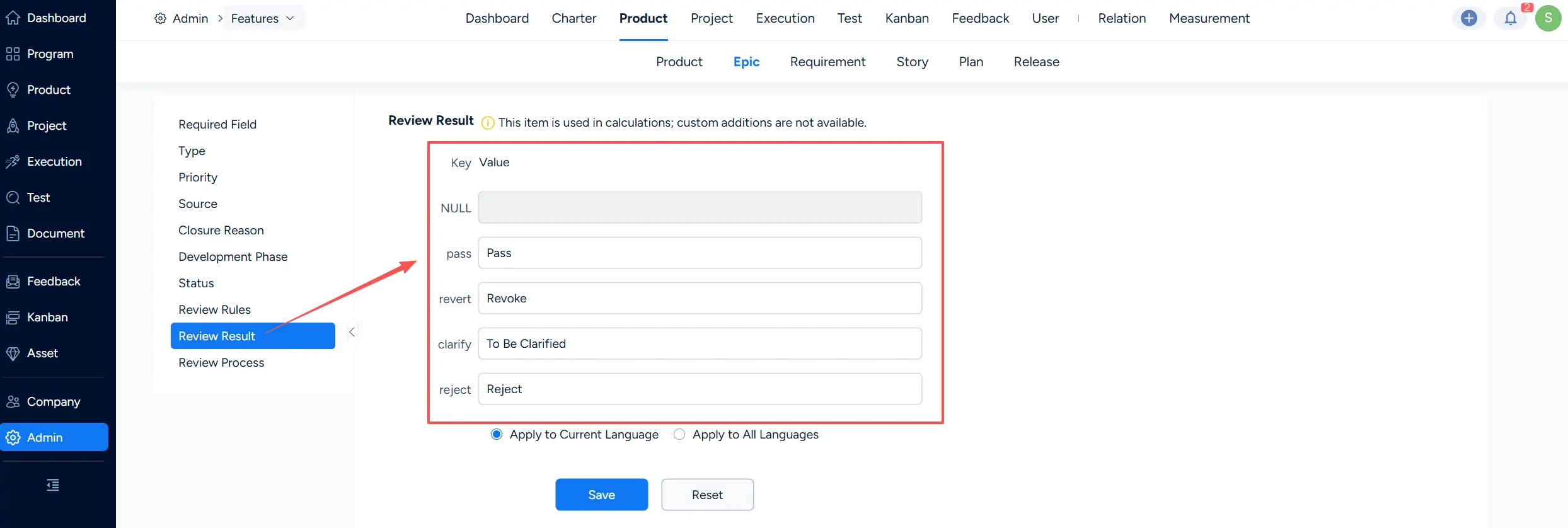
2. Review Results
Under Review Result, you can maintain the displayed values for the predefined review results used by Sanplex.
These results include Pass, Revoke, To Be Clarified, and Reject. Because the corresponding keys are used in system calculations, the existing result values can be adjusted while their underlying result types remain fixed.
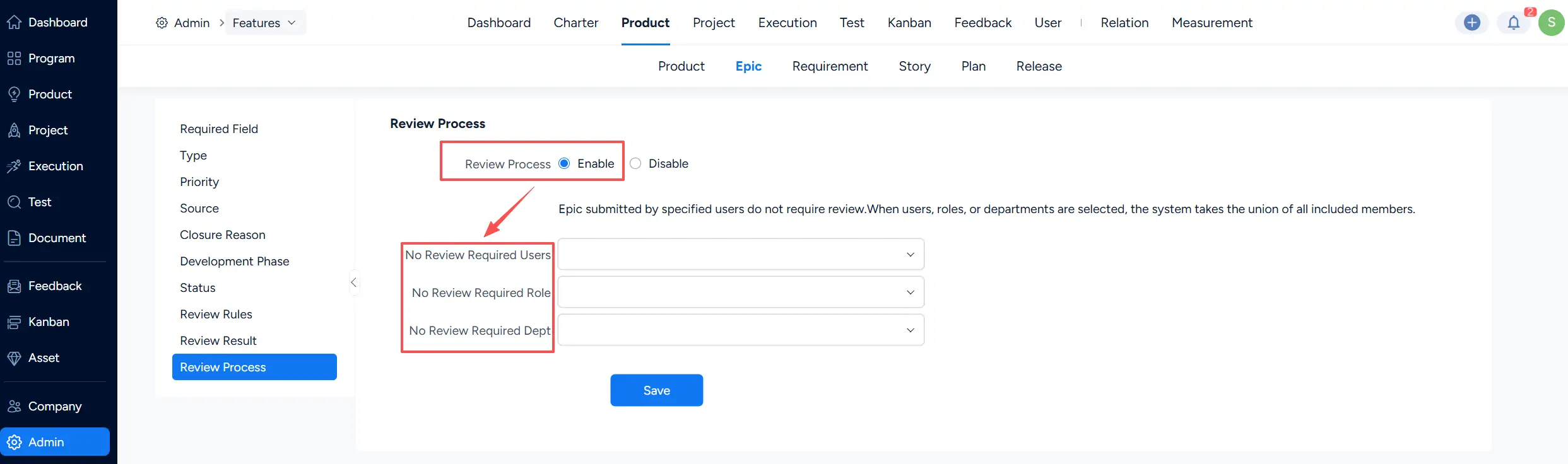
3. Review Process
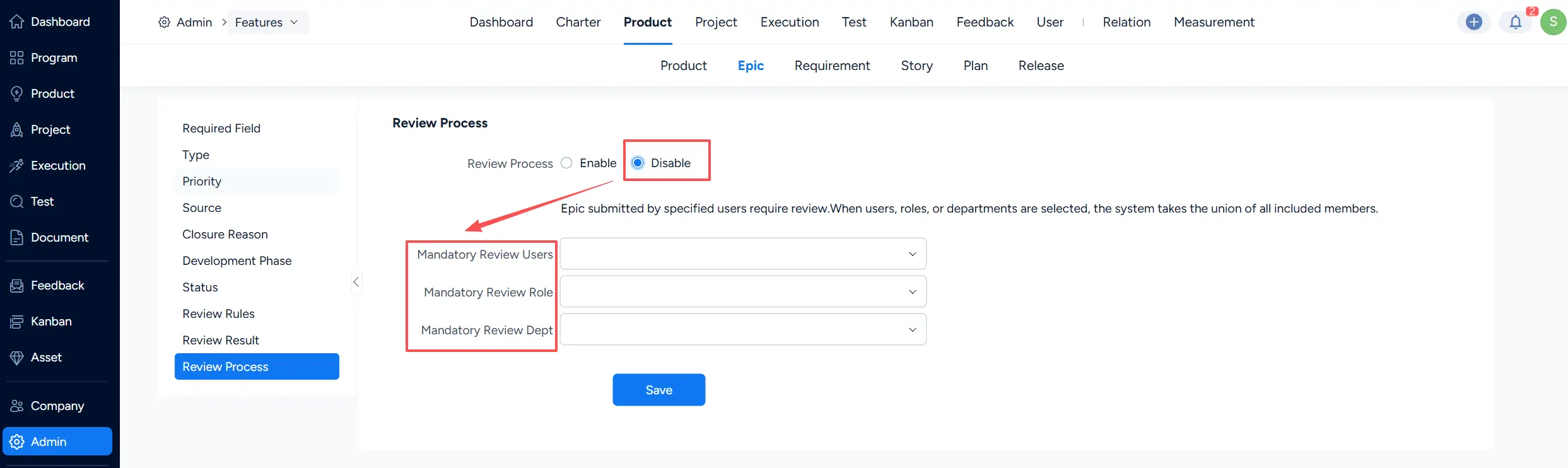
The Review Process setting determines how review requirements are applied.
When the Review Process is enabled, you can specify No Review Required Users, No Review Required Roles, and No Review Required Departments. Requirements submitted by the specified users are not required to enter the standard review workflow.
When the Review Process is disabled, you can specify Mandatory Review Users, Mandatory Review Roles, and Mandatory Review Departments. Requirements submitted by members included in these settings still require review.
II. Requirement Reviewers
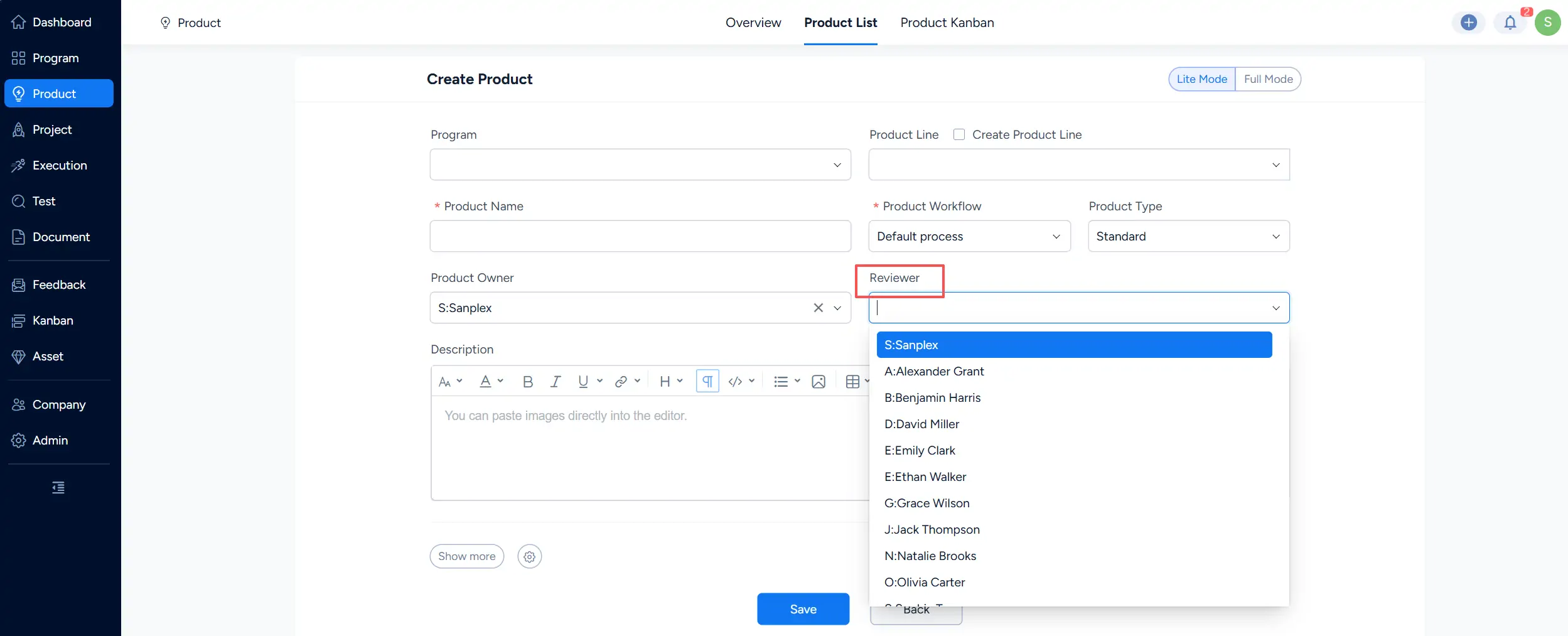
When creating or editing a Product, you can configure one or more default Reviewers for that Product.
These reviewers are used as the default reviewer options when Requirements under the Product are created or changed and require review.
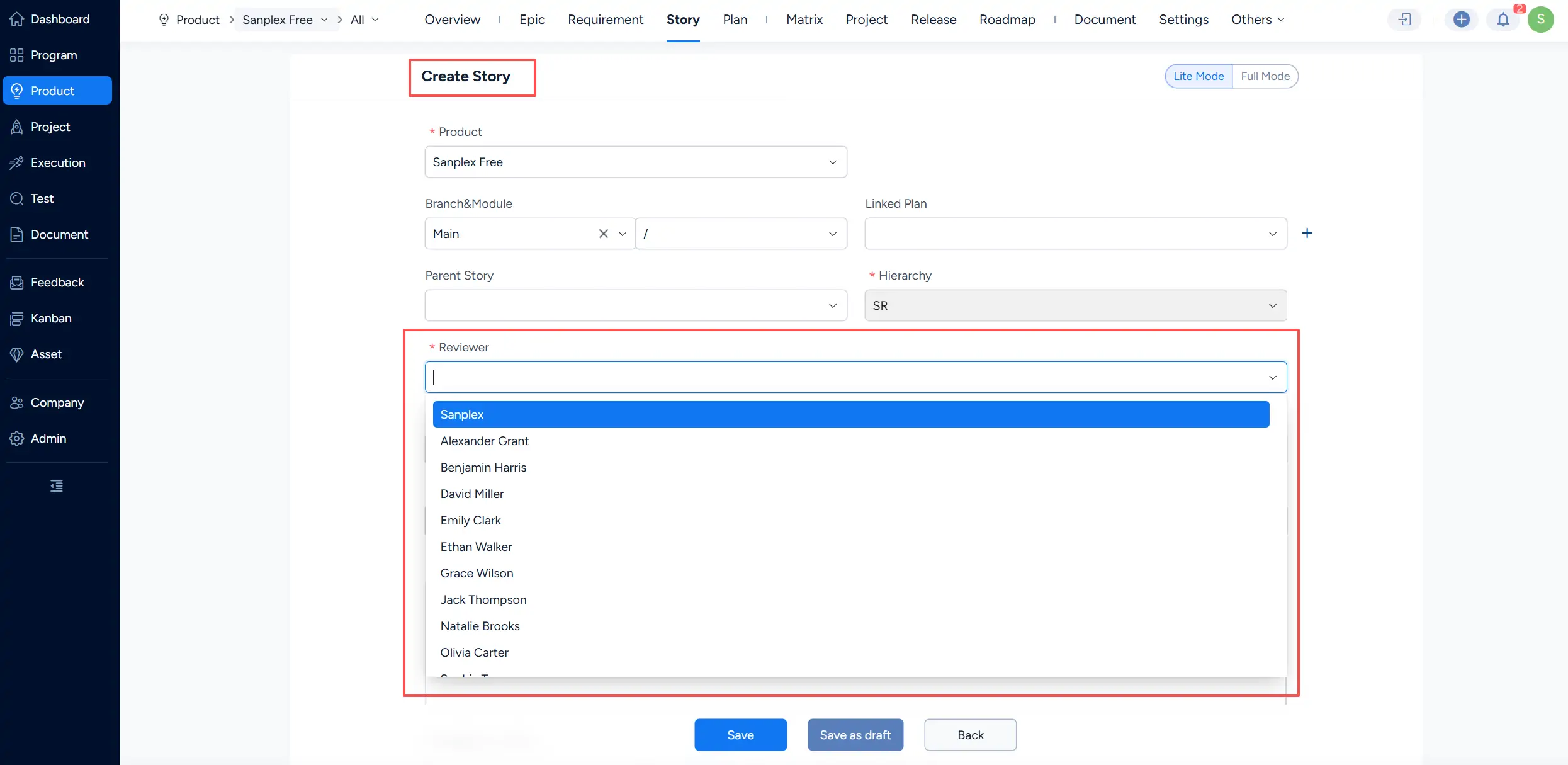
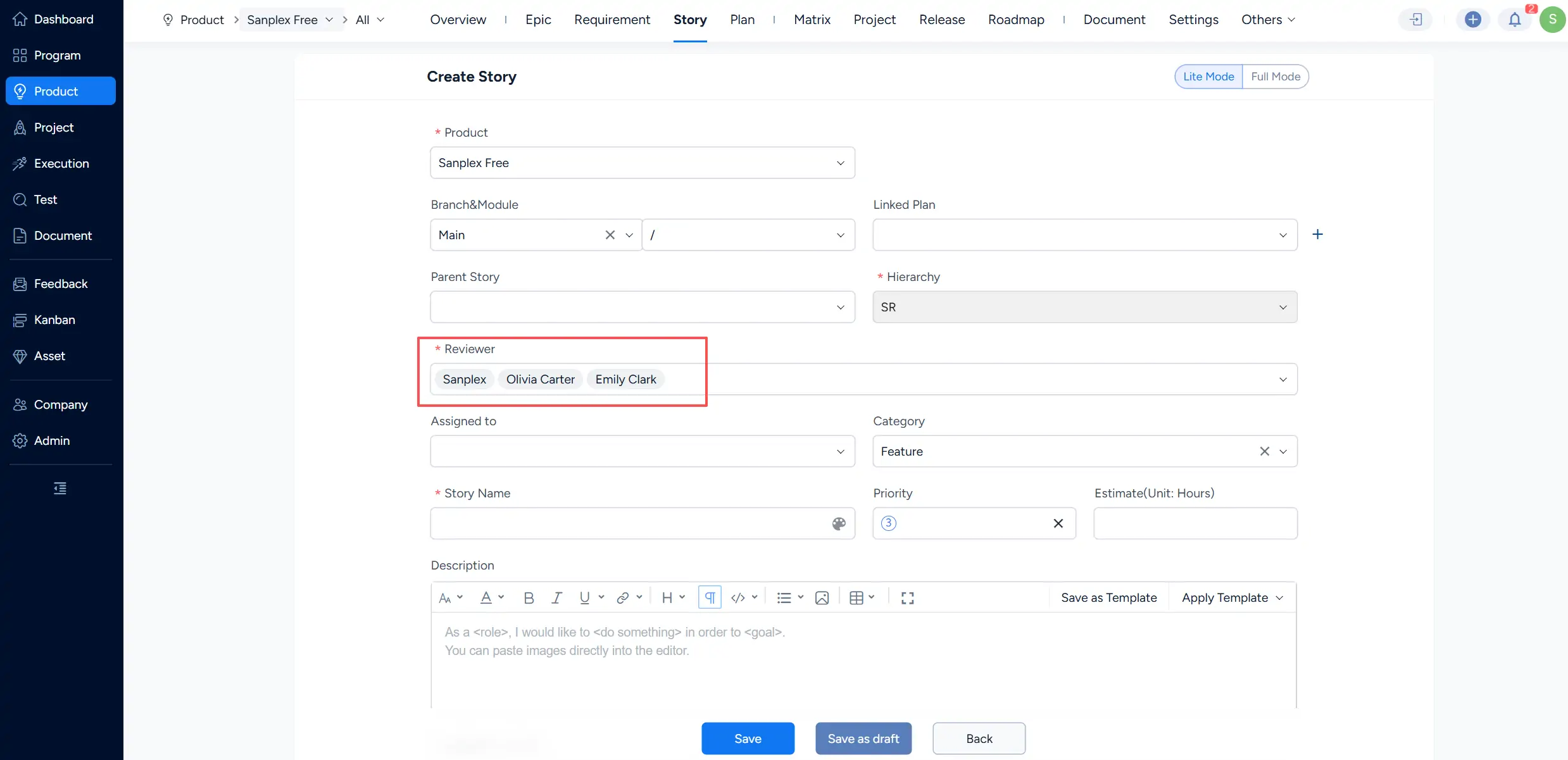
When creating a Requirement, the Reviewer field allows the applicable reviewers to be selected. Multiple reviewers can be assigned to the same Requirement.
When Product reviewers have been configured, they are used as the reviewer options for Requirements under that Product. If no default Product reviewers are specified, reviewers can be selected from the available users who have access to the Product.
III. Super Reviewers for Requirements
Super Reviewers can be configured under Admin > Features > Product > Epic / Requirement / Story > Review Rules.
Multiple Super Reviewers can be selected.
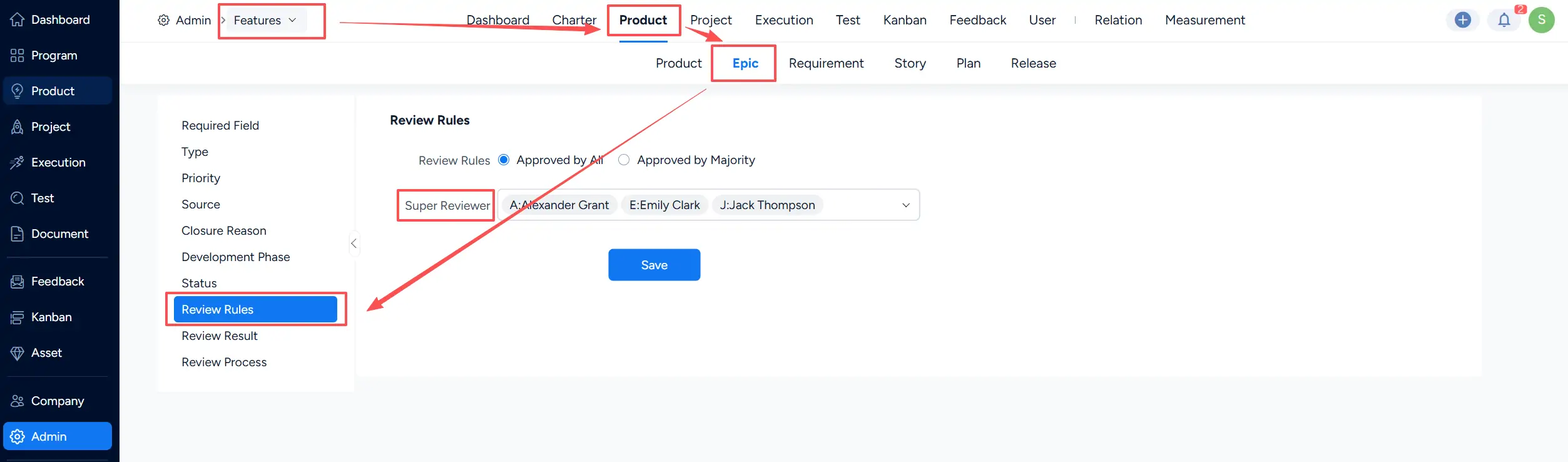
A Super Reviewer can provide a decisive result for the current review round independently of the standard multi-reviewer approval rule.
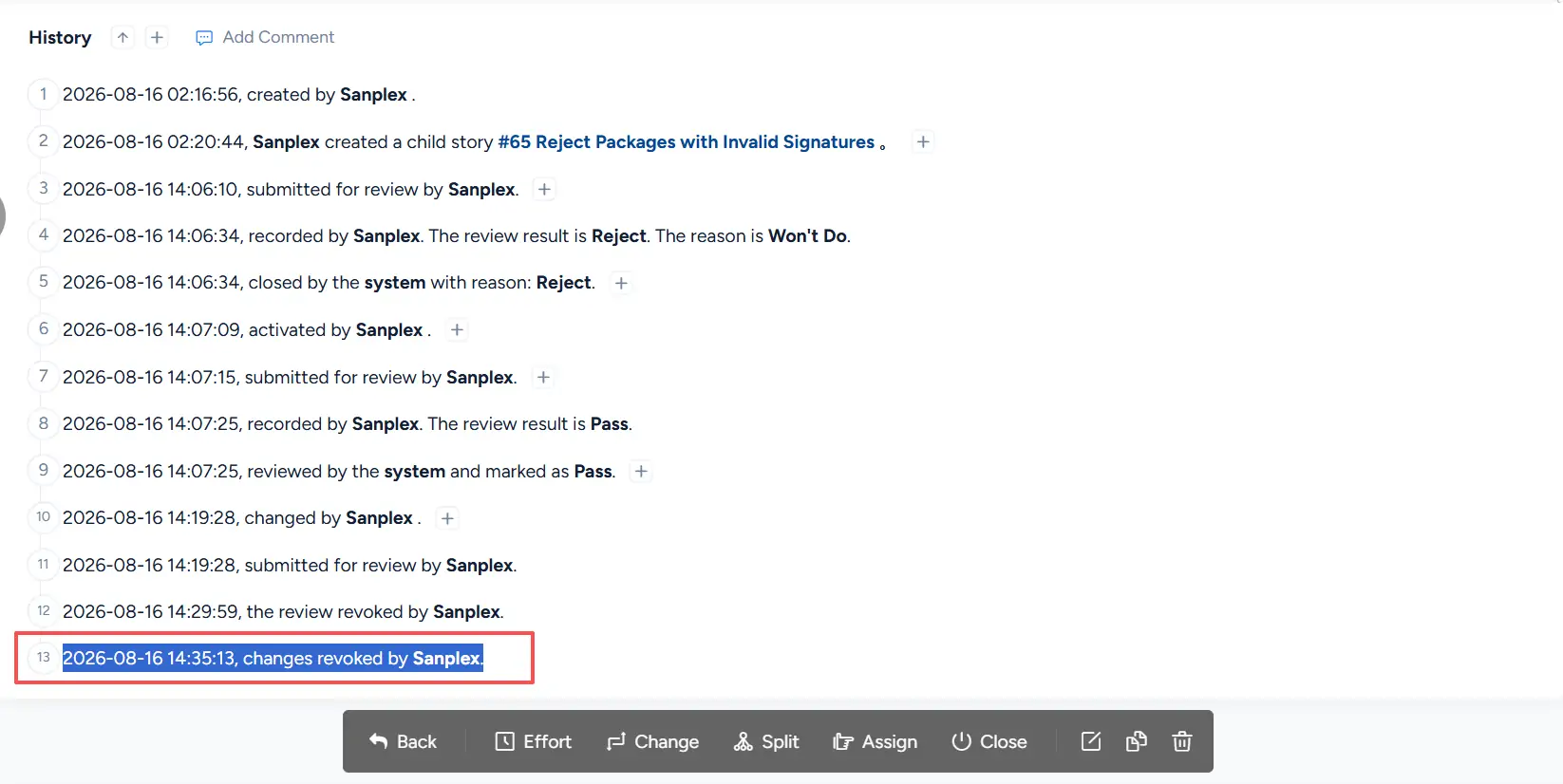
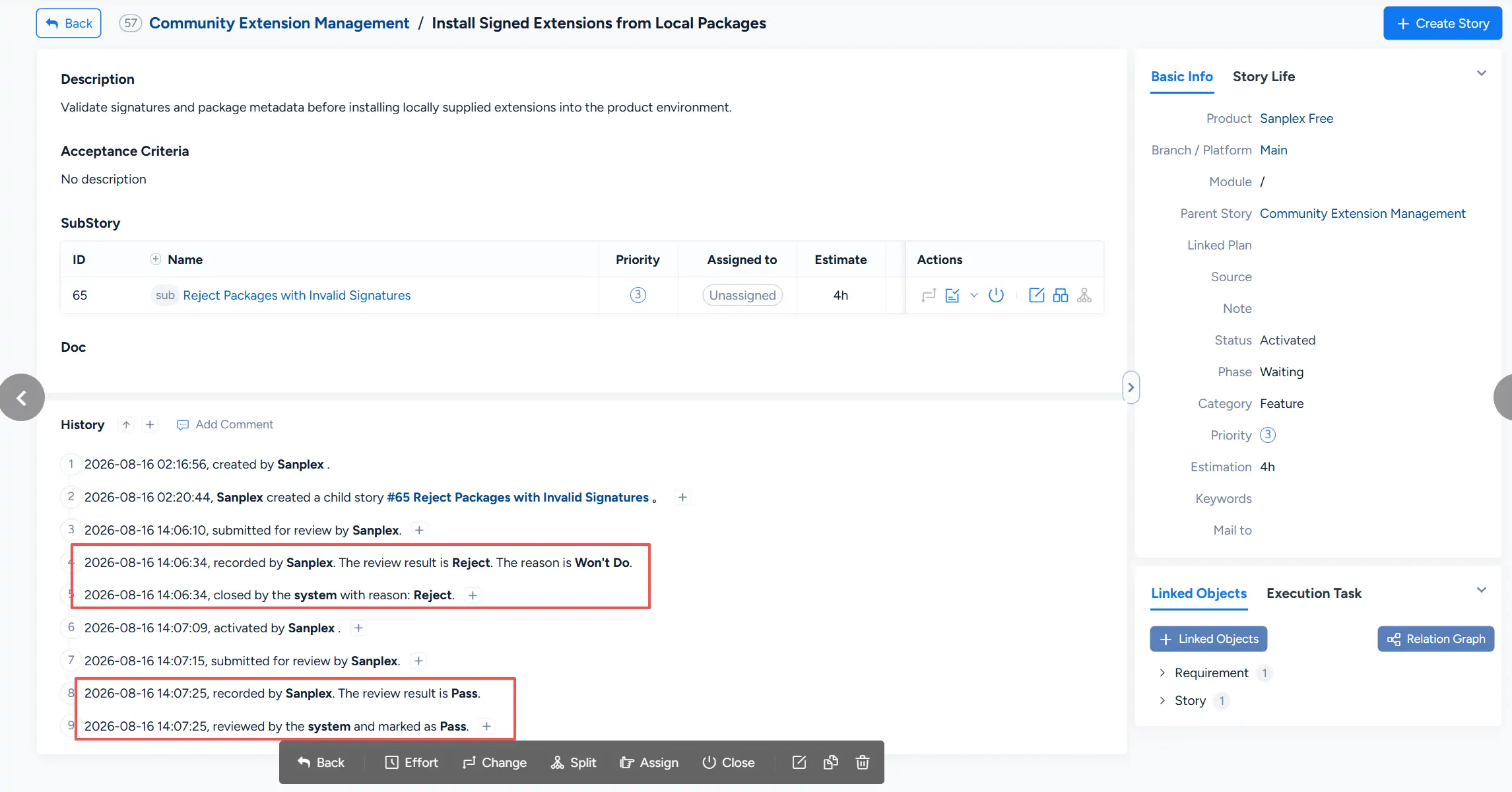
For example, a Requirement may first receive a Reject result and later receive a Pass result from an authorized Super Reviewer. The final review result for the current round is updated accordingly.
Review activities and results are recorded in the Requirement history, making the review process traceable.
IV. Multi-Reviewer Requirement Reviews
Sanplex allows multiple reviewers to participate in the same Requirement review. The final result is calculated according to the configured Review Rules and the review results submitted by the reviewers.
1. Configure Review Rules
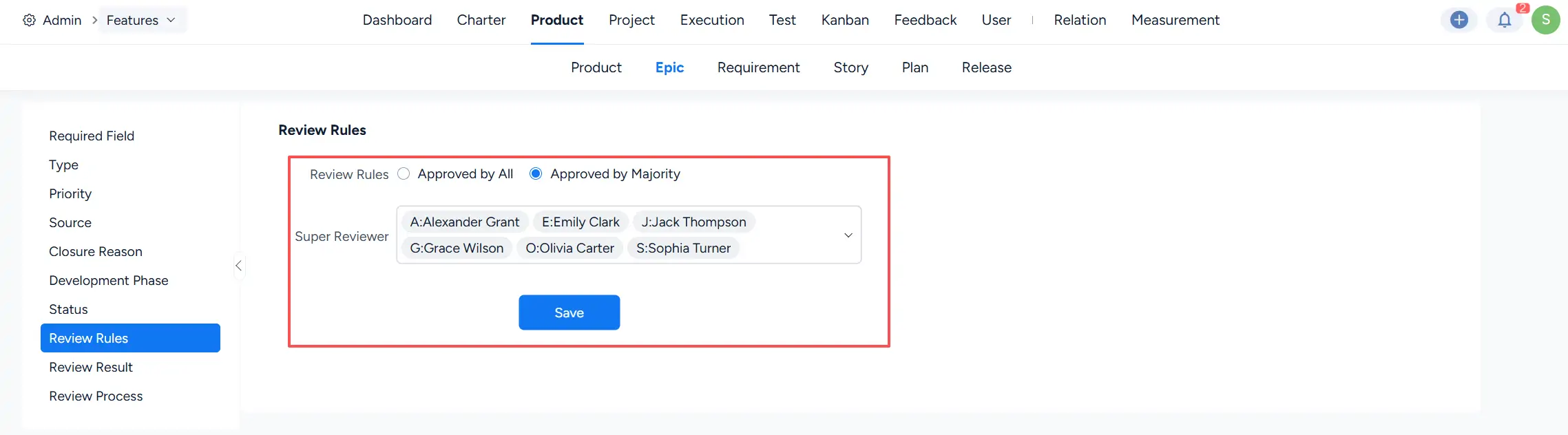
Under Admin > Features > Product > Epic / Requirement / Story > Review Rules, two approval rules are available:
- Approved by All: the Requirement passes only when all required reviewers approve it.
- Approved by Majority: the Requirement passes when more than half of the reviewers approve it.
2. Multi-Reviewer Review When Creating Requirements
When creating a single Requirement, you can select multiple reviewers in the Reviewer field.
Multiple reviewers can also be specified when creating Requirements in batch.
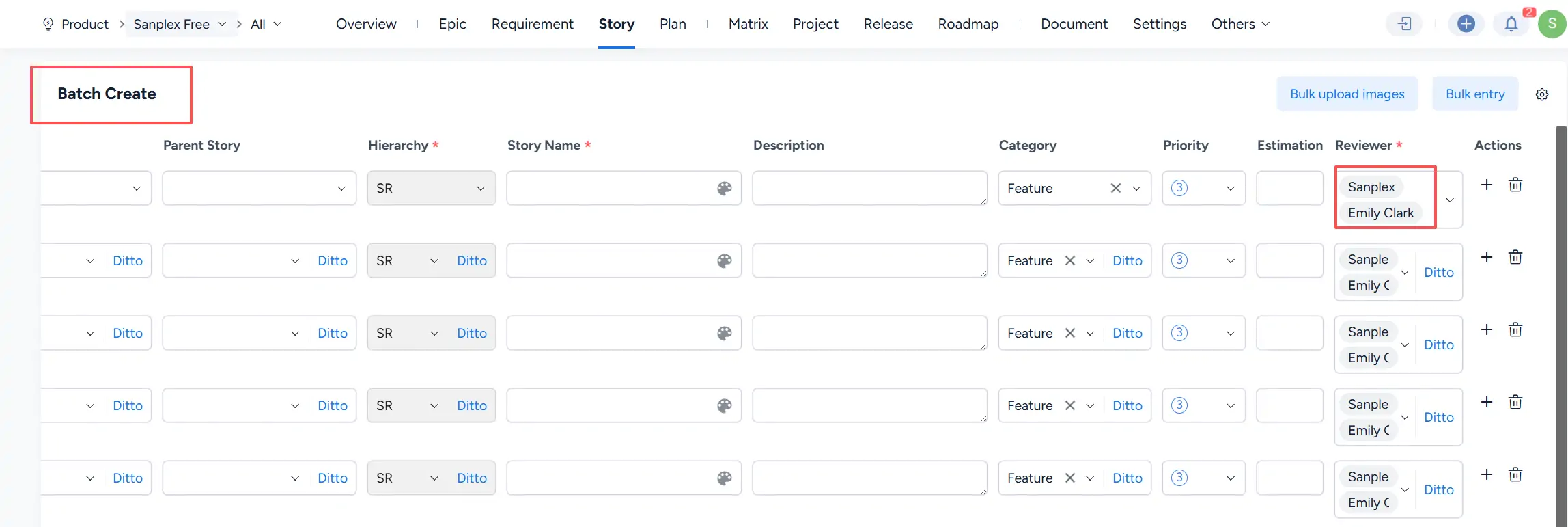
The review workflow follows the Requirement's current state:
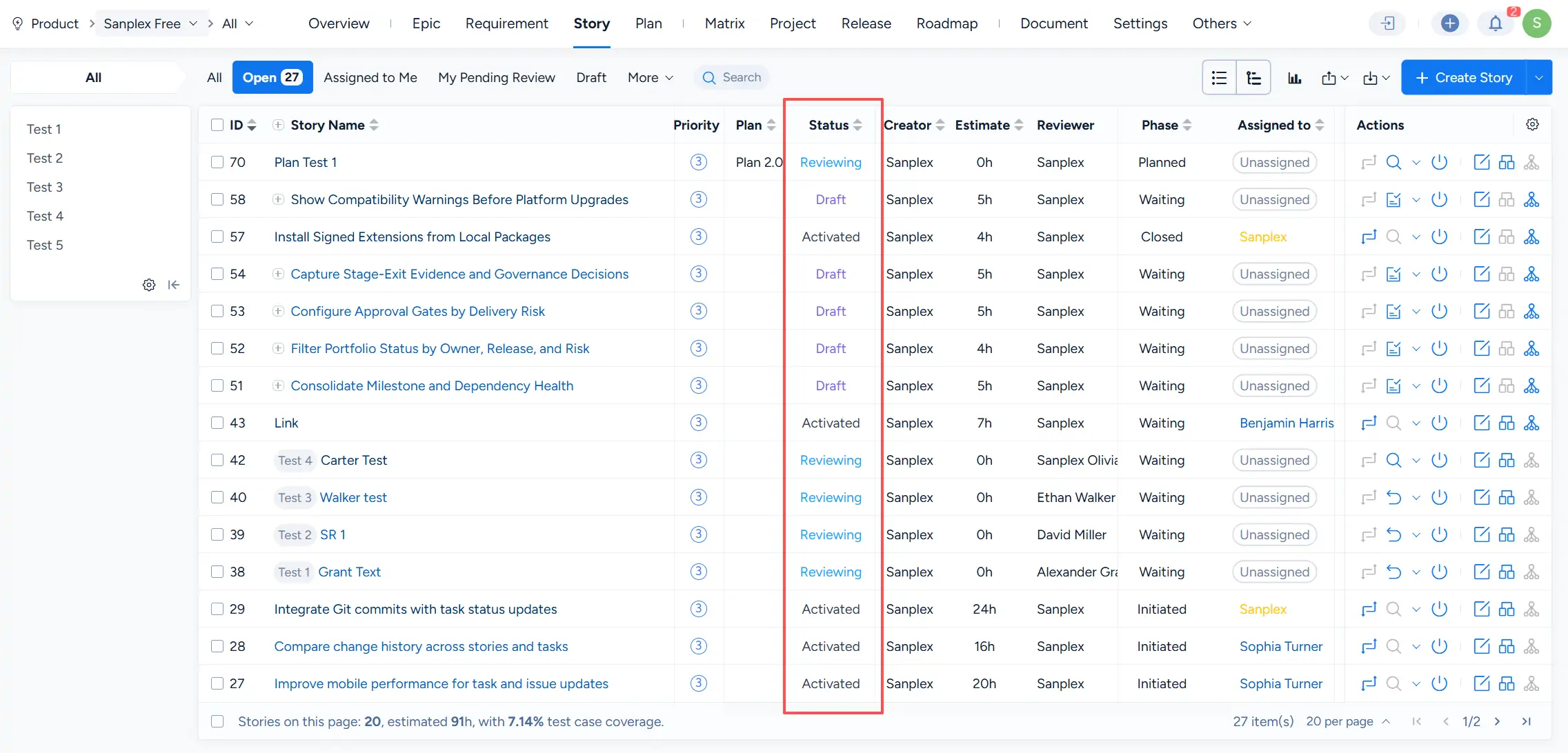
- Click Save as Draft to save the Requirement in Draft status.
- Submit the Requirement for review to move it to Reviewing status.
- After the required reviewers complete their reviews, Sanplex calculates the result according to the configured review rule.
- If the Requirement passes review, its status becomes Activated.
- If the final result is Reject, the Requirement is closed.
- If the final result is To Be Clarified, the Requirement returns to Draft so that it can be revised and submitted again.
3. Multi-Reviewer Review When Changing a Requirement
Multiple reviewers can also be assigned when a Requirement is changed.
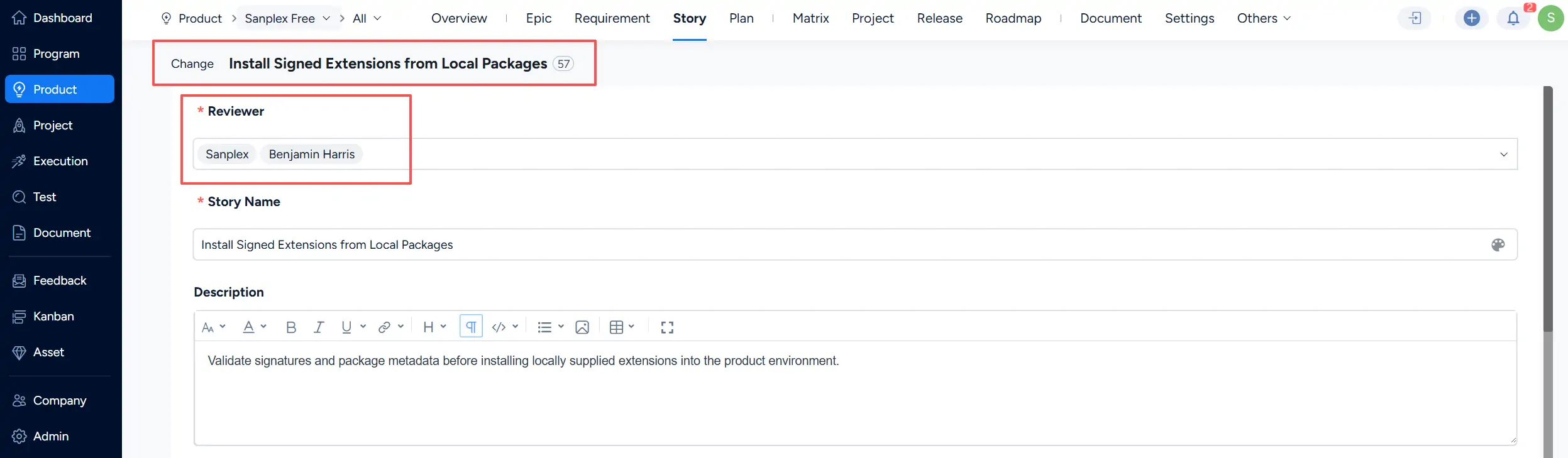
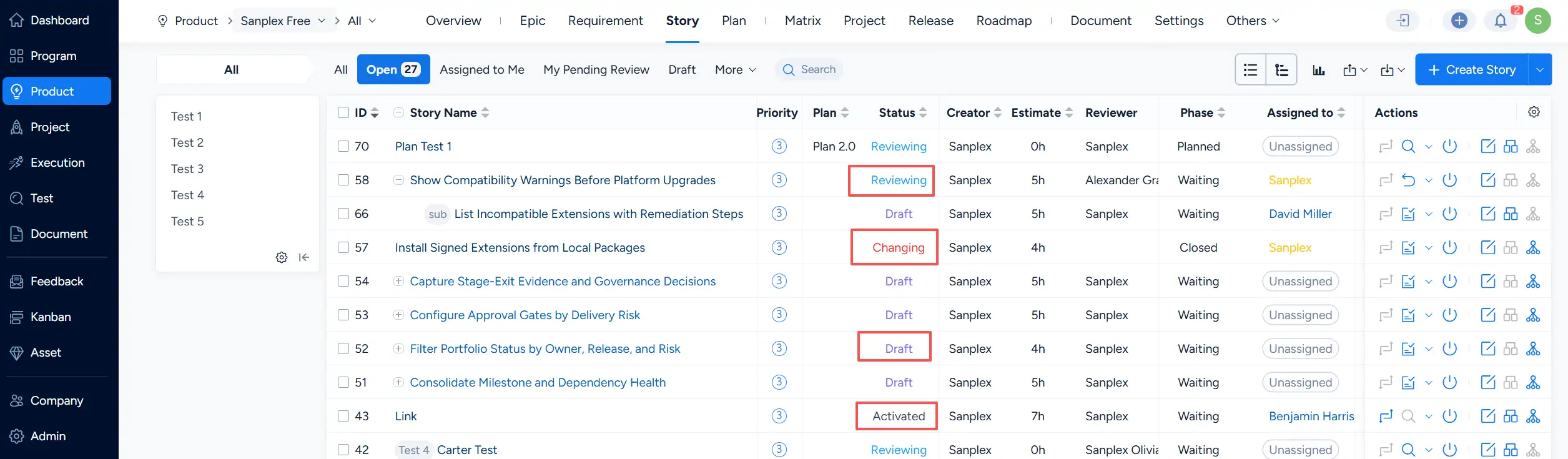
A Requirement change can be saved while it is being prepared, in which case the Requirement remains in Changing status. After the change is submitted for review, the status becomes Reviewing.
After the reviewers complete their reviews:
- If the change passes review, the Requirement returns to Activated status with the approved changes applied.
- If the final result is Revoke, the proposed change is revoked and the Requirement returns to its previous effective content and Activated status.
- If the final result is To Be Clarified, the Requirement returns to Changing status so that the change can be revised and submitted again.
V. Recall a Requirement Review
After a Requirement has been submitted for review, the review can be recalled when additional changes are needed before reviewers complete the process.
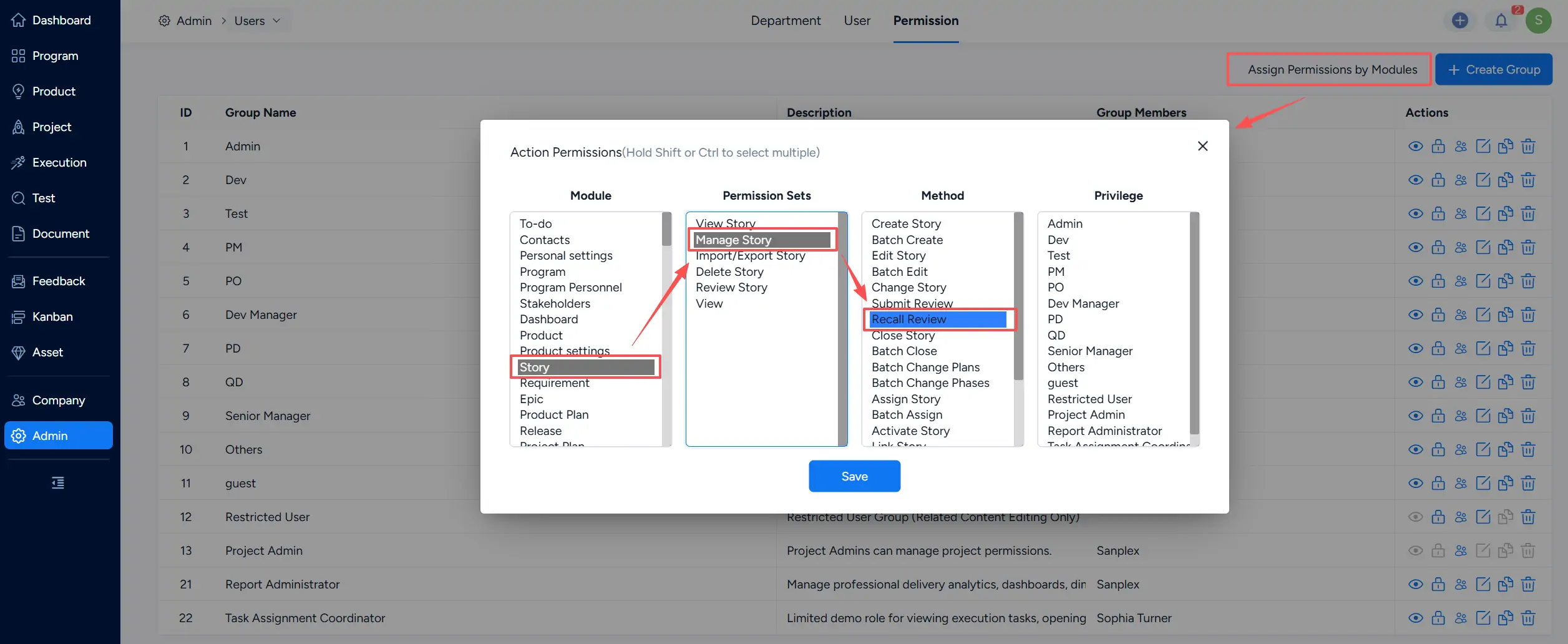
The Recall Review operation is controlled by permissions. To make this action available, configure the corresponding permission under Admin > Users > Permission.
For example, under the Story module, select the appropriate permission set and enable the Recall Review method for the required privilege groups.
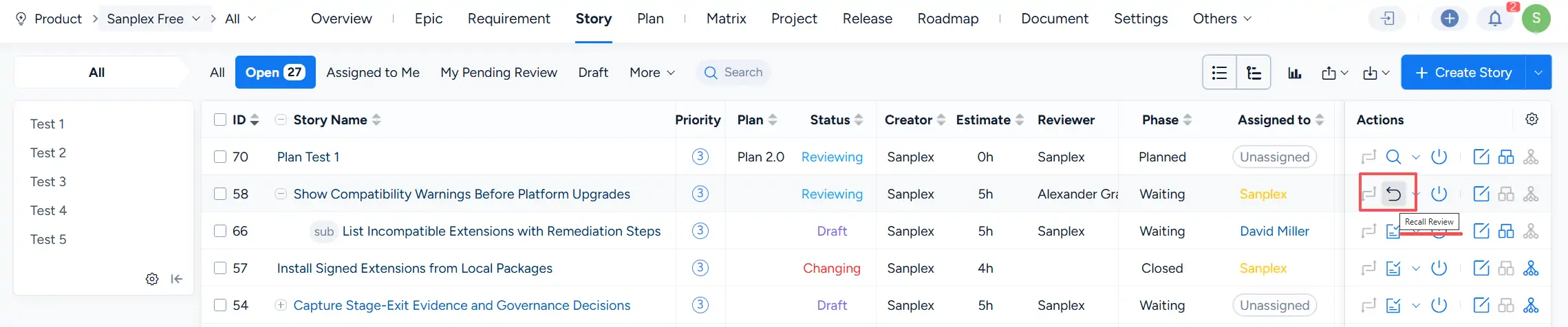
When a Requirement is in Reviewing status and the user has the required permission, the Recall Review action is available in the action column.
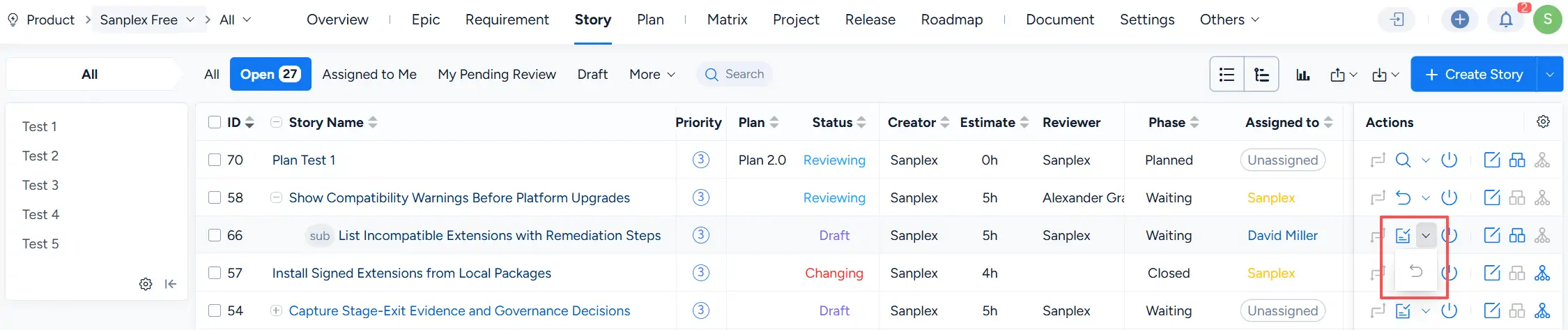
After the review is recalled, the available review actions are updated according to the Requirement's current state. The Requirement can then be revised and submitted for review again when ready.
The Requirement history records review recalls and subsequent review or change activities, providing a chronological record of the review process.