

Catalog
Overview
The Agent module now includes Skill management to help users make better use of AI and improve productivity.
- My Skills: Manage all Skills you personally own, including Skills you created and Skills added from the Skill Hub. During AI conversations, Skills in "My Skills" are used by default to help provide answers more efficiently.
- Skill Hub: A public hub where you can browse and add Skills shared by other users. Skills in the Skill Hub can also be invoked by Agents.
Use Cases
Personalized AI conversation assistance: When interacting with the AI assistant in daily work, you do not need to manually specify or re-enter complex prompts each time. The system automatically identifies your intent and invokes relevant Skills from "My Skills" by default.
Enhanced Agent capabilities: When building or configuring an Agent for a specific business scenario, you can directly reference public Skills from the Skill Hub This immediately improves the Agent's expertise and significantly shortens the time required to build it.
Discover high-quality Skills: You can browse the Skill Hub and add Skills to My Skills. You can also publish Skills you have found especially useful to the Skill Hub for use across the organization.
1. My Skills
Use the My Skills page to manage all Skills associated with your personal AI conversations. When you converse with AI, the system identifies the Skills needed from My Skills by default to help generate answers.
1. Skill List and Statuses
-
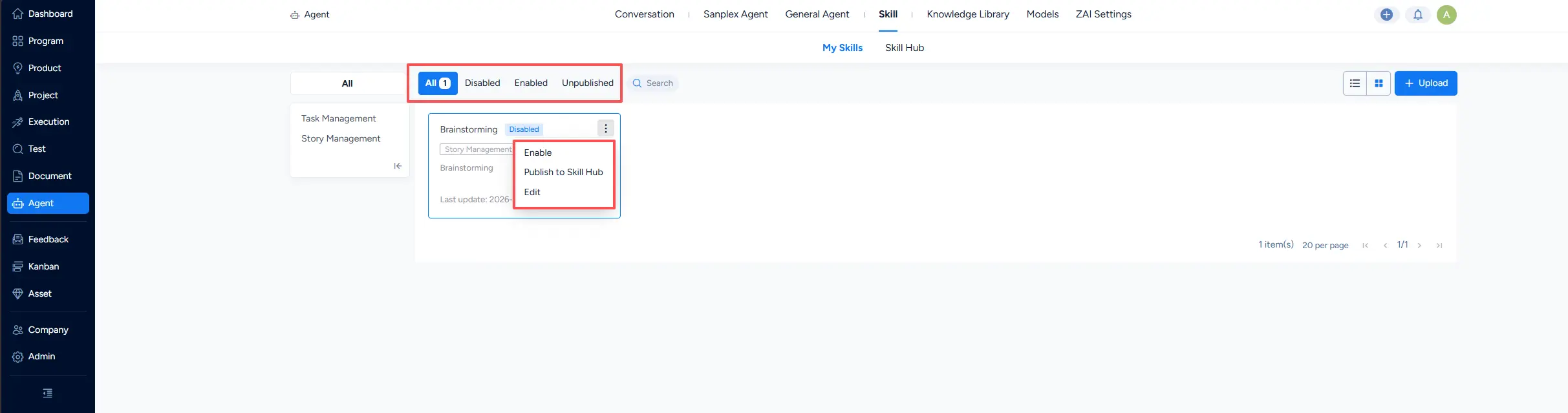
List tabs: Quickly filter Skills by status: All, Enabled, Disabled, and Unpublished.
-
Skill status descriptions:
- Enabled: The Skill is available and can be used in conversations.
- Disabled: The Skill is temporarily unavailable but has not been deleted. You can re-enable it when needed.
- Unpublished: Applies only to Skills you added from the Skill Hub. It indicates that the original author or an administrator has unpublished the Skill from the Skill Hub. Although the Skill remains in My Skills, its functionality may be affected.
2. Skill Types and Available Actions
Skills in My Skills are divided into two types based on their source, and the actions available for each type differ.
| Skill Source | Skill Status | Available Actions |
|---|---|---|
| Skills I uploaded | Enabled / Disabled | Edit, Enable/Disable, Delete, Publish to Skill Hub |
| Skills added from the Hub (including Skills I uploaded to the Hub) | Enabled / Disabled / Unpublished | Enable/Disable, Remove |
Action descriptions:
- Upload: Upload a Skill. Currently, only ZIP files are supported, and the ZIP file must include a
skill.mdfile. - Edit: Modify core Skill content, such as its name, description, and conversation logic. Only the original author of the Skill has this permission.
- Enable/Disable: Switch the availability status of a Skill. When a Skill is enabled, AI can automatically identify intent and invoke applicable Skills during personal AI conversations.
- Delete: Permanently delete a Skill that you uploaded.
- Publish to Skill Hub: Publish a private Skill to the Skill Hub for all users. Once published, the Skill becomes a public asset. Both you and administrators have maintenance permissions, including editing, publishing/unpublishing, and deleting it, but these actions must be performed in the Skill Hub.
- Remove: Applies only to Skills added from the Hu. Removes the Skill from your personal list without affecting its status in the Skill Hub.
2. Skill Hub
Use the Skill Hub to explore and access public Skills published by other users or administrators.
1. Skill List and Statuses
-
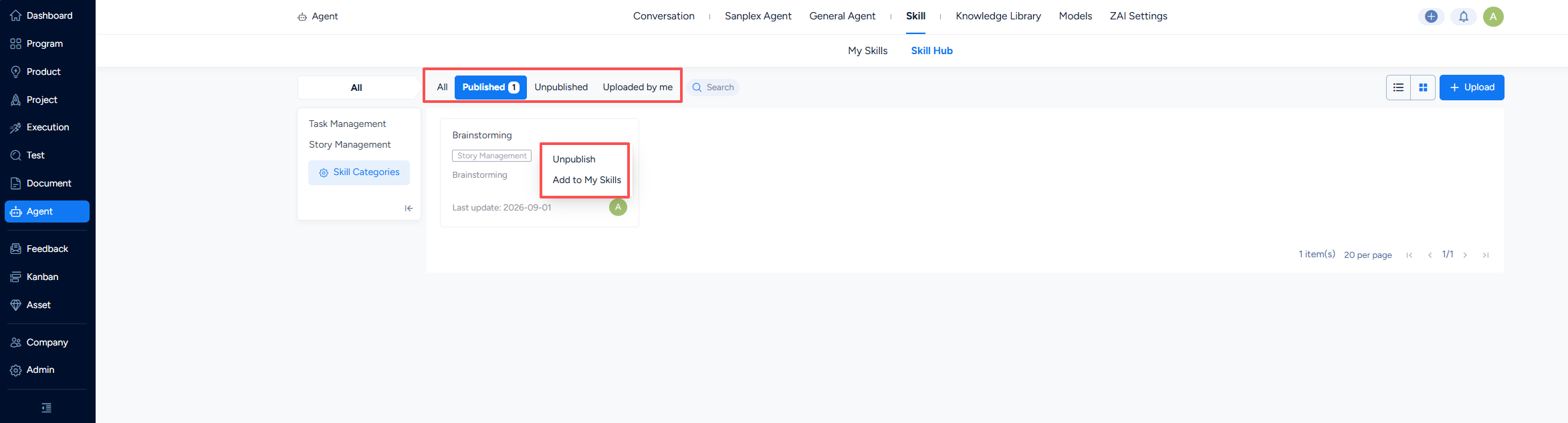
List tabs: Quickly filter Skills by status: All, Published, and Unpublished.
-
Skill status descriptions:
- Published: The Skill is available and can be added directly to your own Skill library.
- Unpublished: The Skill has been temporarily unpublished by its original author or an administrator and cannot be added to your personal library.
2. Skill Sources and Available Actions
The actions you can perform on Skills in the Skill Hub vary according to the publisher.
| Skill Source | Available Actions |
|---|---|
| Skills I published to the Hub | Edit, Publish/Unpublish, Delete, Add to My Skills |
| Skills published to the Hub by others | Add to My Skills |
| Administrators can maintain all Skills | Edit, Publish/Unpublish, Delete, Add to My Skills |
Action descriptions:
- Upload: Upload a Skill. Currently, only ZIP files are supported, and the ZIP file must include a
skill.mdfile. - Edit: Modify any Skill content. Only the original author and administrators have this permission.
- Publish/Unpublish: Switch a Skill's public visibility in the Hub. Only the original author and administrators have this permission.
- Delete: Permanently delete the Skill from the Skill Hub. Only the original author and administrators have this permission.
- Add to My Skills: Add the public Skill to your personal My Skills list for use in conversations.
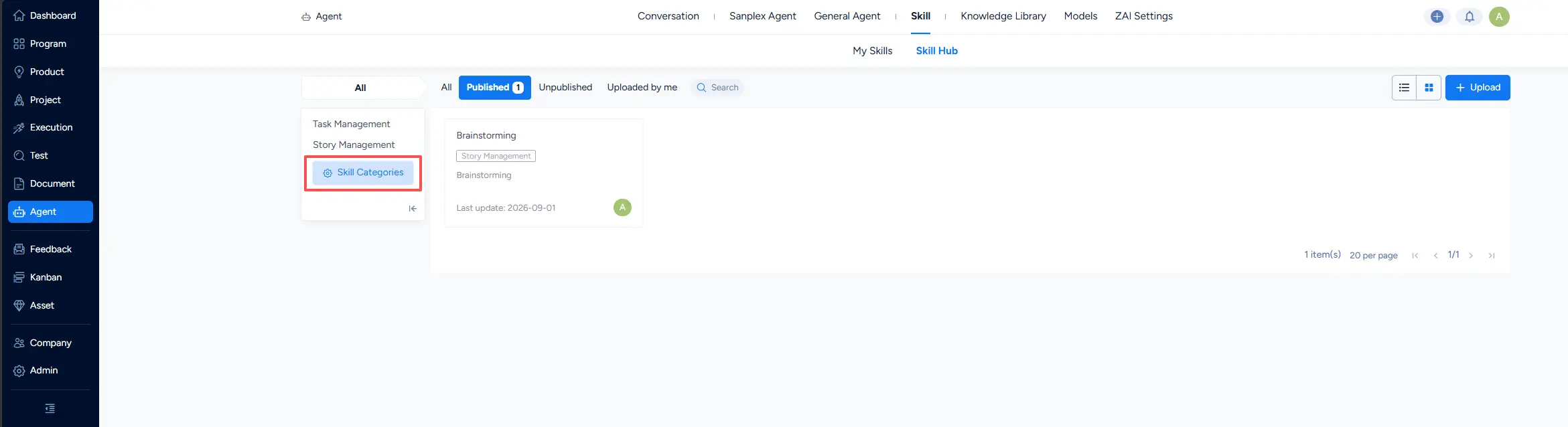
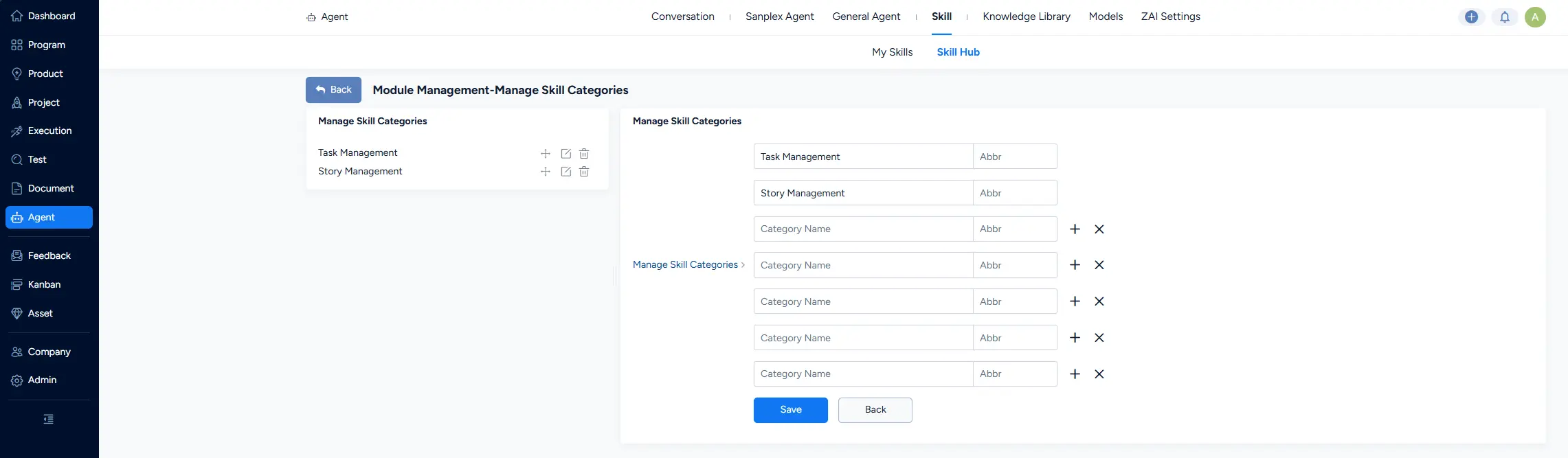
- Skill Categories: Skill Hub administrators with the required permissions can manage categories. Only top-level categories can be maintained. My Skills uses the same categories.
3. Invoking Skills in AI Conversations
You can invoke Skills in the AI conversation panel below. My Skills is displayed by default. To use more Skills, you can also select them from the Skill Hub. After use, the selected Skill is also added to My Skills.
Additional notes:
- Data scope: Only enabled Skills are displayed.
- Only one Skill can be selected per conversation.
4. Sanplex Agents Can Attach Skills
When administrators configure a Sanplex Agent, they can also attach Skills. Once attached, the Agent invokes attached Skills as needed based on the conversation. For details, see Sanplex Agent.


