Catalog
Feature Overview
A Test Request helps the Test team organize and track testing activities for a build. By linking relevant test cases to a test request, testers can execute cases, record results, and monitor testing progress in a structured workflow.
Typical Use Scenarios
- Build Testing Management: After a build is ready for validation, the Test team can create a test request to organize the testing work associated with that build.
- Test Case Execution: Testers can link relevant test cases to a test request, execute them, and record the results.
- Test Progress Tracking: The Test Lead can review the current status of test requests and use the request list to track ongoing testing activities.
In Sanplex, a typical workflow is:
Create Build → Submit Test Request → Link Test Cases → Execute Test Cases → Generate Test Report
I. Submit a Test Request
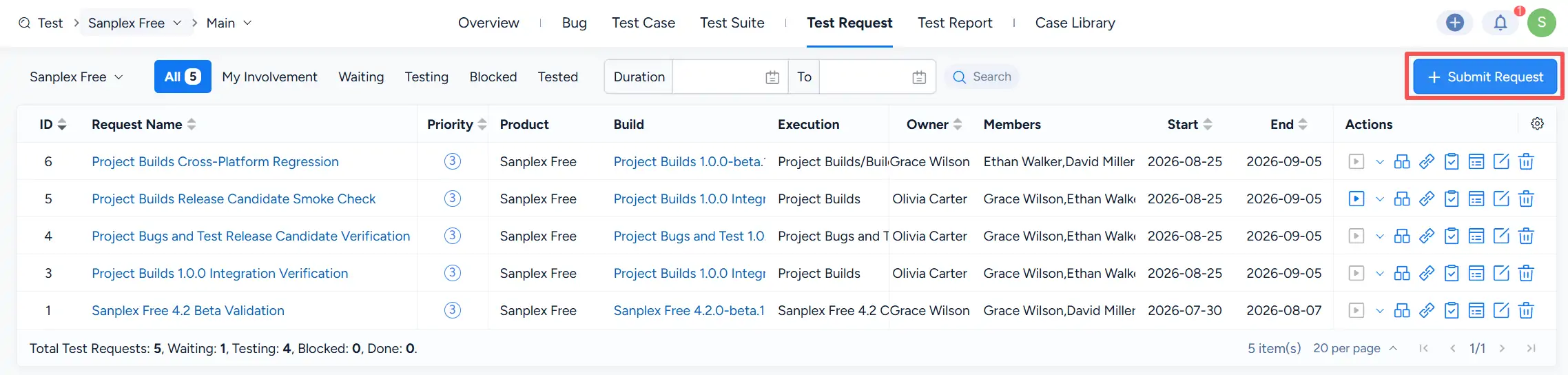
Go to Test > Test Request and click Submit Request in the upper-right corner to create a new test request.
II. Link Test Cases
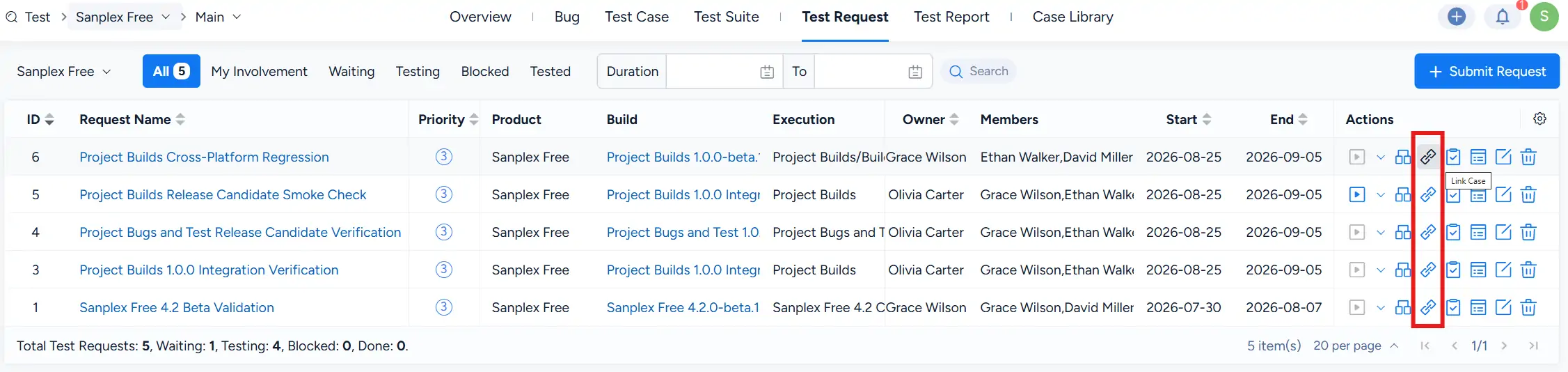
After creating a test request, use Link Case in the Actions column to associate relevant test cases with the request.
III. Execute Test Cases and Track Test Request Status
After test cases are linked, execute the relevant cases and record their test results.
The Test Request list displays the current request status in the Status column. For example, the list may show statuses such as Waiting or Doing. You can also use the status filters at the top of the page, including Waiting, Testing, Blocked, and Tested, to locate requests by their current testing state.
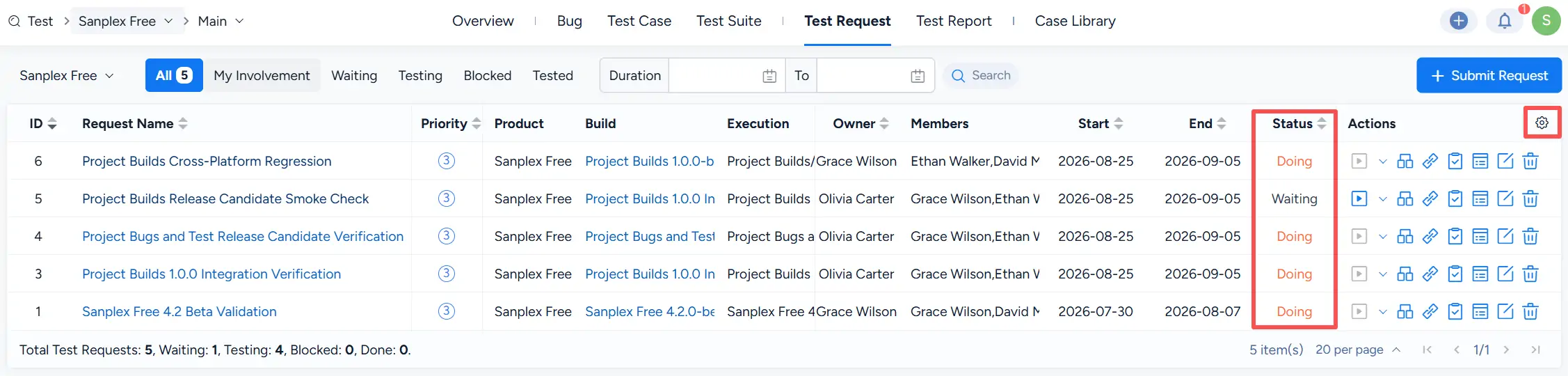
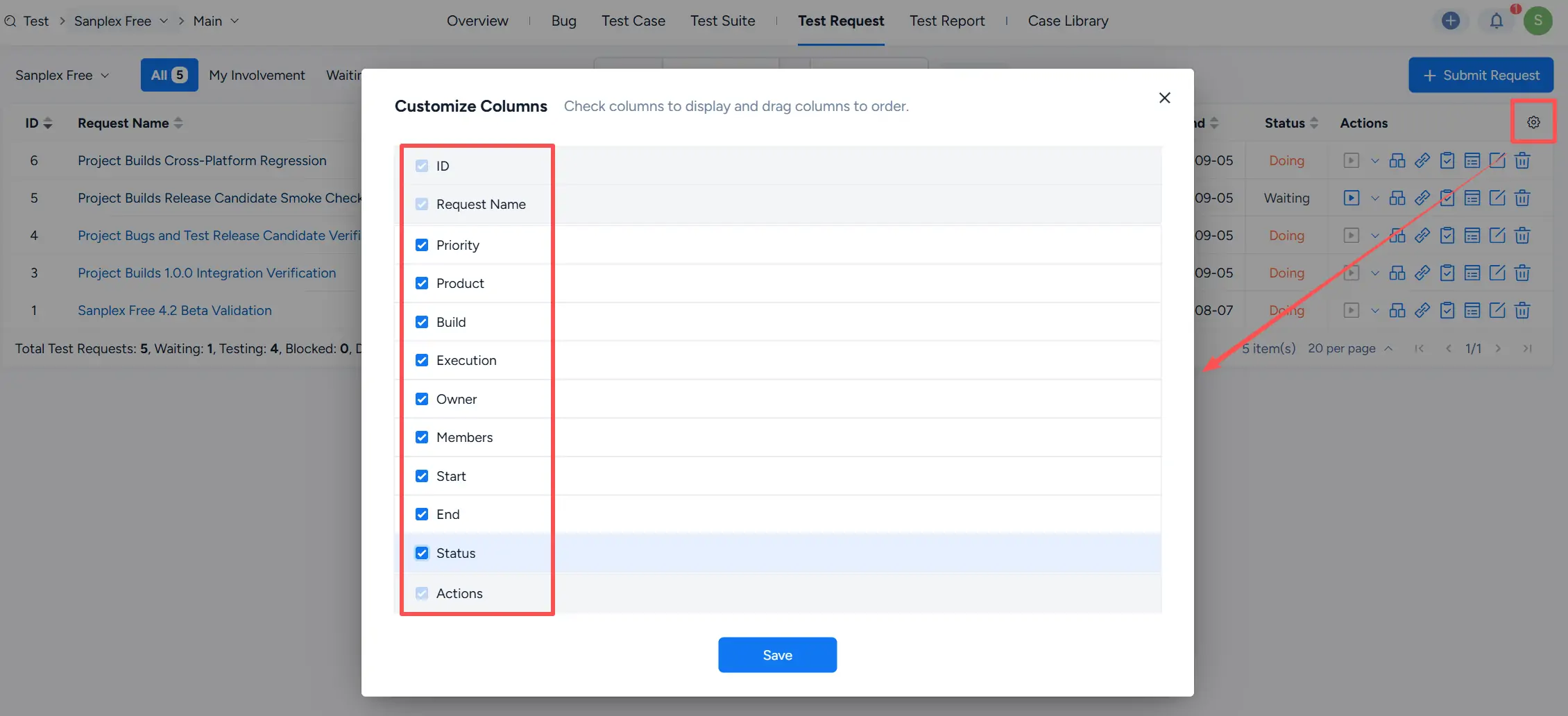
Note: If the Status column is not displayed, click the Customize Columns icon on the right and select Status to show it in the list.