Execution
1. Introduction of Sanplex features
1.1. Core Management Framework
1.1.1 Program
1.1.2 Project
1.1.3 Product
1.1.4 Execution
1.1.5 Management Models
1.2. Dashboard
1.2.1 Getting Started with Tutorials
1.2.2 Quick Add
1.2.3 Notification Center
1.2.4 Effort Tracking
1.2.5 Dashboard - Project and Execution
1.2.6 Dashboard - My Work, Contribution, and Recents
1.2.7 Dashboard - Approval
1.2.8 Contacts
1.3. Program
1.3.1 Program List
1.3.2 Program Kanban
1.3.3 Create Program
1.3.4 Create Sub-Programs
1.3.5 Project Charter Management
1.4. Product
1.4.1 Create Product
1.4.2 Manage Modules
1.4.3 Multi-Branch and Multi-Platform Management
1.4.4 Manage Plans
1.4.5 Manage Requirements
1.4.6 Requirement Reviews
1.4.7 Requirement Status and Phase
1.4.8 Create Releases
1.4.9 Track Progress
1.4.10 Business Requirements and Multi-Level Requirements
1.5. Project
1.5.1 Scrum Project
1.5.2. Waterfall Project
1.5.2.1 Manage Project Phases
1.5.2.2 Project Design
1.5.2.3 Project Matrix
1.5.2.4 Project Reports and Earned Value Management
1.5.2.5 Project Baselines
1.5.2.6 Project Change
1.5.3. Kanban Project
1.5.3.1 Set Up Kanban Projects
1.5.3.2 Configure Kanban Boards
1.5.3.3 Use Kanban Boards
1.5.4 Hybrid Agile Project
1.5.5 Hybrid Waterfall Project
1.5.6. Project Settings
1.5.6.1 Project Setup
1.5.6.2 Project Executions
1.5.6.3 Project Requirements
1.5.6.4 Project Builds
1.5.6.5 Project Tests
1.5.6.6 Project Docs
1.5.6.7 Project Releases
1.5.6.8 Project Reports
1.5.6.9 Project Risks
1.5.6.10 Project Issues
1.5.6.11 Project Opportunities
1.5.6.12 Project Deliverables
1.5.6.13 Project Reviews
1.5.6.14 Project Process
1.5.6.15 Deliverables
1.5.6.16 Quality Assurance
1.5.6.17 Project-specific Workflow Management
1.5.7 Project Templates
1.6. Execution
1.6.1 Product Planning and Task Breakdown
1.6.2 Task Assignment and Daily Tracking
1.6.3 Build Creation and Test Requests
1.6.4 Bug Confirmation and Resolution
1.7. Admin Settings
1.8. Workflow

Task Assignment and Daily Tracking

2026-09-20 15:12:06
Sanplex Content
345
Last edited by Jing WANG on 2026-09-20 15:21:34
Share links
Summary: Learn how to assign and reassign tasks, view tasks in My Work, update task status, and record daily effort using Cost and Left values.

After tasks have been broken down for a project or execution, team members can take ownership of tasks and begin their daily work.

During execution, team members should keep task assignments, status, and effort information up to date so that project progress remains visible and traceable.

I. Assign Tasks

Following collaborative delivery practices, team members can take ownership of appropriate tasks, while the Project/Execution Lead can coordinate assignments when needed.

In Sanplex, a task can be assigned or reassigned through the Assign or Edit actions.

1. Assign a Task

In the task list, use the Assigned to field to assign a task or change its assignee.
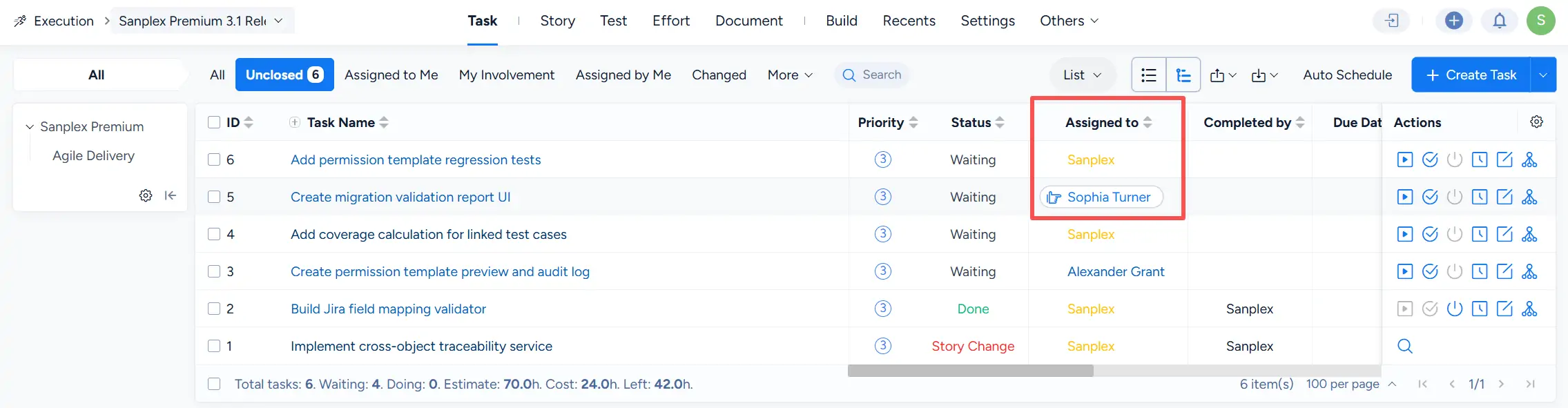
Task list showing the Assigned to column, with a task assigned to Sophia Turner.

On the task details page, click Assign in the action bar.
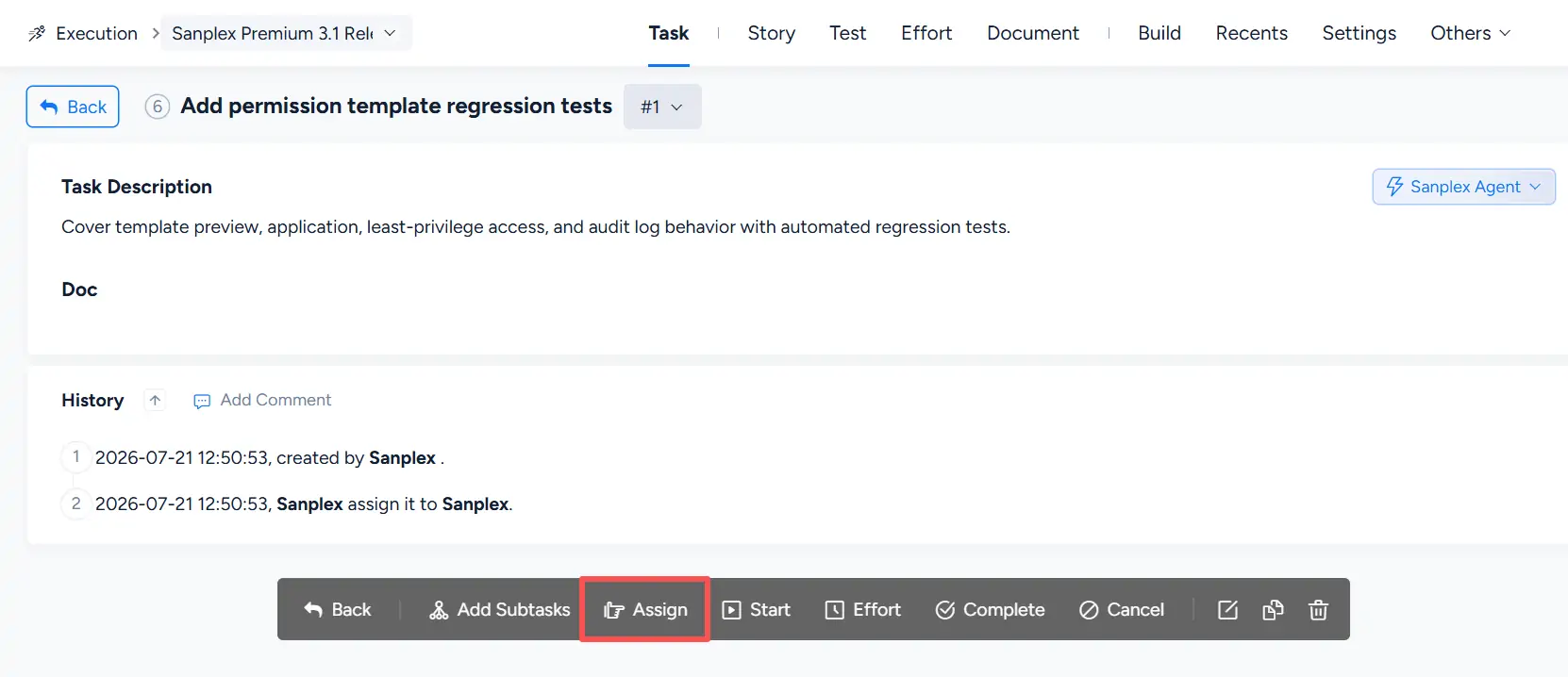
Task details page showing the Assign action highlighted in the bottom action bar.

In the Assign Task dialog, select a project or execution team member from the Assigned to field.
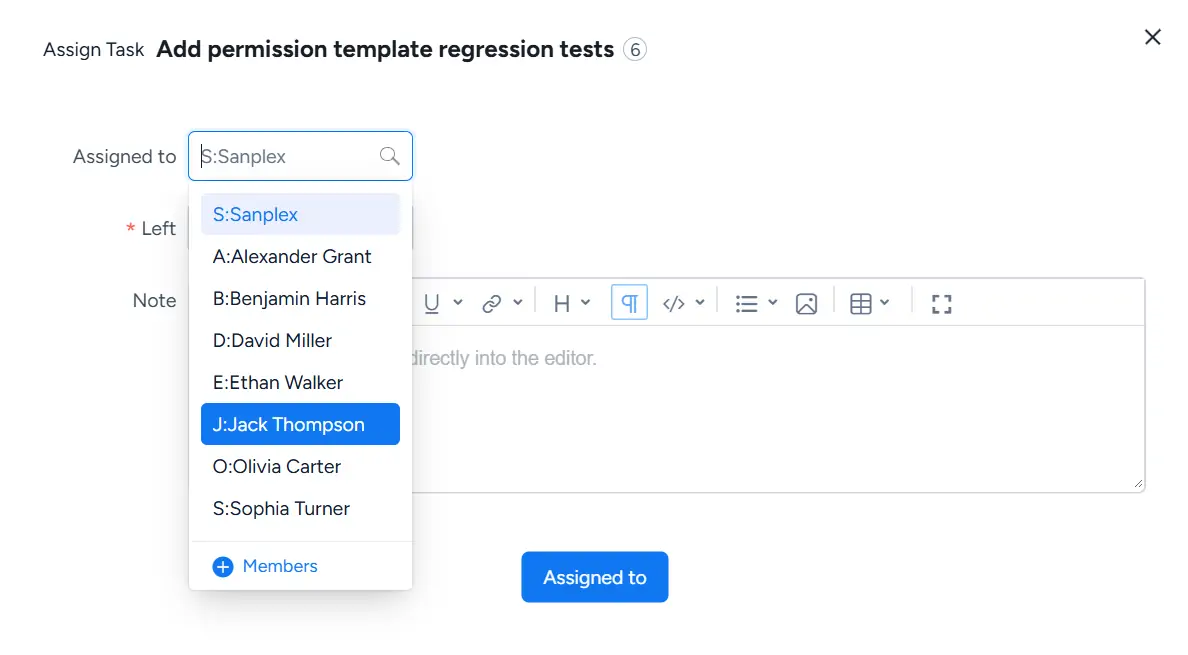
Assign Task dialog showing the Assigned to dropdown with available team members.

2. Edit a Task

You can also click Edit in the task list to open the task edit page.
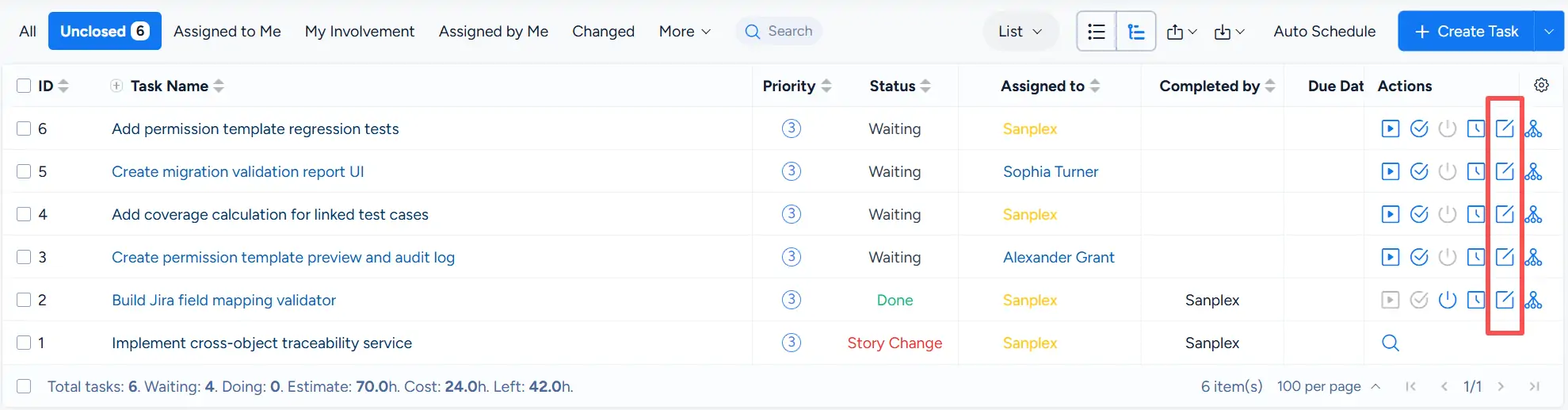
Task list showing the Edit action highlighted in the Actions column.

On the task edit page, use the Assigned to field under Basic Info to select or change the assignee.
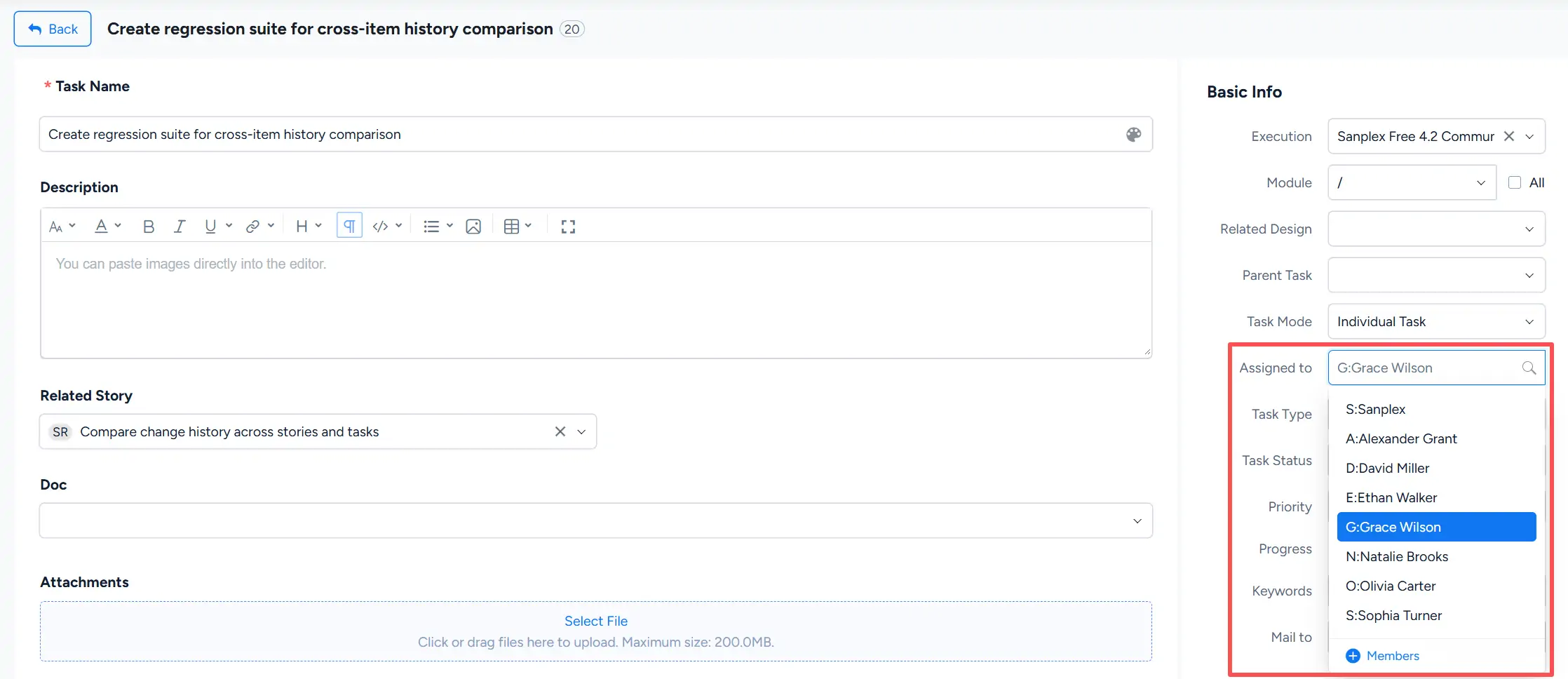
Task edit page showing the Assigned to dropdown expanded under Basic Info with available team members.

To focus on your own tasks, click Assigned to Me in the task list.

Execution task list filtered by Assigned to Me, showing tasks assigned to the current user.

You can also view tasks assigned to you from Dashboard > My Work > Task.
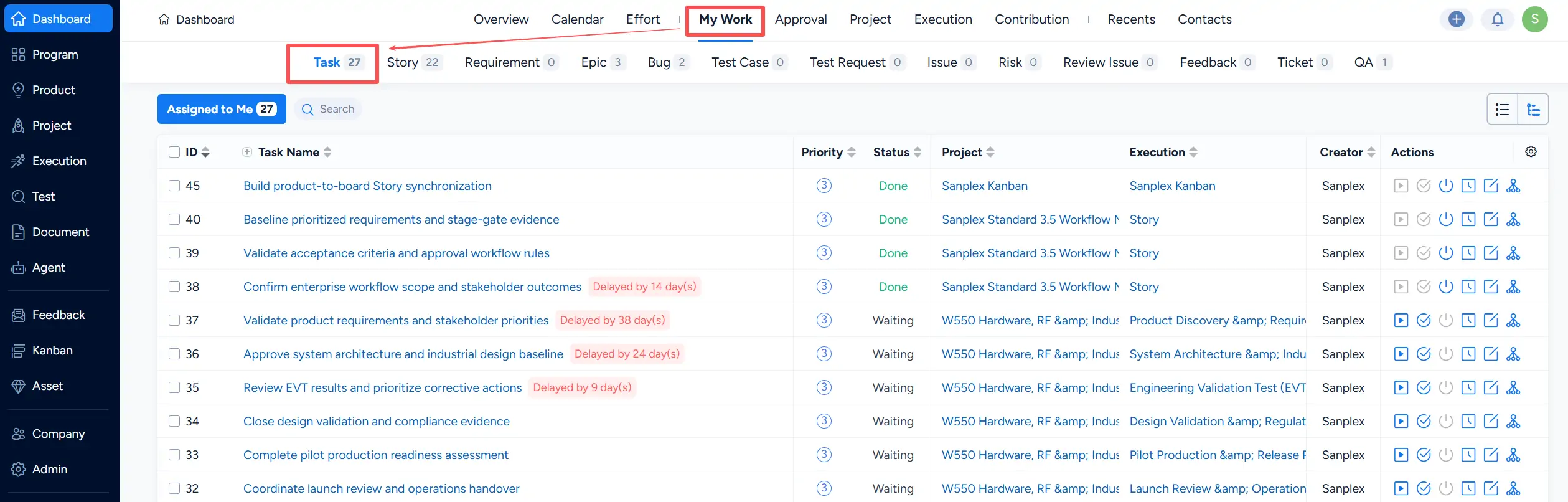
Dashboard My Work page with the Task tab selected and tasks assigned to the current user listed below.

II. Update Task Status

During project or execution work, team members should keep the status of their assigned tasks up to date.

The available task actions depend on the current task status. From the task list or task details page, users can perform actions such as Start, Complete, and Cancel as applicable.

Keeping task status current helps the team understand which tasks are waiting, in progress, or completed.

III. Log Task Effort

In addition to updating task status, team members should record effort regularly.

Click the Effort action in the task list to open the effort entry dialog.
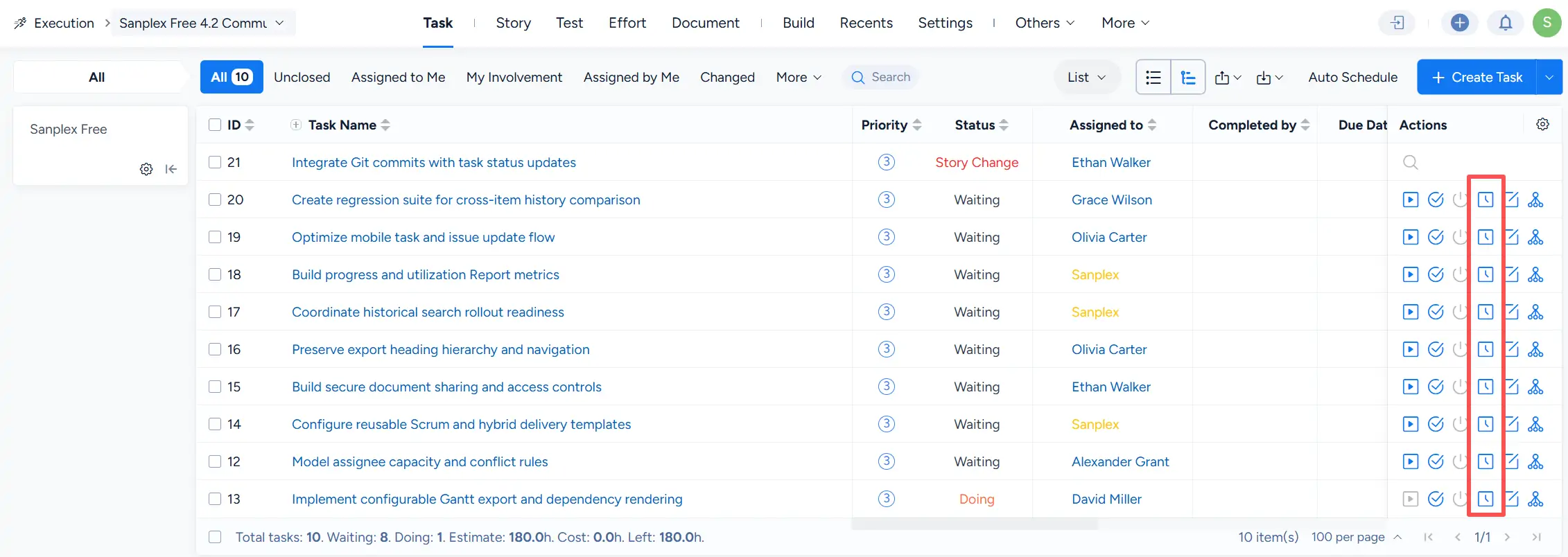
Execution task list showing the Effort action highlighted for multiple tasks in the Actions column.

The Add Effort dialog displays the task's Estimated effort and Total Cost. For each effort entry, complete the following fields:

  • Date: The date on which the work was performed.
  • Work: A brief description of the work completed.
  • Cost(h): The amount of effort consumed.
  • Left(h): The estimated effort remaining for the task.

You can add multiple effort entries before saving.
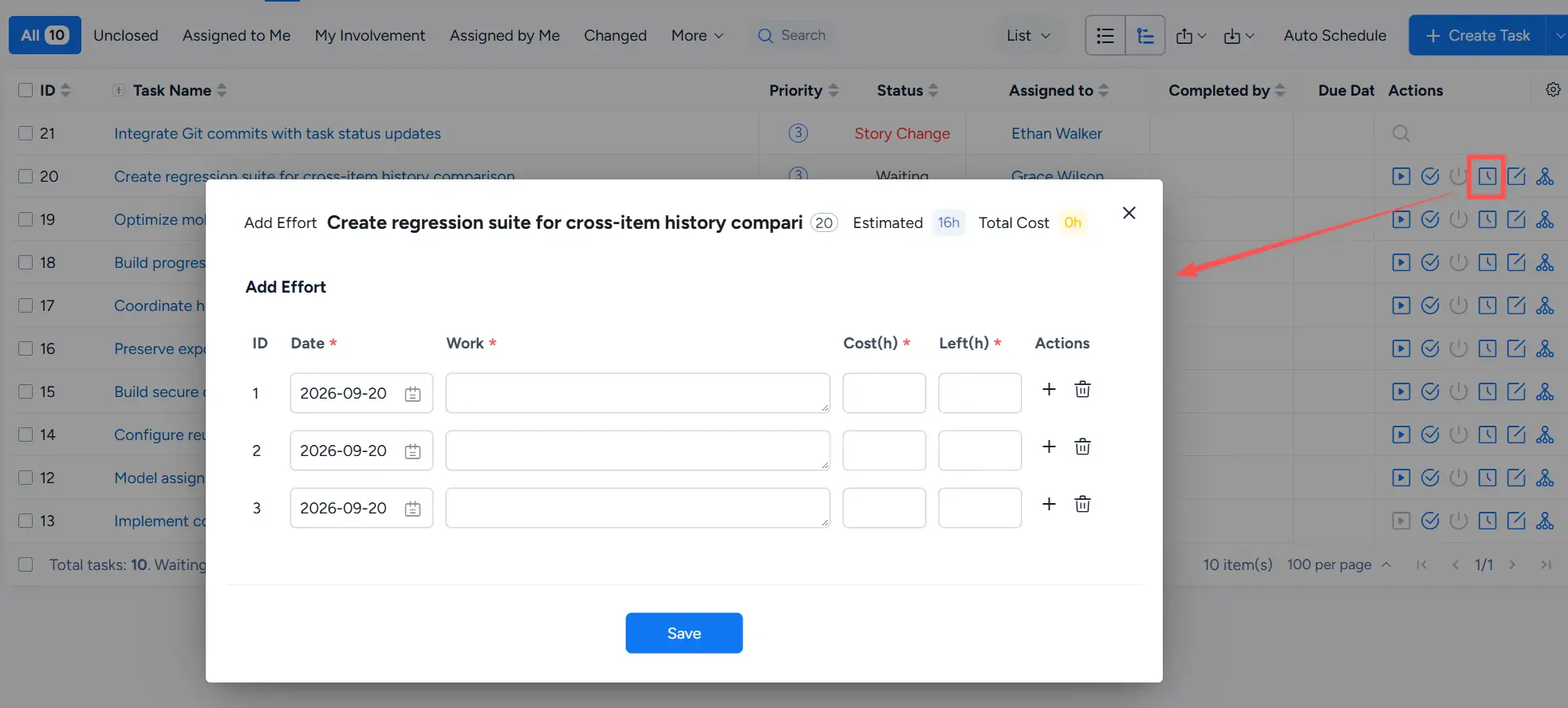
Add Effort dialog showing the task estimate and total cost, with fields for Date, Work, Cost(h), Left(h), and Actions.

The task list also summarizes Estimate, Cost, and Left values, helping teams track planned effort, consumed effort, and remaining work.

Write a Comment
Comment will be posted after it is reviewed.